You spent weeks building your content. You invested in a decent mic, learned your editing software, and finally got your streaming schedule dialled in. Then you open your channel VOD and the first thing you notice is the one thing you forgot to fix: how you look on camera.
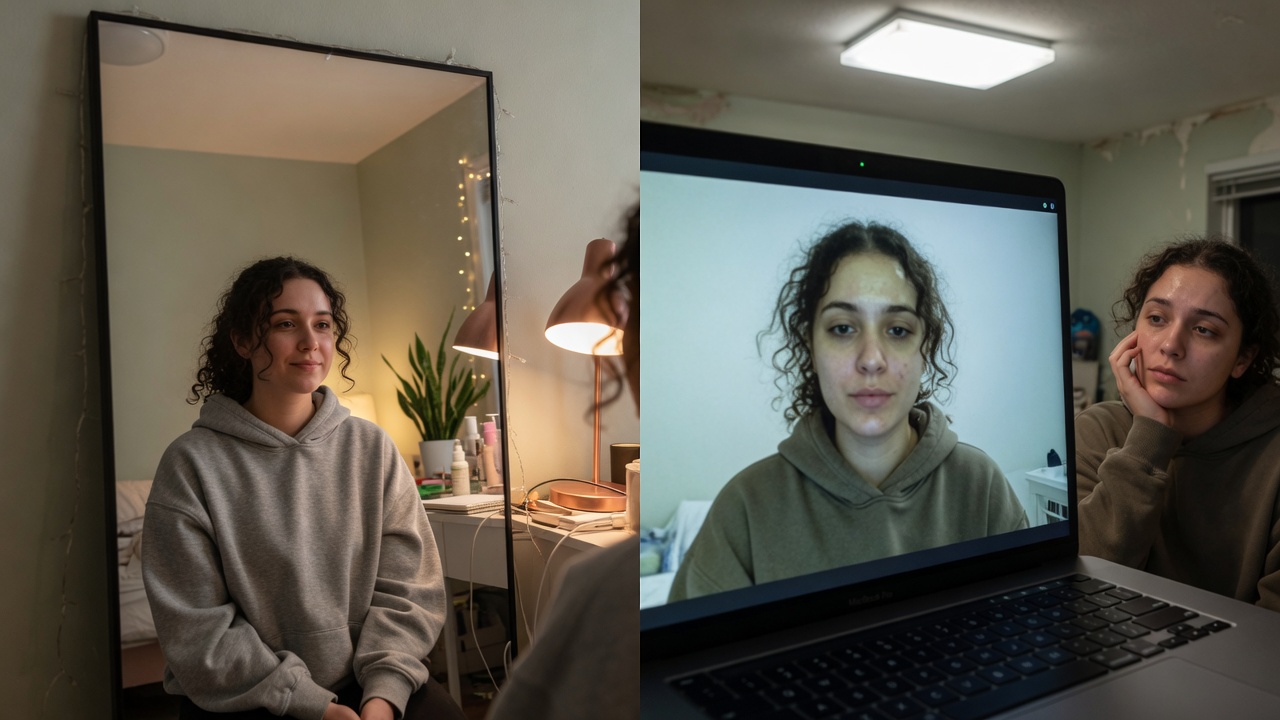
Harsh overhead lighting washing you out. A complexion that reads as grey or patchy under your ring light. Tired eyes at a Saturday 9 PM stream. None of it matches the polished thumbnails you work so hard to produce.
The instinct is to buy more gear — a better key light, a camera upgrade, maybe a professional ring light with a diffuser. But there is a faster, cheaper, and far less permanent fix that hundreds of creators have already discovered: a real-time webcam beauty filter that works inside your existing broadcast setup, no hardware swap required.
1.The Gap Between How You Look in Real Life and How the Webcam Sees You
Webcams are unforgiving in a way that even a budget DSLR is not. They compress dynamic range, struggle with mixed colour temperatures, and flatten skin tone in ways that no amount of post-processing your final export can undo — because you are live.
Most streaming advice tells you to fix this at the hardware level. Better camera, softboxes, colour-correct key light. That advice is not wrong, but it is expensive and takes up physical space. If you stream from a bedroom, a shared apartment, or a home office that doubles as something else, you do not always have the luxury of a permanent studio footprint.
What you actually need is a software layer that sits between your webcam and your call — something that quietly makes you look your best the moment you go live on a webinar, a community call, or a guest appearance.
2.What a Real-Time Webcam Filter Actually Does for Creators
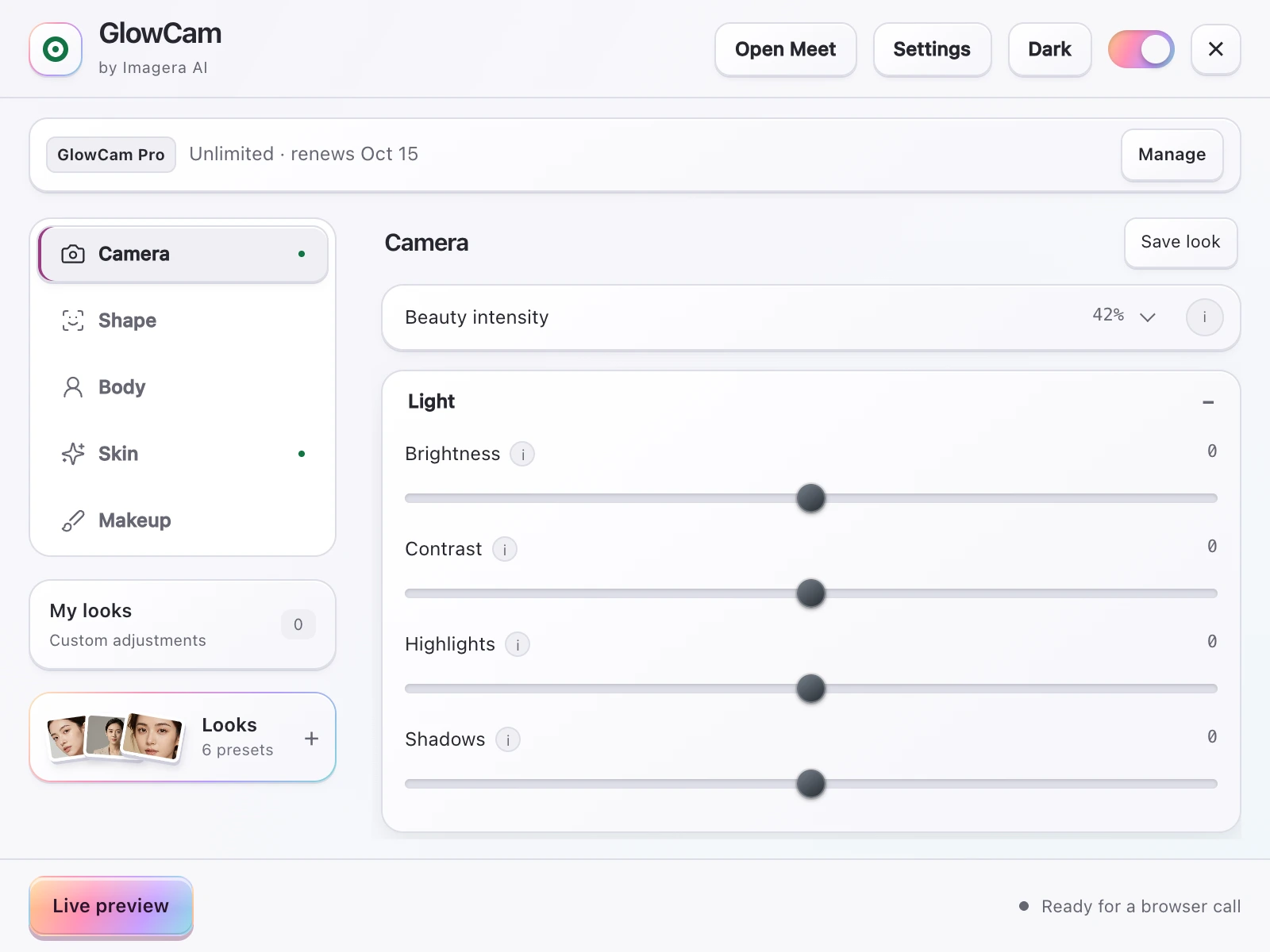
GlowCam is a Chrome extension that applies real-time beauty filtering to your webcam feed, right inside your browser — no separate app and no virtual camera to install. It works across the browser platforms where creators host webinars, community calls, workshops, and guest appearances: Google Meet, Zoom, Microsoft Teams, Webex, Whereby, and Discord. The moment you join, your outgoing camera is enhanced — so you look your best from the first second you appear on screen.
In practical terms, here is what changes when you turn it on:
Skin smoothing and evening. The kind of texture and redness that a ring light amplifies gets softened without looking airbrushed or plasticky. You still look like you — just rested and well-lit.
Makeup overlay. If you do not wear makeup on stream, or do not have time to put a full face on before going live at 8 PM after work, GlowCam lets you dial in subtle eye brightening, blush, teeth whitening, and lip colour that reads naturally on camera. If you do wear makeup, it enhances rather than competes.
Background blur and replacement. No greenscreen needed. Whether your background is a bookshelf, a door, or the general chaos of a shared space, you can blur it or replace it entirely. This alone changes your production value more than most viewers consciously notice — but they do notice.
Hair colour accent (Pro). Pro subscribers can add colour tints to their hair, which is a surprisingly popular creative touch for streamers building a visual identity around a specific aesthetic.
All of this runs on your own computer. Your video is never uploaded anywhere. You keep full control.
3.Browser Streaming vs OBS Rigs — Where GlowCam Actually Fits
Before you install anything, it helps to know exactly which part of a creator's workflow GlowCam is designed for — because the answer is not "everything," and being honest about that is more useful than overselling it.
OBS Studio (and Streamlabs OBS) is the standard rig for Twitch and YouTube Live broadcasts. OBS captures sources, applies scene transitions, and pushes a composed output to a streaming server via RTMP. It does have a Virtual Camera feature that can pipe your OBS scene into a browser-based platform, but that is a separate layer that adds complexity: you need OBS open and running before your call, and the virtual camera has had inconsistent recognition in Chrome-based tabs depending on driver versions and operating system.
GlowCam works at a different point in the chain. It is a Chrome extension that hooks directly into the browser's camera feed — no virtual camera, no secondary application, no output routing. This means it works natively and immediately inside the six platforms where browser-based streaming and video calls actually happen:
- Discord (Go Live in a browser voice channel or video call)
- Google Meet (community calls, podcast recordings, AMAs)
- Zoom (webinars, creator workshops, brand interviews)
- Microsoft Teams (brand partner calls, agency collaborations)
- Whereby and Webex (niche but common in media and education)
If your streaming is primarily browser-based — Discord community streams, webinar hosting, guest podcast appearances, or any session where you join a link in Chrome — GlowCam adds a real visual upgrade with zero additional setup.
If you run a full OBS production for Twitch or YouTube, GlowCam is not a replacement for your existing rig. The two tools live in different parts of the stack. That said, many OBS-first creators also host Discord community streams, run guest calls, and appear on other people's Zoom-based podcasts — and those are exactly the moments where GlowCam earns its keep alongside your main setup.
The practical takeaway: if any part of your creator workflow involves joining a call or stream in a Chrome tab, GlowCam works there. No conflict with OBS for your primary broadcasts.
4."Will It Look Fake?" — The Objection Every Creator Has First
This is the right question to ask. Nothing kills a stream's authenticity faster than a beauty filter that makes you look like a video game character. Your audience follows you, not a version of you that has been smoothed into uncanny valley territory.
GlowCam's filters are calibrated for natural, real-time output. The goal is not dramatic transformation — it is the difference between showing up on camera looking how you feel versus looking how you want your audience to see you. Think of it less like a Snapchat lens and more like a competent makeup artist and lighting technician sitting behind your camera rig.
The intensity of every effect is adjustable. Start with minimal smoothing and see how it reads. Most users land on a setting that their own viewers never consciously identify as a filter — they just notice that the creator "always looks good on camera."
5."What About Lag?" — Performance on a Creator's Machine
Real-time processing during a live call is a legitimate concern. Your machine may already be working hard running your browser, your call, and anything else you have open.
GlowCam is designed to run efficiently in the background. It does not require cloud processing — everything happens locally, which is also why your video stays private. On any machine capable of running a modern browser and streaming software simultaneously, the performance overhead is minimal.
If you are running an older or underpowered machine, start with the lighter filter settings. Skin smoothing and background blur are the least demanding; dial those in first before layering on additional effects.
6.Settings That Won't Tank Your Frame Rate
Frame rate consistency is non-negotiable when you are streaming or on a live call. A filter that cuts your camera from 30 fps to something choppy is worse than no filter at all — your audience reads frame drops as connection issues before they consider software as the cause.
Here is a practical settings order that keeps performance stable while still giving you a real visual improvement:
Start with one effect at a time. Open GlowCam's panel, enable skin smoothing only, and watch your camera preview for 30 seconds. If your feed is smooth at your normal browser load, move on.
Add background blur before background replacement. Background blur is computationally lighter than a full background replacement image or video. If you are on a machine that is already running a browser, a voice chat client, and any capture software, blur is the safer choice. Background replacement is excellent on mid-range and newer hardware; blur is your fallback on older machines.
Keep makeup effects at moderate intensity. The heavier you push teeth whitening and eye brightening in combination with skin smoothing, the more processing each frame requires. For streaming sessions longer than 90 minutes, dialling intensity to 60–70% rather than maximum gives you the visual result without sustained processing pressure.
Close non-essential browser tabs before going live. Every open tab with video content or active JavaScript competes for resources. GlowCam runs in the background efficiently, but on a machine at 80–90% CPU utilisation, closing two or three tabs makes a measurable difference.
Check your camera's native resolution setting. In Chrome's camera permissions, most webcams default to their maximum resolution. If your camera is set to 4K but your platform outputs at 1080p, your machine is doing unnecessary downscaling work before GlowCam even touches the frame. Setting your camera to 1080p in your system's camera settings removes that overhead.
Use the master on/off toggle when you step away. GlowCam's master switch pauses processing entirely while you are muted or off-camera. During long streams with Q&A breaks, toggling it off and on takes one click and keeps your machine cool during idle stretches.
7.The Creator Workflow: GlowCam in Practice
The setup takes under two minutes:
- Install GlowCam from the Chrome Web Store — the 7-day trial starts immediately, no credit card required.
- Open the browser tab for your webinar, community call, or guest appearance on Google Meet, Zoom, Microsoft Teams, Webex, Whereby, or Discord.
- Turn your camera on and toggle the effects you want in the GlowCam panel — skin, makeup, background, and (on Pro) hair colour.
- You are done. Everyone on the call sees your enhanced feed in real time, from the moment you join.
8.Dialling In Your Look as a Content Creator: A Practical Starting Point
Setting up GlowCam is fast, but getting the settings calibrated to your specific camera, lighting, and aesthetic takes a few minutes of deliberate tuning. Here is a starting point that works for most creator setups without requiring you to experiment blindly.
Match your filter intensity to your lighting, not your preference. If you stream in a well-lit room with a ring light or window light directly in front of you, your camera is already capturing you at its best. In that case, light skin smoothing (30–40%) and subtle eye brightening are all you need — more will look heavy on-screen. If your lighting is overhead, indirect, or inconsistent (common in apartments and home offices), you have more room to push smoothing and warmth corrections up toward 60–70%, because the filter is doing compensatory work the camera cannot.
Skin evening before skin smoothing. If your skin reads as patchy or uneven in tone under your current lighting, enable the skin evening control before you touch smoothing. Evening out tone first means you smooth a cleaner base rather than blending unevenness into the surface — the result looks more natural and requires less intensity overall.
For Discord community streams specifically: Your audience is watching in a small video tile, often at 720p. Fine adjustments in your filter will be invisible at that resolution. A moderate smoothing level, slight warmth increase, and background blur together make a larger combined difference than obsessing over any single slider. Dial in quickly and spend the rest of your setup time on your framing and lighting position.
Save your settings as a preset. GlowCam's preset feature lets you save your calibrated look — Natural, Meeting, Polished, or a custom saved look — so you are not re-dialling every session. For creators with multiple types of content (a more polished look for brand partnerships, a lighter touch for casual community streams), saving two named presets takes 90 seconds and saves the friction of reconfiguring before every session.
For more on the foundational setup — lighting angle, camera height, background framing — our how to look better on video calls guide covers those variables in detail. GlowCam handles the filter layer; that guide covers the physical environment that GlowCam works with.
You can read more about the general setup and appearance principles in our guide on how to look better on video calls, which covers lighting, framing, and camera angle fundamentals that work alongside any filter you apply.
Ready to test it on your next stream? Start your 7-day free trial today.
9.Why This Matters More for Creators Than for Corporate Call Users
In a business call, looking polished is a nicety. In content creation, your appearance is part of your brand.
Viewers make split-second decisions about whether to stay on a stream based on the visual quality of what they see. Audio quality matters deeply to viewers—missing it puts your entire production at risk, making visual consistency equally critical. A creator who looks crisp and consistent across their content signals production investment and professionalism, even when the rest of their setup is a single camera and a ring light.
This is also why professional-grade desktop camera filters (not novelty AR lenses) have become essential for creators building consistent visual brands. If you have been looking for a Snap Camera replacement that goes beyond novelty AR lenses and focuses on serious production quality, GlowCam is built for creators who need professional-grade filtering without novelty AR effects.
10.Pricing That Makes Sense for Creators
Streaming and content creation have a thousand competing line items. GlowCam is priced not to add another significant one.
The annual plan ($249.99/year) works out to roughly $0.68 per day, or choose month-to-month at $24.99 — less than the cost of a YouTube Premium subscription, and a fraction of what most creators spend on thumbnail design or clip editing tools. Month-to-month is available at $24.99 if you want to test it against your content schedule before committing annually.
The 7-day trial includes skin smoothing, makeup overlay, and background features — enough to run it on real streams and judge the output yourself before spending a dollar.
11.Your Next Stream Is the Test
The most persuasive argument for any creator tool is the one you can run yourself in your own environment with your own face on your own camera.
Install GlowCam, open your next stream or recording session, dial in the settings over five minutes, and compare the before and after. That gap — between how your webcam currently captures you and how you look with GlowCam running — is the entire pitch.
Start your 7-day trial now: Install GlowCam from the Chrome Web Store
No credit card. Cancel anytime. Your video stays on your machine, always.