How to Look Professional on Sales and Client Video Calls (Zoom, Meet, and Teams) is a practical Imagera workflow: start from a real source file, describe what should change, generate with credits shown up front, and review before you publish. This guide covers the steps, quality checks, and when to use related tools.
You have fifteen seconds.
That is roughly how long it takes a prospect to form a first impression on a video call — buyers start making judgements about your credibility, trustworthiness, and competence before you have finished your opening sentence. Lighting, framing, and how your skin reads on a compressed video stream all feed into that snap verdict.
This is the uncomfortable truth about selling over video: the call starts before you say a word.
For sales professionals, account executives, consultants, and freelancers who live and die by client relationships, that first frame matters as much as your slide deck.

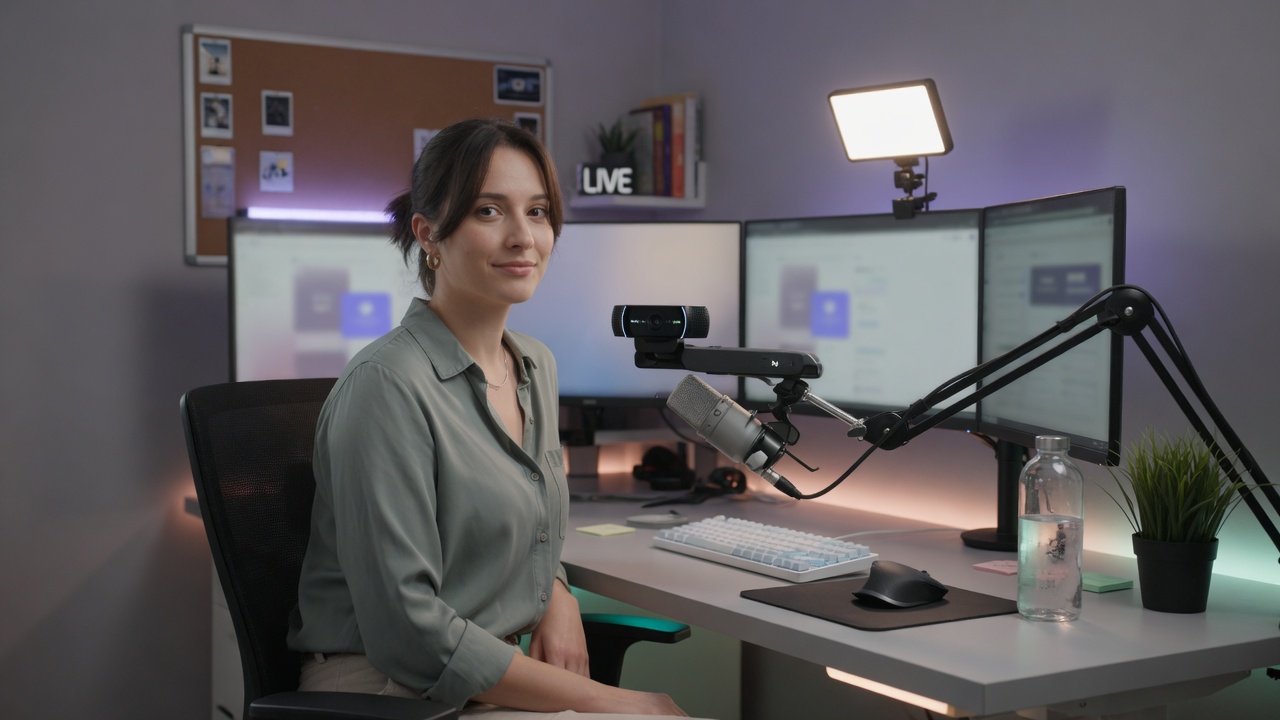
Confident multi-person client call look.
Yet most people still show up to a discovery call or product demo looking like a grainy, shadowed thumbnail of themselves — and wonder why the energy never quite clicks.
This guide covers the controllable variables that shape how you look and come across on client calls, and introduces one tool that solves the hardest problem on the list with zero setup.
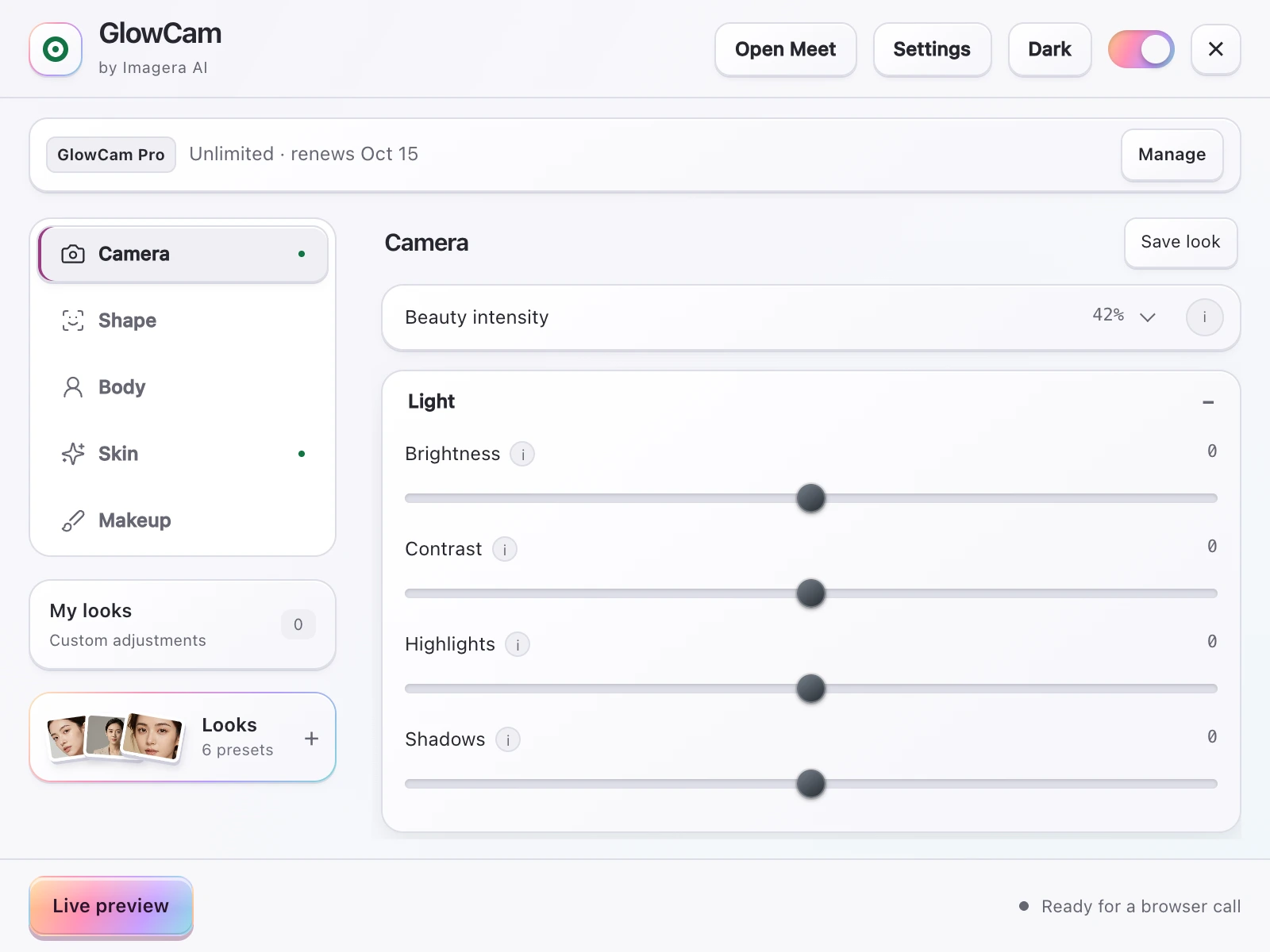
Screenshot of the GlowCam extension's controls. The filter runs on your own device, inside the browser tab of your call.
Quick answer: To look professional on sales and client video calls, fix your framing (eyes at the top third), light your face from the front, raise your camera to eye level, and use Imagera to enhance your recorded call clips to 4K before sharing follow-up highlights.
How can I look more professional on client video calls in 2026?
Start with 3 fundamentals: put your camera at eye level, add one front-facing light, and frame yourself in the top third of the shot. Clean framing and an eye-level camera make you read as more prepared and credible. For recorded follow-ups, Imagera upscales clips to 4K and cleans up lighting in under 60 seconds, so prospects see a polished version.
Does video quality actually affect whether prospects trust you?
Yes. First impressions form fast, and grainy 480p footage undercuts you instantly. Upgrading recorded clips to crisp 4K or 8K signals preparation and competence. So much of what you communicate on a call comes through tone and visual presence, not just words, so a sharp, well-lit frame carries real weight in every 2026 sales call.
The Problems That Cost You Deals Before You Speak
Inconsistent lighting
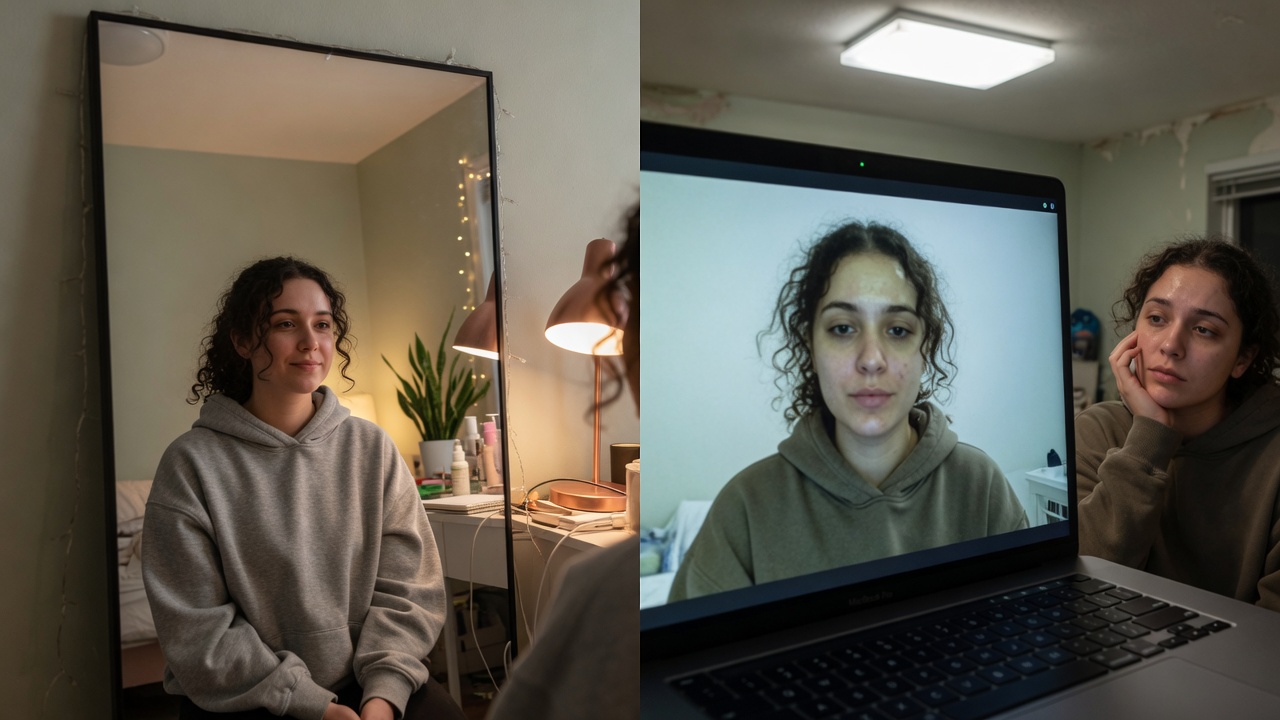
Your webcam's sensor is small. It cannot compensate the way your eyes can. Sit with a window to the side or behind you and your face becomes a silhouette. Overhead office lighting carves harsh shadows under your eyes and nose. The result: you look tired, stressed, or simply like you do not take the call seriously.
Fix: Position your primary light source — a window, a desk lamp, a ring light — in front of you and at roughly face height. Soft, even, forward-facing light is the single biggest upgrade you can make.
Webcam angle
Laptop cameras sit below eye level by default. That low angle gives you a chin-heavy, looking-down-on-the-audience composition that reads as disengaged or uninterested, regardless of what you are saying.
Fix: Raise your laptop or webcam so the lens sits at or just above eye level. A stack of books, a monitor stand, or a webcam arm all work fine. Your head and shoulders should fill the frame, with the camera lens approximately level with your eyes.
Uneven or dull skin tone on camera
Video compression is unforgiving. It flattens detail, exaggerates redness, and washes out skin tone — especially under mixed artificial lighting. Even people who look sharp in person can appear blotchy, pale, or uneven on a client call. It is not vanity to care about this: your face is the primary trust signal on a remote call. When your skin looks healthy and even, you read as composed and in control.
This is where most "look better on video" guides stop at "buy better lighting." That helps — but it does not solve the problem of how your webcam renders your actual appearance in real time.
When Your Webcam or Lighting Is Not Ideal
Not everyone has a dedicated office with a window facing the right direction and a high-end webcam on a monitor arm. If you are calling from a kitchen table, a hotel room, or a compact flat with overhead-only lighting, the advice to "just fix your lighting" can feel abstract. Here is what actually helps when the environment is working against you.
The dim or overhead-light office
Overhead lighting is the most common workplace situation and one of the harshest for video calls. It casts downward shadows that deepen under your eyes and along your nose, making you look fatigued regardless of how you actually feel. If you cannot reposition a ceiling light, the most practical fix is to place any bright light source — even a modest desk lamp with a warm bulb — directly in front of your face at roughly eye height. You do not need a ring light; a £15 desk lamp moved from the corner of your desk to the centre works noticeably well.
If your room has no natural light at all, combine that frontal lamp with a second, softer source to one side. That simple two-light setup removes most of the harshness without requiring any equipment investment.
The budget or built-in webcam
A laptop's integrated webcam typically has a small sensor and a fixed lens with no optical correction. At 720p or at the lower end of 1080p, the footage will be softer, more prone to noise in low light, and more susceptible to video compression artefacts. On a compressed call stream, that translates to blotchy skin rendering, colour shifts, and a general lack of sharpness that no amount of good framing fully rescues.
This is precisely where a real-time appearance layer matters most. A software enhancement applied before the feed reaches the platform does not require the camera to be better — it works with whatever the camera captures. Skin smoothing, tone evening, and brightness adjustments in GlowCam operate on the pixel stream from your existing device, so the output your client sees is cleaner and more consistent than what a budget webcam produces on its own.
When you are calling from somewhere unusual
Travel, shared office spaces, and last-minute client calls from a car park or lobby happen. The background and lighting will not be ideal. In those situations, GlowCam's background blur acts as a first line of defence for the environment, while the skin retouch layer ensures that a harsh fluorescent or an accidental backlight does not make you look washed out or shadowed in the moment a prospect is deciding whether they trust you. You still need to check your framing, but the unpredictability of ad-hoc locations becomes significantly less damaging.
The One Variable Most Guides Miss
Lighting and framing are table stakes. But there is a remaining gap: what your camera captures is still your raw webcam feed, with all its compression artefacts and colour inconsistencies.

Natural polish for demos and discovery calls.
GlowCam is a Chrome extension that applies a real-time beauty filter directly to your webcam feed — before it reaches Zoom, Google Meet, Microsoft Teams, Webex, Whereby, or Discord. It smooths and evens your skin tone, subtly enhances your complexion, and lets you add a polished, professional look that holds up under any lighting condition, on any webcam.
The result is not a filter that makes you look like someone else. It is the version of yourself you see on a good-lighting day — consistent, every call, without spending twenty minutes adjusting ring lights and camera settings before each meeting.
What GlowCam gives sales professionals specifically
Skin retouch. GlowCam smooths your skin, evens tone, removes blemishes, adds warmth and glow, brightens under-eyes, and adjusts overall brightness — addressing everything from redness and shadows to compression artefacts that clients unconsciously notice.
Virtual makeup options. Available in the trial. Lipstick, blush, eye brightening, and teeth whitening let you show up polished whether you are on your first call of the day or your fifth.
Background blur and replacement. Client calls require a neutral, distraction-free backdrop. GlowCam's background tools let you blur your actual environment or swap it for a clean virtual one — without the halo artefacts that plague platform-native virtual backgrounds.
Hair colour refresh (Pro feature). For sales professionals who want presentational consistency, GlowCam's Pro plan includes hair recolour.
It runs privately on your computer. For sales teams who discuss pricing, strategy, or unreleased products on calls, this matters. Your conversations stay on your device.
Objections, Answered
"Will it look fake? I cannot have a client think I am using a filter."
This is the right question to ask, and the answer depends entirely on subtlety. GlowCam is designed for professional use, not for entertainment. The default settings are calibrated to look like you on a very good day — not like a heavily edited photo. Your colleague on the other end of the call will not see a filter. They will see someone who looks polished, well-lit, and put-together.
"What about lag? I cannot afford any delay during a live demo."
GlowCam applies its enhancements in real time with no perceptible delay. There is no buffering, no processing queue, no moment where your video stutters. It works right inside your browser — no separate app and no virtual camera to install — and the feed your client sees is a clean, continuous stream.
"Does it work on the platform I use?"
GlowCam works as a Chrome extension on Google Meet, Zoom, Microsoft Teams, Cisco Webex, Whereby, and Discord.
Quick Start: 2-Minute Setup Before a Demo
If you have GlowCam installed and have not used it before a live demo, here is the exact sequence to run through so that you show up polished from the first frame, not the fifth minute after you realise something is off.
Step 1 — Install the extension (one time only) Add GlowCam from the Chrome Web Store. You do not need to create a virtual camera or install a separate app. The extension works directly in Chrome.
Step 2 — Open your call platform in Chrome Navigate to your meeting link in Chrome before the call starts. GlowCam only runs through the browser, so the platform must be open in Chrome — not a standalone desktop app. For Zoom, this means using Zoom's web client (zoom.us/wc) rather than the downloaded application. For Google Meet and Microsoft Teams, the browser version is the standard.
Step 3 — Click the GlowCam extension icon and activate Open the GlowCam extension panel from Chrome's toolbar. Toggle it on. You will see a live preview of your feed with enhancements applied. Adjust the skin smoothing and brightness sliders to your preference — for a sales call, aim for settings that look natural rather than heavy.
Step 4 — Select GlowCam as your camera source in the platform In your platform's video settings, choose GlowCam as the active camera. On Google Meet, go to Settings → Video → Camera and select GlowCam from the dropdown. On Zoom's web client, the same option appears under Video settings before joining. On Microsoft Teams in the browser, click the camera icon in your pre-join screen and switch to GlowCam.
Step 5 — Run a quick self-check With GlowCam selected, look at your own video preview. Check that your face is centred, the light is even, and the enhancement level looks like you — not noticeably filtered. Turn the smoothing down slightly if anything looks overly softened.
The entire sequence from step 2 takes under two minutes once the extension is installed. After that, GlowCam remembers your settings, so for every subsequent call you only need to confirm it is toggled on.
Preset recommendation for a sales call: Use the "Natural" or "Polished" preset rather than building settings from scratch. Both are calibrated for professional contexts and apply a modest combination of skin smoothing, warmth, and brightness that holds up well on a compressed video stream without reading as a filter to the person on the other end.
The Full Pre-Call Checklist for a Professional Appearance
Run through this before your next discovery call, demo, or renewal conversation:
Natural polish for demos and discovery calls.
- Camera at eye level — raise your laptop or webcam until the lens is level with your eyes
- Primary light source in front of you — window, lamp, or ring light facing you directly
- Background clean and neutral — clear the clutter, or use GlowCam's background blur
- Framing: head and shoulders — no extreme close-up, no tiny figure in the corner
- Sound quality — a headset or earbuds always beats your laptop's built-in mic
- GlowCam installed and selected as your video source — open Chrome, enable the extension, select GlowCam in your platform's camera settings
The whole checklist takes under five minutes to run once. After that, GlowCam handles the appearance layer automatically on every call.
Platform Notes for Client Calls on Meet, Zoom, and Teams
The three platforms you are most likely to use for client-facing sales calls each behave slightly differently with regard to video settings and how they render your feed. Knowing the specifics saves you from a last-minute scramble.
Google Meet
Meet runs natively in Chrome, which makes GlowCam integration seamless — no workarounds needed. The platform's own "Visual effects" panel (the wand icon in the bottom bar during a call) adds background blur using Google's pipeline; GlowCam's background tools run independently and upstream of that, so you can use one or the other, or skip both and rely only on GlowCam's skin and appearance enhancements. For client presentations where you are sharing your screen, you spend a significant portion of the call with your small video tile visible rather than your full feed. GlowCam's enhancements are applied at the source level, so the tile and the expanded view are both enhanced without any additional step.
Zoom (web client)
Zoom's downloaded desktop application does not interact with browser extensions. For GlowCam to work, you need to join via the Zoom web client at zoom.us rather than launching the standalone app. Most clients will not notice the difference on their end — the meeting experience is identical. Zoom's own "Touch up my appearance" slider under Video settings in the desktop app is a platform-level filter that operates only inside the app; it does not carry through to the browser session. When you are on the web client with GlowCam active, you are working with a more precise, adjustable enhancement than Zoom's native option.
Microsoft Teams
Teams in the browser (teams.microsoft.com) supports GlowCam directly. Teams' native background effects and soft-focus filter run at the platform layer; GlowCam runs before the feed reaches Teams, so the two can coexist without conflict. If your company uses Teams for internal calls as well as external client calls, you can keep GlowCam running across both — the settings you dial in for a polished client presentation will look equally professional on an internal review with your manager. One practical note: if your organisation's IT policy restricts Chrome extensions, confirm with your IT contact that user-installed extensions are permitted before relying on GlowCam in a high-stakes external demo.
First Impressions Are Decisions, Not Feelings
Buyers form opinions fast and revise them slowly. On a virtual sales call, where you cannot lean forward, shake hands, or work the room, your visual presence is doing real selling work. A polished, consistent appearance signals preparation, credibility, and attention to detail — qualities every client wants in a partner they are about to trust with their budget.
Lighting and framing are fully in your control today. The way your webcam renders your appearance, though, used to be a fixed variable. It no longer is.
Start your 2-day GlowCam trial — no credit card required — and show up to your next client call looking exactly the way you want to be remembered.
No credit card required · Cancel anytime · 2 days included
Also worth reading:
- How to Look Better on Video Calls — the complete guide
- GlowCam vs Snap Camera — which is right for professional video calls?
Where to go next (product links)
| Need | Link |
|---|---|
| Pricing | Open |
Related tools on Imagera
Try GlowCam — start your free trial
This guide is about Imagera GlowCam — a real-time, on-device webcam beauty filter for Google Meet, Zoom, Microsoft Teams, and more in Chrome. Use the links below to convert from reading to installing.
| Goal | Action |
|---|---|
| Start free (2 days, no card) | Open GlowCam product page |
| Install the extension | Chrome Web Store — GlowCam |
| Compare plans | Pricing |
| Decision / alternatives | Snap Camera alternative · Zoom Touch Up alternative |
What you get on a work call: natural skin + under-eye polish, optional makeup, background calm, and saved presets (standup / client / interview). Processing is designed to stay on your device.
Convert now: Get GlowCam — free 2-day trial → install once → save a low-strength Work-Natural preset → join your next high-stakes call looking like yourself on a good day.