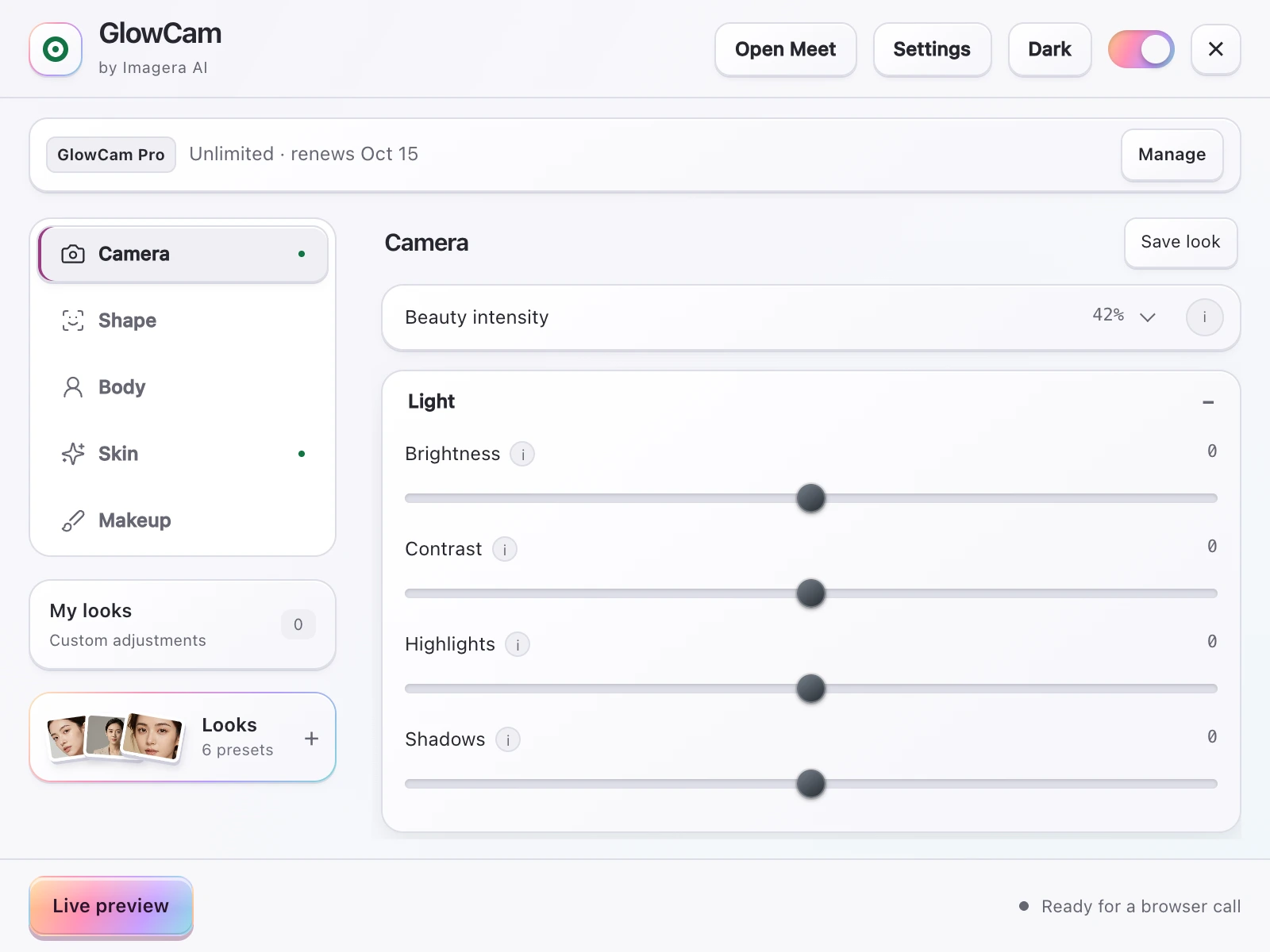
The landscape for the best webcam filters has shifted hard since 2023. The app most people reached for is gone, the major meeting platforms quietly built their own touch-up tools, and a wave of browser-based options arrived. This guide cuts through it honestly: what each option actually does, where it falls short, and how to choose based on the calls you actually take.
No hype, no invented benchmarks. Just the current state of webcam beautification in 2026 and a fair read on every category.
1.Why webcam appearance is not vanity
Before the tool comparison, it helps to know why this matters at all. The research on video-call fatigue points squarely at how we see ourselves on screen.
A 2025 study in Scientific Reports found that people unhappy with their on-camera appearance are more likely to experience Zoom fatigue, driven by "self-focused attention" from the self-view window. Turning off self-view measurably reduced cognitive load and fatigue. (Source: studyfinds.org)
The burden is not evenly shared, either.
Roughly 13.8% of women versus 5.5% of men report feeling "very" to "extremely" fatigued after video calls, and 57% of workers aged 25-34 report video-call exhaustion. (Sources: studyfinds.org, speakwiseapp.com)
49% of people say on-camera meetings are more tiring than audio-only calls. (Source: speakwiseapp.com)
A filter that helps you feel comfortable on camera is not cosmetic fluff — it can lower the self-monitoring load that drives that fatigue. That is the real job a good webcam filter is hired to do: let you stop staring at your own face and get back to the conversation.
The takeaway is subtle but important. The problem is not the filter or the camera — it is the constant feedback of your own face in the corner of the screen. Anything that reduces how much you fixate on your appearance, whether that is hiding the self-view or simply feeling more confident in how you look, addresses the same underlying mechanism. A good filter is one path to that confidence; it is not the only one, and it works best alongside the basics covered later in this guide.
There is a trust dimension too, and it is not even about your face.
A 2023 Durham University study found that video backgrounds featuring plants or bookshelves were rated highest for trustworthiness and competence. (Source: scienceofpeople.com)
So "looking better on camera" spans three things: your skin and features, your lighting, and your background. The best tools address more than one.
2.The Snap Camera gap
For years, the default recommendation for free webcam filters was Snap Camera. It is worth being clear about its status because plenty of old articles still recommend it.
Snap Camera, the desktop app, was discontinued on January 25, 2023. (Source: help.snapchat.com)
Even when it worked, Snap Camera was clunky: it required a separate desktop application plus a virtual camera that you had to select inside Zoom or Meet. It was built for playful lenses, not professional touch-up, and it could not run inside a browser tab. Its discontinuation left a real hole — which is exactly why the built-in platform tools and browser-based alternatives have grown to fill it. If you came here from a "Snap Camera replacement" search, see our dedicated Snap Camera alternative breakdown.
For a lot of people, Snap Camera was the first time they realised a webcam feed could be modified at all. Its absence is part of why the "best webcam filters" question gets asked so often now — the obvious free default disappeared, and the replacements are scattered across very different categories with very different trade-offs.
3.Built-in platform filters: what they actually do in 2026
This is where most older guides get it wrong, so let's state it accurately. The major meeting platforms now ship their own appearance tools — they are better than nothing and they are free, but they vary a lot.
Zoom has Touch Up My Appearance, a skin-smoothing slider, plus studio effects that let you add eyebrows, lip colour, and filters.
Zoom's Touch Up My Appearance is a skin-smoothing control, supplemented by studio effects for eyebrows, lip colour, and filters. (Source: support.zoom.com)
Microsoft Teams goes further than most people realise. It has Touch Up My Appearance and a dedicated Maybelline Beauty app.
Teams includes a Maybelline Beauty app powered by Modiface, offering roughly 12 looks that map to 70+ facial points. (Sources: pcworld.com, techcommunity.microsoft.com)
Google Meet offers background effects and blur plus a limited appearance touch-up. Webex provides limited touch-up and lighting adjustment. Whereby and Discord (web) offer background blur, but Discord does not ship a built-in beauty or skin filter — treat any claim otherwise with caution.
Here is the honest summary:
| Platform | Skin touch-up | Makeup / looks | Background | Reshape / hair colour |
|---|---|---|---|---|
| Zoom | Yes (Touch Up) | Studio effects (brows, lip) | Yes | No |
| Microsoft Teams | Yes (Touch Up) | Maybelline (~12 looks) | Yes | No |
| Google Meet | Limited | No | Blur / replace | No |
| Webex | Limited | No | Limited | No |
| Whereby | No | No | Blur | No |
| Discord (web) | No | No | Blur | No |
The pattern is clear. Built-ins handle basic skin smoothing and backgrounds reasonably well on a per-platform basis. But three things are missing almost everywhere: consistency across apps, face/feature reshaping, and hair recolouring. Set up your look in Teams and none of it follows you into a Meet or Webex call. That fragmentation is the gap that drove cross-platform tools.
It is also worth understanding why the built-ins stop where they do. Meeting platforms add appearance tools as a convenience feature, not a core product. They tune for the safest, most universally flattering adjustment — a touch of smoothing, a background swap — and stop well short of anything that could be called editing your face. That conservatism is sensible for a video-conferencing company, but it leaves the more expressive adjustments to dedicated tools.
4.Virtual-camera apps: power with friction
After Snap Camera, a category of standalone "virtual camera" apps stepped in — desktop software that processes your feed and exposes a virtual webcam device that any meeting app can select.
The upside is genuine flexibility and, in some cases, heavy effects. The downsides are the same friction Snap Camera had: you install a separate desktop app, it can be resource-hungry (some lean on a discrete GPU or neural upscaling), you re-select the virtual camera in each platform, and you trust a desktop process with your camera feed. For occasional heavy creative work that may be fine. For everyday meetings, it is a lot of overhead to look slightly better.
There is also a maintenance cost that rarely gets mentioned. Desktop virtual-camera software has to keep pace with operating-system camera-permission changes and frequent meeting-app updates, and when something breaks, you are debugging a driver-level virtual device rather than toggling a setting in a tab.
5.Browser-extension beautifiers: GlowCam
The newest category skips the desktop app entirely and runs as a browser extension, processing your camera feed inside the tab. GlowCam by Imagera AI is the option built around this approach.
GlowCam is a Chrome (Chromium) extension that applies real-time beautification to your webcam across Google Meet, Zoom (web), Microsoft Teams (teams.microsoft.com and teams.live.com), Cisco Webex, Whereby, and Discord (web) — one tool, every app, the same look everywhere.
The privacy model is the headline difference from desktop virtual-camera apps:
GlowCam runs 100% on-device using WebGL and MediaPipe. The webcam feed is never uploaded, transmitted, or stored, and it needs no discrete GPU or heavy neural upscaling to run. (Source: imagera.ai/privacy#glowcam-extension)
What it actually adjusts:
- Skin: smoothing, blemish and pimple cleanup, even tone, glow, warmth, brightness, fair/lighten, under-eye brighten.
- Makeup: lipstick, blush, teeth whitening, eye brightening — tracked to your face as you move. See virtual makeup for video calls.
- Hair (PRO): recolour while keeping natural shine and individual strands.
- Reshape (PRO): face slim, nose slim, jaw/chin V-line, lip plump, eye enlarge.
- Background: blur, replace, brighten, custom colour, and presets — useful for that bookshelf-and-plants trust effect. See background blur for video calls.
- Looks: Natural, Meeting, and Polished presets, plus saving your own. A master on/off toggle restores the raw feed instantly.
The reshaping and hair-colour features are the clearest things the built-in platform tools simply do not offer. And because it is one extension, your saved look is identical whether you are in Google Meet, Zoom, Teams, or Webex, Whereby, and Discord.
Honest note on testing: Google Meet is the platform that is fully end-to-end tested. The other supported platforms use the same camera-injection technique, but if you live in one specific app, it is worth a quick trial-call check before an important meeting.
6.How the categories compare
| Built-in platform tools | Virtual-camera apps | GlowCam (extension) | |
|---|---|---|---|
| Install | None | Desktop app | Browser extension |
| Works across apps | No (per platform) | Yes (via virtual cam) | Yes (7 platforms) |
| Skin / makeup | Basic to good | Varies | Full suite |
| Reshape / hair colour | No | Some | Yes (PRO) |
| Feed leaves device | Per platform policy | Often a desktop process | Never (on-device) |
| Cost | Free | Free to paid | 7-day free trial, then $19.99/mo or credits |
One more dimension worth weighing is how the look behaves when you move. Static filters that simply blur the whole frame degrade the moment you lean in or turn your head. Tools that track facial landmarks — the approach behind makeup and reshaping features — keep effects locked to your face, which matters more than raw effect strength for looking natural on a live call.
If you only ever use one platform and want light smoothing, the built-in tool is the pragmatic free pick — start there. If you bounce between Meet, Zoom, and Teams, want consistent results, or want reshaping and hair colour, a cross-platform extension is the better fit. Heavy creative virtual-camera apps remain a niche for people who want dramatic effects and do not mind the desktop overhead.
7.The basics no filter replaces
A filter amplifies a good setup; it cannot rescue a bad one. Three fundamentals from the research:
Position the camera at or slightly above eye level, use a 1080p or better webcam, and add front lighting before you reach for skin smoothing. (Sources: med.stanford.edu, iphonelife.com)
The order matters. Front lighting fixes the actual problem — under-lit, shadowed skin — so you need far less smoothing afterward, which keeps you looking like yourself rather than airbrushed. Eye-level framing reads as more engaged and confident. Get those right, then add a light touch-up. For the full routine, see how to look better on video calls.
8.Choosing the best webcam filter for you
- Single-platform, minimal effort, free: use the built-in tool. Zoom's Touch Up My Appearance and Teams' Touch Up plus Maybelline cover the basics.
- Multi-platform consistency, makeup, reshaping, hair colour, privacy-first: a cross-platform on-device extension like GlowCam.
- Dramatic creative effects, willing to install desktop software: a virtual-camera app.
- Replacing Snap Camera: it is gone — a browser extension is the closest no-desktop-app successor.
The honest verdict for 2026: there is no single "best" filter for everyone, but there is a clear logic to the choice. Match the tool to how many platforms you use, how much control you want over skin, features, and hair, and how much you care about your camera feed staying on your own machine.
9.Try it where it counts
If you want one consistent look across every meeting app, with skin, makeup, background, reshaping, and hair colour all running on-device, GlowCam is built for exactly that. It is a 7-day free trial with no credit card; after that it is $19.99/month or pay-per-use credits, with Skin, Makeup, and Background free during the trial and Hair colour and Reshape on PRO.