Imagera AI - AI content creation platform for generating images, cloning voices, creating avatars, and enhancing videos. Privacy Policy | Terms

    IMAGERAAI
    Blog Post
    Video Call Tips

    GlowCam Pro vs Trial — What You Get (and How It Compares to Snap Camera, OBS, and Zoom Touch Up)

    GlowCam Pro vs trial: hair colour, reshape, pricing at ~$0.68/day. See how it stacks up against Snap Camera, OBS filters, and Zoom Touch Up.

    By Imagera AI Team6 min readJune 21, 2026Updated: June 23, 2026
    Share:
    GlowCam Pro vs Trial — What You Get (and How It Compares to Snap Camera, OBS, and Zoom Touch Up)

    TL;DR

    GlowCam Pro vs trial: hair colour, reshape, pricing at ~$0.68/day. See how it stacks up against Snap Camera, OBS filters, and Zoom Touch Up.

    You opened a video call last week, caught your reflection in the preview thumbnail, and immediately turned off your camera.

    Or maybe you left it on — but spent the next 45 minutes half-listening and half-noticing the harsh overhead light, the shadows under your eyes, the backdrop that looked nothing like the polished person you actually are.

    That moment is exactly why GlowCam exists. But once you decide to install it, a natural question follows: what do you actually get in the 7-day trial, and is Pro worth it?

    This post answers that honestly — feature by feature, tier by tier — so you can make a confident decision rather than guessing.


    1.What the 7-Day Trial Covers

    The trial is a genuine, no-credit-card test of GlowCam's core experience. You get access to:

    1.1Skin smoothing and tone balancing

    GlowCam's skin filter evens out your complexion in real time — reducing redness, softening texture, and lifting flat lighting into something that looks natural and camera-ready. It runs locally on your computer, so your video is never sent to a server. What your colleagues see is the processed output; what leaves your machine is just the final frame, same as any normal webcam stream.

    The control here matters: there is a subtlety slider. Dialling it to maximum is not the goal. The goal is looking like yourself on a good day, not like you applied a TikTok filter. If you have ever seen how much a difference good lighting and skin tone balance makes on video calls, you already know how transformative even a moderate setting can be.

    1.2Makeup enhancements

    The trial also includes the makeup layer: lip tint, eye brightening, teeth whitening, and a light contour that reads as natural on camera rather than theatrical. These are calibrated for webcam output — subtle enough that no one will ask "are you wearing a filter?" but present enough that you will notice the difference immediately in your own preview.

    You can toggle each element independently. If you only want cleaner skin and brighter eyes without lip colour, you can have exactly that.

    1.3Background blur and replacement

    Messy home office? Housemates walking past? The background tools — both blur and virtual replacement — are included in the trial. GlowCam edges your silhouette cleanly against whatever background you choose, without the green-screen flickering or hair-fringing artefacts that plague simpler solutions.

    It works across Google Meet, Zoom, Microsoft Teams, Cisco Webex, Whereby, and Discord. One extension, every platform you already use.

    2.How GlowCam Compares to Other Beauty Filter Tools

    If you have been searching for a Snap Camera alternative in 2026, or wondering whether OBS filters or Zoom's built-in touch-up are good enough, this table gives you a direct side-by-side view.

    ToolBrowser-basedReal-time on callsWorks across platformsOn-device / privateTrial availablePrice
    GlowCamYes (Chrome extension)YesGoogle Meet, Zoom, Teams, Webex, Whereby, DiscordYes7 days, no card$24.99/mo or $249.99/yr
    Snap CameraNo (desktop virtual-camera app)Yes — when it existedZoom, Meet, Teams, others via virtual cameraYesFreeDiscontinued Jan 25, 2023
    OBS filtersNo (streaming software)Yes — for streaming, not calls directlyOBS only; virtual camera needed for call platformsYesFree (with watermark via third-party plugins)Free (OBS) + plugin cost varies
    Zoom Touch UpNo (Zoom app only)Yes — Zoom onlyZoom desktop onlyYesIncluded with paid Zoom planRequires Zoom Pro licence
    Teams / MaybellineNo (Teams app only)Yes — Teams onlyTeams onlyUnspecifiedAvailable to Teams enterprise usersRequires Teams enterprise licence

    2.1What the table actually means for you

    Snap Camera was the default answer for anyone who wanted real-time webcam filters before January 2023. Snap shut it down permanently — the authentication servers are off, and even previously installed copies stopped working. If you are still searching for a Snap Camera alternative in 2026, you are looking for something that works today, not a nostalgic workaround.

    OBS filters are a reasonable choice for streamers who are already inside OBS Studio, but they are not a drop-in solution for video calls. Getting OBS output into Google Meet or Zoom requires setting up a virtual camera layer, which adds latency, configuration steps, and a second application running alongside your call. The beauty filters available natively in OBS are also limited — most of the skin-smoothing and makeup functionality comes from third-party plugins or browser-source workarounds from tools like Streamfog, which add their own pricing tier on top.

    Zoom Touch Up My Appearance is a single-slider skin softener built into Zoom's desktop client. It is included with a Zoom Pro licence, but it is Zoom-only — it does nothing on your Google Meet calls, your Teams standups, or your Discord conversations. There are no makeup controls, no background replacement beyond what Zoom already offers, no hair colour, and no reshaping. If all your calls happen in Zoom and you want the lightest possible touch, it is a starting point. But it is not a replacement for a dedicated filter layer.

    Microsoft Teams and Maybelline launched 12 fixed virtual makeup looks for Teams enterprise users in 2023. The looks are preset rather than adjustable — you pick one and apply it, rather than tuning each element to your preference. It is also confined entirely to Teams, meaning it covers one of the six platforms GlowCam handles.

    GlowCam is the only option in this table that is browser-based (no virtual camera setup required), works across all six platforms simultaneously with a single preference set, and includes adjustable skin, makeup, background, and Pro-tier hair colour in one extension.


    3.What Is Exclusive to Pro

    Two capabilities unlock only when you move to a paid plan:

    3.1Hair colour

    This is not a wig overlay. GlowCam's hair colour tool shifts the hue of your existing hair in real time — warm brunette to a richer shade, natural black to a deep chestnut, lighter tones to something with more warmth. It works in real time, adjusting across the full range of your calls without you needing to adjust or reapply it. It is the kind of thing you would test once and then never turn off.

    For creators who film content on video calls, for professionals who want a distinctive on-screen presence, or for anyone who has ever been curious what they would look like with a different hair colour — this alone is a reason to upgrade.

    3.2Subtle face reshaping

    Slim the face slightly, soften the jawline, or adjust proportions in a way that cameras often distort. The reshape tool corrects the distortion that cameras often create, bringing you back closer to how you actually look in person — without fabricating a different face.

    It is the digital equivalent of knowing your best angle. Except it works automatically, on every call, without you thinking about it.


    4.GlowCam Pricing: Trial, Monthly, and Annual

    PlanPriceWhat You Get
    7-day trialNo card requiredSkin + makeup + background
    Monthly Pro$24.99 / monthEverything in trial + hair colour + reshape
    Annual Pro$249.99 / yearAll Pro features — works out to ~$0.68 per day

    The annual plan saves roughly 17% compared to paying month to month. At ~$0.68 per day, it costs less than a coffee and covers every video call you make for a full year across all six platforms.

    If you have more than a handful of calls per week — client meetings, team standups, job interviews, content sessions — the math is straightforward.

    5.Is Pro Worth It for Occasional Calls?

    The honest answer is: it depends on which Pro features you actually want, not how often you call.

    The 7-day trial already covers the features most people use most of the time — skin, makeup, background, and presets. If you finish the trial and think "this is exactly what I needed," but you only have one or two calls per week, the trial features alone may be sufficient reason to subscribe. You are not paying for a quota of calls. You are paying for the capability to be ready for any call, any time, across every platform you use.

    The two features exclusive to Pro — hair colour and face reshape — are more niche. Here is how to think about them honestly:

    Hair colour is worth Pro if you are a content creator recording sessions, a professional who wants a distinct on-screen identity, or someone who has ever been curious what a different shade would look like without a salon commitment. For most business users on occasional calls, it is a nice-to-have rather than a must-have.

    Face reshape is worth Pro specifically if you have noticed that your webcam at close range compresses or distorts your proportions. Wide-angle lenses on built-in laptop cameras are notorious for this. If you have compared your call preview to how you look in a mirror and thought something looks off, the reshape tool addresses exactly that. For users whose webcam does not create that distortion, it is less critical.

    Pay-per-use credits are also an option if you want Pro features without a recurring subscription. If you have an important pitch or job interview once a month and want hair colour or reshaping for those specific calls, credits let you unlock Pro on demand rather than committing to monthly billing. This is the most cost-efficient path for genuinely occasional use.

    The monthly plan at $24.99 makes the most sense if you want to trial Pro features after the 7-day trial ends, without locking into a year. After a month of using hair colour and reshape on real calls, you will know whether they have become part of how you present yourself — at which point the annual plan at ~$0.68 per day is the better long-term value.

    If you are uncertain, start with the trial. It costs nothing, and the Pro features that matter to you will become obvious once you have seen the non-Pro experience on your own calls.


    6.Common Questions Before You Commit

    Will it look fake?

    Only if you push the sliders to maximum on purpose.

    GlowCam is built for real professional use, not social media theatrics. Every filter has a subtlety control. The default settings are conservative enough that colleagues will assume you just look rested. The transform is meant to be invisible.

    Does it slow down my computer or cause lag on calls?

    GlowCam runs locally, which is both the privacy story and the performance story. Processing happens on your machine in real time, and it is designed not to compete with your video call application for resources. On any reasonably modern laptop or desktop, the experience is smooth.

    Is my video private?

    Yes. Your video feed never leaves your device for processing. GlowCam operates entirely on your computer. The only thing transmitted is the same final webcam output you would send without the extension — your video call platform receives the processed frames, not the raw feed.

    Do I need to configure it per platform?

    No. Once the extension is active, it works across Google Meet, Zoom, Teams, Webex, Whereby, and Discord automatically. You set your preferences once; they apply everywhere.


    7.Who Should Upgrade to Pro, and When

    The trial is the right place to start for everyone. Seven days with real calls — standups, client check-ins, interviews — will tell you more than any feature comparison.

    8.Setting Up GlowCam in Under Two Minutes

    One thing that distinguishes GlowCam from OBS-based setups or virtual-camera tools is the absence of configuration overhead. There is no virtual camera driver to install, no OBS scene to configure, and no per-platform plugin to enable. Here is what the actual setup looks like:

    1. Install the extension. Go to the Chrome Web Store listing and click "Add to Chrome." It works on any Chromium-based browser — Chrome, Edge, Brave, and Arc are all supported.

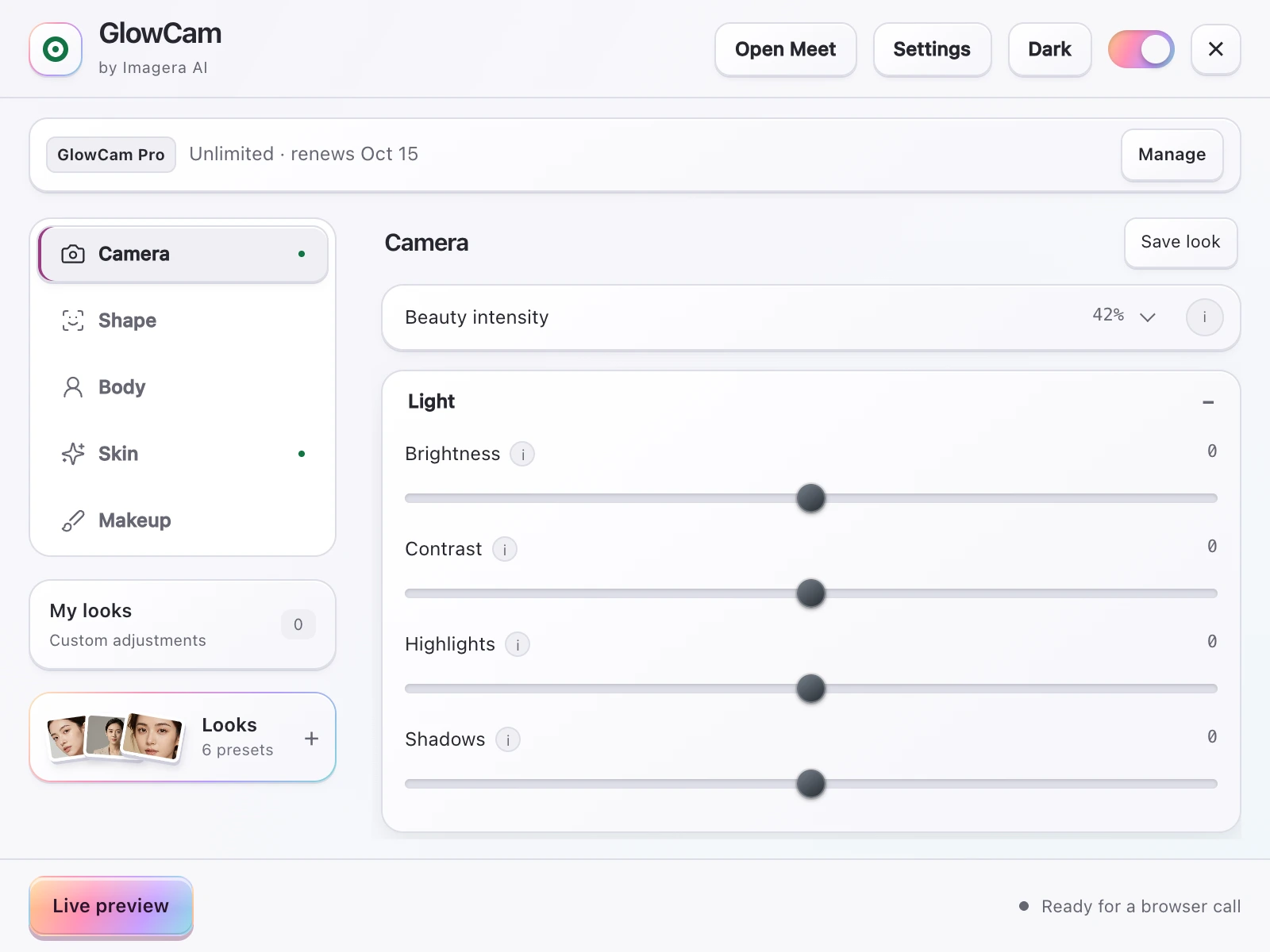
    2. Open the extension panel. Click the GlowCam icon in your toolbar. You will see sliders for skin smoothing, skin tone, brightness, and warmth on the first screen. Drag the subtlety controls to a position that looks natural in the live preview — the preview renders your actual webcam feed, not a stock model.

    3. Set your makeup layer. Switch to the makeup tab and toggle whichever elements you want: lip tint colour and opacity, eye brightening intensity, blush, teeth whitening. Each has its own slider. Conservative settings — 30–50% on most controls — are the starting point for calls where you want the effect to be invisible to colleagues.

    4. Configure your background. Choose blur strength or select a replacement background image. GlowCam edges your silhouette without requiring a physical green screen.

    5. Save a preset. Once you find a combination that works for your usual call setup, save it as a named look. The Natural, Meeting, and Polished presets are already configured as sensible defaults, but your saved look will be specific to your lighting and camera.

    6. Join any call. The next time you open Google Meet, Zoom, Teams, Webex, Whereby, or Discord, GlowCam is already active in the background. You do not need to select a different camera source or change any in-app settings. The processed feed replaces your default webcam stream automatically.

    The main thing to do before your first real call is spend five minutes in the preview adjusting the skin slider in your actual lighting conditions — overhead office light and window-side natural light behave differently, and the right subtlety setting for one environment may be too strong for the other. After that initial calibration, you will rarely need to touch the settings again.

    You should seriously consider upgrading if any of the following describes you:

    • You are on video calls more than three times per week
    • You want hair colour as a permanent part of your on-screen presence
    • You notice the webcam distorts your face at close range and the reshape correction makes a visible difference in your preview
    • You are a content creator who records in a home environment and wants a consistent, polished look without studio lighting

    The annual plan at ~$0.68 per day is the better choice if you know you will use it long-term. The monthly plan makes sense if you are in a heavy call period — say, an active job search or a product launch sprint — and want flexibility.

    If you are not sure yet, that is exactly what the trial is for. You can explore everything and decide once you have seen the results on your own face, in your own calls. No card is required to start.


    9.Start the Trial Today

    GlowCam is a Chrome extension. Install it, set your filters once, and your next video call looks better without you doing anything differently.

    Install GlowCam from the Chrome Web Store — the trial starts the moment you activate it. No card, no commitment, cancel anytime.

    If you are still weighing your options, the full feature overview is at imagera.ai/glowcam, and our breakdown of the best webcam filter alternatives in 2026 covers how GlowCam compares to everything else currently available.

    Your next call is probably this week. You might as well look good on it.

    Frequently Asked Questions

    Can I try GlowCam Pro features before subscribing, or does the trial only include the basic tier?
    The 7-day trial includes GlowCam's core tier: skin smoothing, tone balancing, makeup (lip tint, eye brightening, teeth whitening, blush), background blur and replacement, and one-tap presets. Hair colour and subtle face reshape are exclusive to the paid Pro plan and are not unlocked during the trial. The trial is intentionally designed to let you verify that the core experience works well on your hardware and your specific calls before you commit. If you want to evaluate the Pro-only features before subscribing, the monthly plan at $24.99 lets you try everything for a single month without locking into an annual commitment — and you can cancel before the next billing cycle if the Pro features are not something you will use regularly.
    Is GlowCam Pro worth it if I only have video calls occasionally — say, once or twice a week?
    Call frequency alone is not the deciding factor. The trial features (skin, makeup, background, presets) are available to you on every call regardless of how often you call, and the monthly subscription covers an unlimited number of calls across all six supported platforms. The question is whether the Pro-exclusive features — hair colour and face reshape — are relevant to you. If you do not have a use case for either, the trial tier may be all you need. If you are a content creator, someone going through a period of high-stakes calls like interviews or client pitches, or someone whose close-range webcam visibly distorts your proportions, Pro adds genuine value regardless of call frequency. Pay-per-use credits are also available as an alternative if you want Pro features only for specific important calls without a recurring subscription.
    If I cancel my GlowCam Pro subscription, do I lose my saved filter looks and presets?
    Your saved looks and preset configurations are stored in the extension. If you cancel Pro and revert to the trial tier (or let it lapse), the settings you have saved remain accessible, but any features that are Pro-exclusive — hair colour and reshape — will no longer be applied even if they were part of a saved look. The skin, makeup, and background elements of any saved preset will continue to work as configured. This means your day-to-day call setup stays intact if you cancel, with only the Pro-tier layers deactivated. If you resubscribe later, those Pro elements in your saved looks become active again without needing to reconfigure them.
    Is GlowCam a better Snap Camera alternative in 2026 for video calls specifically?
    Snap Camera was discontinued permanently on January 25, 2023 — the servers that authenticated its lenses are offline and the app no longer functions even on machines where it was previously installed. For video calls specifically (as opposed to streaming), GlowCam addresses the gap Snap Camera left in a different way: it is a Chrome extension rather than a virtual camera app, which means there is no driver to install and no camera source to change inside Zoom or Meet. GlowCam works directly within the browser-based versions of Google Meet, Zoom, Microsoft Teams, Webex, Whereby, and Discord without any additional configuration. The trade-off is that GlowCam works on those six browser-based platforms only, while Snap Camera (when it existed) could feed any application that accepted a virtual camera input. For the specific use case of professional video calls, the browser-extension approach is simpler and more reliable.
    Does GlowCam work on Microsoft Edge or Brave, or only on Google Chrome?
    GlowCam works on any Chromium-based browser, which includes Chrome, Edge, Brave, and Arc — install it from the Chrome Web Store and it runs identically on all of them. The one firm limit is the browser engine: Firefox and Safari use different rendering architectures and are not supported. If your organisation has standardised on Edge, GlowCam slots in without any workaround.
    What happens when my 7-day GlowCam trial ends — does it auto-charge me?
    No card is required to start the trial, so there is nothing to auto-charge when it ends. Your access to the trial features simply stops, and you choose whether to subscribe at that point. This makes the trial genuinely risk-free — you are not agreeing to a billing relationship just by installing the extension.
    Does GlowCam work with external USB webcams, or only with a laptop's built-in camera?
    GlowCam works with any webcam your browser can access, including USB and USB-C external cameras. If your external camera appears as a selectable video input in Chrome, GlowCam will intercept and enhance that feed. This means you can pair it with a higher-quality external camera and still benefit from the skin, makeup, background, and Pro filter layers.
    Can I use pay-per-use credits instead of subscribing monthly — and when does that actually make more sense?
    Yes, GlowCam offers pay-per-use credits that let you unlock Pro features for specific calls without a recurring subscription. Credits make the most sense when you have one or two high-stakes events per month — a job interview, a board presentation, a client pitch — and you want hair colour or face reshaping for those calls only. If you are on calls several times a week, the monthly plan at $24.99 typically works out more economical than purchasing credits for each session.
    Does the face reshape feature look obvious or detectable to the other people on my call?
    The reshape tool is designed for correction, not transformation — it compensates for the way wide-angle laptop lenses compress and distort facial proportions at close range, so your on-screen face better matches how you actually look in person. At normal settings the adjustment is subtle enough that colleagues see a natural image, not a filtered one. The effect becomes detectable only if you push it to extremes deliberately.
    Does GlowCam work in Discord video calls, or only in streaming and screen-share mode?
    GlowCam works in Discord video calls — the live webcam feed you share with people in a voice channel or a direct video call both receive the processed output. Discord is one of the six supported platforms (alongside Google Meet, Zoom, Teams, Webex, and Whereby), and no extra configuration is needed beyond having the extension active. Screen-share content is not filtered, only your webcam stream.
    Can GlowCam's hair colour filter handle dark or black hair, or does it only work on lighter shades?
    GlowCam's hair colour tool shifts the hue of your existing hair in real time, which means it works across a range of natural tones including dark brown and black — though the visible shift depends on the distance between your current colour and the target shade. Moving from very dark hair to a lighter colour produces a subtler on-screen effect than shifting between medium tones. The tool is best understood as a real-time tonal adjustment, not a bleach-and-dye replacement.
    If I use GlowCam on Zoom, does it interfere with Zoom's own background blur or Touch Up My Appearance feature?
    GlowCam and Zoom's built-in filters operate at different layers, but running both simultaneously is not recommended — you will likely see compounded effects on skin smoothing and double-processing on the background. The practical approach is to turn off Zoom Touch Up and use GlowCam exclusively, since GlowCam covers all the same capabilities (skin, background) plus makeup, presets, and the Pro features that Zoom's slider does not offer.
    Can one GlowCam Pro subscription be used on multiple computers, or is it tied to a single device?
    Your GlowCam subscription is tied to your account, not to a single machine, so you can sign in and use it on more than one computer — useful if you switch between a work laptop and a home setup. Install the Chrome extension on each device, log in to your account, and your saved presets and Pro features are available on both.
    Does GlowCam work if my company laptop has browser extensions restricted by IT policy?
    If your organisation's IT policy blocks the installation of Chrome extensions from the Web Store, GlowCam cannot be installed without an exemption or a personal device. This is a common restriction on tightly managed corporate endpoints. If your work browser allows the Chrome Web Store, there are no special enterprise permissions required — GlowCam installs and runs as a standard extension.

    Imagera AI Team

    AI Content & SEO Specialist

    The Imagera AI team consists of AI researchers, content strategists, and SEO experts dedicated to helping creators produce high-quality AI content.

    Areas of Expertise:

    AI Image GenerationAI Voice RecreationAI Avatar CreationContent Marketing

    Put this guide to work

    A real-time beauty filter & background for your webcam on Google Meet, Zoom, Teams and more — right in your browser.