1.The question people search but rarely ask out loud
You have a client call in 20 minutes. You slept badly. The overhead light in your home office is doing nobody any favors. You've heard about video-call beauty filters and you're tempted — but a nagging doubt holds you back: is this unprofessional? Can people tell? Am I being dishonest about how I look?
These are fair questions, and they deserve straight answers rather than marketing spin. This page works through each one carefully, so you can make a decision you're comfortable with.
2.Is using a beauty filter on a work call unprofessional?
The short answer: no — not when the effect is subtle and the result still looks like you.
Consider what we already accept as completely normal in professional settings. You apply concealer before a presentation. You adjust the ring light brightness. You angle your laptop camera slightly upward so the framing is more flattering. You wear the shirt that photographs better on video. None of that is considered deceptive. It's called presenting yourself well.
A subtle video-call filter is the digital equivalent. It smooths minor skin texture, brightens under-eye shadows, and evening out skin tone — the same things a bit of powder and good lighting achieve in person. The output is still recognizably you; it is not a different face.
In fact, Zoom's built-in "Touch Up My Appearance" feature has been available since 2020 and is actively recommended in Zoom's own support documentation for "a more polished-looking appearance." Microsoft Teams ships appearance-enhancement filters in its standard Effects panel. Cisco Webex has followed suit. These platforms built these features because their enterprise customers asked for them — and those customers are using them in boardrooms, client calls, and interviews right now.
Using a tool that the platforms themselves ship is not unprofessional. What can tip into unprofessional territory is an effect so heavy it becomes the topic of conversation, or one that causes your face to visibly lag, morph, or look cartoon-smooth. That's a calibration issue, not an ethics issue — and it's entirely within your control.
3.Can people tell you're using a filter on Zoom or Teams?
Only if the effect is overdone. Here's the technical reality: callers receive your final processed video feed. They have no indicator, no disclosure badge, no way to "see through" the filter. What they see is what your camera outputs after the filter is applied.
The question then becomes whether the result looks filtered. With a heavy social-media filter — the kind that restructures your face geometry, adds digital makeup in a thick layer, or produces skin that resembles polished plastic — yes, most people will notice something is off, even if they can't name it. The uncanny valley is real.
With a subtle skin-smoothing and brightness adjustment, no — colleagues typically do not notice. What they notice is that you look rested and well-lit, and they attribute that to having had a good morning. GlowCam's adjustments work at low-to-medium intensity by default precisely because that's where the effect reads as "you on a good day" rather than "you with a filter on."
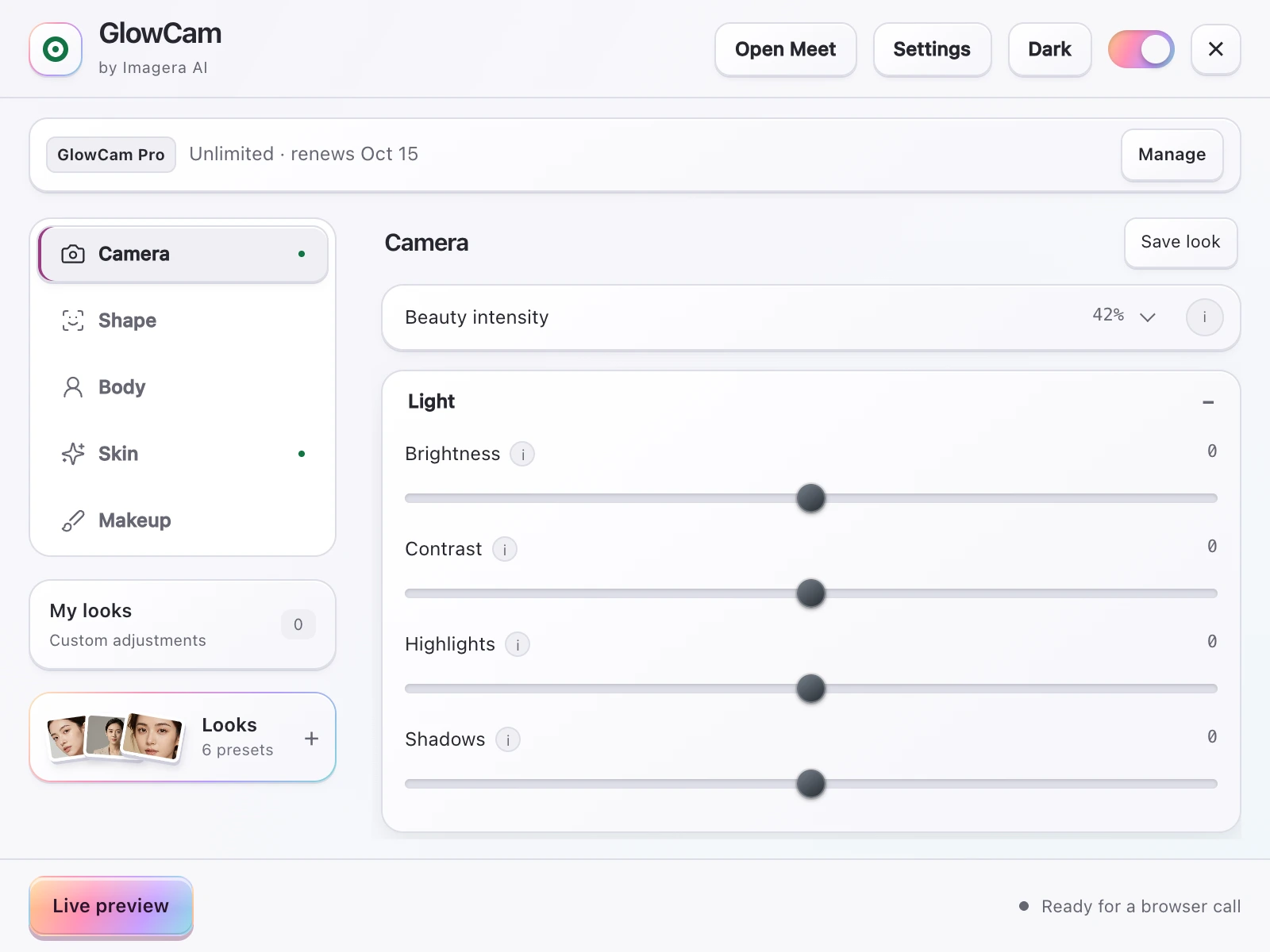
You also have a straightforward personal test: toggle the filter off and on during a solo preview call. If the difference is dramatic, dial the intensity down. If the difference is "I look slightly more awake," you've found the right setting. GlowCam gives you a live slider for every adjustment, so you stay in control of the output.
See the side-by-side in the GlowCam live demo — the before and after are both recognizably the same person.
4.Does a beauty filter look fake?
It depends entirely on which filter and how it's applied. The category of "beauty filter" covers an enormous range: from the subtle soft-focus of Zoom's native touch-up to the full face-restructuring filters popularized on social platforms, which change jaw width, eye size, and nose shape in real time.
The latter absolutely look fake in video calls — not because the technology is obvious, but because the motion artifacts that come with heavy geometry warping become visible whenever you move your head. Your face will subtly blur and reshape mid-sentence. Experienced video callers have learned to spot it.
GlowCam does not alter your facial geometry. The features it offers are:
- Skin smoothing — texture, not structure
- Blemish reduction — localized, not blanket
- Even skin tone and glow — brightness and color correction
- Under-eye brightening — reduces shadow, not shape
- Virtual makeup — lipstick, blush, eye brightening, at settable opacity
- Background blur or replace — behind you, not on you
- Hair colour (Pro tier) — adjustable tint
- Subtle facial harmony (Pro tier) — very minor, not transformative
None of these alter the geometry of your face. The result looks like you arrived to the call well-rested, wearing light makeup, in a well-lit space — because those are analogous to what the adjustments replicate. That's the range where "does it look fake?" simply doesn't come up.
For more on what the adjustments look like across different video platforms, see our guides on how to look better on video calls and making your skin look good on webcam.
5.Is it the same as lying about how you look?
This is the most interesting question and the one worth thinking through honestly.
There's a version of this critique that has real substance: if someone uses a social-media filter that reshapes their face so significantly that they look like a different person, and they meet that person in real life, the discrepancy is jarring and can feel like a form of misrepresentation. That's a legitimate conversation about authenticity.
But the video-call context is different from the social-media context in two important ways.
First, your callers already see an imperfect technical reproduction of you. A compressed, low-frame-rate webcam feed with artificial lighting is not the same as seeing you in person. Webcam footage flattens your face, exaggerates skin texture, creates harsh shadows under your eyes, and often adds a color cast depending on your light source. Correcting those technical artifacts is not lying — it's compensating for the medium's inherent distortions.
Second, the standard of comparison matters. Lying about your appearance would mean presenting a face that doesn't match your in-person appearance in any context. A skin-smoothing filter produces a face that matches how you look on a good day, in good light, having slept well. That's not a fictional face — it's one of your real faces, captured under conditions that video calls rarely provide naturally.
5.1Authenticity: you on a good day, not a different face
There's a broader cultural conversation happening right now about over-filtering — and it's worth acknowledging directly. The criticism of social-media beauty filters is well-founded: when filters change the shape of your face, narrow your nose, or enlarge your eyes, they do create an aspirational self that diverges significantly from the person other people actually encounter. That can be harmful, both to the individual's relationship with their own appearance and to the expectations of people around them.
GlowCam is built around a different philosophy. The goal is not a better-looking version of you — it's you on a morning when you got enough sleep, had good light, and wore a little makeup. Every slider has an off position. Every effect has a low setting. The master switch turns the entire filter off in one click, and you can toggle it mid-call to compare what your camera outputs with and without it. That transparency is intentional.
If you find yourself cranking every slider to maximum to feel acceptable on camera, that's worth pausing on — not because the filter is wrong, but because that might be a signal to look at confidence and lighting setup rather than filter intensity. At natural settings, what GlowCam produces should feel like: "That's me. I just look like I had a good morning."
The people who benefit most from subtle video-call filtering aren't trying to deceive anyone. They're professionals with inconsistent home lighting, or people who photograph darker under certain webcam exposures, or anyone who has dealt with a breakout the day before a major pitch. The filter is a tool. Using it thoughtfully and at low intensity is no different from putting on a clean shirt.
6.What about built-in platform filters — are those more "allowed"?
There's no formal rule distinguishing a built-in platform filter from a third-party extension like GlowCam — your colleagues see the same final video feed either way. But it's worth noting: Zoom, Teams, and other platforms actively market their built-in appearance adjustments as a feature. They wouldn't do that if enterprise HR teams considered it a policy violation.
GlowCam extends that built-in capability across all six platforms where those native filters are either absent, limited, or less refined. It works on Google Meet, Zoom, Microsoft Teams, Cisco Webex, Whereby, and Discord — in Chromium-based browsers only. It does not require any software installation beyond the Chrome extension itself, and all processing happens on your device rather than being routed through external servers.
You can compare GlowCam with Zoom's native Touch Up My Appearance or see how it stacks up against Snap Camera alternatives. If background blur is your primary concern, the background blur guide covers both the native and extended options.
7.The practical question: should you try it?
If your hesitation is about professionalism, consider that the people in your next meeting may already be using Zoom's native touch-up or Teams' appearance filters — and you have no idea, because subtle effects don't announce themselves.
If your hesitation is about authenticity, the test is straightforward: look at the output at low-to-medium settings. If the person on screen looks like you after a good night's sleep, you're in the right range. If it looks like a different person, dial it back.
GlowCam's 7-day trial requires no credit card. You get full access to skin smoothing, virtual makeup, background effects, and preset looks for seven days. Try it on an internal call first. Toggle it off and on. Show a colleague if you want a second opinion. Make your own judgment from actual experience rather than from anxiety about what "might" look fake.
Try GlowCam on the Chrome Web Store — or see it in action at imagera.ai/glowcam before you install.
8.Quick reference: the most common concerns
"My company might have a policy against this." Check your acceptable-use policy if you're uncertain. Most don't mention video filters — they were written before this was a common question. If your employer uses Teams or Zoom, the native appearance features likely fall under approved software.
"My manager will think I'm vain." Your manager probably uses the soft-lighting adjustment on their own camera and hasn't thought about it for more than 30 seconds.
"What if I meet this client in person and look different?" With subtle settings — skin smoothing and brightness correction — you won't look meaningfully different. You'll look like yourself without webcam compression artifacts. If you're concerned, a brief in-person catch-up will confirm it quickly.
"Is it just for people who are insecure about their appearance?" No more than a clean shirt is. Presenting yourself well on a professional call is table stakes, and the tools available to do that have expanded.
The short version: a subtle, adjustable filter on a professional video call is not unprofessional. It's not deceptive. And in most cases, nobody will notice it except you — because all they'll see is someone who looks like they had a good morning.