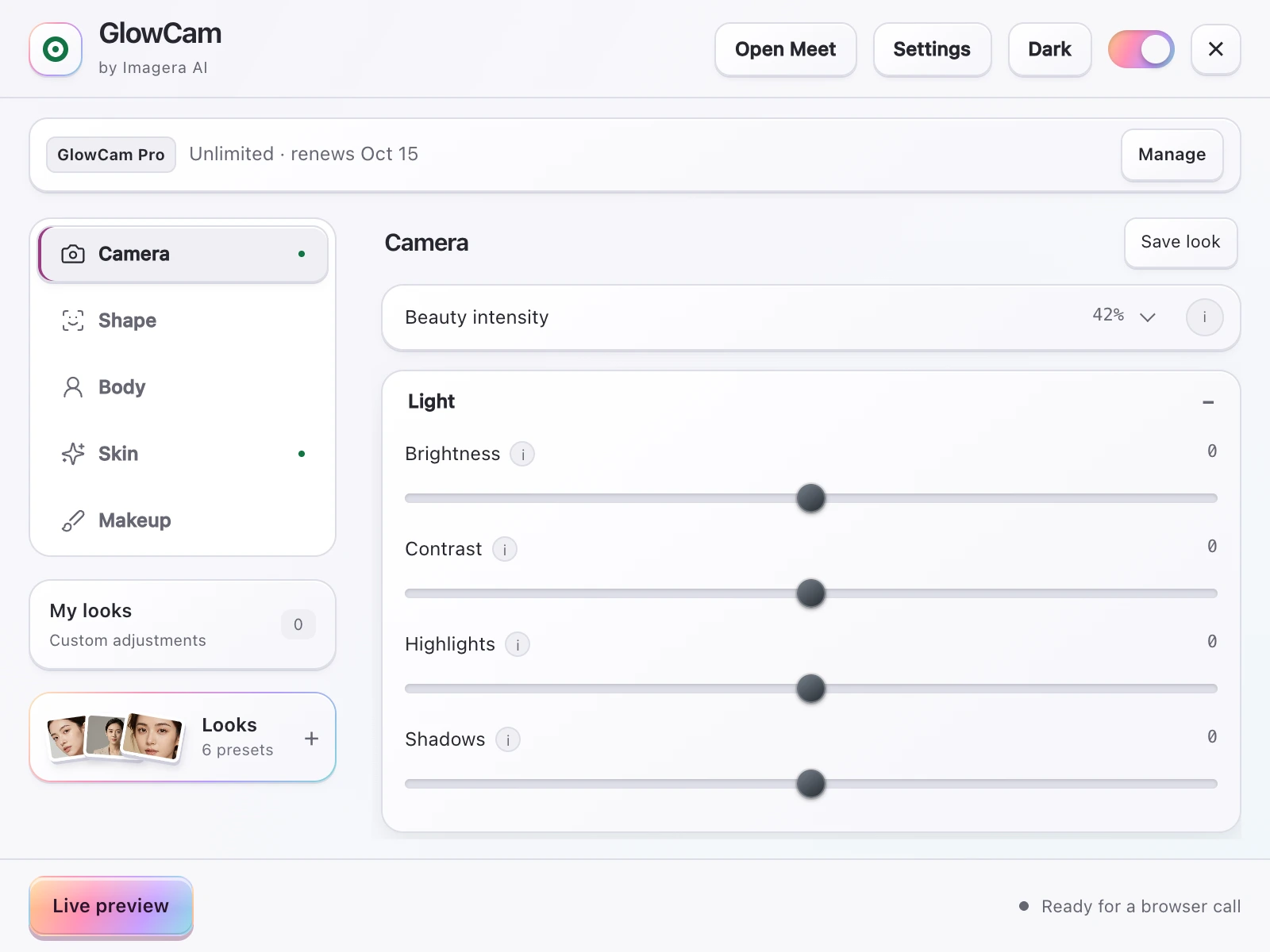
Your messy bookshelf, the unmade bed, the roommate walking past in a towel: the background is the part of a video call you control least and worry about most. Background blur for video calls solves the obvious problem instantly, but it does only half the job. A blurred background hides clutter; it does nothing for the harsh overhead lighting, the tired under-eyes, or the washed-out skin that the camera adds on top. GlowCam by Imagera AI treats the background and the person as one frame, blurring or replacing what's behind you while quietly improving how you look in front of it, all in real time and all on your own machine.
This page covers what on-device background blur actually does, how it compares to the built-in tools inside Meet, Zoom and Teams, what the research says about backgrounds and trust, and how to set up a video background that makes you look credible instead of chaotic.
1.What "background blur for video calls" really means
There are two distinct effects people lump together under the same phrase, and knowing the difference helps you pick the right one for each call:
- Background blur keeps you sharp and softens everything behind you into a smooth, camera-like bokeh. It's the safest choice because it never replaces reality, so there are no weird edges around your hair or a fake beach where your wall should be. When a colleague glances at your tile, they register a clean, out-of-focus space and move on.
- Background replace swaps your real surroundings for an image, a solid colour, or a preset scene. It's useful when your room is genuinely unpresentable, but harder to make look natural, especially if your lighting or webcam edge detection isn't great.
GlowCam does both, plus two underrated extras: brighten the background (so a dim room doesn't drag the whole frame down) and custom colour (a clean, neutral wall of your choosing). The point of every one of these is the same: direct attention to your face, not your laundry. Because all four options live in the same panel, you can switch between a hard blur for a casual standup and a tidy custom backdrop for a client call in a couple of clicks, without hunting through a different settings menu in every app.
Why on-device matters: GlowCam runs entirely in your browser using WebGL and MediaPipe. Your webcam feed is never uploaded, transmitted, or stored, and it needs no discrete GPU or heavy neural upscaling, so it works on ordinary laptops. The extension's only permission is local storage. Privacy details: imagera.ai/privacy#glowcam-extension.
That on-device design is the real differentiator. Some virtual-camera tools route your video through a server or a separate desktop app before it reaches your meeting; an in-browser extension that processes the send-side feed locally keeps the footage on your computer the entire time. For background blur specifically, this matters twice over, because the same effect that hides your room is, by definition, looking at everything in your room. Processing that locally means the only machine that ever sees your unblurred space is your own.
2.Why your background quietly affects how people judge you
Background choice isn't just aesthetic. It changes how trustworthy and competent you appear before you say a word.
A Durham University study (2023) found that video-call backgrounds featuring plants or bookshelves were rated highest for trustworthiness and competence, while novelty and blurred-out backgrounds scored lower on those traits. Source: scienceofpeople.com.
The practical takeaway: if you're on a call where credibility matters (an interview, a client pitch, a board update), a tidy real background with a plant or a shelf of books may serve you better than a heavy blur or a cartoon beach. For everyday standups, blur is fine and fast. GlowCam lets you keep both options a click apart, so you can match the background to the stakes of the meeting rather than committing to one look for everything.
There's a second, more personal reason backgrounds matter: the less you worry about what's behind you, the less you fixate on yourself.
Research published in Scientific Reports (2025) links video-call fatigue to "self-focused attention" driven by the self-view window. About 13.8% of women versus 5.5% of men report feeling "very" to "extremely" fatigued after video calls, 57% of workers aged 25 to 34 report video-call exhaustion, and 49% say on-camera meetings are more tiring than audio-only ones. Turning off self-view reduced cognitive load. Sources: studyfinds.org, speakwiseapp.com.
A clean, controlled frame, where the background is handled and you're happy with how you look, removes a major source of that self-focused anxiety. You stop scanning your own thumbnail for the unmade bed in the corner and start listening to the conversation. The goal isn't vanity; it's getting your attention off the screen and back onto the meeting.
3.Background blur vs. the built-in tools
Every major platform now ships some form of background effect. Here's an accurate picture of what each one offers, and where a cross-platform extension adds value.
| Platform | Background blur/replace | Built-in appearance/beauty | Cross-app consistency |
|---|---|---|---|
| Google Meet | Yes (blur + effects) | Limited appearance touch-up | One platform only |
| Zoom | Yes | "Touch Up My Appearance" + studio effects (eyebrows, lip colour, filters) | One platform only |
| Microsoft Teams | Yes | "Touch Up My Appearance" + Maybelline Beauty app (Modiface, ~12 looks, 70+ facial points) | One platform only |
| Webex | Yes | Limited touch-up/lighting | One platform only |
| Whereby | Background blur | None built in | One platform only |
| Discord (web) | Background blur | No built-in beauty/skin filter | One platform only |
| GlowCam | Blur, replace, brighten, custom colour, presets | Skin, makeup, reshape, hair recolour | Same look everywhere |
Sources for built-in features: pcworld.com, techcommunity.microsoft.com, support.zoom.com.
The honest read on built-ins: they're genuinely good at blurring backgrounds, and Teams and Zoom in particular have real appearance tools. Microsoft Teams pairs "Touch Up My Appearance" with a Maybelline Beauty app powered by Modiface that offers roughly 12 looks and maps over 70 facial points. Zoom combines "Touch Up My Appearance" skin-smoothing with studio effects for eyebrows, lip colour and filters. Google Meet, Webex, Whereby and Discord cover backgrounds well but offer little to nothing on the beauty side; Discord web, for instance, has no built-in skin filter at all.
So where does GlowCam fit? Its edge isn't beating any single built-in at blur. It's being one extension that behaves identically across every app, and layering on things the built-ins don't do: hair recolour that keeps shine and individual strands (PRO), and face/feature reshaping (face slim, nose slim, jaw/chin V-line, lip plump, eye enlarge, PRO). You set your look once and it follows you from a Meet standup to a Zoom interview to a Teams review, without relearning a new menu each time and without one app smoothing your skin while the next leaves you looking tired by comparison. That consistency is the quiet benefit: people on a Tuesday Meet call and a Thursday Teams call see the same you. For a deeper platform-by-platform breakdown, see the beauty filter for Google Meet and Zoom beauty filter guides.
4.Beauty and background, handled in one frame
A blurred background only looks polished if the person in front of it looks polished too. That's why GlowCam doesn't stop at the background:
- Skin: smoothing, blemish and pimple cleanup, even tone, glow, warmth, brightness, fair/lighten, and under-eye brightening.
- Makeup: lipstick, blush, teeth whitening and eye brightening that track your face as you move.
- Hair (PRO): recolour while keeping natural shine and strands.
- Reshape (PRO): face slim, nose slim, jaw/chin V-line, lip plump, eye enlarge.
- Looks: Natural, Meeting and Polished presets, plus the ability to save your own.
The Looks presets are the fastest way to use all of this together. Natural is a light touch for everyday calls, Meeting adds a bit more polish for client-facing work, and Polished is the strongest. Save your own once you've dialled in a combination of background, skin and makeup that you like, and you can apply the whole thing in one click before the next call starts.
A master on/off toggle restores your raw feed instantly, which matters more than it sounds. You can verify exactly what others see and dial effects back if they ever look like too much. Want the makeup details without the background context? See virtual makeup for video calls.
5.How to set up a background that actually looks good
Background blur is a finishing touch, not a fix for a poorly lit, badly framed shot. Get the basics right first, then add effects.
- Fix the camera angle. Position the camera at or slightly above eye level. Shooting up your nose undermines any background you choose. Source: med.stanford.edu.
- Light your face, not your wall. Add a front light source before you touch any smoothing slider, a window or a lamp facing you. A bright face against a softly blurred background reads as professional; a dark face against any background reads as a bad connection. Sources: med.stanford.edu, iphonelife.com.
- Use a decent camera. A 1080p or better webcam gives the blur a cleaner edge to work with and makes skin look natural rather than mushy. Source: iphonelife.com.
- Choose blur vs. replace by stakes. High-trust calls: tidy real background or a subtle blur with a plant or shelf in view (per the Durham finding). Casual calls: full blur is quick and reliable.
- Then add GlowCam. Turn on background blur or a preset, brighten the background if your room is dim, and apply a light Natural or Meeting look. Toggle the master switch to confirm it looks like you on a good day.
A quick way to sanity-check the result: join a test meeting or open your own preview, flip the master toggle on and off a few times, and watch the blur edge around your hair and shoulders. If the edge looks clean when you move, your lighting and camera are doing their job and the blur has something solid to work with. If it flickers, more front light usually fixes it faster than any software setting. For the full routine, our guide on how to look better on video calls walks through lighting, framing and settings in order.
6.A note on platform coverage and accuracy
We test GlowCam most thoroughly on Google Meet, which is fully end-to-end verified. The same send-side, in-browser technique is applied on Zoom web, Microsoft Teams (both teams.microsoft.com and teams.live.com), Cisco Webex, Whereby and Discord web. We'd rather tell you that plainly than overstate it: Meet is the reference platform, and the others use the identical method.
If you're moving on from a discontinued desktop tool, note that Snap Camera was discontinued on January 25, 2023 and required a separate desktop app plus a virtual camera (source: help.snapchat.com). GlowCam needs neither; it's a browser extension that works on the send side, so there's no extra app to install and no virtual camera to select inside each meeting tool. See the Snap Camera alternative comparison, or the rundown of the best webcam filters for 2026.
7.Pricing
GlowCam starts with a 7-day free trial, no credit card required. The trial includes Skin, Makeup and Background tools, so background blur, replace, brighten, custom colour and presets are all available during the trial. After that, it's $19.99/month or pay-per-use credits. PRO features (hair recolour and reshaping) unlock on a paid plan. You sign in with an Imagera AI account using email and password or Google.
8.Get a clean background and a confident face in one click
Background blur for video calls fixes what's behind you; GlowCam fixes the whole frame. Blur, replace, brighten or recolour your background, smooth your skin, fix your lighting, and keep every pixel on your own device, across all the apps you already use.
Start your free 7-day trial at imagera.ai/glowcam and look ready for your next call in seconds.
GlowCam by Imagera AI is a Chrome (Chromium) extension. Your webcam feed is processed 100% on-device and never uploaded, transmitted, or stored.