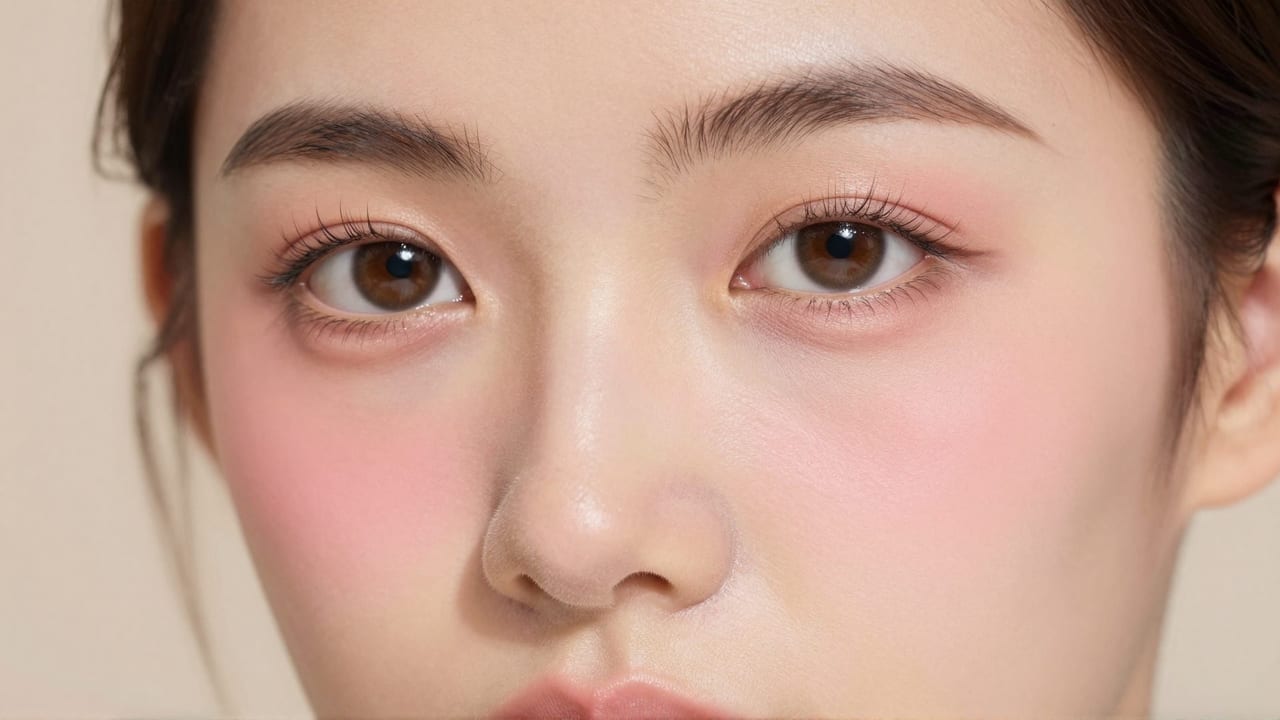
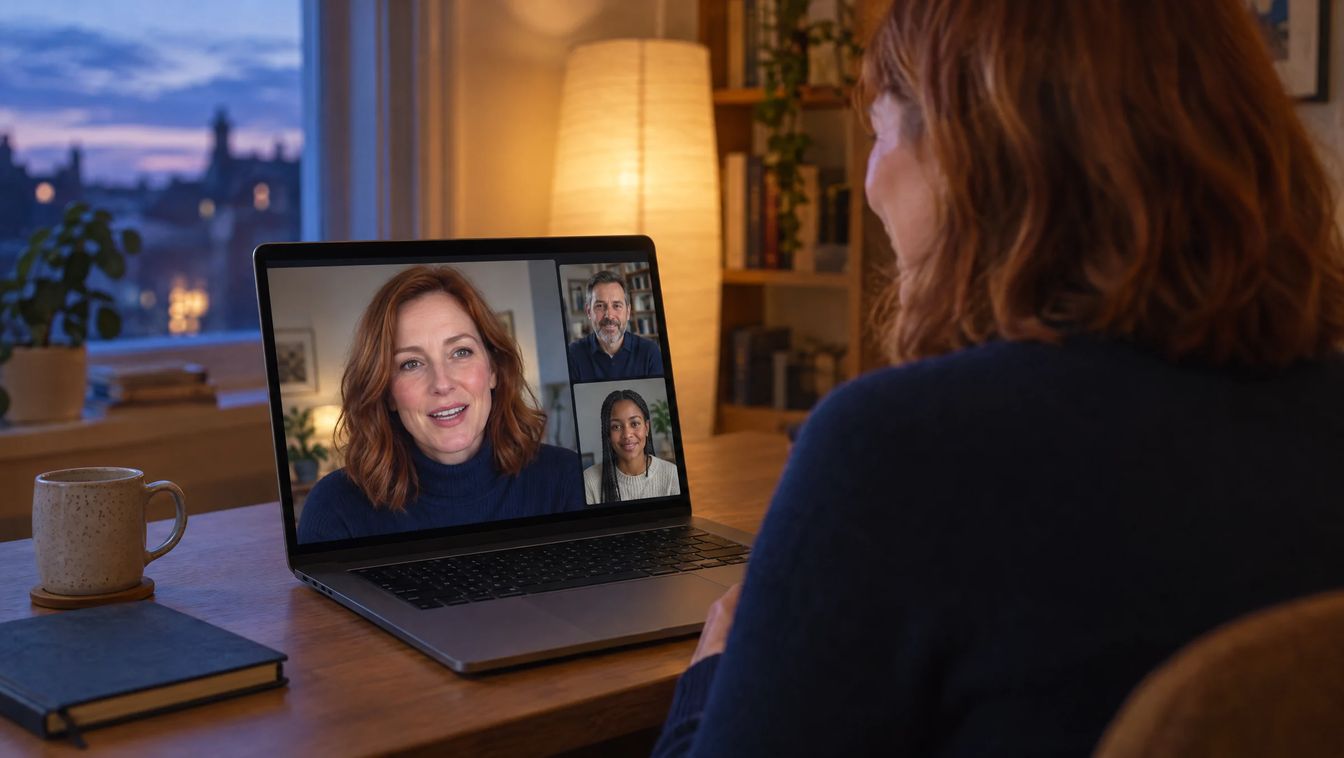
Virtual makeup for video calls is a webcam layer that renders lipstick, blush, teeth whitening and eye brightening onto your face in real time, and the good version tracks your features as you move so the makeup stays where it belongs instead of drifting off your face. GlowCam does this on-device in Chrome, with no upload of your camera feed, on Google Meet, Zoom (web), Microsoft Teams, Webex, Whereby and Discord. There's a free 2-day trial with no card, at GlowCam.
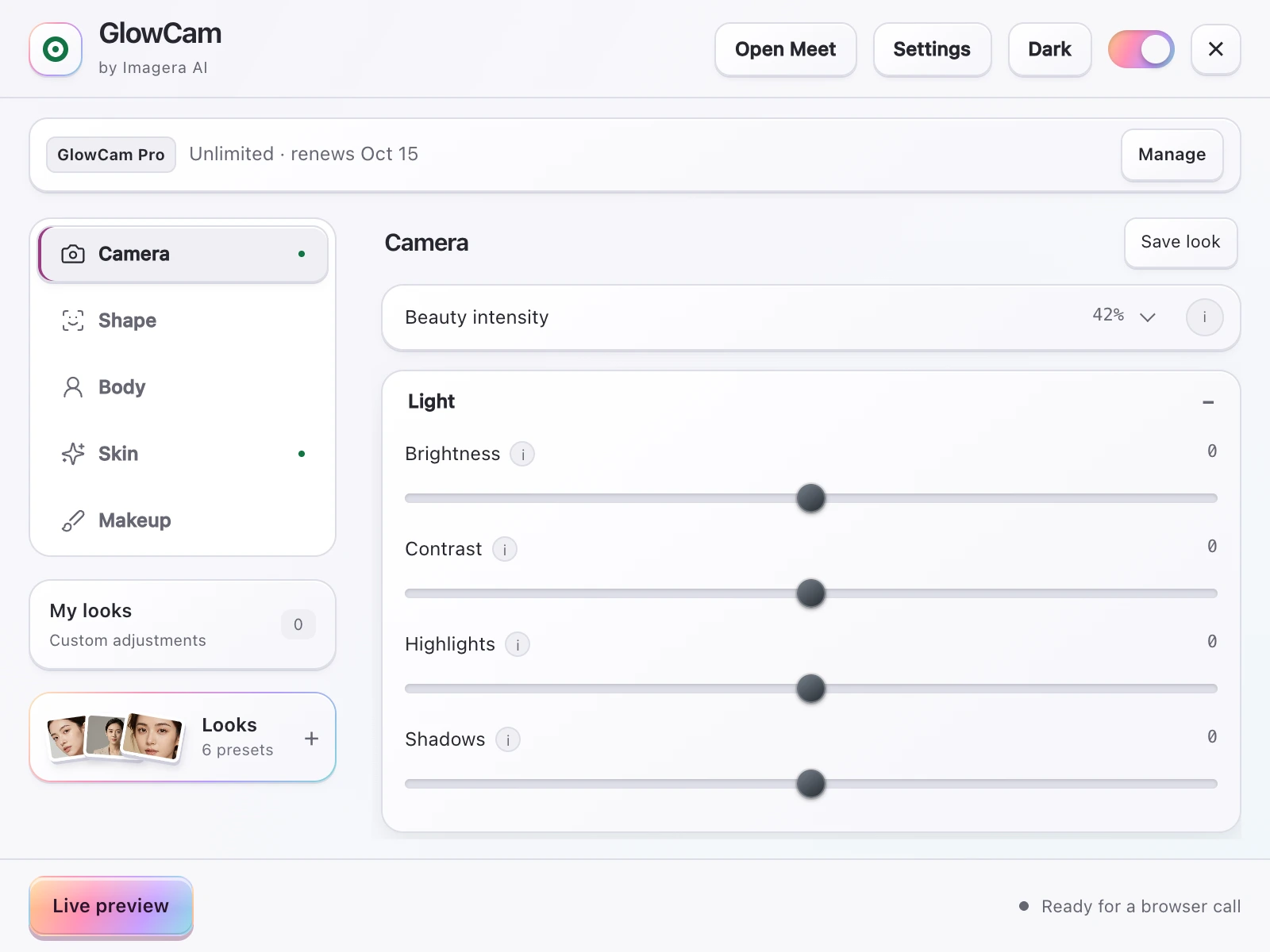
Screenshot of the GlowCam extension's controls. The filter runs on your own device, inside the browser tab of your call.
The whole point is that it should look like you on a good day, not like a sticker. Below is how face-tracking virtual makeup actually works, why it reads as natural on camera, and where you can use it.
1.What is virtual makeup for video calls?
Virtual makeup for video calls is a light AI layer that sits between your webcam and your meeting app. It maps your face, finds your lips, cheeks, teeth and eyes, then paints subtle makeup onto those regions before the video reaches the call. To everyone else, you simply look put-together.
GlowCam gives you a few kinds of makeup, each tuned to look worn rather than pasted on:
- Virtual lipstick that follows the shape and edges of your lips.
- Blush placed on the cheeks with soft, feathered edges.
- Teeth whitening that brightens your smile a shade or two without going chalky.
- Eye brightening that lifts and clears the eyes so you look rested.
You can also stack it with skin retouch and a blurred or replaced background, so the makeup sits on an already-clean frame. It's not a costume filter — it's the "I got ready for this meeting" look, applied by software.
2.Does the makeup track your face when you move?
Yes, and this is the part that separates AI virtual makeup from an old-style stamp-on filter. GlowCam continuously tracks your facial landmarks, so:
- Lipstick follows your lips as you talk, laugh or press them together.
- Blush stays on your cheeks when you tilt or turn your head.
- Teeth whitening only brightens teeth that are actually visible, so it disappears when your mouth is closed and returns when you smile.
- Eye brightening stays locked to your eyes as you glance around or lean toward the screen.
A filter that's stamped in one position slides off the moment you move, and the illusion breaks. Tracking is what keeps virtual makeup believable on a live call, where you're never sitting perfectly still. If you want to compare that experience yourself, the live demo on /glowcam shows the makeup holding position while the face moves.
3.Why does it look natural instead of fake?
"Natural, not fake" is the whole design brief. A few things keep GlowCam on the right side of the line:
Subtlety by default. The presets are built for real meetings, not stage lighting. Natural is barely-there; Meeting is a touch more polished; Polished adds a bit more for a client call or an on-camera moment. None of them cake on colour.
Feature-level sliders. Every feature has its own control, so you can dial lipstick down, nudge eye brightening up, and skip blush entirely. You're not stuck with one preset's idea of makeup — you tune it to your face and your lighting.
Edge-aware rendering. Because the makeup is placed by tracking the actual boundaries of your lips, cheeks and eyes, it feathers into your skin instead of sitting in a hard block. That soft edge is most of what makes something read as real rather than applied-in-Photoshop.
The goal is that a colleague notices you look good, not that you're wearing a filter. Get it 90% of the way with a preset, then spend ten seconds on the sliders and it looks like your makeup, not GlowCam's.
4.Can you use it on Discord, Zoom and Google Meet?
GlowCam works as a Chrome extension across the browser-based calling apps people actually use:
- Google Meet
- Zoom (web)
- Microsoft Teams
- Webex
- Whereby
- Discord (web)
Discord is worth calling out. A lot of people go on camera in Discord for hangouts, study rooms, community calls and streams-with-friends, and want to look decent without doing a full face of makeup first. Virtual makeup that tracks your face is a genuinely nice fit there: subtle lipstick and a little eye brightening, holding position while you talk, on a background blur so your room stays private.
Because it's a browser extension, there's no OBS, no virtual-camera plugin, and no separate app to launch. You turn GlowCam on, then join your call as normal — the makeup is already on your video.
5.Is it private and how does it run?
GlowCam is 100% on-device. All the face tracking and makeup rendering happen locally in your browser, and your camera feed is never uploaded or stored. That matters for makeup specifically, because your face is the input — you don't want a beauty tool shipping your webcam to a server to add lipstick.
Running locally also means it's fast. There's no GPU requirement and it runs in real time on ordinary laptops, so the makeup keeps up with you frame by frame instead of lagging a beat behind your movements — which, again, is what would give it away as fake.
6.How to get set up in about a minute
- Add GlowCam to Chrome from GlowCam and start the free 2-day trial (no card).
- Open your meeting app — Meet, Zoom, Teams, Webex, Whereby or Discord — in the browser.
- Turn GlowCam on and pick a preset: Natural, Meeting or Polished.
- Open the sliders and adjust lipstick, blush, teeth whitening and eye brightening to your face and lighting.
- Add background blur or replace if you want, then join the call.
Once your preset is set, it's on every call automatically. You get ready by clicking one toggle.
7.Beyond makeup
Virtual makeup is one part of GlowCam. On the same on-device layer you also get skin retouch, background blur and replace, and — on Pro — hair colour and a subtle, natural reshape that stays gentle rather than warping your face. So the makeup lands on a frame that's already clean, evenly lit and distraction-free.