Microsoft Teams already ships with more beauty tooling than most people realise. Yet "the Teams call is in five minutes and I look exhausted" is still a daily reality for millions. If you have searched for a microsoft teams beauty filter because the built-in slider does not quite cut it, this page lays out exactly what Teams can and cannot do — accurately — and where a cross-app extension like GlowCam genuinely goes further.
No hype. Just what each tool does, what the research says about why on-camera appearance matters, and how to look like yourself on a good day without uploading your webcam anywhere.
1.What Microsoft Teams already gives you
Teams is not a blank slate. Two distinct features exist today, and they do different things.
Touch Up My Appearance. This is Teams' built-in smoothing control, available in your device settings before or during a call. Early versions were a simple on/off toggle; Microsoft later added a slider so you can dial the intensity rather than accept one fixed level. It softens skin texture and reduces the appearance of blemishes. It is genuinely useful for a quick polish before you join.
The Maybelline Beauty app. This is the part people miss. Microsoft partnered with Maybelline New York to bring a virtual makeup app into Teams, powered by Modiface.
Microsoft's Maybelline Beauty app for Teams offers roughly 12 makeup looks and maps more than 70 facial points to apply virtual makeup that tracks your face during a call. Sources: techcommunity.microsoft.com; pcworld.com.
So the honest position is this: Teams has real beauty features. A smoothing slider and a face-tracking makeup app with about a dozen curated looks. For many meetings, that combination is genuinely enough, and there is no reason to add anything else.
Where it stops is breadth and control. Touch Up My Appearance is one smoothing dimension — there is no separate dial for evening out tone, adding glow, or brightening tired under-eyes. The Maybelline looks are presets: you pick a finished look, not the individual settings inside it. There is no hair recolour, no face or feature reshaping, and the entire toolset lives only inside Teams. Switch to a Zoom web call or a Google Meet later in the day and you start over with whatever that particular platform happens to offer.
2.How the other platforms compare
It helps to see Teams in context, because most professionals juggle several meeting apps in a single week.
| Platform | Built-in beauty tooling | Hair recolour | Face / feature reshape | Works elsewhere |
|---|---|---|---|---|
| Microsoft Teams | Touch Up My Appearance (slider) + Maybelline app (~12 looks, 70+ points) | No | No | Teams only |
| Zoom | Touch Up My Appearance + studio effects (eyebrows, lip colour, filters) | No | No | Zoom only |
| Google Meet | Background effects/blur + limited appearance touch-up | No | No | Meet only |
| Cisco Webex | Limited touch-up / lighting | No | No | Webex only |
| Whereby | Background blur | No | No | Whereby only |
| Discord (web) | Background blur, no built-in beauty/skin filter | No | No | Discord only |
| GlowCam | Skin, makeup, hair, reshape, background | Yes (PRO) | Yes (PRO) | Every supported app |
A few accuracy notes, because the built-in landscape is easy to get wrong. Zoom's Touch Up My Appearance is a skin-smoothing control, and Zoom layers on studio effects such as eyebrows, lip colour and filters (source: support.zoom.com). Google Meet leans on background effects and blur with a more limited appearance touch-up. Cisco Webex offers limited touch-up and lighting adjustment. Whereby and Discord (web) provide background blur, and Discord has no built-in beauty or skin filter at all. The pattern is clear: every platform reinvents a slightly different subset of the same idea, and none of it carries over to the next app you open. That fragmentation is the real gap a single extension closes.
3.What happened to Snap Camera
If you remember pre-loading a "filter app" before joining calls, that was usually Snap Camera.
Snap Camera, the desktop app, was discontinued on January 25, 2023. It required a separate desktop application plus a virtual camera to feed filtered video into Teams or Zoom. Source: help.snapchat.com.
That architecture — install a desktop app, run a virtual webcam, then hope the meeting app picks the right device from its camera list — is exactly the friction modern users want gone. With Snap Camera retired, anyone who relied on it for video-call filters has been left looking for a replacement that does not reintroduce that setup. The short version of the modern approach: a browser extension that touches your webcam directly removes the virtual-camera step entirely, so there is no extra device to select and nothing to launch before a meeting.
4.Why on-camera appearance actually matters
This is not vanity. There is a measurable cognitive and emotional cost to disliking how you look on video, and the research is specific.
People who are unhappy with their on-camera appearance are more likely to experience video-call fatigue, driven by "self-focused attention" from the self-view window. About 13.8% of women versus 5.5% of men report feeling "very" to "extremely" fatigued after video calls. Source: studyfinds.org.
57% of workers aged 25–34 report video-call exhaustion, and 49% say on-camera meetings are more tiring than audio-only calls. A 2025 study in Scientific Reports found that turning off self-view reduced cognitive load and fatigue. Sources: speakwiseapp.com; Scientific Reports (2025).
The mechanism here is the self-view window — that little tile of your own face you keep glancing at throughout a call. When you are comfortable with what you see there, the self-monitoring loop quiets down and your attention returns to the people you are actually talking to. A subtle beauty filter is not about looking like someone else; it is about removing the small "ugh" that pulls your focus away from the conversation. That, more than any cosmetic ideal, is the practical case for a microsoft teams beauty filter you can set once and then forget.
There is a flip side worth respecting, too: backgrounds shape perception just as much as faces do.
A 2023 Durham University study found that video-call backgrounds featuring plants or bookshelves were rated highest for trustworthiness and competence. Source: scienceofpeople.com.
So the most effective on-camera setup is rarely just smoother skin. It is a calm, credible background plus enough facial polish that you stop policing your own reflection and can concentrate on the meeting itself.
5.Where GlowCam goes further
GlowCam by Imagera AI is a Chrome (Chromium) browser extension that applies real-time beautification to your webcam across Google Meet, Zoom web, Microsoft Teams (teams.microsoft.com and teams.live.com), Cisco Webex, Whereby, and Discord web. One install covers every app. Here is what it adds on top of what Teams already does.
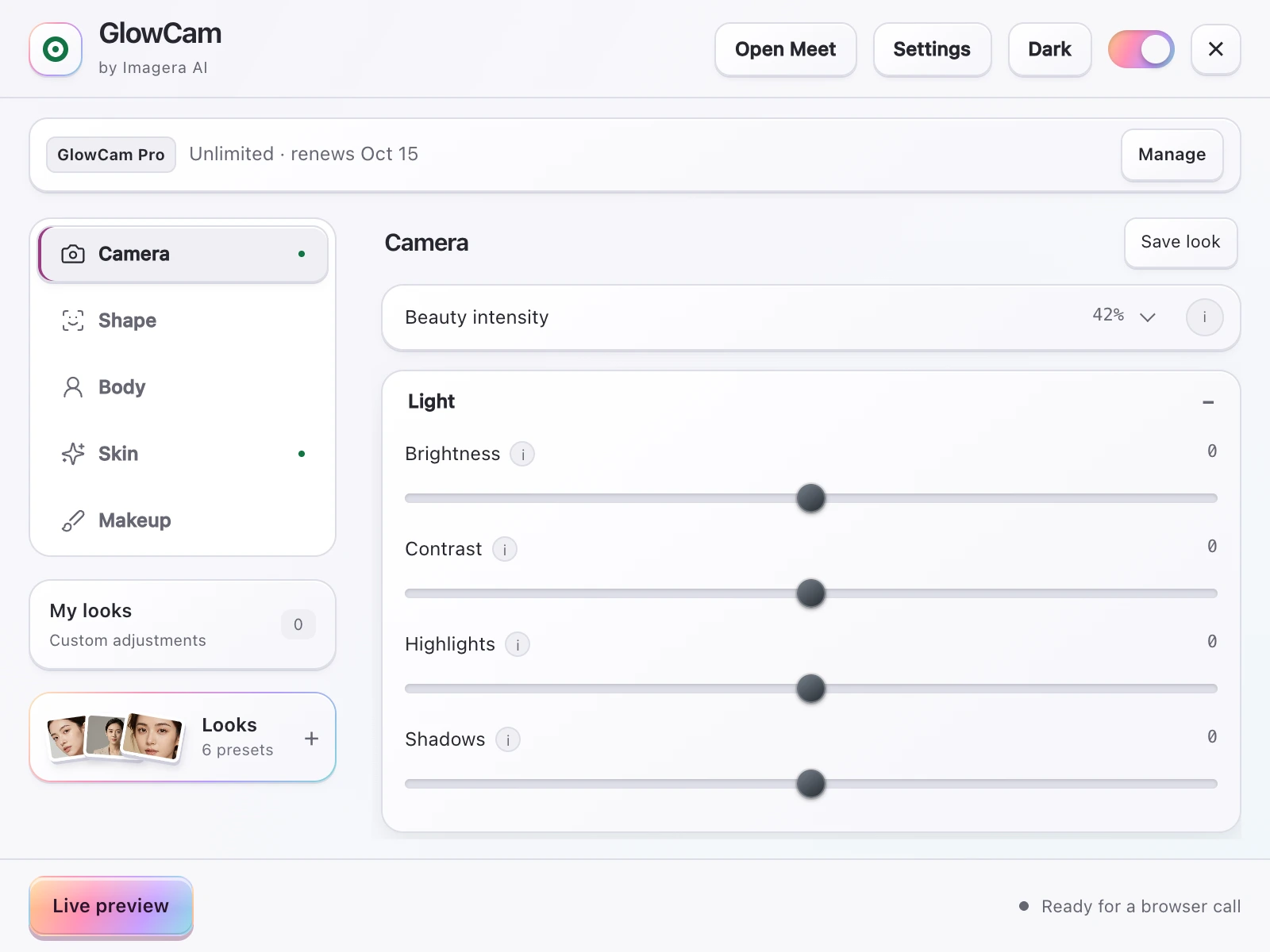
Skin and tone control, granular. Smoothing, blemish and pimple cleanup, even tone, glow, warmth, brightness, a fair/lighten option, and under-eye brightening — exposed as separate dials, not a single intensity bar. You decide how much of each, rather than accepting one preset level.
Makeup that tracks your face. Lipstick, blush, teeth whitening and eye brightening that follow your features as you move and speak — similar in spirit to the Maybelline app, but as adjustable layers you control rather than fixed looks you select.
Hair recolour (PRO). Change your hair colour while keeping its natural shine and individual strands — something no built-in platform filter offers today.
Face and feature reshaping (PRO). Face slim, nose slim, jaw and chin V-line, lip plump, and eye enlarge. Subtle by default, and these are the tools the built-ins simply do not have.
Backgrounds done right. Blur, replace, brighten, set a custom colour, or use ready-made presets — useful given the Durham finding above about how much your backdrop signals.
Looks and instant off. Natural, Meeting, and Polished presets, plus the ability to save your own. A master on/off switch restores your raw feed instantly — handy the moment someone asks you to "show the real thing."
6.The privacy point that should not be a footnote
Beauty filters historically meant either sending your webcam to a server or running a heavy desktop app. GlowCam does neither.
GlowCam runs 100% on-device using WebGL and MediaPipe. Your webcam feed is never uploaded, transmitted, or stored. It does not require a discrete GPU or heavy neural upscaling, so it runs on ordinary work laptops rather than demanding a gaming rig. The full technical detail lives on the privacy page.
An honest caveat in the same spirit: Google Meet is the platform that is fully end-to-end tested. The other apps — including Teams — use the same webcam-processing technique, but your specific hardware and meeting setup can vary, which is exactly why there is a free trial so you can confirm it works for you before paying anything.
7.Make the filter do less work — set the basics first
A filter is a finishing layer, not a fix for a dim room. Get the fundamentals right and you will need far less smoothing in the first place.
- Camera height. Position the lens at or slightly above eye level. Shooting up from a laptop flat on your desk is unflattering for everyone. Source: med.stanford.edu.
- Lighting first, smoothing second. Add a soft light source in front of your face before you reach for the smoothing dial. Front light reduces the shadows that smoothing would otherwise have to work to hide. Sources: med.stanford.edu; iphonelife.com.
- Resolution matters. A 1080p or better webcam gives the filter clean pixels to work with; a grainy 720p feed limits how natural any beautifier can look. Source: iphonelife.com.
Do these three things and the beauty filter becomes a light touch rather than a heavy mask. For the complete on-camera routine, see how to look better on video calls, and for a wider tooling roundup, best webcam filters 2026.
8.Should you use Teams' built-ins or GlowCam?
It depends on how you work.
If you live entirely inside Microsoft Teams and a smoothing slider plus a curated Maybelline look is all you want, the built-in tools are a reasonable, zero-install choice. Use them — there is no point adding software you do not need.
If you bounce between Teams, Zoom, Meet and the rest — or you want hair recolour, subtle reshaping, granular skin control, and a single consistent look everywhere — that is where one cross-app, on-device extension earns its place. It is also the more sensible option if you frequently land on platforms with thinner built-in tooling, such as Webex, Whereby or Discord, where there is little or no native beauty control to fall back on.
9.Pricing, in plain terms
GlowCam starts with a 7-day free trial, with no credit card required. During the trial, the Skin, Makeup, and Background features are free to use. After the trial it is $19.99/month, or pay-per-use credits if you only need it occasionally. The PRO features — Hair recolour and Reshape — sit in the paid tier. You sign in with an Imagera AI account using email and password, or with Google.
You can also compare the platform-specific guides for Google Meet and Zoom if those are your primary meeting apps.
10.The bottom line
Microsoft Teams genuinely has a beauty filter — Touch Up My Appearance plus the Maybelline app — and for a single-platform user that may be plenty. The gap is breadth, control, and consistency: no hair, no reshaping, fixed makeup presets, and nothing that follows you into the next app you open. GlowCam fills that gap with one on-device extension that works across Teams, Zoom, Meet, Webex, Whereby and Discord, adds the tools the built-ins lack, and never sends your webcam off your machine.
Try it free for 7 days, no credit card — get GlowCam at imagera.ai/glowcam.