AI Smart Director 2026 — One-Click AI Video Direction Online is a practical Imagera workflow: start from a single sentence, let the AI script and storyboard the shots, generate with credits shown up front, and review before you publish. Instead of coaxing a single model into a usable clip through dozens of re-rolls, you get a directed multi-shot film with consistent characters and deliberate pacing. This guide covers the full workflow, the quality checks that matter, the mistakes that waste credits, and when to reach for related Imagera tools instead.
Quick answer: Imagera's AI Smart Director is a one-click AI video direction workflow that turns a single sentence into a scripted, storyboarded multi-shot film, with credit costs shown before you generate and finals delivered in up to 4K.
1.How does Imagera's AI Smart Director turn one sentence into a finished video?
You write one honest sentence, and Smart Director scripts and storyboards the shots automatically, then renders a directed multi-shot film with consistent characters. Most creators run a 4–6 second test in Quick mode first, review, and re-run in under 60 seconds, then enhance finals to 4K. Instead of guessing at a single model with repeated blind re-rolls, you get a planned sequence on the first pass.
2.Why is AI Smart Director more efficient than manual AI video generators?
It plans every shot up front instead of coaxing one model through dozens of attempts, so you spend credits on a few directed passes rather than repeated guesswork, and every cost appears before generation. Storyboarding first means fewer wasted renders, because each shot is decided before a single credit is spent. That economy matters most at higher resolutions: we timed generation across tiers and a 2K pass took roughly twenty times longer than the same clip at 768p, so a wasted 2K render costs minutes rather than seconds. Imagera also pairs it with CinePage and the video generator for full production.
3.Quick start
Open AI Smart Director → describe the scene → generate short tests → enhance finals. Credits from $19.99.
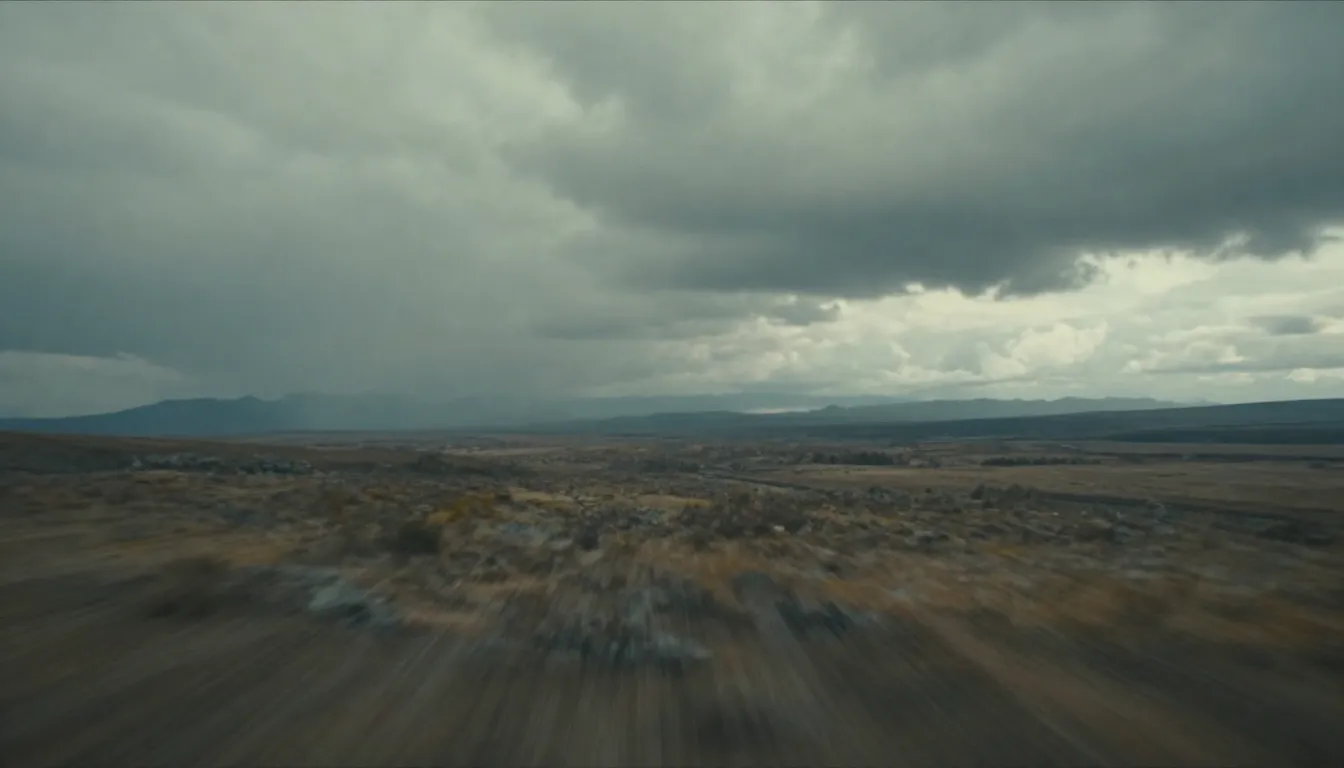
A real clip produced with Imagera — no filming required.
If you have never made an AI film before, the fastest path is: write one honest sentence about the film you want, leave every setting on its default, and run a short 4–6 second test in Quick mode. Look at the result, decide what to change, then re-run. You will learn more about how the director "reads" your brief from one real render than from an hour of tweaking settings blind.
4.When to use Smart Director vs manual video generator
- Smart Director: faster directed multi-shot intent
- Popular / LoRA Video Generator: more manual control
- CinePage: cinematic page builder sequences

Links: CinePage, Popular AI Video Generator.
The short version: reach for Smart Director when you want the whole film — a shot list, a look, and edited pacing — decided for you from one sentence. Reach for the manual Popular AI Video Generator when you already know exactly what a single shot should be and want to steer it prompt by prompt. Use CinePage when the deliverable is a cinematic page — a scrolling sequence experience — rather than a standalone clip.
5.What AI Smart Director does
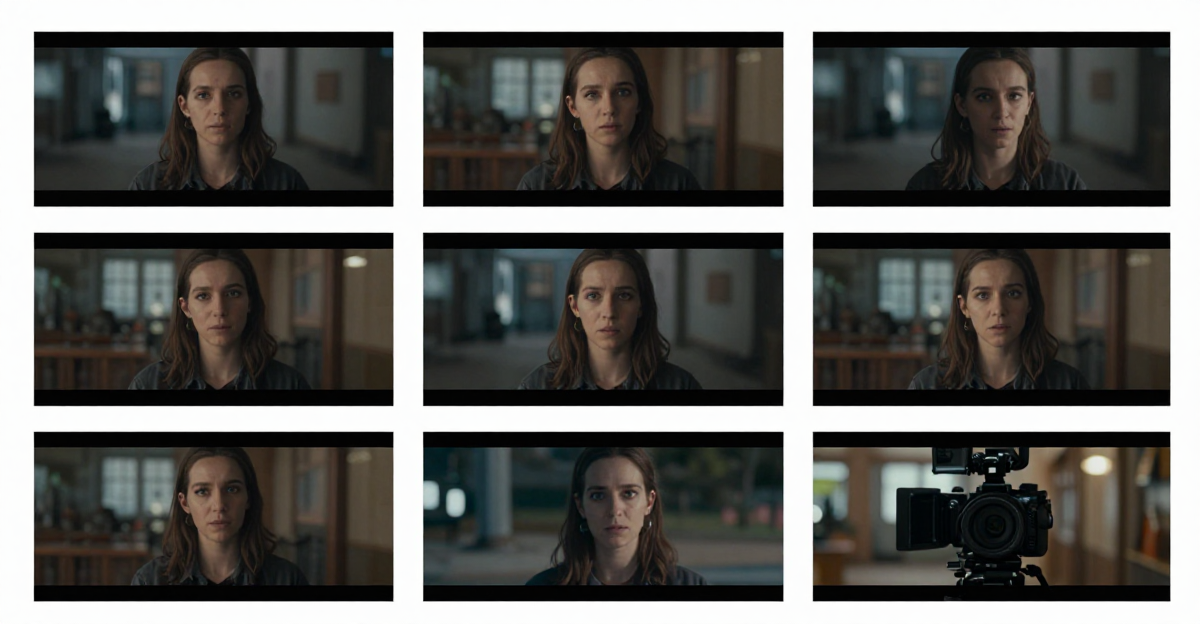
Most AI video tools generate one clip from one prompt, so characters morph between cuts, backgrounds drift, and pacing reads accidental. AI Smart Director runs a three-stage pipeline before rendering a frame: it scripts a real shot list from your sentence, builds a 4K production-bible storyboard, then directs the whole film as one continuous multi-shot cycle. That planning step is why characters stay consistent, framing reads intentional, and the cuts feel edited rather than random.
Step two produces a genuinely useful artifact, not a thumbnail: a labeled 4K poster (3840×2160 widescreen) with a character reference grid, environment plates, floor diagram, color palette, lighting notes, and a numbered shot strip — the same hand-out a real film crew would print. You can download it, iterate on it, skip it, or bring your own. Final films run any integer length from 4 to 15 seconds, and everything renders in the browser with full commercial rights included.
The important mental shift is this: Smart Director is not "a video model with a nicer button." It is a small production crew condensed into a pipeline. The scripting stage decides what happens and in what order. The storyboard stage decides how it looks and locks the cast, sets, palette, and framing so they do not drift. Only then does the render stage animate that plan into motion. Because the plan exists before a single frame moves, the finished film has the one thing single-pass clips almost never have — continuity.
6.How it works
- Write the brief. Type one sentence describing the film you want. Optionally upload a photo of your actor, product, or environment, plus a voice or music track.
- AI builds the production bible. The AI scripts a shot list and renders the 4K storyboard sheet — character grid, environment plates, floor diagram, palette, lighting notes, and numbered shots.
- Render the multi-shot film. The AI directs the storyboard into a continuous cinematic cut with consistent characters and a consistent palette, 4–15 seconds long.
- Review, download, ship. Preview the finished cut, download it, and use it commercially.

Quick mode runs the whole pipeline in one click. Step-by-step mode lets you design and review the storyboard first, then render — and each step is charged independently, so you only pay for what you actually run.
Under the hood, the reference inputs are handled with real limits, not vague promises. You can attach up to 9 reference images across your named actors, objects, and environment plates, plus up to 3 audio clips (voiceover, dialogue, or score) totaling up to 15 seconds. The storyboard sheet always renders in 4K widescreen; the moving film then reframes to whichever aspect ratio you picked — 16:9, 9:16, 21:9, 4:3, 3:4, or auto. Because storyboard and video persist as separate steps, you can regenerate just the render without paying to rebuild the plan, or vice versa.
7.Step-by-step walkthrough
Here is how a real production run goes from a blank field to a downloadable film.
- Choose your mode. New users usually start in Step-by-step mode because it shows the plan before spending render credits. If you already trust the tool and want speed, switch to Quick mode and let all three stages run in one click.
- Write one sentence. Describe the film — subject, action, mood, setting. "A barista slides a latte across a marble counter at golden hour, camera drifting past steam" gives the director far more to work with than "coffee video." You do not need model jargon or prompt-engineering syntax.
- Attach references (optional). If a specific actor, product, or location must stay identical shot to shot, upload and name those images. Add an audio clip if you want the film cut to a voiceover or track. Skip this entirely and the director invents a confident visual direction from your theme.
- Pick length and aspect ratio. Choose any integer length from 4 to 15 seconds and one of the six aspect ratios. Set these up front — the storyboard is planned around them.
- Generate the storyboard. In Step-by-step mode, the director scripts the shot list and renders the 4K production-bible sheet. Review the character grid, palette, and numbered shots. If something is off, adjust your brief and regenerate just this step.
- Render the film. When the plan looks right, run Step 2. The director animates the storyboard into a continuous multi-shot cut, keeping the cast and palette locked across cuts.
- Review and download. Preview the finished film, confirm the cuts land where you want, then download. Full commercial rights are included, so it is ready for a client deliverable, a paid campaign, or a social post.
Each Generate button shows its credit cost before you click, so you always know what a step will spend. Failed renders are refunded automatically — you are only charged for jobs that successfully complete.
8.Common use cases
- Marketers and brands producing short social ads or product spots without booking a shoot.
- Creators making vertical Reels, TikToks, and Shorts (9:16) or widescreen (16:9) clips at content volume.
- Teams that need consistent output across many cuts without a studio day.
- Filmmakers and storyboard artists who want a labeled production bible to iterate on before committing to a render.
- Anyone bringing a specific actor, prop, set, or voiceover that must stay consistent across every shot.
To make those abstract audiences concrete, here are the scenarios where Smart Director tends to earn its credits:
- A product launch teaser. Upload the product as a named reference, write one sentence about the hero moment, pick 9:16 for Reels, and get a multi-shot spot where the product looks identical across every cut instead of morphing between frames.
- A recurring-character series. Creators who post a mascot, avatar, or spokesperson repeatedly can reuse the same named actor reference across many films so the character stays on-model week after week.
- A pitch or mood film. Agencies and filmmakers use the 4K storyboard sheet as a genuine pre-production artifact — a way to show a client the look and shot order before anyone commits to a full render or shoot.
- A voice-led explainer. Attach a voiceover clip, and the director cuts the film against the audio so pacing lines up with the narration rather than fighting it.
- High-volume social content. Teams that need dozens of short clips a month lean on Quick mode and short 4–6 second runs to keep both credit spend and turnaround low.
9.Who it's for
If you are deciding whether this tool fits your workflow, the honest test is: do you value a directed sequence over a single hand-tuned shot? If yes — marketers who need spots fast, creators shipping at volume, teams that must stay visually consistent, and filmmakers who want a real storyboard to iterate on — Smart Director is built for you. If you are a specialist who wants frame-level control over one exact shot, the manual generators listed above will feel more natural.
10.Comparison
An honest look at where Smart Director sits versus doing the same work manually or with a general single-pass tool. Competitor pricing below is illustrative of typical subscription tiers; Imagera cost is expressed in credits, shown on each Generate button before you spend.
| Approach | Multi-shot continuity | Storyboard artifact | Setup effort | Typical cost |
|---|---|---|---|---|
| Imagera Smart Director | Planned before render — characters and palette locked across cuts | Yes — labeled 4K production-bible sheet | One sentence | ~110 credits for a 5s Standard run; ~200–300 credits for a 10s Cinematic HD film with audio |
| Single-pass AI video prompt | None — each clip is independent, characters drift | No | Prompt engineering + re-rolls | Varies by tool subscription |
| Manual Popular AI Video Generator | You control it shot by shot | No | High — you direct every cut | Per-render credits |
| Traditional editing suite | Full, but you do all the work | You build it by hand | Very high — software + skill | ~$20–55/mo subscriptions + your time |
The trade-off is real and worth stating plainly: a single-pass prompt or a manual generator gives you maximum control over one shot, but you pay for it in continuity headaches and re-rolls. Smart Director trades some of that per-shot control for a plan that keeps the whole film coherent — which is usually the harder problem to solve by hand.
11.Tips for best results
- Bring your own references — up to 9 named images (actor, object, environment) and up to 3 audio clips — when a character or product must stay identical shot to shot.
- Already have a storyboard? Use "I already have one" in Step-by-step mode to upload it and skip the planning cost, animating your image directly.
- Pick your aspect ratio up front: 16:9, 9:16, 21:9, 4:3, 3:4, or auto. The storyboard always renders 4K widescreen, then the video reframes to your choice.
- For social, 4–6 seconds is punchy; 10 seconds is the recommended balance; 12–15 seconds gives you long takes with multiple beats.
- Use Standard mode for the highest-quality pipeline, or 2× Faster mode (2× credits) when iteration speed matters more than absolute fidelity.
- Write the sentence like a director, not a search query. Name the subject, the action, the mood, and the camera behavior. Specific verbs and one clear moment beat a list of adjectives.
- Test small before you commit. A short Quick-mode run tells you whether the director understood your brief for a fraction of the credits of a full 15-second Cinematic render.
- Review the storyboard sheet before rendering in Step-by-step mode. Catching a wrong palette or off-model character on the sheet is far cheaper than discovering it in the finished video.
12.Common mistakes to avoid
- Vague one-liners. "Make a cool video" gives the director nothing to lock onto. The single sentence is your whole brief — spend a moment making it specific.
- Skipping references when consistency matters. If a real product or person must appear unchanged across cuts, upload it as a named reference. Relying on a text description alone invites drift.
- Rendering full length before testing. Jumping straight to a 15-second Cinematic run to "see if it works" burns credits. Run a short Standard or Quick test first, confirm the direction, then scale up length and quality.
- Ignoring aspect ratio. Rendering 16:9 and cropping later wastes the framing the director planned. Pick the final aspect ratio up front so the storyboard is built for it.
- Overloading the brief. Cramming five unrelated ideas into one sentence forces the director to compromise. One clear film per run reads far better than a kitchen-sink prompt.
- Forgetting the storyboard is optional and reusable. If you already have artwork or a plate you like, bring your own storyboard and skip the planning cost entirely rather than paying to regenerate a plan you do not need.
13.Examples
A few illustrative mini-scenarios showing how the same tool serves very different briefs:
- The 6-second product Reel. Input: one sentence plus a photo of the product, aspect 9:16, length 6 seconds, Quick mode. Output: a short vertical spot with the product locked across three cuts, ready to post — for roughly a short-Standard credit spend.
- The 12-second brand film. Input: one sentence, a named actor reference, a music clip, aspect 16:9, length 12 seconds, Standard mode. Output: a multi-beat film cut to the track, with the actor on-model across every shot and a downloadable 4K storyboard for the client to sign off on.
- The bring-your-own-storyboard animation. Input: an existing storyboard image uploaded in Step-by-step mode. Output: the director skips scripting and planning, animates your artwork into a moving clip, and you pay only for the render step.
14.Pricing
Pay-first. See pricing.
15.Start here (product links)
16.Deeper guide (practical production)
Two workflow decisions shape almost every session: which mode to run, and how to sequence your credit spend.
Choosing Quick vs Step-by-step. Quick mode is the right default once you trust your brief — it runs script, storyboard, and render in a single click and returns a finished film in about two minutes on the Standard pipeline. Step-by-step mode is the right default while you are still dialing in a look, because it lets you approve the 4K storyboard before spending any render credits. Since each step is billed independently, Step-by-step is also the cheapest way to iterate: you can regenerate the plan several times for the cost of the planning step alone before you ever pay to animate it.
Sequencing your spend. A disciplined production loop looks like this: draft the brief, run a short Standard test, read the result, refine the brief or swap a reference, then scale up length and quality for the final. The 2× Faster mode (2× credits) is worth it during the iteration phase, when turnaround matters more than absolute fidelity, and Standard is worth it for the shot you actually ship. Because failed renders are auto-refunded, the only real cost of experimenting is the credits for successful test runs — which is exactly why keeping tests short pays off.
17.Where to go next (product links)
18.Bottom line
AI Smart Director is Imagera's one-click video direction product for faster multi-shot workflows: one sentence in, a 4K production-bible storyboard, and a directed cinematic cut out. Pay-first credits from $19.99. Pair with CinePage and the video generator for full production.
CTAs: AI Smart Director · Popular AI Video Generator · CinePage · Pricing