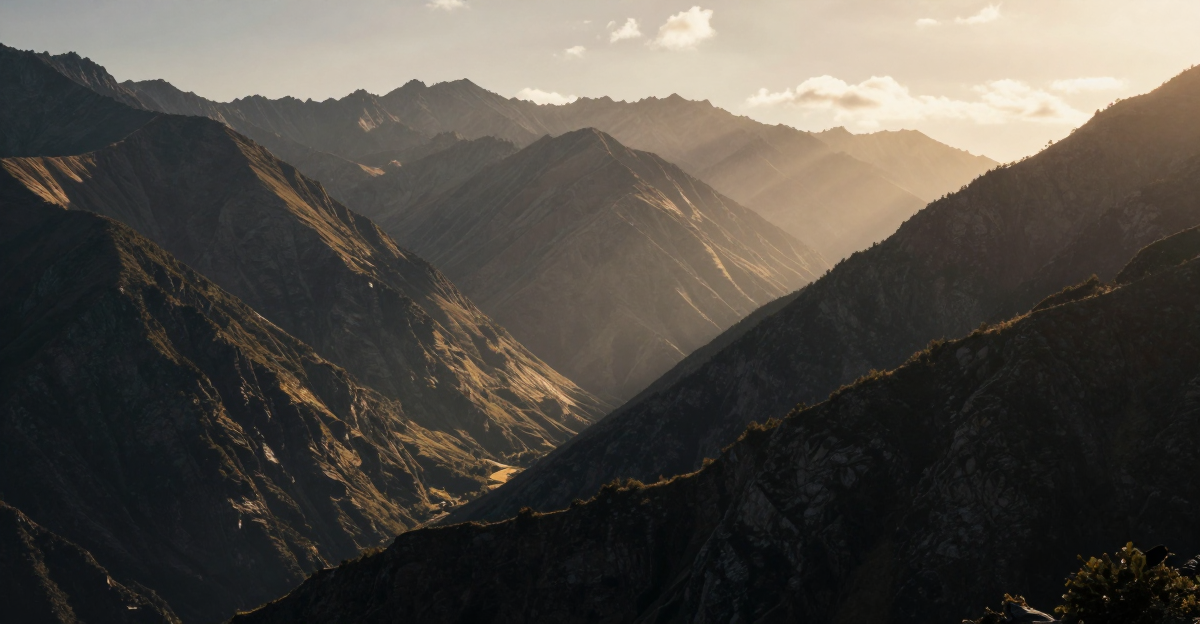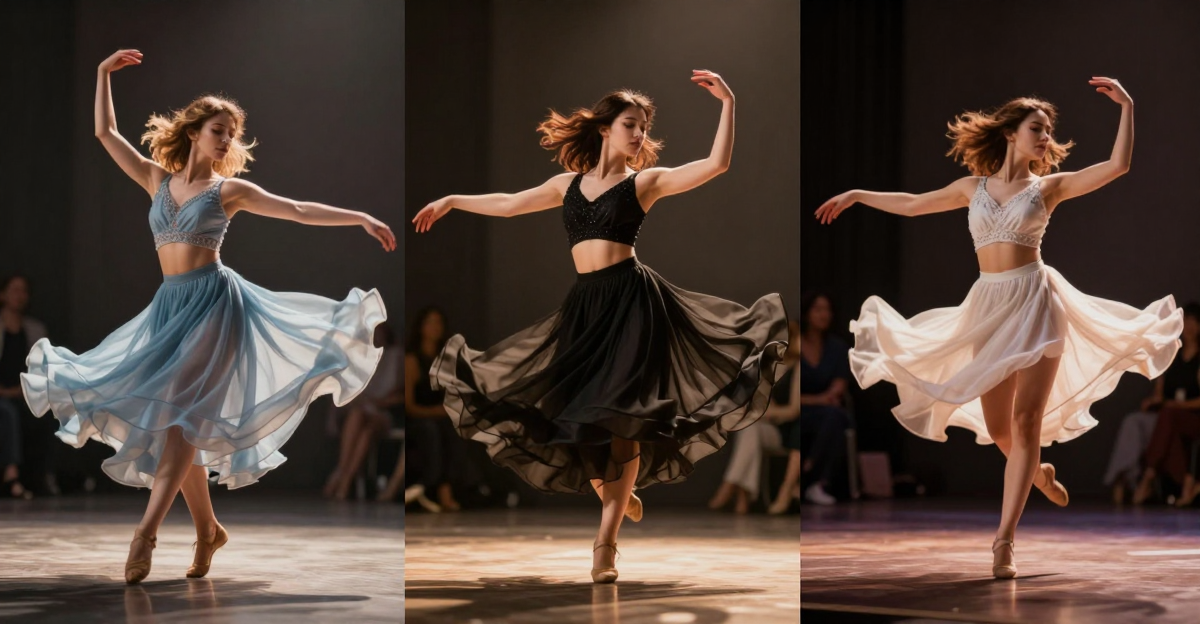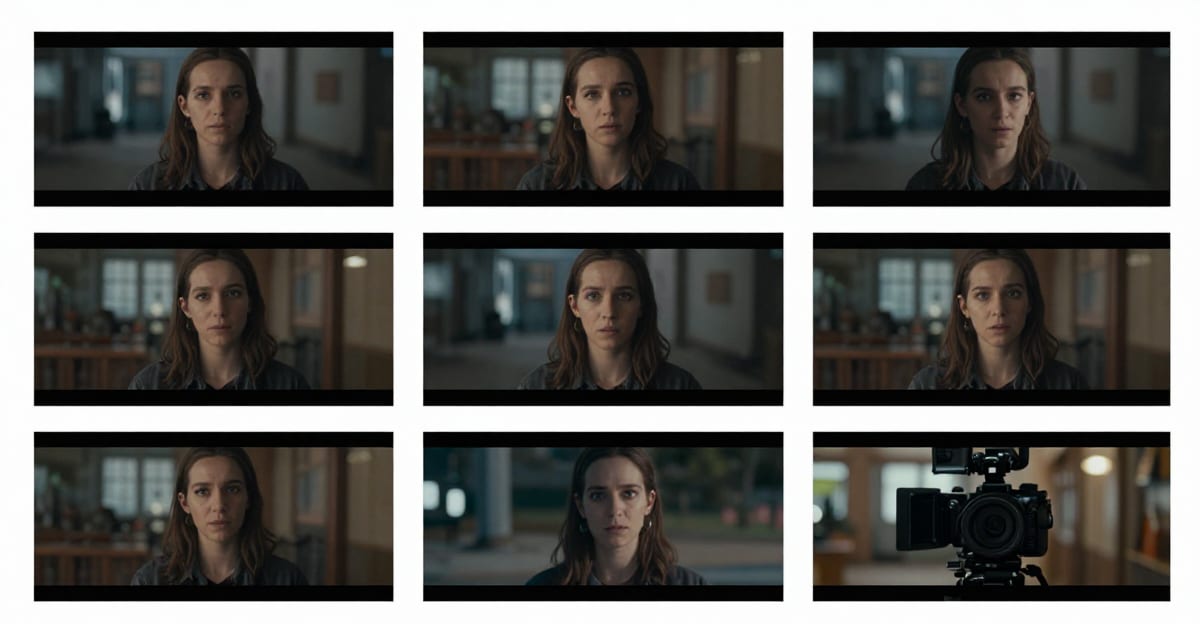
AI video generation has reached a point where the output can look genuinely cinematic — filmic color grading, shallow depth of field, realistic lighting, smooth camera movement. The key ingredient that separates generic AI video from cinematic AI video is LoRA models.
The catch? Until recently, using LoRAs meant setting up a local ComfyUI environment, owning an expensive GPU, downloading model files, and spending hours on configuration. Most creators never get past the setup.
This guide shows you how to create cinematic AI videos with LoRA models directly in your browser — no GPU, no downloads, no technical setup. Just prompts, LoRA selection, and generate.
For a deep dive into which specific LoRA models deliver the best cinematic results, see our comprehensive LoRA guide for WAN 2.2. For context on how LoRA-based generation compares to closed-source tools like Seedance 2.0, Sora, and Veo, the Seedance 2.0 review covers that comparison.
Quick answer: Cinematic AI video with LoRA on Imagera lets you apply a custom style model to any prompt or image and render film-grade footage in 1080p or 4K, typically in under 60 seconds per clip.
1.How does LoRA make an AI video look cinematic on Imagera?
A LoRA is a lightweight style model, often 10-200MB, that layers a trained look (color grade, film grain, lens character) onto every frame. On Imagera you attach 1 LoRA, set 24 or 30 fps, and generate 4K-ready clips. Trained on 15-100+ reference stills, it holds a consistent cinematic style across the whole clip instead of one-off looks.
2.Which settings should you pick for the best cinematic result in 2026?
Start at 24 fps for a film cadence, render at 4K when you need detail, and keep clips to 5-10 seconds so the LoRA style stays coherent. Shorter 5-second clips render faster and cost less than longer ones, so batch 3-4 variations, then upscale the winner. Cinematic LoRA video jobs on Imagera start from 40 credits.
3.What Makes AI Video Look "Cinematic"
Before getting into the how-to, understanding what "cinematic" actually means helps you make better creative decisions:
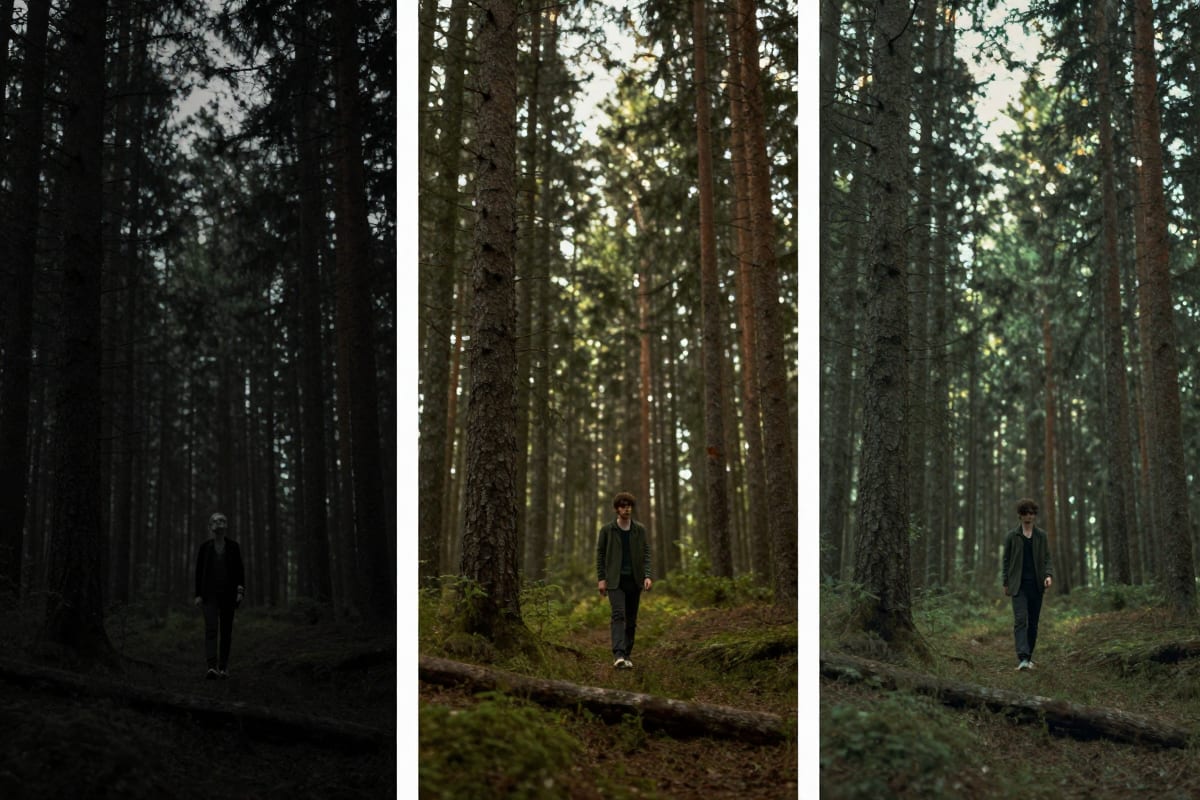
Color Grading: Film doesn't look like reality. Cinema uses deliberate color manipulation — warm oranges in highlights, teal in shadows, desaturated greens. This "look" comes from decades of Hollywood color science and LUT (look-up table) development.
Shallow Depth of Field: Your phone keeps everything in focus. Cinema cameras with large sensors and fast lenses create a narrow focus plane — the subject is sharp, the background is beautifully blurred (bokeh). This directs viewer attention and creates visual hierarchy.
Lens Characteristics: Real cinema lenses produce specific flare patterns, vignetting, barrel distortion, and chromatic aberration. These "imperfections" are what make footage feel cinematic rather than clinical.
Film Grain: Digital video is clean. Film has grain — organic, random noise patterns that add texture and warmth. Modern filmmakers often add grain in post-production even when shooting digital.
Lighting Ratio: Cinema uses deliberate lighting ratios between highlight and shadow. The interplay of light and dark creates drama, depth, and mood.
A cinematic LoRA encodes these characteristics into the AI model, so when you generate video, the output inherits film-like visual properties automatically.
4.Step 1: Choose Your Base Model
The base model determines the foundation of your video. For cinematic output in 2026, two main options:
WAN 2.2 (Recommended for video):
- Alibaba's latest video generation model
- Dual-path Mixture-of-Experts architecture
- Best quality-to-speed ratio for AI video
- Largest LoRA ecosystem for video generation
- Native support for 4K output
WAN 2.1 (Alternative):
- Previous generation, still produces good results
- Simpler single-path architecture
- Wider LoRA compatibility (more legacy LoRAs available)
- Slightly faster on lower-end hardware
For cinematic video, start with WAN 2.2. The dual-path architecture produces better fine detail and temporal consistency (frame-to-frame smoothness), which matters significantly for cinematic output.
On Imagera, select your base model from the model dropdown — no installation or configuration needed. For a detailed comparison of WAN 2.2 vs WAN 2.1 architectures and how they handle LoRAs differently, see our WAN 2.2 LoRA guide.
If you are weighing a newer base, note that the choice also decides which trainer you use later: MiniMax H3 LoRA training splits into four separate trainers by generation mode, and adapters do not transfer between them.
5.Step 2: Select Your Cinematic LoRA
This is where the magic happens. The right LoRA transforms generic AI video into cinematic output.
5.1For General Cinematic Look
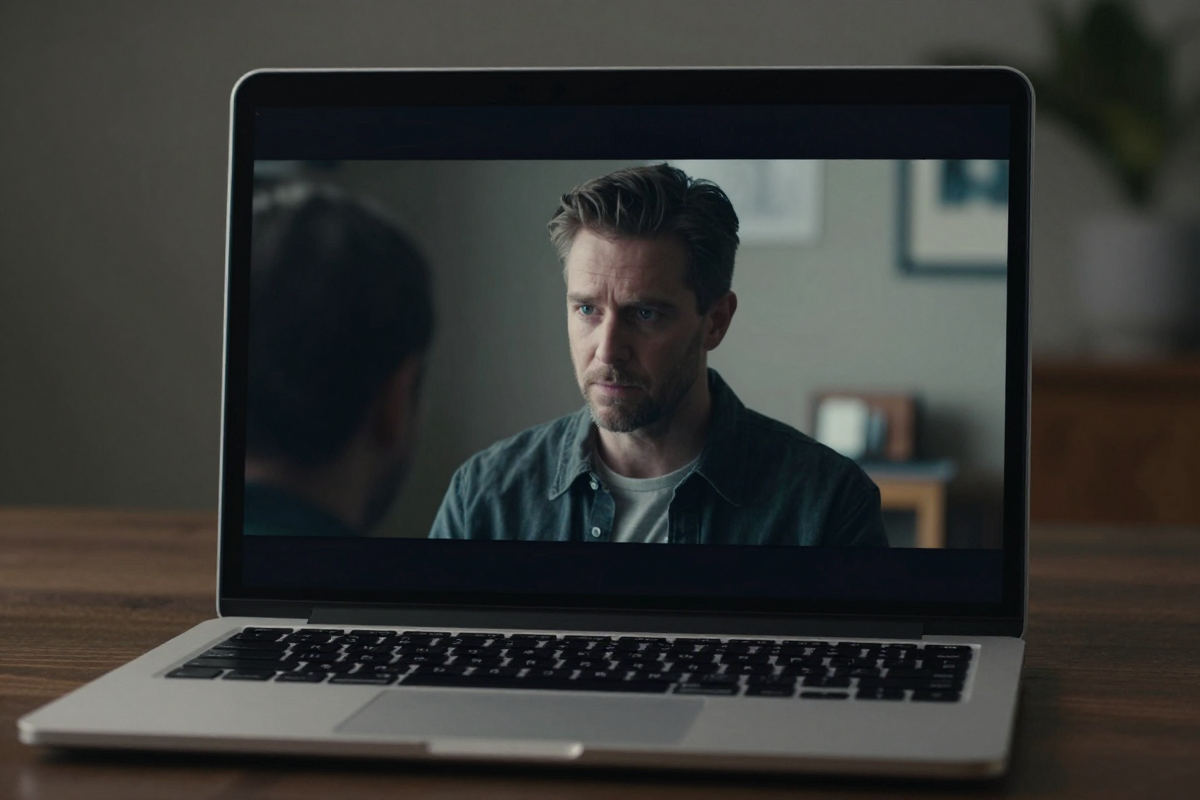
Cinematic Flare LoRA at strength 0.7
- Hollywood-grade color grading
- Anamorphic lens simulation
- Film grain and contrast curves
- Best for: short films, mood pieces, dramatic scenes
5.2For Photorealistic People
WAN 25 Realistic at strength 0.75
- Accurate skin rendering and pore detail
- Natural eye reflections
- Realistic hair rendering
- Best for: portrait videos, character-driven content, interviews
5.3For All-Purpose Realism
FusionX at strength 0.65
- Balanced realism across all scene types
- Material differentiation (metal, glass, fabric)
- Environmental lighting accuracy
- Best for: variety of scenes, general quality improvement
5.4For Speed (Iteration)
CausVid at strength 0.9
- 3x faster generation
- Use during experimentation
- Switch to quality LoRA for final output
- Best for: prompt testing, batch generation, quick previews
5.5Combination Stack (Advanced)
For maximum cinematic quality, combine two LoRAs:
- WAN 25 Realistic at 0.7 (primary — handles realism)
- Cinematic Flare at 0.45 (secondary — adds film look)
Keep total combined strength at or below 1.2 for stable output.
On Imagera, browse the LoRA library, select your LoRAs, and adjust strength sliders — all in the browser interface.
6.Step 3: Write a Cinematic Prompt
Your prompt tells the AI what to generate. A cinematic prompt adds specific visual language that works with your LoRA to produce film-quality results.
6.1Basic Prompt Structure
[Subject] + [Action] + [Setting] + [Lighting] + [Camera] + [Style Modifiers]
6.2Example: Basic vs Cinematic Prompt
Basic prompt (generic output):
A woman walking through a city at night
Cinematic prompt (film-quality output):
A woman in a dark coat walks through rain-slicked Tokyo streets at night, neon reflections on wet pavement, anamorphic lens flare from distant signs, shallow depth of field, rack focus from foreground rain to subject, cinematic color grading with teal shadows and warm highlights, 24fps film motion, atmospheric haze
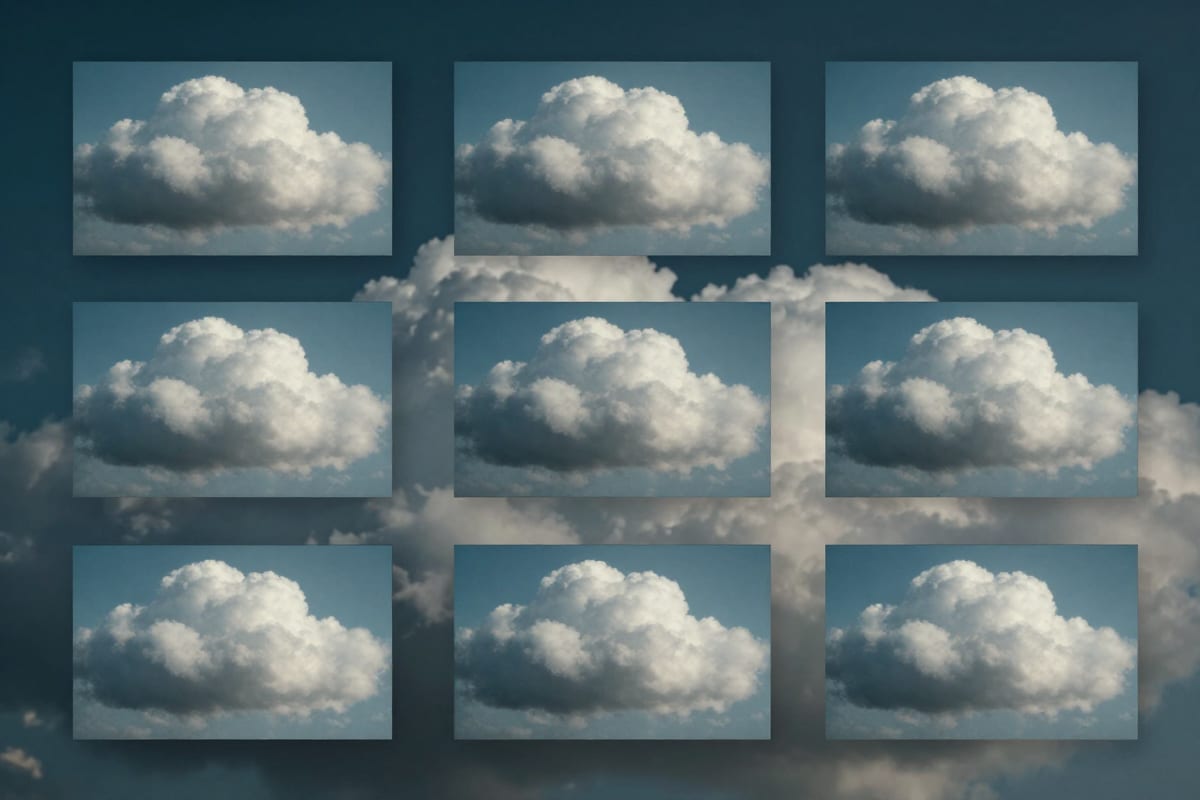
The cinematic prompt is longer but gives the model specific visual targets that align with what the LoRA is trained to produce.
6.3Key Prompt Keywords for Cinematic Output
Camera & Lens:
- "anamorphic lens" — triggers widescreen cinematic look
- "shallow depth of field" — background blur
- "rack focus" — focus shifts between subjects
- "dolly shot" / "tracking shot" — camera movement
- "close-up" / "medium shot" / "wide establishing shot" — shot types
- "35mm film" — triggers film-like rendering
Lighting:
- "golden hour" — warm directional light
- "blue hour" — cool atmospheric light
- "rim lighting" — backlight creating edge highlights
- "chiaroscuro" — dramatic light-to-dark contrast
- "practical lighting" — light sources visible in frame (lamps, screens, candles)
- "volumetric light" — visible light beams through atmosphere
Color & Mood:
- "cinematic color grading" — general film color science
- "teal and orange" — classic Hollywood complementary palette
- "desaturated" — muted, realistic color palette
- "high contrast" — dramatic light/dark separation
- "film grain" — organic noise texture
Motion & Tempo:
- "slow motion" — reduced speed for dramatic effect
- "smooth camera movement" — steady, deliberate motion
- "24fps" — cinema standard frame rate feel
- "long take" — continuous unbroken shot
6.4Prompts That Don't Work Well
Avoid prompt elements that conflict with cinematic LoRAs:
- "bright, colorful, vibrant" — fights against cinematic desaturation
- "flat lighting" — contradicts cinematic lighting ratios
- "selfie" / "phone camera" — triggers non-cinematic rendering
- "cartoon" / "anime" — conflicts with realism LoRAs
- "HDR" — tends toward over-processed look
7.Step 4: Set Generation Parameters
Beyond the prompt and LoRA, a few parameters significantly affect cinematic quality:
Resolution: 720p minimum for cinematic quality. 1080p is ideal. 4K if your plan supports it.
Steps (inference steps):
- 20-30 steps for standard quality (good for iteration)
- 30-50 steps for production quality (maximum detail)
- 4-8 steps if using CausVid speed LoRA
CFG Scale (guidance scale): Controls how closely the model follows your prompt.
- 5-7: Loose interpretation, more creative variation
- 7-9: Balanced prompt adherence (recommended for cinematic)
- 9-12: Strict prompt following (can reduce naturalness)
Seed: Use a fixed seed when iterating on prompts so you can see the effect of prompt changes without random variation. Use random seed for final generation variety.
On Imagera, these parameters are accessible through the generation settings panel.
8.Step 5: Generate and Iterate
The first generation rarely nails exactly what you want. The iteration process is where cinematic quality emerges:
- Generate first clip with your prompt, LoRA, and settings
- Evaluate: Does the mood match? Is the lighting right? Is the motion smooth?
- Adjust prompt: Refine specific elements — add "more atmospheric haze" if too clean, remove "golden hour" if too warm
- Adjust LoRA strength: Too cinematic? Lower by 0.05-0.1. Not enough? Increase.
- Generate again — typically 3-5 iterations to dial in the look
- Final generation: Once settings are dialed in, generate the final clip at highest resolution and step count
Time-saving tip: Use CausVid LoRA during iteration (fast but lower quality), then switch to your cinematic LoRA at full settings for the final generation.
9.Real Examples: Before and After LoRA
9.1Portrait Scene
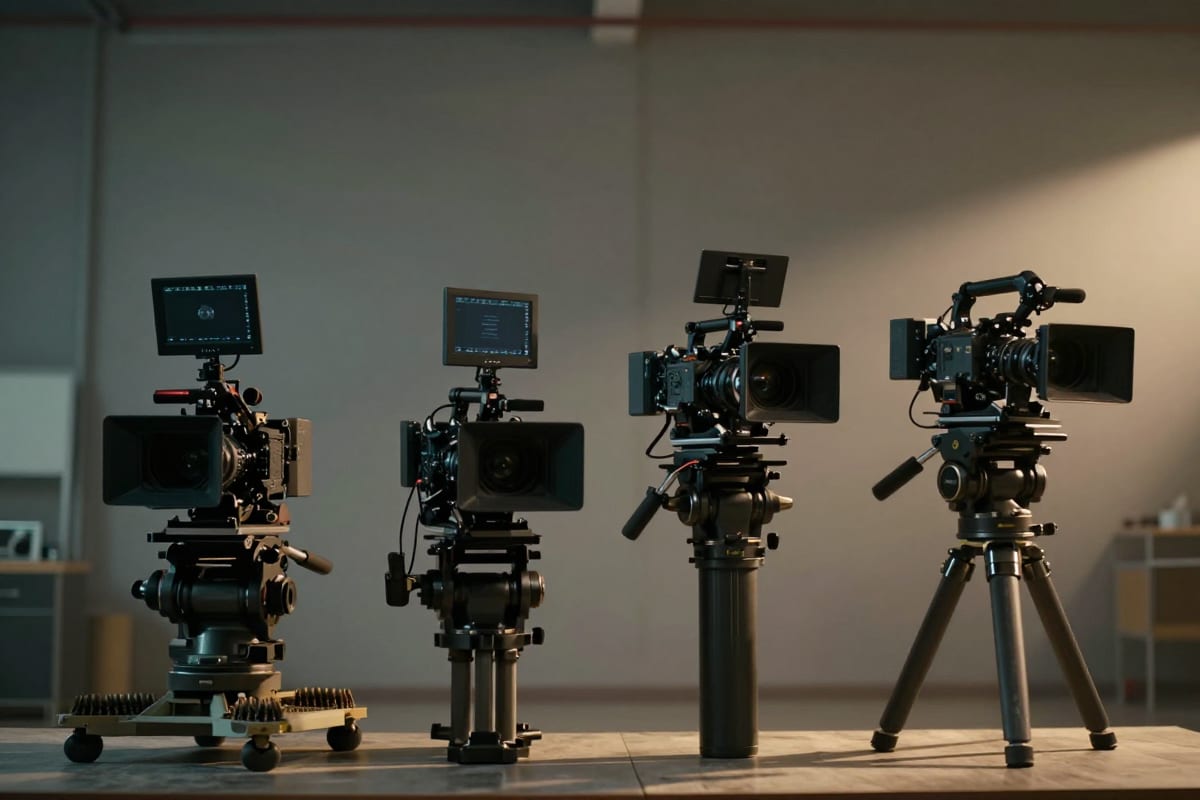
Without LoRA (base WAN 2.2): Clean, technically accurate, but flat lighting, digital-looking skin, no visual character. Looks like a competent stock video.
With WAN 25 Realistic (0.75) + Cinematic Flare (0.45): Skin has texture and subsurface scattering. Eyes have catchlights. Background falls off with smooth bokeh. Warm-to-cool color transition. Film grain adds organic texture. Looks like a scene from a Netflix drama.
9.2Urban Night Scene
Without LoRA: Accurate city scene but evenly lit, flat color, no atmosphere. Looks like a daytime scene with dark sky.
With Cinematic Flare (0.8): Neon reflections on wet surfaces. Anamorphic lens flares from light sources. Teal shadows, warm highlights. Volumetric haze in light cones. Looks like a Blade Runner establishing shot.
9.3Product Shot
Without LoRA: Product visible, basic lighting, no commercial appeal.
With Instamodel 1.0 (0.8): Soft studio lighting, controlled reflections on product surface, clean gradient background, commercial-grade color accuracy. Looks like a professional product photography setup.
10.Using Imagera for Cinematic AI Video
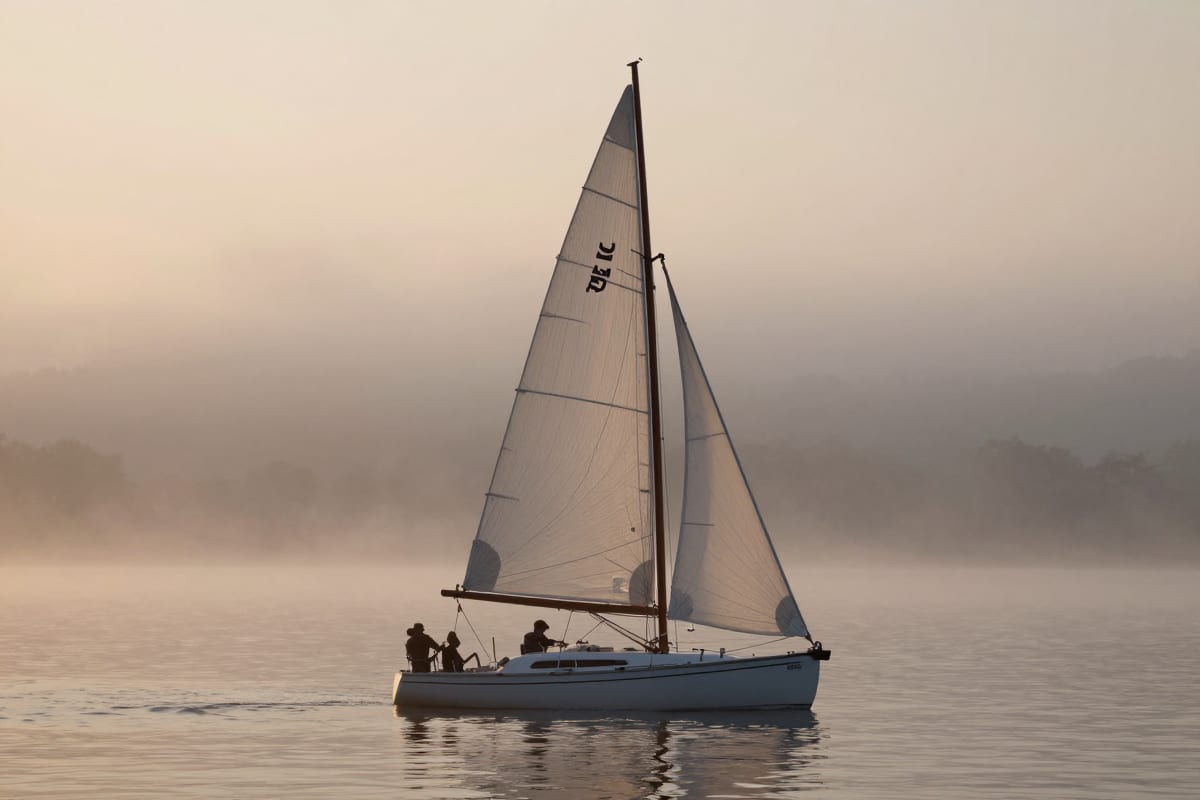
The workflow on Imagera:
- Go to imagera.ai/video/video-generator
- Select base model — WAN 2.2 for best cinematic results
- Browse LoRA library — search "cinematic", "realistic", or specific LoRA names
- Select LoRA(s) and set strength (start at 0.7)
- Write your cinematic prompt using the techniques above
- Set resolution and steps — 1080p, 30+ steps for production quality
- Generate — cloud GPUs process your video, typically 20-60 seconds
- Iterate — adjust and regenerate until the look is right
- Download your cinematic AI video
No GPU. No ComfyUI setup. No model file management. Everything runs on cloud infrastructure.
Credit packs start at $19.99 — enough to generate multiple cinematic clips and iterate on your creative vision.
Start Creating Cinematic AI Video
11.Post-Production: Enhancing Your Generated Clips
Generation is step one. For professional-grade output, a post-production pass can significantly improve final quality:
Video Enhancement: Run generated clips through AI video enhancement to clean up any compression artifacts and boost detail. The AI video upscaler can bring 720p generation output to crisp 4K.
Audio Pairing: Cinematic video needs cinematic audio. Use AI voice generation for narration, or AI music generation for scoring. For character-driven content, AI lip sync can synchronize dialogue to generated faces.
Image Extraction: Extract still frames from your best clips for thumbnails, social media posts, or marketing materials. You can also start with AI-generated images and use them as reference inputs for video generation — ensuring exact visual consistency.
Content Repurposing: A single cinematic AI video clip can become multiple content pieces: the video itself, still frame images, GIFs, behind-the-scenes prompt breakdowns. For creators building an AI content business, this kind of efficiency multiplier is covered in our guide to making money with AI tools.
Quality Verification: Before publishing, verify your AI content reads as authentic and professional. Cinematic LoRAs significantly reduce the "AI look," but a critical eye on final output prevents credibility issues.
12.When to Use Local Setup Instead
Cloud-based generation works for most creators, but local ComfyUI setup makes sense if you:
- Generate hundreds of clips per day (cost scales linearly with cloud, fixed with local)
- Need to experiment with unreleased or custom-trained LoRAs before they're in public libraries
- Want to train your own LoRA models from scratch
- Require offline generation capability
- Already own a 24GB+ VRAM GPU
For everyone else — occasional creators, content producers, marketers, and teams without dedicated AI hardware — cloud-based generation with pre-configured LoRA access is faster to start and cheaper per clip.
13.Bottom Line
Cinematic AI video is no longer locked behind expensive GPUs and complex ComfyUI configurations. The combination of WAN 2.2's powerful base model and purpose-built cinematic LoRAs produces output that approaches film production quality.
The workflow is straightforward: choose a base model, select a cinematic LoRA, write a descriptive prompt with film language, and generate. Iterate 3-5 times to dial in the look, then produce your final clip.
Create Your First Cinematic AI Video — 100K+ LoRA models, cloud GPU processing, starting at $19.99.
Related: Best Cinematic LoRAs for WAN 2.2 | Seedance 2.0 Review & Alternatives | Best AI Video Upscaler 2026 | Best AI Video Enhancer | How to Make Money with AI | AI Video Generator
14.Related product guide
15.Tools and next steps
| Goal | Open |
|---|---|
| Image edits & pose | Imagera Image Editor · Identity Editor |
| Headshots | AI Headshot |
| Product / person reels | Product Reel Maker · Human Reel Maker |
| Talking photo | Lipsync Studio |
| Pricing | Pricing |
How to ship: upload a master file → write a clear instruction → confirm credits → generate → review on phone → export winners only.