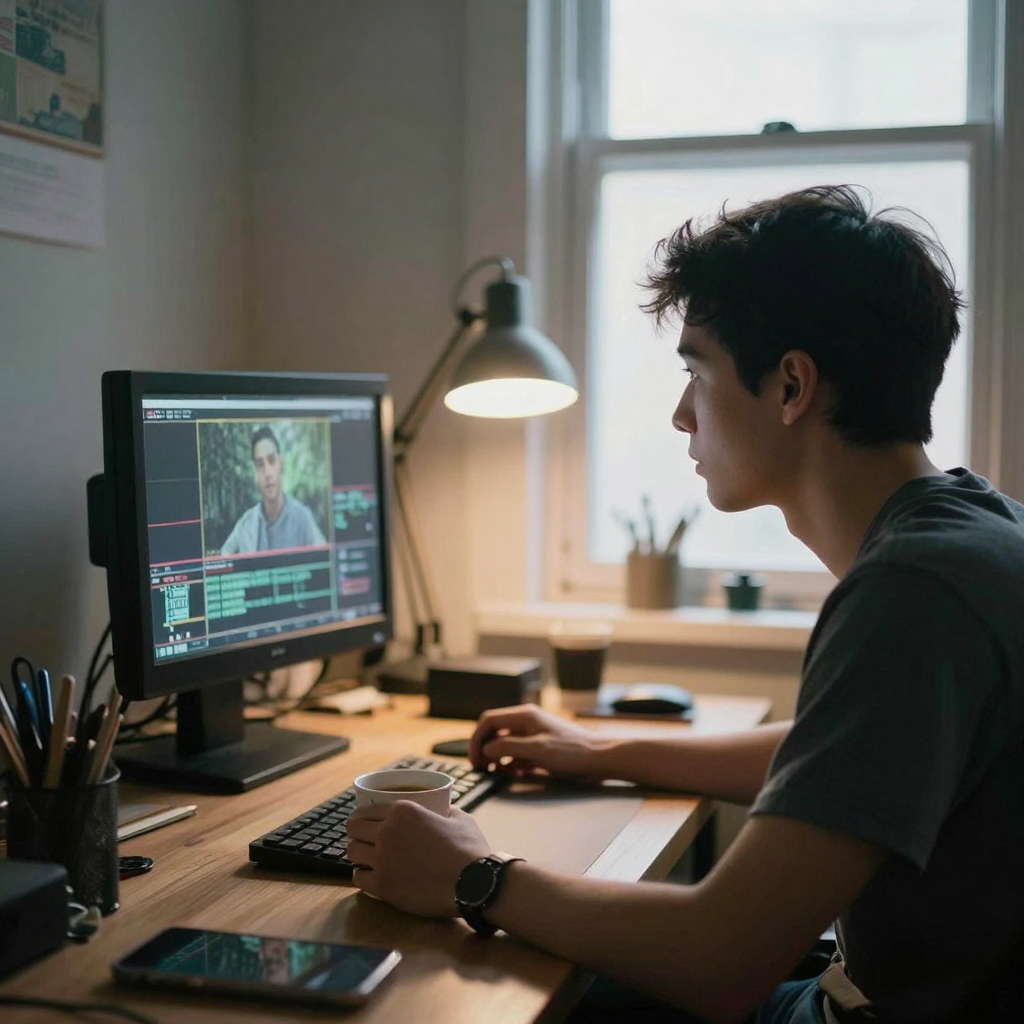
AI Video Editor 2026 — Multi-Model Video-to-Video Studio Online is a practical Imagera workflow: start from a real source file, describe what should change, generate with credits shown up front, and review before you publish. This guide covers the steps, quality checks, and when to use related tools.
If you already have footage — a phone clip, a UGC ad take, a product demo, a scene from an old shoot — and you want it to look completely different without re-filming, the AI Video Editor is the tool that does the transformation in your browser. You are not building a scene from a blank prompt. You are handing the editor a clip you already own and telling it how to re-skin it while it holds the original motion, camera moves, and timing in place.
Quick answer: Imagera's AI Video Editor is an online video-to-video studio that routes each edit through multiple AI models from one timeline, upscaling to 4K, restyling, and re-cutting clips in the browser with no software to install.
1.What can Imagera's multi-model AI video editor do in 2026?
In 2026 the studio runs video-to-video edits across 5+ specialized AI models from a single browser tab. You can upscale footage to 4K (and select clips to 8K), restyle scenes, swap backgrounds, and re-time to 60fps. Most short clips render in under 60 seconds, and every action is priced in credits, so a 10-second edit costs a fraction of a full re-shoot.
2.Why use a multi-model editor instead of one AI model?
No single model is best at every task, so routing across 5+ models lets Imagera pick the right engine per job: one for 4K upscaling, another for restyling, a third for motion. Different models have different strengths, and a multi-model approach lets each clip use whichever one handles that specific edit best, without you switching tools or re-uploading between them.
Speed is part of that routing decision, and it is dominated by resolution rather than by which engine you pick — we timed generation end to end and found the gap between tiers at the same resolution was about a second.
3.Quick verdict
| Job | Product |
|---|---|
| Restyle / transform existing video | AI Video Editor |
| Generate new clips | Popular AI Video Generator |
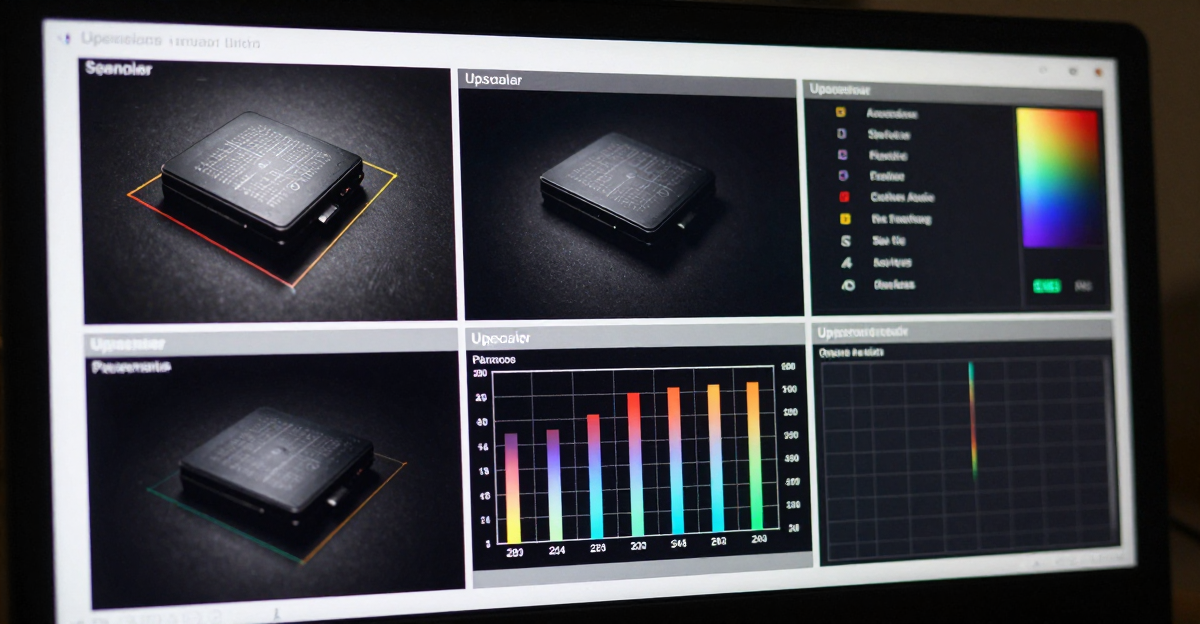
| Upscale soft footage | Popular AI Video Upscaler · Video Enhancer |
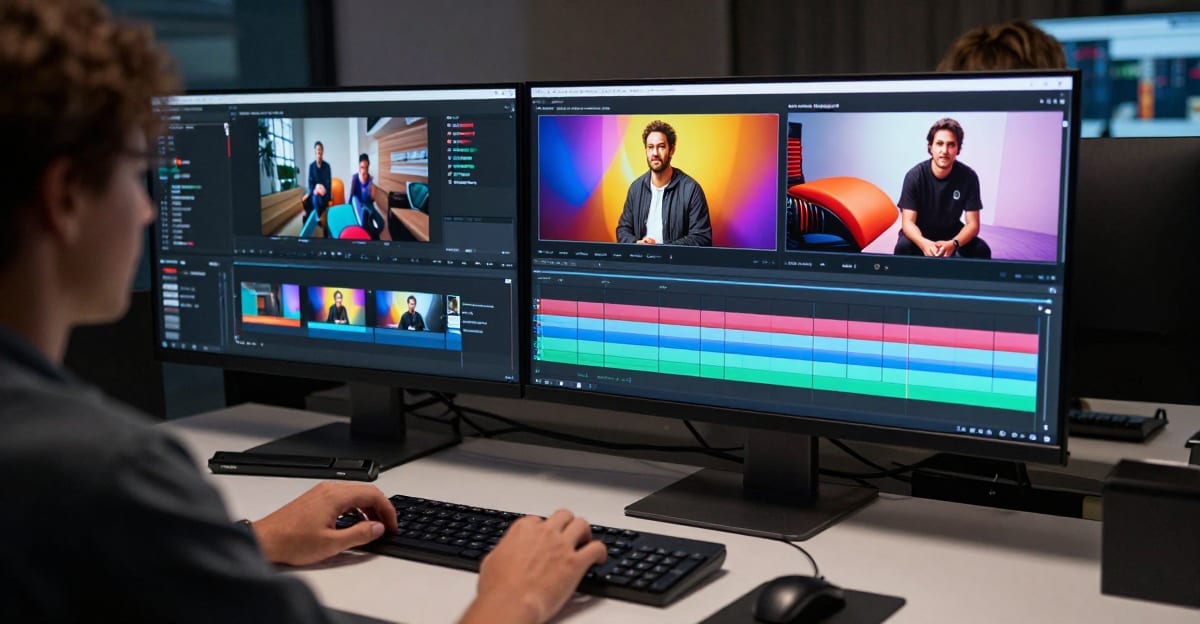
A talking-head clip — the kind of footage you edit, caption, and crop in the studio.
Choose AI Video Editor when you already have footage and need AI restyle/transform. It is pay-first (credits from $19.99), online, no desktop GPU requirement.
4.What the AI Video Editor does
The Imagera AI Video Editor is a video-to-video studio: you feed it a short clip you already have, write a prompt describing the look you want, and it transforms the footage while preserving the original motion, camera moves, and duration. Instead of generating a brand-new scene from scratch, it re-skins the one you shot — anime, cinematic noir, watercolor, cyberpunk, oil painting, retro VHS, or any aesthetic you describe.
You can steer the result with optional reference material. Upload reference images to guide style or appearance, and add up to two "character elements" (with 1–4 photos each) so a person or object keeps a consistent identity across the transformation. Everything happens in the browser, and a credit meter shows the cost before you commit.
Two ideas make this different from a normal generator. First, motion preservation: the tool follows the movement in your source clip rather than inventing new movement, so a hand wave stays a hand wave and a dolly shot stays a dolly shot — only the surface look changes. Second, multi-model choice: the studio exposes several transformation models behind one model picker and one credit wallet, so you can try a restyle-focused model on one job and a conversational "change this specific thing" model on the next without leaving the page or juggling separate subscriptions.
5.Why multi-model matters
Different edits reward different engines. A full aesthetic conversion — turning a flat handheld clip into a glossy cinematic grade or an anime scene — is a very different task from a targeted change like "make the jacket red" or "swap the character while keeping the movement." A single fixed model forces every job through one behavior. Imagera's editor lets you pick the model that fits the job:
- Broad restyle / transform models are best when you want the whole frame reinterpreted — art style, palette, lighting, and texture all shifting together while the motion holds.
- Conversational edit models are best when most of the frame should stay and you want to describe a specific change in plain language, often preserving the original audio automatically.
Because everything runs on the same credit balance, you are not committing to one vendor's pricing for the month. You spend credits per job on whichever model you chose, and the meter tells you the cost before you press generate.
6.How it works
- Upload your source video — a
.mp4or.mov, 3–10 seconds long, 720p to 4K, up to 200 MB (24–60 FPS). If your clip is below 720p, upscale it with the Video Enhancer first. - Write your transformation prompt — reference the clip as
@Video1and be specific about art style, lighting, and color palette, plus what to preserve versus change. - Add references or characters (optional) — attach style images (
@Image1,@Image2) or character elements (@Element1,@Element2) to lock in a look or an identity. - Pick your model and options — choose a model in the picker, set Keep Audio on or off, and select Normal or Ultra Fast where available. The credit cost updates live.
- Generate and download — the studio transforms the clip while holding the original motion, then delivers the result to your history for download.
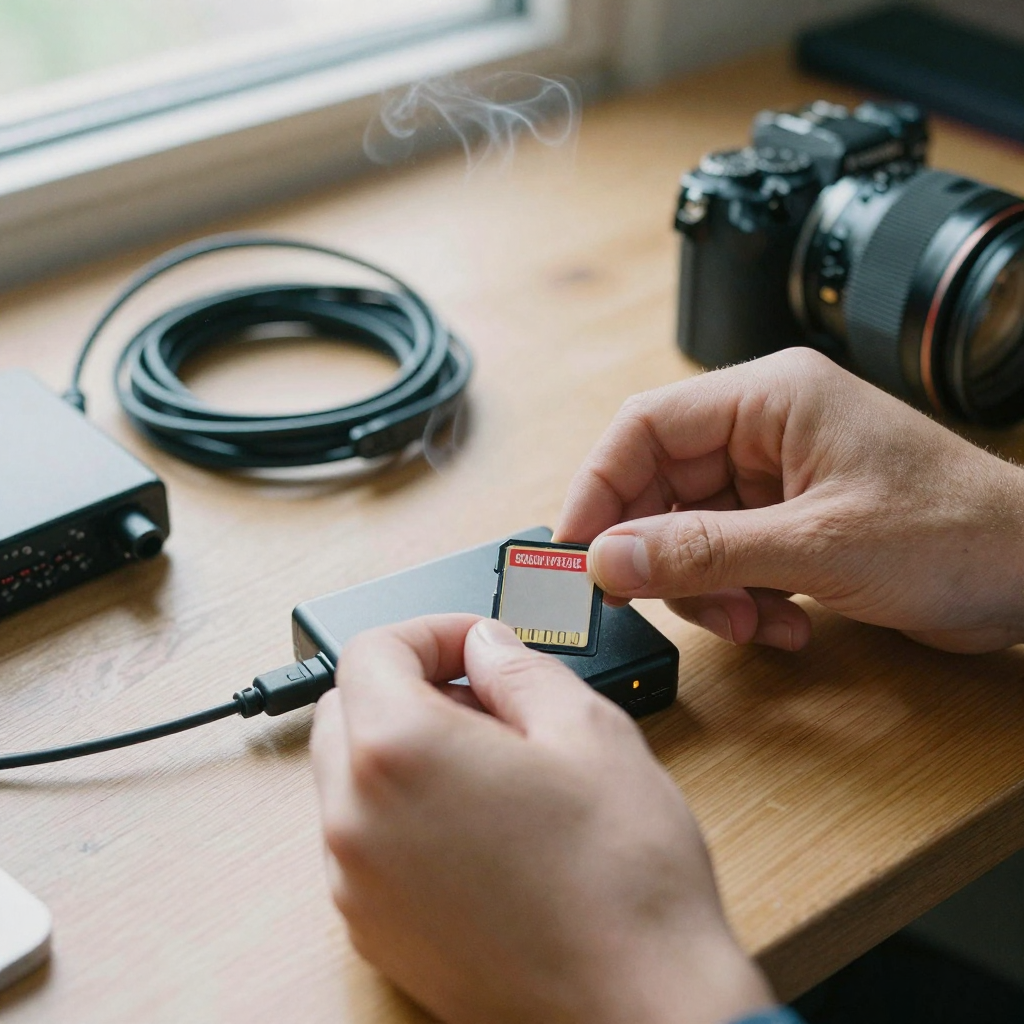
The studio validates your file the moment you upload it. It reads the real duration and resolution from the clip, and if the file is too short, too long, too large, or below 720p, it rejects it right away and tells you why — with a shortcut to the Video Enhancer when the fix is an upscale. That means you find out about a bad input before you spend a single credit, not after a failed job.
7.Step-by-step walkthrough
Here is the full flow, in the order the studio actually asks for things.
- Export a clean master. Trim your source to a 3–10 second beat that carries the motion you care about. Sharp, well-lit footage transforms far better than a compressed, noisy clip, because artifacts in the input carry through to the output.
- Open the studio and upload. Drop your
.mp4or.movinto the Source Video slot. The player shows a live preview with play, mute, scrub, and fullscreen controls, and a small credit badge appears once the clip's duration is read. - Write the prompt. Reference the clip as
@Video1and describe two things: the new look, and what must stay. For example: "Transform @Video1 into a Studio Ghibli-style anime scene, keep the camera pan and hand motion." Naming what to preserve is as important as naming what to change. - Use the prompt tools if you want help. The studio includes a built-in prompt guide and an optional prompt enhancer that expands a short instruction into a fuller, model-ready description. You can review and accept or discard the enhanced version before generating.
- Add references or characters if identity matters. For a target palette or appearance, add reference images. To keep a specific person or object consistent through the restyle, switch on the Characters / Objects panel, name each element, and attach a frontal photo plus a few angle photos.
- Set options. Choose your model, toggle Keep Audio (or note that some models preserve audio automatically), and pick Normal or Ultra Fast if the model exposes a speed toggle. Every option that changes cost updates the credit meter immediately.
- Generate and review. Press generate. The job runs cloud-side and lands in your history, where you can play it back and download the result.
8.Common use cases
- UGC restyles — spin one shoot into multiple ad variants by giving the same clip several different looks, so you can test which aesthetic converts without booking a new shoot.
- Brand film look experiments — try a day-to-cinematic or warm-to-noir grade on existing footage before you commit an editor's time to a full color pass.
- Product clip stylization — turn a plain product demo into anime, watercolor, or a 3D-render look for a scroll-stopping social variant.
- Consistent character sequences — keep a recurring mascot, spokesperson, or product hero looking the same across a stylized sequence using character elements.
- Agency bake-offs — compare how different transformation models handle the same brief, all inside one credit wallet, then standardize on the one that fits the client.
- Content repurposing — refresh older library footage into a new visual style so it feels current without re-filming.
9.Who it's for
- Performance marketers and UGC teams who need many creative variants from limited raw footage and care about cost-per-variant, not just the demo wow.
- Social and content creators who want a distinctive, repeatable look across a series without a full editing suite or a local GPU.
- Small brands and e-commerce sellers who have product clips but no motion-graphics budget and want a stylized cut for ads or reels.
- Agencies and freelancers who want to test multiple transformation approaches on one platform and bill work against a single credit balance.
10.Comparison
Desktop and cloud video tools each make different trade-offs. This is an honest snapshot; competitor prices are the vendor's published plan prices, and the Imagera column is expressed in credits so it stays accurate across our plans.
| Imagera AI Video Editor | Desktop NLE (Premiere-class) | Single-model cloud restyle tools | |
|---|---|---|---|
| Setup | Browser, no install, no GPU | Local install, capable GPU recommended | Browser |
| Core strength | AI restyle/transform of existing clips | Manual timeline editing and effects | AI restyle, usually one fixed model |
| Model choice | Multiple transformation models, one wallet | N/A (manual effects) | Typically one model |
| Motion handling | Preserves source motion and camera moves | Manual keyframing | Varies by model |
| Character consistency | Character elements (up to 2, 1–4 photos each) | Manual rotoscoping / plugins | Often unavailable |
| Cost model | Pay-first credits per job, shown before you generate | Monthly software subscription | Subscription or per-job |
| Imagera pricing | Credits from $19.99; a 3–10s edit runs roughly 30–100 credits by duration | — | — |
Imagera's angle is suite economics: the editor sits alongside generate, enhance, upscale, reels, and voice tools on the same credit balance, rather than being a standalone one-model product.
11.Pricing in credits
Video jobs cost more than stills because they process every frame. The AI Video Editor prices a transformation by the length of your source clip: roughly 10 credits per second, with a small minimum for the shortest clips. In practice a 3-second edit runs about 30 credits and a full 10-second edit about 100 credits, and choosing Ultra Fast where available can change the credit total. The exact number is always shown on the credit meter before you generate, so there are no surprises. Credits start from $19.99, and because the price-per-credit varies by plan, we quote per-feature cost in credits rather than a fixed dollar figure per edit.
There is no free unlimited tier for video transformation — cloud GPU time is real, so every edit runs on paid credits. The free tools under /free/* are image utilities only.
12.Tips for best results
- Run a 3–5s test before committing a longer clip — the look and the cost both scale with duration, so a short test is the cheapest way to lock in the style.
- Name what to keep, not just what to change. "Keep the camera pan and the hand motion" gives the model an anchor and prevents drift.
- Feed clean, sharp source footage. Compression artifacts, motion blur, and low light carry straight into the output. If your clip is soft or below 720p, run it through the Video Enhancer first.
- Use reference images for a target palette or appearance, and character elements (frontal photo plus a couple of angle photos) when a specific identity must stay stable across the restyle.
- Toggle Keep Audio if the original soundtrack should survive the transformation; note that some models preserve audio automatically.
- Try the prompt enhancer when your first result is close but not quite there — a fuller, more specific description often tightens the look.
13.Common mistakes to avoid
- Uploading a 30-second clip. The editor works on 3–10 second beats. Trim to the moment that matters before uploading, or the file is rejected.
- Vague prompts. "Make it cooler" gives the model nothing to hold. Describe style, lighting, palette, and what to preserve.
- Ignoring the credit meter. Because cost scales with duration and speed setting, always glance at the meter before generating a longer edit.
- Expecting a new scene. This is a transformer, not a generator — it changes the look of your footage, not the content of the shot. To create a brand-new clip from a prompt, use the Popular AI Video Generator instead.
- Skipping the upscale step. A sub-720p source is rejected outright. Upscale first, then bring the clip back into the editor.
14.Examples
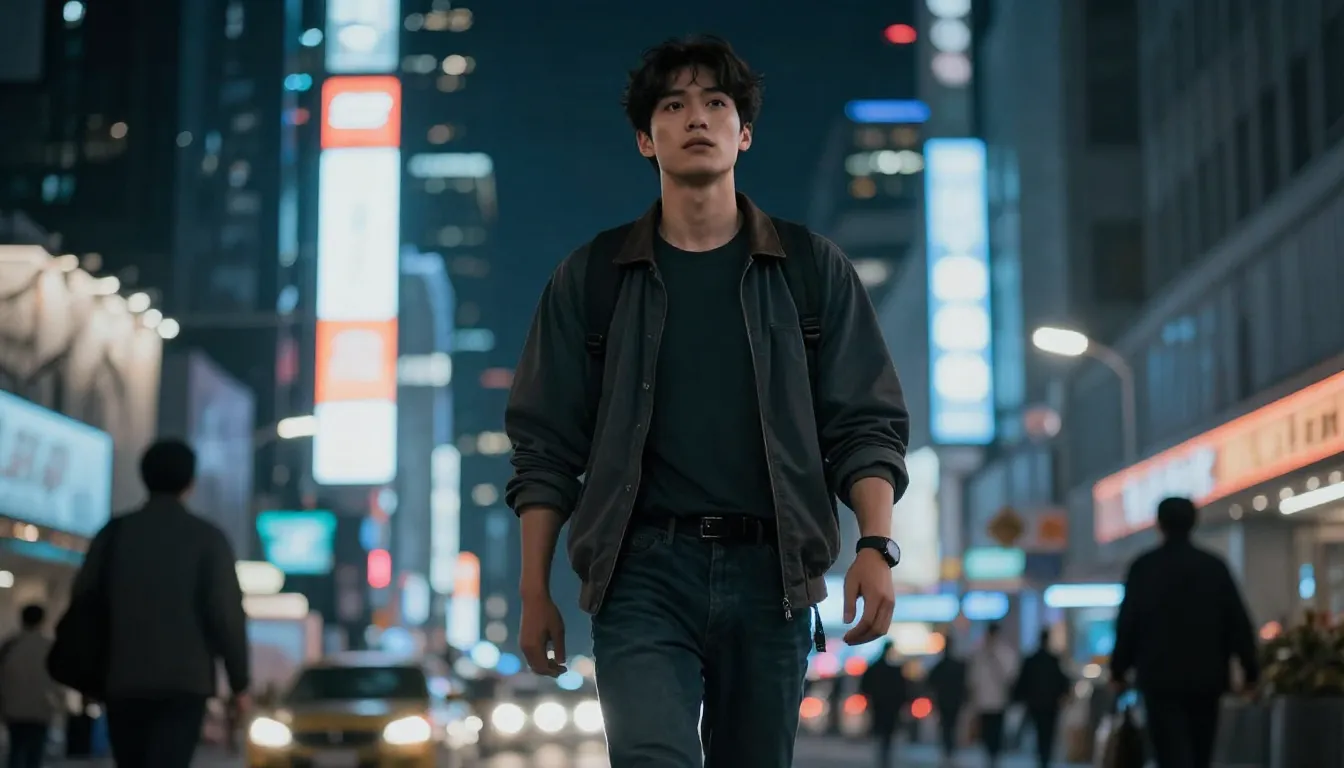
- Anime restyle for a reel: A creator uploads a 6-second handheld clip of themselves walking and prompts "Transform @Video1 into a hand-drawn anime scene, keep the walk cycle and camera framing." The output keeps the exact movement and timing but reads as animation — a repeatable look for a series.
- A/B look test for an ad: A marketer takes one 5-second product clip and runs it twice — once as "warm cinematic grade" and once as "clean high-key studio" — then tests both variants on the ad account to see which drives lower cost per result.
- Consistent spokesperson: A small brand restyles a talking-head clip into a stylized illustration while adding a character element (frontal plus two angle photos) so the presenter stays recognizable across the transformation.
- Targeted change: Using a conversational edit model, a seller uploads a clip and prompts "change the jacket to red," keeping the rest of the frame and the original audio intact.
15.Production workflow
- Export a clean master clip (sharp, and one you have the rights to use).
- Open AI Video Editor.
- Run a 3–5s test before full length.
- Enhance/upscale finals only, so you spend credits on the version you'll actually ship.
- Measure CPA on the ad account — not demo wow.
16.vs Runway-class editors
Runway remains strong for some cinematic timelines. Imagera competes on suite economics (editor + generate + enhance + reels + voice) and credit packs. See Runway alternative and Kling alternative.
17.Pricing
Credits from $19.99. Video jobs burn more than stills — always check the credit meter before long clips. No pay-per-use cloud (not free unlimited) video editing.
18.Start here (product links)
19.Bottom line
Imagera AI Video Editor is a multi-model video-to-video studio for restyling and transforming clips in the browser. Pay-first credits from $19.99. Pair with video enhancer/upscaler for publish-ready exports.
CTAs: AI Video Editor studio · Popular AI Video Generator · Video Enhancer · Pricing