You shot a video on an older phone or digitised an old camcorder tape. The resolution is 480p or 720p — watchable on a small screen, but looks terrible on a modern 4K display. Traditional upscaling (bicubic interpolation) just stretches pixels, making everything blurry. AI video upscaling predicts plausible detail instead, so the result can look close to footage shot at the higher resolution.
This guide compares seven AI video upscaling tools as they stand in September 2026: what each one runs on, the maximum output its vendor claims, and the limit you actually hit. Every capability figure carries a named, dated source. Every Imagera figure comes from our own pricing configuration. What this is not is a lab benchmark — we did not run a controlled head-to-head test, and we do not publish speed or quality scores we cannot stand behind.
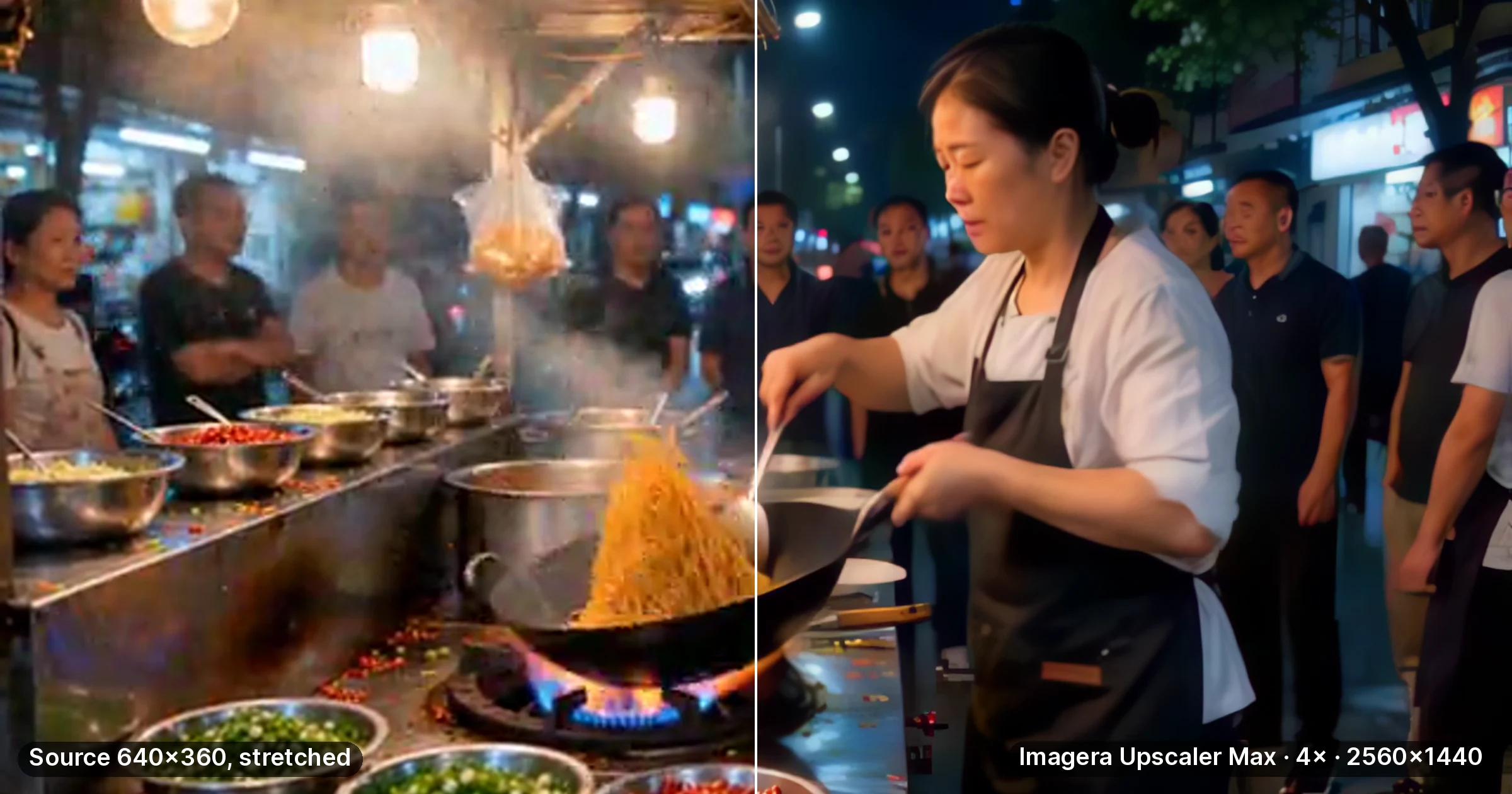
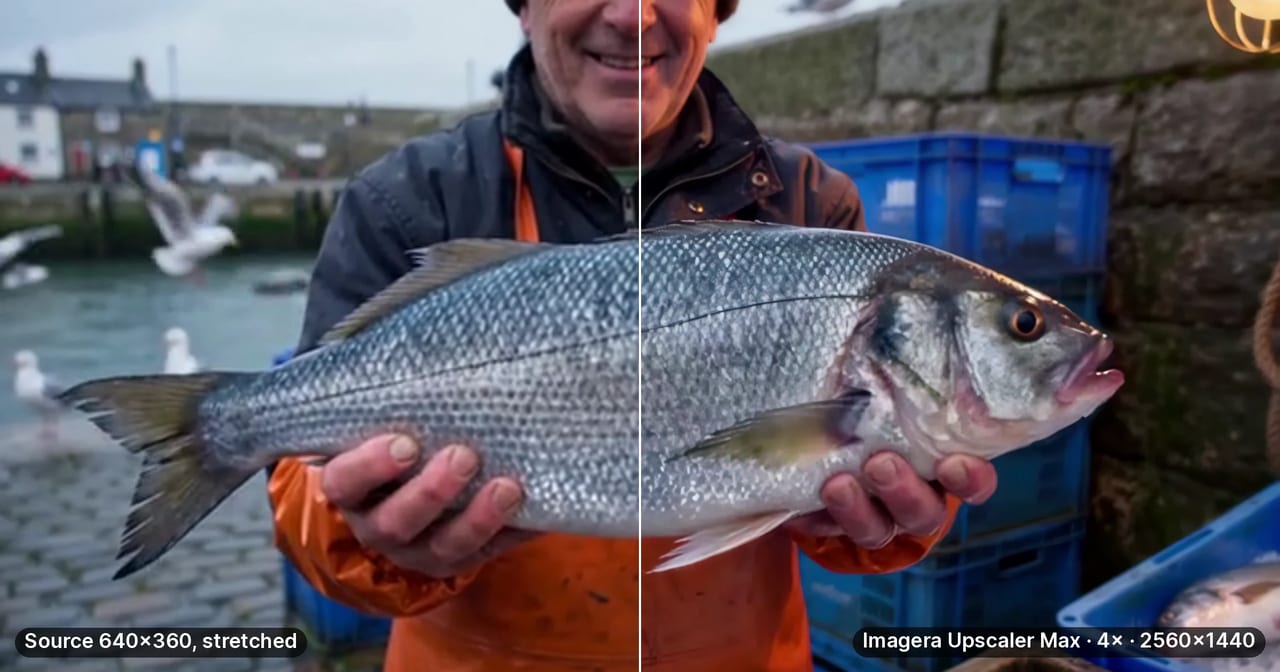
Real result: Imagera Upscaler Max (Video Enhancer), 4×, 5 seconds, 150 credits. The source is a clip generated for this test, downscaled to 640 by 360 and re-encoded at 0.6 Mbps. Left half: the source stretched to fit; right half: the 2560 by 1440 output, scaled to fit.
Quick answer: In September 2026 the practical choice for most people is still a browser upscaler, because the desktop suites want a discrete GPU and a multi-gigabyte install before they render a single frame. Imagera's Video Enhancer rebuilds 480p and 720p footage in the browser and reaches 4K — 3840px on the long edge — on its professional pass, billed in credits per five-second block. What it will not do is 8K. No browser upscaler we found does: every 8K and 16K figure in this market is a desktop, GPU-bound claim.
1.What changed in AI video upscaling during 2026
Three things moved this year, and each one breaks advice that 2025-era comparisons still hand out.
"Desktop app versus browser tool" is no longer a clean split. Topaz Labs — for years the reference desktop suite, and the tool every comparison uses as the high-end anchor — now sells browser and cloud products alongside its installed apps: a web video tier and a separate cloud enhancement product, each carrying a monthly cloud-credit allowance instead of local rendering, plus bundles that mix installed apps with cloud credits (topazlabs.com/pricing, fetched 4 September 2026). Picking a browser tool in 2026 is no longer automatically picking away from the desktop-grade engines, and any post still built on "browser = casual, desktop = serious" is describing last year's market.
Claimed maximum resolution has run far ahead of what any browser delivers. VideoProc's roundup (videoproc.com, last updated 11 August 2026) tabulates Topaz Video at 16K, UniFab Video Enhancer at 16K, HitPaw VikPea and AVCLabs Video Enhancer AI at 8K, and Adobe Premiere Pro at 8K — against 4K for VideoProc Converter AI, Aiarty Video Enhancer and Nero AI Video Upscaler, and 4K for CapCut. The pattern is consistent and worth internalising before you shop on headline numbers: the enormous figures all belong to installed software driving your own GPU. The same page notes that real 8K processing stays computationally demanding. If a browser tool advertises 8K, treat it as a marketing number until you have seen the file.
Included tiers became a scoring criterion rather than a footnote. UniFab's comparison (unifab.ai, updated 27 July 2026) scores twelve tools on five weighted criteria — output quality 40%, free-tier value 20%, processing speed 15%, ease of use 15%, privacy 10% — across four fixed test clips: a 720p anime scene, a 480p VHS home video, a low-light 1080p smartphone clip and a clean 1080p vlog. Its top five are UniFab (9.7), Topaz Video AI (9.0), AVCLabs (8.8), VideoProc Converter AI (8.6) and Winxvideo AI (8.4). Worth noting: that list runs on UniFab's own site and places UniFab first. Magic Hour's ranking (magichour.ai, 3 May 2026) does the same thing with itself, and frames the year's shift this way: "AI video upscaling is no longer just about resolution. It is part of a broader shift where tools combine editing, generation, and enhancement into a single workflow."
2.How much can an AI video upscaler actually improve video quality?
A modern AI upscaler does far more than a resolution stretch. Imagera reconstructs missing texture and edges, taking 480p or 720p clips toward 4K (3840x2160). This is also why upscaling as a finishing step often beats generating at high resolution directly: in our timed generation runs a 2K render took a median of 192.6 seconds against 9.1 seconds for the same clip at 768p, so drafting low and upscaling the keeper is usually the faster route to a finished file. Unlike bicubic interpolation, which just enlarges existing pixels, AI predicts new detail frame by frame, so a short clip can gain real sharpness across the whole timeline while running entirely in the browser.
3.Is a browser upscaler still the right call in 2026?
Mostly yes, but for a narrower reason than it used to be. The old argument — browser tools are the only option without a GPU — is weaker now that the leading desktop vendor sells cloud tiers of its own. The argument that survives is about commitment: a browser upscaler asks for a clip and a credit balance, while a desktop suite asks for a discrete GPU, a multi-gigabyte install with downloadable model packs, and a subscription decision made before you have seen a single frame of output.
So the honest split in 2026 is by volume, not by capability. If you upscale a few clips a month and want the cost of each render visible before you commit to it, a browser tool wins on friction. If you batch a library every week, own a capable NVIDIA card and want per-model tuning offline, installed software still renders more footage per pound of effort — and it is the only route to the 8K and 16K output ceilings, which no browser tool reaches.
4.What AI Video Upscaling Actually Does
Traditional upscaling takes existing pixels and interpolates between them. The result is smoother but blurry — no new detail is created.
AI upscaling works differently. Neural networks trained on millions of video frames learn what high-resolution detail looks like. When you feed in a low-resolution frame, the model predicts and generates the missing detail — textures, edges, fine patterns — that should be there but was never captured.
What AI upscaling can do:
- Reconstruct texture detail (fabric patterns, skin pores, architectural details)
- Sharpen edges without introducing halos or artifacts
- Remove compression artifacts (blocking, banding, mosquito noise)
- Reduce sensor noise while preserving real detail
- Upscale from 480p to 1080p or 4K with meaningful quality improvement
What AI upscaling cannot do:
- Create detail that was never captured (heavily out-of-focus areas stay soft)
- Fix motion blur from camera shake
- Correct white balance or exposure problems
- Make 240p footage look indistinguishable from native 4K
The realistic expectation: AI-upscaled video looks significantly better than the original and dramatically better than traditional upscaling. It will not match native high-resolution footage, but the improvement is substantial enough to rescue otherwise unusable content.
5.Video Upscaler vs Video Enhancer: What's the Difference?
These terms get used interchangeably, but there is a technical distinction:
Video Upscaler: Increases resolution. Takes 720p input and outputs 1080p or 4K. The primary goal is more pixels with reconstructed detail.
Video Enhancer: Broader term covering upscaling plus noise reduction, colour correction, deinterlacing, AI frame interpolation and artifact removal. All upscalers are enhancers, but not all enhancers upscale.
For most users the distinction does not matter. When you upload a low-quality video to any of these tools, it applies upscaling and enhancement together.
6.The seven tools, and where each one stops
On the order: Imagera is our own tool and it is listed first because this is our site — not because it scored highest. Nothing here is scored, by us or for us. Each entry below states what the tool runs on, the maximum output its vendor claims, and the limit you will actually meet. Pricing tiers moved repeatedly during 2026, so check current terms on each vendor's own site rather than trusting any comparison post, this one included.
6.1Imagera Video Enhancer — browser, billed per render
Where it runs: Any browser, any device — laptops, tablets, Chromebooks. No install, no GPU. Max output: 4K, hard-capped at 3840px on the long edge. There is no 8K path. Clip limit: Up to 5 minutes per clip. Pricing model: Credits, charged per five-second block of video and rounded up. The exact total for the clip you have loaded shows on the button before you commit, and failed runs are not charged.
The enhancer carries two upscaling routes and they cost very different amounts, which is the single thing most worth understanding before you start:
- Standard rebuild — three quality steps at 10, 20 and 40 credits per five seconds, reaching 1024px, 1536px and 2048px respectively. This route tops out at 2048px. It cannot produce 4K.
- Professional pass — 45 credits per five seconds to denoise and restore at the source resolution, 60 for a 2x upscale to 1080p, and 100 for the 4x pass that actually reaches 4K.
Best for: Anyone upscaling a handful of clips who wants the cost of each render visible up front, and anyone without a discrete GPU.
The limits, stated plainly: 4K is the ceiling and the 4x pass is the expensive route — a 30-second 4K render is 600 credits, so test a five-second section (100 credits) before committing a long clip. The professional pass also accepts a maximum input file of 50MB, so a long or high-bitrate source needs a trim or the standard route. And it needs a connection: nothing renders offline.
Try the AI Video Upscaler — the credit cost appears on the button before you run anything.
6.2Topaz — the desktop suite, now with browser tiers
Where it runs: Windows 10/11 and macOS 11+ for the installed app; browser and cloud tiers added during 2026. Max output: 16K (videoproc.com, 11 August 2026) — the highest claim in this comparison. GPU: Required for usable performance on the desktop app. Pricing model: Subscription, split between installed apps, browser/cloud tiers with monthly cloud-credit allowances, and bundles combining both (topazlabs.com/pricing, fetched 4 September 2026).
The desktop app's model roster is the deepest available. Its pricing page lists fifteen named models for the video app as of 4 September 2026: Starlight Precise, Proteus, Iris, Nyx, Rhea, Rhea XL, Artemis, Gaia, Theia, Apollo, Chronos, Aion, Themis, SDR to HDR and Stabilization. Each targets different source material — animation, faces, heavy noise, interlaced footage, frame-rate conversion.
Best for: Professionals batching video regularly on a capable GPU, and anyone who needs per-model control over how the reconstruction behaves.
The limits: A multi-gigabyte install plus model downloads, and render speed that depends entirely on your hardware. Its cloud tiers meter renders against a monthly credit allowance rather than running locally, so the "buy once, render forever" mental model no longer applies cleanly.
For a deeper look at the trade-off, see our Topaz Video AI alternative comparison.
6.3UniFab Video Enhancer — Windows desktop, 16K claim
Where it runs: Windows only. Max output: 16K claimed (videoproc.com, 11 August 2026). GPU: Required — the tool leans on GPU acceleration. Pricing model: Paid desktop licence with a limited trial.
UniFab tops its own published ranking at 9.7/10 (unifab.ai, updated 27 July 2026) — a self-placement worth reading with the same scepticism you should apply to our ordering above. Independently of that, it appears on multiple 2026 shortlists, which our previous line-up missed entirely.
Best for: Windows users with a capable GPU who want the highest claimed output ceiling.
The limits: Windows-only, so no Mac path at all. The headline 16K figure is a vendor claim about installed software driving your own card, not something you will produce on a laptop.
6.4VideoProc Converter AI — Windows and Mac desktop
Where it runs: Windows and Mac. Max output: 4K for video, 10K for images (videoproc.com, 11 August 2026). GPU: Not stated as required; hardware acceleration is a headline feature. Pricing model: Paid desktop licence with a limited trial.
Scored 8.6/10 in UniFab's twelve-tool comparison (27 July 2026). It is a converter and processing suite first, with upscaling as one capability among transcoding, stabilisation and compression.
Best for: People who want upscaling inside a general-purpose video processing toolkit rather than a dedicated enhancer.
The limits: 4K is the video ceiling despite the 10K image figure, and the breadth means the upscaling controls are shallower than a specialist tool's.
6.5Aiarty Video Enhancer — Windows and Mac desktop
Where it runs: Windows and Mac. Max output: 4K (videoproc.com, 11 August 2026). GPU: Not stated as required. Pricing model: Paid desktop licence with a limited trial.
A newer entrant that has climbed into the 2026 shortlists quickly and now draws real search demand under its own name.
Best for: Desktop users who want a focused enhancer without a 16K marketing ceiling attached to it.
The limits: 4K output, so it competes with browser tools on ceiling while still requiring an install.
6.6AVCLabs Video Enhancer AI — Windows and Mac desktop
Where it runs: Windows and Mac. Max output: 8K claimed (videoproc.com, 11 August 2026). GPU: Recommended; performance is GPU-dependent. Pricing model: Subscription.
Scored 8.8/10 by UniFab (27 July 2026) and also appears on Magic Hour's 2026 list (3 May 2026). Beyond upscaling it carries face-specific enhancement and colourisation, which is the reason to choose it over a pure upscaler.
Best for: Restoring footage where faces are the subject, or colourising old monochrome material.
The limits: GPU-dependent throughput, and the 8K claim carries the same caveat as every other 8K claim here — it is desktop rendering on your own hardware.
6.7CapCut — browser, desktop and mobile editor
Where it runs: Windows, Mac and web (videoproc.com, 11 August 2026). Max output: 4K; the web editor is the more constrained path. GPU: Not required. Pricing model: An included tier with restrictions, plus a paid plan.
Scored 8.2/10 by UniFab (27 July 2026). Upscaling here is a feature inside a video editor rather than a dedicated engine, which is exactly its appeal if you are already cutting in CapCut.
Best for: Social creators already editing in CapCut who want a quick pass without adding a second tool.
The limits: Enhancement quality sits below the dedicated engines on difficult source material, the included tier is restricted, and the product's centre of gravity is editing, not reconstruction.
6.8Also on the 2026 shortlists
Three tools worth knowing that did not take a full slot. HitPaw VikPea is the product formerly listed as HitPaw Video Enhancer — same tool, renamed, Windows and Mac, 8K claimed, GPU wanted for best performance (videoproc.com, 11 August 2026). Winxvideo AI scored 8.4/10 with UniFab and appears on Magic Hour's list too. Video2X and the other open-source command-line routes run at 4x scaling across Windows, Linux and macOS — free of licence cost but paid for in setup time and your own GPU. Nero AI Video Upscaler (4K, Windows/online/mobile), TensorPix, VEED and Magic Hour round out the browser-side field.
7.Comparison Table
Maximum-output figures are vendor claims as tabulated by videoproc.com on 11 August 2026, not measurements we made. Imagera's figures come from our own pricing configuration. Pricing tiers are described by model rather than by number because several changed during 2026 — check each vendor's own site before you buy.
| Tool | Where it runs | Max output (claimed) | GPU needed | Pricing model | Best for |
|---|---|---|---|---|---|
| Imagera Video Enhancer | Browser, any device | 4K (3840px cap) | No | Credits per 5-second block | Occasional clips, no GPU, cost visible before you run |
| Topaz | Win/Mac desktop + browser tiers | 16K | Yes (desktop) | Subscription; cloud tiers metered on monthly credits | High-volume pros, per-model control |
| UniFab Video Enhancer | Windows desktop | 16K | Yes | Paid licence | Windows users chasing the top ceiling |
| VideoProc Converter AI | Win/Mac desktop | 4K video / 10K image | Not stated | Paid licence | Upscaling inside a broader toolkit |
| Aiarty Video Enhancer | Win/Mac desktop | 4K | Not stated | Paid licence | Focused desktop enhancer |
| AVCLabs Video Enhancer AI | Win/Mac desktop | 8K | Recommended | Subscription | Face restoration and colourisation |
| CapCut | Browser, desktop, mobile | 4K | No | Included tier + paid plan | A quick pass inside an editor you already use |
7.1How we compiled this comparison
This is a documentation-and-hands-on comparison, not a controlled benchmark. What each column rests on:
- Platform, GPU requirement and maximum output are taken from each vendor's own documentation and from the dated third-party roundups cited in the Sources section, all opened on 4 September 2026.
- Imagera's credit figures, resolution ceiling, file-size cap and clip length come from our own pricing configuration, not from marketing copy — which is why they include the numbers that are inconvenient for us.
- "Best for" reflects where each tool fits given its platform, pricing model and stated capabilities. It is not a scored ranking.
- We did not run a controlled head-to-head test. We do not publish per-tool speed times or quality scores because we do not have measured, apples-to-apples data across identical source clips and hardware. Real-world speed depends heavily on your GPU for desktop tools and on current server load for online ones, and perceived quality depends on your source footage.
- The most reliable way to compare quality for your footage is to run the same ten-second clip through the trial tier of two or three tools and judge the output yourself.
8.The limits nobody puts in the marketing
Every comparison in this category publishes maximum resolutions. Almost none publishes the wall you actually hit first, which is usually a file-size cap, a clip-length cap or a per-render cost that only becomes visible after you have uploaded. Ours, in full:
- Imagera's output ceiling is 4K — 3840px on the long edge, enforced in configuration. Combinations that would exceed it are disabled rather than accepted and failed.
- Imagera's standard rebuild stops at 2048px. If you need 4K you need the professional pass, and that costs 100 credits per five seconds rather than 40.
- The professional pass accepts a 50MB input file. Above that, trim the clip or use the standard route.
- Clips run to five minutes. A longer file is refused in the browser before it uploads rather than after a wait.
- Among the tools above, published caps we could confirm elsewhere include Winxvideo AI's five-minute limit in its trial version and CutOut.Pro's 2GB file ceiling (unifab.ai, 27 July 2026).
9.How to Choose the Right AI Video Upscaler
Choose a browser upscaler if:
- You do not have a discrete GPU, or you work across several devices
- You upscale a few clips a month rather than batching a library
- You want the cost of a render visible before you commit to it
- 4K is a sufficient ceiling for your delivery target
Choose desktop software if:
- You process large volumes of video regularly on a capable NVIDIA card
- You need offline processing
- You want per-model tuning over how the reconstruction behaves
- You genuinely need output above 4K — this is the only route to it
Start with an editor's built-in pass if:
- You are already cutting in that editor and want one fewer tool
- The clip is destined for social, where the ceiling matters less than turnaround
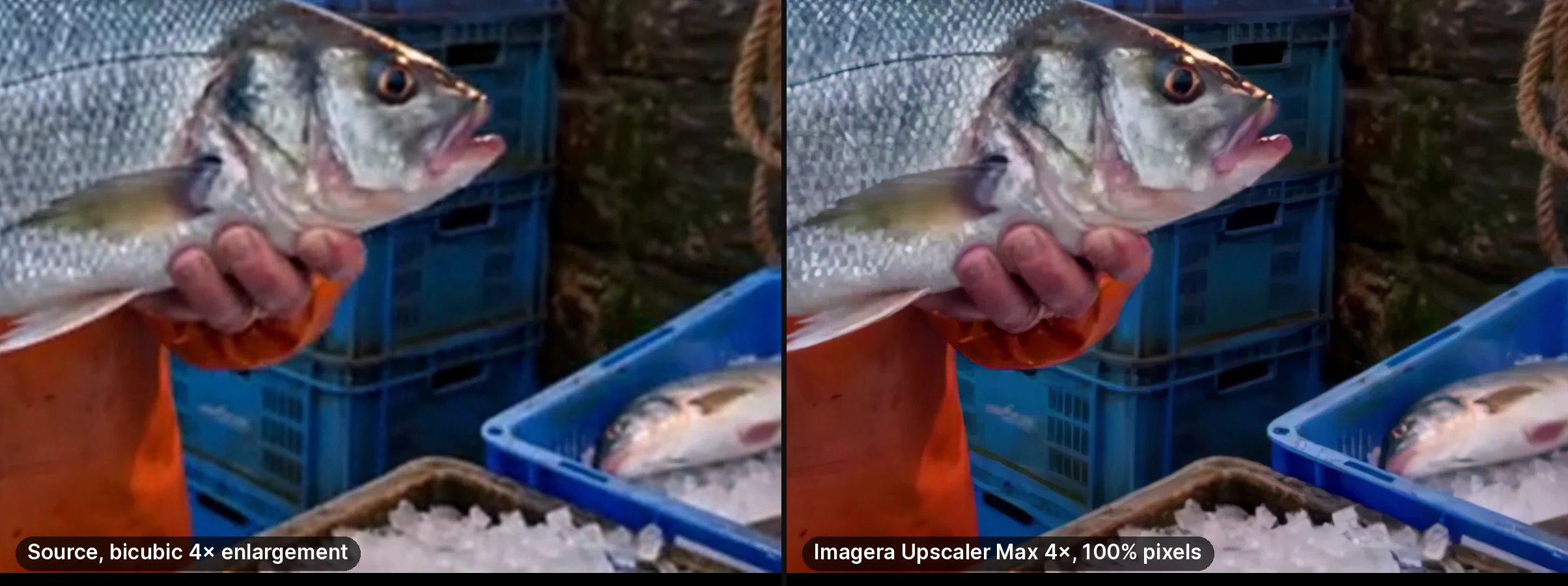
Same run and frame: left, the 640 by 360 source enlarged 4× with bicubic resizing; right, the Imagera Upscaler Max output at 100%.
10.How to Upscale Video to 4K with Imagera
- Go to 4K Video Enhancer
- Upload your clip — MP4, MOV, WebM and the other common containers, up to five minutes
- Pick the upscaler: the standard rebuild for anything ordinary, the professional pass when you need to reach 4K
- Set the target size — this decides the finished frame size and the credit cost together
- Check the total on the Enhance button, then run it. Failed runs are not charged.
What a 30-second clip costs, straight from the pricing configuration — credits are charged per five-second block, rounded up, so a 30-second clip is six blocks:
| Route and target | Credits per 5s | 30-second clip |
|---|---|---|
| Standard rebuild, 1024px | 10 | 60 credits |
| Standard rebuild, 1536px | 20 | 120 credits |
| Standard rebuild, 2048px | 40 | 240 credits |
| Professional, denoise at source resolution | 45 | 270 credits |
| Professional, 2x to 1080p | 60 | 360 credits |
| Professional, 4x to 4K | 100 | 600 credits |
Credit packs start at $39.99 for 350 credits, and the Starter plan is $19.99 a month. Because the 4K pass is the expensive route, run a five-second test section first — that is 100 credits — and only commit the full clip once you have seen what the reconstruction does to your particular footage.
11.Tips for Better AI Upscaling Results
Start with the best source you have. If you still have the original file rather than a re-compressed social download, use it. Every compression cycle destroys detail the model cannot fully recover.
Do not double-upscale. Going 480p to 1080p and then 1080p to 4K compounds the model's guesses. Run a single pass from 480p straight to the target.
Test on a short section first. Upscale a representative five to ten seconds before committing the whole clip. It costs a fraction of the credits and tells you what the model does with your noise, your motion and your faces.
Match the route to the problem. Resolution is not always the issue. If the footage is grainy rather than small, the denoise-at-source-resolution pass fixes the actual defect and costs less than a 4x upscale that also has to invent pixels.
Judge on a large screen. Upscaling gains are most visible on full-size monitors and TVs. A phone screen hides both the improvement and the artifacts.
12.Start upscaling (credit packs from $39.99)
Imagera cloud tools are pay-first — buy credits, then generate.
- 4K Video Enhancer
- 4K Video Upscaler
- Topaz Video AI alternative
- Topaz Alternative
- Pricing & credit packs
- All tools
How it works: open the product page, load a clip, read the credit cost on the button, then run it.
13.Bottom Line
For most people in September 2026 the decision is about volume and ceiling, not about browser versus desktop — that line stopped being clean when the leading desktop vendor started selling cloud tiers.
If you upscale a few clips a month, want the cost visible before you commit, and 4K is a sufficient delivery target, a browser tool is the lower-friction route, and Imagera's Video Enhancer is ours. If you batch a library weekly on a capable GPU, or you genuinely need output above 4K, installed software is still the only way there — and among the installed options the choice comes down to platform and to which limitation you can live with.
Whichever you pick, test before you commit. Run the same ten seconds of your worst footage through two or three tools and look at the result on a real screen.
Try the AI Video Upscaler — load a clip and the credit cost appears on the button before you run it.
14.Sources
- topazlabs.com/pricing — fetched 4 September 2026. Desktop, browser and cloud product tiers; the fifteen named video models.
- videoproc.com/video-editor/ai-video-upscaling.htm — last updated 11 August 2026. Maximum-output, platform and GPU figures for ten tools, including the HitPaw VikPea rename.
- unifab.ai/resource/free-ai-video-upscaling-software — updated 27 July 2026. Twelve-tool scored ranking, five weighted criteria, four fixed test clips, per-tool trial limits. Published by UniFab, which ranks itself first.
- magichour.ai/blog/best-ai-video-upscalers-2026 — 3 May 2026. Seven-tool list and the framing quote on upscaling as part of a wider workflow. Published by Magic Hour, which ranks itself first.
- Imagera credit costs, the 4K/3840px output ceiling, the 50MB input cap and the five-minute clip limit are read from our own pricing configuration, verified 4 September 2026.
Related: Topaz Video AI alternative | AI video enhancer tutorial | AI Video Enhancer