You need to remove a background from a product photo. You search for "AI background remover online" and find dozens of tools that promise one-click removal. You upload your image, click the button, and get a transparent PNG file. But now you have a new problem: you still need to add a background. You need to open another tool, find or create a suitable background image, composite the layers, match the lighting, adjust the perspective, and hope it looks natural.
This is the fundamental limitation of traditional background removal tools. They solve half the problem. Imagera's AI Background Studio solves the complete workflow by not just removing backgrounds, but replacing them with AI-generated photorealistic scenes based on simple text descriptions. Instead of getting a transparent PNG that requires additional work, you get a finished image with a new background that matches the lighting, perspective, and style of your subject.
This guide explains the difference between background removal and background replacement, how AI-generated backgrounds work, and when replacement delivers better results than traditional removal tools.
Quick answer: Yes, you can remove image backgrounds entirely online in Imagera with no download or install, cutting out subjects in under 60 seconds and exporting a clean transparent PNG.
1.How does an online AI background remover work without any download?
Imagera runs entirely in your browser, so there is nothing to install on Windows, Mac, or mobile. Upload 1 image, and the AI detects edges, hair, and fine details automatically, delivering a transparent cutout in under 60 seconds. In 2026 it handles high-resolution files up to 4K and processes batches of 10+ photos in a single session.
2.Which file types and resolutions can Imagera export after removing the background?
Imagera exports transparent PNG and WebP files, plus flat JPG or solid-color swaps, at resolutions up to 4K and beyond with 8K upscaling. Each cutout starts at 5 credits, and edge refinement gives cleaner, more precise hair masking. For e-commerce listings, a clean white or transparent product background keeps the focus on the item, and this tool produces one in seconds.
3.Background Removal vs Background Replacement
Understanding the distinction between these two approaches clarifies which tool fits your workflow.
Background removal uses edge detection and segmentation algorithms to isolate a subject from its original background, producing a transparent PNG file. Tools like Remove.bg, Canva's background remover, and Photoshop's Select Subject feature excel at this task. The output is clean subject isolation, but the workflow stops there. You must manually add a new background using separate compositing tools.
Background replacement combines removal with generative AI to create new backgrounds in a single step. You describe the desired environment in plain English—"modern office with large windows and city view" or "outdoor cafe in Paris at sunset"—and the AI generates a photorealistic scene that matches your subject's lighting conditions and perspective. The result is a finished image ready for immediate use.
The technical difference lies in what happens after subject isolation. Traditional removal tools delete pixels and make the background transparent. AI replacement tools use diffusion models trained on millions of environment images to synthesize new backgrounds that integrate seamlessly with the isolated subject.
Here's how the approaches compare across key dimensions:
| Feature | Background Removal | Background Replacement (AI) |
|---|---|---|
| Output | Transparent PNG | New photorealistic scene |
| Creativity | None — just removes | Unlimited — describe any scene |
| Use case | Graphic design compositing | Ready-to-use final images |
| Manual work | Must add background separately | One step — describe and generate |
| Quality | Depends on what you add after | AI matches lighting and perspective |
| Workflow steps | 2-3 (remove → find background → composite) | 1 (describe and generate) |
| Skill requirement | Intermediate (compositing knowledge) | Basic (write description) |
| Time per image | 5-15 minutes | 30-60 seconds |

For workflows requiring transparent PNGs for graphic design projects, removal tools remain appropriate. For content creation where you need finished images with new backgrounds, replacement tools eliminate multiple manual steps while producing higher-quality results through automated lighting and perspective matching.
4.How AI Background Replacement Works
The process combines computer vision and generative AI in a coordinated pipeline.
Step 1: Subject Detection and Isolation When you upload an image to AI Background Studio, a semantic segmentation model analyzes the photo to identify the primary subject. This model was trained on datasets containing millions of annotated images, teaching it to recognize boundaries between subjects and backgrounds across diverse scenarios—products on tables, people in various poses, architectural elements, vehicles, and more.
The model generates a segmentation mask that precisely outlines the subject, handling complex edge cases like hair strands, transparent objects like glasses, and intricate details like jewelry. This mask determines which pixels belong to the subject and which belong to the background that will be replaced.

Step 2: Background Description Processing You provide a text description of the desired background. The system parses this prompt to understand environmental attributes, lighting conditions, time of day, weather, architectural elements, and atmospheric qualities. Descriptions can be simple ("beach at sunset") or detailed ("modern minimalist kitchen with white marble countertops, stainless steel appliances, and natural light from floor-to-ceiling windows").
The prompt processing stage extracts semantic concepts that guide the generation model. More specific descriptions produce more predictable results, while broader prompts allow for creative interpretation.

Step 3: Lighting and Perspective Analysis Before generating the new background, the system analyzes the isolated subject to determine lighting direction, intensity, color temperature, and camera perspective. This analysis ensures the generated background aligns with the subject's visual characteristics.
If your subject has strong directional lighting from the right side, the AI generates shadows and highlights in the new background that match this lighting direction. If the camera angle suggests a slightly elevated viewpoint, the generated environment reflects that perspective.
Step 4: Background Generation and Compositing A diffusion model synthesizes the new background based on your prompt and the lighting and perspective requirements. This model was trained on diverse environmental images and understands how to create photorealistic scenes with proper depth, atmospheric perspective, and material properties.
The generated background is automatically composited with the isolated subject, with edge refinement applied to ensure natural integration. The final output maintains the original subject quality while presenting it in the newly created environment.
The entire process completes in 30-60 seconds, producing a finished image without requiring manual compositing, layer management, or lighting adjustments.

5.5 Use Cases Where Background Replacement Beats Removal
Understanding when replacement delivers better results than traditional removal helps optimize your workflow.
5.1E-Commerce Product Photography
Product photos require lifestyle contexts that traditional studio shots don't provide. Instead of photographing products against white backgrounds and then manually compositing them into lifestyle scenes, you can photograph products in any neutral setting and replace the background with AI-generated environments.
A furniture retailer can photograph a chair against a plain wall, then generate backgrounds showing it in "modern living room with hardwood floors and large windows," "cozy reading nook with bookshelf and warm lighting," or "outdoor patio with garden view." Each variation requires a new text prompt rather than a new photoshoot. The AI matches the product's lighting and perspective automatically, producing results that look naturally photographed in each environment.
This approach reduces production costs while increasing the variety of lifestyle contexts available for different marketing channels and seasonal campaigns.
5.2Real Estate Virtual Staging
Empty rooms photograph poorly, but physical staging is expensive. Traditional approaches require removing the empty room background and manually compositing furniture and decor, which demands significant Photoshop skill and time.
Background replacement allows real estate professionals to upload photos of empty rooms and describe the desired staging: "furnished living room with gray sectional sofa, glass coffee table, modern area rug, and wall art." The AI generates the staged environment while preserving the room's actual architecture, lighting, and proportions.
This produces virtual staging that looks integrated rather than obviously composited, at a fraction of the cost of physical staging or manual Photoshop work.
5.3Social Media Content
Content creators need consistent visual aesthetics across posts. Achieving this with traditional background removal requires maintaining a library of background images or repeatedly creating new ones, then manually compositing subjects into each background while ensuring consistent lighting and style.
AI background replacement lets you establish a consistent aesthetic through prompt templates. A fitness influencer might use "bright modern gym with equipment in background, motivated atmosphere" for all workout content, or a food blogger might standardize on "rustic wooden table with soft natural lighting and blurred kitchen background" for recipe posts.
The consistency comes from repeating the same prompt rather than managing background image libraries, and each subject automatically integrates with proper lighting matching.
5.4Professional Headshots and Portraits
Professional portraits often need different backgrounds for different purposes—LinkedIn requires professional office settings, while personal branding might call for creative or outdoor environments. Traditional removal creates transparent PNGs that then require finding or creating appropriate backgrounds.
With background replacement, a single portrait session against a neutral background produces images that work for multiple contexts: "corporate office with blurred background," "outdoor park setting with natural light," "creative studio with artistic elements," or "library with bookshelves." Each variation maintains the subject's original quality and lighting while adapting the environment to the use case.
This flexibility means one photoshoot serves multiple professional needs without additional compositing work.
5.5Travel and Lifestyle Content Creation
Travel content creators often encounter backgrounds that detract from the subject—crowds, unwanted signage, poor weather, or distracting elements. Traditional removal requires finding replacement backgrounds that match the location's aesthetic, then manual compositing.
AI replacement lets you describe the ideal version of a location. A photo taken at a tourist attraction with crowds can become "same location at golden hour with clear skies and minimal people," or a portrait taken indoors during poor weather can be placed in "outdoor terrace overlooking the city at sunset." The AI understands location types and can generate appropriate environments based on descriptions.
This capability extends the usability of photos taken under non-ideal conditions, increasing content volume without additional travel or photoshoots.
6.What Makes a Good AI Background Replacer
Evaluating background replacement tools requires assessing technical capabilities that affect output quality and workflow efficiency.
Edge Detection Accuracy: The subject isolation quality determines how natural the final composite appears. Effective tools handle difficult edge cases including fine hair, semi-transparent materials, reflective surfaces, and complex shapes. Poor edge detection produces obvious halos or rough boundaries that make the composite look artificial.
Lighting Matching: Generated backgrounds must match the subject's lighting direction, intensity, and color temperature. This requires analyzing the subject's shadows, highlights, and color cast, then generating backgrounds with consistent lighting characteristics. Tools that fail at lighting matching produce results where the subject appears pasted onto the background rather than photographed within it.
Prompt Flexibility: The range of describable environments determines creative possibilities. Good tools understand diverse environment types, architectural styles, weather conditions, times of day, and atmospheric qualities. They handle both broad descriptions ("beach") and specific details ("Mediterranean beach with white sand, turquoise water, and scattered beach umbrellas at midday").
Resolution Quality: Output resolution affects usability for different applications. E-commerce and print require high resolution, while social media can use lower resolutions. Tools should maintain the source image resolution through the background replacement process without introducing compression artifacts or quality degradation.
Processing Speed: Workflow efficiency depends on generation speed. Tools that process images in 30-60 seconds enable iterative refinement—trying different background descriptions to find the best result. Slower processing (3-5 minutes) makes iteration impractical.
Pricing Model: Cost structure matters for volume users. Per-image pricing with affordable credit packages allows scalability without subscription commitment. Imagera's AI Background Studio uses 15 credits per background replacement, with plans starting at $19.99/month providing credits that roll over between months.
Imagera meets these criteria through specialized models for edge detection, lighting analysis trained on diverse environmental conditions, support for detailed prompt descriptions, output at source image resolution, processing times under 60 seconds, and flexible credit-based pricing.
7.Online vs Desktop Background Tools
The platform architecture affects accessibility, performance requirements, and workflow integration.
No Installation Required: Browser-based tools run without downloading software or installing applications. You access the tool through any web browser, on any device, without consuming local storage or managing software updates. This matters when working from different locations or devices—your workflow remains consistent whether using a desktop at the office, a laptop while traveling, or a tablet for quick edits.
No GPU Requirements: Desktop tools like Photoshop with AI features often require dedicated graphics cards to achieve reasonable processing speeds. Browser-based AI tools run processing on cloud infrastructure, meaning your device specifications don't limit performance. You can use AI background replacement on basic laptops, tablets, or older computers that wouldn't handle local AI processing.
Automatic Updates: Desktop software requires manual updates to access new features, model improvements, or bug fixes. Online tools receive continuous updates without user intervention. When Imagera improves edge detection accuracy or adds support for new background types, all users immediately benefit without downloading patches or new versions.
Cross-Device Workflow: Projects initiated on one device continue seamlessly on another. You can start background replacement on a desktop, review results on a mobile device, and make adjustments on a laptop. Desktop software ties workflows to specific installations, limiting this flexibility.
Comparison to Existing Tools: Photoshop offers powerful background removal through Select Subject but requires a subscription ($54.99/month), desktop installation, and manual background creation or sourcing. Remove.bg provides online background removal but outputs transparent PNGs rather than replaced backgrounds, requiring additional tools for completing the workflow. Imagera's AI Background Studio combines online accessibility with background generation, completing the entire workflow in one browser-based tool.
The browser-based approach reduces barriers to entry while maintaining professional results, making AI background replacement accessible for workflows that previously required desktop software expertise.
8.Tips for the Best AI Background Results
Optimizing inputs and prompts improves output quality and reduces iteration time.
Use High-Resolution Source Images: AI edge detection performs better with clear boundaries between subject and background. Images with resolution above 1080p provide sufficient detail for accurate segmentation. Very low-resolution or heavily compressed images may produce rough edges that affect the final composite quality. If working with lower-resolution sources, consider upscaling with AI Image Upscaler before background replacement.
Ensure Clear Subject Separation: Photographs where the subject contrasts with the background facilitate easier isolation. When possible, photograph subjects against relatively uniform backgrounds—plain walls, sky, or simple textures. Complex backgrounds with similar colors to the subject make edge detection more challenging, potentially requiring multiple attempts or manual touch-ups.
Write Descriptive Prompts: Specific descriptions produce more predictable results. Instead of "office," describe "modern corporate office with glass desk, ergonomic chair, large windows showing city skyline, natural daylight." Include details about lighting quality (soft, dramatic, natural), time of day (morning, golden hour, night), weather (sunny, overcast, rainy), and atmospheric qualities (misty, clear, hazy).
Structure prompts from general to specific: environment type, then major elements, then lighting and atmospheric details. "Outdoor cafe → in Paris → with Eiffel Tower visible in distance → at sunset → warm golden lighting → people blurred in background."
Choose Appropriate Scenes for Your Subject: Background environments should logically match the subject. Product photos work with retail environments, lifestyle settings, or abstract backgrounds. Professional headshots suit office environments, libraries, or neutral professional spaces. Consider scale relationships—don't place small products in vast outdoor scenes where they would realistically appear tiny.
The AI generates backgrounds based on common visual patterns from training data. Choosing scenes that naturally accommodate your subject type produces more coherent results than forcing mismatched combinations.
Iterate with Prompt Variations: If the first generation doesn't meet expectations, modify the prompt rather than accepting suboptimal results. Add details about elements that should be more prominent, adjust lighting descriptions, or refine the environment style. "Modern kitchen" might generate stainless steel and granite, while "warm modern kitchen with wood accents and pendant lighting" steers toward a different aesthetic.
Post-Process When Needed: For images requiring maximum quality, consider additional processing after background replacement. The AI Image Upscaler can enhance resolution for print applications. Minor edge adjustments or color grading can be applied in standard photo editing tools if needed, though most use cases work with the direct output from background replacement.
Maintain Consistent Prompts for Series: When creating multiple images that should share a visual style, use identical or very similar prompts. This produces background consistency across a product line, portrait series, or content campaign. Save successful prompts for reuse rather than recreating descriptions from memory.
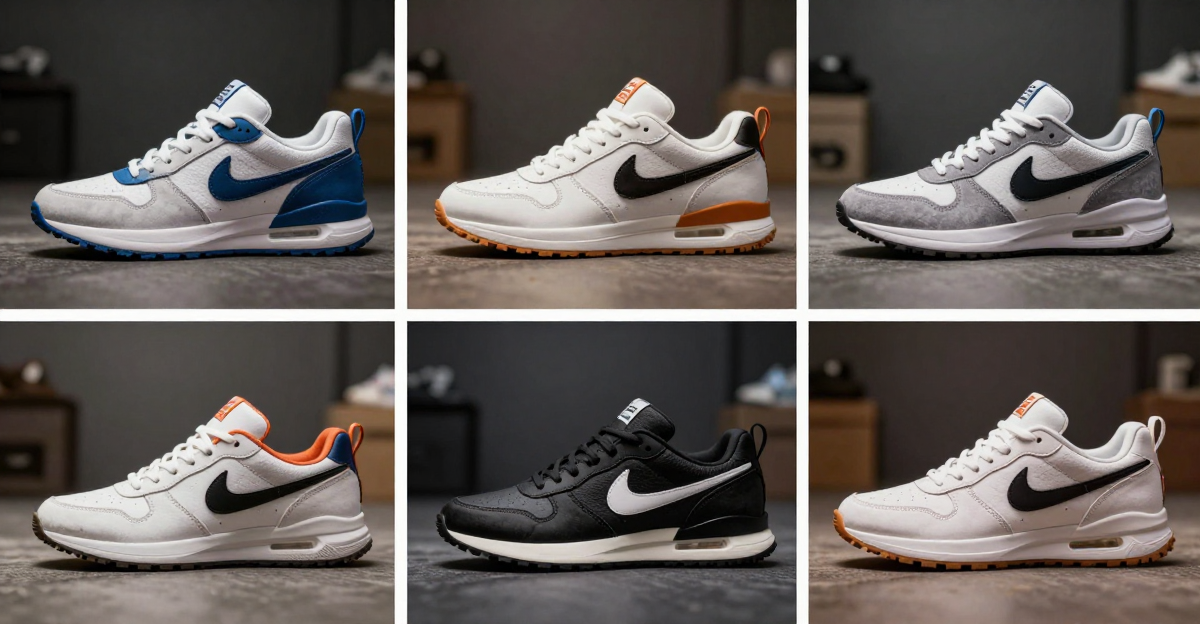
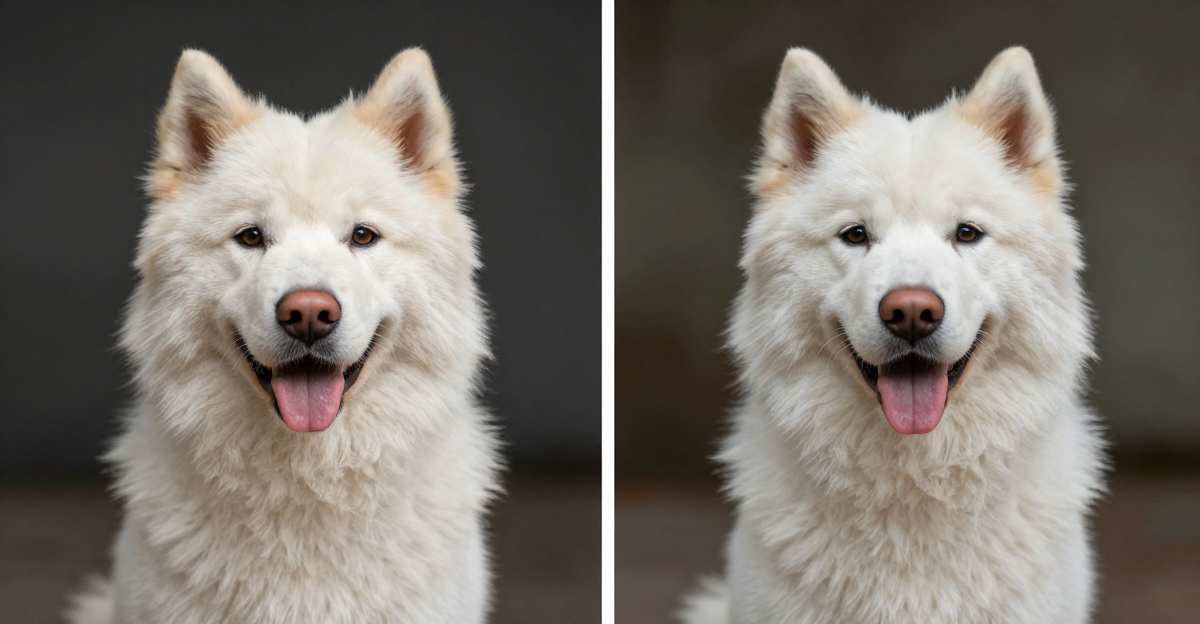
9.See it in action — real Imagera output
These are real, unedited results from the Imagera ai background studio — the exact tool this guide covers.


Try the AI Background Studio →
10.Start Creating Professional Images with AI Background Replacement
Traditional background removal tools solve half the problem by creating transparent PNGs that still require manual background addition. AI background replacement completes the workflow by generating photorealistic environments based on text descriptions, matching lighting and perspective automatically.
This approach reduces production time from minutes to seconds per image while improving consistency and quality through automated lighting matching. E-commerce sellers create lifestyle product shots without studio photography. Real estate professionals stage empty rooms virtually. Content creators maintain consistent brand aesthetics across varied subjects. Professional photographers adapt single portrait sessions for multiple contexts.
Imagera's AI Background Studio provides browser-based access without downloads, processes images in under 60 seconds, and costs 15 credits per replacement with plans from $19.99/month.
Start Creating professional images with AI-generated backgrounds.
Related reading:
- AI Background Changer for Product Photography: E-Commerce Guide
- Remove.bg vs Imagera: AI Background Tool Comparison 2026
- How to Make AI Images Undetectable
Tools mentioned: