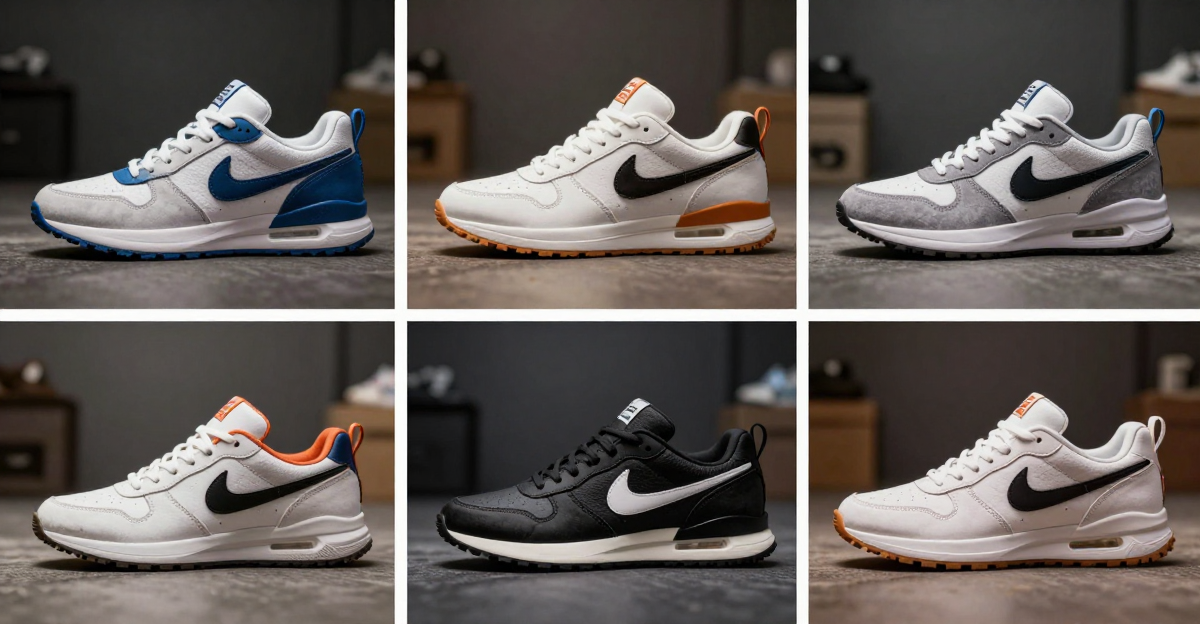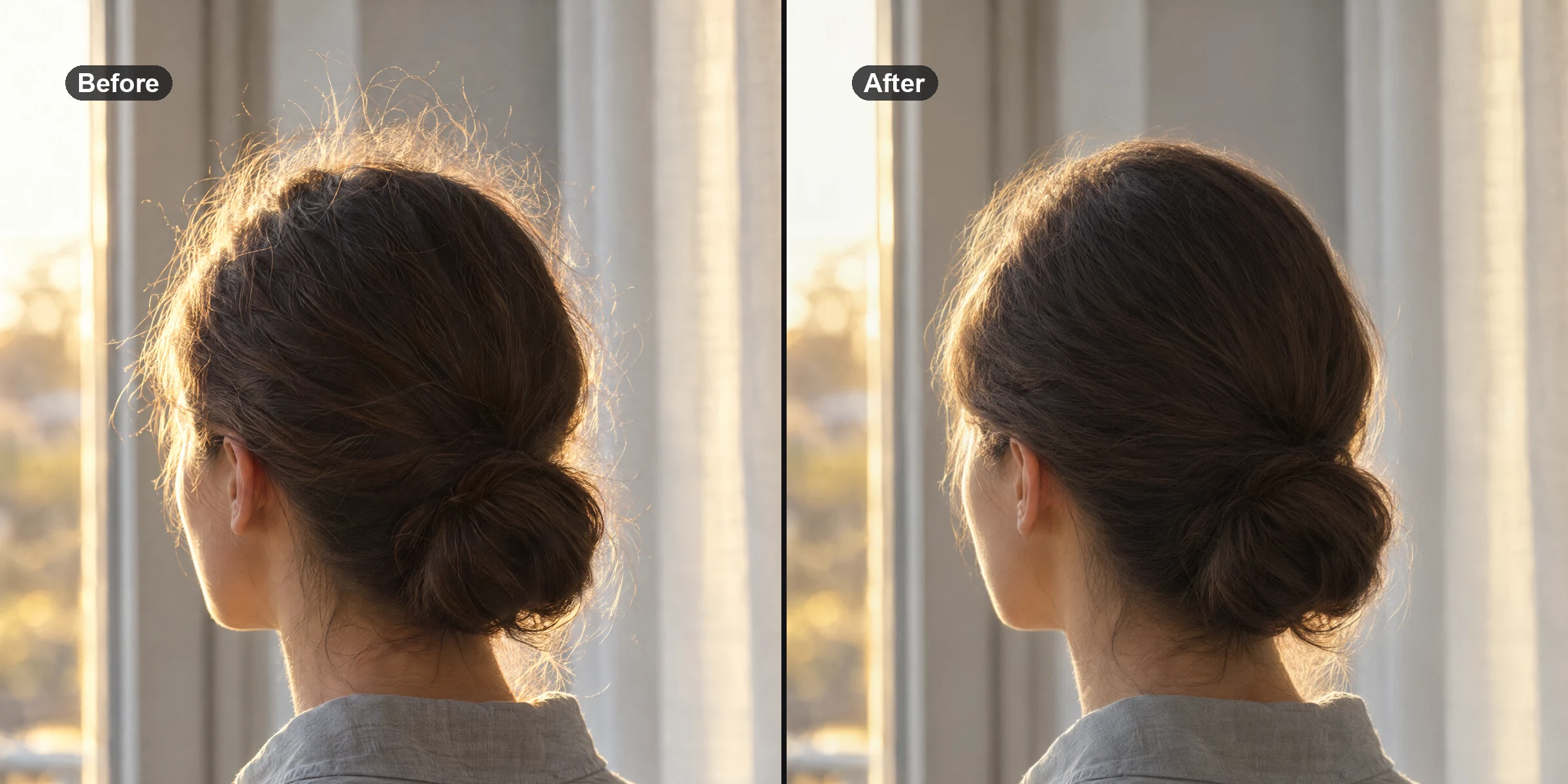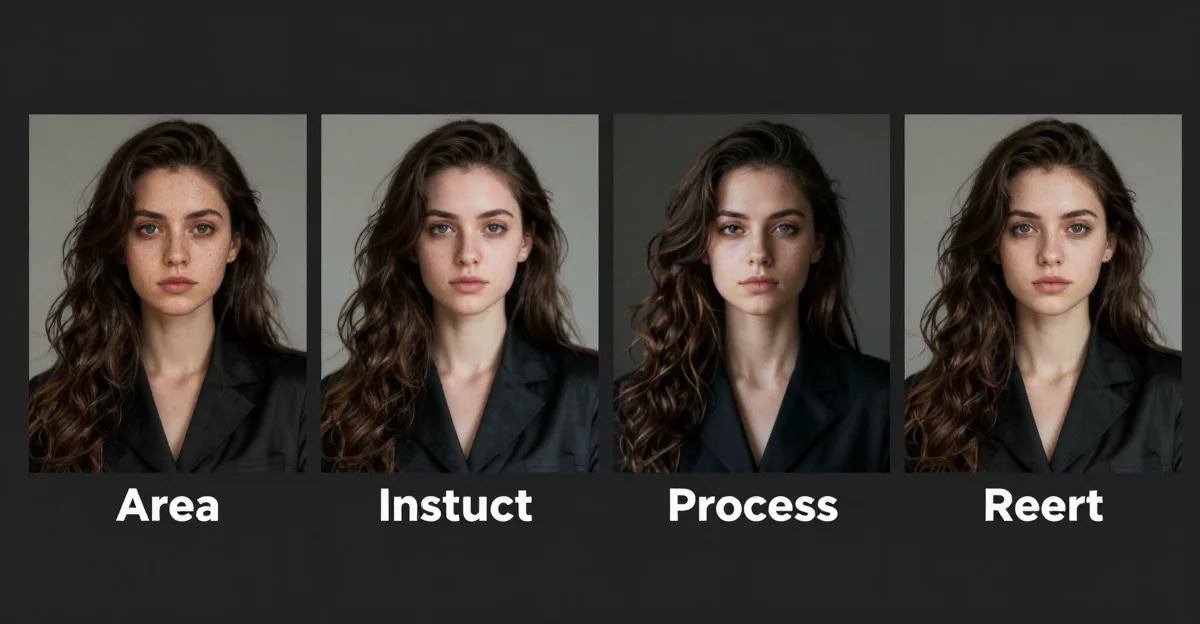
Image editing used to mean mastering Photoshop's hundreds of tools, understanding layers and masks, or spending hours watching tutorials. In 2026, you can edit images by simply describing what you want changed.
AI text-prompt image editing turns natural language descriptions into visual modifications. Instead of selecting tools and manually adjusting pixels, you type "remove the person on the left" or "change the shirt to navy blue" — and the AI handles the technical execution.
This guide explains how text-prompt editing works, what types of edits you can make, how to write effective prompts, and when this approach makes more sense than traditional software.
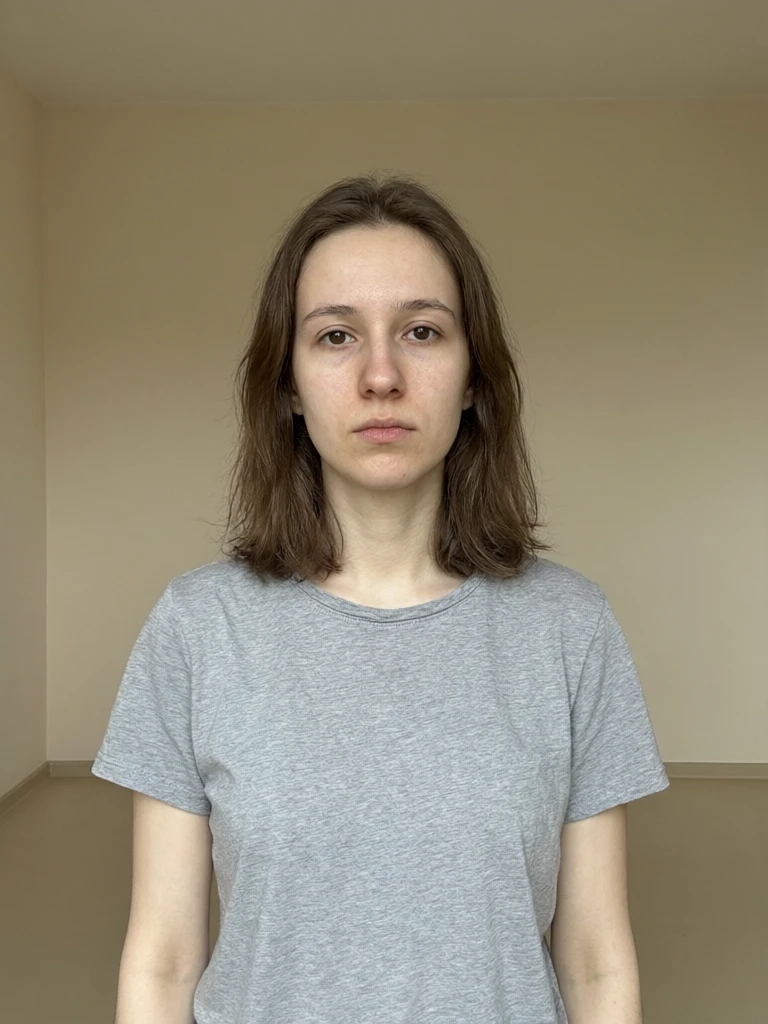
Edit Images with AI Text Prompts: Object Removal, Outfit Swap & More (2026 Guide) is a practical Imagera workflow: start from a real source file, describe what should change, generate with credits shown up front, and review before you publish. This guide covers the steps, quality checks, and when to use related tools.
Quick answer: Editing images with AI text prompts means describing a change in plain language, such as "make the sky sunset orange," and letting Imagera regenerate that region while preserving the rest of the photo, usually in under 60 seconds.
1.How do AI text prompts actually edit an image?
Imagera reads your plain-English instruction, locates the target region, and regenerates only those pixels while keeping the rest of the frame intact. A typical edit finishes in under 60 seconds, outputs up to 4K resolution, and you can chain several prompts in one session to layer changes without re-uploading or starting from scratch each time.
2.What makes a good AI image editing prompt?
Specific prompts consistently beat vague ones, so name the object, the action, and the style in one clear sentence. Adding a few descriptive details, such as color, lighting, and material, produces sharper results than a single-word command. Imagera keeps your original in a version history, so you can retry as many variations as you like at no extra upload cost.
3.What Is AI Text-Prompt Image Editing?
AI text-prompt image editing is a method where you upload an image and describe the changes you want in plain language. The AI interprets your description, understands the spatial relationships in the image, and applies the modifications automatically.
For example, if you upload a product photo with background clutter and type "remove all objects except the vase," the AI identifies the vase, removes everything else, and fills in the background convincingly. No manual selection, no clone stamp, no layer management.
3.1How It Differs from Traditional Editing
Traditional photo editing software like Photoshop, GIMP, or Affinity Photo requires you to:
- Learn tool-specific interfaces (selection tools, brushes, masks)
- Manually select regions you want to modify
- Understand layers, blending modes, and adjustment curves
- Spend time on precise pixel-level work
With text-prompt image editing, you:
- Describe the desired outcome in natural language
- Let AI interpret spatial references ("top-right corner," "behind the subject")
- Review and refine results with new prompts if needed
- Skip the learning curve entirely
The traditional approach gives you surgical precision and complete control over every pixel. Text-prompt editing prioritizes speed and accessibility — you trade some precision for dramatically faster results and zero learning requirements.
3.2Why This Matters for Both Beginners and Professionals
For non-designers: You can make professional-looking edits without learning complex software. An e-commerce seller can remove backgrounds from product photos, a real estate agent can declutter room photos, and a social media creator can swap outfits in selfies — all by describing what they want changed.
For professionals: Text prompts accelerate repetitive tasks. A photographer handling 50 client photos can batch-process common requests ("remove power lines from all outdoor shots") instead of manually cloning each one. Designers can prototype concepts faster by describing variations instead of rebuilding compositions from scratch.
The technology doesn't replace pixel-perfect work when you need it, but it eliminates the technical barrier for 80% of common editing tasks.
4.How Text-Prompt Editing Works
The workflow for AI text-prompt image editing follows four steps:
1. Upload your image(s) Start with one image for basic edits, or up to three images for compositing tasks (like placing a product from one photo onto a background from another).
2. Describe what you want changed Write a text prompt specifying the edit. The AI understands spatial references ("left side," "foreground"), object identification ("the red car," "the woman in the blue dress"), and desired outcomes ("remove," "change color to," "replace with").
3. AI processes the request The AI analyzes your image, identifies the elements you referenced, and applies the modification. For complex edits like outfit changes or background replacements, it understands how new elements should blend with existing lighting and perspective.
4. Review and refine Download the result, or write a new prompt to adjust the edit. You can iterate quickly — each edit takes seconds rather than minutes of manual work.
4.1How AI Understands Spatial References
When you write "remove the person on the left," the AI doesn't just recognize "person" as an object category. It:
- Maps the image into spatial zones (left, right, foreground, background)
- Detects all people in the image
- Identifies which person occupies the left spatial zone
- Removes that specific person while preserving others
This spatial understanding extends to relative positions: "the cup next to the laptop," "the building behind the tree," "objects in the top-right corner." The AI builds a mental model of the scene's layout, not just a list of objects.
4.2Multi-Image Compositing Explained
Text-prompt editors like Imagera's Edit Image tool support multi-image compositing — combining elements from different photos based on your description.
Upload three images:
- A wooden table (background)
- A product on white background (object to place)
- A lighting reference (for matching shadows)
Write: "Place the product from image 2 onto the table in image 1, matching the lighting from image 3."
The AI extracts the product, positions it on the table, adjusts perspective to match the table's angle, and adapts shadows/highlights to match your lighting reference. This process would take 15-30 minutes in Photoshop for someone experienced — text-prompt compositing handles it in under a minute.
5.Types of Edits You Can Make with Text Prompts
AI text-prompt editors handle six major categories of edits. Each requires different prompt strategies for best results.
5.11. Object Removal
What it does: Eliminates unwanted elements from your image and fills the space intelligently.
Prompt examples:
- "Remove the trash can from the sidewalk"
- "Delete all power lines from the sky"
- "Remove the person in the red jacket"
- "Erase the car parked on the street"
How it works: The AI identifies the object you specified, removes it, and fills the gap by analyzing surrounding context. If you remove a trash can from a sidewalk, it extends the sidewalk texture and pattern to fill the space naturally.
Best for: Product photography cleanup, removing photo bombers from tourist shots, eliminating distracting elements from real estate photos.
Limitations: Works best when the background behind the removed object is relatively uniform. Removing a person standing in front of a complex pattern (like patterned wallpaper) may produce visible artifacts where the AI had to invent missing detail.
5.22. Inpainting and Fill
What it does: Fills selected regions with AI-generated content that matches the surrounding image.
Prompt examples:
- "Fill the empty space where the couch was with hardwood floor matching the rest of the room"
- "Extend the sky upward by 200 pixels"
- "Fill the gap on the right side with grass matching the lawn"
- "Repair the damaged corner by filling with matching wall texture"
How it works: You specify a region (by description or implied by what was removed), and the AI generates new pixels that blend seamlessly with the surroundings. The fill considers texture, color, lighting, and perspective.
Best for: Extending canvas sizes, repairing damaged photos, removing watermarks or text overlays, filling gaps after object removal.
Prompt tip: Be specific about what should fill the space. "Fill with grass" is vague — "fill with green lawn grass matching the texture on the left side" gives better results.
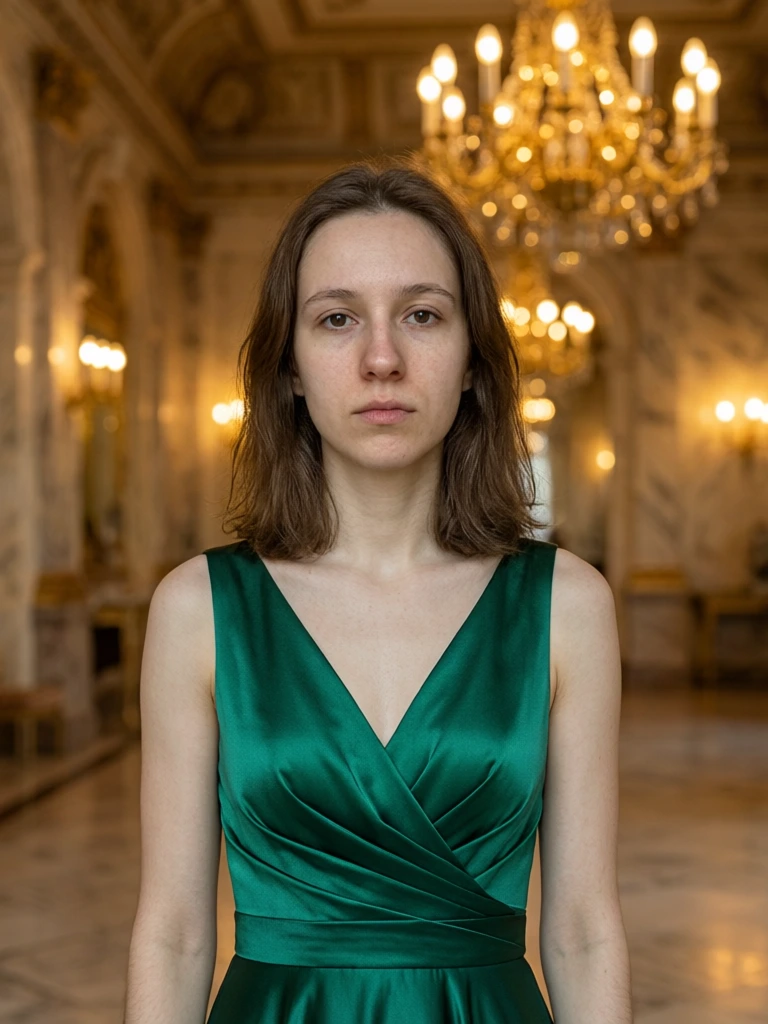
5.33. Outfit and Clothing Changes
What it does: Swaps or modifies clothing items on people in your images.
Prompt examples:
- "Change the shirt to a navy blue blazer"
- "Replace the dress with a red cocktail dress"
- "Change the t-shirt to a white button-down shirt"
- "Add a leather jacket over the existing outfit"
How it works: The AI identifies the person, recognizes the clothing item you referenced, and replaces it with your description while maintaining the body's pose, lighting, and wrinkles/folds appropriate to the new garment.
Best for: E-commerce fashion variations, social media outfit testing, creating diverse product catalog shots from a single photo session.
Limitations: Complex poses (crossed arms, twisted torsos) can produce less realistic results. The AI handles standing/sitting poses with arms at sides most reliably. Very detailed patterns (intricate embroidery, specific logos) may not render perfectly.
5.44. Background Replacement
What it does: Removes the current background and replaces it with a new scene or color.
Prompt examples:
- "Replace the background with a sunset beach scene"
- "Change the background to solid white"
- "Replace the office background with a modern conference room"
- "Change the outdoor background to a city skyline at night"
How it works: The AI segments the foreground subject from the background, removes the original background, and generates or places a new background according to your description. Advanced systems adjust lighting on the subject to match the new background's lighting conditions.
Best for: Product photography, professional headshots, social media content, real estate virtual staging.
Prompt tip: Specify lighting conditions if they matter: "Replace background with sunny outdoor garden" produces different lighting than "replace background with garden at dusk."


5.55. Style Transfer
What it does: Applies artistic or photographic styles to your image while preserving content.
Prompt examples:
- "Make this look like a watercolor painting"
- "Convert to black and white film photography style"
- "Apply oil painting aesthetic"
- "Make this look like a 1970s vintage photograph"
How it works: The AI analyzes artistic characteristics of the style you requested (brush strokes, color palette, texture, grain) and applies those qualities to your image while maintaining recognizable content.
Best for: Artistic social media posts, converting photos to illustration styles for design projects, creating cohesive visual branding across different source photos.
Limitations: Style transfer works best on full images. Applying styles to specific objects within an image ("make only the car look painted") is less reliable in prompt-based editors.
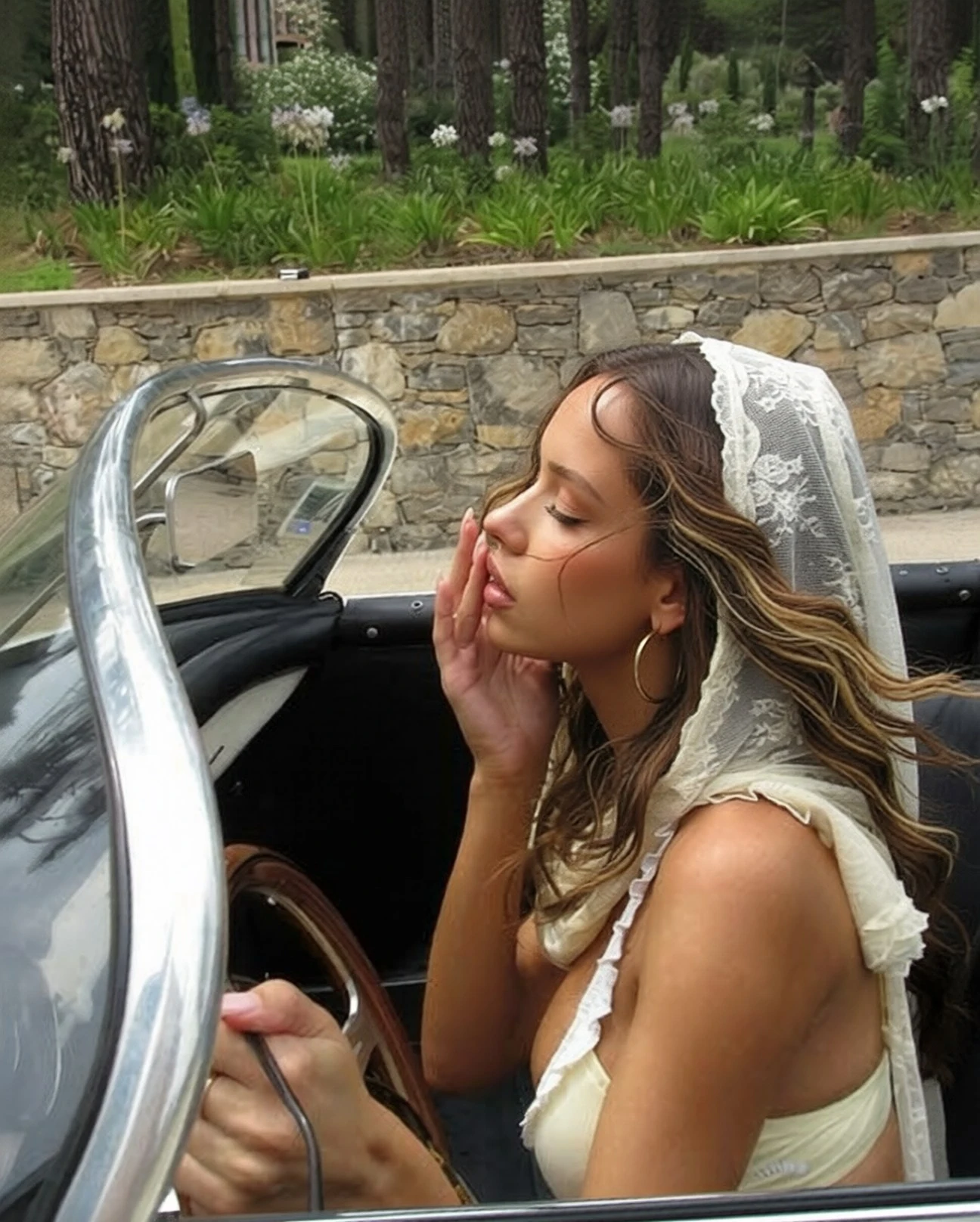
5.66. Multi-Image Compositing
What it does: Combines elements from 2-3 different images into a single cohesive result.
Prompt examples:
- "Place the product from image 2 onto the table in image 1"
- "Put the person from image 1 into the office setting from image 2"
- "Combine the foreground from image 1 with the sky from image 2"
- "Place the vase from image 3 on the shelf in image 1, matching the lighting from image 2"
How it works: Upload multiple images, then describe which elements from which images should combine. The AI extracts specified elements, adjusts their size/perspective to fit the target scene, and blends lighting and shadows for realism.
Best for: Product mockups (placing products in lifestyle scenes), creative composites, photomontage work, placing subjects in different environments.
Prompt structure: Reference images by number ("image 1," "the second photo") and be specific about what element to extract: "the woman standing on the left in image 2" rather than just "the person."
6.How to Write Effective Editing Prompts
The quality of your text-prompt edits depends heavily on how you describe what you want. AI image editors interpret language literally — vague prompts produce unpredictable results, while specific prompts generate consistent, accurate edits.
6.1Be Specific About Location
Weak: "Remove the person" Strong: "Remove the person standing on the left side of the image, wearing a red jacket"
When your image contains multiple instances of something (multiple people, multiple cars), spatial specificity prevents the AI from removing the wrong element.
Useful location descriptors:
- Cardinal directions: left, right, top, bottom, center
- Depth: foreground, background, middle distance
- Relative position: "next to the door," "behind the tree," "in front of the building"
- Regions: "upper-left corner," "right third of the image," "bottom edge"
6.2Describe the Desired Result, Not the Process
AI prompt editors respond to outcome descriptions, not technical instructions.
Weak: "Use clone stamp to extend the wall texture" Strong: "Fill the right side with wall texture matching the existing brick pattern"
Weak: "Select the background and delete it" Strong: "Replace the background with solid white"
Think about what you want the final image to look like, not the Photoshop-style steps to get there. The AI handles the technical process.
6.3Include Style and Mood Details for Better Results
When replacing or generating content, style descriptors improve accuracy:
Basic: "Replace the background with a beach" Improved: "Replace the background with a tropical beach at golden hour, calm water, few clouds"
Basic: "Change the shirt to blue" Improved: "Change the shirt to a navy blue cotton t-shirt with crew neck"
Basic: "Add a sky" Improved: "Add a bright blue sky with scattered white clouds, daytime lighting"
Style details help the AI match your vision. A "beach" could be rocky, sandy, tropical, temperate, sunset, or stormy — specifying these details reduces ambiguity.
6.4Common Mistakes and How to Avoid Them
Mistake 1: Ambiguous object references Prompt: "Remove the car" Problem: Image has three cars Fix: "Remove the red sedan parked on the left"
Mistake 2: Contradictory instructions Prompt: "Remove the person but keep their shadow" Problem: AI treats person and shadow as connected Fix: Two separate edits — first remove person with shadow, then add back a generic shadow in that position if needed
Mistake 3: Overly complex single prompts Prompt: "Remove the trash can, change the sky to sunset, swap the building color to gray, and add a tree on the right" Problem: Too many simultaneous changes reduce reliability Fix: Break into sequential prompts, one edit at a time
Mistake 4: Assuming the AI sees what you see Prompt: "Fix the weird part" Problem: AI doesn't know what you consider weird Fix: "Remove the lens flare in the upper right corner"
Mistake 5: Technical jargon when description works better Prompt: "Apply Gaussian blur with 15px radius to background" Problem: AI prompt editors understand outcomes, not Photoshop filter settings Fix: "Make the background blurry while keeping the subject sharp"
6.5Examples of Weak vs. Strong Prompts
| Weak Prompt | Why It's Weak | Strong Prompt |
|---|---|---|
| "Remove the background" | Doesn't specify what to replace it with | "Replace the background with solid white" |
| "Make it look better" | Subjective and vague | "Increase brightness, enhance colors, sharpen details" |
| "Change the clothes" | Doesn't specify what to change to | "Change the gray t-shirt to a black crew neck sweater" |
| "Add a window" | Doesn't specify location or style | "Add a modern rectangular window on the left wall, matching the architectural style" |
| "Fix the photo" | No information about what needs fixing | "Remove the red-eye effect from both people" |
| "Edit the person" | Doesn't specify the edit type | "Remove blemishes from the person's face" |
7.Text Prompts vs. Traditional Photo Editing
Understanding when to use text-prompt AI editing versus traditional software helps you choose the right tool for each task.
| Feature | Text Prompt AI Editing | Photoshop/GIMP |
|---|---|---|
| Learning Curve | None — describe what you want in plain language | Steep — requires understanding tools, layers, masks, adjustment curves |
| Speed for Common Tasks | 30 seconds to 2 minutes per edit | 10-45 minutes depending on complexity and skill level |
| Precision Control | Limited — AI interprets your description | Complete — pixel-level control over every element |
| Background Removal | Automatic with description | Manual selection with pen tool or magic wand |
| Object Removal | Describe what to remove, AI fills intelligently | Manual clone stamp or content-aware fill |
| Outfit Changes | Describe new clothing, AI renders | Requires advanced compositing, painting, or swapping from other images |
| Cost | Subscription or credit-based (starting at $19.99/mo) | $10-55/month subscription or $700+ one-time purchase |
| Accessibility | Browser-based, no download | Requires software installation and powerful hardware |
| Best For | Fast iterations, repetitive tasks, users without design skills | Pixel-perfect work, complex multi-layer compositions, fine artistic control |
| Limitations | Less control over exact details, may require multiple attempts | Time-intensive, requires significant skill development |
When to use text-prompt editing:
- You need fast results without learning new software
- You're performing repetitive edits across many images
- The edit is conceptually simple ("remove X," "change Y to Z")
- Close-enough results are acceptable
When to use traditional editing:
- You need pixel-perfect precision for professional work
- The edit requires complex multi-layer compositing
- You're making fine artistic adjustments to colors, tones, or details
- You already have expertise in traditional tools
Many professionals use both: text-prompt AI for fast iterations and concept exploration, then traditional tools for final polish and precision adjustments.
8.Who Benefits from AI Text-Prompt Editing?
Text-prompt image editing solves specific problems for different user groups. Understanding these use cases helps identify when this technology makes sense.
8.1E-Commerce Sellers
Challenge: Product photos need consistent white backgrounds, no clutter, and sometimes lifestyle context — but hiring photographers or editors for every product variation is expensive.
How text prompts help:
- Remove backgrounds: "Replace background with solid white"
- Clean up products: "Remove dust and scratches from the watch face"
- Create variations: "Change the mug color to red" for product listings
- Add context: "Place the lamp on a modern nightstand" for lifestyle shots
Time savings: Processing 50 product images drops from 2-3 hours of manual editing to 15-20 minutes of prompt-based batch work.
8.2Social Media Creators
Challenge: Content calendars demand high posting frequency, but not every photo is perfect. Small edits improve visual consistency without major time investment.
How text prompts help:
- Background swaps: "Replace the messy room background with a clean wall"
- Outfit testing: "Show this outfit with a denim jacket instead" before filming video
- Quick fixes: "Remove the person walking in the background"
- Style consistency: "Make this photo match the warm tone of my feed"
Use case: A creator needs 4-5 Instagram posts per week. Text prompts turn mediocre phone photos into polished content in minutes rather than skipping posts or spending hours in traditional editors.
8.3Marketing Teams
Challenge: Campaign assets need quick iterations as messaging evolves, but sending revision requests to designers creates bottlenecks.
How text prompts help:
- Fast variations: "Change the headline text to [new text]" for A/B testing
- Localization: "Replace the English text with Spanish version"
- Product updates: "Replace the old product with the new model from image 2"
- Seasonal adjustments: "Change the background to winter holiday theme"
Workflow improvement: Marketing managers make minor edits themselves instead of submitting tickets to design teams, reducing turnaround from days to minutes.
8.4Real Estate Professionals
Challenge: Property photos often contain clutter, poor lighting, or empty rooms that don't showcase potential. Virtual staging is expensive.
How text prompts help:
- Declutter: "Remove all furniture and boxes from the room"
- Virtual staging: "Add modern furniture to the empty living room"
- Enhancement: "Replace the overcast sky with blue sky and sunshine"
- Repairs: "Fix the damaged wall section, fill with matching paint"
ROI impact: Virtual staging costs $25-150 per room with traditional services. Text-prompt editing handles basic staging in-house for the cost of credits (each edit on Imagera is quoted before you generate).
8.5Photographers
Challenge: Client revisions ("can you remove the person in the background?") are billable but time-consuming, and repetitive edits across albums eat into profitable shooting time.
How text prompts help:
- Batch object removal: "Remove power lines from all outdoor shots"
- Quick fixes: "Remove blemishes from the subject's face"
- Background consistency: "Replace all backgrounds with gray studio backdrop"
- Weather correction: "Change overcast sky to partly cloudy" across 30 images
Business benefit: Photographers can offer quick revision packages at lower price points (since actual time investment is minimal), or complete standard retouching faster to increase throughput.
9.Tips for Best Results with Text-Prompt Editing
Getting consistent, high-quality results from AI text-prompt editors requires understanding how to work with the technology's strengths.
9.11. Start with High-Quality Source Images
AI editors work with the pixels you give them. Starting with sharp, well-lit, properly exposed images produces better results than trying to fix poor source material.
Resolution: Use images at least 1080px on the longest side. Very small images (under 800px) limit the AI's ability to generate detailed edits.
Lighting: Even lighting with minimal harsh shadows gives the AI better information to work with. Extreme lighting (very bright highlights, very dark shadows) can confuse object detection.
Focus: In-focus subjects are easier for AI to identify and modify accurately. Blurry subjects may be misidentified or edited incorrectly.
9.22. Make One Edit at a Time
Complex prompts with multiple simultaneous changes ("remove the car, change the sky, and swap the building color") reduce reliability. Break complex edits into sequential steps:
- "Remove the car from the street"
- Download result, upload as new starting image
- "Replace the sky with sunset colors"
- Download result, upload as new starting image
- "Change the building facade to gray stone"
Each step works with a clean slate, reducing the chance of conflicting instructions.
9.33. Be Prepared to Iterate
Text-prompt editing often requires 2-3 attempts to get exactly what you want. The first attempt shows you how the AI interpreted your description — refine your prompt based on what you see.
First attempt: "Add trees to the background" Result: AI added pine trees, you wanted deciduous Second attempt: "Replace the pine trees with oak trees, full foliage"
This iterative approach is still faster than manual editing, and you learn what language works best for your specific use cases.
9.44. Use Reference Images for Complex Requests
When describing something visually complex, upload a reference image along with your edit target.
Scenario: You want to change an outfit to a specific style Approach: Upload both the person's photo and a reference photo of the exact jacket style you want Prompt: "Change the shirt in image 1 to match the leather jacket style shown in image 2"
Reference images eliminate ambiguity in descriptions like "modern," "professional," or "casual."
9.55. Understand Lighting Constraints
AI does well matching lighting direction and general color temperature, but dramatic lighting changes (converting from indoor fluorescent to outdoor sunset) can produce unnatural results.
Realistic: "Replace background with outdoor garden, daytime" when your subject has bright, even lighting Challenging: "Replace background with sunset beach" when your subject has harsh overhead fluorescent lighting
For best results, choose background replacements that match your subject's lighting conditions, or accept that composites may require additional editing.
9.66. Save Prompts That Work
When you find prompt language that produces great results for your use case, save it for future use. Text-prompt editing favors consistency — the same prompt structure applied to similar images produces similar results.
Example saved prompts:
- Product photography: "Remove background, replace with solid white"
- Portrait cleanup: "Remove blemishes and skin imperfections, maintain natural texture"
- Real estate: "Remove all furniture and personal items, maintain walls and fixtures"
Building a library of proven prompts for your common tasks speeds up future work and ensures consistent output quality.
10.Get Started with AI Text-Prompt Editing
Text-prompt image editing removes the technical barrier between your vision and the final image. Instead of learning complex software, you describe what you want changed — the AI handles the execution.
Imagera's Edit Image tool supports object removal, background replacement, outfit changes, inpainting, and multi-image compositing through natural language prompts. Review the current quote for the chosen model and settings before generating, and compare current plans and packs on the pricing page.
Upload your first image, describe what you want changed, and see how text-prompt editing compares to traditional photo editing workflows.
For more detailed guidance on writing effective image prompts, check out our complete guide to AI image prompts.
11.Related product studios
- Imagera Image Editor hub — Identity · Fast · Smart
- Imagera Identity Editor — pose changes with identity preserved
- How to change pose without changing face (tutorial)
- Magic Photo Editor
- Photo Text Changer