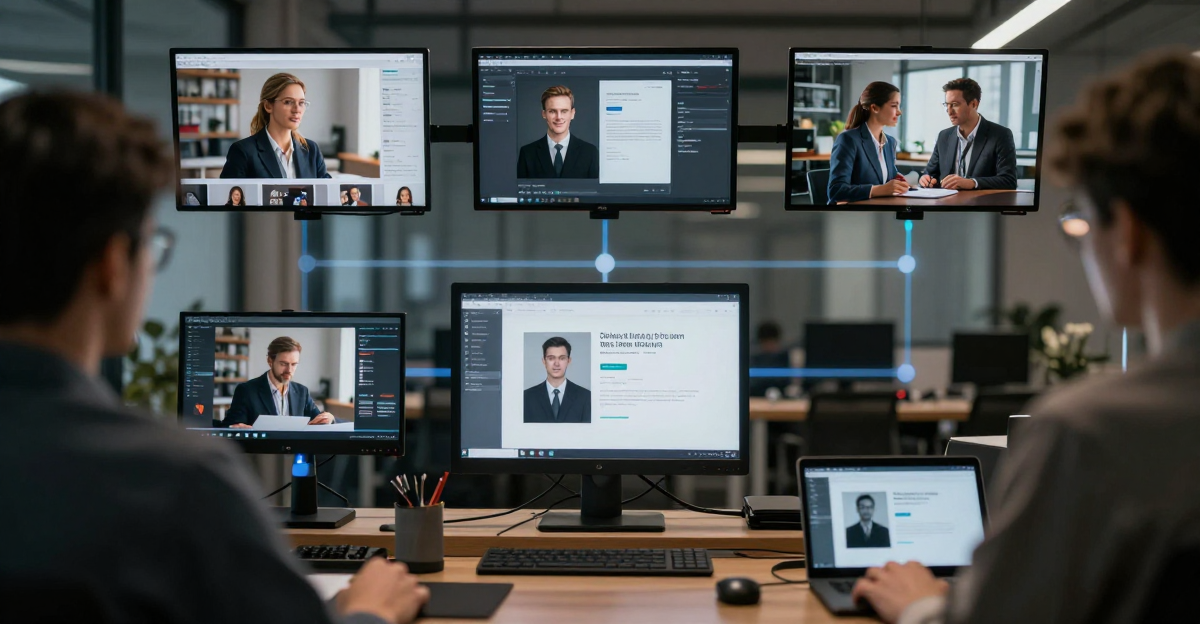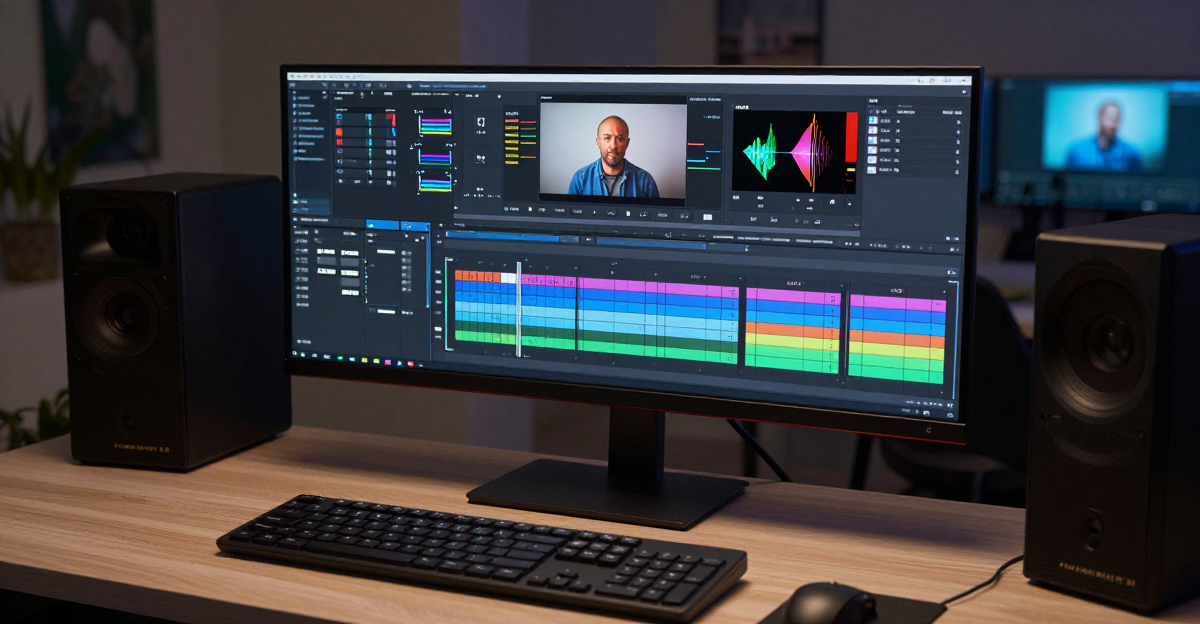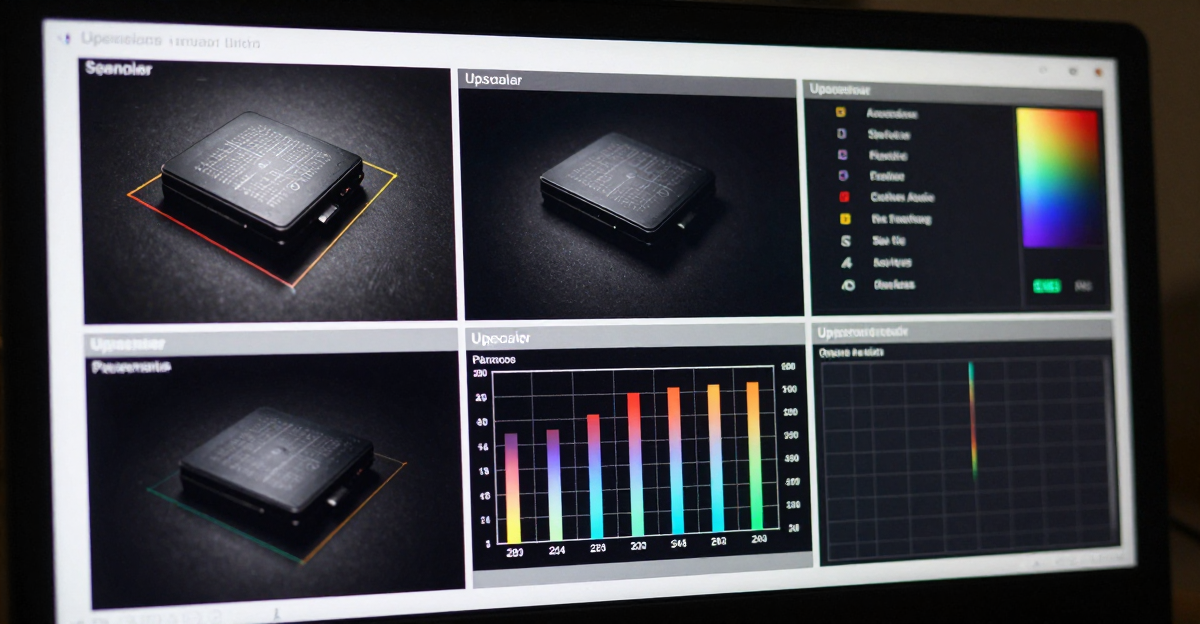
Your videos look grainy, blurry, or low-resolution. Social media algorithms suppress poor-quality content. Clients expect professional footage. Traditional video editing takes hours and requires expertise.
AI video enhancement transforms low-quality footage into professional 4K/8K content in 60 seconds. No editing skills required. No expensive equipment needed.
Starting at $19.99/month, generate professional-quality videos that compete with content shot on high-end cameras. Perfect for social media creators, marketers, family video restoration, and professional content production.

Quick answer: Imagera's AI video enhancer sharpens blurry footage and upscales it to crisp 4K or 8K, typically finishing a short clip in under a minute while removing noise, grain, and compression artifacts.
1.How does AI upscale a blurry video to 4K or 8K?
Imagera analyzes each frame, reconstructs missing detail, and scales resolution up to 4x, taking 1080p to 4K or even 8K. Most short clips render in under a minute, and the model works to clear visible blur, grain, and compression noise frame by frame for clean, 2026-ready quality.
2.Is AI video upscaling actually better than traditional sharpening filters?
Yes. Traditional sharpen filters only boost existing edges, so blurry 720p footage stays soft even at 2x zoom. Imagera instead generates new detail, quadrupling the pixel count for 4K. AI reconstruction consistently outperforms filter-based sharpening on faces, text, and fine textures that older tools tend to smear.
3.Why Video Quality Destroys Your Success
Platform algorithms punish low-quality content. YouTube's recommendation system favors high-resolution, clear footage. TikTok and Instagram Reels prioritize sharp, professional-looking videos. LinkedIn suppresses grainy profile videos.
The problem isn't your content — it's your video quality.
Poor video quality signals:
- Unprofessional: Clients judge your business by video presentation
- Low-effort: Algorithms interpret poor quality as low-value content
- Untrustworthy: Consumers trust professional-looking content more
- Dated: Old footage makes your brand look behind the times
Traditional solutions cost $200-500 per video for professional editing, or 15-30 hours learning complex software like DaVinci Resolve or Adobe Premiere Pro.
You need AI that makes any video look professionally shot.
4.What is AI Video Enhancement?
AI video enhancement uses machine learning to analyze and improve video quality beyond traditional upscaling. While basic upscaling just stretches pixels, AI enhancement:
Reconstructs missing detail: Neural networks trained on millions of videos predict what missing details should look like, filling gaps with authentic textures and patterns.
Removes noise intelligently: AI identifies and eliminates grain, compression artifacts, and sensor noise while preserving important details that traditional filters destroy.
Sharpens strategically: Machine learning determines which areas need sharpening and which need smoothing, avoiding the harsh "over-sharpened" look of traditional filters.
Interpolates frames: Advanced models generate intermediate frames for smoother motion, fixing stuttering footage and enabling slow-motion effects.
4.1How AI Enhancement Differs from Traditional Methods
4.2The AI Enhancement Process
5.How to Enhance Video Quality: Step-by-Step Guide
5.1Step 1: Assess Your Footage
Before running any enhancement, identify what's wrong with your video:
- Low resolution (480p, 720p): Needs AI upscaling to 1080p or 4K
- Grain and noise: Common in low-light footage and older cameras — needs noise reduction
- Blur and softness: From camera shake or poor focus — needs sharpening
- Compression artifacts: From heavy YouTube/social media compression — needs artifact removal
- Frame rate issues: Stuttering or choppy motion — needs frame interpolation
Most footage has multiple issues. AI enhancement addresses all of them simultaneously, which is why it outperforms traditional editing filters that only fix one problem at a time.
5.2Step 2: Upload to the Video Enhancer
Open Imagera's video enhancer in your browser. No download or installation required — processing happens on cloud GPUs regardless of your device capabilities.
Upload your video file (MP4, MOV, or AVI supported). For long videos, trim to the specific segment you want enhanced first. Enhancement works best on clips under 5 minutes per segment.
5.3Step 3: Choose Enhancement Settings
Select your target output:
- Resolution: Choose 1080p, 2K, or 4K output. Going from 480p to 4K produces the most dramatic improvement. Going from 1080p to 4K adds noticeable clarity on large displays.
- Enhancement level: Standard for light improvement, Strong for heavily degraded footage. Strong uses more credits but recovers more detail.
- Noise reduction: Enable for grainy footage (phone cameras in low light, security camera footage, old VHS recordings).
- Face enhancement: Automatically detects and enhances facial details — especially useful for interview footage, vlogs, and video calls.
5.4Step 4: Process and Download
Click enhance. Processing takes 20-60 seconds per 10-second segment on Imagera's cloud GPUs. Once complete, preview the enhanced version side by side with the original. Download in your preferred format.
5.5Step 5: Post-Processing Tips
After enhancement, optimize for your final platform:
- YouTube: Upload at the enhanced resolution. YouTube re-compresses everything, so starting with 4K gives better 1080p quality after compression.
- Social media: Trim to platform-specific lengths (60s for Reels/TikTok, 90s for YouTube Shorts). Add captions since most social video is watched on mute.
- Client delivery: Export at maximum quality settings. Enhanced footage holds up better to further editing and color grading.
- Archival: Save both the original and enhanced version. AI enhancement is non-destructive — your original file stays untouched.
6.Best Use Cases for AI Video Enhancement
6.1Old Family Videos and VHS Footage
Converting VHS tapes and old camcorder footage to digital is just the first step. Raw digitized footage looks terrible on modern displays — low resolution, heavy noise, washed-out colors. AI enhancement restores these memories to watchable quality:
- VHS (240p equivalent) → 1080p with noise reduction
- Early digital cameras (480p) → 4K with sharpening
- Old phone videos (720p, grainy) → clean 1080p
This is one of the most popular use cases. The emotional value of restored family footage far exceeds the small credit cost.
6.2Content Creator Workflows
YouTube creators and social media producers use AI enhancement to rescue footage that would otherwise be unusable. For generating new cinematic footage from scratch, see our Seedance 2.0 review and guide to creating cinematic AI video with LoRA. When combined with enhancement, AI-generated video reaches professional quality. Creators also use AI enhancement to rescue footage that would otherwise be unusable — backup camera angles that were accidentally set to low resolution, phone B-roll shot in poor lighting, or archived content from years ago that deserves a quality upgrade.
For creators monetizing old content libraries, enhancing archival footage to current quality standards extends the earning life of existing videos. This pairs well with making money with AI tools — enhanced video libraries generate ongoing revenue.
6.3Professional Video Production
Corporate training videos, webinar recordings, and conference footage often suffer from poor camera quality. Instead of reshooting, AI enhancement brings existing footage to professional standards. This saves production budgets while maintaining content authenticity.
6.4Surveillance and Security Footage
Security cameras typically record at low resolution to save storage. When specific clips need to be reviewed in detail, AI upscaling reveals details invisible in the original footage. License plates, facial features, and signage become readable after enhancement.
7.Common Mistakes When Enhancing Video
Enhancing already-compressed footage multiple times. Each compression/enhancement cycle degrades quality. Start from the highest quality source available — original camera files, not YouTube downloads or screenshots of screenshots.
Expecting miracles from extremely low quality. AI enhancement is powerful but not magic. A 144p video won't look like native 4K. The improvement is dramatic but bounded by available pixel information. 480p → 4K is the practical sweet spot.
Ignoring audio quality. Enhanced video with poor audio creates a jarring mismatch. Consider using Imagera's voice generator or podcast tools to improve narration quality alongside video enhancement.
Processing unnecessarily long clips. Trim to the relevant segment before enhancing. Processing a 30-minute video when you only need a 2-minute clip wastes credits and processing time.
Using the wrong enhancement level. Strong enhancement on footage that only needs light improvement can introduce artifacts. Start with Standard and only switch to Strong if the results aren't sufficient.
For detailed tool-by-tool comparisons, see our Best AI Video Upscaler 2026 comparison guide. For Topaz-specific comparisons, see our Topaz Video AI Alternative analysis.
8.Top 15 AI Video Enhancers Compared
Comprehensive comparison of leading video enhancement tools in 2026:
| Tool | Best For | Resolution | Pricing | Processing Speed | Ease of Use | Rating |
|---|---|---|---|---|---|---|
| Imagera AI | All-purpose, fast results | Up to 8K | $19.99-199.99/mo | 60 seconds | ⭐⭐⭐⭐⭐ Easy | 4.8/5 |
| Topaz Video AI | Professional restoration | Up to 16K | $299 lifetime | 5-15 minutes | ⭐⭐⭐ Moderate | 4.7/5 |
| HitPaw Video Enhancer | Feature-rich editing | Up to 8K | $53.99-437.99 | 3-10 minutes | ⭐⭐⭐⭐ Easy | 4.6/5 |
| AVCLabs Video Enhancer | Batch processing | Up to 8K | $39.95-299.90 | 4-12 minutes | ⭐⭐⭐ Moderate | 4.5/5 |
| PowerDirector | Complete editing suite | Up to 4K | $20.99/mo | 2-8 minutes | ⭐⭐⭐⭐ Easy | 4.4/5 |
| Adobe Premiere Pro | Professional editors | Up to 8K | $22.99/mo | 5-20 minutes | ⭐⭐ Difficult | 4.7/5 |
| Media.io | Casual creators | Up to 4K | $25/mo | 2-5 minutes | ⭐⭐⭐⭐⭐ Easy | 4.3/5 |
| Veed.io | Social media content | Up to 4K | $25/mo | 1-3 minutes | ⭐⭐⭐⭐⭐ Easy | 4.2/5 |
| TensorPix | Old video restoration | Up to 4K | Custom pricing | 3-8 minutes | ⭐⭐⭐ Moderate | 4.5/5 |
| UniFab AI | High-end upscaling | Up to 16K | $99-299 | 10-30 minutes | ⭐⭐⭐ Moderate | 4.4/5 |
| Aiarty Video Enhancer | Lightweight software | Up to 4K | $49.95-129.95 | 2-6 minutes | ⭐⭐⭐⭐ Easy | 4.3/5 |
| VideoProc | Windows power users | Up to 4K | $29.95/year | 3-10 minutes | ⭐⭐⭐ Moderate | 4.2/5 |
| Movavi Video Editor | Beginners | Up to 4K | $79.95 lifetime | 4-12 minutes | ⭐⭐⭐⭐⭐ Easy | 4.1/5 |
| Remini AI | Face enhancement | Up to 1080p | $9.99/mo | 30-90 seconds | ⭐⭐⭐⭐⭐ Easy | 4.0/5 |
| Canva Video Enhancer | Quick social posts | Up to 1080p | Free-$25/mo | 1-2 minutes | ⭐⭐⭐⭐⭐ Easy | 4.2/5 |
8.1Feature Comparison Matrix
| Feature | Imagera AI | Topaz | HitPaw | Adobe | PowerDirector | Media.io |
|---|---|---|---|---|---|---|
| AI Upscaling | ✅ 8K | ✅ 16K | ✅ 8K | ✅ 8K | ✅ 4K | ✅ 4K |
| Noise Reduction | ✅ Advanced | ✅ Advanced | ✅ Good | ✅ Advanced | ✅ Good | ✅ Basic |
| Face Enhancement | ✅ Yes | ✅ Yes | ✅ Yes | ✅ Yes | ✅ Yes | ✅ Limited |
| Frame Interpolation | ✅ Yes | ✅ Yes | ✅ Yes | ✅ Yes | ✅ Limited | ❌ No |
| Batch Processing | ✅ Yes | ✅ Yes | ✅ Yes | ✅ Yes | ✅ Yes | ✅ Limited |
| Cloud Processing | ✅ Yes | ❌ No | ❌ No | ❌ No | ❌ No | ✅ Yes |
| Mobile App | ✅ Coming Soon | ❌ No | ✅ Yes | ✅ Yes | ✅ Yes | ✅ Yes |
| API Access | ✅ Pro Plan | ❌ No | ❌ No | ❌ No | ❌ No | ✅ Enterprise |
| Watermark-free | ✅ All Plans | ✅ Yes | ✅ Paid Only | ✅ Yes | ✅ Paid Only | ✅ Paid Only |
| Commercial License | ✅ Included | ✅ Yes | ✅ Yes | ✅ Yes | ✅ Yes | ✅ Yes |
8.2Pricing Breakdown by Use Case
| Use Case | Best Tool | Monthly Cost | Cost per Video | Annual Savings vs Traditional |
|---|---|---|---|---|
| Social Media Creator (50 videos/mo) | Imagera AI Pro | $19.99 | $0.20 | $9,800/year |
| Marketing Agency (200 videos/mo) | Imagera AI Business | $49.99 | $0.17 | $39,500/year |
| Professional Editor (occasional) | Topaz Video AI | $299 (lifetime) | Varies | $2,100/year |
| E-commerce (100 product videos/mo) | Imagera AI Pro | $19.99 | $0.20 | $19,800/year |
| Family Video Restoration (10 videos) | Imagera AI Starter | $19.99 | $0.25 | One-time $500 |
| YouTube Creator (20 videos/mo) | Imagera AI Starter | $19.99 | $0.25 | $3,900/year |
| Film Restoration Pro (5 projects/year) | Topaz Video AI | $299 (lifetime) | ~$60 | $2,000/year |
Traditional video editing costs: $200-500 per video for professional editing services.
[Interactive calculator and charts content continues as in the full markdown...]

9.See it in action — real Imagera output
These are real, unedited results from the Imagera video enhancer — the exact tool this guide covers.
10.Start Enhancing Videos Today
Professional quality in 60 seconds. Transform low-resolution, grainy, blurry footage into sharp 4K/8K content. Starting at $19.99/month.
Start Enhancing Video → | See Pricing →
400 starter credits for $19.99. No contracts, cancel anytime.
Related: Best AI Video Upscaler 2026 | Topaz Video AI Alternative | How to Make Money with AI | Video Enhancer