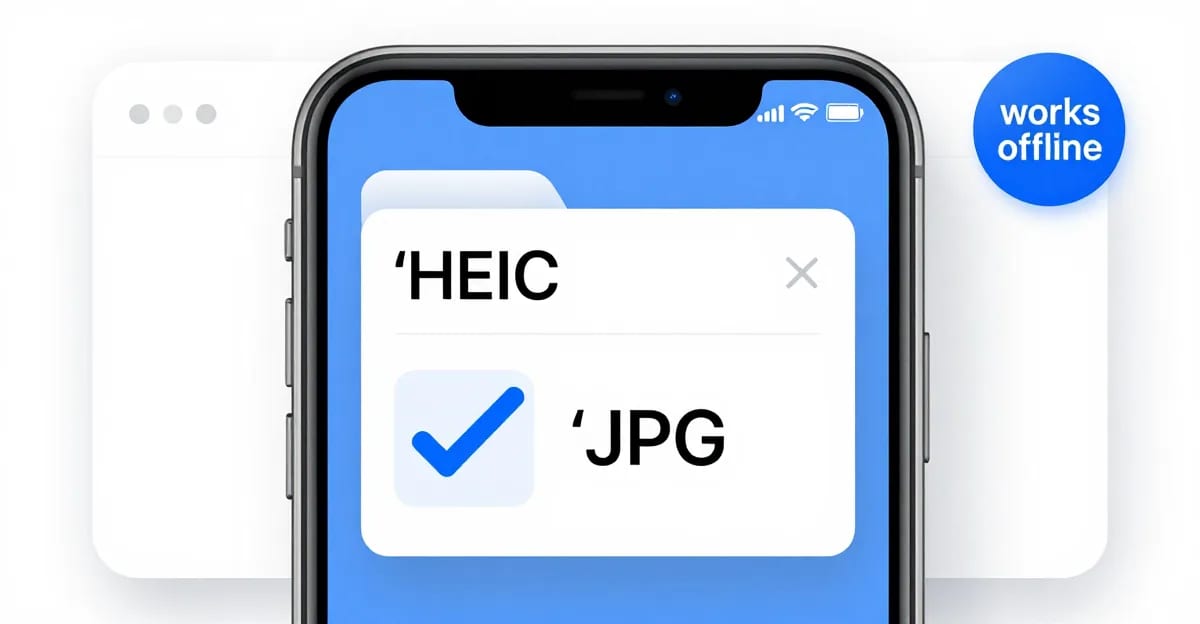

Quick answer: Imagera converts HEIC to JPG for free directly in your browser, so photos never leave your device and no files are uploaded to any server.
How does Imagera convert HEIC to JPG without uploading my files?
Imagera runs the entire conversion in your browser using local decoding, so the processing stays on your device and nothing is sent to a server. A typical iPhone HEIC photo converts to JPG in under a minute, and you can batch multiple photos at once. Because there is no upload, it works offline after the page loads and costs 0 credits.
Is converting HEIC to JPG this way actually private and safe?
Yes. Since nothing is transmitted, there is no server-side copy to leak, and Imagera keeps output at full resolution up to 4K without adding re-compression artifacts. HEIC files are usually smaller on disk than JPG at similar quality, so expect your converted JPGs to be somewhat larger files. Conversion stays free for unlimited images in 2026.
The short answer
You can convert HEIC to JPG for free, right in your browser, without uploading anything. Imagera's free image converter decodes your HEIC file locally using your device's own processing power and saves the result as a standard JPG. No server ever receives your photo. No account. No watermark. Just drop your file and download the result.
If your HEIC photo is being rejected by a Windows PC, a government form, a job portal, or a social media upload field, converting it to JPG is the fix — and it takes under ten seconds.
Why won't my iPhone HEIC photo open on Windows or a web form?
HEIC is Apple's default photo format since iOS 11 (2017). It produces files roughly 40–50% smaller than an equivalent JPEG at the same visual quality — a real storage win. However, HEIC uses the HEVC (H.265) video codec under the hood, which is patent-encumbered. That means Chrome, Firefox, and Edge on Windows cannot display HEIC files inside web pages or upload forms without a separately installed codec.

The practical result: most Windows browsers show a blank or broken image when you try to upload a HEIC photo to a form, and government portals, job applications, and e-commerce platforms typically return an "invalid file type" error. The consistent fix across all platforms is to convert to JPG before uploading — JPG is universally accepted everywhere.
Apple's iPhone accounted for roughly 29% of global smartphone shipments in 2025 (Counterpoint Research), which means a large share of photos people try to submit to online forms come off iPhones as HEIC by default. The conversion friction is a genuine, widespread problem — not an edge case.
How do I convert HEIC to JPG without uploading the file?
Most HEIC converters you find online work by sending your photo to a server, converting it in the cloud, then serving it back to you. That means your photo leaves your device entirely. With in-browser conversion, the process stays local: the JavaScript running in your browser tab does the decoding and re-encoding, and the resulting JPG is saved directly to your downloads folder. Nothing travels over the network.

Here is how to do it with no upload:
How to convert HEIC to JPG in your browser (step by step)
- Open the tool. Go to Imagera's free image converter in any modern browser — Chrome, Safari, Firefox, or Edge on any device.
- Drop your file (or tap to browse). Drag one or more HEIC files onto the upload zone. You can convert multiple files in one pass.
- Select output format. Choose JPG (or keep the default). You can also adjust quality from 60–95 depending on whether you want the smallest file or near-original detail.
- Click Convert. Your browser processes the file locally. No progress spinner waiting on a server — it runs as fast as your device can handle it.
- Download the JPG. A download link appears. The resulting file is a standard JPG compatible with Windows, Android, web forms, and every image viewer.
- Done. Close the tab. Nothing was uploaded, nothing is stored, nothing is deleted because nothing was ever sent.
You can disconnect from the internet after the page has loaded and the conversion still works — which is the clearest proof that the processing is genuinely local.
Does converting HEIC to JPG reduce the file size for uploads?
Yes and no — and the direction depends on your starting point.

HEIC files are already compact. A 12-megapixel iPhone photo is typically 2–3 MB as HEIC and 4–6 MB as a quality-matched JPEG (Adobe, Cloudinary). Converting HEIC to JPG at default quality will usually increase the file size compared to the original HEIC, because HEIC's compression is more efficient.
However, if you also apply compression during conversion — reducing JPG quality to 80 or lower — you can end up with a JPG that is smaller than the original HEIC while remaining visually acceptable. The table below maps common upload scenarios to a recommended target size:
| Use case | Recommended output size | Suggested JPG quality |
|---|---|---|
| Government / visa form | Under 200 KB | 70–75 |
| Job application portal | Under 500 KB | 75–80 |
| Social media profile photo | 100–300 KB | 75–80 |
| E-commerce product image | 200 KB–1 MB | 80–85 |
| Email attachment | Under 1 MB | 80 |
| Print or archiving | Keep original quality | 90–95 |
If you need to hit a specific kilobyte target for a form, pair the HEIC-to-JPG conversion with the compress image to a target KB tool — it lets you dial in an exact file size limit.
Is it private to convert iPhone photos online?
It depends entirely on whether the tool uploads your file to a server or not. This is not a trivial distinction.

Cloud-based converters receive your raw photo on their servers. Even if a privacy policy promises "deleted within one hour," that is a policy promise — not a technical barrier. The file has already left your device, traveled to an unknown server, potentially passed through a CDN, and may have been logged by analytics integrations. The retention window (one hour to 30 days, depending on the service) is the time your photo exists on infrastructure you do not control.
In-browser converters never receive your file. The photo stays in your browser's memory, is processed by JavaScript, and is released when you close the tab. There is no server-side record to delete because no server was ever involved.
HEIC files carry particularly sensitive metadata. Every iPhone HEIC photo taken with location services on contains GPS coordinates accurate to within a few meters — enough to identify your home, workplace, or your child's school (ExifData.org, GeoTag.world). Under the GDPR, embedded GPS coordinates in photos are classified as personal data. Uploading a HEIC file to a cloud converter without stripping EXIF first means those coordinates travel with the photo.
When you convert locally, those coordinates stay local. If you also want to strip the EXIF data before sharing the resulting JPG, remove EXIF and GPS data in-browser as a follow-up step — that tool also runs without any upload.
Most online converters vs. Imagera's free browser converter
| Feature | Most cloud converters | Imagera free converter |
|---|---|---|
| Uploads your photo to a server? | Yes | No |
| Stores your photo? | Yes (1 hour to 30 days) | No — nothing to store |
| Requires sign-up or account? | Often yes | No |
| Watermarks the output? | Sometimes | No |
| Works offline after page load? | No | Yes |
| File size limit per image? | Typically 5–10 MB | No server cap |
| EXIF / GPS data exposure? | Sent to server with file | Stays in your browser |
| Grants tool provider a license over your image? | Usually yes (ToS) | No — we never receive it |

Cloud converters frequently impose upload size limits (5–10 MB is common) because they need to manage server load. In-browser conversion has no such constraint — your browser handles the file directly, so a 25 MB RAW-derived HEIC works the same as a 2 MB snapshot.
Can I batch-convert HEIC to JPG for free with no sign-up?
Yes. Imagera's free converter accepts multiple files at once. Drop a folder of HEIC exports, select your output format and quality once, and download the results as individual JPGs or a zip file. There is no account wall and no per-file pricing.
Batch conversion is especially useful after an iPhone backup — iOS can export all camera roll images as HEIC, and converting the whole set to JPG at once saves the tedium of doing them one by one. Since everything runs in your browser, the batch also stays private: none of the photos touch a server.
Does converting HEIC to JPG also convert PNG or WebP files?
The same browser-based tool handles other format conversions. You can convert:
- PNG to JPG — useful when a form rejects PNG files or when you want a smaller file than lossless PNG produces.
- WebP to JPG — WebP is increasingly common from screenshots and web-sourced images; converting to JPG ensures compatibility with older software and printing services.
- JPG to PNG — if you need a lossless copy or a transparent background for design work.
Each conversion runs in-browser. The privacy guarantee is the same regardless of the source format.
The honest trade-off: free conversion vs. AI-enhanced cloud processing
In-browser HEIC-to-JPG conversion is fast, private, and free — and for most people converting photos for web uploads, it is exactly what you need.
If you are working with photos that also need AI-powered enhancement — recovering detail in a dark shot, upscaling to print resolution, or replacing a distracting background — those operations require heavier AI models that cannot currently run in a browser at full quality. Imagera's paid cloud studio handles that work, and it is honest about the trade-off: your photo is processed on our servers with your explicit consent for that session. The free browser tools and the paid AI studio are designed for different jobs.
For converting HEIC to JPG, no AI cloud processing is needed. The free in-browser tool does the job without compromise.
Related tools on Imagera
Start converting now
Drop your HEIC files into Imagera's free in-browser converter and download JPGs that work everywhere — no account, no upload, no waiting on a server. For a complete list of private browser-based tools for compression, background removal, object erasure, and EXIF stripping, see the best private no-upload image tools guide.