You can complete this on Imagera without installing software: upload a real source file, describe the change, confirm credits up front, generate, and review before you publish. Resize an Image Online Free (Any Dimension) — this guide covers the steps, quality checks, and when to open related tools.
Need to resize an image right now? Open Imagera's free Image Compressor, drop your file in, type the width and height you want, and hit Download. The whole thing runs in your browser — nothing leaves your device. If that is all you needed, you are done. If you want to understand the options, pick the right preset for your platform, or learn when to lock the aspect ratio, the rest of this guide covers all of it.
Quick answer: Yes, you can resize any image online free with Imagera to any pixel dimension, aspect ratio, or preset (square, 16:9, story) in under 60 seconds, with no software to install.
How do I resize an image to exact dimensions online for free?
Open Imagera in any browser, drop in your photo, and type an exact width and height in pixels, or pick from 100+ presets covering Instagram (1080x1080), YouTube (1920x1080), and print sizes. Free resizing keeps your original aspect ratio in 1 click, processes in under 60 seconds, and exports up to 4K without watermarks or a forced sign-up.
Will resizing an image online reduce its quality?
Downscaling usually preserves a clear result, while enlarging a small image can soften edges. Imagera's free on-device resizer changes dimensions without generation credits. A separate cloud AI upscaler can reconstruct plausible detail, with the available output size and credit quote shown in that workflow. Inspect the result rather than assuming extra pixels restore lost information.
What "Resize" Actually Means (and Why It Matters)
When people say they want to "resize" an image, they usually mean one of three different things:
- Change the pixel dimensions — for example, turning a 4000 x 3000 photo into a 1200 x 900 version.
- Reduce the file size in kilobytes or megabytes — so it loads faster on a website or fits inside an email attachment limit.
- Both at the same time — shrink the dimensions and lower the quality setting to hit a target file size.
Most free online tools handle all three. The important variable is whether those tools keep your file private. Many well-known resizers upload your photo to a remote server to process it, which means your image briefly exists on someone else's computer. For personal photos, product shots, or anything confidential, that is worth thinking about. Read more in Is It Safe to Upload Photos to Online Editors?.
Imagera's free tool processes everything locally in your browser using your own device's computing power — no server ever receives the file.
Common Reasons to Resize an Image
Before choosing your settings, it helps to know what you are resizing for. The target dimensions vary significantly by use case.
Social media posts — Each platform has preferred sizes. Instagram feed posts typically display at 1080 x 1080 pixels for square, or 1080 x 1350 for portrait. Twitter/X header images work best at 1500 x 500. LinkedIn covers display at 1584 x 396.
Website backgrounds and hero images — Most full-width desktop banners are set between 1920 x 1080 and 2560 x 1440. Sending a 6000-pixel raw photo from your camera to a web page is wasteful; resizing it down to 1920 pixels wide trims the file dramatically without any visible loss.
Email attachments — Most email servers reject attachments over 10 MB or 25 MB. Resizing a large photo to around 1600 pixels wide usually brings it under 1 MB, which is comfortable for any inbox.
Product thumbnails — E-commerce platforms like Shopify and WooCommerce have specific thumbnail requirements. Shopify recommends 2048 x 2048 for product images; the platform then generates its own thumbnails. Sending in something that matches or slightly exceeds that avoids automatic upscaling.
Profile pictures — Most platforms display profile pictures at 150 x 150 to 400 x 400 pixels, though they request uploads at double that for retina screens.
Print — Print is measured in dots per inch rather than pixels. A 4 x 6 inch print at 300 DPI needs 1200 x 1800 pixels. A standard A4 sheet at 300 DPI needs 2480 x 3508.
Pixel Resize vs. Percentage Resize
There are two ways to tell a resizer what you want.
Exact pixels is the more precise option. You type "1080" in the width box and the tool produces an image that is exactly 1080 pixels wide. Use this when a platform specifies exact requirements, or when you need images to align inside a grid layout.
Percentage is quicker when you just want something smaller without caring about the exact number. Entering 50% gives you an image half the original dimensions in both directions, which means the file size drops to roughly a quarter of the original (halving both dimensions reduces the pixel count by 75%).
Most people use exact pixels for professional work and percentage when quickly sharing something by message or email.
Aspect Ratio Lock: When to Turn It On and Off
Aspect ratio is the relationship between width and height. A 1920 x 1080 image has a 16:9 aspect ratio. A 1080 x 1080 image is 1:1 (square).
Lock on — When you type a new width, the height adjusts automatically to maintain the original proportions. This is what you want for most photos and graphics. Stretching an image without keeping proportions makes people look tall and thin or short and wide.
Lock off — Turn aspect ratio lock off only when the platform specifically requires a non-proportional crop, or when you are creating a fixed canvas at a set dimension and you understand the image will be stretched or squished. Graphic designers sometimes need to force an image into a specific slot regardless of its original shape.
A practical rule: if you are not sure, leave the lock on.
Free Online Image Resizers: A Side-by-Side Look
There are several free tools available. Here is an honest comparison based on what each one actually does.
| Tool | Processes locally (no upload)? | Exact pixel resize | Percentage resize | Aspect ratio lock | File formats |
|---|---|---|---|---|---|
| Imagera free tool | Yes | Yes | Yes | Yes | JPG, PNG, WebP |
| Squoosh (Google) | Yes | Yes | Yes | Yes | Most formats |
| Picresize | Server-side in the standard flow (verify on each provider's site, as of mid-2026) | Yes | Yes | Yes | JPG, PNG, GIF |
| Resizing.app | Server-side in the standard flow (verify on each provider's site, as of mid-2026) | Yes | Yes | Yes | JPG, PNG, GIF |
| ILoveIMG | Server-side in the standard flow (verify on each provider's site, as of mid-2026) | Yes | Yes | Yes | JPG, PNG, GIF |
The tools that process server-side are not inherently unsafe, but your file does travel to and from a third-party computer. For sensitive photos or business materials, that is a trade-off worth knowing about. Imagera's free Image Compressor and Squoosh both run entirely in the browser.
The difference between the two browser-based options is that Imagera is purpose-built with a simple interface suited to quick resizing tasks, while Squoosh is more technically detailed (useful for developers comparing codec outputs).
How to Resize an Image with Imagera's Free Tool: Step by Step
Here is the full process from start to finish.
-
Open the tool. Go to Image Compressor. No account needed. No sign-up form.
-
Load your image. Either drag the file onto the drop zone or click "Choose file." The tool accepts JPG, PNG, and WebP. Large files (even 20 MB raw photos) load quickly because processing happens on your device, not a remote server.
-
Set the output dimensions. You will see a Width field and a Height field. Type the pixel value you want in the Width box. If the aspect ratio lock is on (it is on by default), the height adjusts automatically. If you need a specific height too, unlock the ratio and enter both values.
-
Or choose a percentage. If you want to resize by proportion rather than exact pixels, switch to the percentage input. Type "50" for half size, "75" for three-quarter size, and so on.
-
Choose output format. For photos, JPG at 80–85% quality is usually a good balance. For images with transparent backgrounds, use PNG. For web use where you want the smallest possible file, WebP is the best modern choice.
-
Adjust quality if needed. The quality slider controls how much the tool compresses the image data. For most screen use, 80% quality is indistinguishable from 100% to the human eye. For print, stay at 90–95%.
-
Preview the result. The tool shows you the output file size before you download. This is useful if you are trying to hit a specific size limit — adjust the quality slider up or down until the number is where you need it.
-
Download. Click the Download button. The resized file saves directly to your device. Nothing was ever sent to a server.
Common Platform Dimension Reference
Here are standard sizes that come up regularly. Bookmark this section.
Social media
- Instagram feed square: 1080 x 1080 px
- Instagram portrait: 1080 x 1350 px
- Instagram Story / TikTok: 1080 x 1920 px
- Facebook cover: 851 x 315 px
- Twitter/X post image: 1200 x 675 px
- LinkedIn post image: 1200 x 628 px
- YouTube thumbnail: 1280 x 720 px
Website
- Full-width hero (desktop): 1920 x 1080 px
- Blog post featured image: 1200 x 630 px
- Open Graph / social share preview: 1200 x 630 px
- Favicon: 32 x 32 px or 64 x 64 px
E-commerce
- Shopify product image: 2048 x 2048 px (square)
- WooCommerce default thumbnail: 150 x 150 px
- Amazon main product image: 1000 x 1000 px minimum, 2000 x 2000 px recommended
- Maximum width for safe display in email clients: 600 px wide
- Header banner: 600 x 200 px
What Happens to Quality When You Resize?
This is the most common concern. The short version: shrinking an image down looks fine; making it bigger can look bad.
Downscaling (making an image smaller) generally produces clean results. When you go from 4000 pixels wide to 1200 pixels wide, the tool has plenty of data to work with and simply discards pixels in a mathematically smooth way. You will not notice any quality loss in normal use.
Upscaling (making an image bigger than its original size) is a different story. Standard resizing just stretches existing pixels, which creates visible blurriness or a blocky look. If you need to genuinely enlarge a photo while keeping it sharp, that requires a separate process — AI-based upscaling, which Imagera offers as a paid tool for cases where quality matters.
For the resize task covered here (fitting a photo into a platform's required dimensions), downscaling is almost always what you need, and the results are reliable.
Resizing vs. Compressing: What Is the Difference?
People often use these words interchangeably, but they are technically separate operations.
Resizing changes the pixel dimensions — the width and height of the image in pixels.
Compressing reduces the file size in kilobytes or megabytes by discarding some image data, using a mathematical algorithm (like the one used in JPG files) to store the image more efficiently.
You can compress without resizing (keep the same dimensions but lower the quality setting), and you can resize without compressing (change dimensions but keep quality at 100%). Most people want to do both at once to get the smallest file that still looks good.
Imagera's free tool lets you do both at once — set the dimensions and the quality level, and the output file reflects both changes. For a detailed guide on hitting specific file size targets, see How to Compress an Image to 100KB Online.
Resizing for Web vs. Resizing for Print
Web and print use fundamentally different measurements, which trips people up.
Web cares about pixel dimensions. A 1200 x 630 image is a 1200 x 630 image, regardless of what "DPI" metadata says. The DPI number embedded in a web image file does not affect how it looks in a browser. What matters is the pixel count.
Print cares about physical size at a given resolution. DPI (dots per inch) determines how sharp a printed image looks. 300 DPI is the standard for high-quality print. If your printer asks for an A4 image at 300 DPI, that means 2480 x 3508 pixels. If you send a 1240 x 1754 image (half those pixels), the printer will technically fill the page but the output will look noticeably softer.
When resizing for print, calculate the pixel count you need first: multiply the physical dimension in inches by the DPI. Then resize to that target pixel count.
Privacy and Your Files
A practical note worth knowing: the tools that upload your images to process them are following a normal cloud-processing model — your file goes to their server, gets processed, and a result comes back. For most images in most situations, this is fine.
But if your images contain anything personal — faces, documents, medical records, product photos not yet public, screenshots with private information — you may prefer a tool where the file never leaves your device. The best private image tools guide covers this in depth.
Imagera's free Image Compressor processes everything on your own device. Once you download the result, there is nothing to delete from a server because nothing was ever sent there.
Related tools on Imagera
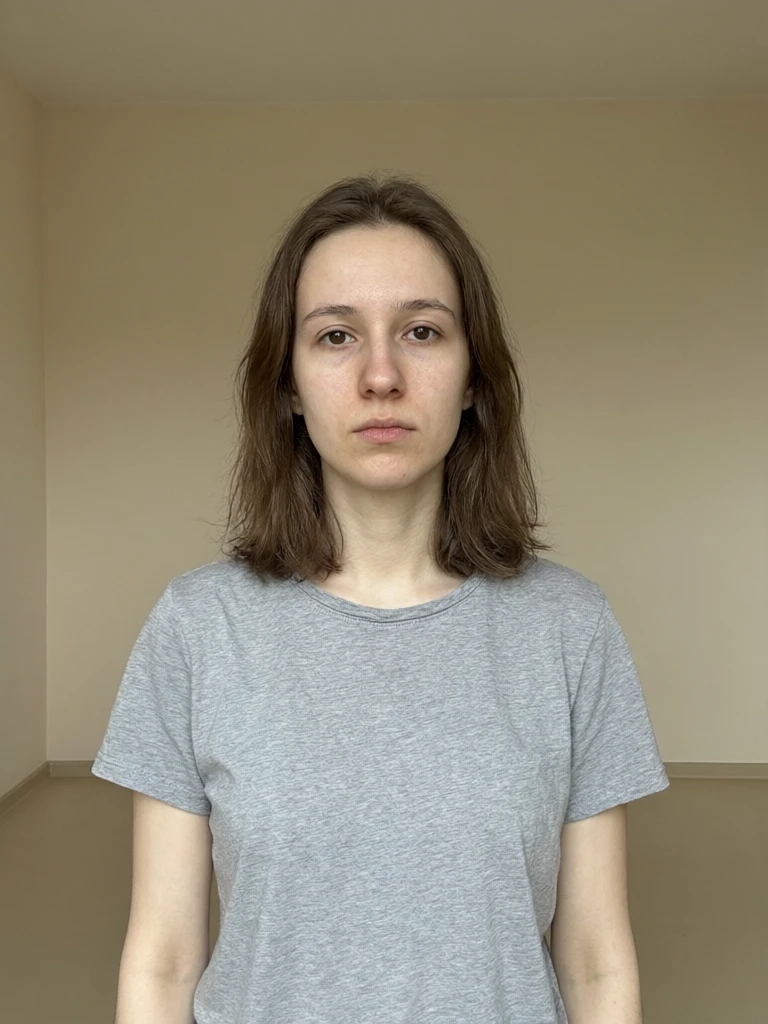
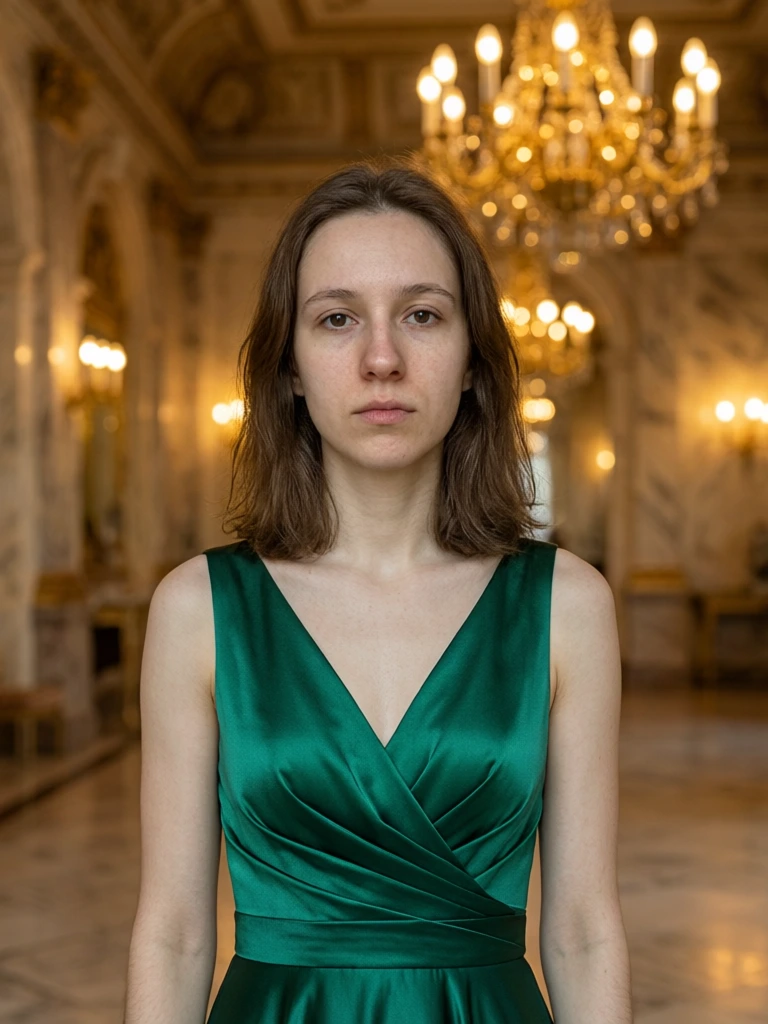
See it in action — real Imagera output
These are real, unedited results from the Imagera edit image — the exact tool this guide covers.
Summary
Resizing an image online does not need to be complicated. Know the pixel dimensions your platform wants, open a tool that handles the job, set the width and height, and download the result. The most common mistake is resizing an image up (enlarging it) when the original is too small — standard resizing cannot add detail that was never there, and the result will look soft.
For everyday resizing — social media, web uploads, email attachments, e-commerce product images — a browser-based tool is the most straightforward option. Imagera's free Image Compressor covers all the standard cases: exact pixel targets, percentage reduction, aspect ratio lock, and format conversion, all without sending your file anywhere.
Start here (product links)
Use these product pages:
- Image Compressor — free canvas ops include resize
- Passport Photo Maker — paid ID/passport studio
- Pricing — pay-first
- EXIF & Metadata Remover — free EXIF strip
Free vs paid (honest)
Imagera's browser tools run on your device, with no upload.
Cloud AI studios (upscale 16K, talking avatar, LoRA train, etc.) are pay-first: buy credits from pricing (packs from 350 credits). Do not expect free unlimited commercial cloud generation.