Compress to an exact size
Hit an upload limit (e.g. 100 KB for a form) by targeting a file size, not guessing a quality slider.
Imagera AI - AI content creation platform for generating images, cloning voices, creating avatars, and enhancing videos. Privacy Policy | Terms
Convert & compress · free · private
Compress to a target size, convert formats (JPG, PNG, WebP), or resize — instantly in your browser. Your image is never uploaded or saved on our servers.
Compression, conversion and resizing all run in your browser. Your image is never uploaded or stored on a server.
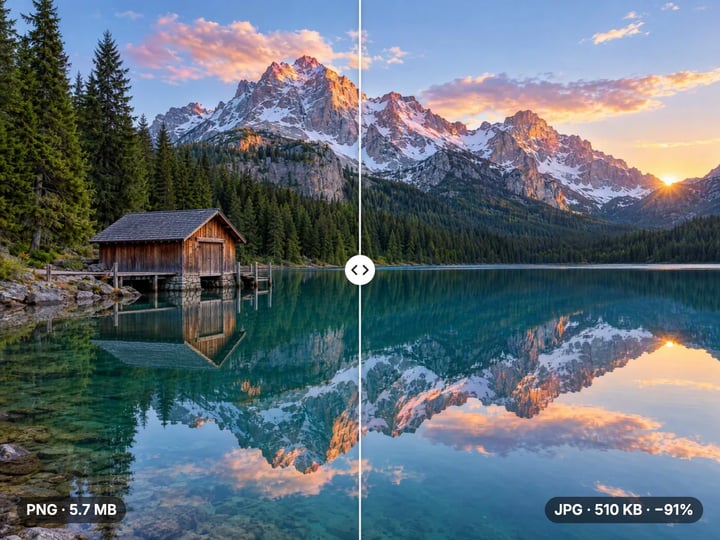 Real result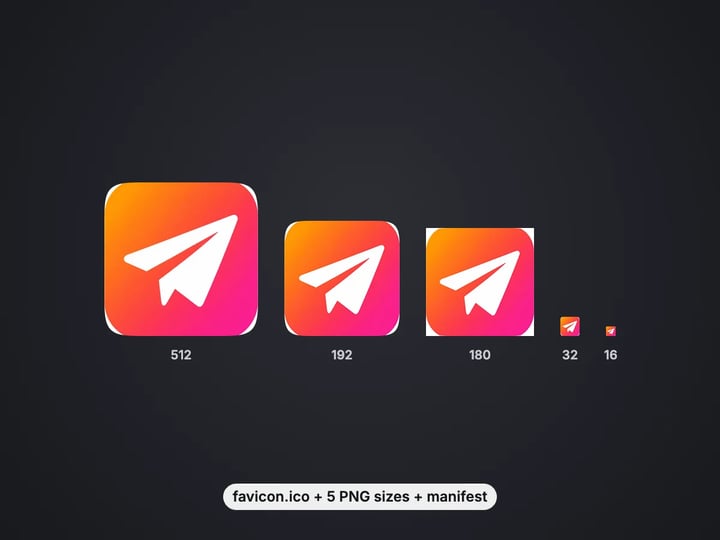
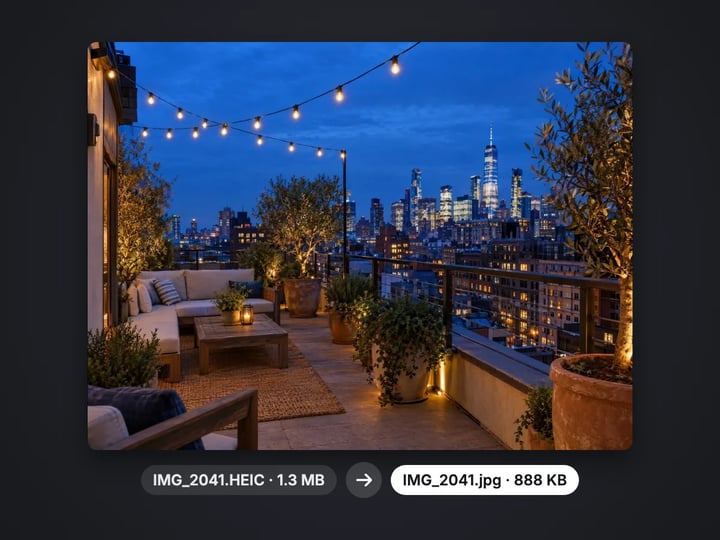
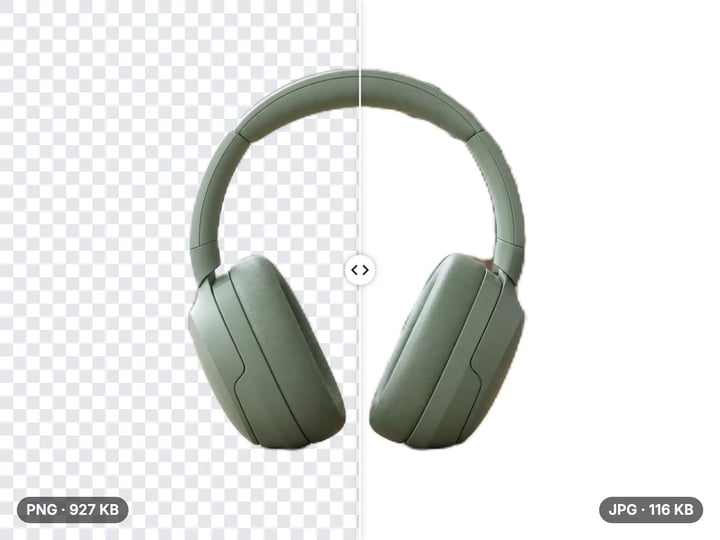
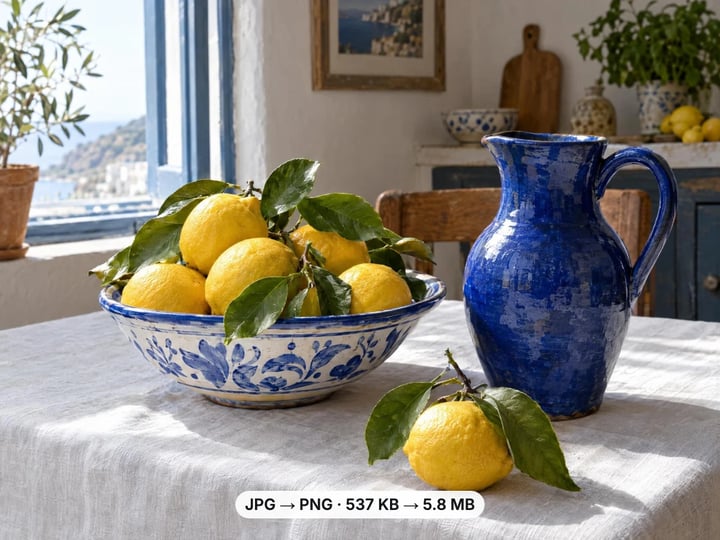
Quick answer
Imagera's free image compressor shrinks any photo to an exact size you pick, converts between JPG, PNG, WebP, and iPhone HEIC photos, and resizes to any dimension — all right in your browser. Your photo simply never gets sent anywhere, and there's no sign-up.
Your photo never leaves your device — nothing is uploaded or saved on our servers.
How it works
Open the free compressor — no install, no sign-up.
Pick a JPG, PNG or WebP. It is processed privately, never uploaded or saved on our servers.
Compress to a target size, convert the format, or resize.
The result is generated in your browser and downloads straight to your device.
Why this one
Hit an upload limit (e.g. 100 KB for a form) by targeting a file size, not guessing a quality slider.
Switch formats in one click — great for HEIC-heavy phones and modern WebP/AVIF web delivery.
Smooth, high-quality resizing keeps edges crisp when you scale down for social or email.
Nothing is uploaded and there is no sign-up. Use it as much as you like.
Continue in Imagera
Image Compressor edits the pixels you have. These studios use AI to create what is not in the picture yet — they run on credits.
 Next step
Too small to print? Enlarge a photo to 4K, 8K or 16K (15,360 px on the long edge).
Open studio Imagera
Edit images with Imagera Edit. Inpaint, modify, and transform any part of your image.
Open studio Imagera
Replace any photo background with AI-generated luxury scenes.
Open studioWho it is for
Quick private edits before posting — no account wall for a single fix.
Prep product photos for size limits without uploading client inventory.
Handle faces and unpublished work without sending files to a random server.
Guide
An image compressor shrinks a photo's file size so it loads faster, slips under an upload limit, or fits inside an email. Most tools hand you a vague quality slider and leave you guessing. Imagera's free image compressor works differently: you tell it the exact size you need (say, 100 KB) and it hits that target for you — trimming the file just enough to get there while keeping the picture looking as sharp as possible.
The same tool also converts between JPG, PNG, WebP, and HEIC in one click, and resizes your photo to any dimension while keeping edges clean and crisp. Compress, convert, and resize all live in one free tool — no account needed.
File size limits pop up everywhere. Visa and government application sites often cap uploads at 100 KB or 200 KB. Email won't send attachments that are too big. Online stores set strict size and dimension rules. And social apps squash anything too large, which can leave your photo looking blotchy.
File types trip people up too. iPhones save photos as HEIC by default, which many Windows computers and older websites can't open — one click turns it into a JPG or PNG anyone can use. WebP is now the go-to format for fast-loading websites, while some older systems still expect a plain JPG. And resizing matters anytime a big phone photo needs to become a small, web-friendly image for a thumbnail or blog header.
If any of that sounds familiar, you need a compressor, converter, and resizer in one place — and this one is free.
Job and visa applications. Official sites often cap photo uploads at 100 KB. Set your target to 100 KB and you're done in seconds.
Online sellers. Marketplaces enforce size and dimension limits — resize and compress together before you list.
Bloggers and creators. A heavy hero image slows your page down. Shrink it to a fraction of its size and convert it to WebP for faster loading.
Social media posts. Apps re-squash oversized uploads and add their own blotchiness. Send an already-trimmed image and you stay in control of how it looks.
iPhone HEIC to JPG. Sharing iPhone photos with Windows users or older forms? Convert HEIC to JPG in a click — no desktop software needed.
Email attachments. Bring a batch of photos under the attachment limit without installing anything.
When you open the tool and pick a photo, nothing gets sent anywhere. Your photo is read and worked on entirely on your own device, then saved back in the format you chose — all without leaving your browser.
When you set a target size, the tool automatically dials in the right setting for you: it gently trims the file until it reaches the size you asked for, then stops. That's why setting a target size is so much easier than fiddling with a quality slider — instead of guessing which setting lands you at, say, 100 KB, the tool figures it out on its own.
Converting works the same simple way: pick your output format — JPG, PNG, or WebP — and the tool saves it that way. HEIC photos from your iPhone are opened up and converted right on your device. The finished file downloads straight to you, and your original is never stored anywhere.
Privacy here isn't just a promise — it's how the tool is built. Every step (compressing, converting, and resizing) happens right inside your browser, on your own device. Your photo is never uploaded to Imagera or anyone else, during processing or after.
That means your photo simply never gets sent anywhere. The only thing your browser loads is the page itself; from then on, the work all happens locally on your device.
This matters because plenty of 'no-upload' compressors quietly send your file off to a server in the background. This one doesn't — your image stays with you from start to finish.
Most free compressors give you a slider from 0 to 100 and expect you to experiment until the file is small enough. If you have a hard limit — 100 KB for a form, 500 KB for a listing, 1 MB for an email — you end up downloading, checking the size, adjusting, and trying again.
This tool skips all of that. Type in the size you need and it gets there in one go. It only trims as much as it has to, so you get the sharpest result that still fits your limit.
Pair that with one-click format conversion and resizing in the same free, private tool, and it's the practical pick for anyone who runs into file-size limits often — and wants a reliable answer in seconds, not minutes of trial and error.
Free vs studio
Questions people ask
No. Your image never leaves your device. Compressing, converting, and resizing all happen right inside your browser, so your photo simply never gets sent anywhere. Nothing is uploaded, stored, or shared with any server.
Yes — that's the tool's main job. You type in the size you want (for example, 100 KB), and it automatically trims the photo to land as close to that size as possible. This makes it ideal for upload forms, job applications, and official documents that enforce a strict size limit.
You can bring in JPG, PNG, WebP, and HEIC files (HEIC is what iPhones use by default). You can save the result as JPG, PNG, or WebP. HEIC can't be saved back as HEIC — an iPhone HEIC photo comes in, and a JPG, PNG, or WebP comes out, ready to use anywhere.
Yes, it's free and adds no watermark to your photo. There's no account, no sign-up, and no usage limit. As an optional upgrade, Imagera's paid cloud tools add smart AI enhancement, upscaling, and processing many files at once — but those aren't part of this free in-browser tool.
Open this page in Safari or Chrome on your iPhone, tap to pick a photo from your Camera Roll (including HEIC photos straight from the iPhone camera), set your target size or output format, then tap Download. Everything runs in your phone's browser — no app to install, and your photo never gets sent anywhere.
Compressing always trades a little visual quality for a smaller file — that's true of every compressor. This tool keeps the picture looking as sharp as possible at the size you choose, but it can only reduce the file; it can't add quality the original photo never had.
Yes. Because everything runs right in your browser, it works on any device with a modern browser — Android phones, Windows PCs, Macs, and Chromebooks included. There's nothing to install. Just open the page, pick your image, set your size or format, and download the result.
Yes. Compressing, converting, and resizing are all in the same tool and can be done together before you download. For example, you can bring in a PNG, target 150 KB, switch the format to WebP, and resize it to 1200 pixels wide, then download one file — no hopping between separate tools.
Yes. Your photo never travels over the internet — everything happens on your own device, so there's no server that could store or expose your files. That makes it well suited to private photos, personal documents, and ID scans you'd rather not upload. For anything legally regulated, check that it meets your own requirements first.
Yes. The tool adds no watermark and places no restrictions on your files — the result is simply your image at a smaller size. It doesn't grant you any rights to the photo, though, so you still need to own it or have a license before using it commercially. Compressing it doesn't change who owns it.
More free tools
favicon.ico, PNG icons and site.webmanifest from one image
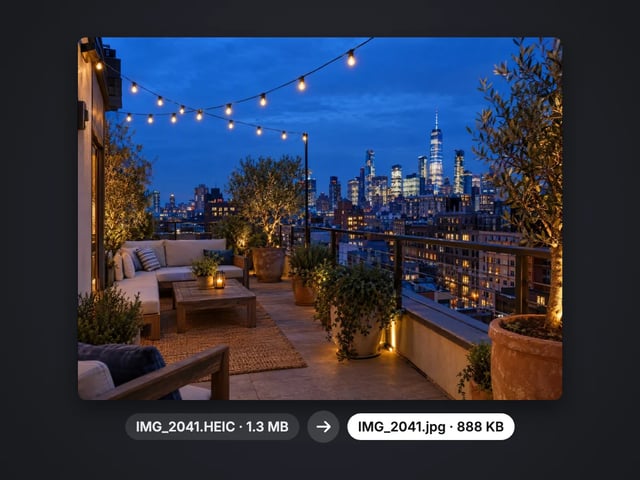
Turn iPhone photos into JPG, PNG or WebP
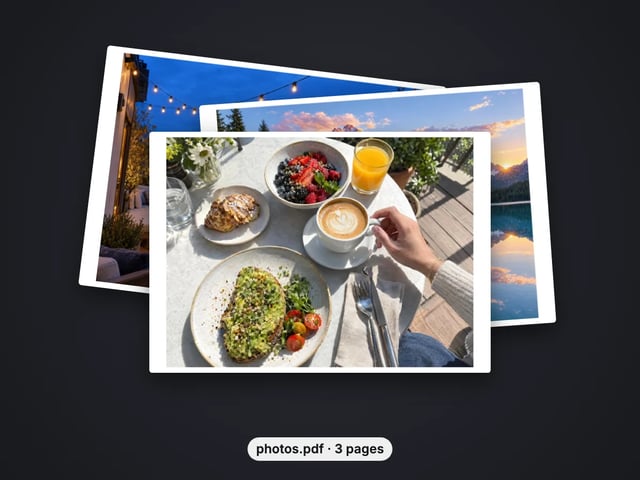
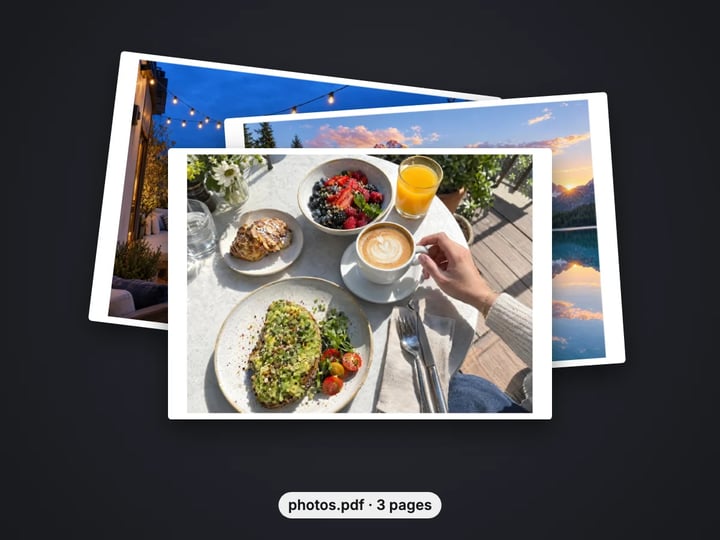
Combine images into one PDF
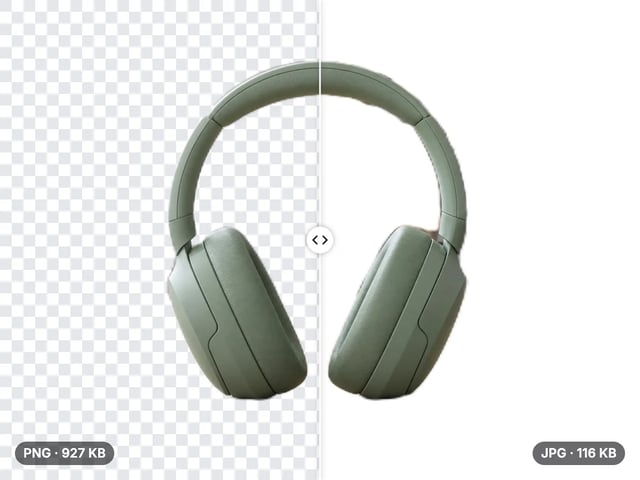
Smaller JPG files, white background
A lossless PNG copy of any photo
Open web images in any app
Keep transparency, open anywhere
Smaller web images, transparency kept
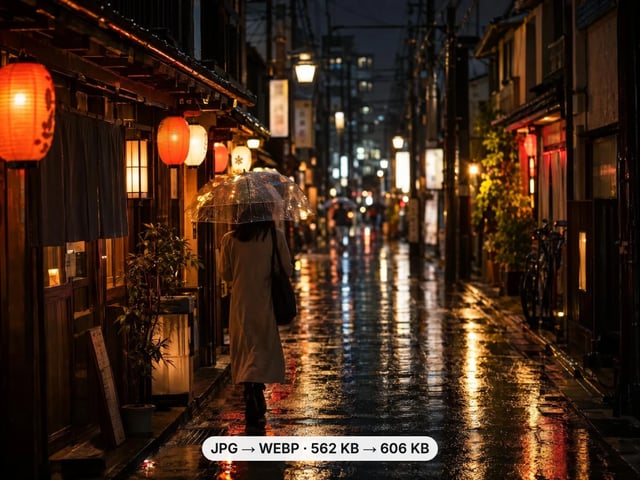
Lighter photos for faster pages
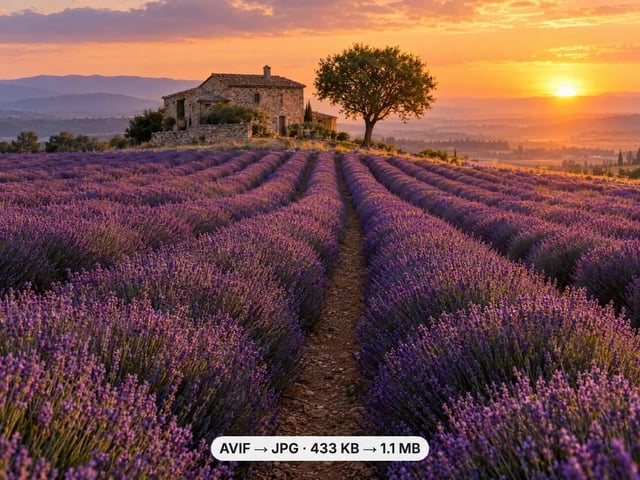
Open AVIF images in any app
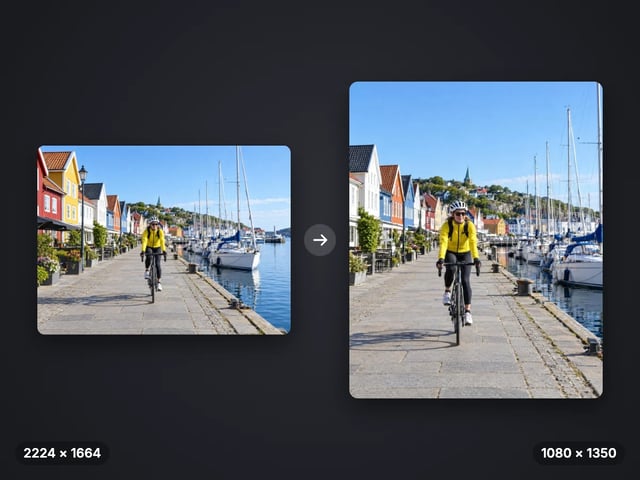
Exact pixel sizes and social presets
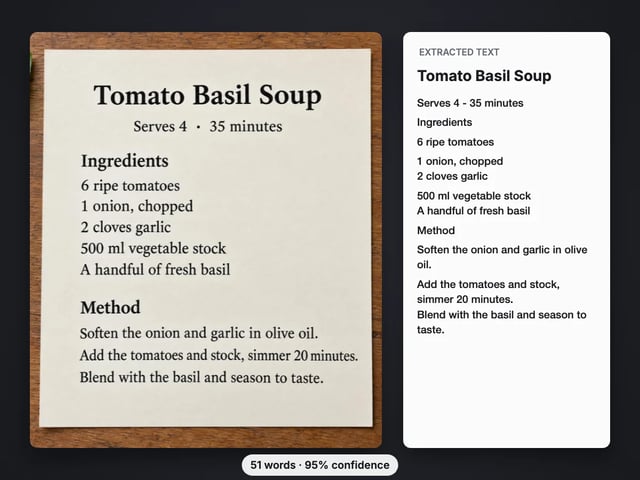
Copy the text out of a screenshot, photo or scan
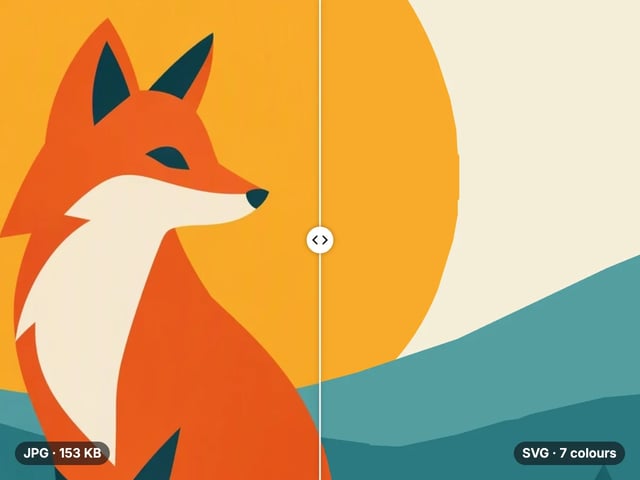
Trace a PNG or JPG into a scalable SVG
Complete your workflow
These pair with Magic Photo Editor. Every tile says what the tool actually does — without leaving this page.
Change pose — keep the face. Best in-house people editor.
Backgrounds, clutter, color — one sentence, ship.
Multi-image campaign briefs with precise control.
Turn selfies into LinkedIn-ready portraits
Lock one face across every generation
Change the words, color or font of text baked into a photo, poster or screenshot.
Free passport, visa & ID photos — auto-cropped to any country's exact size, background and file size, right on your device.
Too small to print? Enlarge a photo to 4K, 8K or 16K (15,360 px on the long edge).
AI upscaling to 1080p/2K/4K. Ultra-high resolution. Batch process up to 5 images.
Imagera AI Team
Unified AI creation platform