Quick answer: The most private image tools process your photos on-device or in an ephemeral, no-upload pipeline that discards files after rendering. Imagera's browser tools (image enlarger, compressor, EXIF remover, background remover and object remover) run on your device, so the file is never uploaded; its cloud AI studios keep your uploads privately in your account, under the retention rules in the Privacy Policy.
What makes an AI image tool truly "no-upload" and private in 2026?
A genuine no-upload workflow keeps your source file out of permanent storage: it processes in an ephemeral session, deletes inputs shortly after finishing, and never trains models on your photos. Imagera's browser tools work this way: the file never leaves your device. Its cloud AI studios are different: uploads are kept privately in your account and never used to train AI models, and they are deleted when you delete them or under the retention rules in the Privacy Policy (plan storage limits, and after a subscription ends).
Why does no-upload matter more than free tools that store your images?
Free tools often trade privacy for cost, keeping copies to train models or resell data. A tool that never uploads your file removes that risk: Imagera's browser tools work this way, while its cloud AI studios keep uploads in your account under the Privacy Policy. Minimizing what a tool retains is the most direct way to reduce your exposure, so a service that stores nothing is a safer choice than one that keeps your images in exchange for being free.
What Are the Best Free Image Tools That Don't Upload My Photos?
The best free image tools that never upload your photos are in-browser tools that process your file locally using JavaScript and WebAssembly. Imagera's free suite — compress, HEIC converter, image upscaler, background remover, and EXIF stripper — all fall into this category. Your photo is decoded inside your browser tab, transformed, and returned to you for download. No byte of your original image is transmitted to any server.
That matters more in 2026 than it ever has. An IAPP Privacy and Consumer Trust survey found 68% of consumers globally are concerned about their privacy online, and a separate CookieYes study cited by StationX puts 82% of internet users worried specifically about how companies collect and use personal data. Those numbers have only climbed following a wave of high-profile 2025 AI-training controversies: Meta's opt-out deadline for EU/UK photo use expired on 27 May 2025, LinkedIn announced opt-out AI training on profile photos, and a federal judge approved a $51.75 million settlement against Clearview AI in April 2025 over its 50-billion-image facial database. The anxiety is real, and it is well-founded.
This guide maps every common image task — compressing for a form, converting an iPhone photo, upscaling for print, removing a background, and stripping GPS data — to a specific in-browser tool, and explains exactly why the architecture matters.
Which Image Tools Work Entirely in the Browser With No Account?
Browser-based tools use your device's own CPU (or GPU) to process images through WebAssembly and JavaScript. The page loads the processing code once, then all work happens locally. No signup, no watermark, and no server ever receives your file.
Most tools people reach for first — TinyPNG, Remove.bg, iLoveIMG — are cloud tools. Your image travels to their servers, is processed there, and is returned. They promise deletion after a set period (anywhere from one hour to 30 days, depending on the service), but that is a policy commitment, not a technical one. You are trusting a promise.
In-browser tools offer a different guarantee: one that is architectural rather than policy-based. Because the file never leaves your tab, there is nothing for any server to store, train on, or accidentally expose. Imagera's free tools work this way. So do Squoosh (Google's open-source compressor) and a handful of specialist privacy-forward tools. The distinction is visible and verifiable — if you disconnect from the internet after the page loads, the tool continues to work normally, because all processing is already running locally.
Are There Private Alternatives to Cloud Photo Editors?
Yes. For the five most common image tasks — compressing to a target size, converting iPhone HEIC files, enlarging a small photo, removing a background, and stripping EXIF location data — in-browser alternatives exist that provide the same output quality with a fundamental privacy advantage.
Cloud photo editors are dominant because they are convenient and often excellent at AI-powered tasks. But "convenient" has a hidden cost: every upload creates a data record. Your file, its embedded GPS coordinates, device serial number, and creation timestamp all reach a third-party server — often stored in AWS S3, often shared with CDN and analytics partners, and subject to ToS terms that grant the company a license to process your content.
Imagera's free tools were built specifically to close this gap for the most-requested tasks. They run in-browser, they work offline once loaded, they require no account, and they add no watermark.
What Can I Do Privately — Compress, Upscale, Remove Background, Strip EXIF?
Here is a complete capability map.
Compress an Image to a Target Size
Imagera's free image compressor lets you set a target file size in KB — useful for government forms, job applications, and any upload that rejects files over 100 KB. The compression runs entirely in-browser using the Canvas API. Your file never leaves your device, and there is no server-side file-size cap blocking larger originals (common on cloud compressors, which typically cap free uploads at 5–10 MB).
For a full walk-through of hitting precise sizes, see our guide on compressing an image to 100 KB with no upload.
Convert HEIC to JPG (and Other Formats)
iPhones shoot in HEIC by default. Most Windows applications, web forms, and email clients cannot open HEIC files. Imagera's free compressor converts HEIC to JPEG or PNG in-browser. No upload means none of your iPhone's embedded GPS or camera metadata reaches a third-party server mid-conversion. The converter also simultaneously reduces file size, which solves the form-upload problem in one step.
Upscale a Small Image
In-browser upscaling uses Lanczos resampling combined with a sharpening pass to enlarge an image cleanly to 2× or 4× without the pixelation you see from a simple resize. This is not AI detail invention — it is high-quality mathematical enlargement. For a screenshot, a product thumbnail, or a photo you want to print at a larger size, Imagera's free image upscaler handles this in-browser with no watermark. For heavy lifting — restoring fine detail in a face or a landscape at up to 16K — Imagera's paid AI upscaler is the honest recommendation.
Remove a Background
Imagera's free background remover uses a compact WebAssembly model to segment your subject from its background in-browser. The result is a transparent PNG ready for e-commerce, presentations, or social media. No signup, no watermark, and critically, no photo of your product or your face ever reaches an external server for processing.
For the question of whether in-browser AI quality matches cloud quality, the honest answer is: for clean, well-lit subjects it is comparable. For complex hair, fine fur, or studio-grade compositing, the paid cloud pipeline produces more detailed edges. We explain this openly rather than overclaiming.
Strip EXIF and GPS Data
Every photo your phone takes embeds invisible metadata: GPS coordinates accurate to within a few meters, the precise timestamp, your device model and serial number, and sometimes your camera app's settings. When you share that photo on a marketplace listing, a forum post, or a document, anyone who downloads it can read those coordinates with a free EXIF viewer.
EXIF-related location leaks have a well-documented track record — the most cited case being Vice journalists who inadvertently included GPS coordinates in a 2012 interview photo with John McAfee, leading to his arrest within 48 hours. The risk is not hypothetical.
Imagera's free EXIF remover strips all metadata — GPS, device, timestamp — from JPEG and PNG files in-browser. Because the process happens locally, your raw coordinates never reach any server, even temporarily. For a detailed guide, see how to remove EXIF and GPS data with no upload.
Do No-Upload Image Tools Work Offline?
Yes. Once the page has fully loaded, in-browser tools require no active internet connection to process your image. You can disable Wi-Fi, put your device in airplane mode, and the tool continues to function — because all processing code is already running in your browser's JavaScript engine.
This offline capability is one of the most reliable ways to verify that a tool is genuinely local. Cloud tools stop working immediately when you disconnect, because they depend on sending your file to a server and receiving a result. An in-browser tool produces its output entirely inside your browser tab. If it keeps working offline, nothing is being uploaded.
You can also confirm this with your browser's developer tools: open the Network panel before running the tool, then process an image. A legitimate in-browser tool will show zero file-upload requests. For a step-by-step verification guide, read how to tell if an image tool actually processes locally.
Most Online Tools vs. Imagera Free Tools: A Direct Comparison
| Feature | Most cloud image tools | Imagera free tools |
|---|---|---|
| Uploads your photo to a server | Yes | No — never |
| Stores your file after processing | Yes, 1 hour to 30 days | Nothing to store |
| Requires an account or signup | Sometimes | No |
| Adds a watermark to free output | Often | No |
| Keeps EXIF/GPS data | Yes (you receive it stripped; they log it) | Stripped locally; never transmitted |
| Can be used to train AI models | Depends on ToS | Cannot — photo never received |
| Works offline | No | Yes, once page has loaded |
| Free upload size cap | Typically 5–10 MB | No cap — processed locally |
| ToS license grant on your image | Required to process | Not required — nothing uploaded |
Why the Architecture Matters More Than a Privacy Policy
Privacy policies are written by lawyers and can be changed at any time. The companies behind the 2025 AI-training controversies all had policies that said, in effect, "we respect your privacy" — until they changed them.
An architectural guarantee works differently. The reason Imagera's free tools cannot train on your photo is not a policy decision: it is because the photo never arrives at any server for any AI model to receive. You do not need to trust a promise; you can verify it yourself with the offline test or the network tab.
This is the single sharpest distinction between cloud tools and genuinely browser-based tools, and it is the reason that privacy-conscious users — people submitting passport photos for visa applications, sellers photographing products at home, or anyone posting on a forum with an active location — increasingly seek out in-browser options specifically.
A 2024 privacy industry analysis found that businesses prioritizing data privacy as a core value are gaining competitive advantage, with 48% of internet users having already stopped using a product or service due to privacy concerns (StationX / CookieYes data). The expectation has shifted: privacy is no longer a bonus feature, it is a baseline requirement.
How to Use Imagera's Free Private Tools: A Checklist
Here is a practical step-by-step for first-time users:
- Open the tool: the Image Compressor, or the relevant tool for your task (links below).
- Wait for the page to fully load — you will see a "ready" indicator. At this point all processing code is in your browser.
- Optional: disconnect from the internet to confirm nothing leaves your device.
- Drag your image onto the drop zone, or click to browse.
- Adjust settings — target size in KB, output format, upscale factor, or metadata options depending on which tool you are using.
- Click to process. The result appears in seconds, processed entirely in your browser tab.
- Download your file. No login prompt, no watermark, no email capture.
That is the complete flow. Your original file is never read by any server at any point in those seven steps.
Related tools on Imagera
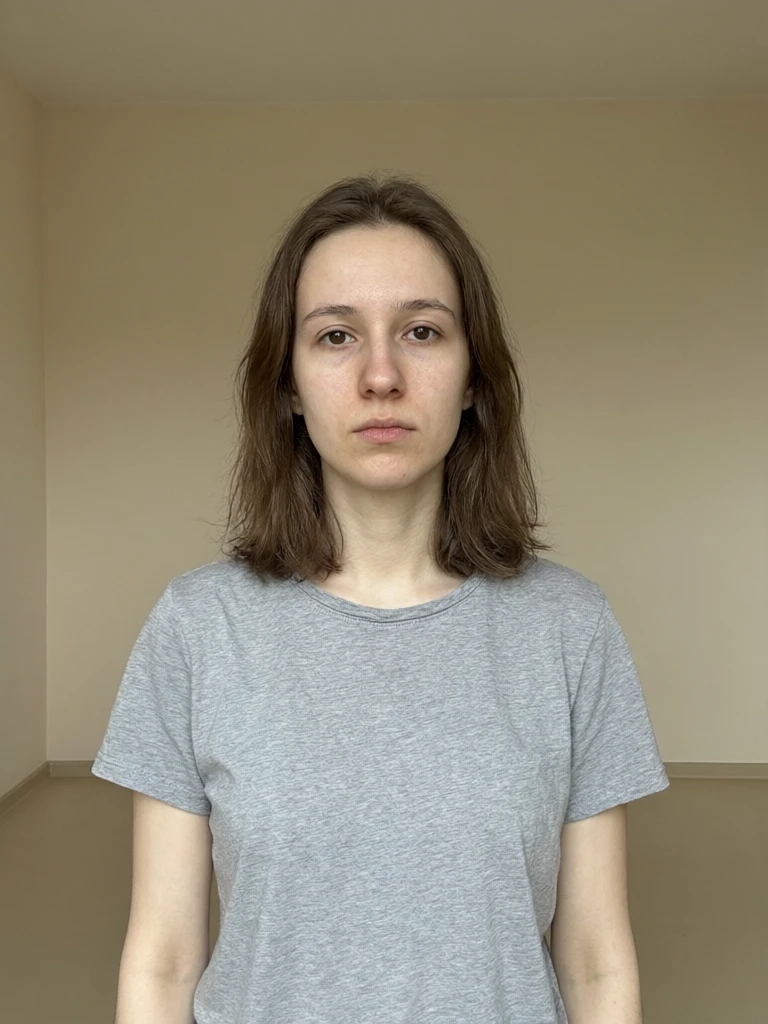
See it in action — real Imagera output
These are real, unedited results from the Imagera edit image — the exact tool this guide covers.

Start With the Tool That Fits Your Task
All five of Imagera's free tools are linked below. No account, no watermark, nothing uploaded.
- Compress or convert a photo (HEIC → JPG, target KB for a form): Free image compressor
- Upscale a small or blurry photo: Free image upscaler
- Remove a background to transparent PNG: Free background remover
- Strip EXIF and GPS data before posting: Free EXIF remover
- Erase an object or watermark from your own photo: Free object remover
For tasks that genuinely require AI cloud power — restoring fine facial detail, generating new backgrounds, or 16K resolution enhancement — Imagera's paid studio is the honest next step. But for the five tasks above, your photo never needs to leave your browser.