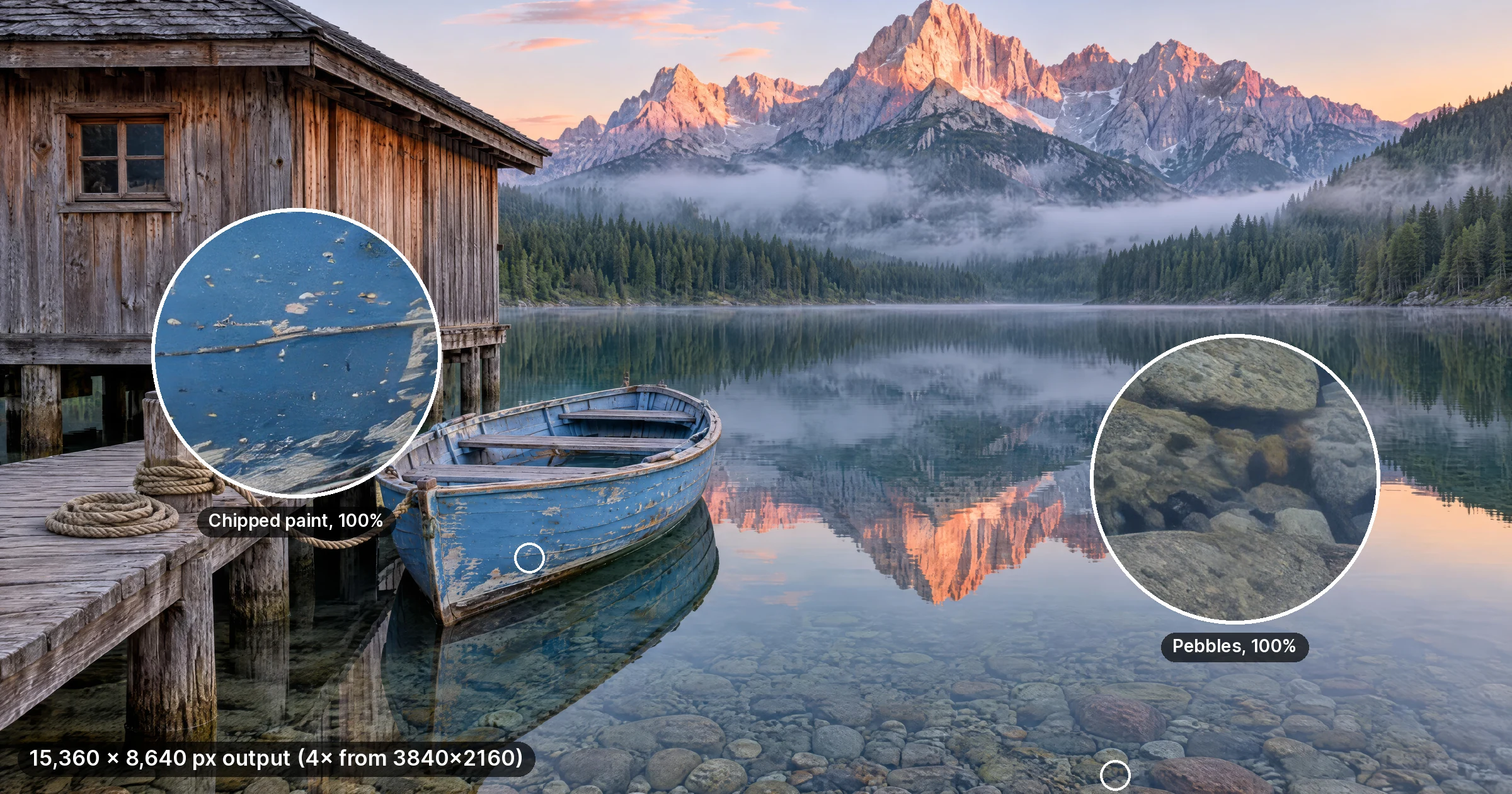

AI video enhancement has reached a point where footage shot on an old smartphone or compressed down to 480p can come out looking sharp, detailed, and genuinely watchable at modern display resolutions. If you have video you want to clean up — whether that means fixing blur, recovering detail in old recordings, or pushing a 1080p clip toward 4K or 8K output — an AI video enhancer is the most practical route available in 2026.
This guide explains exactly how AI video upscaling works, what it fixes, and how to use Imagera's video enhancer to get a high-resolution result from your footage today.
Real Imagera output: low-res clip upscaled — sharper detail, cleaner edges.
What Does "Enhancing Video to 8K" Actually Mean?
When people search for an 8K video quality enhancer, they usually mean one of two things: they want a higher pixel count output, or they want the footage to simply look better — sharper, cleaner, and more detailed. AI video enhancement addresses both.
A traditional video resize just stretches pixels. An AI video enhancer does something different: it uses a neural network trained on millions of video frames to predict what the missing fine detail should look like, then reconstructs that detail at the target resolution. The result is a file with genuinely more information in it, not just a larger version of the same blur.
Specifically, a good AI 8K video enhancer will address:
- Low resolution and soft edges — footage that looks mushy on a modern 4K or 8K display
- Compression artifacts — blocky patterns from aggressive video codecs like H.264 at low bitrates
- Film grain and noise — random pixel variation that obscures detail, particularly in older footage or footage shot in low light
- Faded or washed-out color — some enhancement tools also restore contrast and color depth alongside resolution
The output resolution depends on the tool and the scale factor you choose. Upscaling a 1080p source at 4x yields a true 4K frame; at 8x it reaches 8K territory. Whether you need full 8K output or just a noticeably sharper 4K result, the underlying process is the same. Imagera's video enhancer tops out at 4K (3840 px on the long edge), so it does not output an 8K file.
Can You Enhance Video Online, Without Software?
Yes. Imagera's video enhancer runs entirely in the cloud and outputs up to 4K (3840 px on the long edge) — you upload your video, choose your settings, and download the result. There is nothing to install.

This matters because local 8K video enhancement is hardware-intensive. Running an AI super-resolution model across every frame of a video clip requires a capable GPU. Cloud-based tools handle that compute on their end, which means the process works on any device — laptop, tablet, or phone — regardless of what GPU you have (or don't have).
Regarding cost: Imagera uses a credit system. The credit cost for your specific video is shown on the button before you run it, so you know exactly what you're spending before you commit. There is no surprise billing.
Step-by-Step: How to Enhance Video to 4K with Imagera
Here is the complete process using Imagera's AI video enhancer:

Step 1: Open the Video Enhancer
Go to 4K Video Enhancer. You will see the upload area and enhancement controls. If you do not have an account, sign up and choose a current credit pack or plan before submitting a cloud generation.
Step 2: Upload Your Video
Click the upload zone or drag your video file in. Supported formats include MP4, MOV, and AVI — the most common formats from phones, cameras, and screen recorders. Keep file size within the displayed limit; for longer clips, trimming to the key segment before uploading will reduce processing time.
Step 3: Choose Your Target Resolution and Scale
Select the scale factor that matches your goal:
- 2x — doubles linear resolution; good for 1080p source going to a sharp 2K/1440p output
- 4x — takes a 1080p source to near-4K; takes a 720p source to near-2K
- Maximum output — 4K (3840 px on the long edge); there is no 8K option for video, and results are best when source footage has reasonable quality to begin with
If your source is already compressed or noisy, the enhancer's artifact removal and noise reduction will activate alongside the upscale. You do not need to pre-process the video.
Step 4: Review the Credit Cost
Before submitting, the interface shows you exactly how many credits the job will use. This depends on video length, resolution target, and the enhancement mode selected. Review this number, then proceed when ready.
Step 5: Submit and Wait
Click the enhance button. Processing time depends on clip length and target resolution. Shorter clips at 4x upscale finish in a few minutes; longer clips take longer. The tool processes frame by frame while maintaining temporal consistency — meaning motion stays smooth and stable across the enhanced output, not just sharp on individual frames.
Step 6: Download Your Enhanced Video
When processing completes, your enhanced video is ready to download. The output is a clean MP4 at the target resolution, ready for editing, sharing, or publishing.
What Kind of Source Footage Works Best?
AI video enhancement produces better results when the source footage has some detail to work with. Here is a practical breakdown:

| Source Quality | Expected Result at 4x |
|---|---|
| 1080p, well-lit, low compression | Excellent — very close to native 4K sharpness |
| 720p, normal compression | Good — clear improvement, visible detail recovery |
| 480p, moderate compression | Solid improvement, some softness may remain |
| 480p, heavy compression artifacts | Artifact removal helps significantly; upscale improves readability |
| Very old VHS or degraded film | Noticeable cleanup and sharpness gain; results vary by source condition |
The most dramatic improvements tend to come from footage that is sharp at its native resolution but just small — for example, a 720p recording of something you now want to show on a 4K screen. AI enhancement fills in the missing pixels with high accuracy in those cases.
For footage that is both low-resolution and heavily compressed (like a downloaded social media video or an old DVD rip), the enhancer still helps significantly: it will look clearly better, though the degree of improvement is bounded by what the original source captured.
Enhancing Video vs. Enhancing Individual Frames
Sometimes the best approach depends on what you are working with. If you have a video but actually need a single high-quality still frame — for a thumbnail, a print, or an archive — you can export that frame and run it through Imagera's image upscaler instead. Image-level upscaling can push a single frame to 16K resolution with more aggressive detail reconstruction than video processing allows, since there is no temporal consistency constraint.

For motion footage where you need the full clip enhanced, the video enhancer is the right tool. It processes all frames as a coherent sequence rather than individually, which keeps motion from looking jittery or inconsistent after upscaling.
Improving Smoothness Alongside Resolution
Higher resolution makes footage look sharper. Higher frame rate makes motion look smoother. These are separate dimensions of video quality, and you can address both.

If your video was recorded at 24fps or 30fps and motion looks choppy on a high-refresh display, run it through Imagera's frame interpolator after enhancement. Frame interpolation uses AI to generate the frames that were never captured — turning 30fps into 60fps or higher — so motion appears fluid even on fast-moving scenes.
Combining 4K resolution enhancement with frame interpolation gives you both dimensions of quality improvement in a two-step workflow.
Creating New High-Resolution Video Content
If you need footage that does not yet exist — a product visualization, a creative scene, a background video — Imagera's video generator can produce it from a text prompt or reference image. Generated video natively targets high-quality resolution output, so you are starting from a strong baseline rather than recovering a degraded source.
This is a separate use case from enhancement, but worth knowing: if your project requires new footage and existing options are not available, generation is a practical alternative to stock libraries or expensive production.
Common Questions About Online Video Enhancement
How long does it take to upscale a video to 8K?
Imagera does not output 8K video; its maximum is 4K (3840 px on the long edge). Processing time depends on video length and scale factor. Short clips (under 60 seconds) at 4x typically complete within a few minutes on Imagera. Longer clips or higher scale factors take more time. The interface gives you an estimate before you submit.
Does AI enhancement work on phone videos?
Yes. Videos shot on smartphones — including older models — are common input for AI video enhancers. Phones often record at 1080p with moderate compression, which responds well to 2x or 4x enhancement.
What formats can I upload?
Imagera's video enhancer accepts MP4, MOV, and AVI — the formats most cameras, phones, and editing software produce. If your file is in a less common container, converting it to MP4 first is straightforward with any video converter.
Can I enhance a video that already looks okay at 1080p?
Yes, and the results are often noticeably better than you might expect. A 1080p video enhanced at 4x to 4K will look meaningfully sharper on a 4K monitor or TV, with finer edge detail and less softness in textured areas. It is not just a resize.
Is there a free tier for trying the video enhancer?
Cloud video enhancement uses paid credits; it does not include free starter generations. The credit cost for your specific video is shown before you run it, so you can evaluate whether to proceed.
Start creating (credit packs from 350 credits)
Imagera cloud tools are pay-first — buy credits, then generate.
Next step: open a tool page, check the credit cost, buy a pack if you need one, then generate.
Get Started with AI Video Enhancement
If you have footage that looks soft, blocky, or just too small for modern screens, AI upscaling is the most practical fix available today. Imagera's video enhancer handles the processing in the cloud, shows you the credit cost before you commit, and delivers a clean high-resolution output file you can use immediately.
Upload your first clip at 4K Video Enhancer and see the difference on your own footage.