Quick answer: Uploading photos to an online editor is generally safe when the platform uses HTTPS encryption, deletes files on a set retention schedule, and never claims perpetual rights to your images. On Imagera, uploads travel over encrypted connections and stay tied to your account, so the risk comes almost entirely from choosing a vague or unaccountable tool, not from the act of uploading itself.
How can I tell if an online photo editor is safe before I upload?
Check a few signals in under a minute: an HTTPS padlock in the address bar, a privacy policy stating a clear deletion window (many hold files anywhere from 24 hours to 30 days), an explicit "you keep ownership" clause, and no line granting rights to resell your images. On Imagera, uploads are scoped to your account and never sold, so it clears each of those checks.
Does uploading a photo mean the editor keeps it forever?
No. Reputable 2026 editors delete originals on a retention timer, often within 24 hours to 30 days, and never claim permanent rights. Good practice is to store only what a task needs and no longer, which is why Imagera ties every 4K or 8K export to your account rather than a public library, keeping your uploads private.
The short answer
Most popular online photo editors are cloud tools: when you click "Upload," your image travels to a remote server for processing, and a copy sits there until the service deletes it — anywhere from one hour to 30 days, depending on the provider. That is a policy promise you have to take on trust. A fundamentally different category of tool processes your image entirely inside your browser. Your file never leaves your device, so there is nothing to retain, share, or train AI on. For routine tasks — compressing, converting, stripping metadata, removing a background — that architectural guarantee is the most private option available.
The rest of this guide explains exactly what happens behind each approach, how long your photo actually stays on a cloud server, when the AI-training risk is real, and when it is not, so you can make an informed decision for every tool you use.
Is it safe to upload my photos to an online editing or background-remover tool?
The direct answer: it depends on the tool's architecture, not just its privacy policy. Cloud tools require an upload, which means your photo reaches a server you do not control. Tools that run in your browser never receive the file at all — making the question of server safety irrelevant. For personal or sensitive photos, in-browser processing is the lower-risk choice.
That concern is not theoretical. According to the IAPP's Privacy and Consumer Trust Report — which surveyed 4,750 people across 19 countries — 68% of global consumers are more concerned about their online privacy than they were a year ago, and 82% of internet users say they are concerned about how companies collect and use personal data (StationX, 2026). Worries about photo-specific uploads sit inside that broader unease, and they are well-founded.
When you upload to a cloud tool, at minimum your file passes through an encrypted HTTPS connection, lands on a server (often AWS S3 or a comparable object store), gets processed, and a result is returned. The question is what happens after that, and the answers vary considerably.
How long do online image tools keep my uploaded images?
Retention windows range from immediate deletion to 30 full days — and most services bury the details in a privacy policy users never read. The variation is large enough to matter in practice.
Here is what a sample of common tools state in their published policies:
| Tool type | Stated retention | Storage location |
|---|---|---|
| free-background-remover.com | Up to 30 days | AWS S3 |
| Removal.ai | Within 1 hour | Undisclosed |
| backgroundremove.io | 30-day history | Undisclosed |
| resizeimages.tools | 24 hours | Undisclosed |
| OptimizePNG | 10 days | Undisclosed |
| imageresizer.com | 6 hours | Undisclosed |
| In-browser tools (e.g., Imagera free tools) | Never stored | Not applicable — never uploaded |
A few important caveats: "deletion" in cloud storage typically means removing the user-accessible copy. Backup snapshots, CDN edge caches, and analytics-platform logs may retain derivatives of your file longer. And terms of service can change, as the events of 2025 and 2026 have demonstrated repeatedly.
Will my photos be used to train the company's AI models, and can I opt out?
The AI-training risk is real but unevenly distributed. Some tools are transparent that they do not train on user images; others are ambiguous; and events from 2025 show that even large, reputable platforms updated their policies in ways users did not anticipate.
Several headline cases are directly relevant:
- Meta (May 2025): After the opt-out deadline of 27 May 2025 passed, Meta began using public Facebook and Instagram posts — including photos — from adult users in the EU to train its AI models. U.S. users have no opt-out mechanism at all (Norton, 2025).
- Clearview AI (March 2025): A class-action settlement was finally approved after Clearview scraped more than 60 billion facial images from social media and public websites without consent, granting plaintiffs a 23% equity stake in the company (Bloomberg Law, 2025).
- LinkedIn (late 2024/2025): LinkedIn quietly enabled AI training on user content before pausing the rollout in response to user objections.
The uncomfortable reality is that even a tool's stated policy can change. The only fully reliable answer is a tool that architecturally cannot train on your photos because it never receives them. As we explain in our deeper guide to whether free image tools train AI on your photos, the "we never receive your file" model is the only one that makes that guarantee without asking you to trust a policy.
What happens to my image after I close the tab — is a copy still on their servers?
For cloud tools: yes, almost certainly. Closing your browser tab ends your session on your device; it does nothing to files already stored on the provider's server. Your image stays there until the service's automated retention policy runs — which could be hours, days, or longer.
There is an additional layer most users overlook: EXIF metadata. Every photo taken by a modern smartphone contains embedded data that travels with the image when you upload it. That metadata typically includes:
- GPS coordinates (accurate to within a few metres)
- Timestamp
- Device make and model
- Sometimes the device serial number
When you upload to a cloud tool, the server receives all of that metadata alongside the pixel data. The service and any analytics or CDN partners it integrates with can log it. If you want to understand this in detail, our guide on removing EXIF and GPS location before posting covers every risk and the safest way to strip that data without uploading the file.
Can I edit a photo without uploading it at all?
Yes. A category of tools — increasingly common in 2025 and 2026 — processes images entirely inside your browser using WebAssembly or the browser's native Canvas and File APIs. Your image is read from your disk into browser memory, processed there, and written back to your disk. No data crosses a network connection.
Imagera's free tools work exactly this way. When you use Imagera's free image compressor, your file is never sent to any server. Nothing is saved on our servers. No sign-up is required. If you want to verify this for yourself, you can disconnect from the internet after the page has loaded and the tool will continue to work — because there is no server involved. You can also open your browser's developer tools, switch to the Network tab, and watch for outbound requests while you process a file. You will see none.
The trade-off is honest and worth stating: in-browser tools use your device's CPU rather than a cloud GPU. For heavy AI tasks — reconstructing fine detail in a 16K upscale, generative object removal, or background replacement with a new scene — cloud processing produces meaningfully better results. For compression, format conversion, metadata stripping, and standard background removal, in-browser quality is comparable to cloud quality and the privacy difference is significant.
Cloud tools vs. Imagera free tools: a direct comparison
| Most cloud photo editors | Imagera free tools | |
|---|---|---|
| Uploads your photo to a server? | Yes | No |
| Stores your photo after processing? | Yes (1 hour to 30 days) | Not applicable |
| Requires an account or sign-up? | Often yes | No |
| Can train AI on your images? | Depends on terms | No — never received |
| Exposes your EXIF/GPS data? | Yes, to server and partners | No |
| Works offline after page load? | No | Yes |
| Subject to data breaches? | Yes, if server is compromised | No — nothing stored |
| Upload file size cap? | Typically 5–10 MB | No cap (processed locally) |
Does uploading to a cloud tool expose my EXIF metadata?
Yes. Unless the cloud tool explicitly strips EXIF before storing your file — and most do not — every piece of embedded metadata in your image lands on their server with it. That includes the precise GPS location where the photo was taken.
This matters more than most users realise. Research cited by security professionals has documented real-world cases where GPS metadata embedded in photos posted to property listings, social media, or online marketplaces was used to locate home addresses. The same risk applies when that metadata reaches a cloud image tool's server and any third-party partners it logs data with.
For photos of sensitive documents, children, or locations you do not want to share, stripping metadata before any upload — or using a tool that never receives the file — is the safer path.
Does the tool's Terms of Service give them a license to use my images?
Frequently, yes. Many cloud image tools include a clause granting them a limited license to process your uploaded content. Here are three examples from published terms:
- imagecompressorconverter.com: Grants a limited license to process uploaded content.
- resizeimages.tools: Grants a temporary license; files deleted within 24 hours.
- optimizepng.com: Grants a limited license; files deleted within 10 days.
These are not necessarily malicious grants — the license is required for the server to legally process your file — but they mean you have handed over rights you may not have intended to.
With an in-browser tool, no upload happens, which means no license grant is needed or made. You retain full ownership of your image, and no legal relationship to your file is created with the tool provider.
How to edit a photo privately (no upload required)
- Open Imagera's free image compressor in your browser.
- After the page fully loads, you can optionally disconnect from the internet to confirm offline operation.
- Drag and drop your photo — or click to select it from your device.
- Adjust quality or target file size. The preview updates instantly in your browser.
- Click Download. Your processed file is saved directly to your device.
- Close the tab. No copy of your image was sent anywhere.
The same steps apply to format conversion (HEIC to JPG), background removal, metadata stripping, and object removal — all available in Imagera's free tools, all processed entirely in your browser.
Related tools on Imagera
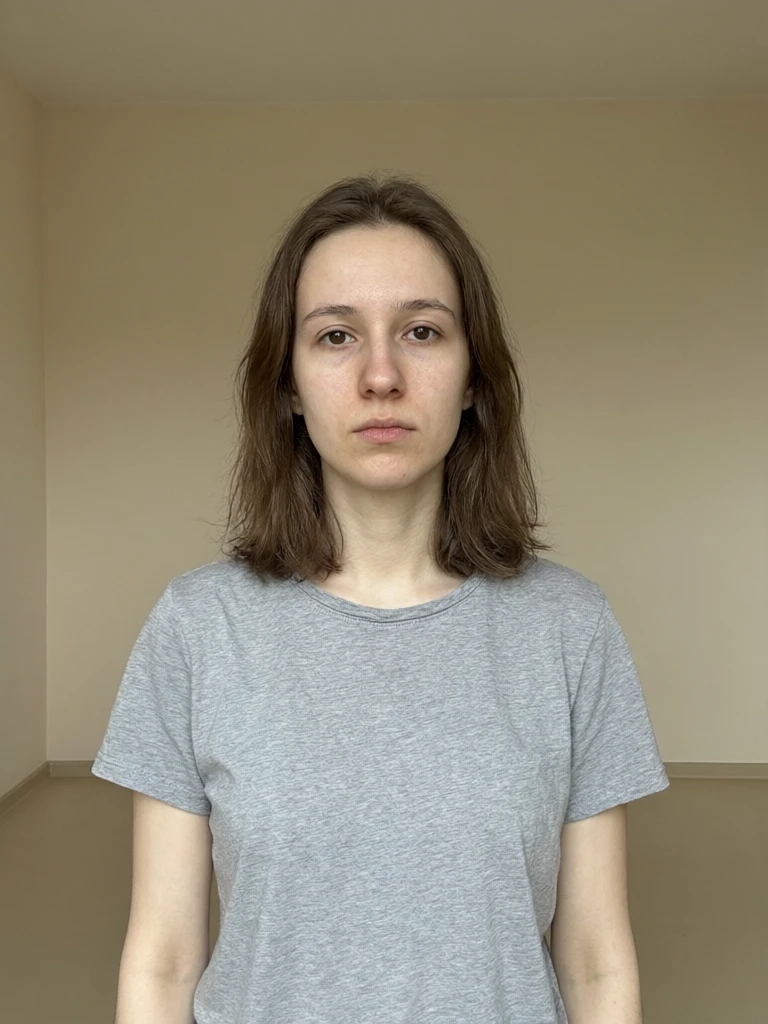
See it in action — real Imagera output
These are real, unedited results from the Imagera edit image — the exact tool this guide covers.

The bottom line
Cloud online editors are convenient and necessary for AI-heavy tasks. The honest trade-off is that your image travels to a server, lives there for a period you should verify in the privacy policy, and may be subject to a license grant you did not notice. That is an acceptable trade for some jobs. For others — compressing a passport photo for a visa application, removing a location tag before posting, or any task where the photo contains information you would not want a third party to log — in-browser processing is meaningfully safer, not just marginally so.
For those tasks, Imagera's free tools give you compression, background removal, EXIF stripping, and format conversion with no upload, no sign-up, and no copy remaining anywhere after you close the tab.
Start editing privately — no upload, no account required →
Sources referenced in this article: IAPP Privacy and Consumer Trust Report · StationX Data Privacy Statistics 2026 · Norton — How to opt out of Meta AI · Bloomberg Law — Clearview AI settlement approved · free-background-remover.com Privacy Policy · Cutout.pro — How We Handle Your Images · NowSecure — Mobile App Privacy Risks 2025 · Meta EU AI training deadline — anews.com.tr