
1.How Do I Upscale an Image for Free With No Sign-Up and No Watermark?
You can upscale any image for free, with no signup and no watermark, using Imagera's free image upscaler. Drop your file into the tool, choose 2x or 4x, and download the enlarged result in seconds. Your photo runs through Lanczos interpolation entirely inside your browser — nothing is uploaded, nothing is saved on our servers, and no account is required. The output has no watermark, ever.
Most free upscalers attach a watermark to results, require an account to remove it, or upload your file to a cloud server that retains it for anywhere from 12 hours to 30 days (retention policies among popular cloud upscalers vary widely, according to an ImgUpscaler review by Skywork AI). Imagera's free upscaler sidesteps the entire question because there is no server upload at all.
2.Can I Enlarge a Photo Without Uploading It to a Server?
Yes — Imagera's free upscaler processes your image entirely inside your browser, so the file never leaves your device. Once the page has loaded, you can even disconnect from the internet and the tool will still work. This is an architectural guarantee, not a privacy policy promise.
Most cloud-based upscalers require your file to travel to an external server to be processed. That means your photo is temporarily stored somewhere, transmitted over a network, and handled according to the service's retention and data policies — policies that change without notice. The in-browser model eliminates that chain of custody entirely. A 2024 IAPP consumer privacy report found that 68% of users globally express concern about uploading personal photos to third-party online services (referenced via Sammapix's privacy guide), which is exactly the anxiety an in-browser upscaler resolves at the architecture level.
3.How to Upscale an Image Free (Step-by-Step)
- Open the tool. Go to Imagera's free image upscaler in any modern browser on desktop or mobile. No account, no signup screen.
- Drop or select your image. Click the upload area or drag and drop a JPEG, PNG, or WebP file. The file loads directly into browser memory — it does not travel to any server.
- Choose your scale factor. Select 2x (doubles width and height) or 4x (quadruples width and height). A 1000×750 px photo at 2x becomes 2000×1500 px; at 4x it becomes 4000×3000 px.
- Process. Click Upscale. The Lanczos algorithm runs inside your browser using WebAssembly. Processing a typical 3 MB JPEG takes a few seconds on a modern laptop.
- Download. Click Download to save the enlarged file to your device. The filename is yours, the output is clean — no watermark, no badge, no branding embedded in the image.
- Done. No email confirmation, no paywall, no follow-up ads based on the content of your photo.
4.How Do I Increase Image Resolution Without Losing Quality?
The short answer depends on how much you are enlarging and what the image contains. For moderate enlargements (2x–4x), a high-quality interpolation algorithm like Lanczos preserves sharpness better than bicubic, especially on images with fine detail, text, or hard edges. For very large jumps (8x or more), traditional interpolation reaches its limits and AI-based re-detailing is required.
4.1What Lanczos interpolation does
Lanczos resampling calculates new pixel values by sampling a 6×6 or 8×8 neighborhood of surrounding pixels and weighting them through a sinc-based kernel. Academic comparisons consistently rank Lanczos as the highest-quality classical interpolation method for preserving fine detail, ahead of bicubic (which samples a 4×4 grid) and bilinear. A comparative study published in Procedia Computer Science confirmed Lanczos produces sharper results on fine-detail subjects compared to bicubic at equivalent scale factors.
4.2When you will see quality loss
No interpolation-based upscaler can invent detail that does not exist in the source. If you enlarge a 200×200 px thumbnail by 8x, every algorithm — Lanczos included — will expose the original pixel grid at some point. The difference is how gracefully each algorithm handles the transition. Lanczos tends to produce clean edges without the heavy blurring associated with bilinear or the ringing artifacts sometimes seen with bicubic.
4.3When AI re-detailing helps
AI upscaling uses neural networks trained on millions of images to predict what textures and edges should look like at higher resolutions. Research from Vectosolve's AI vs traditional upscaling comparison found AI methods outperform classical interpolation by 30–60% on perceptual quality metrics for photographs. The trade-off: AI inference requires a GPU-backed server, which means a cloud upload. Imagera's paid AI upscaler handles 8x and 16K, and is the right tool when you need AI-invented detail. The free in-browser enlarger is the right tool when you need a clean, private 2x–4x result with no upload.
5.What's the Difference Between a Clean Enlarge and AI Re-Detail?
This is the most important distinction to understand before choosing a tool. Many upscalers use the terms interchangeably; they are not the same process.
| Clean Enlarge (Lanczos/Bicubic) | AI Re-Detail (Neural Network) | |
|---|---|---|
| How it works | Mathematically interpolates between existing pixels | Predicts new pixel content from trained models |
| Best for | 2x–4x, preserving original look faithfully | 4x–16x, adding texture and sharpness not in source |
| Runs in browser | Yes — no upload needed | No — requires GPU server |
| Speed | Seconds in-browser | Seconds to minutes, cloud queue |
| Adds invented detail | No — faithfully scales what is there | Yes — fills in plausible texture |
| Privacy | Photo never leaves device | Photo travels to server |
| Cost | Free | Paid cloud service |
| Watermark | None | None on Imagera paid tier |
If you need to double a photo for a presentation, enlarge a screenshot for readability, or hit a minimum pixel count for a web form, the in-browser clean enlarger is the right choice. If you are preparing a small photo for a large print and need actual detail invented at the pixel level, AI re-detailing is worth the cloud step — and Imagera's paid upscaler handles that.
6.Can I Upscale a Screenshot or Small Image for Printing?
Yes, with one caveat about print resolution. A clean 2x or 4x enlargement in the browser will double or quadruple the pixel dimensions of a screenshot, which may be enough to meet a minimum pixel count requirement. Whether it is enough for high-quality print depends on the DPI (dots per inch) of the final output.
6.1Understanding the math
Print at 300 DPI is the standard minimum for items viewed up close — photographs, business cards, brochures. To print an 8×10 inch photo at 300 DPI you need a 2400×3000 pixel image. If your source screenshot is 600×750 px, a 4x upscale gives you 2400×3000 px — exactly the pixels needed. Whether the result looks good at print depends on the source quality, not just the pixel count.
For wall posters viewed from a distance, 150–225 DPI is typically acceptable, which means a 2x or 4x browser upscale of a medium-resolution source can often produce print-ready output, as noted in LetsEnhance's poster-printing guide.
6.2The practical recommendation
- Web, email, social sharing: A 2x or 4x browser upscale from the free tool is usually sufficient.
- Small prints (4×6, 5×7): A 2x or 4x upscale works if the source is already reasonably sharp.
- Large prints (poster, canvas, A1+): Use the paid AI upscaler for 8x–16K output with added detail.
7.How Most Free Upscalers Handle Your Photo (and Why It Matters)
The privacy landscape for image upscalers in 2026 is fragmented. Some tools are cloud-first and apply watermarks to free-tier results; others are cloud-first with no watermark but still retain your file for a window. In-browser tools are the rarest category.
| Most cloud upscalers | Imagera free upscaler | |
|---|---|---|
| Uploads your photo? | Yes — to their server | No — stays in your browser |
| Stores your image after processing? | 12 hours to 30 days (varies) | Never stored |
| Requires signup? | Often for watermark removal | No |
| Watermarks free results? | Frequently | Never |
| Works offline once loaded? | No | Yes |
| Could train AI on your photo? | Policy-dependent | Impossible — never received |
| Subject to data breach risk? | Yes, while stored | No |
The practical impact: tools that process in the cloud have published retention windows ranging from 12 hours (ImgUpscaler) to 30 days (some background removers), according to documented policy comparisons across tools. In that window, your photo exists on a server you do not control. An in-browser tool never holds the file, so there is no window, no retention policy to read, and no breach risk for that image.
For more detail on how to verify whether a tool genuinely processes in your browser, see How to Tell If an Image Tool Actually Runs Locally. For a broader comparison of private image tools, see Best Private No-Upload Image Tools (2026 Guide).
8.Related tools on Imagera
9.See it in action — real Imagera output
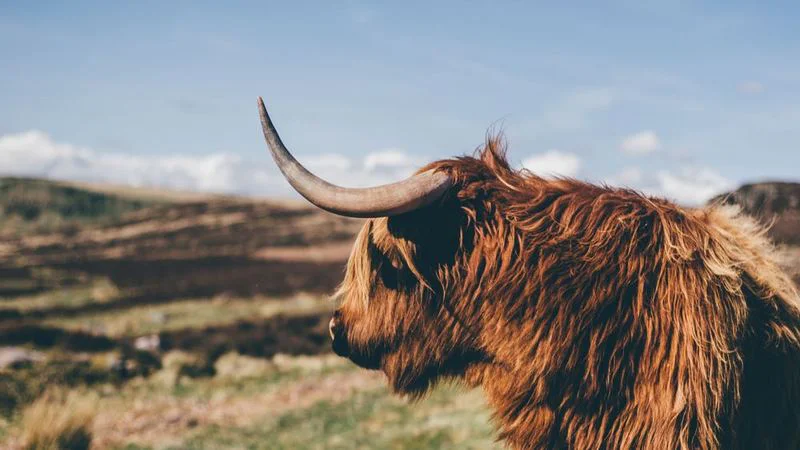
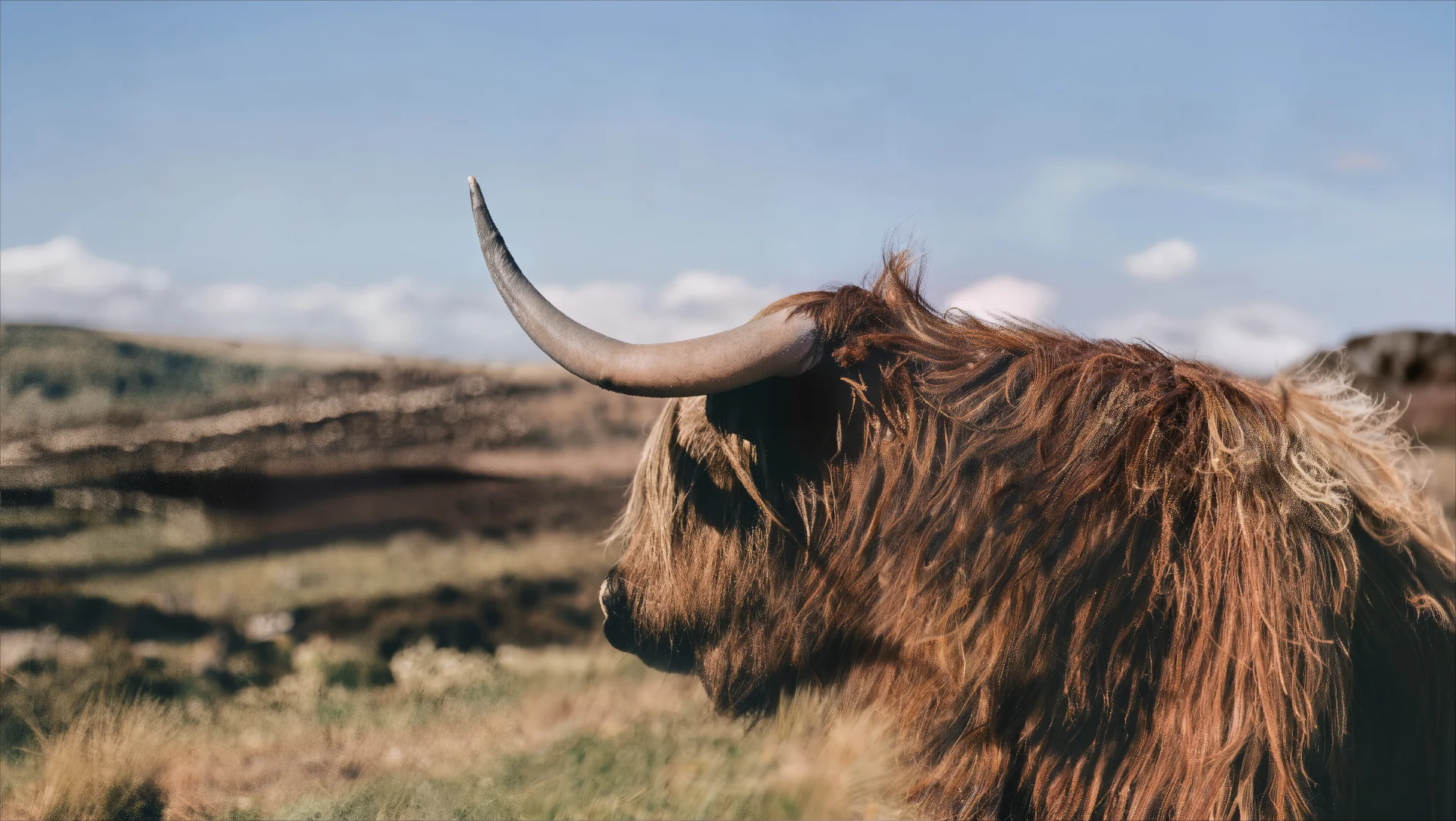
These are real, unedited results from the Imagera image upscaler — the exact tool this guide covers.
10.Try the Free Image Upscaler
If you need to enlarge an image right now — without creating an account, without your photo leaving your device, and without a watermark on the result — Imagera's free in-browser image upscaler is the tool for that job.
For AI-powered detail at 8x magnification or 16K resolution — the kind that actually invents plausible texture for large-format prints — Imagera's paid cloud upscaler handles that. It is honest about what it does and costs accordingly.
If you are also curious about which other image tasks you can complete privately, without uploading, see Best Private No-Upload Image Tools (2026 Guide) or Compress an Image to 100KB Online (No Upload) for the full picture.
Sources:
- ImgUpscaler AI Review — Batch Upscaling & Privacy Compared (Skywork AI)
- IAPP Privacy and Consumer Trust Survey (referenced via Sammapix)
- Comparative Study of Super-Resolution Interpolation Algorithms (Procedia Computer Science)
- AI Upscaling vs Photoshop — Same Photo, 4x Zoom (Vectosolve)
- Best Upscalers for Posters and Large Prints — Tested for 300 DPI (LetsEnhance)
- WebAssembly for Client-Side Image Processing (DEV Community)
- Data Privacy Statistics 2026 (Folio3)
11.Start here (product links)
Use these product pages:
- Image Enlarger — free on-device enlarge
- Print-Ready 16K Upscaler — paid AI upscaler
- Super Resolution — paid super resolution
- Topaz Alternative — Topaz alternative hub
- Pricing — pay-first
- Background Remover — free bg remover
- Object Remover — free object remove
- Luxury Background Changer — paid background studio
- Edit Image — paid edit image
11.1Free vs paid (honest)
Imagera's browser tools run on your device, with no upload.
Cloud AI studios (upscale 16K, talking avatar, LoRA train, etc.) are pay-first: buy credits from pricing (packs from 350 credits). Do not expect free unlimited commercial cloud generation.