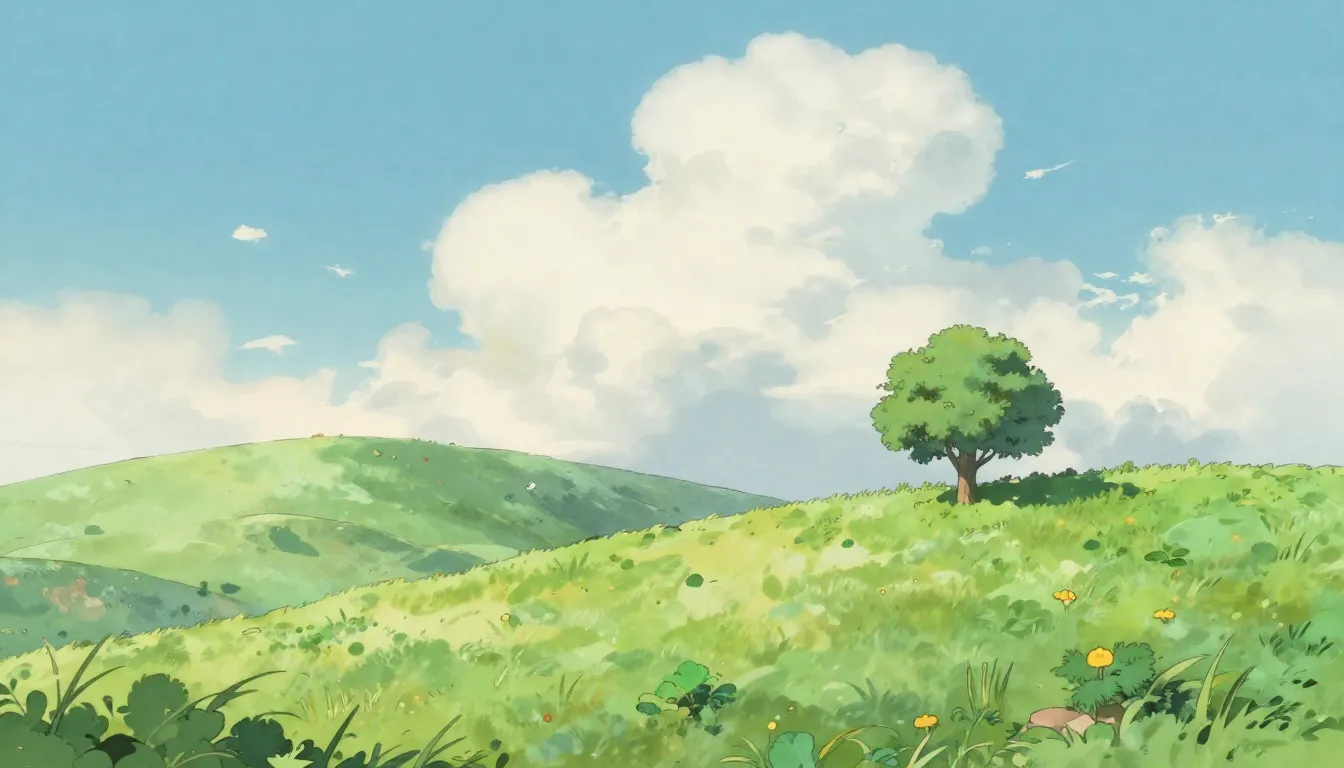
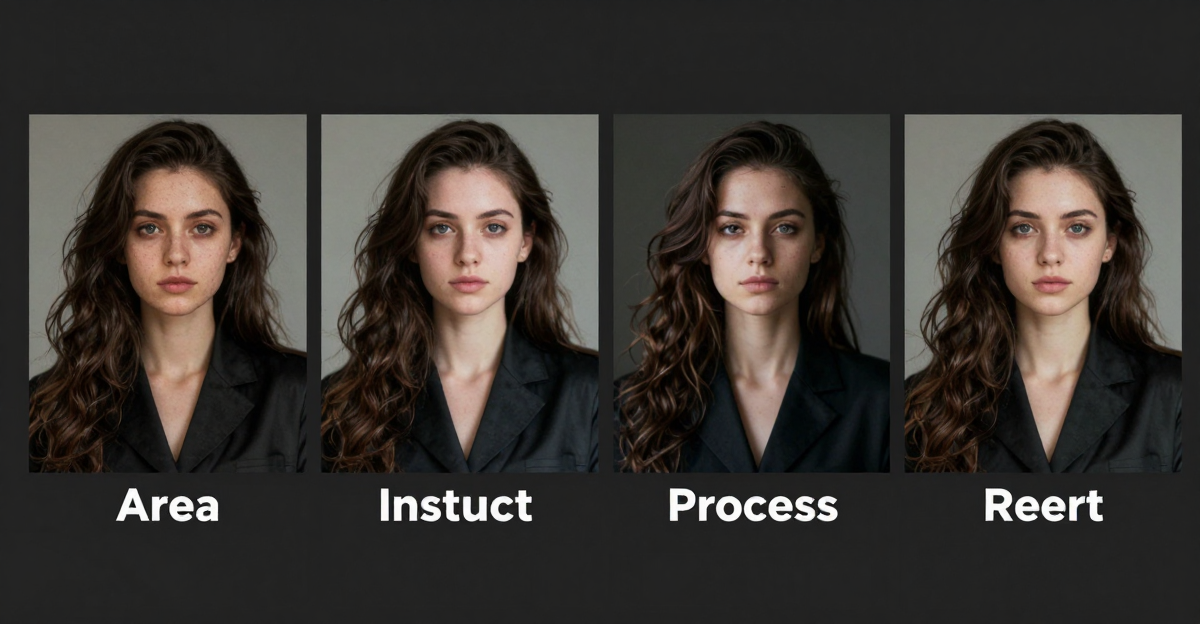
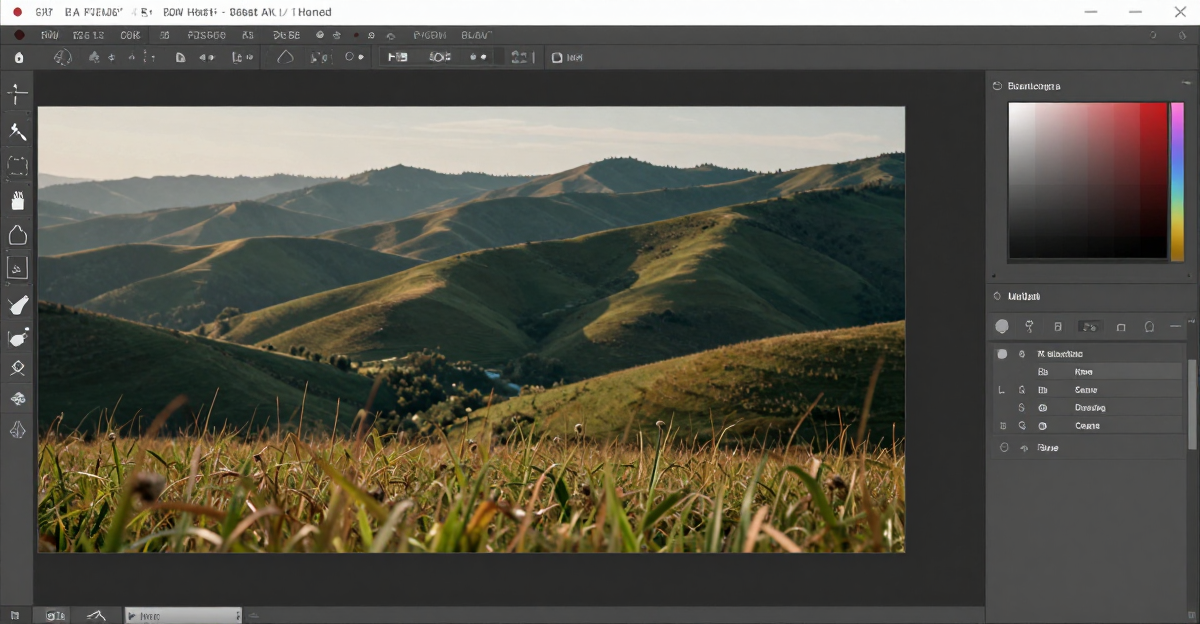
AI style transfer turns photographs into artwork — watercolor paintings, oil portraits, ink sketches, impressionist landscapes, and dozens of other artistic styles. Instead of applying a simple filter, AI re-renders the entire image through a learned artistic model, so the finished piece reads like something an artist actually painted rather than a photo with a texture pasted on top.
This guide covers how to use Imagera's style transfer tools for watercolor and other artistic transformations, with real settings, a step-by-step workflow, honest comparisons, and tips for each style. Everything here is grounded in what the Imagera AI Image Generator actually does: a Qwen foundation model with LoRA chaining, image-to-image transformation, and direct access to a library of 100,000+ community style models.
Quick answer: AI watercolor and artistic style transfer repaints any photo in a chosen art style, and Imagera renders one in under 60 seconds while preserving your subject's composition and edges.
1.How does AI watercolor style transfer work in Imagera?
Imagera analyzes your photo's structure, then repaints it with watercolor bleeds, paper texture, and soft edges in a single pass. You can restyle 1 image or batch 100+ at once, choose from 20+ artistic presets (watercolor, oil, ink, gouache), and export up to 4K in 2026, typically in under 60 seconds per image.
2.Which art styles can you apply to one photo?
Imagera offers 20+ built-in styles, and a single upload can be rendered across 3, 5, or all of them so you compare looks side by side before committing. Outputs export at 4K, and upscaling can push a favorite to 8K. Watercolor's translucent layering and soft edge bleeds are genuinely hard to reproduce by hand, so one-click AI style transfer lets you skip the manual work and go straight to a finished piece.
3.What AI Watercolor Style Transfer Actually Does
At its core, watercolor style transfer takes a source photo and rebuilds it in the visual language of watercolor painting — soft feathered edges, translucent layered washes, visible paper texture, and the organic bleed where colors meet. The tool does not simply tint your photo. It reinterprets the composition so the result carries the hallmarks a real watercolorist would produce.
Inside Imagera, this runs through the image generator's image-to-image mode combined with one or more watercolor LoRA models. A LoRA is a small, focused style adapter trained on a specific artistic dataset. Load a watercolor LoRA, feed in your photo, and the model repaints the scene while keeping the subject recognizable. You control how far the transformation goes — a light touch keeps faces and buildings crisp, a heavier touch pushes toward loose, dreamy, gallery-style abstraction.
Because Imagera connects directly to a library of 100,000+ community LoRAs, "watercolor" is not one preset — it is dozens of distinct schools: botanical illustration, wet-on-wet washes, pen-and-wash line work, gouache, ink-and-color hybrids, and more. You pick the one that matches the mood you want.
4.How AI Artistic Style Transfer Works
Traditional photo filters overlay a color palette or texture on top of your image. The underlying structure — edges, shapes, composition — stays the same.
AI style transfer is fundamentally different. The model analyzes your photo's content (faces, objects, backgrounds), then reconstructs the image using the visual language of the target art style. Lines get redrawn. Shadows get repainted. Textures change at a structural level.
The result looks like an artist actually painted your scene, not like someone ran it through an Instagram filter.
4.1LoRA Models: The Key to Authentic Styles
LoRA (Low-Rank Adaptation) models are lightweight style adapters trained on specific artistic datasets. Through Imagera's CivitAI integration, you have access to 100,000+ LoRA models covering:
- Watercolor and gouache
- Oil painting (various periods and artists)
- Ink and brush painting
- Impressionism, expressionism, art nouveau
- Anime and manga styles
- Photography styles (film grain, vintage, cinematic)
- Abstract and contemporary art
Each LoRA carries precise visual training — color palettes, brushwork patterns, lighting conventions, compositional tendencies. Combining multiple LoRAs produces hybrid styles unique to your creative vision. Imagera lets you chain up to 4 LoRAs at once, each with its own strength slider from 0.1 to 1.0, so you can blend, for example, 80% watercolor with a subtle 20% ink outline.
5.Step-by-Step: Turn a Photo Into a Watercolor Painting
Here is the full workflow inside the Imagera image generator, start to finish:
- Open the generator and switch to Image-to-Image. Head to the AI Image Generator and choose the image-to-image mode. This is what lets the model start from your photo rather than from scratch.
- Upload your source photo. Landscapes, portraits, florals, and architecture all convert well. Higher-quality source photos produce cleaner watercolor results.
- Add a watercolor LoRA. Search "watercolor" in the library or paste a CivitAI model URL directly — the tool fetches it automatically, no download or install. Set the LoRA strength to roughly 0.6–0.8 for an authentic watercolor feel.
- Write a supporting prompt. Describe the style in words as well: "watercolor painting, soft edges, translucent washes, paper texture, wet-on-wet technique." Add a negative prompt to steer away from unwanted looks: "photorealistic, sharp edges, digital art, smooth gradient."
- Set the change level (denoising). Around 0.5–0.7 preserves the source structure while still applying the style. Lower keeps more of the photo; higher makes it looser and more painterly.
- Choose resolution and generate. Start around 1024×1024 to iterate quickly, then regenerate at higher resolution once you like the look. Each generation uses 5 credits.
- Refine and re-run. Adjust LoRA strength or denoising by small steps and regenerate. Two or three passes is normal to dial in the exact feel.
- Upscale for print or products. When you have a keeper, send it through the image upscaler to reach 4K and beyond for canvas prints, posters, or merchandise.
6.Watercolor Style Transfer
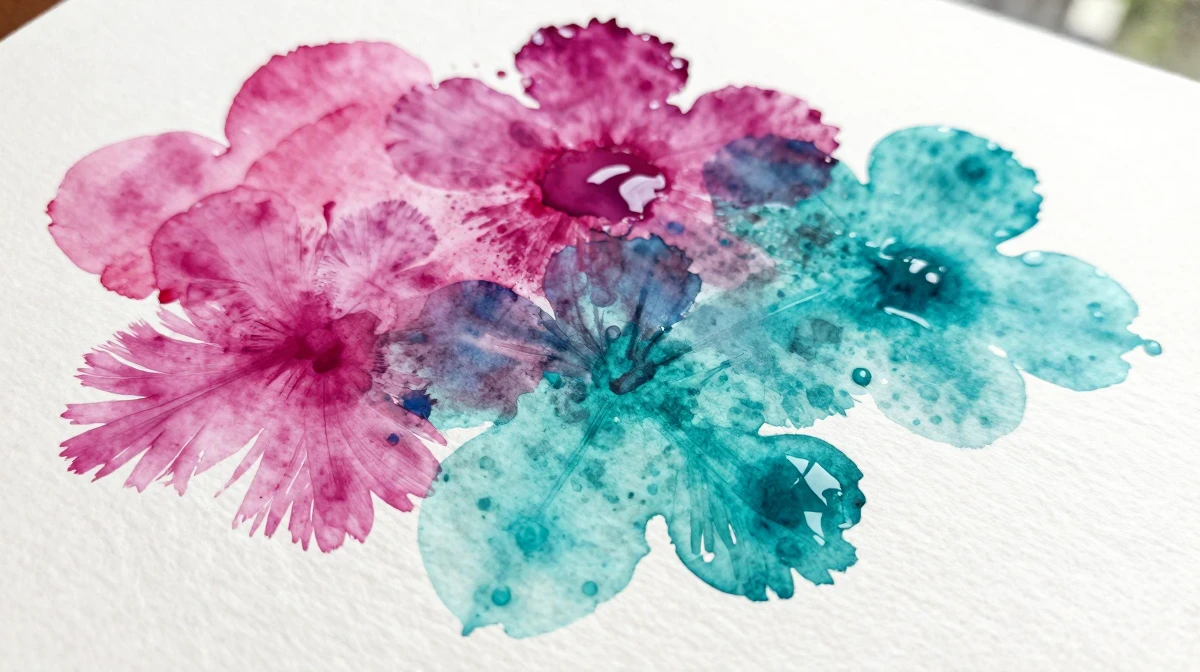
Watercolor is the most popular style transfer request. The soft edges, translucent color layers, and organic unpredictability of watercolor create images that feel warm and artistic.
6.1Settings for Watercolor
- LoRA: Search "watercolor" in the library — dozens of variants available
- LoRA Strength: 0.6-0.8 for authentic watercolor feel
- Denoising Strength: 0.5-0.7 (Image-to-Image mode)
- Prompt additions: "watercolor painting, soft edges, translucent washes, paper texture, wet-on-wet technique"
- Negative prompt: "photorealistic, sharp edges, digital art, smooth gradient"
6.2Best Source Photos for Watercolor
- Landscapes with natural lighting
- Portraits with soft, diffused light
- Floral and botanical subjects
- Architecture with interesting silhouettes
6.3Watercolor Variants
- Loose watercolor: Higher denoising (0.7+), abstract quality
- Botanical illustration: Lower denoising (0.4-0.5), precise detail
- Wet-on-wet: Blurred edges, flowing colors, dreamy atmosphere
- Pen and wash: Combine with ink LoRA for defined outlines with watercolor fills
7.Oil Painting Style Transfer
Oil painting style transfer produces rich, textured results with visible brushwork and deep color saturation.
7.1Settings for Oil Painting
- LoRA: Search "oil painting" or specific artists/periods
- LoRA Strength: 0.7-0.9 for pronounced oil texture
- Denoising Strength: 0.6-0.8
- Prompt additions: "oil painting on canvas, visible brushstrokes, impasto technique, rich color palette, gallery quality"
- Resolution: Generate at highest available — oil painting style benefits from detail
7.2Oil Painting Variants
- Classical realism: Low denoising, high detail preservation
- Impressionist: Higher denoising, emphasis on light and color
- Modern expressionist: Strong denoising, bold distortion
- Palette knife: Thick texture, dramatic impasto
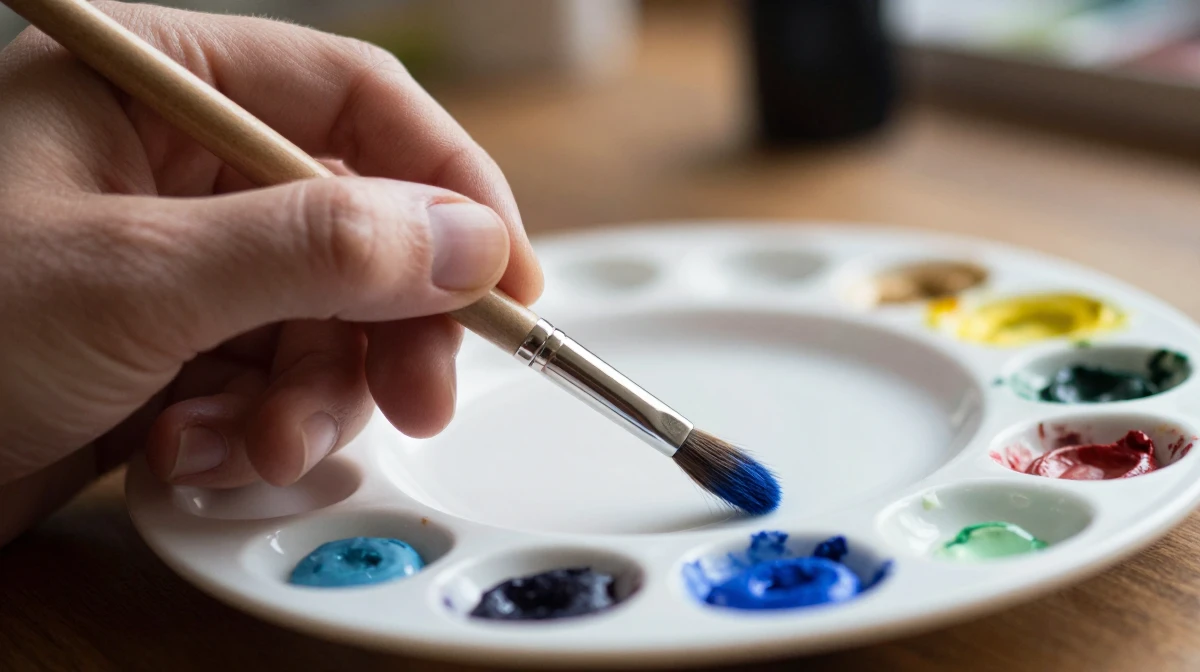
8.Ink and Line Art Transfer
For minimalist artistic output, ink styles reduce images to essential forms.
8.1Settings for Ink Art
- LoRA: Search "ink drawing", "sumi-e", "pen sketch"
- LoRA Strength: 0.7-1.0
- Denoising Strength: 0.6-0.8
- Prompt additions: "black ink drawing, fine line work, cross-hatching, white paper background"
8.2Ink Variants
- Sumi-e (Japanese ink wash): Flowing brushwork, minimalist
- Technical illustration: Precise cross-hatching, architectural detail
- Comic/manga: Bold outlines, screentone shading
- Calligraphic: Expressive brushwork, varying line weight
9.Combining Multiple Styles
Imagera supports LoRA chaining — applying up to 4 LoRA models simultaneously with individual strength controls. This creates style combinations that don't exist in traditional art:
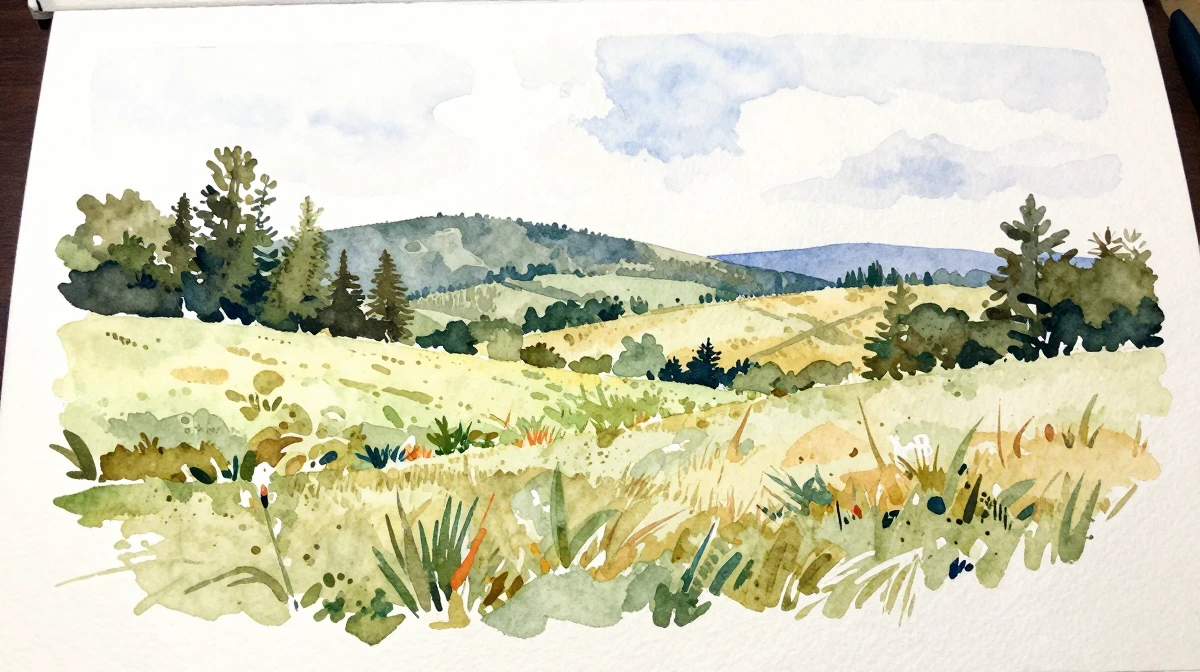
- Watercolor + Ghibli: Anime characters with authentic watercolor texture
- Oil painting + Art Nouveau: Rich textures with decorative compositional elements
- Ink + Watercolor: Defined outlines with color washes (pen and ink style)
- Vintage photography + Oil painting: Nostalgic photos with painterly brushwork
9.1How to Chain LoRAs
- Select your primary style LoRA (strongest influence)
- Add secondary LoRA at lower strength
- Balance strengths so total influence doesn't exceed ~1.5 combined
- Generate and adjust based on results
Each of the four LoRA slots has its own strength slider (0.1–1.0), so you decide exactly how much each style contributes. Start with two LoRAs to learn how they interact before stacking a third or fourth.
10.Style Transfer for Different Use Cases
10.1Print-on-Demand Products
Transform photos into artistic prints for canvas, posters, phone cases, and merchandise. Watercolor and oil painting styles sell particularly well on platforms like Etsy and Redbubble.
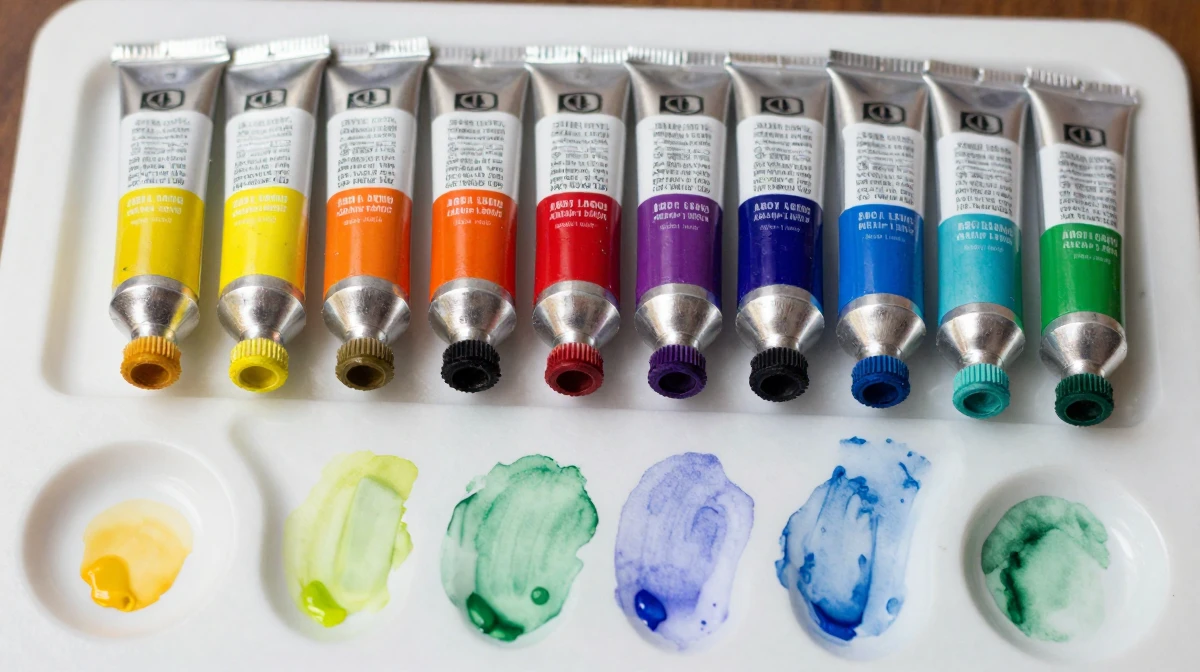
Workflow: Source photo → Style transfer → Upscale to 4K+ → Upload to POD platform
10.2Social Media Content
Create a distinctive visual brand by consistently styling photos in the same artistic manner. Instagram feeds with a cohesive watercolor or illustration style outperform generic photo feeds.
10.3Wedding and Event Photos
Transform event photography into artistic keepsakes. Watercolor versions of wedding photos, family portraits, and travel memories make meaningful gifts.
10.4Real Estate Marketing
Convert property photos into watercolor or illustration-style artwork for listings, brochures, and social media. The artistic treatment makes properties feel aspirational and memorable.
10.5Children's Book Illustration
Generate consistent illustration styles for children's content. Watercolor, gouache, and soft illustration LoRAs produce pages that look professionally illustrated.
11.Who It's For
Artistic style transfer serves a wide range of creators, each with a different reason to reach for it:
- Etsy and print-on-demand sellers who need original watercolor and oil-style artwork to put on canvas, cards, and merchandise without hiring an illustrator per design.
- Photographers offering painterly versions of wedding, family, and travel shoots as premium add-on products.
- Social media managers and creators building a recognizable visual identity across an entire feed.
- Small businesses and real estate agents who want listings and marketing materials that feel crafted rather than generic.
- Authors and educators producing consistent illustration for children's books, courses, and blog headers.
- Hobbyists and gift-makers turning a favorite photo into a piece of art worth framing.
If your goal is a single filtered snapshot, a phone app is enough. If you want art that holds up when printed large, sold, or repeated across a series, style transfer with LoRA control is the right tool.
12.How Style Transfer Compares to the Alternatives
There are three common ways to get artwork from a photo. Here is an honest comparison, with third-party prices where they apply and Imagera's cost expressed in credits.
| Approach | Control over style | Turnaround | Typical cost |
|---|---|---|---|
| One-tap phone filter apps | Very limited — fixed presets | Seconds | Free to ~$5/mo |
| Hiring a human illustrator | Full, but per-commission | Days to weeks | ~$50–$500+ per piece |
| Stock illustration libraries | None — you take what exists | Instant | ~$10–$50 per image |
| Imagera style transfer | Full — pick, chain, and tune LoRAs | Under a minute per pass | 5 credits per image |
The trade-offs are real. A filter app is fastest and cheapest but every output looks the same and rarely survives printing at size. An illustrator gives you a bespoke result but costs the most and can't be redone instantly for a new brief. Imagera sits in the middle: near-instant, credit-priced, and — critically — you control the exact style through the LoRA you choose and how strongly you apply it. The honest limitation is that AI style transfer is iterative; you may need two or three passes to nail the look, and results vary by source photo and style.
13.Technical Guide: Advanced Settings
13.1Resolution and Upscaling Pipeline
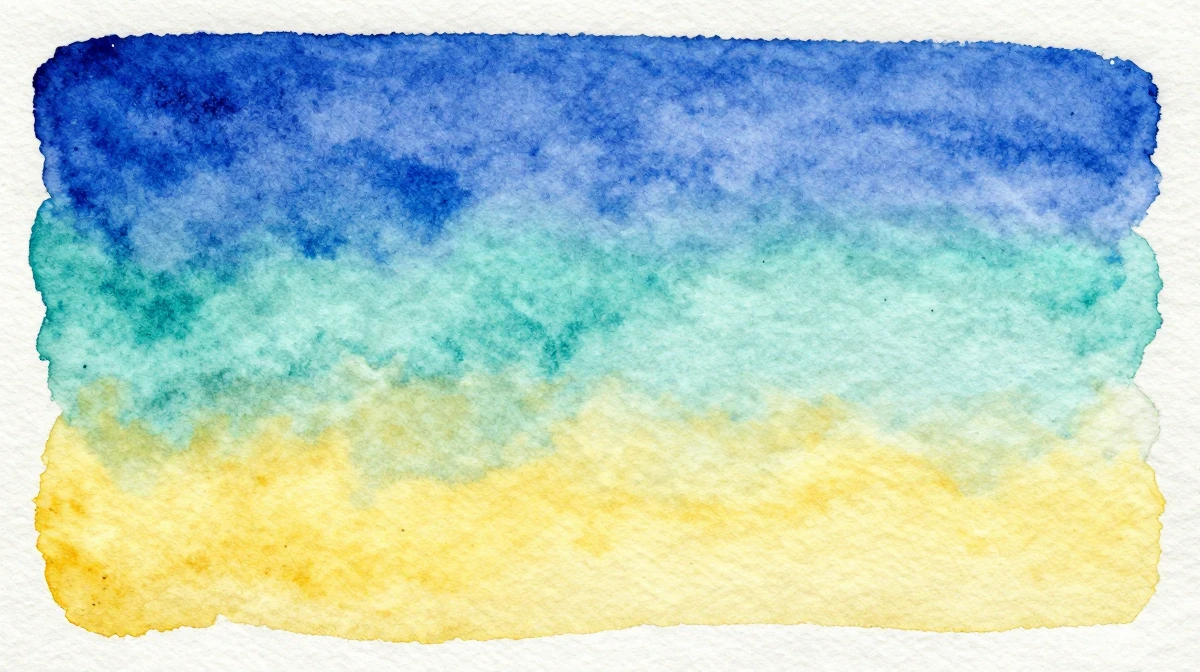
For commercial-quality output:
- Generate at 1024x1024 with style transfer
- Run through Imagera's image upscaler at 4x
- Output: 4096x4096 at print resolution (300+ DPI at 13.6 inches)
13.2Batch Processing for Consistency
When creating a series of styled images:
- Save your LoRA configuration and prompt
- Process all images with identical settings
- Adjust individual images only if needed
- This ensures visual consistency across a collection
13.3Seed Control
Using the same seed number with the same settings reproduces identical results. This is useful for:
- A/B testing different style strengths
- Creating variations of the same composition
- Debugging unexpected results
14.Tips for Best Results
- Start light, then push. Begin with LoRA strength around 0.6 and denoising around 0.5. It is easier to add more style than to recover lost detail. Nudge upward until the look is right.
- Match the photo to the style. Soft, diffused lighting suits watercolor; strong contrast and texture suit oil and impasto. A cluttered background fights every style, so cleaner source photos convert better.
- Use the negative prompt. Explicitly telling the model to avoid "photorealistic, sharp edges, smooth gradient" keeps a watercolor from drifting back toward a plain photo.
- Reuse a winning recipe. Once a LoRA-plus-prompt combination works, keep the same settings and, where useful, the same seed to hold a consistent look across a whole set.
- Chain deliberately. Two well-chosen LoRAs beat four fighting ones. Add a second style at lower strength and confirm it helps before stacking a third.
- Upscale last, not first. Get the art right at a working resolution, then enlarge with the image upscaler. Upscaling a bad composition just makes a bigger bad composition.
15.Common Mistakes to Avoid
- Cranking every slider to maximum. Full LoRA strength plus high denoising often erases the subject entirely, leaving an abstract mess instead of a recognizable painting.
- Expecting one pass to be perfect. Style transfer is iterative. Treat the first result as a draft and refine.
- Ignoring source quality. A blurry, low-light, or heavily compressed photo carries those flaws into the artwork. Fix or reshoot the source when you can.
- Mixing conflicting styles. Chaining a hard-edged pixel-art LoRA with a soft watercolor LoRA usually cancels both. Keep chained styles compatible in spirit.
- Skipping the negative prompt. Without it, the model may keep too much photographic realism and the watercolor effect looks half-applied.
- Upscaling before you commit. Enlarging every experiment wastes time and credits. Finalize the look first, then upscale the keeper.
16.Examples: Three Quick Scenarios
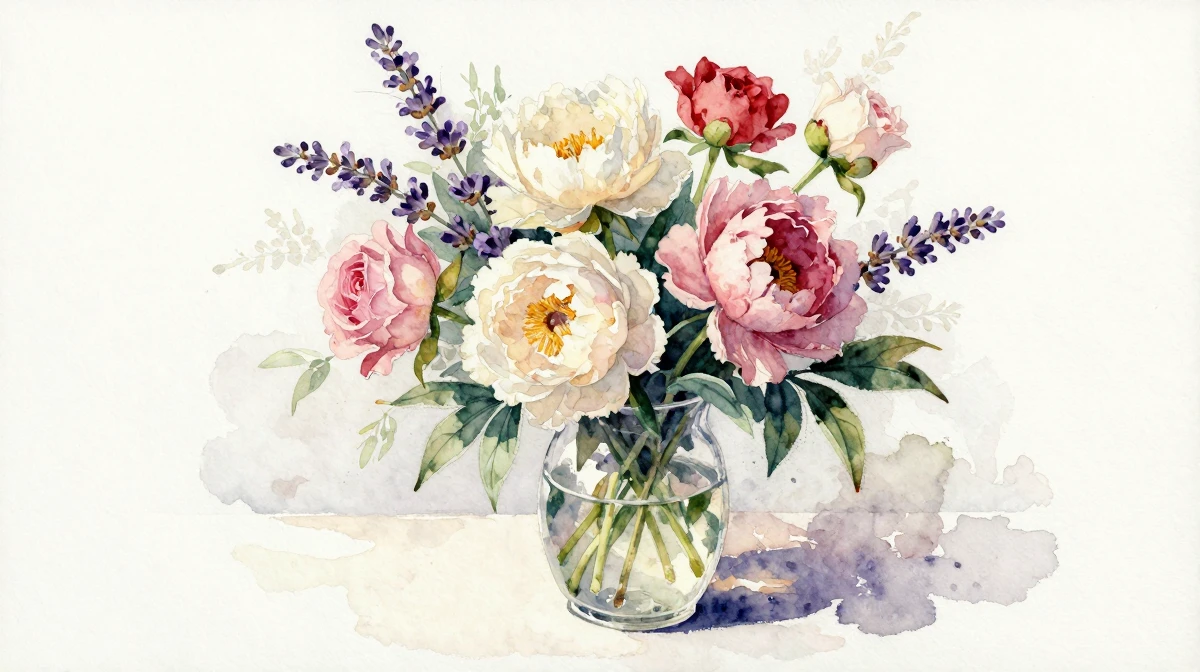
A florist's product photos → botanical illustration. Start from a clean photo of a bouquet, load a botanical watercolor LoRA at 0.6 strength, keep denoising low (0.4–0.5) to preserve petal detail, and generate. The result works as printed greeting cards and Etsy prints after a 4x upscale.
A wedding portrait → soft wet-on-wet keepsake. Use a diffused, well-lit portrait, apply a wet-on-wet watercolor LoRA at 0.7, and raise denoising to about 0.65 for a dreamy, flowing feel. Deliver it as a framed anniversary gift.
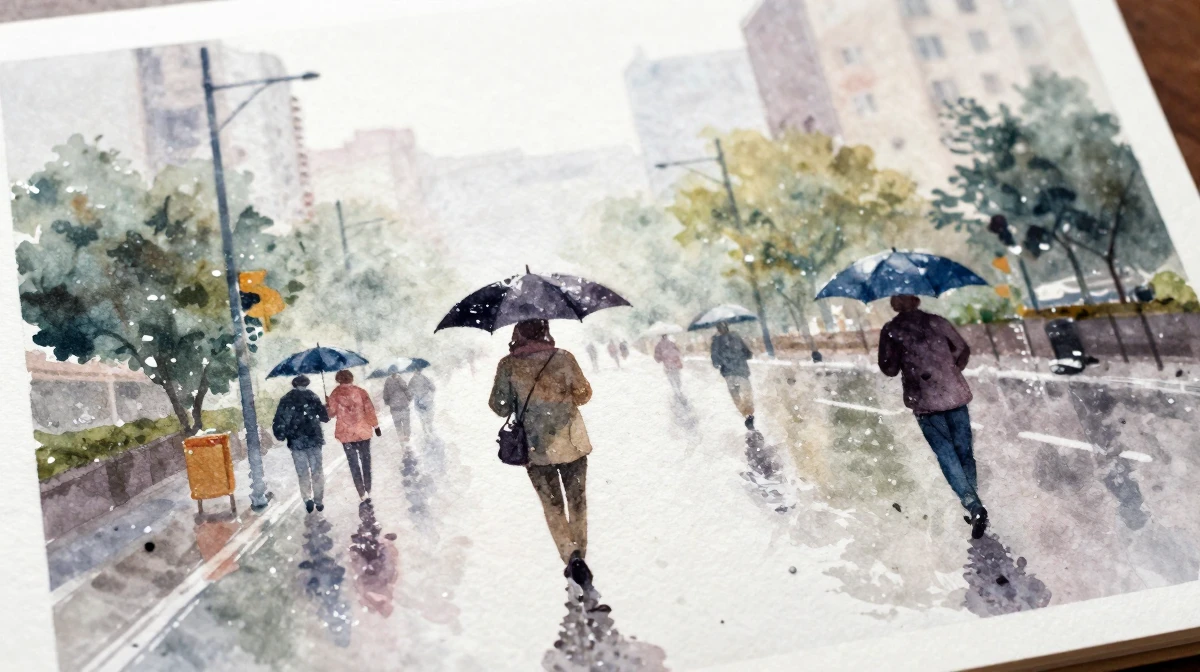
A city street photo → pen-and-wash art print. Chain an ink line-art LoRA (primary, ~0.8) with a light watercolor LoRA (~0.4). The ink defines the architecture while the wash adds atmosphere — a look that sells well as travel wall art.
17.Pricing
Style transfer uses standard image generation credits:
| Plan | Credits/Month | Styled Images (5 credits each) | Price |
|---|---|---|---|
| Starter | 400 | ~80 images | $19.99/mo |
| Pro | 1,500 | ~300 images | $49.99/mo |
| Business | 5,500 | ~1,100 images | $199.99/mo |
| Ultra Max | 6,500 | ~1,300 images | $199.99/mo |
Each generation uses 5 credits, and LoRA models are included at no extra cost. Access the full library with any plan. Upscaling a finished piece to 4K is a separate step through the image upscaler; budget for it if you are producing print-ready output.
18.Common Questions
18.1What is the difference between a filter and AI style transfer?
Filters apply static color/texture overlays. AI style transfer reconstructs the image — redrawing lines, reshading, retexturing — through a learned artistic model. The structural difference produces dramatically more authentic results.
18.2Can I create my own custom art style?
Yes. Imagera's LoRA trainer lets you train a custom LoRA on your own reference images. Upload examples of your target style, train on cloud machines in roughly 15–45 minutes, and use the resulting LoRA for unlimited generations. A style typically needs around 20–50 reference images to learn well.
18.3Do I keep commercial rights to styled images?
Yes. All images generated with Imagera include full commercial rights. Use them for products, marketing, resale, or any other commercial purpose.
18.4How do I make style transfer look more natural?
Use moderate denoising strength (0.5-0.6) to preserve source photo structure while applying style. High denoising creates dramatic artistic interpretations but may lose recognizable details. Pairing that with a moderate LoRA strength (around 0.6) keeps faces and objects recognizable.
18.5How many LoRA styles can I combine at once?
Up to 4 at a time, each with its own strength slider from 0.1 to 1.0. That lets you blend styles — for example, an ink outline over a watercolor wash — while controlling exactly how much each one contributes.
18.6What source photos work best for watercolor?
Landscapes in natural light, portraits with soft diffused lighting, floral and botanical subjects, and architecture with clear silhouettes convert most cleanly. Cluttered or low-light photos tend to muddy the result.
18.7What resolution can I output for prints?
Generate at a working resolution (around 1024×1024 is a good starting point), then run the keeper through the image upscaler to reach up to 4K. That is enough for canvas prints and posters at print-quality DPI.
18.8Is one generation enough, or should I expect to iterate?
Plan to iterate. Style transfer is not a one-tap filter — adjusting LoRA strength and denoising across two or three passes is normal and gives you the best control over the final look.
19.Bottom Line
AI watercolor and artistic style transfer turns an ordinary photo into artwork you can frame, print, or sell — and unlike a fixed filter, you stay in control of the exact style. Inside Imagera, that control comes from image-to-image mode, chaining up to 4 LoRAs at tunable strengths, and a library of 100,000+ community styles, all at 5 credits per generation. Pick a source photo that suits the style, start with moderate settings, iterate a couple of passes, and upscale the winner for print. For anything you plan to sell or repeat as a series, that combination of control and cost is hard to beat.
20.Tools and Next Steps
| Goal | Tool | Route |
|---|---|---|
| Turn a photo into watercolor or other art styles | AI Image Generator | /image/image-generator |
| Enlarge finished art for print or products | Image Upscaler | /image/image-upscaler |
| Train a custom style on your own reference images | LoRA Trainer | /lora-trainer |
21.See it in action — real Imagera output
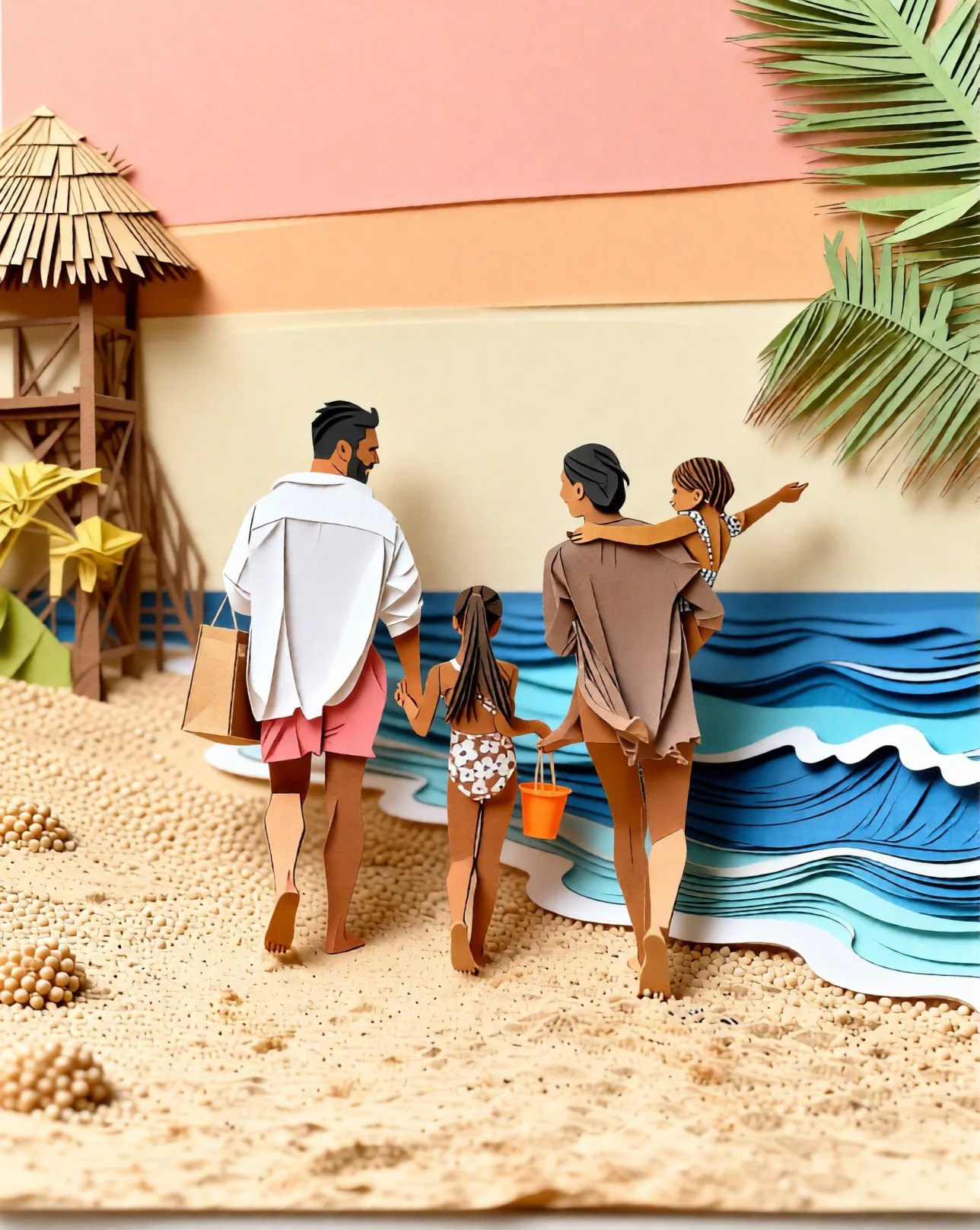
These are real, unedited results from the Imagera style transfer — the exact tool this guide covers.

22.Start Transforming Photos into Art
Upload a photo, choose an art style, and transform it in under 30 seconds.
Try AI Style Transfer — 100,000+ artistic styles, starting from $19.99/month.
Related: Ghibli Style Transfer Guide | How to Use LoRA Models | AI Image Generation Guide