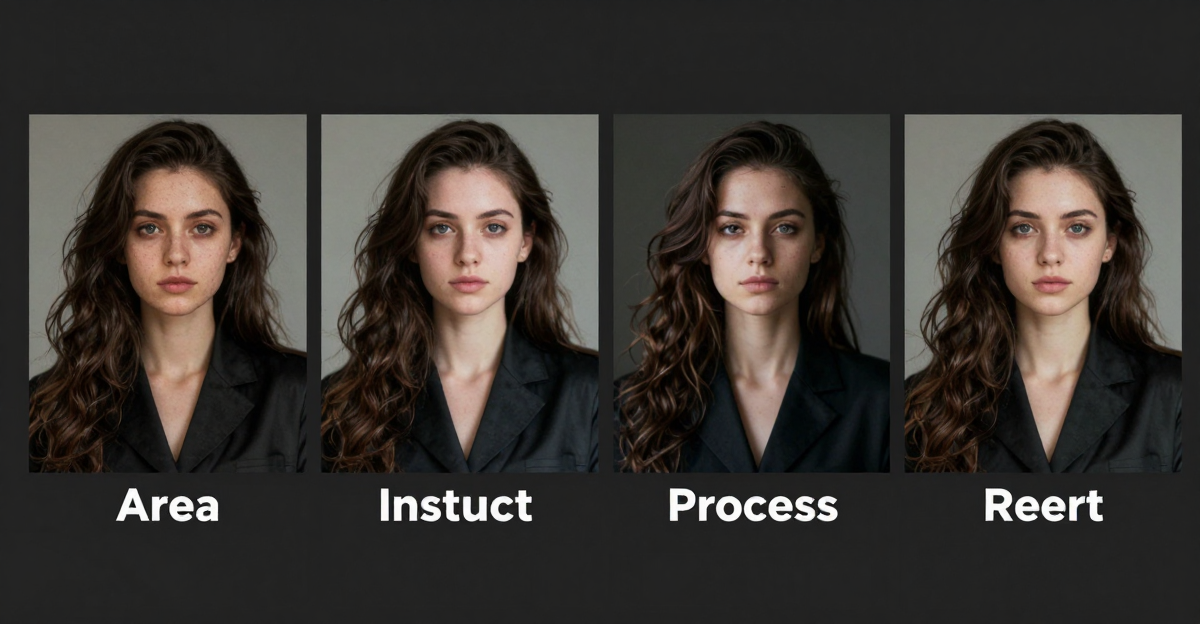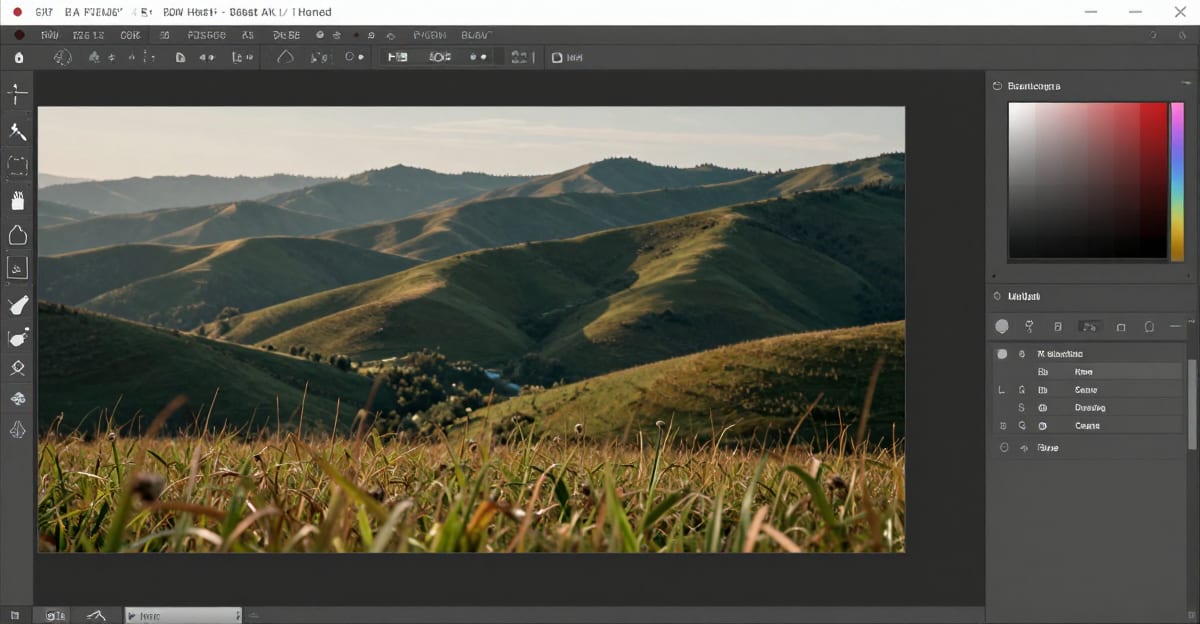
The photo editing landscape shifted dramatically in 2026. What used to require downloading gigabytes of software, watching hours of tutorials, and mastering complex tools now happens in your browser with a simple text command. Online AI image editors have transformed photo editing from a specialized skill into something anyone can do — without installing anything.
This guide explains how browser-based AI photo editors work, what they can do, and when they make sense compared to traditional desktop software.
Quick answer: Imagera is a browser-based AI image editor that edits any photo from plain-English text commands — no layers, masks, or software installs — and returns edited results in under 60 seconds.
1.How does editing a photo with text commands work in Imagera?
You upload 1 image, type an instruction like "remove the background" or "change the sky to sunset," and Imagera applies it — no manual selections needed. It handles 100+ edit types (object removal, color swaps, retouching, style changes), outputs up to 4K or 8K resolution, and most single edits finish in under 60 seconds, starting from just a few credits per edit in 2026.
2.Which photo edits can Imagera do from a single text prompt?
Imagera covers 100+ prompt-driven edits: erasing objects, swapping backgrounds, adjusting lighting, upscaling 2x to 4x, and restyling scenes — all without Photoshop skills. Text-based editing removes most of the learning curve that stops beginners, so a short instruction can replace a long chain of manual steps and finish in seconds rather than minutes.
3.Why Edit Photos Online with AI?
Traditional photo editing software comes with significant friction. You download several gigabytes of installation files, wait for the install process, learn which of the hundreds of tools does what, and then — maybe — you get the edit you wanted. The monthly subscription keeps running whether you use it daily or once per quarter.
Online AI image editors eliminate most of this friction:
No Software Installation Required You open a URL in your browser. The editor loads in seconds. You upload your photo, type what you want changed, and get results. When you're done, you close the tab. No persistent installation filling your hard drive, no update notifications, no version compatibility issues.
Cross-Device Accessibility The same editor works on your desktop Mac, your Windows laptop, your iPad, and your Android phone. Your edits aren't trapped on the machine where you installed Photoshop. You can start an edit on your desktop at work and continue on your tablet at home using the exact same interface.
AI Handles Technical Complexity Traditional editors require you to learn selection tools, layer masks, blend modes, and adjustment curves. With an AI image editor, you describe the change you want in plain language. The AI figures out the technical steps — identifying objects, creating precise selections, blending textures, matching lighting, and preserving image quality.
A command like "remove the people in the background" triggers sophisticated object detection, semantic segmentation, and context-aware fill algorithms. You don't need to know those techniques exist. You just describe the result you want.
Actual Cost Comparison Adobe Photoshop costs $22.99/month minimum. That's $275.88 per year whether you edit 200 photos or 2. Imagera's pricing plans start at $19.99/month for 500 credits — enough for 33 Standard quality edits or 50 Lightning mode edits. If you need occasional edits rather than daily professional work, you pay significantly less.
The cost structure also scales differently. With subscription software, editing your 10th photo that month costs the same as your 1st — nothing additional, but you already paid the subscription. With credit-based systems, you pay per edit but only for edits you actually make. For many use cases, this is more economical.
4.What Can an Online AI Image Editor Do?
Modern AI photo editors online handle a surprising range of editing tasks. Here's what you can actually do with text commands:
4.11. Remove Unwanted Objects
This is the most common use case. You have a great photo except for one thing — tourists in the background, power lines crossing the sky, a trash can in the corner, a blemish on someone's face.
Type: "remove the people in the background" or "remove the power lines" or "remove the trash can on the left."
The AI identifies the unwanted elements, removes them, and fills the space with contextually appropriate content. If you remove a person from a beach scene, the AI generates sand and waves that match the surrounding texture. If you remove power lines from a sky, it extends the existing sky gradient and cloud patterns.
The quality depends on how much surrounding context exists. Removing a small object surrounded by simple texture (like a person on a beach) works nearly perfectly. Removing large objects in complex scenes (like a building in a crowded cityscape) may show visible artifacts.
4.22. Change Clothing and Outfits
Product photography for fashion e-commerce often requires showing the same model in multiple outfit variations. Traditionally this meant multiple photoshoots. With AI editing, you can change colors, styles, and accessories with text commands.
Type: "change the shirt to navy blue" or "replace the jacket with a red blazer" or "add sunglasses."
The AI understands garment boundaries, preserves wrinkles and shadows that indicate fabric physics, and matches lighting to the rest of the image. This works best when you're changing similar garments (swapping one shirt for another) rather than complete outfit transformations.
E-commerce sellers use this to test product variations before manufacturing inventory. Instead of ordering samples in 8 colors, they edit one product photo into all variations and gauge customer interest before committing to production.
4.33. Replace Backgrounds
Background replacement used to require meticulous selection work — hours of refining edge masks to preserve hair detail and semi-transparent elements. Now you describe the background you want.
Type: "replace background with a modern office" or "put this product on a marble countertop" or "change background to outdoor park."
The AI handles the hard parts: identifying the subject boundary, preserving fine details like hair strands, matching the lighting direction and intensity, and adding appropriate shadows or reflections so the subject looks naturally placed in the new environment.
This capability is particularly valuable for product photography. You can shoot products against a plain backdrop, then generate lifestyle context variations for different marketing channels — the same product shown in a home kitchen, a professional studio, an outdoor setting, or a retail display.
4.44. Combine Multiple Images
Multi-image compositing — merging elements from different photos into a cohesive result — requires sophisticated understanding of lighting, perspective, scale, and blending. Imagera's edit-image feature supports uploading multiple images and describing how to combine them.
Type: "place this product in the scene from image 2" or "add this person to the group photo" or "combine these elements into one composition."
The AI analyzes each source image for lighting conditions, camera perspective, and color grading. It adjusts the imported elements to match the target scene's characteristics and blends edges naturally.
Real estate photographers use this to add furniture to empty rooms (furniture from one photo, room from another). Product marketers combine product renders with real-world environments. Content creators merge stock photo elements into custom scenes.
4.55. Apply Style Changes
Sometimes you need mood shifts rather than object manipulation — changing the overall color grading, applying artistic filters, or adjusting the atmospheric feel.

Type: "make this photo warmer" or "convert to black and white with high contrast" or "apply vintage film look" or "increase saturation."
The AI adjusts color curves, contrast ratios, and tonal ranges while preserving important details. Unlike Instagram filters that apply the same preset to every image, AI style changes adapt to each photo's specific characteristics.
Marketing teams use this to maintain brand consistency across diverse source photos. Instead of manually color-grading each image to match brand guidelines, they apply text-based style commands that achieve consistent results.

4.66. Inpaint and Restore
Inpainting fills gaps in images — whether from object removal, canvas extension, or damage repair. This is crucial for restoring old photos or preparing images for different aspect ratios.
Type: "extend the canvas to the left" or "fill in the torn corner" or "expand this to 16:9 aspect ratio."
The AI analyzes the existing image content and generates plausible extensions or fills. Extending a landscape photo outward requires inventing new landscape details that match the original's style. Filling a torn corner in a portrait requires reconstructing what was likely there based on symmetry and context.
This capability lets you adapt existing photos to new format requirements without reshooting. A square Instagram photo becomes a horizontal YouTube thumbnail. A portrait photo with cut-off elements gets extended to show the full scene.
5.Online AI Editor vs Desktop Software
Understanding when browser-based AI tools make sense versus traditional software helps you choose the right approach for each project.
| Feature | Online AI Editor (Imagera) | Adobe Photoshop | Canva |
|---|---|---|---|
| Installation | None — runs in browser | 4GB+ download + install | None — runs in browser |
| Learning Curve | Type what you want | Steep — professional tool | Moderate — template-based |
| Speed (Simple Edits) | 10-30 seconds per edit | Minutes to hours | Minutes per template |
| Speed (Complex Edits) | 30-60 seconds per edit | Hours to days | Limited complex capabilities |
| Cost | $19.99/mo (500 credits) | $22.99/mo minimum | $12.99/mo (Pro) |
| Offline Capability | Requires internet | Works offline | Requires internet |
| Precision Control | Text-based (iterative) | Pixel-level control | Template-constrained |
| Multi-Image Compositing | Yes (text-based) | Yes (manual layers) | Limited |
| Advanced Features | AI-powered automation | Unlimited manual control | Design templates |
| Device Compatibility | Any device with browser | Desktop only (Mac/Windows) | Any device with browser |
| Best For | Quick edits, iteration, automation | Professional retouching, print | Social graphics, presentations |
When to Choose an Online AI Photo Editor:
- You need quick edits without learning complex software
- You work across multiple devices (desktop, tablet, phone)
- You're iterating on product photos for e-commerce
- You want to test variations before committing to production
- Your edits are object-focused (remove, replace, change, combine)
- You prefer paying per use rather than monthly subscriptions
- You need fast turnaround for social media or marketing content
When Desktop Software Still Wins:
- You need pixel-perfect precision for print production
- You're doing complex multi-layer compositing with exact control
- You require specific color management for professional printing
- You work offline frequently (planes, remote locations)
- Your workflow involves extensive manual retouching (beauty, fashion)
- You need advanced features like smart objects, blend modes, adjustment layers
- You're already proficient in Photoshop and speed matters
When Canva Makes More Sense:
- You're creating social media graphics from templates
- You need design layouts with text and graphics
- You're making presentations or infographics
- Your workflow is more design-focused than photo editing
Many professionals use multiple tools. They might use Photoshop for final client deliverables requiring absolute precision, an online AI image editor for rapid iteration and testing, and Canva for social media graphics. The tools serve different purposes in a complete workflow.
6.How to Use an Online AI Image Editor
The actual editing process is straightforward. Here's what happens when you use Imagera's browser-based AI photo editor:
6.1Step 1: Open the Editor in Your Browser
Navigate to the edit-image tool. No download, no installation. The interface loads in your browser like any website. Works on Chrome, Firefox, Safari, Edge — any modern browser on desktop, tablet, or phone.
You need an Imagera account to use the editor. Plans start at $19.99/month and include credits for editing. Each edit consumes credits based on which quality mode you choose.
6.2Step 2: Upload Your Image(s)
Click the upload button and select images from your device. You can upload a single image for basic edits or multiple images for compositing operations.
The editor accepts common formats: JPG, PNG, WebP. File size limits depend on your plan, but most images under 10MB upload without issues. The system handles typical resolutions from social media crops (1080x1080) to high-resolution product photos (4000x3000+).
For multi-image compositing, upload all source images you want to combine. The AI will analyze each image to understand lighting, perspective, and context.
6.3Step 3: Type Your Editing Command
This is where AI editing differs fundamentally from traditional tools. Instead of selecting tools, creating masks, and adjusting settings, you describe the change you want in plain language.
Examples of effective commands:
- "Remove the person on the left"
- "Change the background to a modern kitchen"
- "Make the shirt navy blue"
- "Place the product from image 1 in the scene from image 2"
- "Remove all the power lines"
- "Change this to black and white with high contrast"
Write clear, specific commands. "Remove the red car" works better than "make this better." "Change background to outdoor garden with flowers" gives the AI more direction than "change background."
For guidance on writing effective AI image prompts, see our comprehensive guide to AI image prompts.
6.4Step 4: Choose Quality Mode
Imagera offers two quality modes with different speed-quality-cost tradeoffs:
Standard Mode (15 credits per edit) Higher quality processing with more refined results. The AI spends more computation time on edge blending, texture matching, and context understanding. Use this for final deliverables, client work, or images where quality is critical.
Processing time: 20-40 seconds depending on complexity.
Lightning Mode (10 credits per edit) Faster processing with good quality for most use cases. The AI optimizes for speed while maintaining acceptable results. Use this for iteration, testing variations, or draft work where you'll refine further.
Processing time: 10-20 seconds depending on complexity.
The quality difference is noticeable in complex edits with intricate details. For simple object removal or background changes, Lightning mode often produces results comparable to Standard. For multi-image compositing or detailed inpainting, Standard mode shows clearer advantages.
6.5Step 5: Preview and Download
The edited image appears in the preview pane. You can compare against the original using the before/after slider. If the result needs adjustment, refine your text command and run another edit.
This iterative approach is one of AI editing's strengths. Traditional editing locks you into decisions — if you spent 30 minutes creating a perfect selection mask and then realize you want a different background, you start over. With text-based AI editing, you just change the command and run it again.
When you're satisfied, download the edited image. The file maintains the original resolution and format unless you specified changes.
7.Best Practices for Online AI Photo Editing
Getting consistently good results from an AI photo editor online requires understanding how to work with the technology's strengths and limitations.
7.1Start with High-Quality Source Images
AI editing can't recover information that doesn't exist. If your source image is blurry, low-resolution, or poorly lit, the edited result will inherit those problems.
Use the highest resolution source images available. For product photography, shoot in RAW format and export high-quality JPGs. For photos from clients, request original files rather than compressed social media versions.
Good lighting in source images gives the AI better information for matching when you replace backgrounds or combine images. If your product photo has harsh shadows, those shadows will complicate compositing into a softly-lit scene.
7.2Write Clear, Specific Text Commands
The AI interprets your commands literally. Vague instructions produce unpredictable results.
Weak command: "fix this photo" Better command: "remove the person in the background on the right"
Weak command: "make it look better" Better command: "increase saturation and add warmth"
Weak command: "change the background" Better command: "replace background with a minimalist white studio backdrop"
Be specific about which elements you're referring to when multiple options exist. "Remove the car" is ambiguous if three cars appear in the image. "Remove the red sedan on the left" is clear.
For more techniques on writing effective editing commands, check out our guide on how to edit images with AI using text prompts.
7.3Use Standard Mode for Final Deliverables, Lightning for Drafts
Lightning mode is excellent for iteration. When you're testing whether a background change works or if a color variation looks right, the faster processing and lower credit cost make sense.
Once you know what edit you want, run the final version in Standard mode. The quality difference matters for client deliverables, e-commerce listings, or marketing materials. The extra 5-10 credits per edit is worth it when image quality impacts sales or brand perception.
Think of it like rough cuts versus final renders in video editing — Lightning mode is your rough cut for testing ideas, Standard mode is the final render you deliver.
7.4Multi-Image Compositing Tips
When combining elements from multiple images, the AI needs context about what you want merged and how.
Upload images in a logical order — typically the base/background image first, then elements to add. Your command should reference which image provides which element.
Example: "Place the product from the first image on the table in the second image"
The AI analyzes lighting direction, color temperature, and perspective in each image. Results improve when source images have compatible characteristics — similar lighting angles, similar time of day, similar color grading.
If you're combining a product shot lit from the left with a scene lit from the right, expect visible lighting mismatches. The AI will attempt to adjust, but physically incompatible lighting creates noticeable issues.
7.5When to Use AI vs Manual Editing
AI editing excels at tasks that would require extensive technical knowledge in traditional tools:
- Object removal with context-aware fill
- Background replacement with automatic masking
- Color and style changes across entire images
- Quick iteration on variations
Manual editing in Photoshop still wins for:
- Pixel-perfect precision work (luxury retouching, print)
- Complex selective adjustments (dodging and burning specific areas)
- Advanced compositing with exact layer control
- Specialized techniques (frequency separation, advanced masking)
Many workflows use both. Edit photos online with AI for rapid iteration and object-level changes, then import into Photoshop for final precision adjustments if needed.
8.Real-World Use Cases
Understanding how different users apply online AI photo editing clarifies when these tools provide the most value.
8.1E-commerce Product Photography at Scale
An online clothing retailer photographs each garment once on a model against a white backdrop. They need to show each item in multiple lifestyle contexts — casual outdoor setting, professional office, evening social event — across their website, ads, and social media.
Traditional approach: Multiple photoshoots in different locations with different styling. Cost: thousands per product line.
AI editing approach: One photoshoot. Use an online AI image editor to generate background variations for each product. Type "replace background with modern office" or "replace background with casual outdoor cafe." Cost: 15 credits (about $0.15) per variation.
The retailer tests which lifestyle contexts drive the most conversions before investing in full location shoots. AI-edited variations run as ads, and whichever context performs best informs actual photoshoot planning.
8.2Social Media Content Production
A marketing team needs 40 Instagram posts for a month-long campaign. Each post features products in on-brand settings. Creating 40 unique scenes traditionally requires extensive photography, props, and locations.
With AI photo editing online, they:
- Shoot products against neutral backgrounds
- Generate lifestyle context variations with text commands
- Test which contexts get engagement
- Iterate quickly based on performance data
The speed lets them stay responsive. If a product unexpectedly trends, they create additional variations in minutes rather than scheduling new shoots.
8.3Marketing Campaign Iteration
A company launches seasonal campaigns with specific color palettes and moods. They have an archive of product photos shot throughout the year in different contexts.
Rather than reshooting everything for each campaign's aesthetic, they use AI style commands to adjust existing photos to match campaign guidelines. "Apply warm autumn tones" or "convert to black and white with teal highlights" transforms existing assets to fit new creative directions.
This extends asset longevity. Photos from summer campaigns get reused in winter campaigns with different color grading and mood adjustments.
8.4Real Estate Photo Enhancement
Real estate photographers shoot properties in whatever condition they're in — sometimes unfurnished, sometimes with dated furniture, sometimes with distracting elements.
AI editing lets them:
- Remove personal items and clutter from occupied homes
- Add virtual furniture to empty rooms (combining furniture from stock images)
- Remove construction equipment from development photos
- Extend room shots to show more space (canvas extension + inpainting)
- Adjust lighting to make rooms look brighter
The result: properties show better online, generating more viewing appointments. The photographer delivers enhanced images without spending hours on manual Photoshop work.
8.5Personal Photo Touchups
Regular users apply the same technology for personal photos:
- Remove tourists from vacation photos
- Fix blemishes in portraits
- Change outfit colors in photos they already took
- Swap backgrounds for profile pictures
- Restore old family photos with damage or missing sections
The barrier to entry is low enough that non-professionals can achieve results that previously required hiring a retoucher.
9.Limitations to Know About
Online AI image editors are powerful but not magic. Understanding current limitations helps set realistic expectations.
9.1Complex Multi-Step Edits May Need Multiple Passes
If you want to remove a person, change the background, and adjust the color grading, running three separate edits often works better than one complex command combining all changes.
The AI handles each type of edit well individually. Combining multiple complex operations in one command increases the chance of unexpected interactions or the AI prioritizing one instruction over another.
This isn't necessarily a problem — running three edits at 10 credits each in Lightning mode still costs less than traditional software subscriptions and finishes in under a minute total. But if you expect one command to handle everything perfectly, you may be disappointed.
9.2Very Specific Pixel-Level Edits Still Favor Photoshop
If you need to adjust the exact texture of a specific fabric highlight or precisely match skin tones in a beauty campaign, traditional manual editing gives you control AI editing doesn't.
AI editing works at the semantic level — objects, scenes, styles. It understands "make this shirt red" but not "adjust the luminosity of this specific 50x50 pixel region by exactly 12% while preserving the existing highlight gradient."
Professional retouchers working on luxury brand campaigns, magazine covers, or high-end print advertising still use Photoshop for final pixel-level precision. AI editing can handle 90% of the work, but that final 10% requires manual craft.
9.3Results Vary with Prompt Quality
The AI interprets text commands based on how you phrase them. Two users asking for similar edits with different wording may get different results.
This improves with practice. As you learn how the AI interprets commands, you develop a sense for effective phrasing. But unlike Photoshop where the same tool settings always produce the same result, text-based editing has some variability.
The solution is iteration. If the first result isn't quite right, refine your command and try again. The speed of AI editing makes this practical in ways manual editing doesn't.
9.4Internet Connection Required
Browser-based tools need internet connectivity. If you're working on a plane, in a remote location, or anywhere without reliable internet, online AI photo editors don't work.
This is the fundamental tradeoff of cloud-based tools. You gain device flexibility and zero installation overhead but lose offline capability. Desktop software like Photoshop works anywhere once installed.
For most users in normal working conditions, this isn't an issue. But it's worth considering if your workflow frequently involves offline environments.
9.5AI Sometimes Invents Plausible But Incorrect Details
When the AI fills removed areas or extends images, it generates content based on what seems plausible given the surrounding context. Sometimes this creates details that look right but aren't factually accurate.
If you remove a person from a landscape and the AI fills that space with invented terrain, the terrain looks realistic but isn't what was actually there. For most purposes this is fine — you care that the space looks natural, not that it exactly matches reality.
But if accuracy matters (forensic photography, documentation, archival work), AI-generated fill creates fabricated content. This is a fundamental characteristic of generative AI, not a bug.
10.Conclusion
Online AI image editors changed the economics and accessibility of photo editing. Tasks that required expensive software licenses, extensive training, and hours of work now happen in seconds from a browser tab.
The technology isn't perfect. Complex multi-step edits sometimes need iteration. Pixel-level precision still favors manual tools. Very specific requirements may need traditional editing. But for the majority of photo editing needs — removing unwanted elements, changing backgrounds, adjusting colors, combining images, testing variations — browser-based AI tools deliver professional results faster and more affordably than alternatives.
The barrier to entry is low enough that anyone can edit photos online effectively, and the capabilities are sophisticated enough that professionals use these tools for commercial production work.
If you're spending hours on manual edits that could finish in seconds with a text command, or paying monthly subscriptions for software you use occasionally, try an online AI image editor. Start with simple edits to understand how the AI interprets commands. Experiment with Lightning mode for quick iteration before running final edits in Standard mode. Learn what the technology handles well and where traditional tools still add value.
The future of photo editing is already here — it runs in your browser, understands plain language commands, and costs less than your coffee budget.
11.Related product studios
- Imagera Image Editor hub — Identity · Fast · Smart in one studio
- Imagera Identity Editor — same face, new pose (best for people)
- Identity Editor product guide
- How to change pose without changing face
- /image/popular-ai-image-editor/studio
- /image/edit-image
- /image/edit-text-in-image
- /image/text-edit