Erase anything
Remove photobombers, stray objects, wires, blemishes or watermarks on your own photos — just paint over them.
Imagera AI - AI content creation platform for generating images, cloning voices, creating avatars, and enhancing videos. Privacy Policy | Terms
Edit & retouch · free · private
Brush over an unwanted object, person or photobomber and let private in-browser AI fill it in — all in your browser. Your image is never uploaded or saved on our servers.
The AI inpainting runs in your browser. Your image is never uploaded or stored on any server.
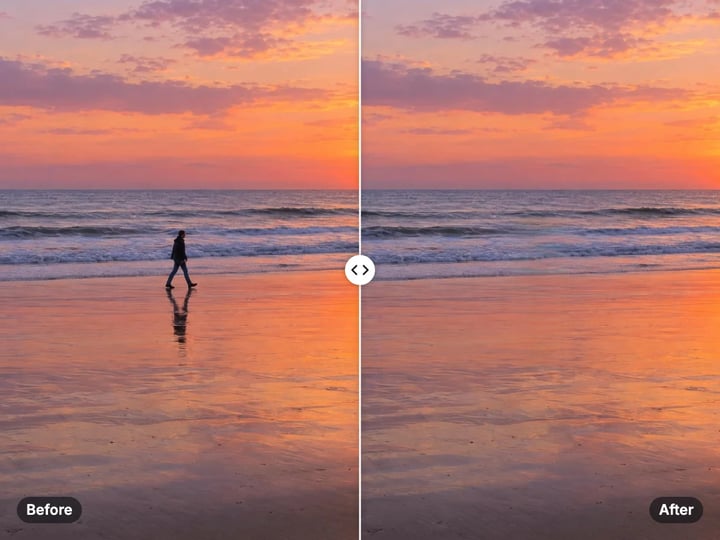 Real result
Quick answer
Brush over any unwanted object, person, or photobomber in your photo and Imagera's free Object Remover fills the spot back in to match the surroundings — all right inside your browser. Your photo never gets uploaded or saved anywhere; the whole thing happens on your own device. No sign-up, no watermark, no cost.
Your photo never leaves your device — nothing is uploaded or saved on our servers.
How it works
Open the free object remover — no install, no sign-up.
Pick a JPG, PNG or WebP. It is processed privately, never uploaded or saved on our servers.
Brush over the object, person or watermark you want to remove.
The AI fills the area in your browser and the cleaned image downloads to your device.
Why this one
Remove photobombers, stray objects, wires, blemishes or watermarks on your own photos — just paint over them.
Smart AI runs privately in your browser to fill the gap naturally. Your image is never uploaded or saved on our servers.
Open the page and go — no account, no email, no watermark.
Runs on your device, so there is no per-image cost.
Continue in Imagera
Object Remover edits the pixels you have. These studios use AI to create what is not in the picture yet — they run on credits.
 Next step
Edit images with Imagera Edit. Inpaint, modify, and transform any part of your image.
Open studio Imagera
Too small to print? Enlarge a photo to 4K, 8K or 16K (15,360 px on the long edge).
Open studio Imagera
Replace any photo background with AI-generated luxury scenes.
Open studioWho it is for
Quick private edits before posting — no account wall for a single fix.
Prep product photos for size limits without uploading client inventory.
Handle faces and unpublished work without sending files to a random server.
Guide
Imagera's free Object Remover lets you erase things you don't want from your photos — a stray person, clutter, a stamp, a small mark — with nothing to download, no account, and no cost. You simply brush over what you want gone, and the tool paints the spot back in to blend with everything around it.
What makes it different is where the work happens. Many object-remover sites quietly send your picture off to their own computers to do the editing. This one does everything on your device, so your photo never leaves your browser. The finished image saves straight to your phone or computer, the way paid desktop software would — but without the price tag or the privacy trade-off.
An object remover solves one very common annoyance: you have a photo you love, except for one thing in the frame. That one thing might be a stranger who wandered into your shot, a distracting bit of clutter on a table, an ugly wire running across the sky, a small blemish, or text you need to clean up on a photo you own.
The best time to reach for this tool is when the thing you want to remove is fairly small compared to the whole picture, and the area behind it isn't too busy. A person on a plain beach, a wire against a clear sky, or a logo on a flat-painted wall are all great candidates. If the spot you need to fill is very large or packed with detail right up to the edges, the paid Imagera editor — which can create brand-new scenery — will give you a more convincing result.
Photobombers and stray people. Someone walked into the background of your landscape or group photo at the wrong moment. Brush over them and they're gone.
Distracting objects. A bin, a street sign, a parked car, a cord on a clean desk, or a piece of furniture cutting into the frame can all be brushed away.
Blemishes and marks. A small skin blemish, a scratch, or a mark on a surface in a product photo can be cleaned up neatly.
Watermarks on your own photos. Removing a date stamp, a camera overlay, or text from images you own is handled cleanly.
Wires and cables. Power lines against a sky or cables crossing a room are exactly the kind of thin, isolated thing this tool handles well.
When you brush over an area and tap Remove, the tool looks at the pixels surrounding the spot you marked and rebuilds what was likely behind it — matching the colours, continuing the texture, and closing up the edges so the patch blends in.
All of this happens right inside your browser, using your own device. Nothing is sent anywhere while it works. The cleaned-up image is put together on the spot and offered to you as a download, straight to your device.
Keep in mind that the tool fills the gap using what's already nearby in your photo — it isn't inventing a whole new object. So for the cleanest result, brush over the entire thing you want removed plus a little margin around it, rather than just tracing its edges.
Yes. This isn't a marketing promise — it's simply how the tool is built. Everything the tool needs loads with the page and does all its work inside your browser, on your device. There's no point where your photo gets packaged up and sent off to be processed somewhere else.
That's the reassuring part: your photo simply never gets sent anywhere. From the moment you open it to the moment you download the result, the image stays with you.
This is genuinely different from most free object-remover sites, which send your picture to their own servers, keep a record of it, and sometimes hold on to it to train their systems. With this tool, your photo stays on your device the entire time.
Using the free Object Remover takes less than a minute:
1. Open the tool at imagera.ai/free/remove-object — nothing to install, no sign-up. 2. Add your photo. JPG, PNG, and WebP all work. It loads straight into your browser and is never uploaded or saved anywhere. 3. Paint over what you want gone. Use the brush to cover the object, person, or area. Cover the whole shape, plus a little border around it, for the cleanest fill. 4. Tap Remove. The fill runs on your device and rebuilds the spot. 5. Download the result. Your cleaned-up image saves straight to your device — no watermark, no account prompt.
If the first pass isn't perfect, just brush over anything left behind and run it again.
Free vs studio
Questions people ask
No. Your photo never leaves your device. The tool does all its work right inside your browser, so your picture is simply never sent anywhere at any point. It stays with you from the moment you open it to the moment you download the cleaned-up result.
Open your photo in the tool, then brush over the thing you want gone. Cover the whole object plus a small margin around it. When you're happy with what you've painted, tap Remove and the tool fills that area in to match the surrounding photo. Then download the result straight to your device. If a trace remains, just brush over it and run it again.
It works best on things with a clear, fairly plain background around them — wires against sky, a photobomber on grass, a small blemish, or a logo on a flat surface. You'll get the cleanest results when you paint the full object plus a thin border. The tool fills the gap using what's already nearby in your photo rather than inventing new scenery, so very large objects or busy, detailed backgrounds are harder to rebuild perfectly.
Yes. It runs in any modern mobile browser — Safari on iPhone and Chrome on Android both work, with no app to install. Open the page, load a photo from your camera roll, paint over the spot with your finger, and download the cleaned image. Your first uses are free without signing in; once you've used your free runs, you're asked to sign in to keep going.
No watermark is added to your photo. The file you download is a clean copy of your edited image with no logo on it. The free tool gives you a set number of removals at no cost to start; once those are used up you're asked to sign in, and further runs use account credits after that. The image itself is never watermarked.
No. The tool keeps your photo at its original resolution and only changes the area you painted over — every pixel outside that spot is left exactly as it was. How clean the filled area looks depends on how well the nearby parts of the photo can be matched, so plain backgrounds rebuild very smoothly, while busy, highly detailed scenes may show small imperfections in the patched spot.
You can use it to remove watermarks from photos you own or made yourself. Paint over the watermark text or logo and the tool fills the area in from the surrounding photo. Please only do this on your own images — removing a watermark from a photo you don't own may infringe the copyright holder's rights.
This free tool fills a removed spot by rebuilding what was likely behind it, using the parts of your photo nearby. The paid Imagera editor goes further: it can create entirely new content in the area rather than just patch it from the surroundings, and it adds editing in bulk and higher-resolution results. Use this free tool for clean everyday removals; upgrade when you need to create brand-new scenery or run lots of photos at once.
Yes, you can use the edited image commercially as long as you own the rights to the original photo. The tool puts no usage restrictions on what you make. If the source picture contains other people's material — logos, artwork, or identifiable people — it's still your responsibility to make sure you have the rights to use and publish it.
You'll need an internet connection the first time you open the tool so it can load; after that, an edit that's already running can finish even if your connection briefly drops. It accepts JPG, PNG, and WebP photos from your device, and the result downloads as a PNG. Very large photos may take a little longer depending on how powerful your device is.
Step by step: How to remove a photobomber or stranger from a photo
More free tools
Complete your workflow
These pair with Magic Photo Editor. Every tile says what the tool actually does — without leaving this page.
Change pose — keep the face. Best in-house people editor.
Backgrounds, clutter, color — one sentence, ship.
Multi-image campaign briefs with precise control.
Turn selfies into LinkedIn-ready portraits
Lock one face across every generation
Change the words, color or font of text baked into a photo, poster or screenshot.
Free passport, visa & ID photos — auto-cropped to any country's exact size, background and file size, right on your device.
Too small to print? Enlarge a photo to 4K, 8K or 16K (15,360 px on the long edge).
AI upscaling to 1080p/2K/4K. Ultra-high resolution. Batch process up to 5 images.
Imagera AI Team
Unified AI creation platform