Imagera AI - AI content creation platform for generating images, cloning voices, creating avatars, and enhancing videos. Privacy Policy | Terms

    IMAGERAAI
    Nothing saved on our servers

    Free Image Upscaler

    Enlarge and sharpen photos in your browser. Your image is never uploaded or saved on our servers — no upload, no sign-up, no watermark on the preview.

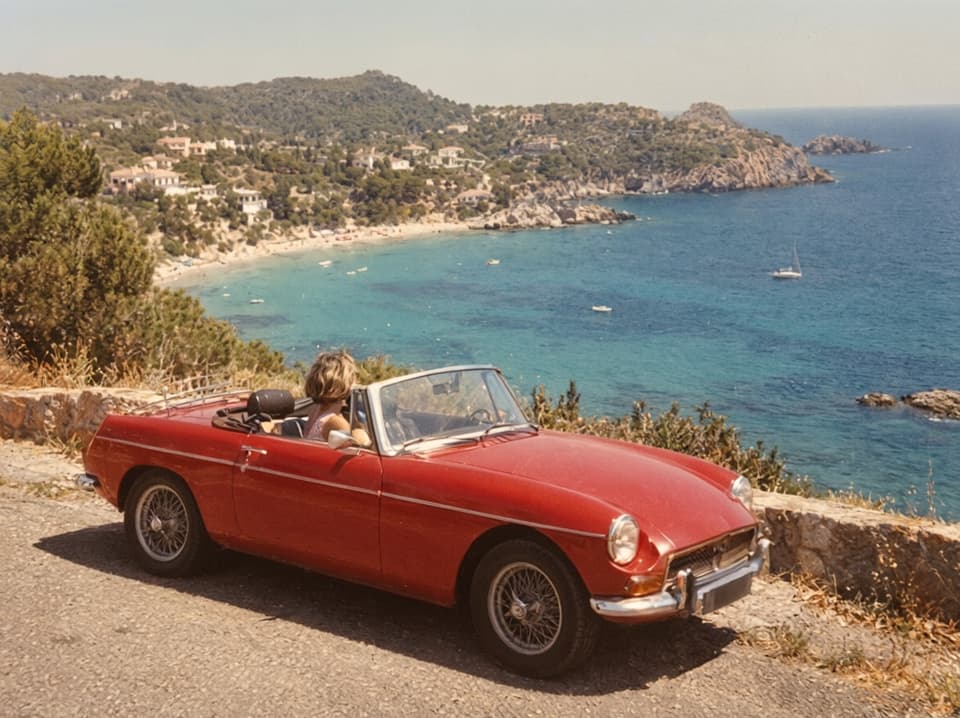
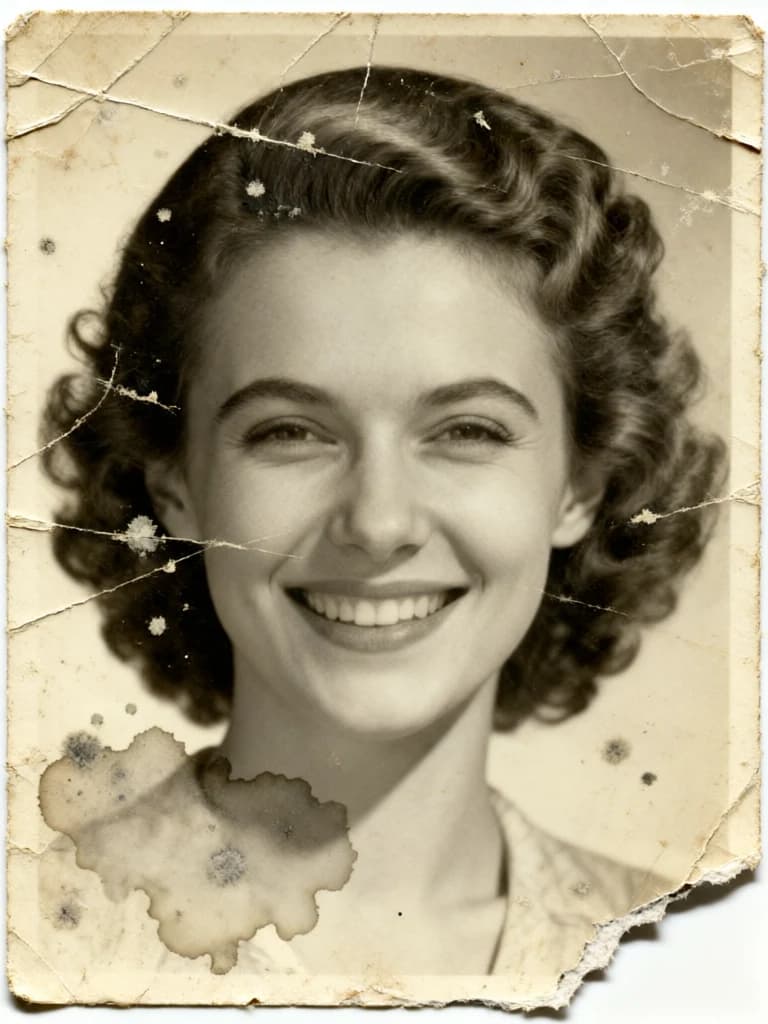
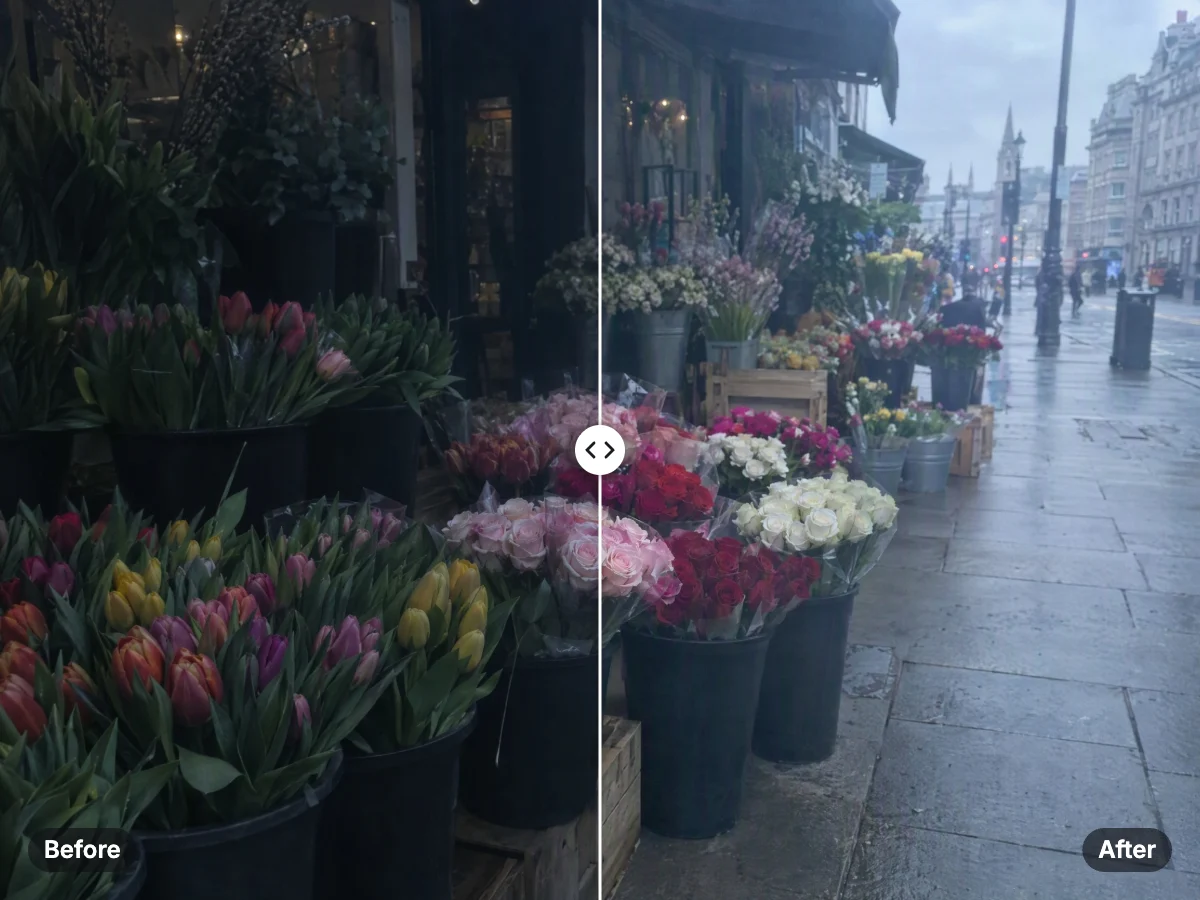
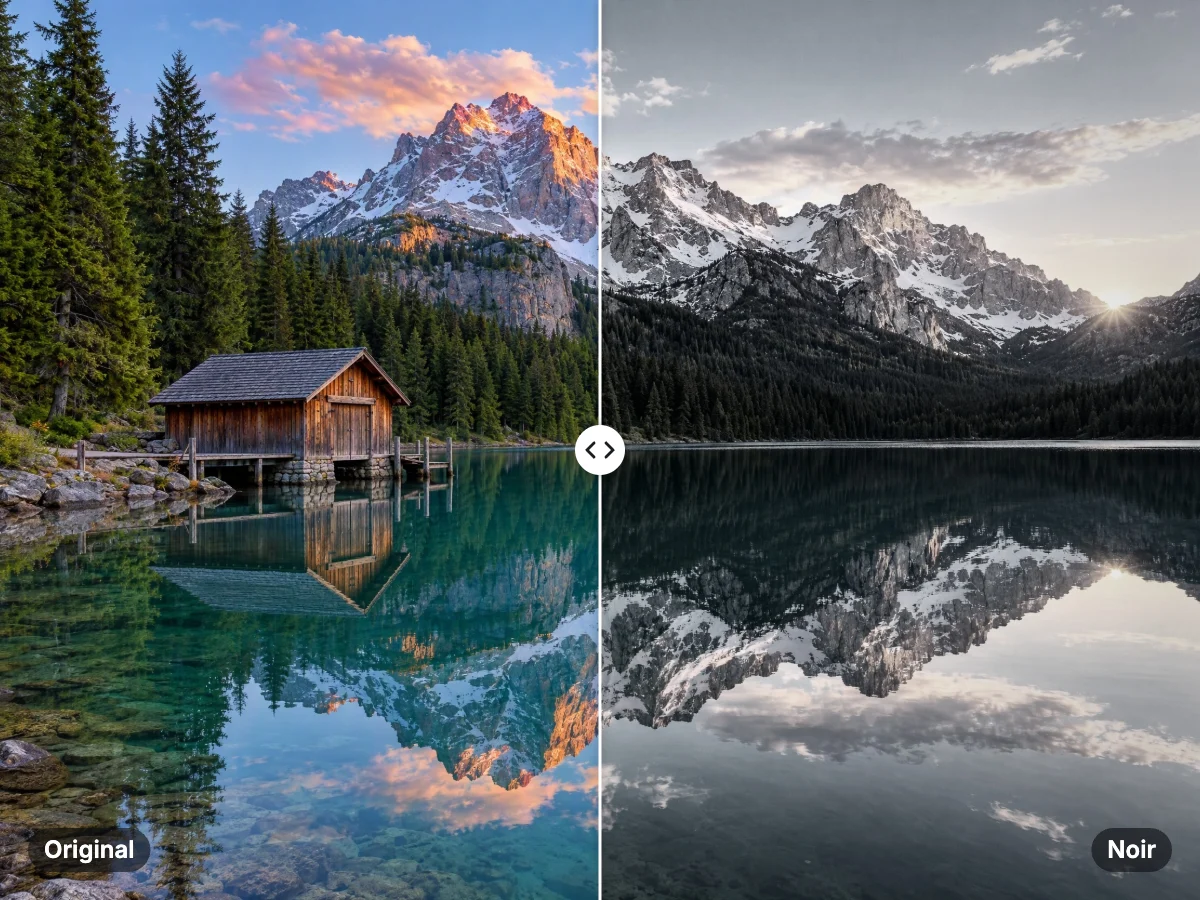
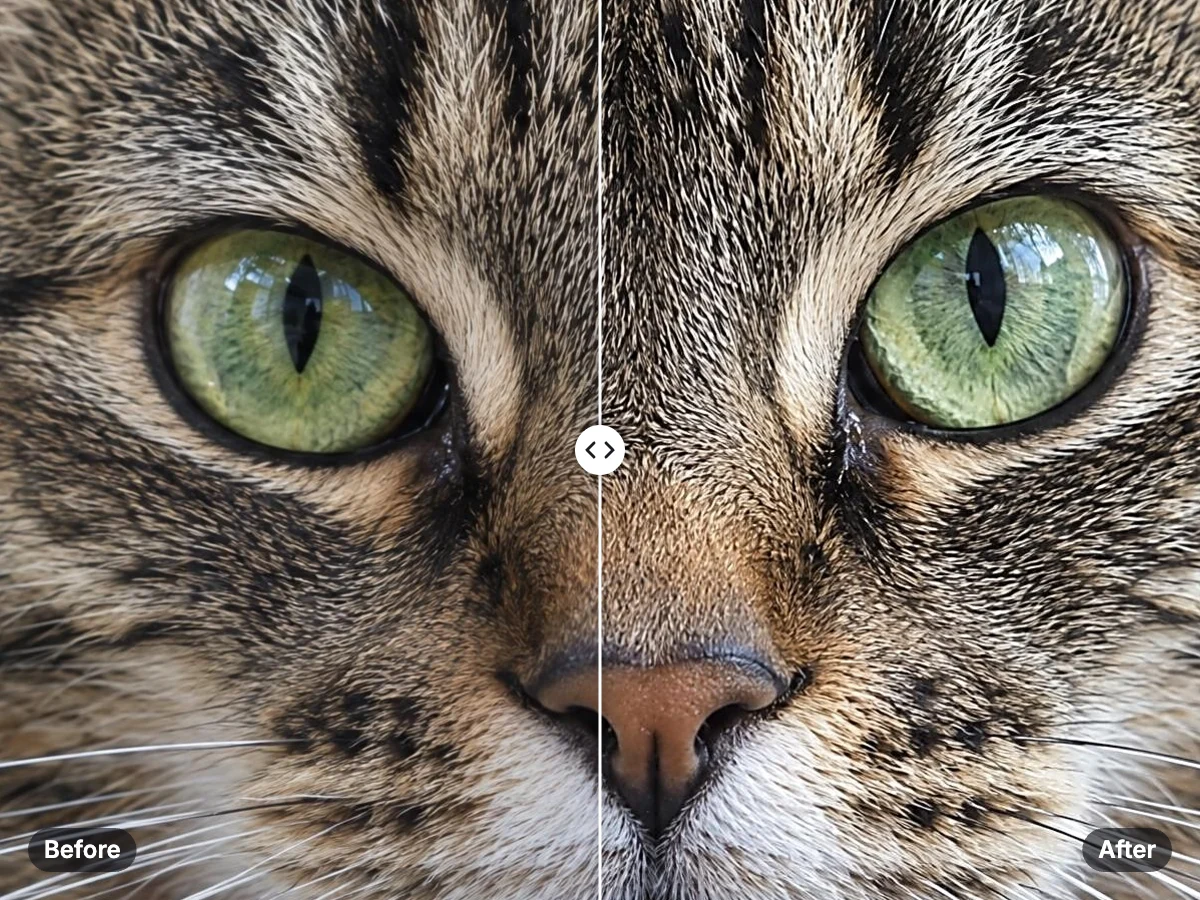
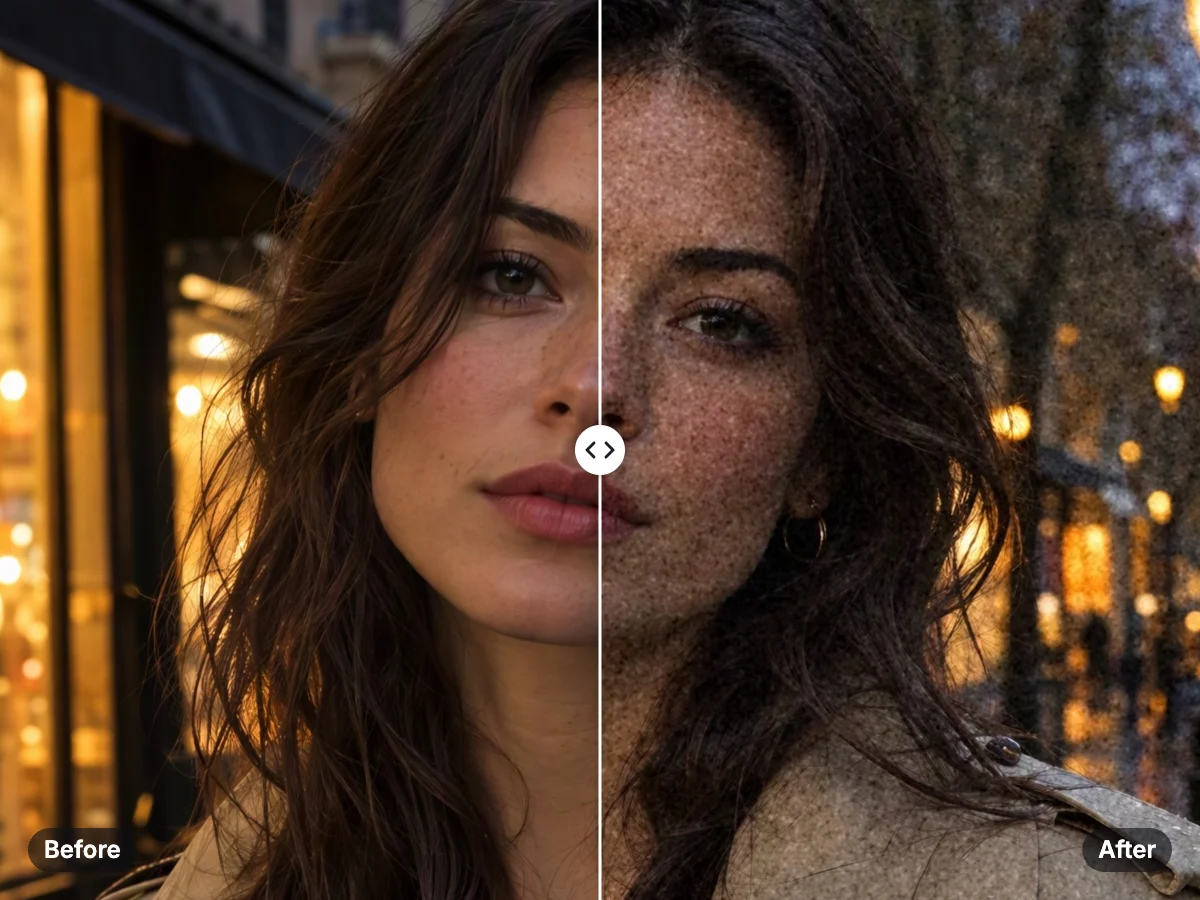
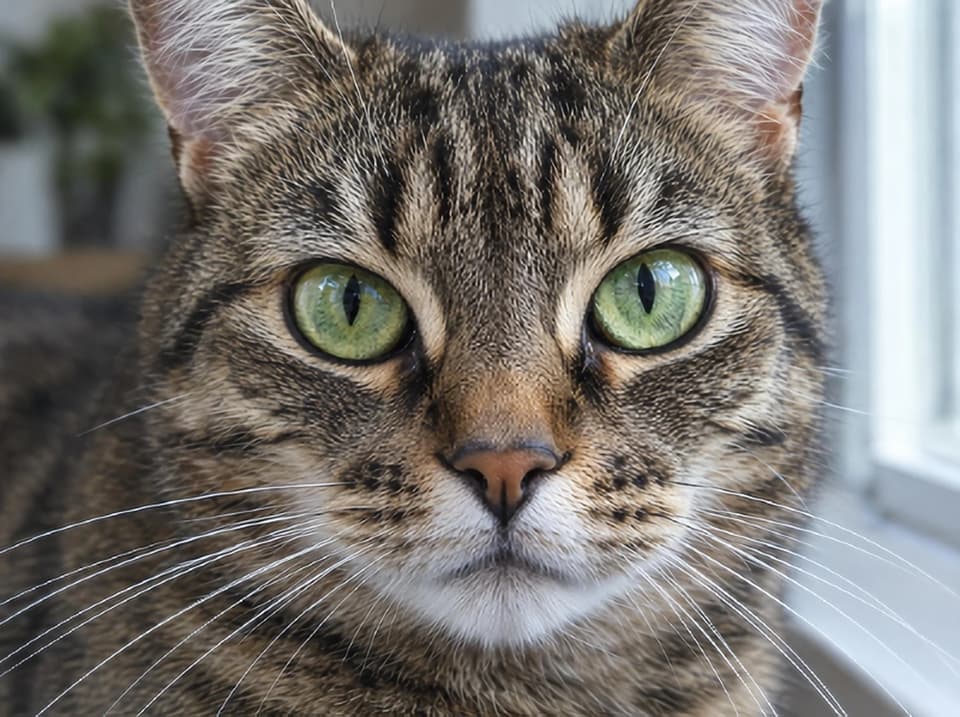
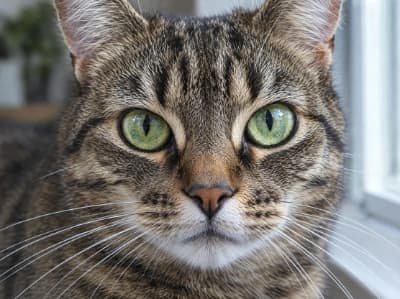
    Drag to compare

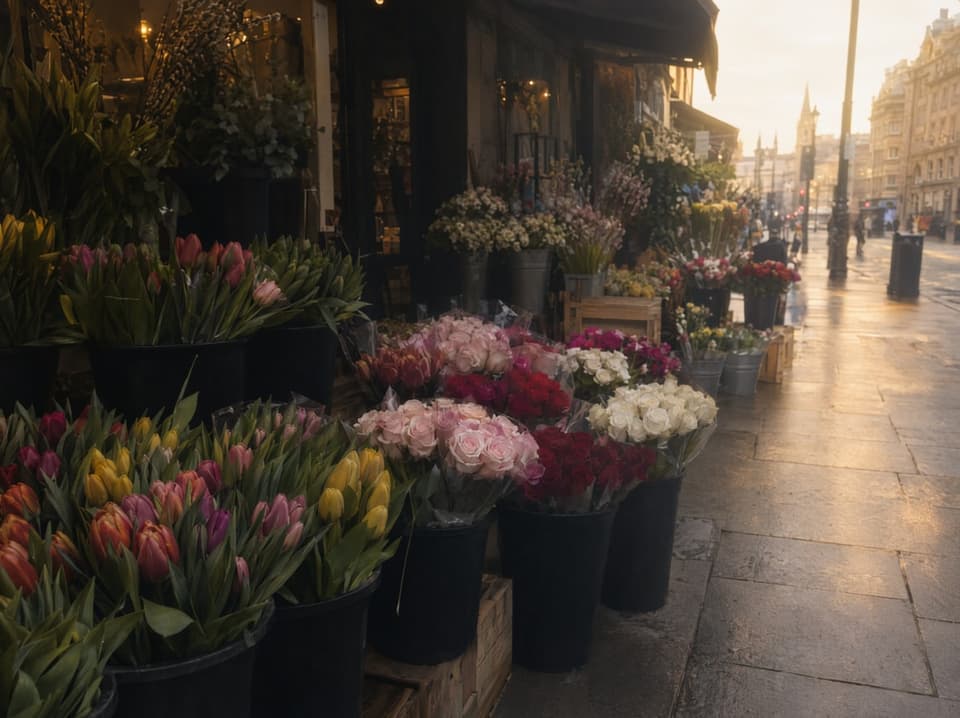
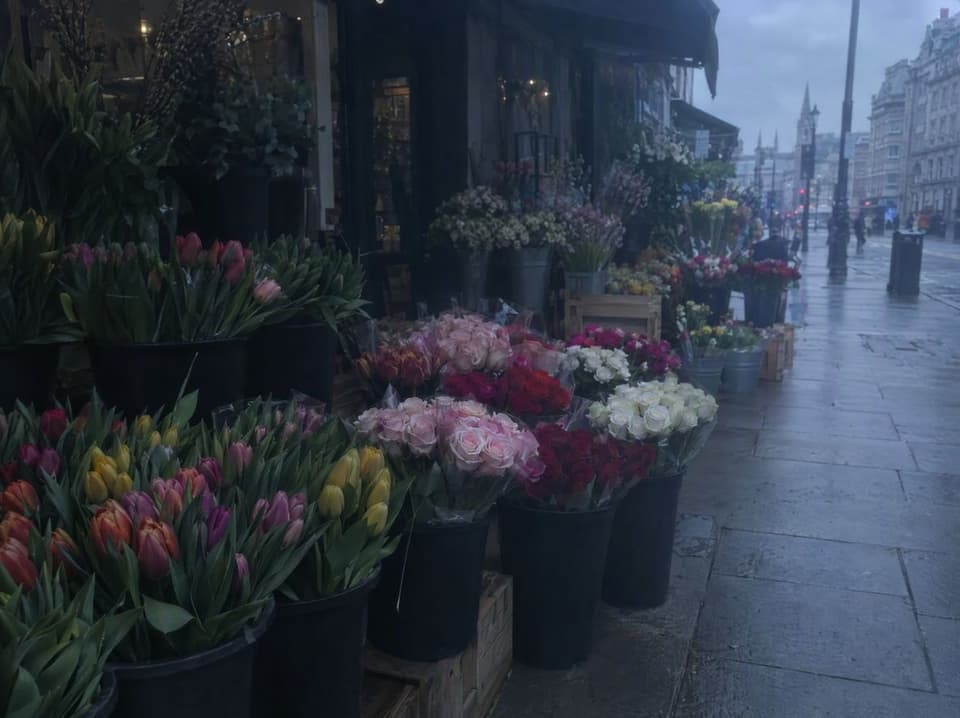
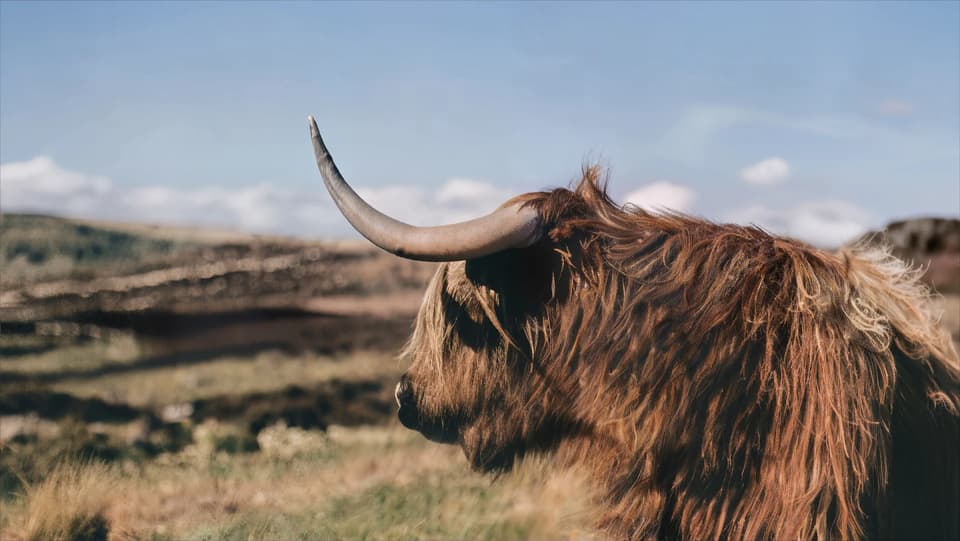
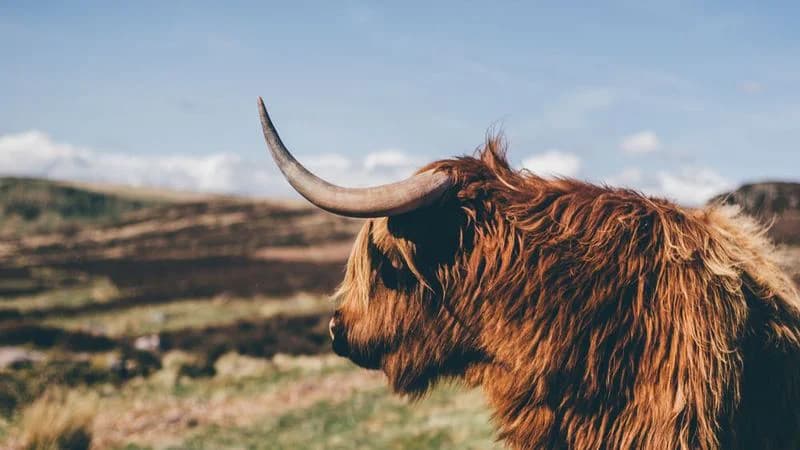
    Real result from this tool — slide to see the sharper enlargement.

    Drag to compare — after AI enhancement
    Drag to compare — before AI enhancement
    BEFORE
    AFTER

    🔒 Your photo never leaves your device

    Runs entirely in your browser. Your photo is never uploaded or stored on any server.

    Free and private — no account or sign-up needed.

    How it works

    1. Open the tool

      Open the free image upscaler — nothing to install and no sign-up required.

    2. Upload your image

      Choose a JPG, PNG or WebP image. It is processed privately and never uploaded or saved on our servers.

    3. Upscale and download

      The image is enlarged and sharpened in your browser, then downloads straight to your device.

    Why use it

    Private by design — nothing saved on our servers

    The whole upscale happens right in your browser. Your photo never touches a server — ideal for sensitive or unpublished images.

    No sign-up, no watermark

    Open the page and go. The preview download is clean — no account, no email, no watermark on the result.

    Sharper, cleaner enlargements

    High-quality resizing with edge sharpening keeps your image crisp when you scale it up (a clean enlarge, not AI-invented detail).

    Free to use

    Because it runs on your device, there is no per-image cost. Use it as often as you like.

    Quick answer

    Imagera's free image upscaler makes your photos bigger and sharper — 2x or 4x — right in your browser. No upload, no account, no watermark. Everything happens on your own device, so your photo simply never gets sent anywhere. Open the page, drop in your photo, and download the sharper result in seconds.

    Key takeaways

    • Makes photos bigger and sharper at 2x or 4x — an honest, clean enlarge that keeps and refines the detail already in your photo, not invented detail.
    • Everything happens in your browser, on your device — your photo is never uploaded, sent, or stored anywhere.
    • Completely free with no account, no email, and no watermark on the downloaded image.
    • Private by design: because your photo never leaves your device, there's no server anywhere that could keep a copy.
    • Great for print prep, shop listings, presentations, and old scanned photos — with an optional paid upgrade when you need AI-added detail or many photos at once.

    What Is a Free Image Upscaler — and What Does This One Do?

    An image upscaler makes a photo bigger without turning it blurry. Imagera's free image upscaler does exactly that: it enlarges your photo at 2x or 4x and sharpens it so the result stays crisp — all inside your browser.

    This is an honest, clean enlarge. It carefully keeps and sharpens the detail that's already in your photo, rather than inventing brand-new detail that was never there. That distinction matters. If your photo is too small for a print order or a banner, this tool makes it bigger and sharper in moments. And if you ever need an AI to add fresh detail for professional or commercial work, the optional paid Imagera upgrade does that separately. The free tool is the honest, zero-cost place to start.

    When to Use an Image Upscaler (and When You Really Need One)

    Resolution starts to matter the moment a photo leaves your screen. Print labs, online shops, social profile frames, and presentation slides all expose low-resolution images as blurry or pixelated — and some upload forms reject them outright.

    You need an image upscaler when your photo looks fine on your phone but prints fuzzy at A4 or larger; when a client asks for a minimum size and your file falls short; when you scanned an old print and it came out small; or when a download from a client portal arrived with too little resolution left. The free upscaler on this page handles all of those without costing anything and without handing your photo to a stranger's server. For photographers, designers, and sellers who hit this problem most weeks, a private, no-sign-up tool in your bookmarks is a real time-saver.

    Common Use Cases for Enlarging and Sharpening Photos

    Print and merchandise. A product photo from your phone can get small fast once it's cropped. Enlarging it before you send it to a print supplier helps you avoid the dreaded 'image too small' rejection.

    Online shop listings. Marketplaces like Amazon and Etsy ask for images at least 2000 pixels on the long side. A 4x enlarge on a small thumbnail gets you there in one step.

    Social profile photos and banners. Platform crop sizes often need a bigger image than your original. Enlarging first keeps the photo looking clean after the platform processes it.

    Presentations and slides. On a big screen or projector, every soft pixel shows. Enlarging a small diagram before you drop it into a slide keeps it sharp.

    Old or scanned photos. Prints scanned at a low setting often need a 2x to 4x boost to look right on today's screens instead of looking soft.

    How It Works: Right on Your Device, in Your Browser

    When you open the upscaler and drop in a photo, all the work happens right inside your browser — there's no trip to a server and back.

    The tool enlarges your photo using a high-quality method that builds each new, larger image from the colours and edges already in your original, so it looks far smoother than a basic stretch. It then runs a sharpening pass that brings back crispness at the edges, balancing out the slight softness any enlargement adds. The result is a bigger image that looks genuinely sharper.

    There's no plugin to add and no app to install. It works on modern phones and computers, and on older devices the same quality result simply takes a little longer. At no point does your photo leave your device.

    Is It Really Private?

    Yes — and it's private by design, not just by promise. Your photo simply never gets sent anywhere. From the moment you choose it, everything happens inside your browser: your image goes from your device into the tool and comes back out as a download, and that's it. There's no upload, no cloud step, and nothing is stored.

    That matters for photographers protecting unpublished work, designers handling private client files, and anyone whose photos show faces, locations, or documents they'd rather keep to themselves. Because the photo stays with you the whole time, there's no server anywhere that could keep a copy of it. You get a sharper image and your privacy, with nothing to set up and nothing to trust on faith.

    Free vs Paid: An Honest Comparison for the Right Job

    The free upscaler and Imagera's optional paid upgrade are built for different jobs, and it's worth being clear about the difference.

    The free tool runs on your own device, costs nothing, needs no account, and cleanly enlarges and sharpens your photo at 2x or 4x. It's ideal for quick resolution boosts, getting ready to print, and anything private you'd rather keep on your own device. The quality is genuinely good for an honest enlarge.

    The paid Imagera upgrade goes further, using smart AI to add brand-new detail rather than just enlarging what's already there. It can push to very high resolution and handle many photos at once — a good fit for photographers, agencies, and commercial work where finished quality is the main goal.

    Start with the free tool. If you later need more detail or need to do it at scale, the paid upgrade is one click away.
    Free (private) vs Imagera Pro

    Free · private
    Imagera Pro · cloud
    Private — nothing saved on our servers
    Runs on powerful cloud servers for maximum quality
    Quick enlarge + sharpen
    Up to 16K with deep AI re-detail
    Single image, no sign-up
    Batch processing + saved history
    $0, unlimited
    Credit-based, commercial-grade output

    FAQ

    Is the free image upscaler really private — does my photo get uploaded anywhere?

    No, your photo never leaves your device. The whole enlargement happens right inside your browser, so your image is never uploaded or sent to any server. There's no account, no cloud step, and nothing is stored — your photo stays with you from start to finish.

    Do I need to create an account or sign up to use the free upscaler?

    No account or sign-up is needed. Just open the page, drop in your image, choose 2x or 4x, and download — that's the whole process. Because everything runs on your own device, there's nothing to log in to and no email to enter.

    How is this free upscaler different from the paid Imagera upscaler?

    The free tool enlarges your image 2x or 4x and sharpens it, faithfully keeping and refining the detail that's already in the photo. The optional paid Imagera upgrade goes further, using smart AI to add brand-new detail at very high resolution and to handle many photos at once. If you need to print very large or have a stack of images, the paid upgrade is the next step.

    What image formats does the free upscaler support?

    You can upload JPG, PNG, or WebP files, and the result downloads straight to your device. A PNG comes back as a PNG, and a JPG or WebP comes back as a JPG. This tool enlarges and sharpens rather than converting between formats, so choose the input that matches what you need.

    Does the free image upscaler work on iPhone and Android?

    Yes. It runs entirely in your phone's browser with no app to install, so it works on iPhone (Safari or Chrome) and Android (Chrome or Firefox). Your photo stays private on mobile too, since it never leaves your device. Larger photos on older phones can take a little longer to finish.

    Will the upscaled image have a watermark?

    No watermark is added. You get a clean, full-resolution image with no logo, badge, or overlay of any kind. What you download is simply the enlarged version of your photo — nothing is stamped on top.

    Can I enlarge an image 2x or 4x without losing quality?

    Yes. The tool enlarges at 2x or 4x while keeping the edges and textures already in your photo sharp, so the result looks noticeably crisper than a plain browser resize. It's an honest, clean enlarge — it doesn't invent new detail, so it can't recover anything the original photo never captured in the first place.

    Can I use the upscaled images for commercial projects?

    Yes — Imagera adds no restrictions to your downloaded file, so the enlarged image is yours to use. Whether you can use it commercially depends only on whether you owned or licensed the original photo. If you had full rights to the source, the upscaled version carries the same rights. Always check the rights to your source image before commercial use.

    Does the free image upscaler work offline?

    You need an internet connection the first time, just to load the page. After that, the enlarging happens on your own device, and your photo is never sent over the internet at any point. It isn't a downloadable offline app, but your image data always stays local while it's being upscaled.

    Is there a file size or resolution limit on the free upscaler?

    Because the work happens on your own device, very large files can be slow or run into your device's memory limits, especially on older phones or computers. For everyday photos — phone shots, web images, scanned prints — it works smoothly. For very large source files or big batches, the optional paid Imagera upgrade handles those without relying on your device's memory.

    Need professional, high-resolution results?

    The free tool is great for quick, private edits. For maximum quality and batch processing, use Imagera Pro.

    Add real AI detail (up to 16K) →

    More free, private tools