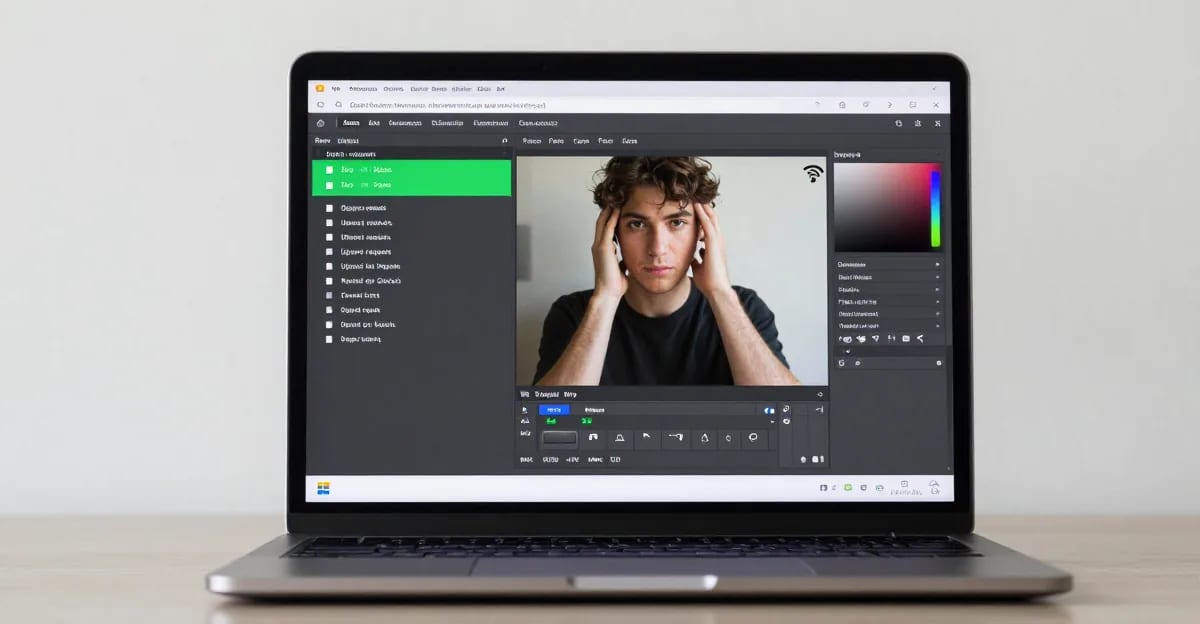

How to Tell If an Image Tool Runs Locally (Not Cloud) is a practical Imagera workflow: start from a real source file, describe what should change, generate with credits shown up front, and review before you publish. This guide covers the steps, quality checks, and when to use related tools.
Quick answer: An image tool runs locally if it still works after you disable Wi-Fi, and if your browser's network tab shows zero POST or PUT requests carrying your file when you edit. If both hold, your photo never left the browser tab.
1.How can I verify in under 60 seconds that a tool processes locally, not in the cloud?
Run two quick checks. First, load the page, then turn off Wi-Fi: a truly local tool keeps editing offline, all in-browser. Second, open the network tab before dropping your file and watch for uploads. A WebAssembly tool that runs on-device sends no file-upload requests, even on a 4K or 8K image, and the processing stays on your machine.
2.Does in-browser processing sacrifice quality compared to cloud tools?
No. WebAssembly runs at near-native speed and handles 4K and 8K files without uploading a single byte, so you keep full-resolution output while your image stays on-device. Imagera routes jobs to the cloud only when you explicitly choose them, and charges in credits so the tradeoff is visible up front before you commit.
3.The short answer: two tests you can run right now
Every online image tool claims to protect your privacy. Here is how to verify the claim rather than take it on faith. There are two independent methods, and you only need one to know for certain.
Method 1 — The offline test. Load the tool in your browser, then disconnect from Wi-Fi (or turn on Airplane Mode). Drop your photo into the tool and run it. If the result appears normally, the tool processes inside your browser and has nothing to send to a server. If you get a network error, the tool is communicating with a server to do its work.
Method 2 — The network tab. Open your browser's developer tools, go to the Network panel, clear existing requests, then drop your photo in. Watch for any POST, PUT, or multipart/form-data request containing binary data. If you see none — only small analytics pings at most — your image never left your browser.
Tools built on WebAssembly (Wasm) use the first architecture: all processing runs inside your browser tab, on your own hardware, with no file ever leaving the device. Tools built on a cloud pipeline require an upload regardless of what their homepage says.
4.What's the difference between client-side and cloud image processing?
Client-side processing means the software that edits your image runs inside your browser — the same tab you opened. Cloud processing means your browser sends the file to a remote server, that server runs the software, and the result is sent back. The distinction matters because every cloud tool requires a moment when your raw photo travels across the internet to hardware you do not control.

WebAssembly makes true client-side image processing practical. It is a binary instruction format that modern browsers execute at speeds within 10–20% of native machine code, according to research published in the USENIX ATC proceedings. Google's own Squoosh project demonstrated that MozJPEG compiled to WebAssembly produces output bit-for-bit identical to the native binary encoder. That performance level means tasks like compression, format conversion, EXIF stripping, and even lightweight AI inference are now fast enough to run entirely inside a browser tab.
The result is a clean architectural split:
| What happens to your photo | Cloud tool | In-browser tool (WebAssembly) |
|---|---|---|
| File uploaded to a server? | Yes — required | No |
| Company can retain a copy? | Yes — even if they promise not to | No — physically impossible |
| Works if you go offline? | No | Yes, once the page has loaded |
| Subject to server data breach? | Yes | No |
| Could be used to train AI? | Potentially, per their policy | No — they never receive it |
| Sign-up required to manage your files? | Often | No |
| Server-side file size cap? | Typically 5–20 MB | None (limited by your device RAM only) |
The IAPP's Privacy and Consumer Trust Report, which surveyed 4,750 people across 19 countries, found that 68% of consumers globally are either somewhat or very concerned about their online privacy — and 82% had already opted out of sharing personal data in the prior 12 months as a direct result. That anxiety is exactly what the cloud vs. in-browser distinction speaks to.
5.How do I know an image tool actually processes locally and isn't uploading my file?
The honest answer is: don't trust the homepage copy — run one of the two tests above. Here is the network tab method in detail, because it gives you the strongest proof regardless of what the tool claims.

5.1How to check the network tab (step by step)
- Open the tool's page in Chrome, Firefox, Edge, or Safari.
- Press F12 (Windows/Linux) or Cmd + Option + I (Mac) to open developer tools.
- Click the Network tab at the top of the panel.
- Click the clear button (the circle with a line, or trash icon) to remove the page-load requests so the log is empty.
- Now drop your photo into the tool and run the operation (compress, convert, remove background, etc.).
- Look at the network log. Filter by XHR or Fetch if you want to narrow it down.
- What you are looking for: any POST or PUT request whose payload contains binary data or a base64-encoded file. That would be your photo being uploaded.
- What a genuine in-browser tool shows: no binary uploads at all — only small analytics or telemetry pings (those do not contain your image). The Chrome DevTools documentation from Google confirms there is no way for a website to hide network requests from this panel; if data is transmitted, it appears here.
If the log stays quiet after you process your photo, your image never left the browser. That is a verifiable, technical fact — not a policy promise.
6.Does a tool working offline prove nothing is uploaded?
Yes — with one small caveat. If a tool functions correctly after you disconnect from the internet (turn off Wi-Fi, or enable Airplane Mode), it is proof the tool does not need a server connection to process your file. There is no mechanism by which it could send your photo anywhere because there is no open network path.
The caveat: some tools have a service worker cache that pre-downloads assets. The tool might queue your file to upload once a connection is re-established. This is rare for image tools but worth knowing. If you want to rule it out entirely, use the network tab test (step 7 above) while you are online — that will catch any queued POST requests the moment you reconnect.
For most in-browser tools, the offline test is the fastest, most intuitive proof. Load the page, disconnect, process your photo, see the result. Done.
7.What does "client-side" actually mean in technical terms?
When a tool is described as client-side, it means every computation runs in your browser process — using your device's CPU and memory — rather than on a remote server. The code is delivered to your browser when you load the page, and from that point it runs locally.

WebAssembly is the enabling technology for high-performance client-side tools. A USENIX ATC study found WebAssembly benchmarks came within roughly 2× of native code speed across a wide suite of compute tasks, with many benchmarks within 10% of native. For image processing specifically, the earezki.com developer journal notes that browser-side compression with WebAssembly takes 0.8 to 2 seconds end-to-end — including zero upload and download time, because no network transfer occurs.
This is why a legitimate in-browser tool:
- Loads slightly more JavaScript than a cloud tool (it includes the processing library)
- Has no server costs tied to your file size
- Cannot log, retain, or forward your image by design
- Works across sessions without a user account
Cloud tools, by contrast, must process files on their infrastructure to function at all. Their "privacy" is therefore always a policy commitment — "we delete within 1 hour" or "within 30 days" — rather than an architectural guarantee. Policy commitments depend on the company keeping them. Architecture does not.
8.How to verify Imagera's free tools run in your browser
Imagera's free EXIF remover, along with the other tools in the free suite, use this same architecture. Your photo is processed inside your browser tab. Nothing is saved on our servers. No sign-up is required.

You can verify this yourself using either test described above:
Offline test. Load the EXIF remover or another free tool, disconnect from Wi-Fi, drop your photo in, and run the strip. The result downloads to your device immediately — no connection required once the page has loaded.
Network tab test. Open developer tools, clear the network log, run the tool on your photo, and inspect the requests. You will see no POST or PUT requests carrying binary data — because there are none. The Chrome DevTools network inspector makes this completely transparent.
This is the same approach recommended in the best private no-upload image tools guide for evaluating any tool you are considering using.
9.Is in-browser processing as good as cloud quality?
For standard tasks — compression, format conversion, EXIF stripping, basic resize — in-browser quality is on par with cloud quality. Google's Squoosh project showed that WebAssembly-compiled MozJPEG produces identical output to the native binary. There is no quality penalty for processing locally.
The honest limitation is at the extreme end: very large files (above roughly 50–80 MB) can hit browser memory limits on low-RAM devices, and AI-powered tasks that require large neural network models (like generating new detail in a 16K upscale) are better suited to dedicated cloud GPU hardware.
For the tasks most people use free tools for — compressing a photo for a job application, converting a HEIC from an iPhone, stripping GPS metadata before posting to social media, removing a background for a product shot — in-browser quality is fully sufficient, and the privacy guarantee is total. The EXIF and GPS metadata removal guide goes into detail on exactly what metadata is stripped and why it matters.
For heavier AI work — generating new image content, AI-powered upscaling to very high resolutions, batch processing hundreds of files — Imagera's paid cloud studio is the right tool. That does involve uploading your files, and we say so plainly.
10.How to check if a tool is secretly uploading your files (step-by-step)
Here is the full verification workflow in one place:
- Load the tool in a modern browser (Chrome, Firefox, Edge, or Safari all work).
- Open developer tools: F12 on Windows/Linux, or Cmd + Option + I on Mac.
- Go to the Network panel and click the clear/trash button to empty the log.
- Drop your photo into the tool — do not click "process" yet if there is a separate button.
- Watch the network log as the tool processes the image.
- Filter by XHR/Fetch to reduce noise from font or icon loads.
- Look for any POST or PUT request with a substantial payload. Click on it. If you see binary image data or a base64 blob in the request body, your photo was uploaded.
- If the log is quiet — no binary POST requests, only small analytics pings — your photo stayed in the browser.
- Optional offline confirm: after step 8, turn off Wi-Fi and repeat the process. If it still works, the result is confirmed.
The Chrome DevTools documentation from Google states explicitly that there is no mechanism for a page to hide network requests from the network panel — all HTTP/HTTPS and WebSocket traffic appears there. This makes the network tab the definitive, non-spoofable verification method.
11.Try it yourself — Imagera's free in-browser tools
Imagera's free image tools run entirely inside your browser. Your photo is never uploaded or saved on our servers, and no sign-up is required. Run the network tab test above on any of them — you will see the quiet log that confirms in-browser processing.
For AI-powered tasks that genuinely require cloud compute — high-resolution upscaling, generative object removal, batch processing at scale — Imagera's paid studio is available with a clear disclosure that your files are processed on secure servers. We do not blur the line between the two.
Sources:
- IAPP Privacy and Consumer Trust Report
- Chrome DevTools Network Panel Documentation
- WebAssembly vs. Native Code Performance — USENIX ATC
- How WebAssembly Enables Privacy-First Browser Tools
- Browser-Based Image Tools: The Complete Privacy Guide — SammaPix
- Google Squoosh — in-browser image compression
- Why You Should Compress Images in the Browser, Not on the Server — FileProInfo