Quick answer: Yes. Imagera lets you remove an object from a photo online, free with no signup, using AI inpainting that reconstructs the background behind whatever you erase in seconds.
1.How do you remove an object from a photo for free without signing up?
Open Imagera in any browser, upload 1 photo, brush over the object, and let AI fill the gap. No account is required for your first edits, there is no watermark, and a typical cleanup finishes in under a minute. The tool runs on modern inpainting models that reconstruct textures at up to 4K, handling shadows and reflections so the fill blends naturally with the surrounding scene.
2.Is removing objects with AI actually private and safe for personal photos?
The free object remover works on your device without sign-up or generation credits. Brush over the unwanted region, run the removal, and inspect the filled area before downloading. More involved cloud edits use a separate workflow and a quoted credit cost; check that workflow's inputs and processing details before submitting a file.
3.How Do I Remove an Unwanted Object or Person From a Photo for Free?
Open Imagera's free object remover, load your photo, paint a brush stroke over what you want gone — a photobomber, a bin, a date stamp, a tourist — and the AI fills the area with matching background. No account, no signup, no watermark. Your photo is never uploaded to any server; the entire process runs inside your browser tab.
That is the short answer. The rest of this guide covers technique (how to brush for the cleanest fill), what to realistically expect, and why the no-upload architecture matters for photos you would rather keep private.
Every photographer has been there: a perfect shot of a landmark, a sunset, a family moment — and right in the middle of the frame, a stranger you cannot crop out without wrecking the composition. Or a red-eye timestamp burned into the corner by an old camera. Or a power line slicing through an otherwise clear sky.
Cloud-based erasers will remove the object, but they do it by receiving your photo on a remote server, processing it there, and sending back the result. That chain of custody introduces a question most tools never answer clearly: what happens to your photo after that? How long is it stored? Can it be used to improve their models?
With a browser-based tool, that question disappears entirely. The photo never leaves your device, so there is nothing stored, nothing retained, nothing to worry about.
4.Can I Erase Something From a Photo Without Uploading It to a Server?
Yes. A browser-based object remover loads the AI model into your browser tab once, then runs inference locally on your device. Your image bytes travel to the tool's CDN to fetch the model weights on page load — exactly the same as downloading any webpage — but your actual photo file is never transmitted.
You can confirm this yourself: once the page has fully loaded, disconnect from Wi-Fi or switch to airplane mode. The tool will still process your photo and produce a result. That offline behavior is architectural proof that nothing is being uploaded. (For a full step-by-step verification guide using your browser's network tab, see how to tell if an image tool actually processes locally.)
Most popular cloud erasers do not survive the offline test. They need a live server connection to process your file because the model runs on their infrastructure, not yours.
5.Why Does the No-Upload Distinction Matter?
It matters because of what cloud tools do with your file once they receive it. Retention policies across popular cloud object removers vary widely:
- Some tools delete your image within two hours of processing.
- Others keep the original and result on their servers for 30 days.
- Many grant themselves a temporary license to process your content — a clause buried in terms of service that most users never read.
Beyond retention, there is a growing body of evidence that photo data uploaded to online tools can end up in AI training pipelines. In 2025, LinkedIn began using profile photos and public posts to train its generative AI models by default — users in most regions had to opt out manually, and past data was already included. Meta began training on European users' Facebook and Instagram public images as of May 27, 2025, with no opt-out available in the United States. Clearview AI, which built a database of more than 60 billion scraped facial images, settled a class-action lawsuit in March 2025 — but the settlement drew objections from attorneys general in 22 states because it did not stop Clearview from continuing to collect facial data.
These incidents did not involve niche tools. They involved the largest platforms on the internet. The lesson is not that every cloud tool is reckless; it is that policy-based privacy guarantees ("we delete in 24 hours") depend entirely on trusting the company to follow through. Architectural privacy — the kind where your photo never reaches a server in the first place — requires no trust because there is no upload to mishandle.
According to a 2025 survey cited by Protecto.ai, 88 percent of internet users express concern about their personal information being used to train AI systems, with 42 percent describing themselves as extremely concerned. That concern is well-founded, and browser-based processing is the only technical answer that fully addresses it.
6.How Do I Remove a Photobomber or Tourist From My Picture?
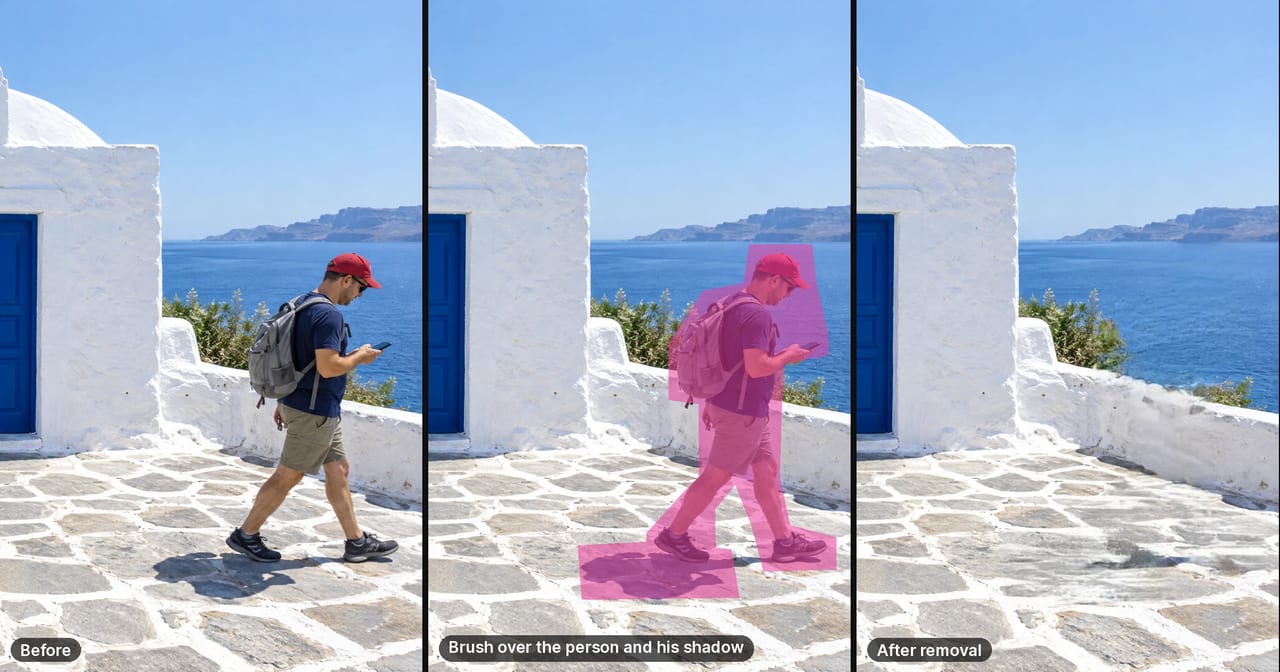
This is the most common use case, and the technique that produces the best result is to brush generously. Here is the key insight most guides skip: AI inpainting does not "know" where the object ends and the background begins — it reconstructs the hidden area based on the surrounding texture. If you brush only the person's body and leave a thin outline of their shadow or shoulder, the fill will look off.
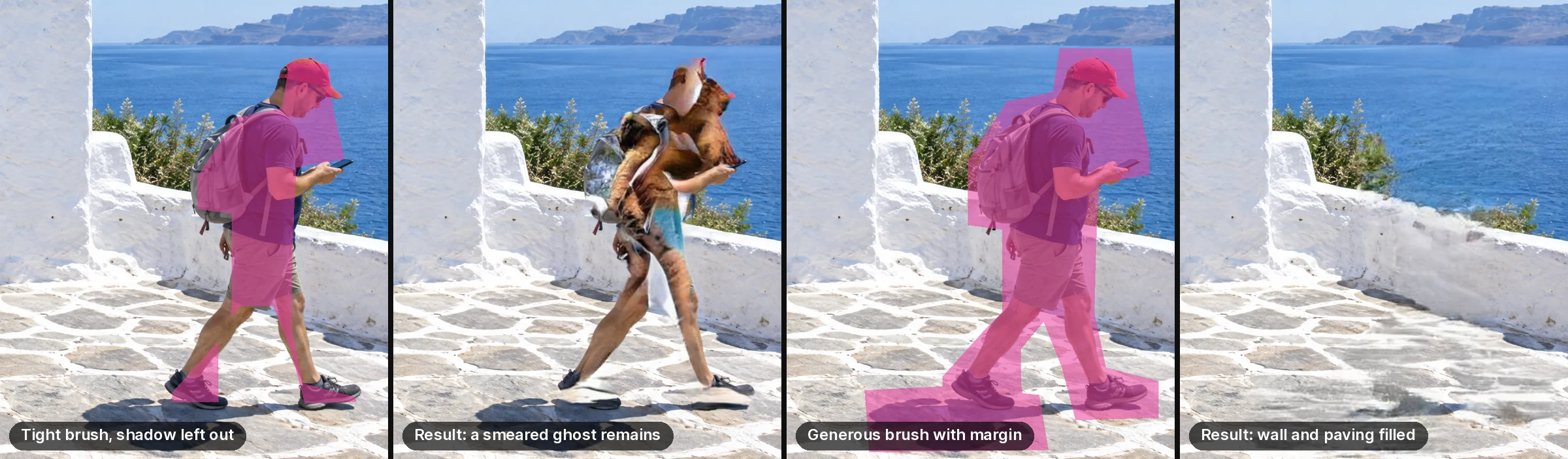
Demonstration: the Object Remover's on-device inpainting model (the same model file and mask expansion the tool uses) run on this photo outside the browser. The generous brush removes the whole person; at 100% the filled paving is streaky, with dark patches where the shadow was. Photo generated for this article; invented people.
The rule: paint the whole object plus a small margin of background around it.
For a standing person in front of a beach, paint from roughly 10–15 pixels outside their silhouette all the way across. The larger the masked area, the more background context the model has to reconstruct a natural-looking fill.
7.How to Remove an Object From a Photo — Step by Step
-
Open the tool. Navigate to Imagera's free object remover. No login prompt will appear.
-
Load your photo. Click "Choose image" or drag and drop your file directly into the browser window. JPEG, PNG, and WebP files are all supported.
-
Adjust brush size. Use the brush-size slider to match the object you are removing. A small, precise brush works for date stamps and text overlays. A larger brush is faster for removing a full person or vehicle.
-
Paint over the object generously. Cover the entire unwanted element and a margin of surrounding background. Do not try to trace the exact edge — include some of the clean background inside your mask.
-
Click "Remove." The AI runs locally in your browser. Processing typically takes 5–20 seconds depending on image size and your device.
-
Inspect the result. Zoom in on the filled area. If there is a visible seam or inconsistency, use the brush on that specific spot and run the tool again. One or two passes usually resolves most issues.
-
Download. Click "Save" or "Download." The output file has no watermark. Your original photo remains unchanged in your device's storage.
8.What's the Best Free Magic-Eraser That Doesn't Add a Watermark?
For browser-based processing without a watermark, Imagera's free tool is the option that combines privacy (no upload, no server), quality (AI inpainting), and a clean output (no logo stamped on the result). The honest comparison below covers the key differences:
| Feature | Most cloud erasers | Imagera free object remover |
|---|---|---|
| Uploads your photo to a server | Yes | No |
| Stores the photo after processing | Varies (2 hrs–30 days) | Never stored — not received |
| Requires signup or account | Often yes | No |
| Adds a watermark to free output | Sometimes | No |
| Works offline (proof of local processing) | No | Yes |
| Can train AI on your photo | Possible (depends on ToS) | Impossible — never received |
| File size limit imposed by server | Usually 5–10 MB | None (your device's memory) |
The no-watermark point is worth emphasis: several tools remove the object cleanly, then stamp their logo in the corner. You have traded one blemish for another. Imagera's free tier does not add any overlay to the downloaded result.
9.Does Object Removal Work on My Phone in the Browser?
Yes. Because the tool runs inside a standard web browser, it works on any device with a modern browser installed — iPhone Safari, Android Chrome, Firefox, Edge, and desktop browsers all work. There is no app to download.
Performance depends on your device's CPU and available memory rather than network speed (since no upload happens). On a mid-range 2023 or newer smartphone, a typical 8–12 megapixel photo processes in under 30 seconds. Larger files — 20+ megapixels from a recent DSLR — may take closer to a minute on a phone but will still complete.
If you are working with a very large file and want faster results on mobile, you can reduce the image size first using Imagera's free image compressor, then run the object remover. The quality loss from a light compression pass is generally invisible at social-sharing sizes.
10.Setting Honest Expectations: What Object Removal Does Well and Where It Struggles
Object removal works best when the background behind the erased element is relatively uniform — open sky, plain walls, sand, grass, water, pavement. The AI extrapolates from surrounding pixels, so the more predictable the texture, the cleaner the reconstruction.
It works less well when:
- The object is large relative to the frame. Removing a person who fills 40% of the image leaves a large gap the model must invent from scratch. Results will vary.
- The background behind the object is complex or detailed. Removing a person standing in front of a bookshelf with visible titles, or in front of a decorative mosaic, requires the model to reconstruct fine detail it cannot reliably guess.
- The object's shadow extends far into the frame. Shadows cast by the removed subject need to be included in the mask or they will remain as ghostly artifacts.

Demonstration, same on-device model: a large removal in front of a detailed pattern. The fill passes at a glance and smears up close.
For cases where the gap is too large or the background too complex — where you need the AI to convincingly invent new scene content rather than just reconstruct existing texture — Imagera's paid AI studio includes a generative-fill tool that can create new scene elements (additional foliage, extended architecture, replaced furniture) from a text prompt. The free eraser handles the large majority of everyday use cases; the paid studio is the honest next step for demanding edits.
11.Privacy and Sensitive Photos: An Important Note
If you are removing an object from a photo that also contains faces, documents, or location-identifiable details, the no-upload architecture matters more than usual. A photo of a family member with a strangers's face nearby, a snapshot of your home address on a package, a photo from an ID document — these are images you almost certainly do not want processed on a third-party server.
With Imagera's free tools, the architectural guarantee holds regardless of photo content: your image is processed entirely in your browser tab and nothing is transmitted to any server. For a broader look at what personal data can be hidden inside a photo file — including GPS coordinates embedded in EXIF metadata — see how to remove EXIF and GPS location from a photo before posting.
If you are working with sensitive document images specifically — passport scans, ID cards, visa photos — read how to remove metadata from a passport or ID photo privately before uploading anything to any online service.
12.Related tools on Imagera
- Browser tools
- Pricing
- Flyaway and stray hair removal guide, for strands too fine to paint over
13.Try It Now
Ready to clean up your photo? Open Imagera's free object remover — no account needed, no file upload, no watermark on the result. Paint over anything you want gone and download the clean version in seconds.
For more no-upload tools in the same suite, the complete guide to private no-upload image tools covers everything available — compress, convert, upscale, strip EXIF, remove background, and remove objects — all browser-based.