If you are comparing AI image tools, the honest answer is that no single product is best at everything — and most of the popular ones lock you into a monthly subscription for one narrow job. This guide maps 13 well-known tools to their closest Imagera equivalent, with a balanced take on where each rival is genuinely stronger and where Imagera's model fits better.
The through-line: Imagera is browser-based and runs on pay-per-use credits that don't expire — no subscription, no watermark on output — and bundles generation, editing, upscaling, restoration, headshots, product photos, head-swap, and more into one account. Every tool below does something narrower. Use the quick comparisons to jump to a full, evidence-based breakdown of whichever matchup matters to you.
Quick answer: Imagera is a full-stack AI image alternative that replaces 13 separate single-purpose tools with one platform for generating, upscaling, editing, and detecting images at 4K and 8K resolution.
What should you look for in an AI image tool alternative in 2026?
Prioritize breadth over single features: the strongest 2026 alternatives handle 100+ styles, upscale to 4K and 8K, and show the credit cost before each edit. Imagera consolidates all 13 compared workflows into one platform, so you swap a stack of subscriptions for a single credit balance instead of juggling separate apps and their monthly fees.
Why choose an all-in-one platform over 13 separate tools?
Running 13 point tools means 13 logins, 13 learning curves, and duplicated uploads. Consolidating into one workspace cuts constant context-switching and keeps every asset in a shared library. A single 2026 platform that spends credits across generation, 8K upscaling, editing, and detection removes that friction, so you stay in one flow instead of exporting and re-importing between apps, all billed on one meter.
Why Compare These Tools at All?
Most AI image products are built around a single job — one tool restores old photos, another upscales, another generates headshots — and each ships with its own monthly plan. If you only ever do one of those jobs, at high volume, a dedicated subscription can make sense. But most people who search for "AI image tool alternatives" are juggling several jobs: they need a headshot this month, a product shot next week, and a restored family photo before a birthday. Paying three or four separate subscriptions for occasional use is where the math stops working.
The core decision, then, isn't "which tool is best?" — it's "do I want depth in one narrow task, or breadth across many, paid only when I use it?" Imagera is built for the second case. Because every tool draws from one shared, non-expiring credit balance, a headshot today and an upscale next week come out of the same wallet, and nothing you don't touch keeps billing you. The comparisons below are honest about where the dedicated tools still win, so you can pick deliberately rather than by default.
How Imagera Compares at a Glance
| Category | Popular tool | Closest Imagera tool | Full comparison |
|---|---|---|---|
| AI Headshot Generators | HeadshotPro | AI Headshot Generator | HeadshotPro alternative |
| AI Headshot Generators | Aragon AI | AI Headshot Generator | Aragon AI alternative |
| Image Upscaling & Enhancement | Magnific AI | Image Upscaler | Magnific AI alternative |
| Image Upscaling & Enhancement | Let's Enhance | Image Upscaler | Let's Enhance alternative |
| Photo Restoration | Remini | Restore Old Photos | Remini alternative |
| Photo Restoration | VanceAI | Restore Old Photos | VanceAI alternative |
| Skin Realism & AI-Image Realism | Enhancor | Skin Detailer | Enhancor alternative |
| Skin Realism & AI-Image Realism | Undetectable AI | AI Image Humanizer | Undetectable AI alternative |
| Image Generation | Leonardo AI | AI Image Generator | Leonardo AI alternative |
| AI Photos of Yourself | PhotoAI | Personal Influencer | PhotoAI alternative |
| Product Photography | PhotoRoom | AI Product Photography | PhotoRoom alternative |
| AI Photo Editing | Adobe Firefly | AI Image Editor | Adobe Firefly alternative |
| Face & Head Swap | Deepswap | Head Swap | Deepswap alternative |
AI Headshot Generators
HeadshotPro alternative
HeadshotPro sells per-person packs of business headshots and is built for teams. Imagera generates headshots on pay-per-use credits with no per-head pack fee and role variants (LinkedIn, corporate, actor, and more).
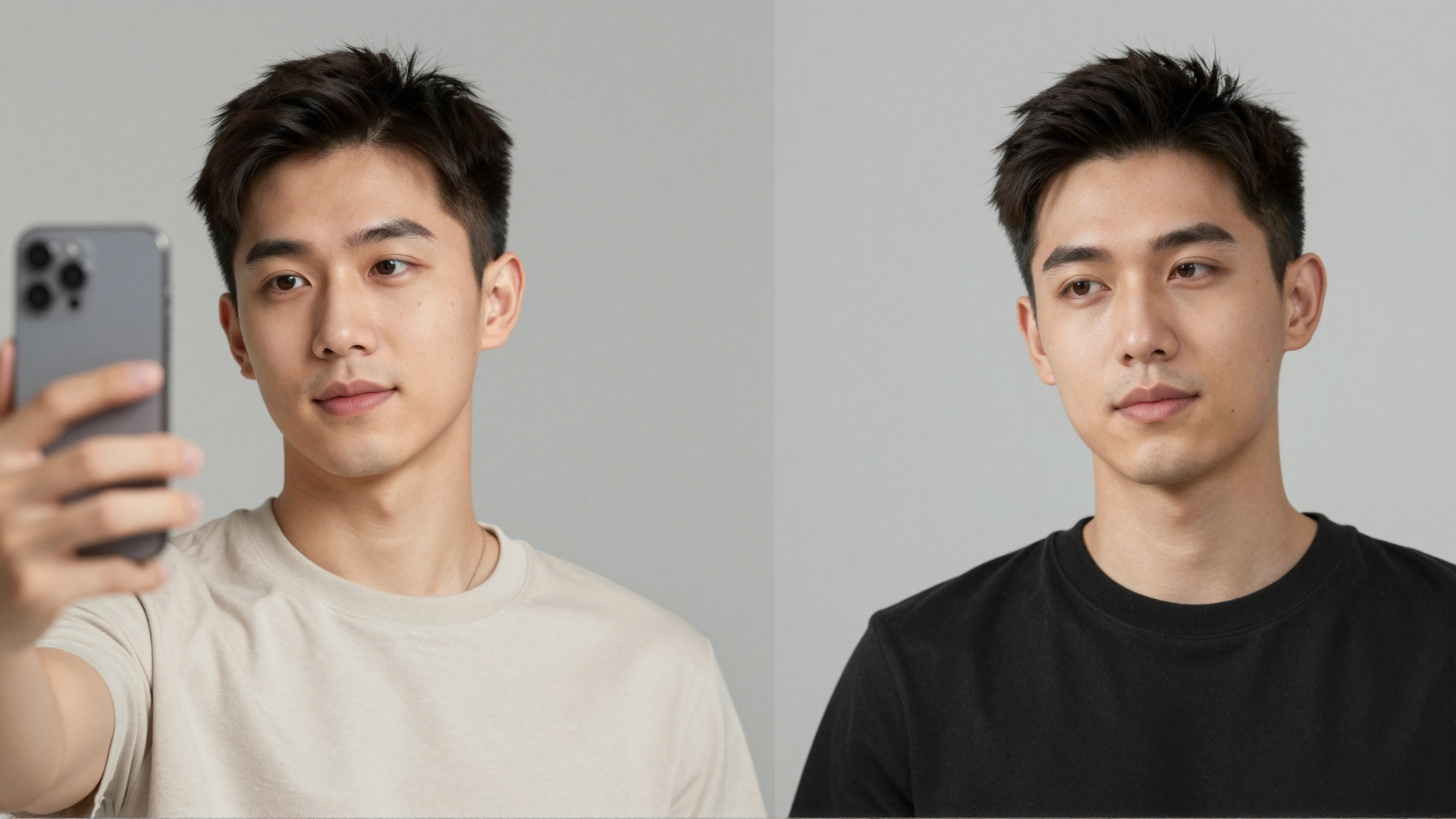
The way Imagera's headshot tool works matters here: you upload a few of your own selfies, and it studies your face across those photos to build a fresh, studio-lit portrait that keeps your real features while upgrading the lighting, framing, background and business attire. It is not retouching a single photo — it is generating a new professional headshot from your likeness. Because it is built from your own images rather than an invented face, the result stays recognizably you, which is exactly what LinkedIn's profile-photo guidelines require. LinkedIn's own data shows profiles with a photo receive up to 21× more views than those without, so the photo carries real weight.
Read the full breakdown: HeadshotPro vs Imagera · Try it: AI Headshot Generator
Aragon AI alternative
Aragon AI is a polished consumer headshot app with a one-time pack fee. Imagera turns a few selfies into studio headshots on non-expiring credits, inside a wider suite. The same upload can produce several distinct looks — a LinkedIn-ready corporate portrait, a warmer real-estate style, an editorial actor look — so you are not paying again for each variation. For a whole team, each person uploads their own selfies and selects the same preset, which produces a consistent background, lighting and crop across the roster without coordinating a group shoot.
Read the full breakdown: Aragon AI vs Imagera · Try it: AI Headshot Generator
Image Upscaling & Enhancement
Magnific AI alternative
Magnific is the leader at creative, detail-reimagining upscaling (it can change faces and text). Imagera focuses on faithful upscaling to 16K, pay-per-use, no subscription. The distinction is the whole point: faithful upscaling enhances the detail that is already there without reinventing features, so a face stays the same face and small text stays legible rather than being rewritten. If your goal is a genuinely larger, sharper version of the original — a print, a product shot, a portrait — faithful is what you want. If your goal is to reimagine an image as art and you don't mind the details shifting, that is where Magnific's style is stronger.
Read the full breakdown: Magnific AI vs Imagera · Try it: Image Upscaler
Let's Enhance alternative
Let's Enhance is a reliable subscription upscaler. Imagera upscales to a true 16K on non-expiring credits with no monthly plan and no watermark. Because the upscaler shares the same account as the rest of the suite, you can enhance an image and then flow straight into editing, restoration or skin work without exporting and re-uploading between separate apps.
Read the full breakdown: Let's Enhance vs Imagera · Try it: Image Upscaler
Photo Restoration
Remini alternative
Remini is a one-tap consumer restore app (with a watermark and subscription on the free tier). Imagera restores and upscales in the browser with no watermark and no forced subscription. Old family photos are the classic case: fading, scratches, soft focus and low resolution can be addressed, and because the output exports clean, the restored image is ready to print, frame or share without a badge across it.
Read the full breakdown: Remini vs Imagera · Try it: Restore Old Photos
VanceAI alternative
VanceAI is a broad toolkit with a desktop app. Imagera does focused, faithful restoration — scratches, fading, blur, face sharpening, print-ready — on pay-per-use credits, entirely in the browser, so there is nothing to install and nothing to keep updated.
Read the full breakdown: VanceAI vs Imagera · Try it: Restore Old Photos
Skin Realism & AI-Image Realism
Enhancor alternative
Enhancor is a focused fix for plastic AI skin on a subscription with resetting credits. Imagera adds real skin texture plus upscaling, humanizing, and editing on non-expiring credits. The "plastic skin" problem is common in generated portraits — pores, fine lines and natural texture get smoothed into a mannequin look — and Imagera's skin work restores that texture so a face reads as photographed rather than rendered.
Try it: Skin Detailer
Undetectable AI alternative
Undetectable AI is text-first (plus an image detector). To make AI images read as real photos, Imagera adds camera-real texture and grain, pay-per-use. The goal is authenticity of the final image — natural skin texture, sensor grain and lighting that behave like a real photograph — so the picture looks like it was shot on a real camera, not that any detector is being fooled.
Read the full breakdown: Undetectable AI vs Imagera · Try it: AI Image Humanizer
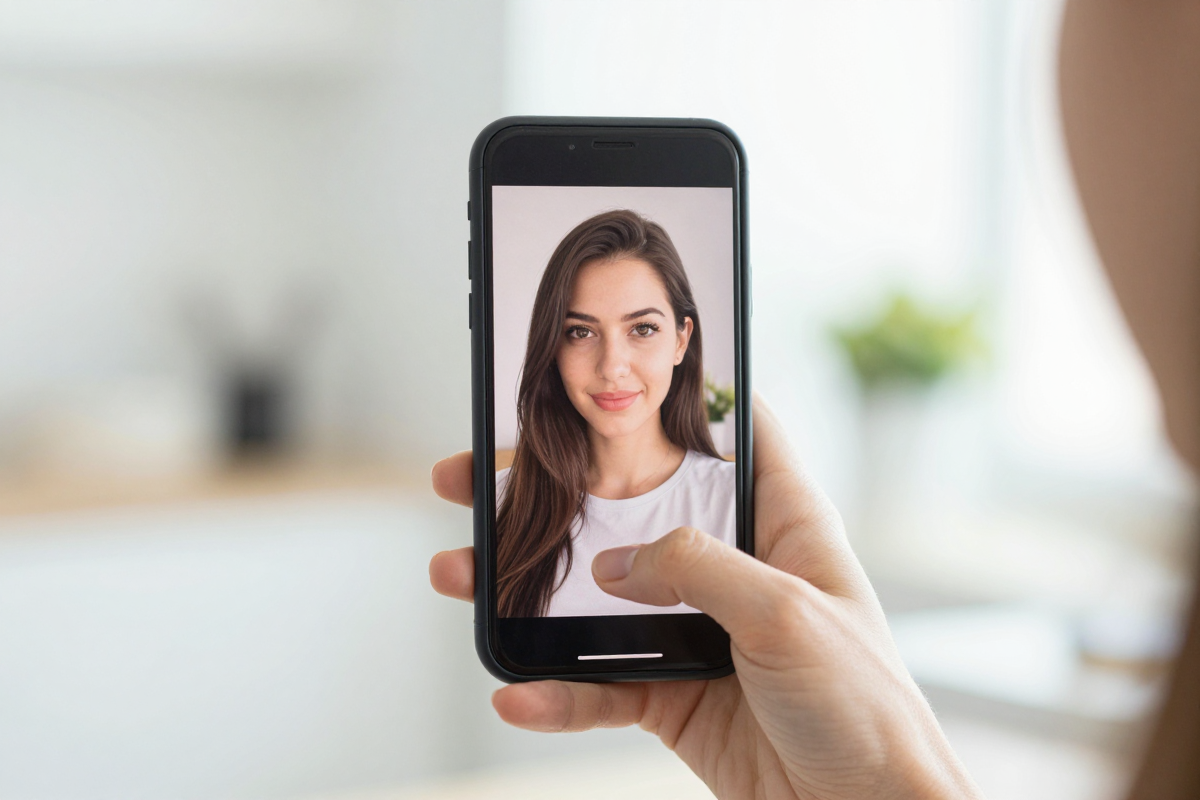
Image Generation
Leonardo AI alternative
Leonardo is a mature subscription platform with a real-time canvas and guidance tools. Imagera generates from 100K+ CivitAI LoRA styles on pay-per-use credits and flows straight into finishing. That last part is the practical difference: an image you generate can move directly into upscaling, editing or skin work in the same account, without hopping between tools. If you specifically want a live real-time canvas and in-app guidance sliders while you paint, Leonardo's interface is built around that; Imagera prioritizes the generate-then-finish pipeline.
Read the full breakdown: Leonardo AI vs Imagera · Try it: AI Image Generator
AI Photos of Yourself
PhotoAI alternative
PhotoAI trains a model on your selfies for unlimited AI photos on a monthly subscription. Imagera trains a custom character and adds face-swap, pose, style, and inpaint tools on non-expiring credits. The trade-off is clear: an "unlimited" subscription rewards very high monthly volume, while pay-per-use rewards occasional or bursty use — you train once and generate when you actually need photos, rather than paying every month whether you create anything or not.
Read the full breakdown: PhotoAI vs Imagera · Try it: Personal Influencer
Product Photography
PhotoRoom alternative
PhotoRoom is a polished mobile product-photo editor (subscription, watermark on the free tier). Imagera places products in any scene from the browser, pay-per-use, no watermark. Upload a product photo, describe or select the setting you want, and the product gets composited into that scene — useful for e-commerce listings, ads and social posts where a clean, watermark-free export matters.
Read the full breakdown: PhotoRoom vs Imagera · Try it: AI Product Photography
AI Photo Editing
Adobe Firefly alternative
Firefly is deeply tied to Photoshop and Creative Cloud. Imagera does natural-language editing — inpaint, backgrounds, outfits, object removal — in the browser without a Creative Cloud subscription. You describe the change in plain language and the edit is applied, so you don't need to learn a layers-and-masks workflow to swap a background or remove an object. If you already live inside Photoshop and want pixel-level manual control, Firefly's Creative Cloud integration is its strength; Imagera trades that for speed and a no-install, no-subscription workflow.
Read the full breakdown: Adobe Firefly vs Imagera · Try it: AI Image Editor
Face & Head Swap
Deepswap alternative
Deepswap supports photo, video, and GIF face-swap on a subscription. Imagera does high-quality still head-swaps with lighting and skin-tone matching, pay-per-use — for legitimate creative use. The lighting and skin-tone matching is what keeps a still swap believable rather than pasted-on. Use it for creative projects and content you have the right to make; it is not a tool for impersonating real people without consent.
Read the full breakdown: Deepswap vs Imagera · Try it: Head Swap
How the Imagera Workflow Actually Runs
Across all of these tools, the pattern is the same, which is part of why one account replaces several. Here is the real, end-to-end flow:
- Sign in and open a tool. Everything runs in the browser — there is nothing to download or install, and the same login works across generation, editing, upscaling, restoration, headshots and the rest.
- Upload or generate your starting image. For headshots you upload a few selfies; for restoration or upscaling you upload the photo you want fixed; for generation you start from a text prompt and a style.
- Pick your style and quality. Each tool exposes the choices that matter for its job — a headshot look and resolution, an upscale target, a scene for a product shot, an edit described in plain language.
- Spend credits, not a subscription. The job draws from your shared, non-expiring credit balance. You are billed for the work you run, not for a monthly seat.
- Review, refine, and export clean. Output lands in your history so you can download it or feed it into another tool. There is no watermark on the finished image.
Because step 4 uses one shared balance, moving between jobs is frictionless — the headshot you generate can be upscaled, the upscaled image can be edited, and none of it requires a second account or a second plan.
Step-by-Step: Choosing and Running Your First Job
If you are new to this and want a concrete path rather than a shopping list, here is a sensible way to start:
- Name the single job you need done today. A headshot? A restored photo? A product shot? Start with the one that is actually blocking you, not the whole wishlist.
- Open the matching Imagera tool using the links in the comparison table above — or jump to the AI Image Generator, Image Upscaler, or AI Image Editor if your job fits one of those.
- Run one job and judge the output before committing to anything larger. Because you pay per use, a single test costs a fraction of a subscription and tells you far more than a marketing page.
- If the result works, do the next job in the same account. The credits you top up carry across every tool and don't expire, so there is no rush to "use them up."
- Only consider a dedicated subscription tool if, after testing, you find you are doing one specific job at genuinely high monthly volume — that is the one scenario where a specialist plan can beat pay-per-use.
Common Use Cases: Who Each Approach Suits
Different people arrive at "AI image tool alternatives" for very different reasons. A few concrete scenarios:
- The job seeker refreshing a profile. You need one polished professional headshot for LinkedIn, your resume and your email signature — built from your own selfies so it still looks like you in the interview. This is a single-job, low-volume case where pay-per-use clearly beats a monthly plan. Start at the AI Headshot Generator.
- The distributed team lead. You are onboarding remote hires year-round and want the whole roster to share one studio look. Each person uploads their own selfies and picks the same preset, so the team page stays consistent without a group shoot — see the HeadshotPro and Aragon AI comparisons.
- The person restoring family history. You have a stack of faded, scratched prints to fix before a milestone birthday. A clean, watermark-free Restore Old Photos run is a one-off, not a recurring need.
- The small e-commerce seller. You want product shots in clean scenes for listings and ads, plus the option to upscale hero images for the storefront. Being able to generate, place and upscale in one account — via AI Product Photography and the Image Upscaler — removes a lot of app-hopping.
- The creator who does a bit of everything. Some weeks it's a generated image, some weeks an edit, some weeks a head-swap for a creative project. This is the breadth case that a single subscription can't serve well and where one shared credit balance shines.
Honest Comparison: Subscription Specialists vs Pay-Per-Use Breadth
| What matters | Typical subscription specialist | Imagera |
|---|---|---|
| Billing model | Recurring monthly plan, often per tool | Pay-per-use credits that don't expire |
| Scope | One narrow job done deeply | Generation, editing, upscaling, restoration, headshots, product, head-swap in one account |
| Watermark | Common on free tiers | None on finished output |
| Best for | One job at high monthly volume | Several jobs, or occasional/bursty use |
| Cross-tool workflow | Export and re-upload between apps | One shared balance, one login across tools |
| Idle cost | You pay whether you create or not | You only spend when you run a job |
Competitor pricing varies by tool and plan and changes over time, so check each vendor's current rates directly; the point of the table is the shape of the trade-off, not a specific dollar figure. Imagera's own costs are expressed in credits, and one entry credit pack starts at 350 credits.
Tips for Best Results
- Start with a real test, not a spec sheet. Pay-per-use exists precisely so you can run one job and judge the output before you commit. Do that first.
- For headshots, upload three to four clear, recent selfies from slightly different angles. Variety gives the tool more to work with and produces a more faithful likeness than a single photo.
- Match the tool to the job. Faithful upscaling for a real larger image; restoration for damaged old photos; skin work for plastic-looking generated portraits. Using the right tool beats forcing one tool to do everything.
- Keep source images clean. Neat, uncluttered clothing and good lighting in your uploads carry through to a better result — the tool refines what you give it rather than inventing from nothing.
- Use one account for a multi-step pipeline. Generate, then upscale, then edit within the same balance instead of exporting between separate apps.
Common Mistakes to Avoid
- Buying a subscription for occasional use. If you'll run a job a handful of times a month, a recurring plan quietly overcharges you. Pay-per-use is the honest fit there.
- Expecting a general image generator to preserve your face. General tools tend to re-render and stylize faces, drifting from your actual likeness. For an identity-preserving headshot, use a tool built for that job.
- Confusing creative upscaling with faithful upscaling. If you need a larger version of the same image, don't use a tool that reimagines details — you'll get a different face or rewritten text.
- Uploading heavily filtered or low-resolution source photos for headshots. Sunglasses, group shots, heavy filters and blur all degrade the result. Clear, front-facing daylight photos work best.
- Assuming every platform bans AI photos. Many don't — LinkedIn, for example, permits AI-assisted profile photos as long as the image reflects your real likeness. The condition is likeness, not the method.
Examples: How the Choice Plays Out
Scenario — one headshot before an interview. You have a week and need a single strong LinkedIn and resume photo. A per-person headshot pack or a studio booking is overkill and slow. You upload four selfies to the AI Headshot Generator, pick a corporate look, generate, and export a clean high-resolution portrait the same day — spending a few credits, not a subscription.
Scenario — a team page that keeps drifting. Your company hires remotely and the About page is a patchwork of old studio shots and webcam grabs. Instead of flying everyone to one city, each hire uploads their own selfies and selects the same preset, so the roster shares one background, lighting and crop — and new hires match on day one.
Scenario — a mixed creative week. You generate a stylized image, upscale it for print, then edit the background — three jobs that would otherwise mean three tools and three logins. In one Imagera account they draw from the same non-expiring balance, so nothing you skip keeps billing you.
How to Choose
Pick the dedicated tool when its one job is the only thing you do and you do it at high volume every month — a subscription can pay off there. Pick Imagera when you want several of these jobs in one place, prefer to pay only for what you use, and don't want a watermark or a recurring plan. Because credits are shared across every tool, a headshot today and an upscale next week draw from the same balance.
Start with whichever comparison above matches your task, or open the AI Image Generator, Image Upscaler, or AI Image Editor and run a single job to see the output before you commit.
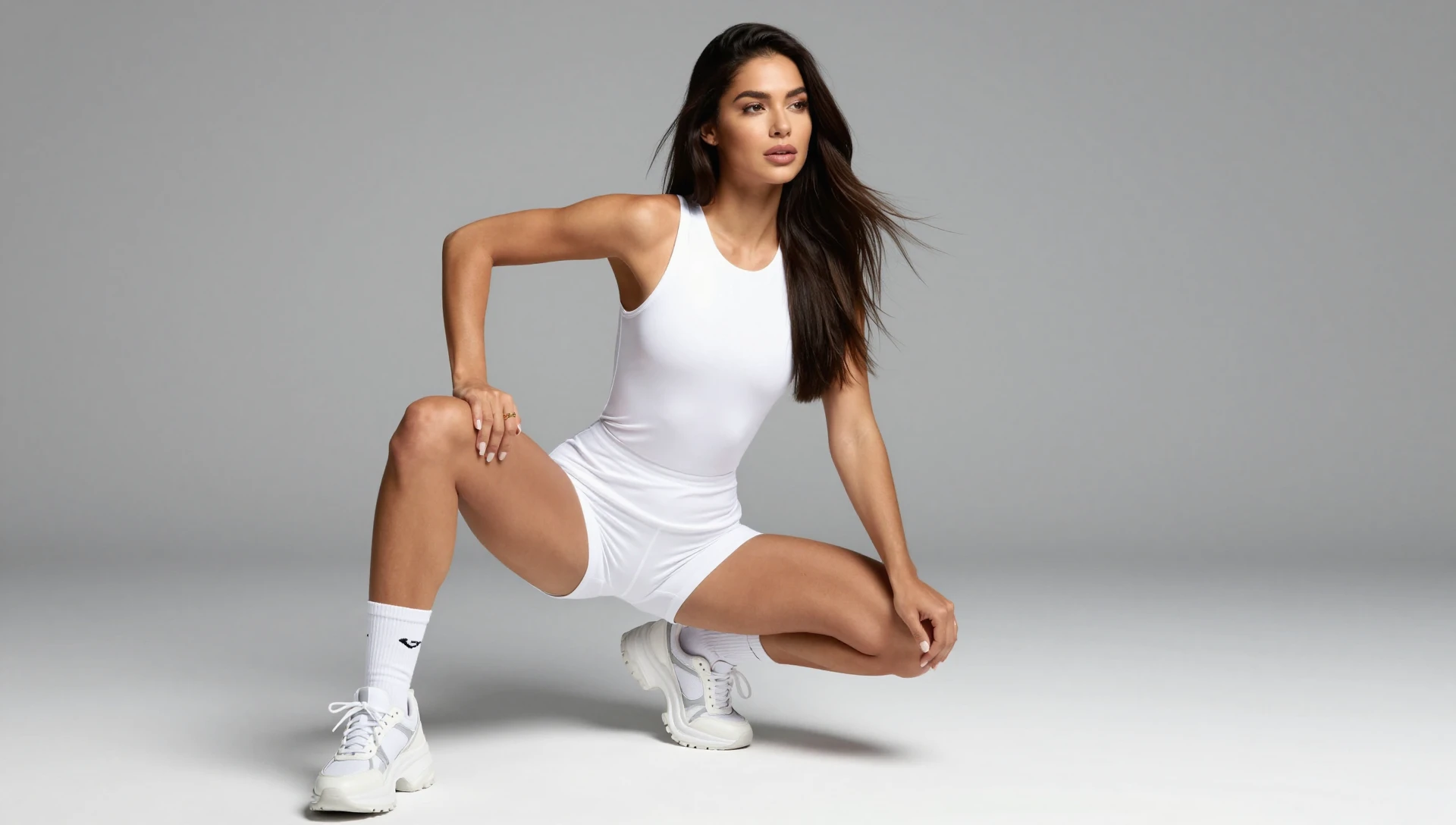
See it in action — real Imagera output
These are real, unedited results from the Imagera image generator — the exact tool this guide covers.
Bottom Line
The right pick depends on whether you need one job done at volume or several jobs in one place. The dedicated tools above are each strong in their niche; Imagera's advantage is breadth plus a pay-per-use model with no subscription and no watermark. Browse the comparison that fits your task, then run a single job and judge the output yourself.
Explore the Imagera tools — generate, edit, upscale, restore, and more, all on credits that don't expire.