Imagera AI - AI content creation platform for generating images, cloning voices, creating avatars, and enhancing videos. Privacy Policy | Terms

    IMAGERAAI
    Guide
    AI Model Training

    How to Train a LoRA Model Online — No GPU Required (2026)

    Train a custom LoRA model online — no GPU, no downloads, no command line. Upload 10-50 images, train in 15-45 minutes, generate immediately in browser.

    By Imagera AI Team10 min readFebruary 14, 2026Updated: April 1, 2026
    Share:
    How to Train a LoRA Model Online — No GPU Required (2026)

    TL;DR

    You can train a custom LoRA model online without a GPU using Imagera's browser-based LoRA Trainer. Upload 10-50 images, write captions, choose a base model, and train in 15-45 minutes on cloud GPUs. Cost: 50 credits (~$5). No Python, no CUDA drivers, no command line. The trained LoRA can be used immediately for image generation. Alternative cloud options: RunPod/Vast.ai (rent GPU VMs) or Civitai (community training) — both require more technical knowledge.

    LoRA training traditionally requires a dedicated NVIDIA GPU with 8GB+ VRAM, a Python environment, CUDA drivers, and comfort with command-line tools. This puts custom AI model training out of reach for most people.

    Browser-based LoRA training eliminates all of that. Upload images, set parameters, click train. The processing runs on cloud GPUs while you wait.

    This guide walks through every step of training a LoRA model online, from preparing your training images to using the finished model.

    1.What You Need

    • 10-50 images of your subject (more details on selection below)
    • An Imagera account with credits (LoRA Trainer)
    • A web browser — that's it

    No GPU. No software installation. No Python knowledge. No command line.

    2.Step 1: Prepare Your Training Images

    Image quality determines LoRA quality. This step matters more than any training parameter.

    2.1For Face/Person LoRAs

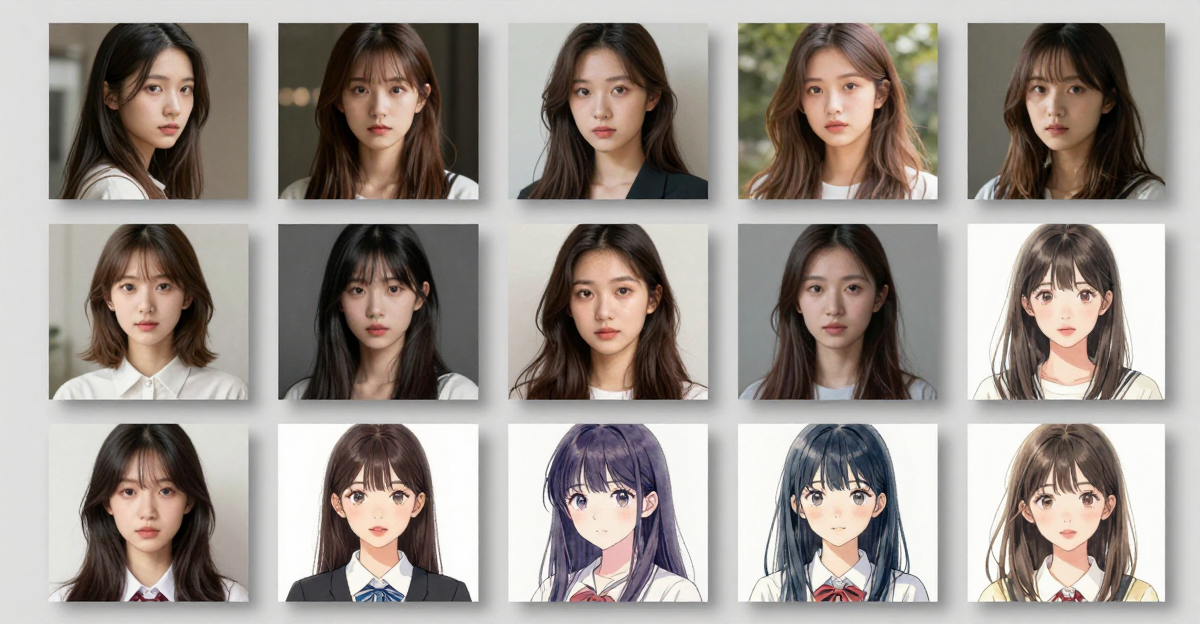
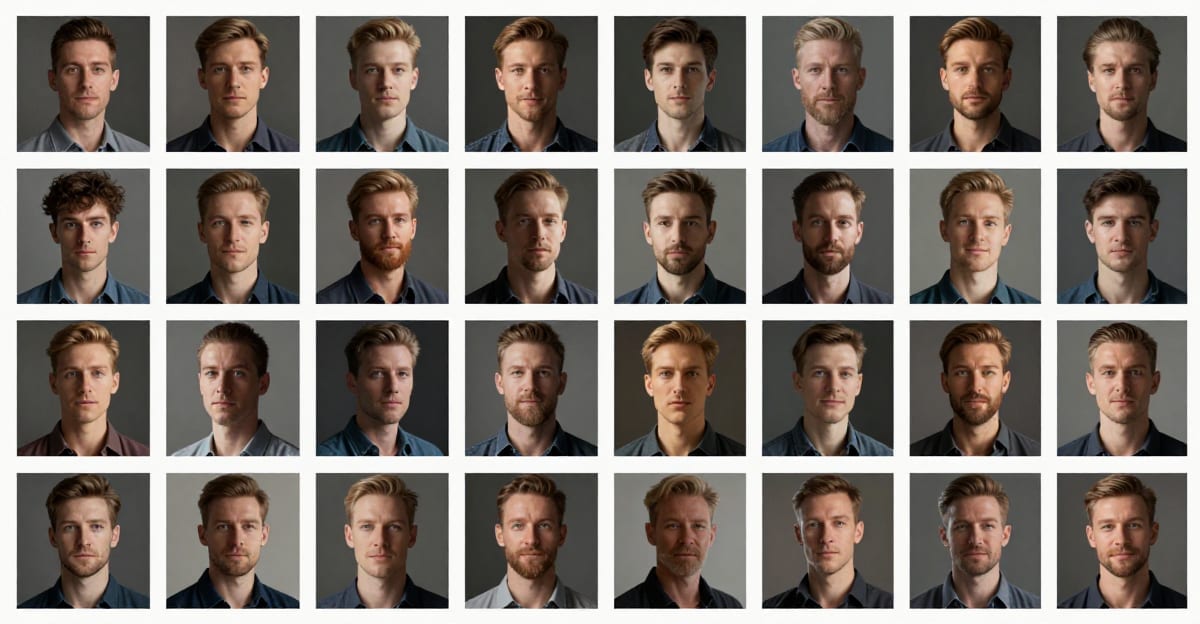
    Collect 15-30 photos of the person:

    • Diverse angles: Front, 3/4, profile, slightly above, slightly below
    • Diverse lighting: Natural light, indoor light, different times of day
    • Diverse expressions: Neutral, smiling, serious, talking
    • Diverse backgrounds: Don't use the same background for every photo
    • Consistent subject: Same person, same approximate time period
    • Clear face: No sunglasses, no heavy shadows, no extreme crops

    Minimum: 15 images. Sweet spot: 20-25 images. More than 30 rarely improves results and can increase training time without benefit.

    2.2For Product LoRAs

    Collect 10-20 photos of the product:

    • Multiple angles: Front, back, sides, top, 3/4 views
    • Clean backgrounds: White or neutral backgrounds work best
    • Consistent product: Same product, same color/variant
    • Sharp focus: Product should be clearly visible and in focus
    • Real photos: Not renders or AI-generated images of the product

    2.3For Art Style LoRAs

    Collect 20-50 examples of the style:

    • Representative range: Cover the full range of the style
    • Consistent quality: All images should clearly demonstrate the style
    • Diverse subjects: The style applied to different subjects (not all portraits, not all landscapes)
    • High resolution: At least 512x512, preferably larger

    2.4Image Format Requirements

    • Formats: JPG, PNG, or WebP
    • Minimum size: 512x512 pixels
    • Recommended size: 1024x1024 or higher
    • File size: Under 10MB per image

    3.Step 2: Write Captions

    Each training image needs a text description (caption) that tells the model what's in the image. Good captions dramatically improve LoRA quality.

    3.1Caption Structure

    A good caption has three parts:

    1. Trigger word — a unique identifier for your concept (e.g., "ohwx person" or "xr500 headphones")
    2. Subject description — what the image shows
    3. Context — setting, lighting, quality descriptors

    3.2Examples

    Face LoRA caption:

    ohwx person, a woman with brown hair and green eyes, sitting in a cafe, natural lighting, candid photo

    Product LoRA caption:

    xr500 headphones, black over-ear headphones on a white desk, studio lighting, product photography

    Style LoRA caption:

    impressionist style painting, a garden scene with flowers and a pathway, soft brushstrokes, warm colors, oil on canvas

    3.3Caption Tips

    • Use the same trigger word in every caption — this is how you activate the LoRA later
    • Be specific but accurate — describe what's actually in the image
    • Vary the descriptions — don't copy-paste identical captions
    • Don't over-describe — 1-2 sentences is usually sufficient
    • Describe what changes — if the person is smiling in one photo and serious in another, mention it

    4.Step 3: Upload and Configure

    Go to Imagera LoRA Trainer and start a new training session.

    4.1Upload Images

    Upload your prepared images. The interface shows thumbnails for verification. Remove any images that don't meet quality standards.

    4.2Add Captions

    Enter captions for each image. Some platforms offer auto-captioning — review and edit these. Auto-captions are a starting point, not a finished product.

    4.3Select Base Model

    Choose which model to train against. Common options:

    • Stable Diffusion XL — best for photorealistic content, large community
    • FLUX — newer architecture, excellent quality, growing ecosystem
    • Stable Diffusion 1.5 — lighter, faster, huge existing LoRA library

    Your LoRA will only work with the base model it was trained on. Choose based on what you'll use for generation.

    4.4Set Training Parameters

    For most use cases, defaults work well. Key parameters to understand:

    Training steps: How many times the model sees your data. More steps = more learning, but too many = overfitting (the model memorizes images instead of learning the concept). Typical range: 500-2,000 steps.

    Learning rate: How aggressively the model adapts. Higher = faster learning but risk of instability. Default values (1e-4 to 5e-4) work for most cases.

    LoRA rank: How much capacity the LoRA has. Rank 8 handles most subjects. Rank 16 for complex styles. Rank 32 for maximum detail (see the LoRA guide for details).

    Batch size: How many images are processed simultaneously. Higher batch sizes train faster but use more memory. Cloud training handles this automatically.

    5.Step 4: Train

    Click train. Processing begins on cloud GPUs.

    Expected training time: 15-45 minutes depending on:

    • Number of training images
    • Number of steps
    • LoRA rank
    • Base model size

    The interface shows training progress with a step counter and estimated time remaining.

    Cost: 50 credits (~$5) for a standard training run.

    6.Step 5: Test Your LoRA

    Once training completes, test the LoRA immediately:

    1. Go to Image Generator
    2. Select your trained LoRA from your library
    3. Write a prompt using your trigger word:
      ohwx person standing on a beach at sunset
    4. Generate several test images with different prompts

    6.1What to Check

    • Subject accuracy: Does the generated subject match your training images?
    • Flexibility: Does it work with different prompts, settings, and compositions?
    • Artifacts: Any strange distortions, color shifts, or quality issues?
    • Overfitting signs: If every generation looks identical regardless of prompt, the model is overfit — retrain with fewer steps

    6.2If Results Are Poor

    ProblemLikely CauseFix
    Doesn't look like subjectToo few steps or poor imagesIncrease steps or improve training images
    Every image looks identicalOverfitting (too many steps)Reduce steps by 30-50%
    Artifacts and distortionLearning rate too highReduce learning rate
    Works only in one poseTraining images lack diversityAdd more varied images
    Style bleeds into everythingLoRA strength too highReduce strength at inference (0.6-0.8)

    7.Alternative: Local LoRA Training

    If you have a GPU (8GB+ VRAM), you can train locally:

    Abstract cloud computing concept showing illuminated server racks appearing to

    GUI-based trainer for Windows/Linux. Supports SD 1.5, SDXL, and FLUX. Free and open source. Requires Python environment setup.

    7.2ComfyUI Training Nodes

    Train directly within ComfyUI workflows. Good if you're already a ComfyUI user. More technical setup required.

    7.3Cloud GPU Rentals (RunPod / Vast.ai)

    Rent a GPU VM for $0.20-$2.00/hour. Run Kohya_ss or custom training scripts. More flexible but requires terminal knowledge.

    7.4Comparison

    MethodCostSetup TimeTechnical SkillGPU Required
    Imagera (Browser)50 credits (~$5)0 minutesNoneNo
    Kohya_ss (Local)Free (but GPU cost)1-3 hoursMediumYes (8GB+)
    RunPod/Vast.ai$0.50-$5 per train30-60 minHighRented
    Civitai TrainingBuzz credits10 minLow-MediumNo

    8.Advanced Tips

    8.1Regularization Images

    Extreme close-up of high-end graphics processing unit (GPU) card showing

    For face LoRAs, add 100-200 "regularization" images of generic people. These prevent the model from associating your trigger word with general human features. The model learns what's specific to your subject rather than what's general about people.

    8.2Step Count Optimization

    Start with fewer steps (500-800) and generate test images. If the subject isn't captured well enough, retrain with more steps. It's easier to add steps than to recover from overfitting.

    8.3Caption Quality Over Quantity

    5 images with excellent, detailed captions can outperform 30 images with generic captions. The model learns from the image-caption pairs — both matter equally.

    8.4Training on AI-Generated Images

    You can train LoRAs on AI-generated images. This is useful for capturing a style from another model or creating style-consistent LoRAs. Use the highest quality generations as training data.

    8.5LoRA Merging

    After training, you can merge LoRAs to combine concepts. Train a face LoRA and a style LoRA separately, then merge them for a combined model. This often works better than training both concepts in a single LoRA.

    9.Common Questions

    9.1Do I really not need a GPU?

    Modern machine learning workspace concept featuring a clean desk with

    Correct. Imagera's LoRA Trainer runs entirely on cloud GPUs. Your browser uploads images and displays progress. All computation happens server-side. You can train from a Chromebook, tablet, or any device with a modern browser.

    9.2How many credits does LoRA training cost?

    Standard training costs 50 credits (~$5). This covers cloud GPU time for a typical training run of 15-45 minutes. Longer training runs (more steps or higher rank) may cost additional credits.

    9.3Can I download my trained LoRA?

    Trained LoRAs are available in your Imagera library for immediate use with the Image Generator. Export/download options depend on your plan.

    9.4What if my LoRA isn't good enough?

    Retrain with adjusted parameters. Common fixes: more diverse training images, better captions, different step counts, or adjusted learning rate. Each training run is independent — previous attempts don't affect new ones.

    9.5Can I train a LoRA of a celebrity or public figure?

    Technically possible, but raises ethical and legal concerns. Using someone's likeness without consent for commercial purposes may violate right-of-publicity laws. For personal, non-commercial creative use, laws vary by jurisdiction. Imagera's terms of service prohibit creating non-consensual or harmful content.

    9.6How often do I need to retrain?

    LoRAs don't expire or degrade. Once trained, they work indefinitely. Retrain only if you want to improve quality, add more training data, or switch to a newer base model.


    Part of the LoRA Training series. See also: What is LoRA? | Best LoRA Models for Realistic AI Images | Image Generator

    10.Frequently Asked Questions

    10.1Do I really not need a GPU to train a LoRA?

    Correct. Imagera's LoRA Trainer runs entirely on cloud GPUs. Your browser uploads images and displays progress. All computation happens server-side. You can train from a Chromebook, tablet, or any device with a modern browser.

    10.2How many credits does LoRA training cost?

    Standard training costs 50 credits (~$5). This covers cloud GPU time for a typical training run of 15–45 minutes. Longer training runs (more steps or higher rank) may cost additional credits.

    10.3Can I download my trained LoRA?

    Trained LoRAs are available in your Imagera library for immediate use with the Image Generator. Export and download options depend on your subscription plan.

    10.4What if my LoRA quality is not good enough?

    Retrain with adjusted parameters. Common fixes: more diverse training images, better captions, different step counts, or adjusted learning rate. Each training run is independent — previous attempts don't affect new ones.

    10.5Can I train a LoRA of a celebrity or public figure?

    Technically possible, but raises ethical and legal concerns. Using someone's likeness without consent for commercial purposes may violate right-of-publicity laws. Imagera's terms of service prohibit creating non-consensual or harmful content.

    10.6How often do I need to retrain my LoRA?

    LoRAs don't expire or degrade. Once trained, they work indefinitely. Retrain only if you want to improve quality, add more training data, or switch to a newer base model. Learn more in our complete LoRA guide.

    Frequently Asked Questions

    Do I really not need a GPU?
    Correct. Imagera LoRA Trainer runs entirely on cloud GPUs. Your browser uploads images and displays progress. All computation happens server-side. You can train from a Chromebook, tablet, or any device with a modern browser.
    How many credits does LoRA training cost?
    Standard training costs 50 credits (~$5). This covers cloud GPU time for a typical training run of 15-45 minutes. Longer training runs (more steps or higher rank) may cost additional credits.
    Can I download my trained LoRA?
    Trained LoRAs are available in your Imagera library for immediate use with the Image Generator. Export/download options depend on your plan.
    What if my LoRA is not good enough?
    Retrain with adjusted parameters. Common fixes: more diverse training images, better captions, different step counts, or adjusted learning rate. Each training run is independent — previous attempts don't affect new ones.
    Can I train a LoRA of a celebrity or public figure?
    Technically possible, but raises ethical and legal concerns. Using someone's likeness without consent for commercial purposes may violate right-of-publicity laws. Imagera's terms of service prohibit creating non-consensual or harmful content.
    How often do I need to retrain?
    LoRAs don't expire or degrade. Once trained, they work indefinitely. Retrain only if you want to improve quality, add more training data, or switch to a newer base model.

    Imagera AI Team

    AI Content & SEO Specialist

    The Imagera AI team consists of AI researchers, content strategists, and SEO experts dedicated to helping creators produce high-quality AI content.

    Areas of Expertise:

    AI Image GenerationAI Voice RecreationAI Avatar CreationContent Marketing

    Put this guide to work

    Teach the AI your face, product or style from a few photos — no GPU needed.