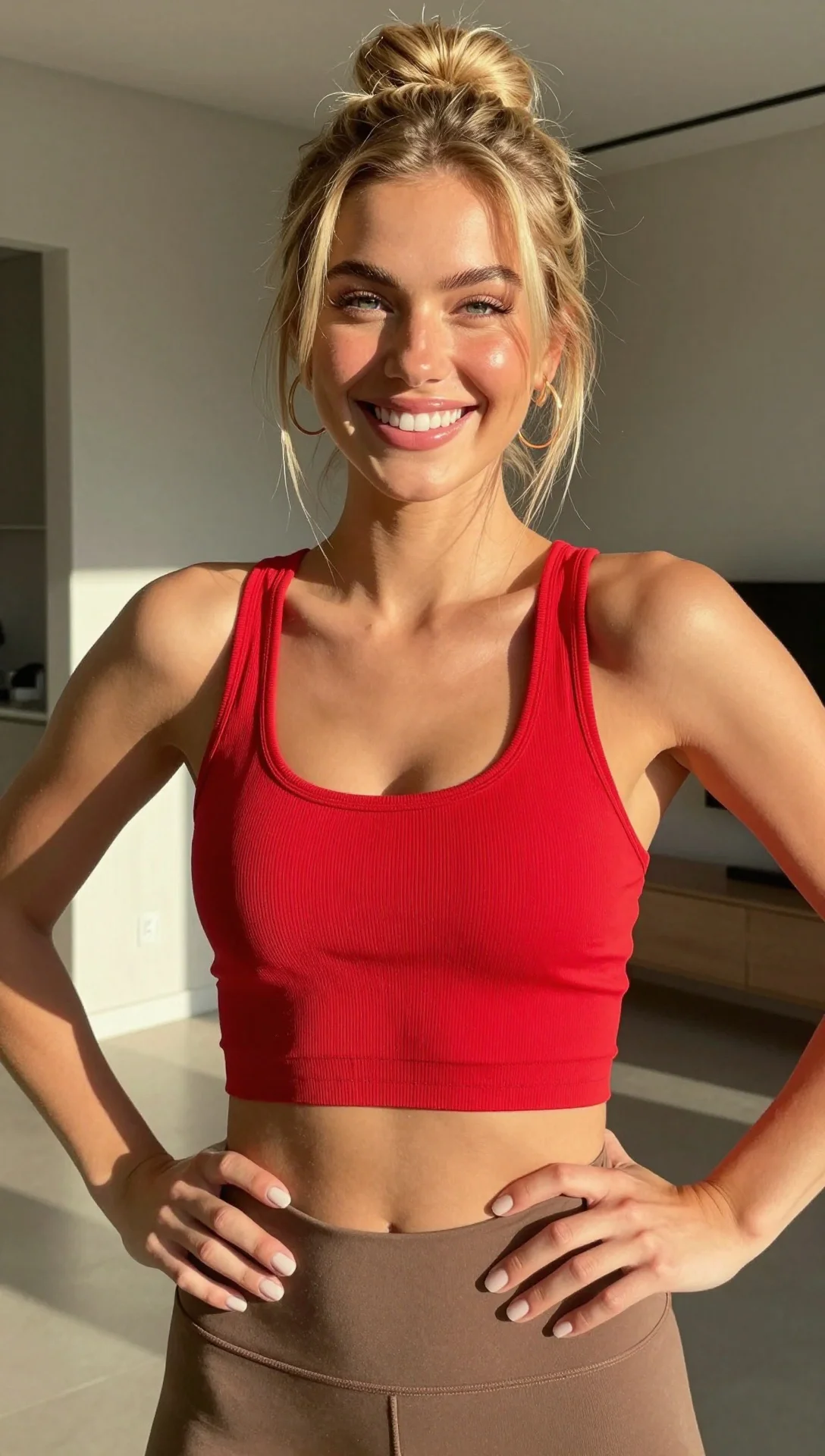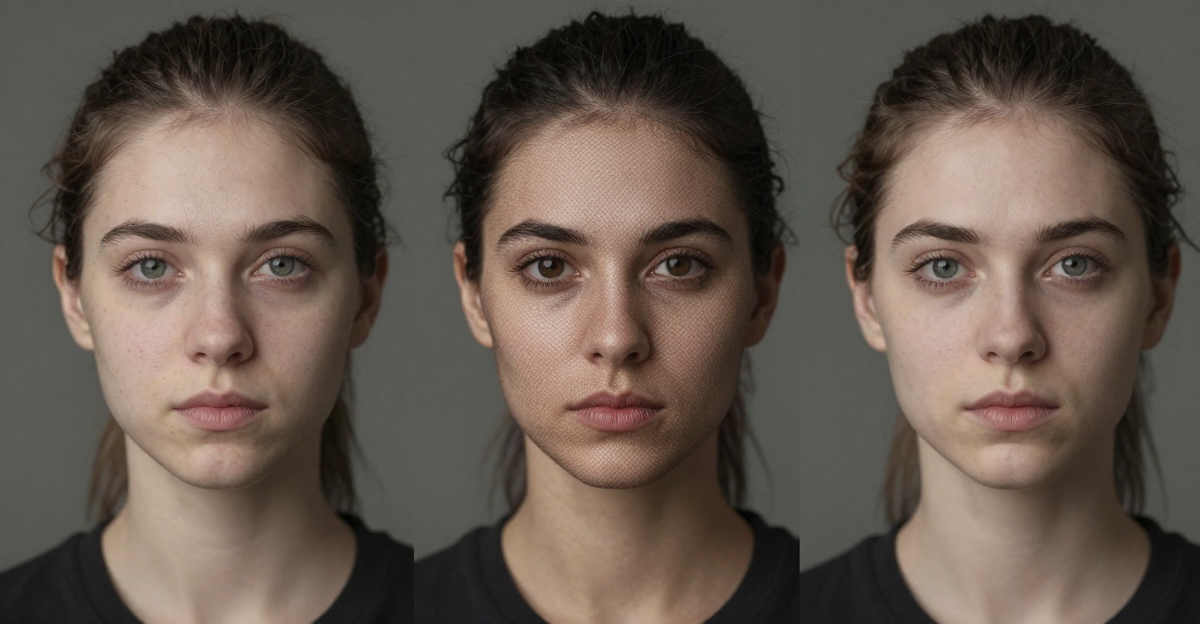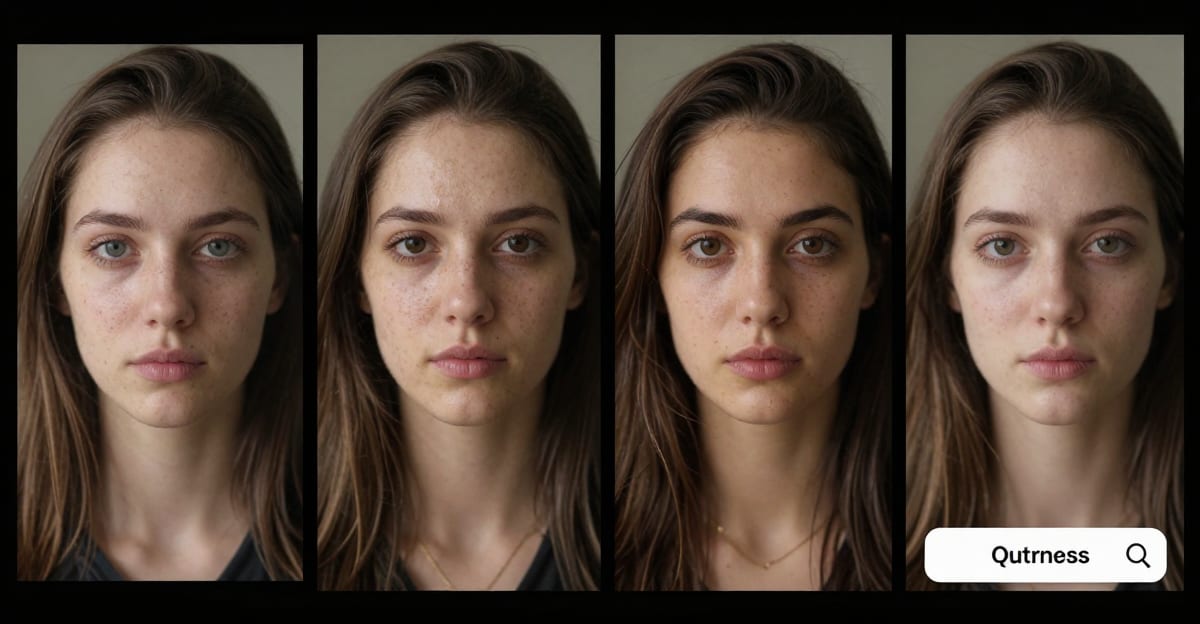
AI face swap in videos has become straightforward — upload two files, wait under a minute, get your result. But the quality difference between a good face swap and a bad one comes down to preparation: choosing the right inputs, understanding what the AI needs, and selecting the correct mode.
This guide walks through every step of face swapping in videos with AI, from preparing your files to troubleshooting common issues.
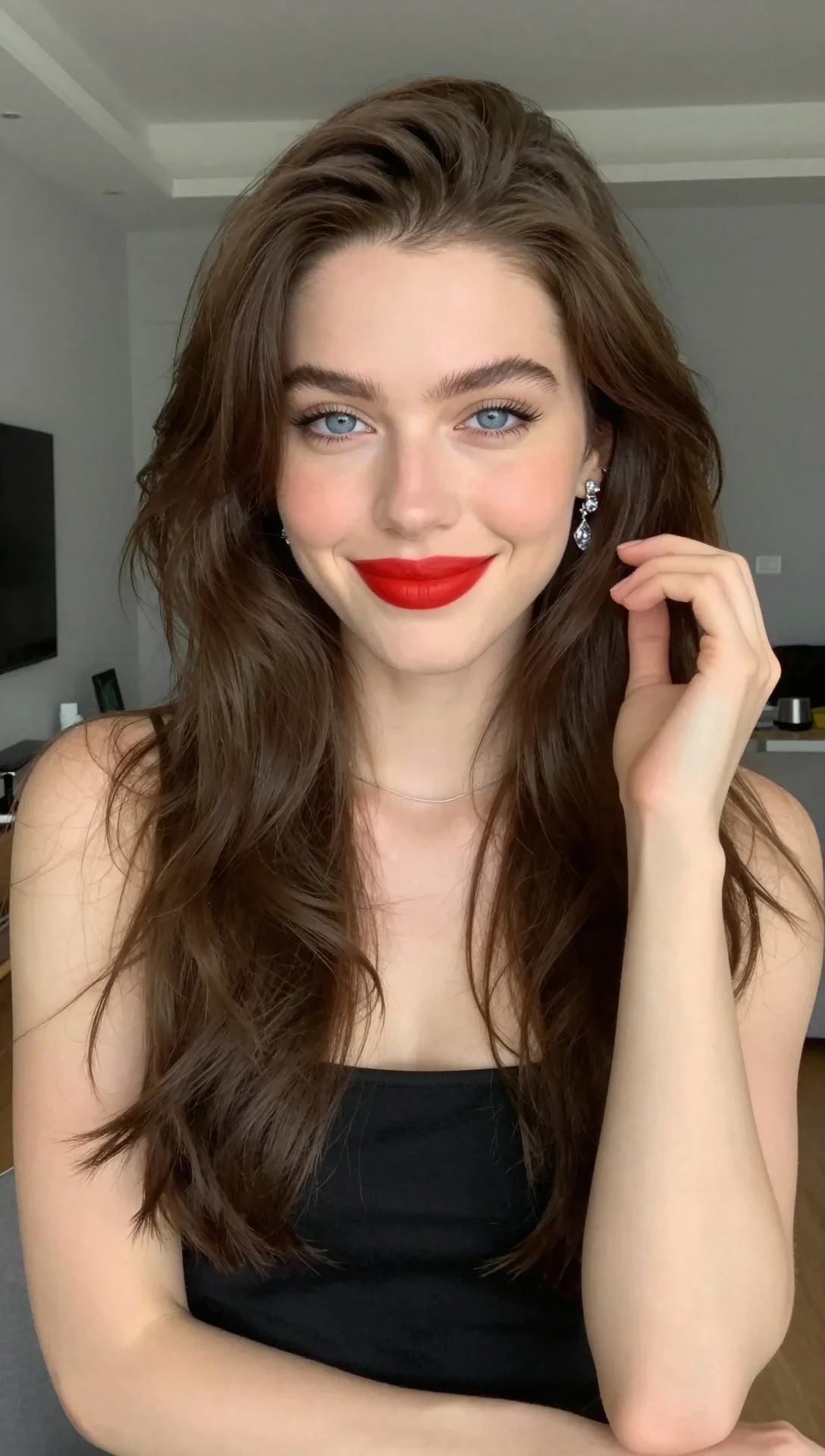
Quick answer: To face swap a video with AI in Imagera, upload your clip plus one clear source face, then let the model track and replace the face frame by frame, delivering an HD or 4K result in a few minutes with no manual keyframing.
1.How long does an AI video face swap take in Imagera?
A typical 15-30 second clip finishes in under a few minutes, since Imagera processes every frame automatically instead of hand-editing them. You can export at up to 4K, run a couple of variations to compare angles, and re-render as many times as your credit balance allows across 2026's full model lineup, with each swap costing a fixed number of credits.
2.Why do some face swaps look glitchy, and how do you fix it?
Most poor results trace back to low-quality inputs: blurry source photos, extreme angles, or heavy motion blur. Use a sharp, front-facing reference and 1080p or higher footage. Well-lit, frontal faces give the model clean landmarks to track, so a single good source image will almost always beat a handful of weak ones. If a swap looks off, swap in a cleaner reference before adjusting anything else, then re-render to compare.
3.What You Need Before Starting
3.1For Animate Photo (Dancing Photo Effect)
Character image: A clear photo of the person, character, or illustration you want to animate. The more of the body that's visible, the better the result. Full-body images work best. Head-and-shoulders crops limit the AI to facial animation only.
Driving video: A video showing the motion you want to transfer. This could be someone dancing, walking, gesturing, or performing any physical action. The AI extracts the movement from this video and applies it to your photo.
3.2For Character Replacement (Swap Person in Video)
Character image: The person or character you want to appear in the video. Same guidelines — clear, well-lit, as much of the body visible as possible.
Source video: The video where you want to replace the existing person. The AI keeps the video's background, lighting, and scene intact while swapping in your character.
3.3File Format Requirements
- Images: JPG or PNG. Minimum 512px on the shortest side. Higher resolution gives better results.
- Videos: MP4 or MOV. Up to 30 seconds maximum. Resolution up to 1920×1080.
4.Method 1: Animate Photo (Make Your Photo Dance)
This is the method behind the "dancing photo" trend on TikTok and Instagram. Your still image copies the motion from a reference video.
4.1Step 1: Choose Your Character Image
Select a clear, well-lit photo. Requirements for best results:
- Full body visible — more body = more motion to work with
- Clear background — helps the AI separate the character from surroundings
- Front-facing or 3/4 angle — extreme side profiles limit motion options
- Good lighting — no harsh shadows across the face or body
- Minimum 512px — higher resolution produces sharper output
This works with photos of real people, anime characters, illustrations, AI-generated images, product mascots, and historical photos.
4.2Step 2: Select Your Driving Video
The driving video provides the motion. Pick a video where:
- The person is clearly visible — no obstructions blocking the body
- Single person — the AI tracks one person's skeleton
- Consistent framing — the person stays in frame throughout
- Good lighting — consistent lighting helps skeleton tracking
- Moderate motion speed — extreme fast movement can cause tracking errors
Popular driving videos: dance routines, walking sequences, workout movements, hand gestures, acting performances.
4.3Step 3: Process with AI
Go to Imagera Character Replacement and select Animate Photo (Move Mode).
- Upload your character image
- Upload your driving video
- Choose quality: SD (480p, 20 credits/5s) or HD (720p, 40 credits/5s)
- Optionally add a text prompt to guide the generation
- Click process
Processing takes 40-60 seconds regardless of video length.
4.4Step 4: Review and Iterate
Check the output for:
- Motion accuracy — does the character follow the driving video's movement?
- Face preservation — does the character's face remain consistent?
- Body proportions — does the motion look natural on your character?
- Background quality — is the original photo's background preserved?
If the result needs improvement, try adjusting the step count (more steps = more detail but longer processing) or use a different driving video.

5.Method 2: Character Replacement (Swap Person in Video)
This method replaces the person in an existing video with your character. The video's scene, background, and camera work stay intact.
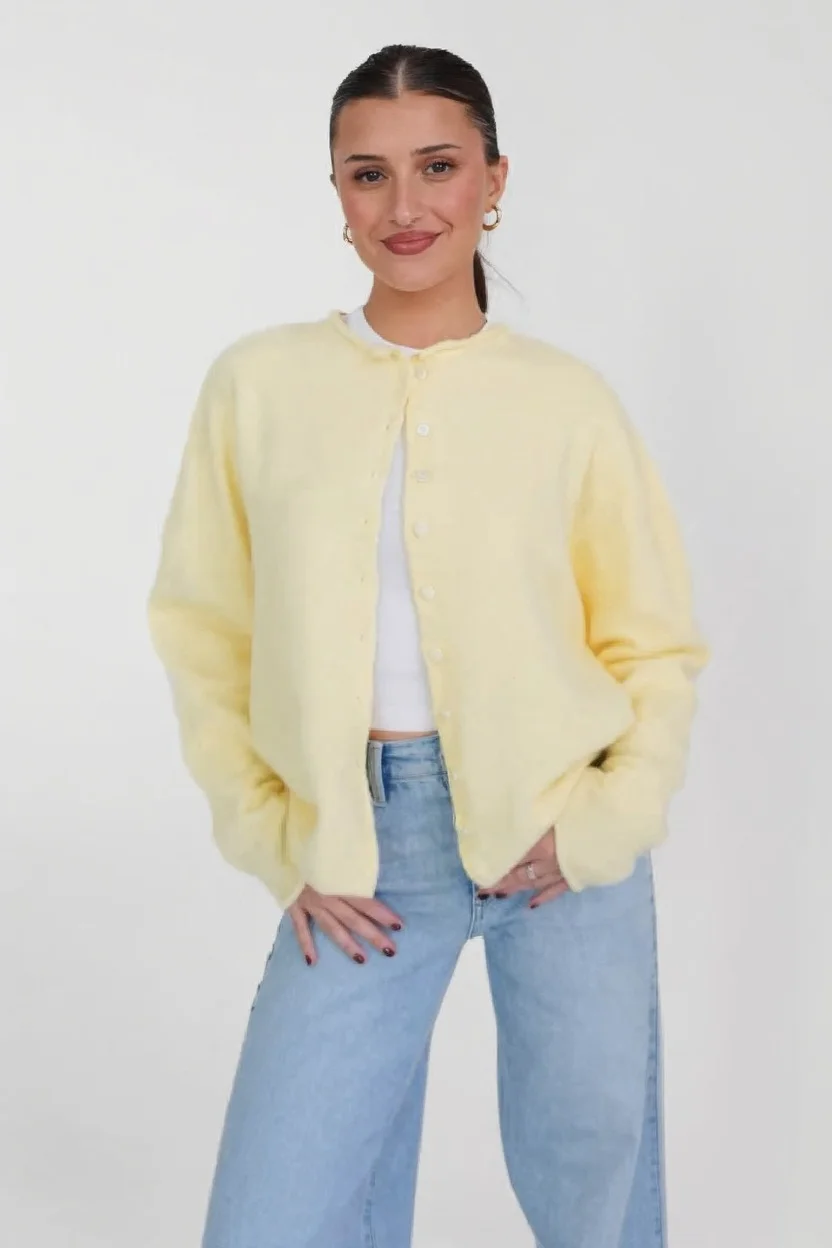
5.1Step 1: Prepare Your Character Image
Same requirements as Method 1, with one addition: the character's body proportions should roughly match the person in the video. If the video shows someone standing, a standing character photo works better than a seated one.
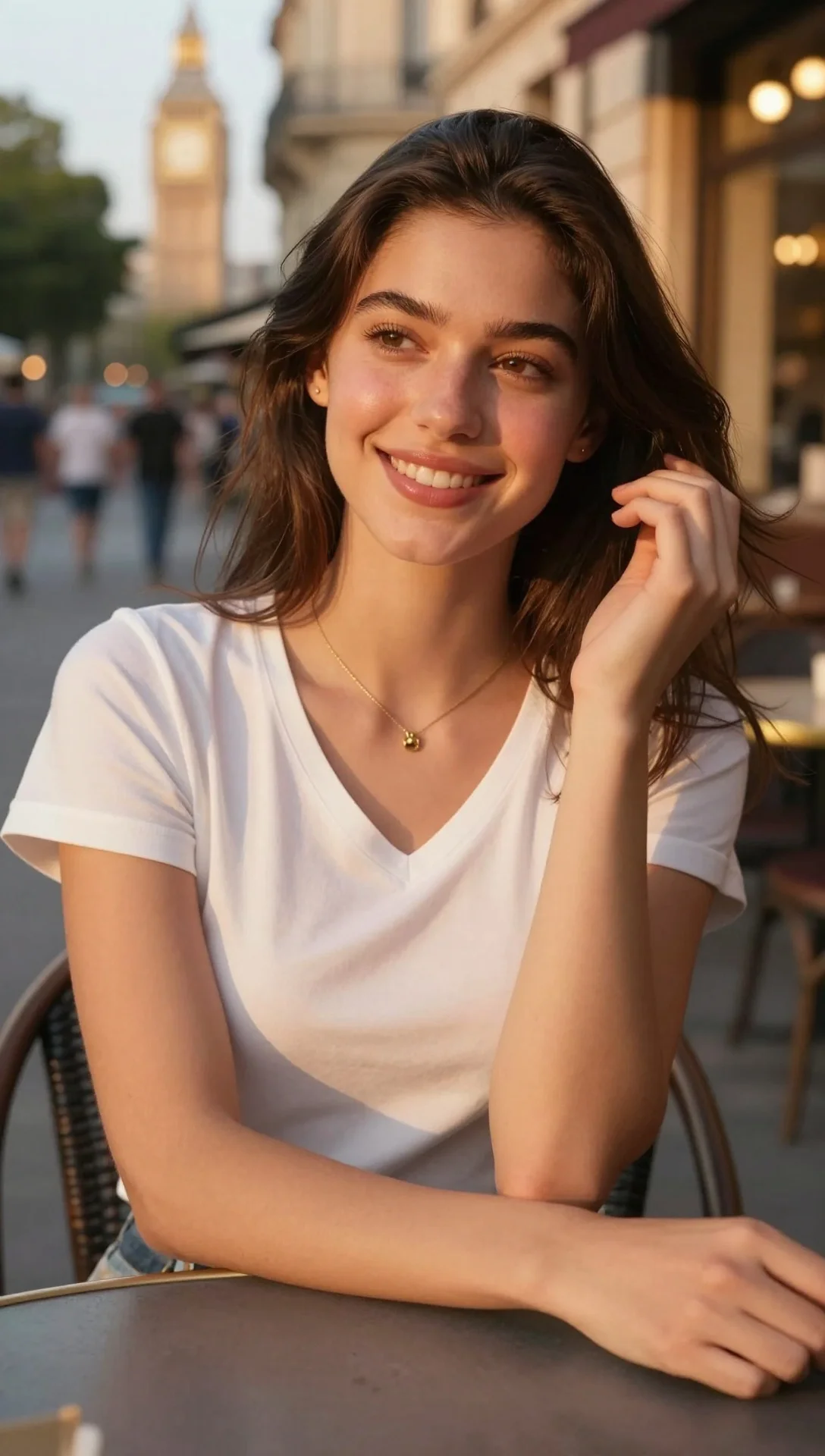
5.2Step 2: Select Your Source Video
This is the video where the person will be replaced. For best results:
- Clear view of the person — the AI needs to identify and track them
- Consistent lighting — helps the replacement look natural in the scene
- Clean background — complex, moving backgrounds are harder to preserve
- Single focal person — the AI replaces the primary person detected
5.3Step 3: Process
Go to Imagera Character Replacement and select Character Replacement (Mix Mode).
- Upload your character image
- Upload your source video
- Choose quality: SD or HD
- Click process
5.4Step 4: Review
Check that:
- The character blends with the scene's lighting and perspective
- Background is preserved — the original scene should look untouched
- Motion looks natural — the character should move naturally in the scene
- Edge quality — no visible seams between character and background
6.The Technology: How Skeleton Tracking Works
AI face swap quality depends heavily on how well the tool tracks human movement. There are three approaches used by different tools:
6.1Template-Based (Viggle AI)
Preset motion templates. The user picks from a library of animations. Simple to use but limited — you can't use your own reference videos. Best for casual meme content.
6.2Generic Video-to-Video (Runway, Pika)
Takes video input and generates new video output. No explicit skeleton tracking. The AI interprets motion implicitly. Results can be creative but less precise for face swap specifically.
6.3Skeleton Tracking (Imagera, Kling)
Detects specific body points — joints, limbs, torso — frame by frame. Imagera's PoseNet system tracks 17 body points. This skeleton map is then used to drive the character animation. Most precise method for face swap because the AI understands exactly where each body part is.
The skeleton tracking approach produces the most consistent results because it's working from explicit body position data rather than trying to interpret motion from pixels alone.
7.Tips for Better Results
7.1Match Body Proportions
If your character image shows a tall, slim person but the driving video features someone shorter and stockier, the motion transfer will look unnatural. Try to roughly match body types between your character and the reference video.
7.2Use Consistent Lighting
Both your character image and reference video should have similar lighting direction. A character lit from the left placed into a scene lit from the right creates an uncanny result. The AI handles minor differences well, but extreme mismatches are visible.
7.3Start with SD Quality
SD (480p) costs half as much as HD and processes in the same time. Test your concept at SD first. Once you're satisfied with the motion and composition, re-process at HD for the final version. This saves credits during iteration.
7.4Keep Videos Under 15 Seconds for Social Media
While the tool supports up to 30 seconds, most social media engagement happens in the first 5-10 seconds. Shorter videos also give the AI less opportunity for accumulated tracking drift. For TikTok content, 5-10 seconds is the sweet spot.
7.5Clean Up Source Material
If your character image has compression artifacts or your video is heavily compressed, the AI amplifies these imperfections. Use the highest quality source files available. If needed, run photos through an image upscaler first.
7.6Add a Text Prompt
The optional text prompt can guide the AI's generation. Describe what the output should look like: "person dancing in a park" or "professional presenter in office." This helps the AI make better decisions about details.
8.Common Use Cases
8.1TikTok Dancing Photo Trend
The biggest use case in 2026. Upload a selfie or portrait + a dance video = your photo comes alive. The 704% growth in face swap content is driven by exactly this trend. Use Animate Photo mode.
8.2Updating Training Videos
A presenter leaves the company. Instead of reshooting $5,000-$10,000 of training content, use Character Replacement to swap in a new presenter. The original script, scene, and production quality remain intact.
8.3Film Post-Production
Replace stunt doubles, fix continuity errors, or swap actors after filming. Indie filmmakers use this to achieve VFX that previously required Hollywood budgets.
8.4Marketing Content at Scale
Create variations of the same video with different presenters for A/B testing or market localization. One shoot, multiple versions with different characters.
8.5Privacy and Anonymization
Replace identifiable people in documentary footage, news reports, or user-submitted content. Protect identities while preserving natural movement and scene context.
9.Common Questions
9.1Will the face swap look fake?
Quality depends on three factors: input quality, body proportion matching, and the tool's skeleton tracking. With good inputs and proper tracking, current AI produces results that are difficult to distinguish from original footage at social media resolution. At higher resolutions or with close-up scrutiny, trained eyes can spot artifacts.
9.2Can I face swap multiple people in one video?
Current tools work best with single-person replacement. For multiple people, process the video multiple times — once per person. Some future tools may handle multi-person swaps natively, but single-person accuracy is higher.
9.3What about audio — does the voice change too?
No. Face swap is a visual operation only. The audio track remains unchanged. If you need the voice to match a new character, use a voice generator separately and sync the audio to the swapped video.
9.4Can I face swap onto animals or non-human characters?
The skeleton tracking is designed for human body proportions (17 body points: head, shoulders, elbows, wrists, hips, knees, ankles). Humanoid characters work well. Animals or abstract shapes don't have the right skeletal structure for accurate motion transfer.
9.5How is this different from a deepfake?
"Deepfake" typically refers to face-only replacement — pasting one person's face onto another person's body, often in existing footage. AI character replacement goes further: it transfers full-body motion and can replace the entire person, not just the face. The technology overlaps, but character replacement with skeleton tracking is more versatile and produces more natural results than face-only approaches.
9.6Can I use this for the "AI Sway Dance" TikTok trend?
Yes — Animate Photo (Move Mode) is exactly what that trend uses. Upload your photo + a sway dance driving video. The Character Replacement tool handles it in 40-60 seconds. The trend has accumulated 2.1B+ views on related hashtags as of early 2026.
Part of the AI Face Swap Video series. See also: AI Face Swap Video Online — No Download | Talking Avatar | Video Enhancer
10.Related product studios
11.Tools and next steps
| Goal | Open |
|---|---|
| Image edits & pose | Imagera Image Editor · Identity Editor |
| Headshots | AI Headshot |
| Product / person reels | Product Reel Maker · Human Reel Maker |
| Talking photo | Avatar Generator · Talking Avatar |
| Pricing | Pricing |
How to ship: upload a master file → write a clear instruction → confirm credits → generate → review on phone → export winners only.
12.See it in action — real Imagera output
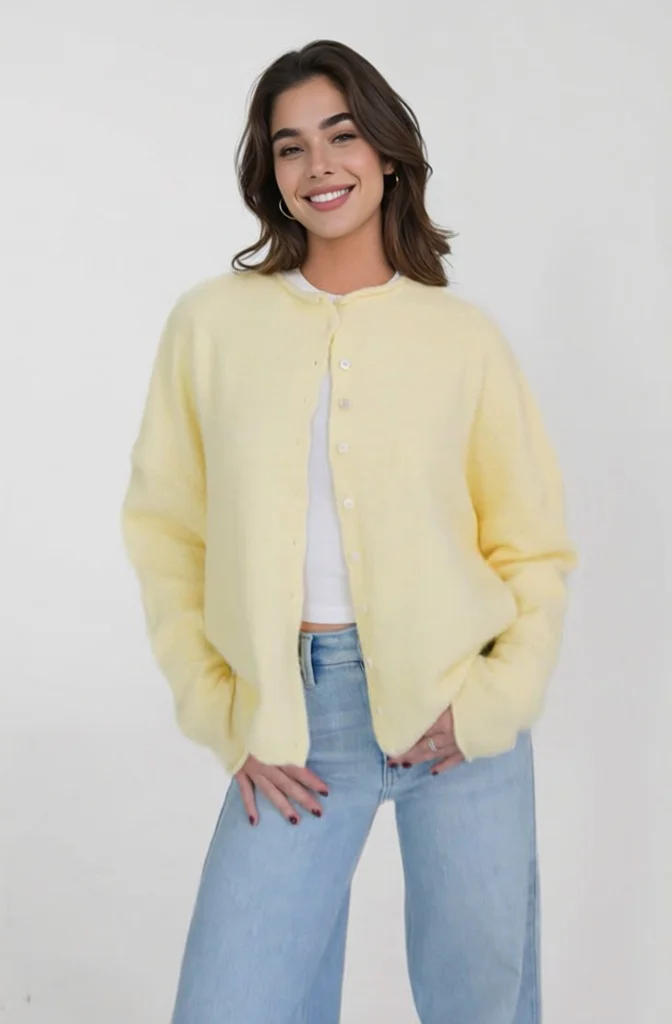
These are real, unedited results from the Imagera character replacement — the exact tool this guide covers.