Imagera AI - AI content creation platform for generating images, cloning voices, creating avatars, and enhancing videos. Privacy Policy | Terms

IMAGERAAI
Tutorial
AI Video Generation

AI Lip Sync Generator Online (2026)

AI lip sync generator — sync any audio to photos or videos online. Realistic mouth movements, multi-speaker support, no download required. From 15 credits…

By Imagera AI Team8 min readFebruary 14, 2026Updated: July 20, 2026
Share:
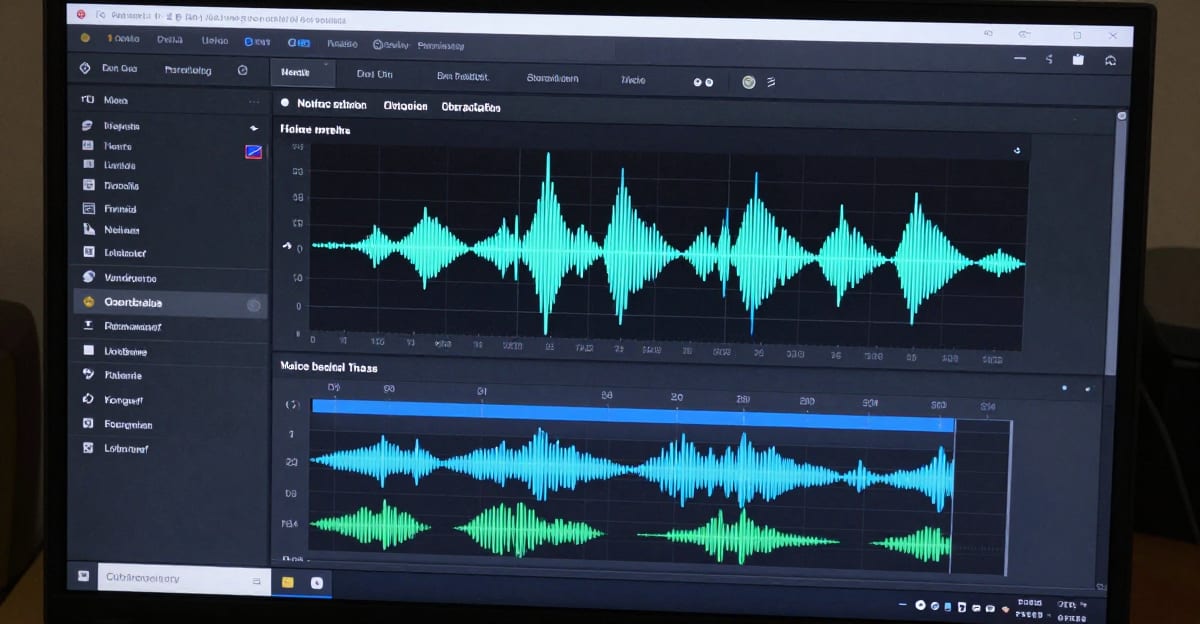
AI lip sync technology showing audio waveform syncing with a portrait, demonstrating realistic mouth movements and speech animation

TL;DR

Imagera AI Lip Sync Generator lets you sync any audio to photos or videos with realistic mouth movements. Upload a portrait and audio file, and AI generates a talking video with natural lip movements. Supports single and multi-speaker modes, works entirely in the browser with no download. From 15 credits per generation, plans starting at $19.99 packs / Pro $19.99/month.

Try it yourself — no setup

Turn any portrait into a lip-synced talking video.

How to Create AI Lip Sync Videos Online

Generate realistic lip sync videos from any photo using AI

  1. Upload a photo: Upload a clear, front-facing photo with a visible face to the Imagera lip sync tool.
  2. Add your audio: Record audio directly, upload an MP3, or type a script to generate AI voice.
  3. Generate the video: Click generate and wait 60 seconds for your AI lip sync video to render.
  4. Download and share: Preview the result, then download in 1080p MP4 format for any platform.

Making a photo or video talk used to require motion capture rigs, professional animators, and production budgets. AI lip sync changes that entirely.

Upload a portrait photo and an audio file. In under a minute, you have a video where the face speaks your audio with realistic mouth movements, natural head motion, and proper timing.

This guide covers how AI lip sync works, what you can create with it, and how to get started with Imagera's lip sync generator.

Real Imagera output: a photo turned into a talking avatar.

Quick answer: Imagera's online AI lip sync generator matches any voice or script to a face in a talking-head video, producing accurately synced mouth movements in minutes with no software download.

1.How does an online AI lip sync generator match mouth movements to audio?

Imagera analyzes your audio waveform and maps 40+ phoneme shapes onto the face frame by frame, aligning lips, jaw, and expression to the voice track. The process runs fully in-browser with no download, exports at up to 4K, and typically finishes a 30-second clip in under 2 minutes, giving you far tighter sync than manual keyframing without the hours of hand work.

2.Can I lip sync a video in a different language with Imagera?

Yes. Imagera re-syncs the same face to a new voice track in 30+ languages, so a single recording becomes dozens of localized versions. Viewers tend to engage more with content in their own language, which is why creators pair 1-click dubbing with lip sync to expand a video's audience across 100+ markets from one original take.

3.What Is AI Lip Sync?

AI lip sync technology analyzes audio — speech patterns, phonemes, timing, pauses — and generates corresponding mouth movements on a face. The AI maps each sound to the correct lip position and blends movements smoothly between phonemes.

The result: a video where the person appears to actually speak the audio you provided.

What makes modern lip sync AI different from older approaches:

  • Phoneme-accurate: Maps individual sounds (p, b, m, th, oo) to precise lip shapes, not generic mouth opening
  • Natural motion: Includes subtle jaw movement, cheek muscle engagement, and chin motion — not just lips
  • Head dynamics: Slight natural head movement during speech, not a frozen face with moving lips
  • Audio-adaptive: Pacing, emphasis, and pauses in the audio produce matching visual rhythm

The practical takeaway: you no longer need a camera, a studio, or an actor to produce a talking-head video. You need one clear face and one clean audio track. Everything else is handled by the generator inside your browser.

4.What Imagera's Lip Sync Generator Actually Does

Imagera's Lip Sync Studio runs entirely in the browser — there is nothing to download or install. It works in two distinct input modes, and each supports one or two speakers:

  • Image Lip Sync (Image to Video / I2V): Upload a still portrait plus an audio file. The AI animates the face so it speaks the audio, producing a talking video from a single photo.
  • Video Lip Sync Fix (Video to Video / V2V): Upload an existing video plus a new audio track. The AI re-synchronizes the lip movements in that footage to match the new audio — the core capability behind clean multilingual dubbing.

Both modes support single-speaker and multi-speaker output. Multi-speaker handles up to two faces in the same frame, with two ways to assign audio: automatic diarization (the system separates two voices from a single audio file) or manual mode (you upload a separate audio file for each speaker). The studio manages speaker transitions and keeps each mouth in sync with the right voice.

A few concrete specs worth knowing before you start:

  • Default output resolution is 852×480 (SD), tuned for fast web delivery. Custom width and height parameters are available when you need different dimensions.
  • Maximum output is 60 seconds per generation. For longer content, produce multiple segments and stitch them in any editor.
  • Generation time is typically 20–40 seconds per clip, depending on length and queue.
  • Outputs come with a commercial license and no watermark on Imagera plans.

5.How Imagera's Lip Sync Generator Works

Step 1: Upload a source image or video. Any clear portrait photo works for Image Lip Sync. The face needs to be visible and reasonably front-facing. Existing videos work in Video Lip Sync Fix mode — the AI replaces the original lip movements with new ones matching your audio. Common formats are supported (JPG, PNG for images; MP4, MOV for video).

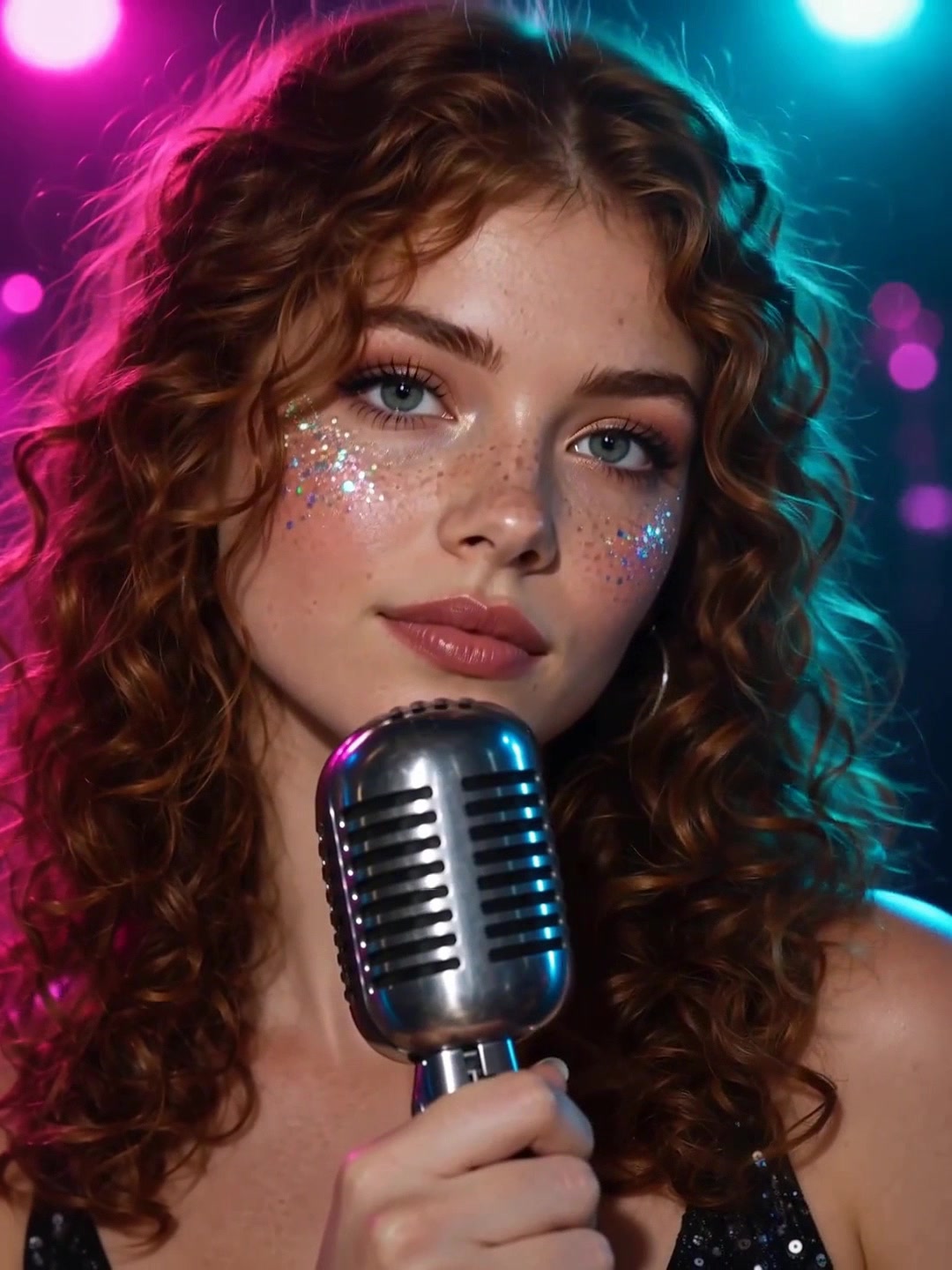
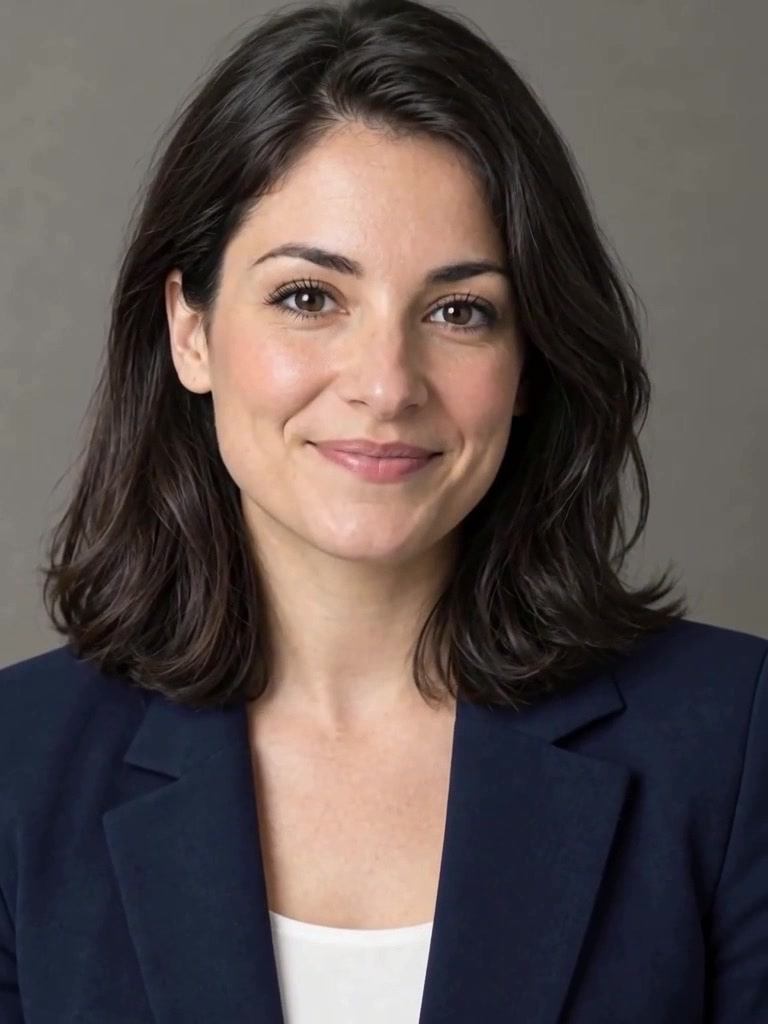
Portrait photo used as input for AI lip sync generation in Imagera

AI Lip Sync Generator: Sync Audio to Any Face Online is a practical Imagera workflow: start from a real source file, describe what should change, generate with credits shown up front, and review before you publish. This guide covers the steps, quality checks, and when to use related tools.

Step 2: Provide audio. Upload an audio file (MP3, WAV, M4A) or use the built-in voice generator to create speech from text. Audio can be any language.

Step 3: Choose generation mode.

  • Single speaker: One face, one audio track. Best for presentations, explainers, and content creation.
  • Multi-speaker: Two faces in frame, each synced to different audio. Use automatic diarization to split one file into two voices, or manual mode to assign a separate file to each speaker. Ideal for conversations and dialogues.

Step 4: Generate. AI processes the audio, maps phonemes to lip positions, and renders a video with natural-looking speech. Results typically arrive within 20–40 seconds depending on audio length.

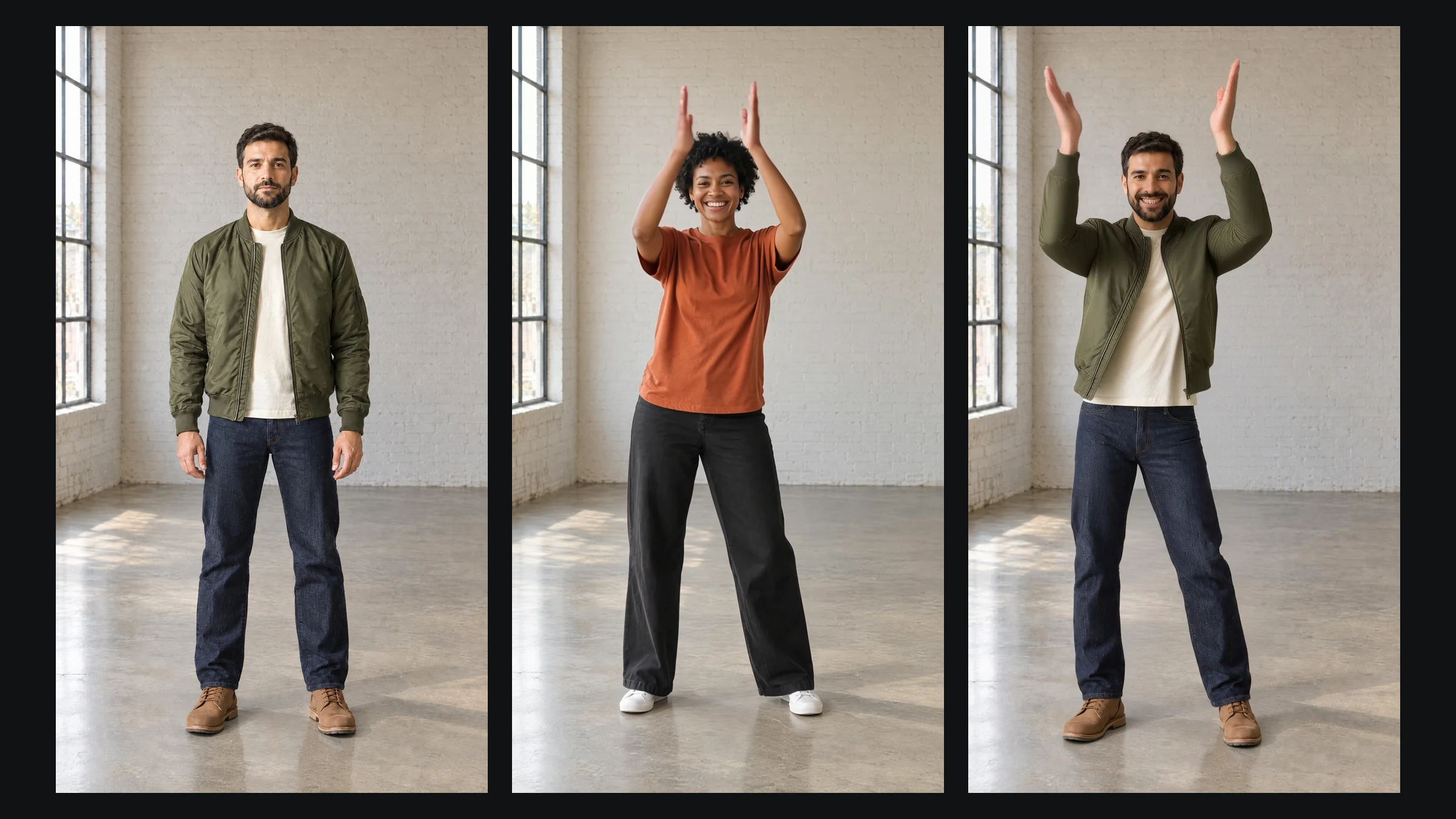
AI lip sync result showing realistic mouth movements synced to audio

6.Step-by-Step Walkthrough

If you have never made a talking video before, here is the exact sequence from a blank studio to a finished clip. The whole thing takes a few minutes.

  1. Open the studio. Go to /video/talking-avatar and enter the Lip Sync Studio. Everything runs in the browser — no app install, no GPU on your side.
  2. Pick your mode. Choose Image Lip Sync if you are starting from a photo, or Video Lip Sync Fix if you already have footage and want to re-sync the mouth to new audio.
  3. Upload the face. Add a clear, front-facing portrait (for I2V) or your source video (for V2V). Make sure the mouth area is unobstructed and well lit.
  4. Add the audio. Upload a voice recording, or write a script and generate a voiceover with the voice generator. Match the tone of the voice to the face for the most believable result.
  5. Set speakers. Select single-speaker for one presenter. For a two-person scene, switch to multi-speaker and either turn on diarization (one file, two voices) or upload one audio file per speaker.
  6. Adjust dimensions if needed. The default 852×480 output ships fast and works for social platforms. Set custom width and height only if your placement requires a different frame.
  7. Confirm credits and generate. The studio shows the credit cost before you run — standard lip sync starts at 20 credits per video. Click generate; expect the clip in roughly 20–40 seconds.
  8. Review the sample. Watch mouth timing on playback. If the sync or framing is off, adjust the input and regenerate. Only publish clips that pass a close look at the mouth.
  9. Download and use. Save the video. Outputs carry a commercial license and no watermark, so you can post them directly or drop them into a longer edit.

7.What You Can Create

7.1Educational Content

Turn lecture slides with a presenter thumbnail into talking-head videos. Upload professor photos with lecture audio. Students engage better with a speaking face than a static image over slides.

Perfect lip sync input portrait ready for audio synchronization

7.2Social Media Content

Create talking character videos without filming. Use AI-generated voices or your own recordings. Post lip-synced content to TikTok, Instagram Reels, or YouTube Shorts.

7.3Product Explainers

Have a spokesperson photo deliver your product pitch. Update the script anytime without reshooting. Test different messaging by swapping audio files.

7.4Multilingual Content

Take existing video content and replace lip movements to match dubbed audio in other languages using Video Lip Sync Fix mode. The mouth movements sync to the new language's phonemes, not the original.

Lip sync output thumbnail showing natural speech animation result

7.5Podcast Visualization

Convert audio podcasts into video content. Attach speaker photos to each voice, and AI generates talking-head video for each participant. Upload the result to YouTube alongside your audio podcast.

7.6Corporate Training

Create training videos from executive photos and scripted audio. No need to coordinate schedules for video shoots. Update content by changing the audio file.

8.Who It's For

AI lip sync is not a single-audience tool. The same two modes serve very different workflows depending on who is holding the keyboard.

  • Faceless creators who want a consistent on-screen presence without appearing on camera. Pair a portrait avatar with a generated voice and you can run a whole channel without ever filming yourself.
  • Educators and course builders who need to refresh lessons often. Swap the audio and the lecture updates — no re-recording, no rescheduling a shoot.
  • Localization and dubbing teams who need the mouth to match a translated track. Video Lip Sync Fix re-syncs existing footage to the new language instead of leaving an obvious dub mismatch.
  • E-commerce and marketing teams who need many short spokesperson clips across products or campaigns. Generate a presenter from one photo, then swap scripts per SKU or season.
  • Small teams and solo founders who can't justify a subscription to a stock-avatar platform. Pay-per-use credits mean you only spend when you actually generate a clip.
  • Meme and short-form makers who want a character — real or AI-generated — to say something. Generate the character image, then make it speak.

9.Common Use Cases in Practice

Beyond the categories above, here is how the two modes map to concrete jobs people run every week:

  • "Talking head from a headshot." One founder photo plus a 30-second pitch becomes a personal intro for a landing page or ad. Single-speaker, Image Lip Sync.
  • "Two-person explainer." A host and a guest in one frame trade lines. Multi-speaker with diarization splits a single interview recording into two synced mouths.
  • "Dub my demo into Spanish." An existing English product walkthrough gets a Spanish voiceover, and the lips are re-synced to match. Video Lip Sync Fix, single-speaker.
  • "Weekly faceless short." A recurring avatar reads a script generated fresh each week. Combine the voice generator with Image Lip Sync for a repeatable pipeline.
  • "Make the character speak." Generate a stylized portrait or character with the image generator, then feed it into Lip Sync Studio with a punchy audio line for social.

10.Single vs Multi-Speaker Mode

Single speaker processes one face with one audio track. Generation is faster, and the AI focuses all processing power on making that one face look natural. Use for:

  • Presentations and keynotes
  • Product demos
  • Social media content
  • Educational explainers

Multi-speaker handles up to two faces in a single frame, each synced to separate audio. Turn on automatic diarization to separate two voices from one file, or use manual mode to assign a distinct audio file to each speaker. The AI identifies each face, assigns the corresponding audio, and generates synchronized lip movements for both speakers. Use for:

  • Interview simulations
  • Dialogue scenes
  • Two-person conversations
  • Conversational content

11.Comparison: Imagera vs Other Lip Sync Tools

Different platforms optimize for different buyers. Imagera is built for creators who want to use their own photos, pay only when they generate, and access modes — multi-speaker and V2V — that most avatar tools don't offer. Competitor prices below were verified in February 2026; the Imagera column is expressed in credits, because the dollar value of a credit varies across plans.

FeatureImageraHedraSynthesiaHeyGenD-ID
Pricing modelPay-per-use credits$8.33/mo (annual)$29/mo$29/mo$5.90/mo
Cost per short clipFrom 20 creditsFrom subscription poolFrom subscription poolFrom subscription poolFrom subscription pool
Use your own photoYesYesNo (stock avatars)No (stock avatars)Yes
Multi-speaker modeYesNoNoNoNo
Auto speaker diarizationYesNoNoNoNo
Video to Video (V2V) re-syncYesNoNoNoNo
Image to Video (I2V)YesYesNoNoYes
No subscription requiredYesNoNoNoNo
No watermarkYesAdds on lower tiersYesYesAdds on lower tiers

The honest read: Synthesia and HeyGen are strong for polished corporate avatar libraries, but they lock you into stock characters and a monthly commitment. D-ID and Hedra are inexpensive for simple talking heads. Imagera's edge is the combination of your-own-photo input, multi-speaker output, V2V re-syncing, and no subscription — you spend credits only on the clips you actually make.

12.Pricing

AI lip sync generation on Imagera is credit-based and pay-per-use. Standard lip sync starts at 20 credits per video. Multi-speaker generations run higher — roughly 20–40 credits per 10-second segment depending on complexity. The studio always shows the credit cost before you run a generation, so there are no surprises.

You buy credits through a plan or a credit pack and spend them across any tool. There is no subscription requirement to generate — a plan simply gives you a monthly credit balance at a better rate:

  • Pro Plan: $19.99/month — a monthly credit balance for regular lip sync, image, and video work
  • Business Plan: $49.99/month — a larger monthly credit balance for higher-volume production

Because credits are shared, the same balance covers lip sync, image generation, video enhancement, or any other Imagera tool. Compared to fixed monthly avatar subscriptions, this suits creators who need occasional or bursty lip sync output rather than a constant volume.

13.Tips for Best Results

Source image quality matters. Clear, well-lit portraits produce the best results. The face should be:

  • Front-facing or a slight three-quarter angle
  • Well-lit with minimal harsh shadows
  • Clearly visible — no obstruction of the mouth area
  • Reasonably high resolution so the mouth region stays sharp

Audio quality affects results. Clean audio with minimal background noise produces smoother lip sync. The system handles accents, different languages, and varied speaking speeds, but a noisy recording makes phoneme mapping harder and can soften the sync.

Match the audio to the face. A formal corporate photo looks best with professional speech. A casual selfie pairs better with a conversational tone. A mismatch reads as "off" even when the sync itself is accurate.

Keep audio pacing natural. The generator handles normal speech cadence well. Avoid unnaturally fast or robotic audio — the lip movements will look strained.

Use the built-in voice generator. Imagera's voice generator produces clean speech that maps well to phonemes, which helps the lip sync land.

Test with short clips first. Generate a short test before committing to a full 60-second clip. Verify the face angle, audio quality, and framing before you scale up.

Plan around the 60-second limit. For longer scripts, split the audio into segments, generate each one, and combine them in any editor. This also lets you re-do a single weak segment without regenerating the whole piece.

14.Common Mistakes to Avoid

  • Using a low-resolution or backlit photo. If the mouth area is soft or in shadow, the sync will look mushy no matter how clean the audio is.
  • Feeding in noisy audio. Background music or room noise degrades phoneme detection. Record or clean the track first.
  • Choosing a heavy three-quarter or profile angle. Extreme angles hide part of the mouth and reduce accuracy. Front-facing is safest.
  • Expecting more than two speakers in one frame. Multi-speaker mode supports up to two faces. For a larger panel, generate speakers separately and edit them together.
  • Skipping the short test. Batching ten clips before checking one is a fast way to waste credits. Validate a single sample first.
  • Publishing without disclosure. For public content — especially anything involving real or historical people — disclose that the video is AI-generated per platform guidelines.

15.Example Scenarios

A creator launching a faceless channel. She generates a recurring avatar portrait once, then each week writes a script, generates a voiceover, and runs Image Lip Sync single-speaker. Output is SD, under 60 seconds, ready for Shorts. Cost per episode is a small credit spend rather than a fixed monthly fee.

A course team localizing a lesson. They already have an English lecture video. Using Video Lip Sync Fix, they upload the footage plus a Spanish voiceover; the AI re-syncs the presenter's mouth to the new language. No reshoot, no obvious dub mismatch.

A marketing team testing spokespeople. They generate the same 15-second pitch across three different presenter photos, compare which reads best, and only scale the winner. Pay-per-use makes A/B testing presenters cheap.

16.Common Questions

16.1Does AI lip sync work with any photo?

Any photo with a clearly visible, front-facing face works best. Extreme angles, heavy shadows on the mouth area, or very low-resolution images may reduce quality. The system handles diverse skin tones, ages, and facial features.

16.2Can I use AI lip sync commercially?

Yes. Imagera outputs include a commercial license and no watermark. Use lip-synced videos for marketing, social media, e-commerce, corporate training, educational content, and client work.

16.3What languages does AI lip sync support?

Any language. The system maps audio phonemes to lip positions regardless of language, so English, Spanish, Mandarin, Arabic, Hindi, Japanese, and others all produce accurate lip movements.

16.4How long can the video be?

Up to 60 seconds per generation. For longer content, split the audio into segments, generate each, and combine the output in any video editor.

16.5Can I change the audio later without re-uploading the image?

Yes. Swap the audio and regenerate to produce new speech from the same face. Each generation spends credits — standard lip sync starts at 20 credits.

16.6What's the difference between Image Lip Sync and Video Lip Sync Fix?

Image Lip Sync (I2V) turns a still photo plus audio into a talking video. Video Lip Sync Fix (V2V) takes an existing video plus new audio and re-syncs the lips — the mode you use for multilingual dubbing.

16.7How many speakers can appear in one video?

Up to two. Use automatic diarization to split a single audio file into two voices, or manual mode to assign a separate file to each speaker.

16.8Is the lip sync a genuine authenticity check on the person?

No — this is a generation tool, not an identity or authenticity verifier. It animates a face to match audio. For public content involving real or historical people, disclose that the result is AI-generated per platform guidelines.

17.Start Creating Lip Sync Videos

Upload a photo, provide audio, and get a talking video in well under a minute. No filming, no editing software, no download required.

Create Lip Sync Video →

Browser-based. Multi-speaker support. Commercial license included.


Related: Hedra vs Imagera Lip Sync Comparison | Create Talking Avatar Videos | AI Lip Sync for Social Media | AI Lip Sync Generator

18.Deeper guide (practical production)

NeedLink
Open productOpen
Product Reel MakerOpen
Human Reel MakerOpen
AI Video GeneratorOpen
Avatar GeneratorOpen

20.Quick start (high-intent)

  1. Open the matching Imagera product from the links in this post.
  2. Upload a high-quality master.
  3. Describe the change in plain English.
  4. Confirm credits shown in studio.
  5. Review, then publish only winners.

Pricing · All tools · Image Editor · Product Reel Maker · AI Headshot

Frequently Asked Questions

How do I make a photo talk with AI?
Open Imagera's lip sync generator, choose Image Lip Sync mode, upload a clear front-facing photo, add an audio file or generate a voiceover, and run the generation. The AI maps the audio's phonemes to lip positions and returns a talking video — typically in 20–40 seconds. Standard lip sync starts at 20 credits, with multi-speaker support and no download required.
What inputs make online lip sync look natural?
A clear, front-facing face plus clean audio (or a script for text-to-speech). Good lighting, an unobstructed mouth area, and a noise-free recording improve mouth tracking. Try the lip-sync / talking avatar flow from /video/talking-avatar.
How are lip-sync generations priced?
Lip-sync / talking media is pay-first cloud compute, priced in credits. Standard lip sync starts at 20 credits per video; multi-speaker runs higher. Buy credits on pricing before longer scripts, and validate mouth timing on a short sample first.
What is the best AI lip sync generator?
The best tool depends on your needs, but Imagera stands out for creators who want to use their own photos, pay only per generation, and access multi-speaker and V2V re-syncing that most avatar platforms lack. Follow the step-by-step section above, then validate on a short sample before batching. Product entry: /video/talking-avatar.
Can AI sync audio to any face?
Yes — any clear, front-facing face works well, across diverse skin tones, ages, and features. Extreme angles or shadowed mouths reduce quality. See /video/talking-avatar.
Can I re-sync an existing video to a new voiceover?
Yes. Use Video Lip Sync Fix mode: upload your existing footage plus the new audio, and the AI re-synchronizes the lips to match. This is the mode for multilingual dubbing and script changes on already-filmed content.

Imagera AI Team

AI Content & Editorial Team

The Imagera AI editorial team brings together AI researchers, product specialists, and content strategists covering practical AI creation workflows.

Areas of Expertise:

AI Image GenerationAI Voice RecreationAI Avatar CreationContent Marketing

Put this guide to work

Turn any portrait into a lip-synced talking video.

Turn any portrait into a lip-synced talking video.