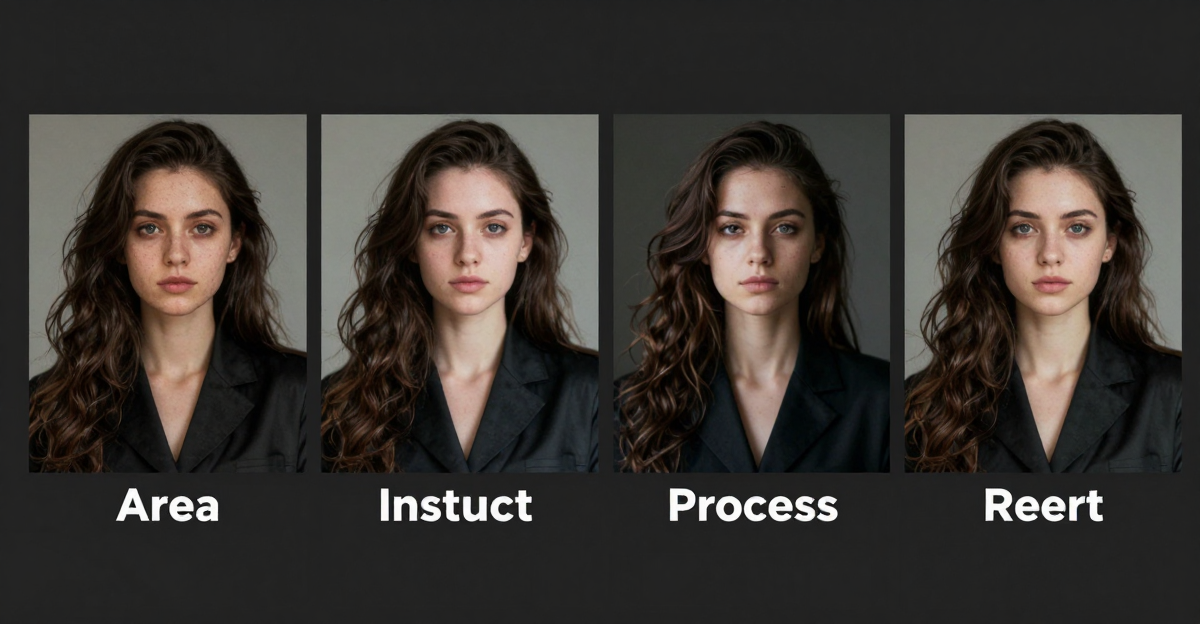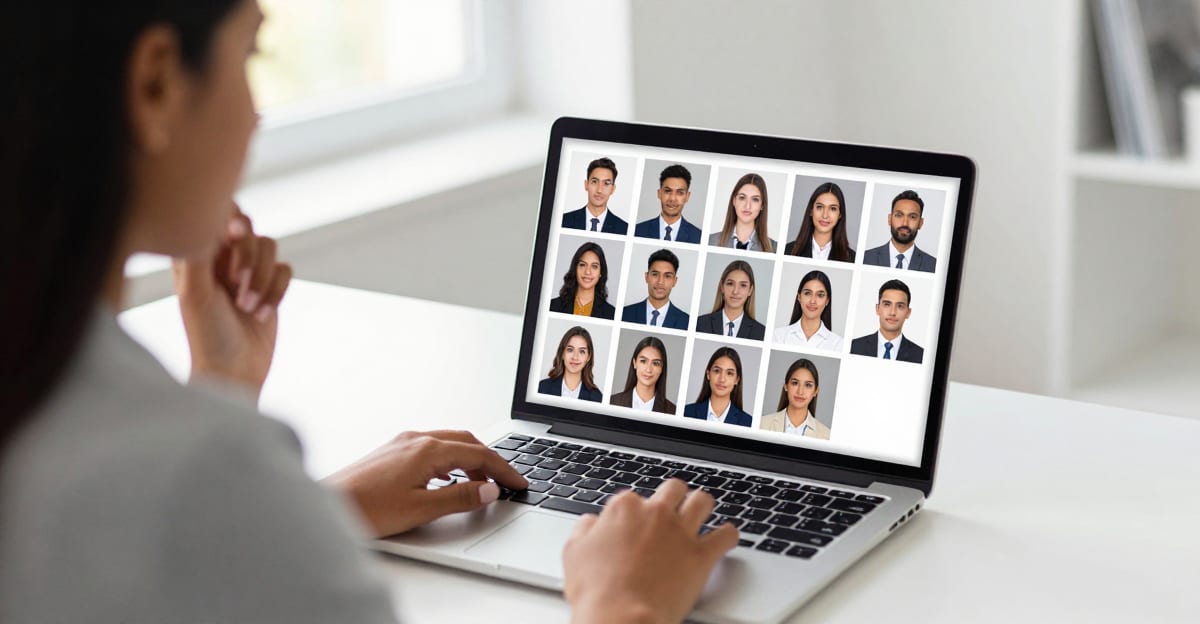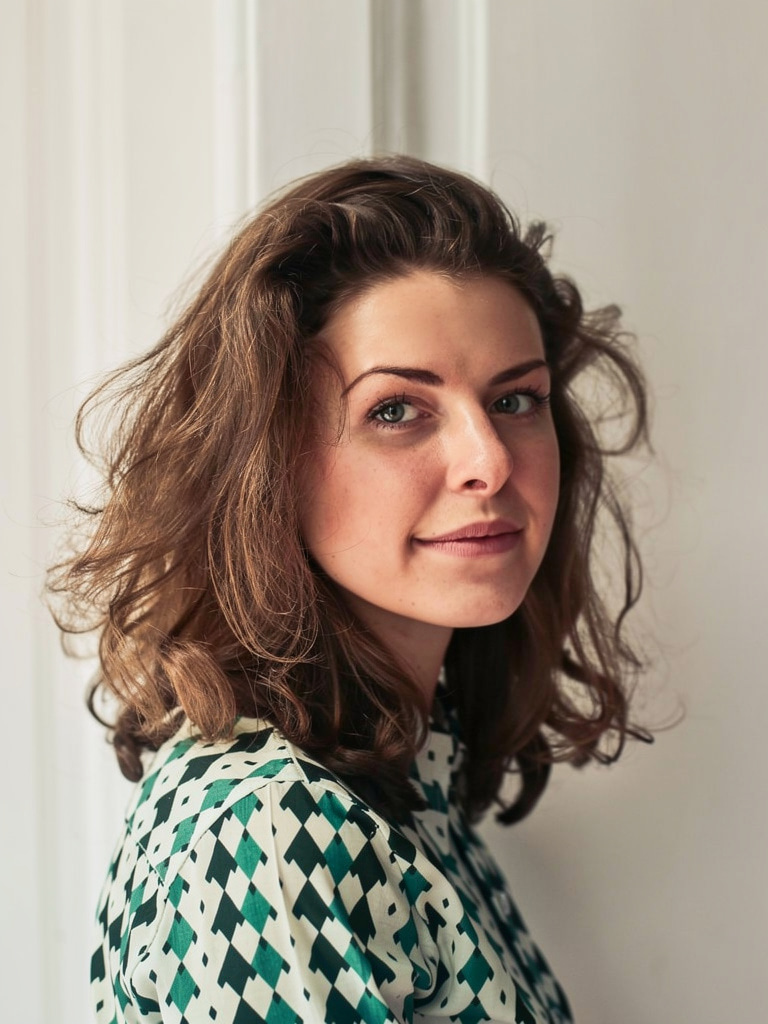
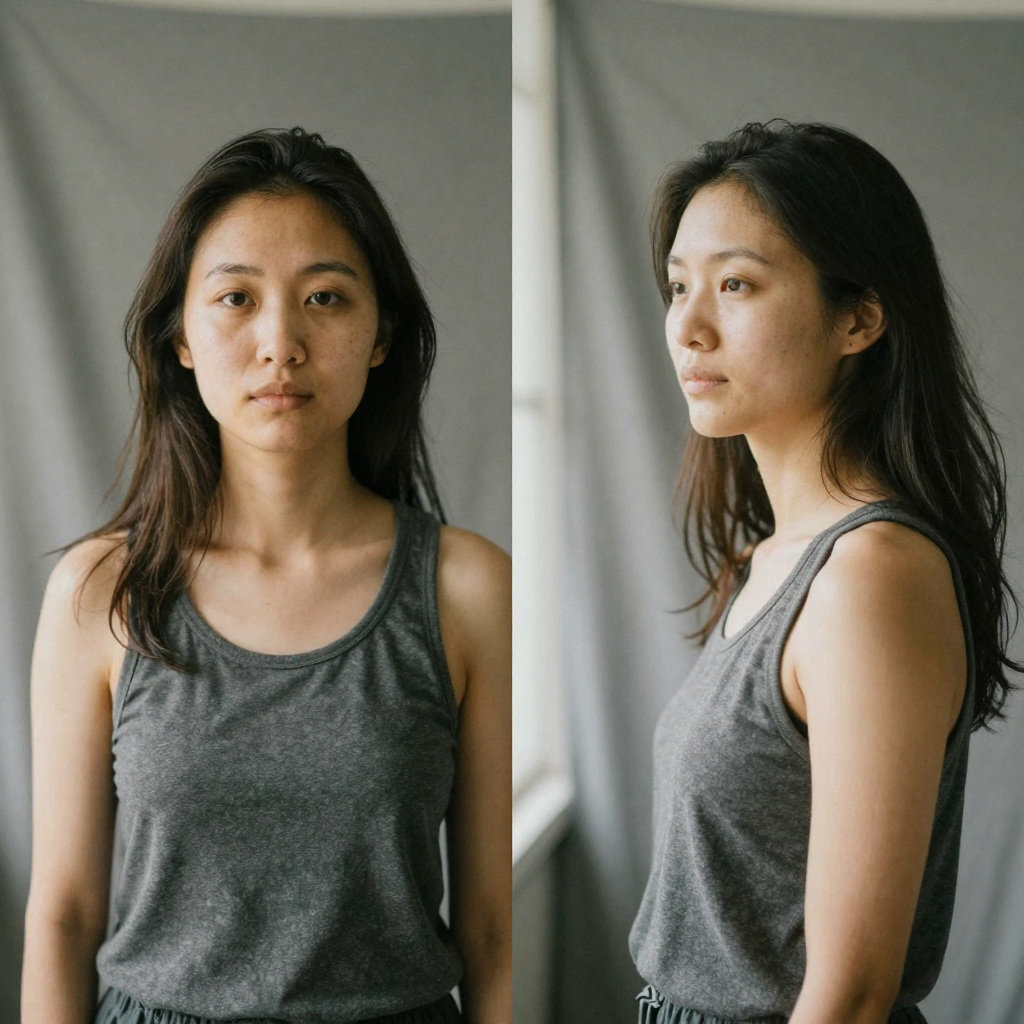
Quick answer: Open the Imagera Identity Editor, upload a clear single-subject photo, and write a three-part prompt (new pose + "keep the same face" + light or background), then generate and review the eyes, jaw, and hair before export.
1.How do I change a pose without changing the face in a photo?
Use the Imagera Identity Editor with a 3-part prompt: pose geometry, an identity lock, and one light/background constraint. Upload a sharp, front-facing subject, pick Normal or Ultra Fast, and run a quick review pass (eyes, jaw, hairline, ears, skin, hands). Most edits finish in under 60 seconds at up to 4K, and a retry or two usually resolves any face drift.
2.Why does AI change the face when you only asked for a pose?
Face drift happens when the model re-generates the whole subject instead of only the body, so an explicit identity lock plus a single clean reference keeps the likeness intact. Imagera's Identity Editor runs both Normal and Ultra Fast modes on one shared credit wallet, so you can iterate quickly without re-uploading. Low-resolution or multi-face uploads are the most common cause of likeness failures, which is why one well-lit reference matters most.
3.Goal
Change pose or camera angle in an existing photo without inventing a new person. That is the Imagera Identity Editor workflow.
If you only need the product story and comparison table, read the companion guide first: Imagera Identity Editor: change pose, keep the face. This page is the operator tutorial — inputs, prompts, review, and recovery.
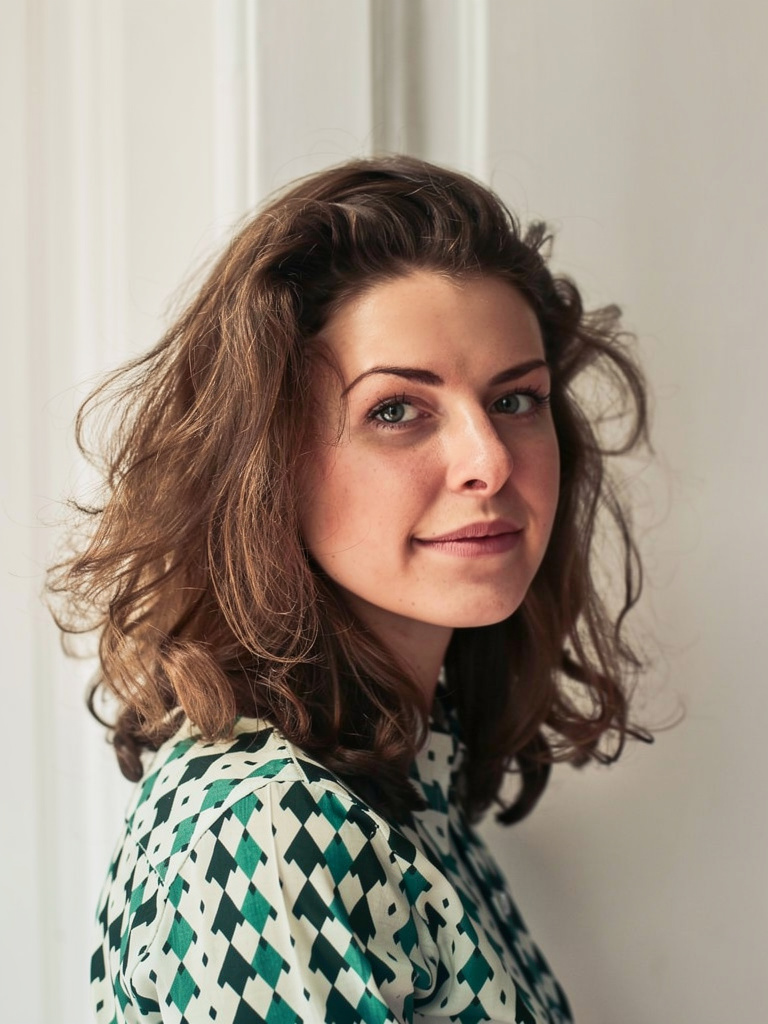
How to Change Pose in a Photo Without Changing the Face is a practical Imagera workflow: start from a real source file, describe what should change, generate with credits shown up front, and review before you publish. This guide covers the steps, quality checks, and when to use related tools.
4.What you will have at the end
- A downloadable still with a new pose or angle
- The same recognizable face (within normal preview discipline)
- A reusable prompt pattern you can paste into every job
- A clear handoff path to Fast Edit for non-face cleanup
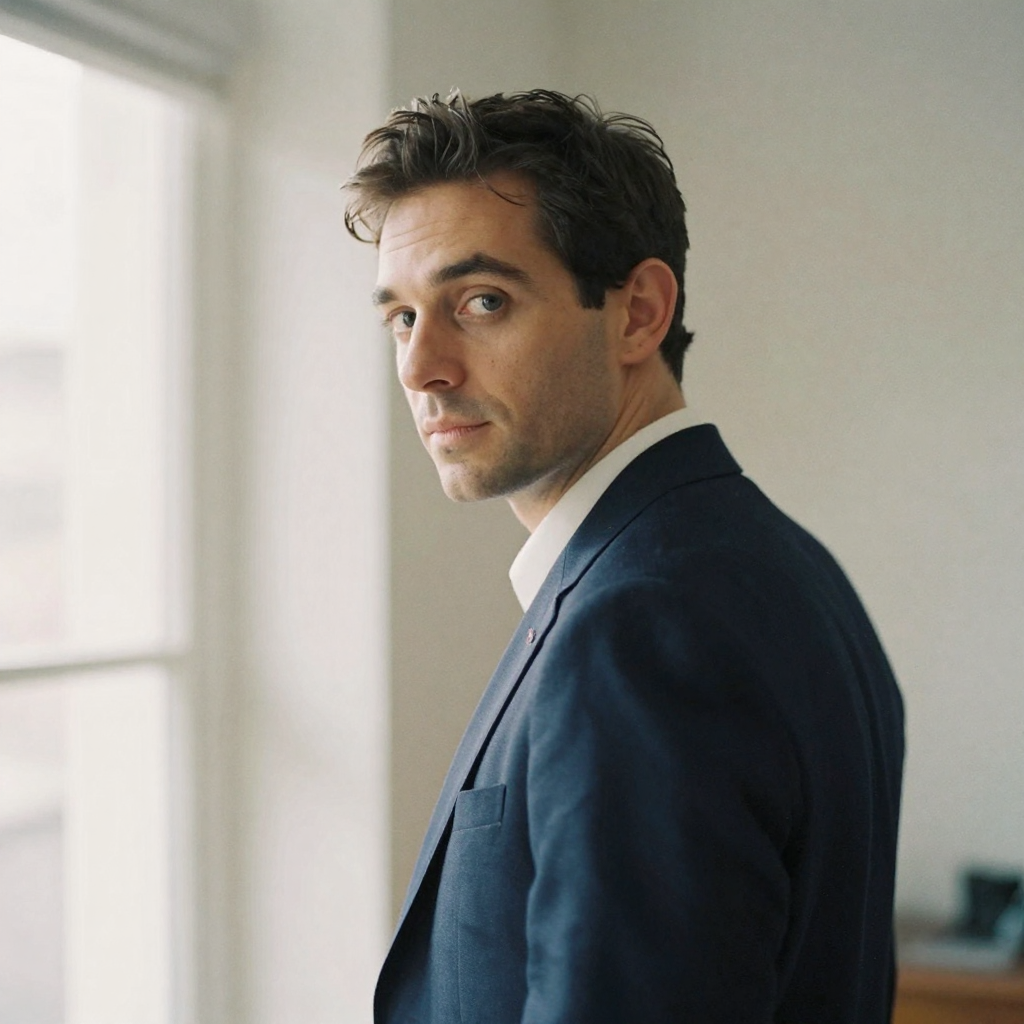
Time: first successful edit is usually under five minutes once you have credits and a good source photo.
5.Before you start
| Requirement | Detail |
|---|---|
| Tool | Imagera Identity Editor |
| Account | Imagera login with credits (pricing — packs from 350 credits) |
| Source photo | One clear subject; face visible; decent light |
| Pose brief | One sentence that names geometry — not “make them prettier” |
| Optional | Full body in frame if you need stance / hand changes |
5.1Photos that work
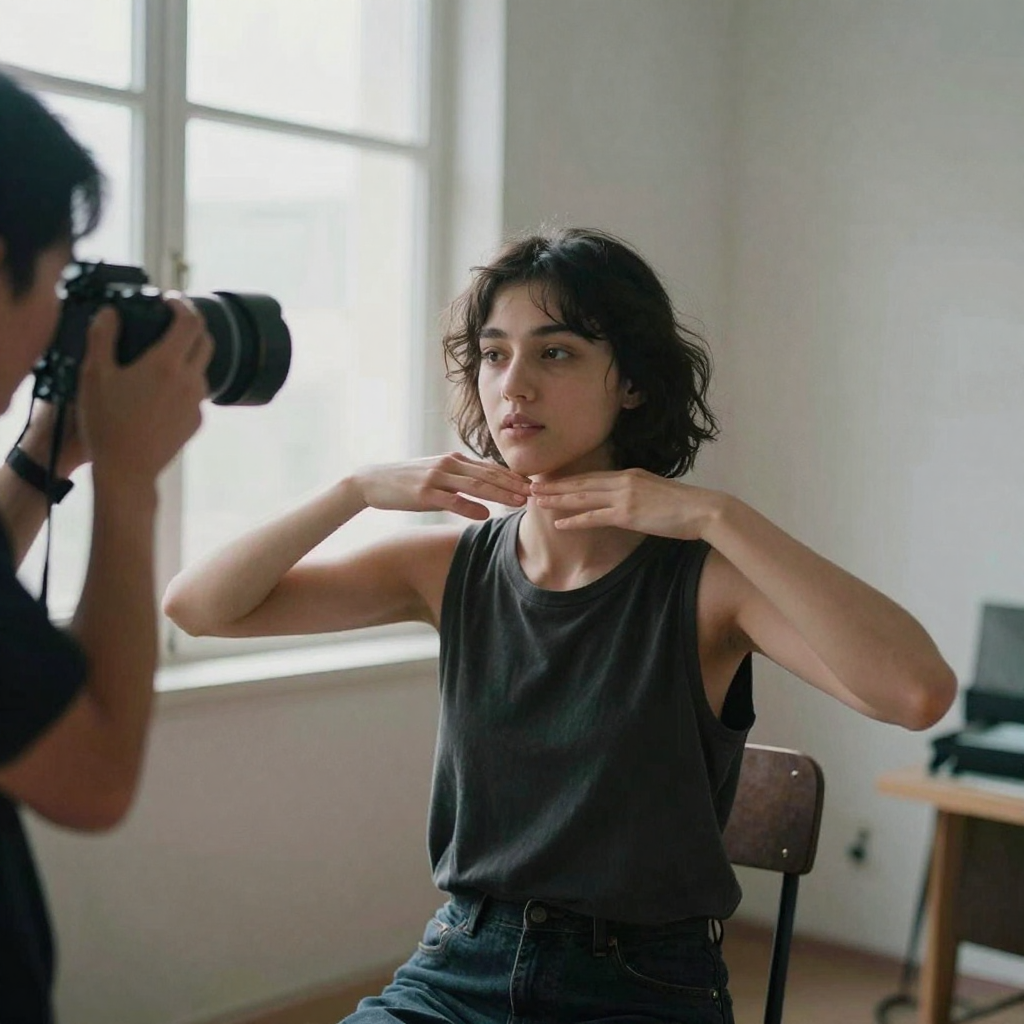
- Sharp eyes and readable jawline
- Neutral or soft directional light (not total silhouette)
- Enough body for the pose you want (headshot-only sources struggle with full-body reposes)
- Single primary subject
5.2Photos that fight you
- Tiny social thumbnails re-saved ten times
- Heavy beauty filters already melting facial structure
- Crowded groups where three faces compete
- Extreme motion blur on the face
6.Step 1 — Open Identity Editor
Go to Imagera Identity Editor and open the studio. The deep link selects the Identity Editor engine for you (Best / flagship people editor).
Direct studio path:
Magic Pose Changer
Or open Imagera Image Editor and choose Identity Editor in the engine pills. Do not start on a generic “make pretty” tool if likeness is the job.
7.Step 2 — Upload the right photo
Upload the highest-resolution original you own. Prefer:
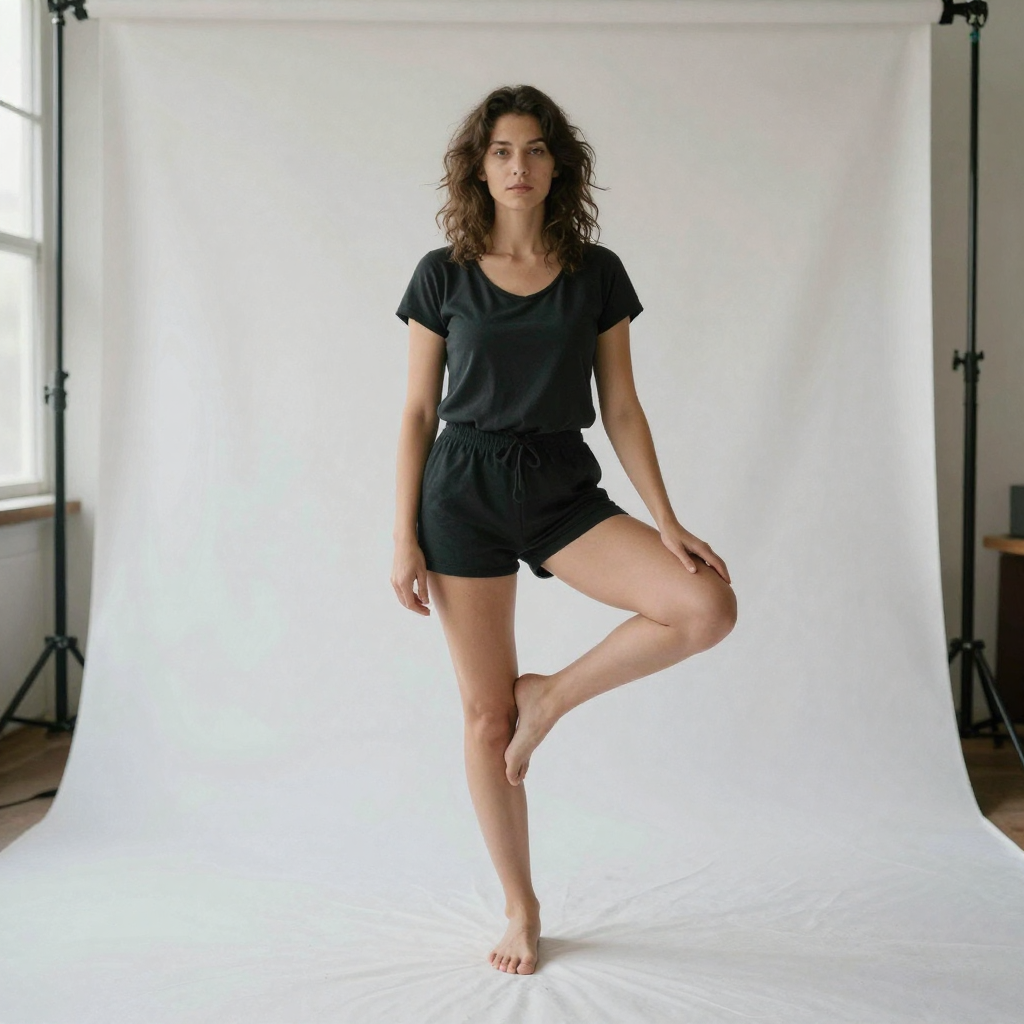
- Face not smaller than a postage stamp in the frame
- Eyes in focus
- Clothing and shoulders visible if you plan to change stance
If you only have a phone crop, still try — but expect more regeneration when the pose delta is large.
8.Step 3 — Write an identity-safe prompt
Use this three-part template every time:
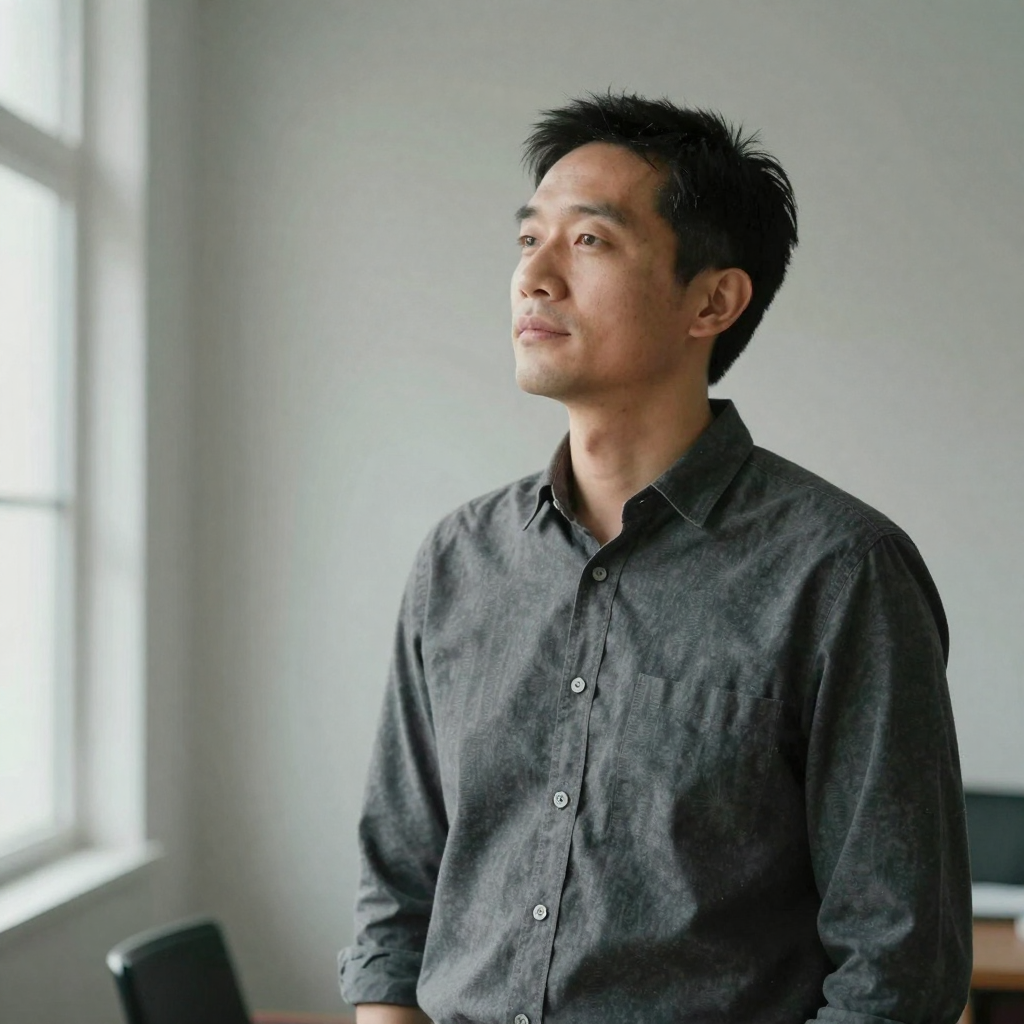
[POSE CHANGE], [IDENTITY LOCK], [LIGHT / BACKGROUND]
8.1Part A — Pose change (geometry)
Be specific about body and camera:
- “Turn 20–30 degrees toward camera”
- “Three-quarter angle, weight on left leg”
- “Look over left shoulder toward camera”
- “Shoulders open, chin level, arms relaxed at sides”
- “Slight lean forward, more confident posture”
When only the head needs to turn, toward the lens or into three-quarter view, the head angle guide covers that narrower job.
8.2Part B — Identity lock (non-negotiable)
Always include at least one of:
- “same face”
- “same person”
- “keep identity”
- “do not change facial features”
8.3Part C — Light and background (optional but useful)
- “soft studio light, keep original background”
- “natural daylight, match existing color temperature”
- “clean gray background, soft key light from camera left”
8.4Good vs risky examples
| Good (geometry + lock) | Risky (beauty language) |
|---|---|
| “Three-quarter angle toward camera, relaxed shoulders, same face, natural daylight.” | “Make them more attractive and confident.” |
| “Look over left shoulder, same person, keep original clothing and hair.” | “Cinematic glam transformation.” |
| “Open stance, chin level, same face, soft office light, keep background.” | “Improve everything, model look.” |
Beauty and “improve” language is the fastest path to a stranger’s face. Pose language is geometry. Identity language is a lock.
For broader prompt craft (objects, outfits, backgrounds), see Edit images with AI text prompts.
9.Step 4 — Pick speed (Normal vs Ultra Fast)
| Mode | Use when |
|---|---|
| Normal | Standard client, brand, and catalog work |
| Ultra Fast | Priority path when you need results now |
Credits are shown before you generate. Confirm the number in the studio — do not hardcode an old price into a client quote. Same Imagera credit wallet either way.
10.Step 5 — Generate once, then review like a client
Click generate. When the result returns, do not download blindly. Run this checklist:
10.1Likeness (must pass)
- Eyes — still “them,” not a generic beauty default
- Jaw and cheek structure — not softened into someone else
- Hairline and hair color — major changes usually mean drift
- Skin tone — large shifts can break identity
10.2Pose (must match brief)
- Shoulders / torso angle match the request
- Gaze direction matches the request
- Hands and arms plausible (no melted fingers if hands are visible)
10.3Finish quality
- Clothing seams and logos still readable if brand-critical
- Background coherent (if background is wrong but face is right, go to Fast Edit next)
- Overall “who is that?” test — show a teammate for two seconds
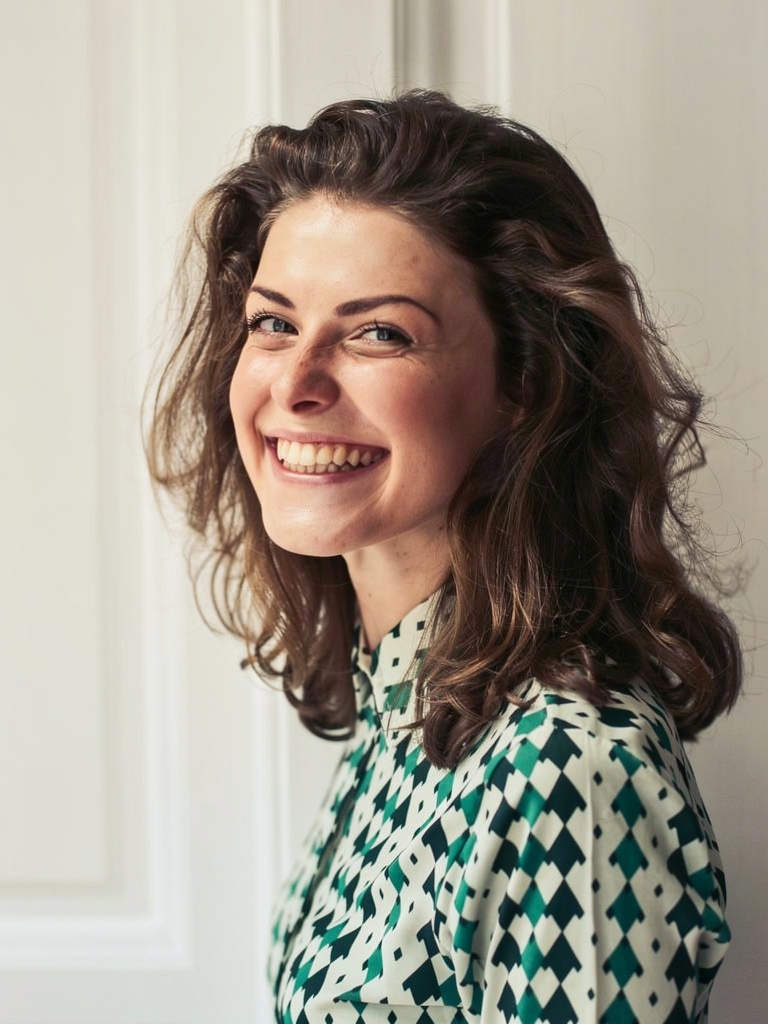
10.4If the face drifted
- Regenerate with a tighter identity lock: “same face, do not change identity, keep original facial features.”
- Reduce pose extremity (“slight turn” instead of full profile from a frontal crop).
- Use a sharper, better-lit source photo.
- Stay on Identity Editor — switching to a beauty-first tool usually makes drift worse.
10.5If only the background is wrong
Do not rewrite a pose prompt that already locked the face. Open Imagera Fast Edit and clean the backdrop, clutter, or color separately.
10.6If the brief is multi-image / campaign-level
Use Imagera Smart Edit for complex multi-image instructions. Return to Identity Editor when a single person’s pose and likeness are the bottleneck.
11.Step 6 — Export and ship
Download the winner. Typical destinations:
- LinkedIn / about-page portraits (LinkedIn headshot guide)
- Social carousels that need pose variety without looking like five different people
- Ad variants and product heroes with the same model
- Agency first-pass options before a reshoot decision
Commercial use is covered on paid Imagera plans per terms. For print or large crop, upscale only the approved still: Upscale Any Image.
12.Prompt bank (copy / paste)
Use these as starting points — always keep the identity lock.
LinkedIn / professional
“Slight turn toward camera, open shoulders, chin level, same face, soft office light, keep background professional.”
Creator / social
“Three-quarter body angle, relaxed confident stance, same person, natural daylight, keep original outfit.”
Over-shoulder editorial
“Look over left shoulder toward camera, same face and hair, soft outdoor light, keep original clothing.”
Catalog angle
“Product-hero three-quarter pose, arms relaxed, same face, clean gray background, even studio light.”
Energy fix (stiff original)
“More open posture, shoulders down, subtle natural smile, same face, match existing light, keep background.”
13.How big a pose change can you make before the face drifts?
Small-to-medium deltas are the safe zone. Turning a head, shifting a gaze, relaxing shoulders, or moving from stiff to open posture keeps identity intact almost every time. The face starts to drift when the model has to invent geometry the source never captured — a full 90-degree turn from a straight-on headshot, a seated pose from a standing full-body, or a hand position no part of the original shows. The rule of thumb: if a human retoucher would need a second photo to do it, expect the model to guess, and guessing is where likeness breaks. When you need a large delta, feed a fuller-body source with more visible pose information and change one thing per run.
14.Should you fix pose and background in the same run?
No — lock the pose first, then clean the background separately. Every additional instruction in one prompt gives the model another reason to re-render the face, and background cleanup is the cheapest way to accidentally re-open identity. The reliable sequence is: run the Identity Editor with a pure pose brief and "same face," confirm the likeness holds, then send the approved result to Fast Edit for background, clutter, or color work. Fast Edit doesn't touch facial geometry when your prompt names only the background, so your locked identity survives the second pass. Splitting the job also makes review faster — you check identity once, then check the scene once, instead of debugging both at the same time.
15.Common mistakes
| Mistake | Why it fails | Fix |
|---|---|---|
| Vague “make better” prompts | Tools invent a prettier stranger | Name pose + say “same face” |
| Using face-swap tools | Wrong product class | Identity Editor keeps the face; swap replaces it |
| Group photo as input | Multiple faces compete | Crop to one person |
| Extreme pose from headshot crop | Model invents a body | Smaller pose delta or fuller body source |
| Skipping review | Face drift ships to clients | Run the ten-point checklist |
| Cleaning background on Identity with a messy prompt | You risk re-opening face | Lock pose, then Fast Edit background |
| Quoting fixed credits from memory | Pricing/meter can differ by resolution/route | Trust live studio cost |
16.Identity Editor vs other Imagera paths
| Job | Tool |
|---|---|
| Same face, new pose | Identity Editor |
| Background / clutter / color fast | Fast Edit |
| Multi-image campaign brief | Smart Edit |
| Long-term character consistency across many scenes | Personal Influencer |
| Multi-model text-to-image | Popular AI Image Generator |
| Free no-upload utilities | Browser tools only |
17.Pricing (so you do not get surprised)
- Cloud generation is pay-first
- Credit packs from 350 credits; plans from $19.99/mo
- Cost per run is shown in the studio before generate
- Free tools under Browser tools are on-device utilities — not this workflow
See Pricing.
18.Rights and responsibility
You must have the right to edit and publish the photo. Identity-preserving edits are still synthetic media when generated; follow disclosure rules for your platform and jurisdiction. Imagera provides the editor — you own the publish decision.
19.Next steps
- Open Imagera Identity Editor
- Run one identity-locked pose test on a real work photo
- Save your winning prompt into a team library
- Read the product deep-dive: Identity Editor product guide
- Explore the hub: Imagera Image Editor
Same face. New pose. Ship the angle you needed — without another reshoot.