Exam portals reject a photo that is one kilobyte over the limit, and some also reject one that is under the minimum. The method that works in the Image Compressor takes two passes. First crop to the portal's shape on your phone and Resize to the pixel size the notice asks for. Then run Compress only if the file is still too big. Type the target in MB as KB × 0.00095, so a 50 KB limit becomes 0.047, and check the downloaded file's exact byte count before you upload.
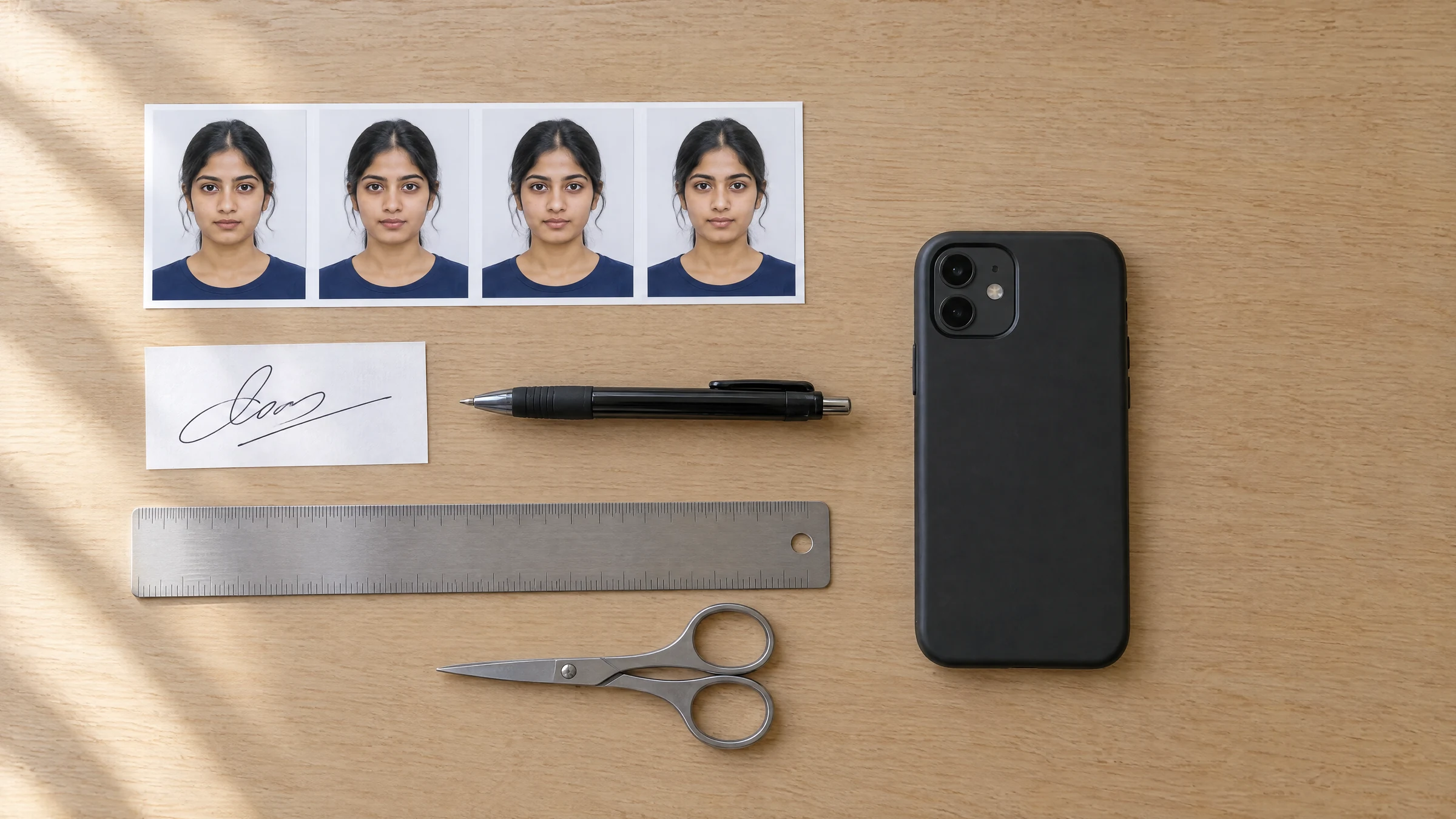
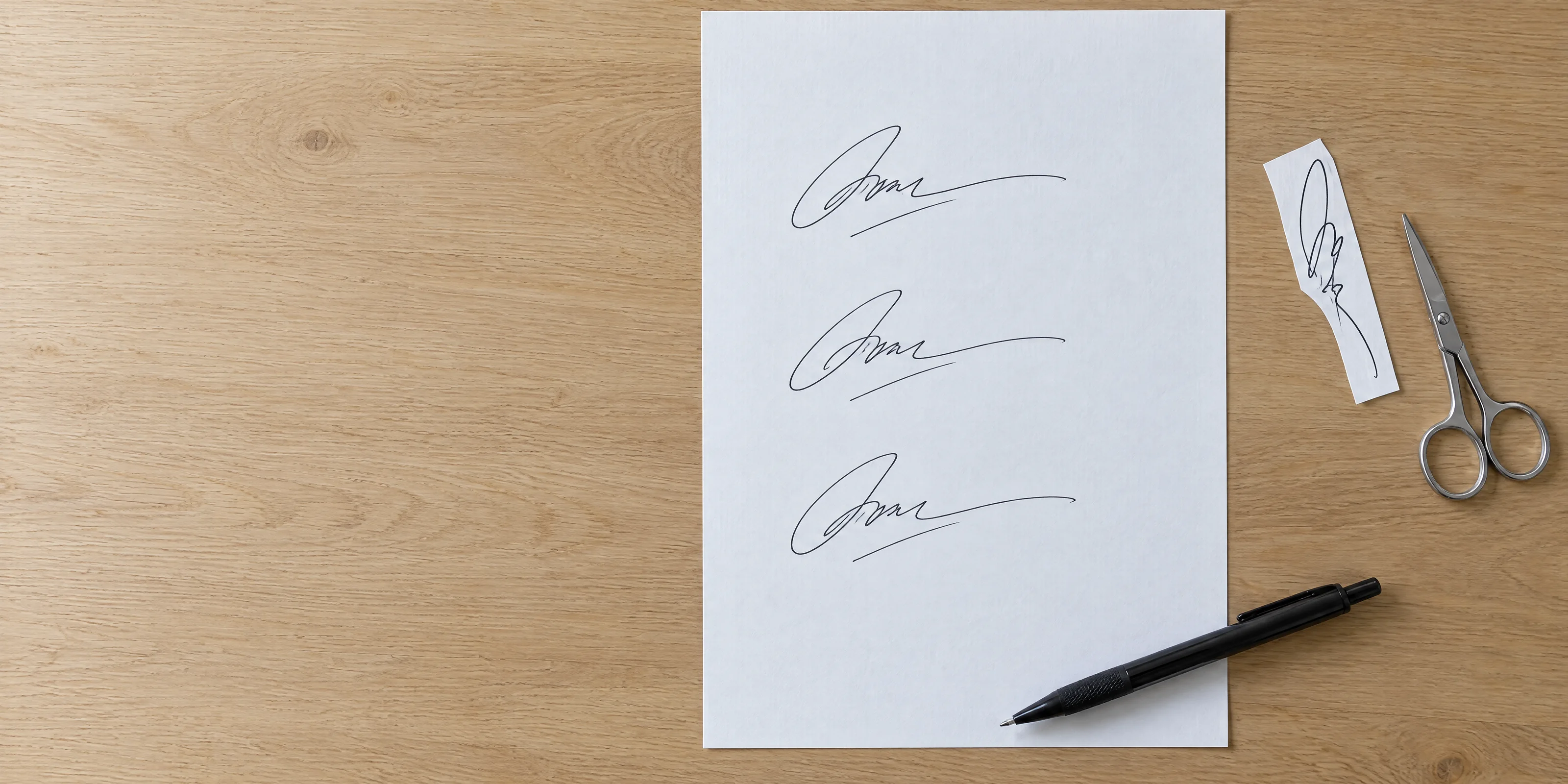
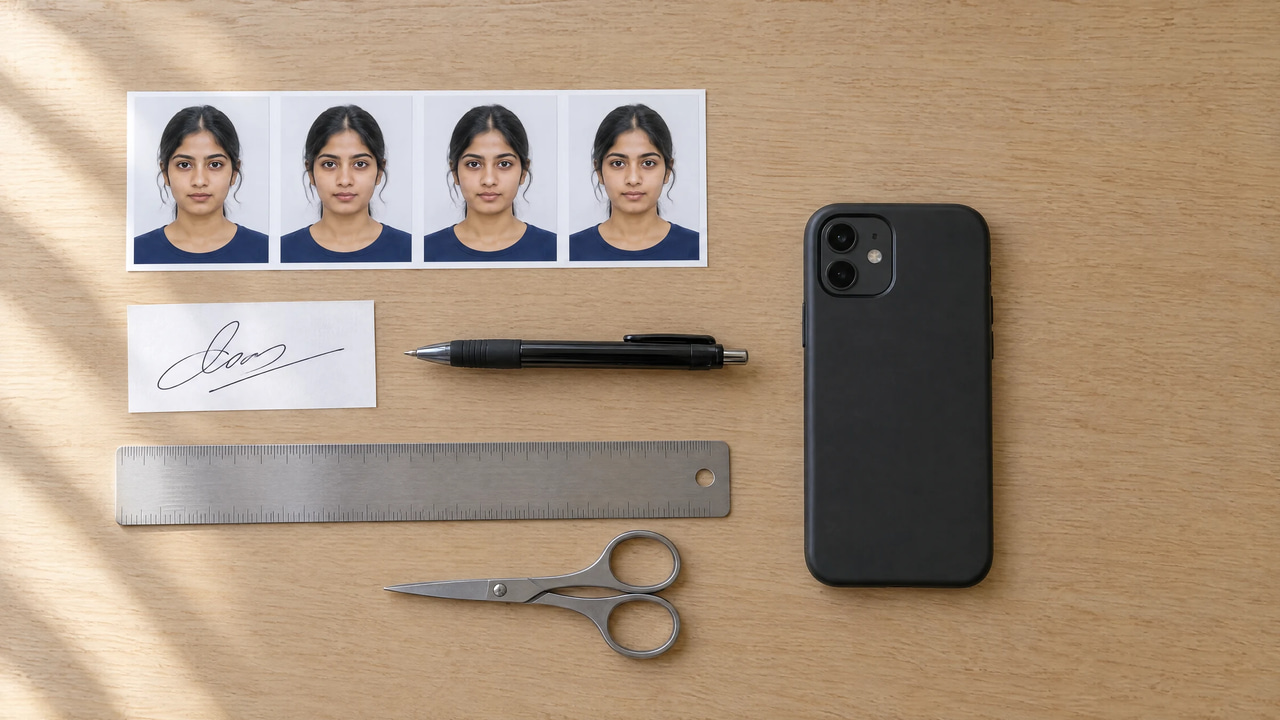
Illustration: the two files most exam forms ask for, a recent photo and a signature on white paper.
What to type for each KB limit
The Target size (MB) field counts one megabyte as 1,048,576 bytes. Dividing KB by 1,000 (typing 0.05 for 50 KB) therefore sets a ceiling of 52,428 bytes, which is above a 50 KB cap. The values below stay under the limit whether a portal counts a kilobyte as 1,000 or 1,024 bytes.
| Portal limit | Type in Target size (MB) | Largest file allowed (bytes) |
|---|---|---|
| 10 KB | 0.009 | 9,437 |
| 15 KB | 0.014 | 14,680 |
| 20 KB | 0.019 | 19,922 |
| 30 KB | 0.028 | 29,360 |
| 50 KB | 0.047 | 49,283 |
| 100 KB | 0.095 | 99,614 |
| 200 KB | 0.19 | 199,229 |
| 300 KB | 0.285 | 298,844 |
Type the number instead of using the arrows. The arrows move in steps of 0.05. A typed value below 0.05 still works: we ran the signature test below at 0.019.
2026 photo and signature limits for the big exam forms
| Exam (2026) | Photo | Signature | Live photo |
|---|---|---|---|
| IBPS PO/MT-XVI | 20–50 KB, 200 × 230 px preferred | 10–20 KB, 140 × 60 px preferred | Yes, plus the upload |
| SSC CGL | Taken live in the form, no upload | 10–20 KB, about 4.0 × 2.0 cm | Yes, replaces the upload |
| UPSC CSE | 20–200 KB | 20–100 KB, three signatures in one image | Yes, matched to the upload |
| NEET UG | Two photos, 10–200 KB each | See the Information Bulletin | Yes |
Every file is a JPG. IBPS asks for the signature in black ink on white paper. For NEET, sources give different signature limits, so take the figure from the bulletin.
These figures come from 2026 coverage of each official notice: IBPS PO from Guidely (23 July 2026), SSC CGL from PW (25 May 2026), UPSC CSE from Vajiram & Ravi (updated 27 August 2026) and NEET UG from PW (13 June 2026). Limits change between cycles, and the notification PDF for your exam overrides this table.
Live capture changes the task. For SSC the KB work now applies to the signature only. IBPS, UPSC and NEET still want an uploaded photo as well as the live one, and UPSC compares the two, so upload a recent photo that looks like you do today.
How we tested
- Date and tool: 22 September 2026, the live Image Compressor, using Resize and Compress.
- Photo: an AI-generated picture of an invented person, 2480 × 3312 px and 1,753,249 bytes, also cropped to 20:23 (2200 × 2530).
- Signature: an AI-generated signature, not legible as any real name, cropped to 7:3.
- Runs: Compress
0.047on the full-size photo; Resize 230, 460 and 800 on the cropped photo, then Compress0.047on the 800 px file; Resize 140, 350 and 700 on the signature, then Compress0.019on the 700 px file. - Measured: the exact byte count of every downloaded file, not the rounded KB on the result card.
Why Compress alone often misses 50 KB
Compress keeps the photo's pixel size and saves it again at lower JPG quality. It does this up to ten times, cutting quality by 5% each time, so the last attempt is at about 60%. A full-size phone photo is still hundreds of kilobytes at 60%. If the file still doesn't fit after the tenth attempt, the tool gives you that attempt without a warning.
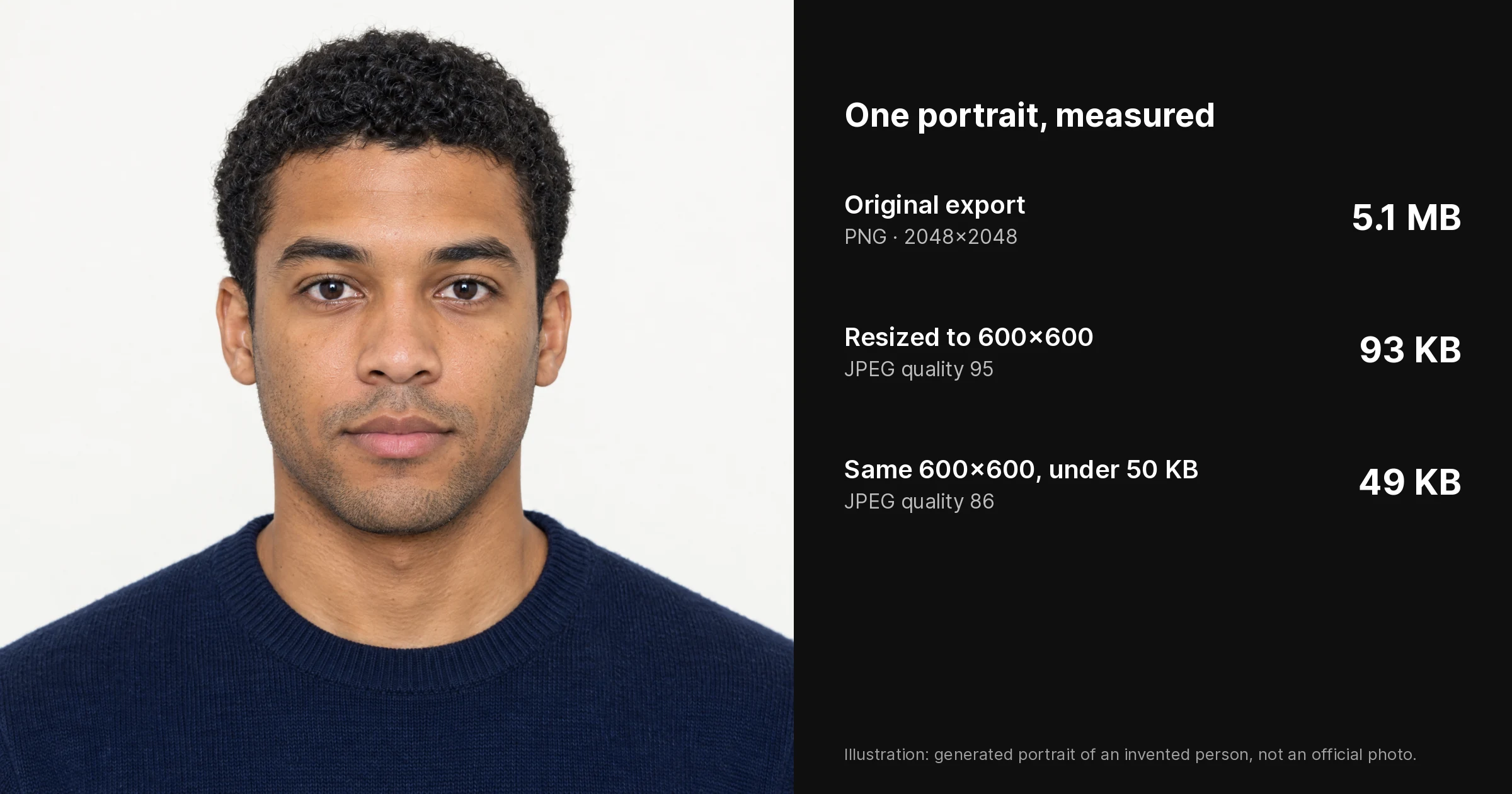
On the full-size test photo, with Compress set to 0.047, the download was 406,252 bytes, eight times over a 50 KB cap, and the result card still said "Saved 77%". When we cropped the same photo to 20:23 (2200 × 2530) and resized it to 696 × 800 first (104,888 bytes), Compress at 0.047 brought it to 47,670 bytes.
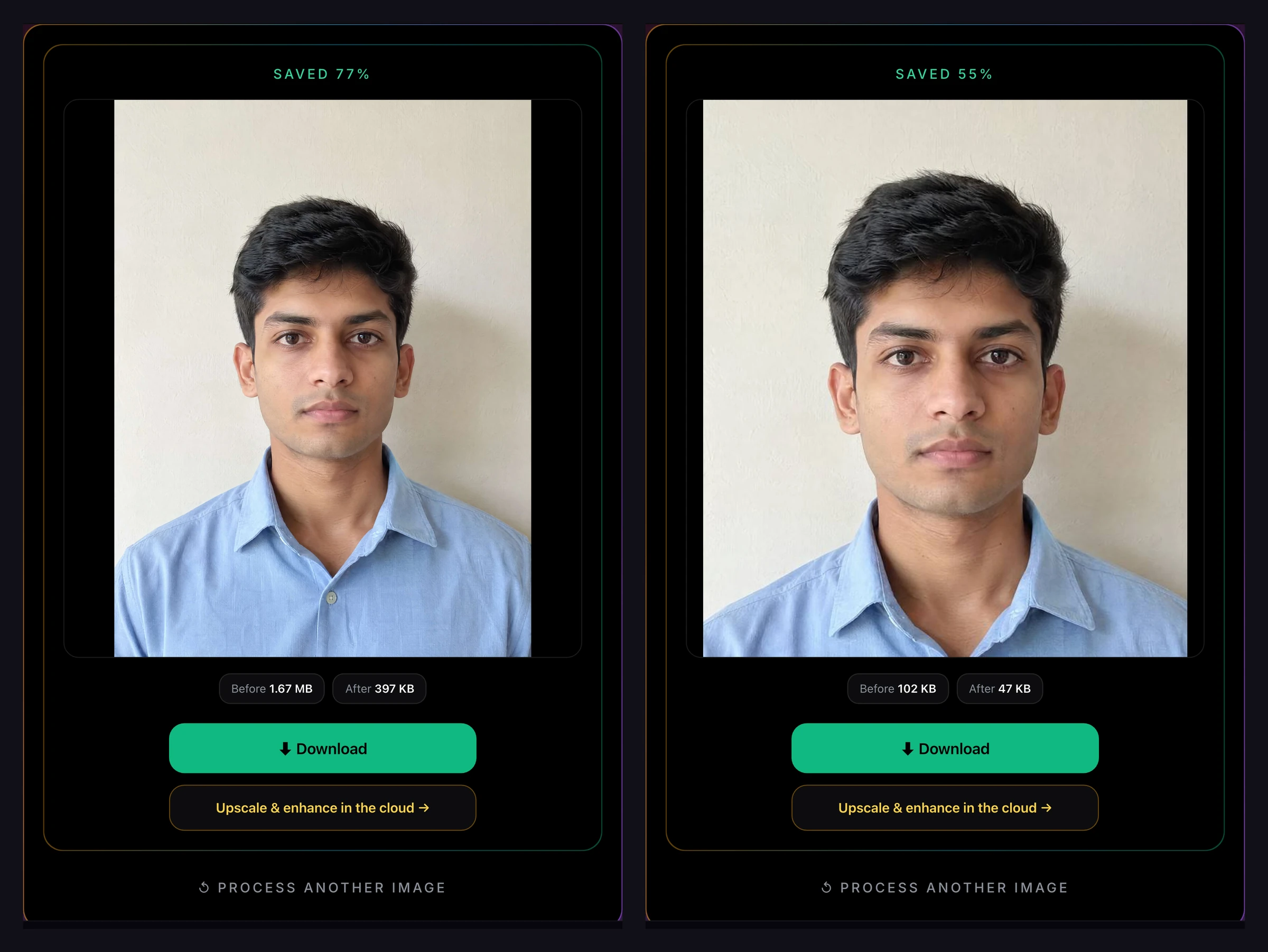
Real result from the live tool. Left: Compress only, still 397 KB. Right: Resize first, then Compress, 47 KB. The card counts 1 KB as 1,024 bytes. The test photo is an AI-generated picture of an invented person.
Step by step: the exam photo
- Crop on your phone to the notice's shape. The tool has no crop. Divide the width by the height: 200 × 230 is 20:23, and 3.5 × 4.5 cm is 7:9. Keep your face centred with a little space above your head.
- Open the Image Compressor, choose Resize and type the longer side. For 200 × 230, type
230. Resize sets the longer side and the other side follows your crop, so an exact 20:23 crop comes out at 200 × 230. Gallery apps have no 20:23 preset, so a freehand crop may come out a pixel or two off, for example 201 × 230. That is fine where the size is preferred. Leave Format on JPG. - Download and check the exact size. On Windows, right-click the file, choose Properties and read the byte count next to Size. On a Mac, use Get Info.
- If the file is over the ceiling, load the resized file, choose Compress, type the value from the table and process it again.
- If the file is under the minimum, Compress can't help because it only lowers quality. Resize again from your cropped original with a larger longer side, if the notice allows a bigger pixel size.
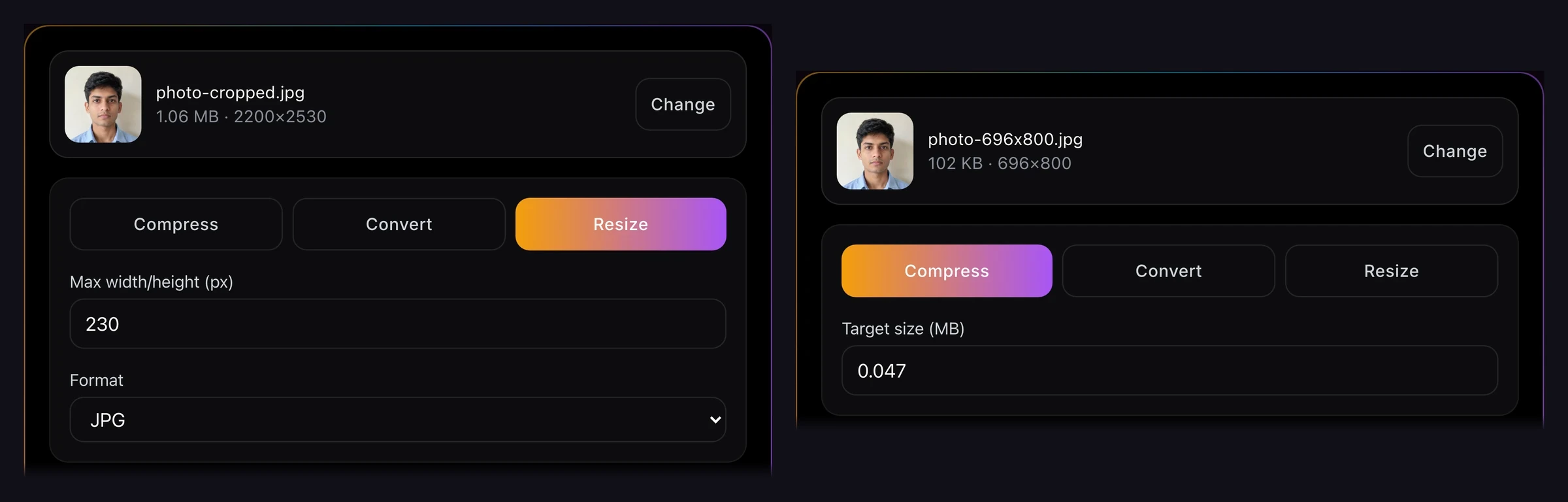
Pass 1: Resize with the longer side. Pass 2: Compress with the corrected MB value.
Step 5 matters more than it sounds. At exactly 200 × 230, our cropped test photo came out at 10,960 bytes. That is under the 20 KB minimum IBPS lists. At 400 × 460, the same shape with twice the pixels on each side, it was 36,449 bytes, inside the 20–50 KB range. IBPS calls 200 × 230 preferred. Check whether your notice says the same or makes the pixel size mandatory.
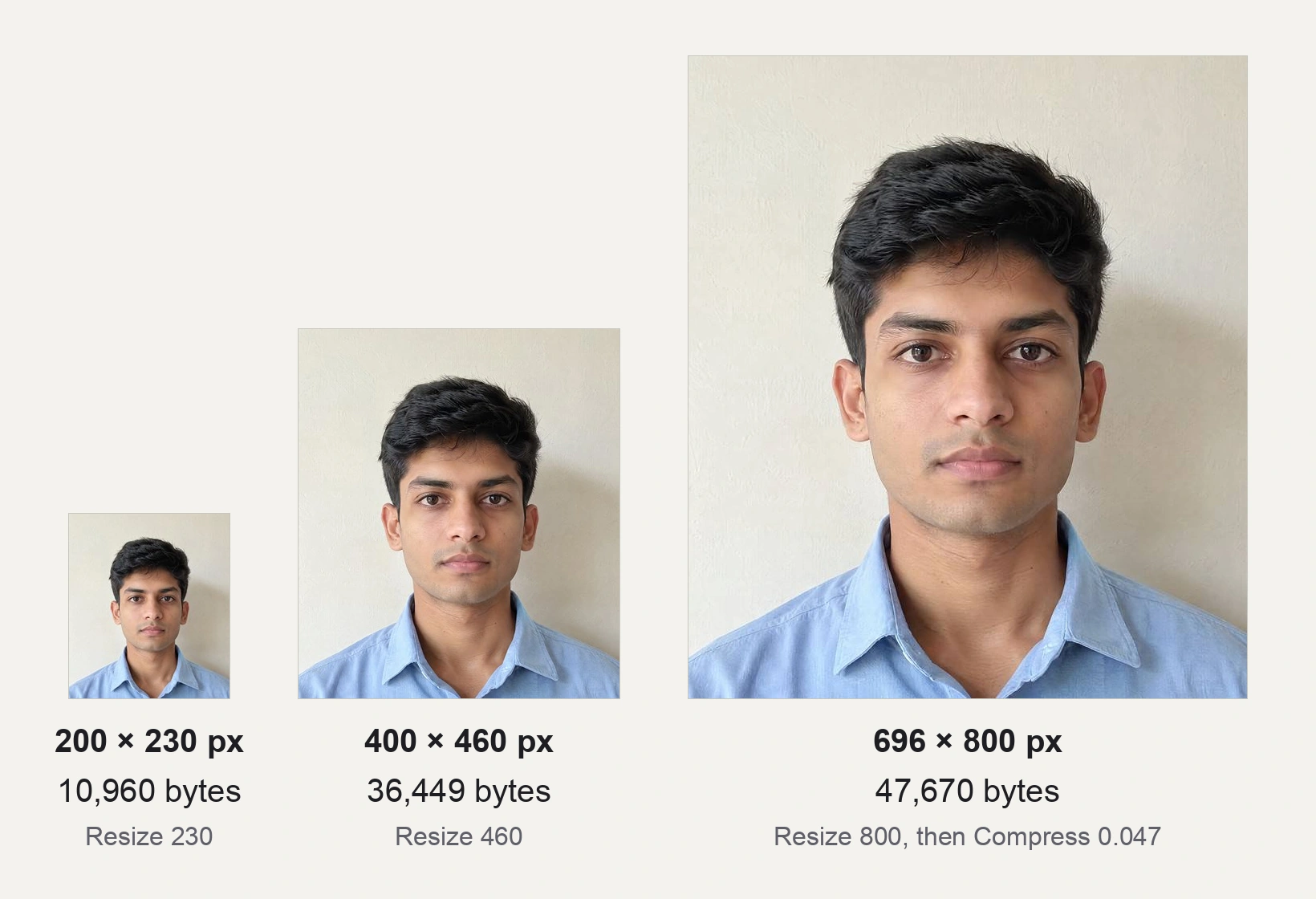
Real result, shown to the same scale, from the same AI-generated test photo. Your own photo will give different byte counts, but the same pattern.
Step by step: the signature
Sign in black ink on plain white paper. IBPS coverage says a signature in capital letters is not accepted. Photograph the page flat in daylight, crop tightly around the ink on your phone, then use the same two passes.
A signature has far less detail than a face, so at small pixel sizes it can land under the minimum. In our test the signature was cropped to 7:3, the shape of 140 × 60:
- Resize 140 gave 140 × 60 px at 2,826 bytes, well under a 10 KB minimum.
- Resize 350 gave 350 × 150 px at 12,155 bytes, inside IBPS's 10–20 KB range.
- Resize 700, then Compress
0.019, went from 42,895 to 19,643 bytes, just under a 20 KB ceiling.
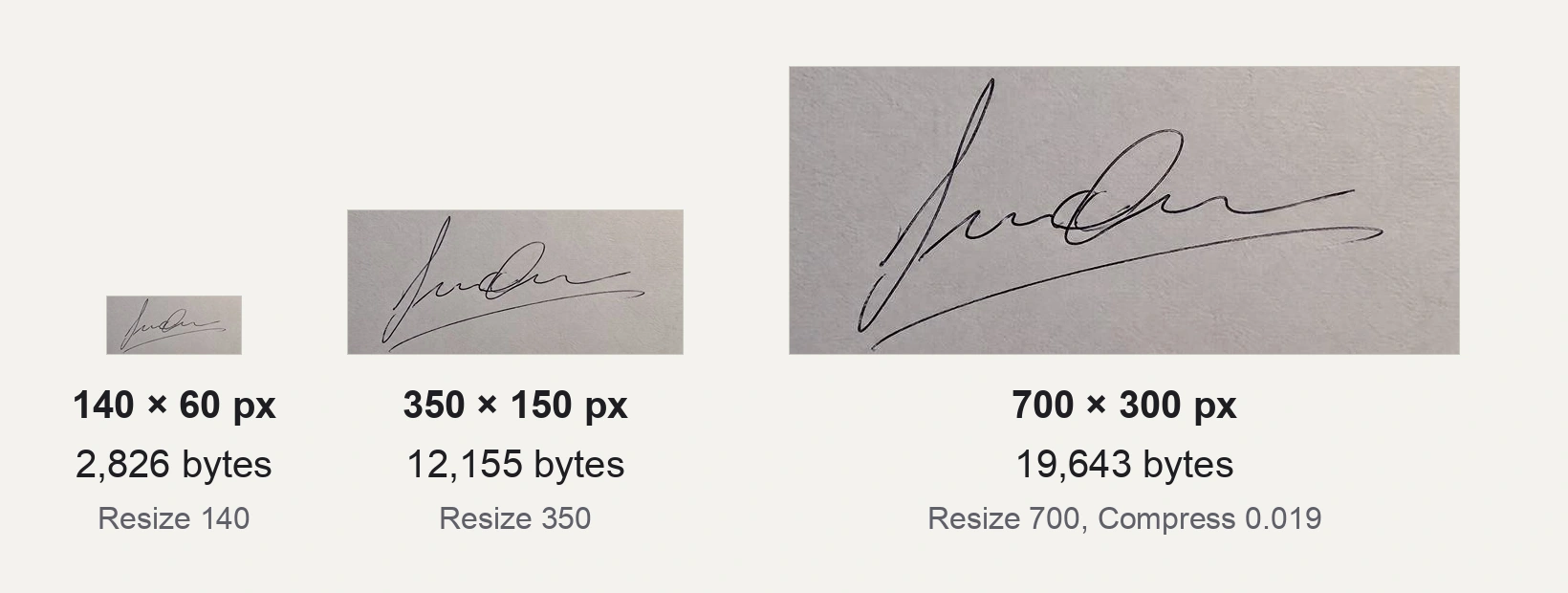
Real result, shown to the same scale. The signature is AI-generated and not legible as any real name. The paper in this test image looks grey; yours should look white, which is why daylight matters.
UPSC's three-signature image. Vajiram & Ravi's summary of the UPSC CSE 2026 rules (updated 27 August 2026) asks for one JPG named signature that shows your signature three times, one below the other, in black ink on plain white paper without lines. It lists the file at 20–100 KB and 350–500 pixels. Leave clear space between the three signatures, photograph the sheet flat, and crop it to a width-to-height ratio between 7:10 and 1:1 so that both sides fit that pixel range. Resize with 500 as the longer side, check the bytes against both ends of the range, and Compress at 0.095 only if the file is over 100 KB. If it is under 20 KB, this tool can't raise it: 500 is the top of the pixel range, Resize saves at a fixed JPG quality, and Compress only lowers quality. Rename the file to signature.jpg before you upload.
For signature limits on other forms, see the signature compression guide.
What the tool can't do
- It doesn't check the result. Compress stops after ten attempts and returns the last one. Always check the bytes.
- It can't crop or set an exact width and height. Resize sets the longer side, and it never enlarges past your original. For exact print sizes such as 35 × 45 mm, see resizing a photo to passport and ID dimensions.
- It can't add bytes at a fixed pixel size. Resize always saves a JPG at the same quality, and Compress only lowers quality. To reach a minimum, resize from your cropped original with a larger longer side, where the notice allows it.
- It reads JPG, PNG and WebP. A HEIC file may not open in Chrome, Edge or Firefox. Export it as JPG, or set Settings → Camera → Formats → Most Compatible before you take the photo.
- Compress saves a JPG unless you chose another format under Convert or Resize first. Exam portals ask for JPG, so leave it on JPG.
Your photo stays in your browser. The page sends our server a usage check with the tool name and a device ID, never the image. If a run fails, an error report also records the image's width, height and file size. Each Resize or Compress counts as one run. A photo and a signature take four runs, and up to five work before the tool asks you to sign in.
Mistakes that get forms rejected
- Trusting the KB figure on screen. The result card rounds, and it counts 1 KB as 1,024 bytes. Check the byte count.
- Cropping after compressing. Cropping saves a new file whose size you haven't checked. Crop first and compress last.
- An old or heavily edited photo. When the form also takes a live photo, a mismatch is easy to spot.
- Going below the floor. A file under the minimum KB fails the same way as one over the maximum.
For passport and visa photos that have a KB limit, see compressing a passport photo to a KB size.