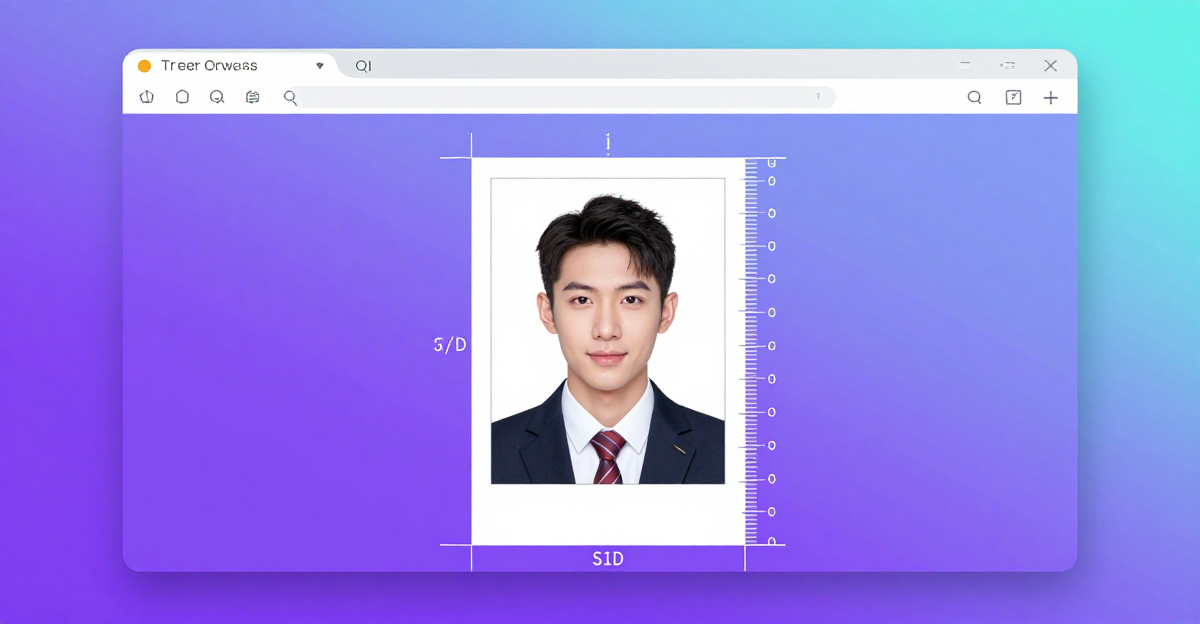
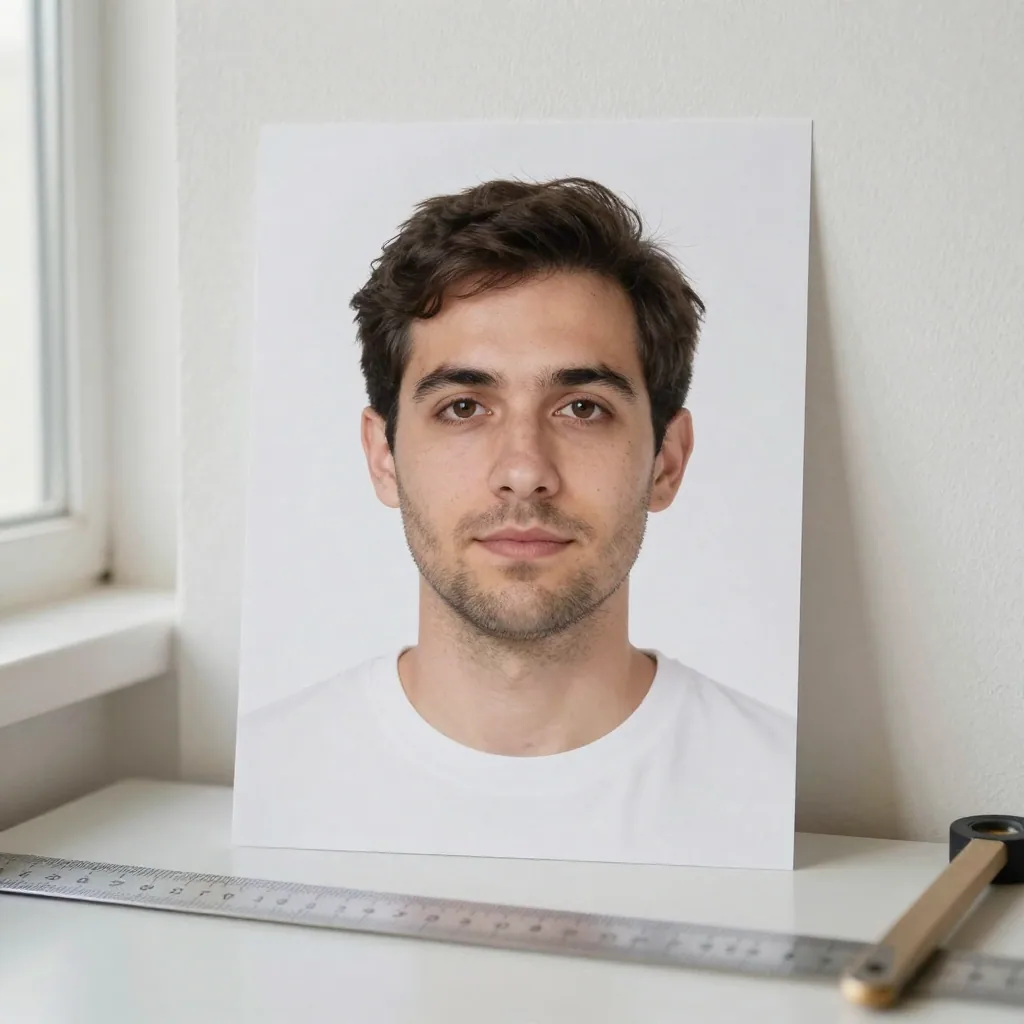
Quick answer: Most visa portals cap photo uploads between 240 KB and 1 MB, and Imagera can shrink a print-ready visa photo below that limit in under 60 seconds while keeping the required 600x600 pixel face crop sharp.
How small does a visa application photo need to be?
Requirements vary by country, but most online visa systems accept JPEGs between 10 KB and 240 KB, with the US Department of State capping DV Lottery photos at 240 KB and 600x600 pixels. Some Schengen portals allow up to 1 MB. Imagera compresses to any target in one pass, testing several quality levels automatically so your file lands under the ceiling on the first try.
Does compressing a visa photo reduce its quality enough to get rejected?
Not if you compress correctly. Dropping from a large 4 MB camera file down to around 200 KB sounds drastic, yet a properly tuned JPEG at 80-85% quality stays visually identical at passport-print size. In practice, rejections come from framing, lighting, and background errors far more often than file size, so Imagera preserves the full 600x600 resolution while trimming only redundant data across 2026 visa formats.
The Short Answer: How to Compress a Visa Photo Right Now
You have a good visa photo but the portal is rejecting it because the file is too large. Here is the fastest fix: open Imagera's free Image Compressor in your browser, drop your photo in, choose Compress, and type the portal's KB limit as your target size. The tool works entirely in your browser — your photo is never sent to any server. Download, upload to the visa portal, done.
That is the whole process. The rest of this guide explains the file-size limits for the main visa portals, why the KB cap matters more than pixel dimensions when a portal rejects your photo, and how to avoid the common mistake of over-compressing below the portal's minimum.
Why Visa Portals Have a KB Limit (Not Just a Pixel Limit)
Every visa portal sets two separate constraints on your photo: pixel dimensions and file size in kilobytes. Most applicants focus on dimensions — the classic "600 × 600 pixels" or "35 × 45 mm" rules — but forget the KB cap entirely until the upload button turns red.
File-size limits exist because the visa application systems were designed to handle millions of uploads reliably. A camera phone shooting in HEIC or a photographer delivering a 4 MB retouched JPEG will exceed those limits even when the pixel dimensions are perfectly correct. The portal does not always tell you which constraint failed; it may just say "invalid file" or silently refuse to advance.
Understanding the difference:
- Pixel dimensions determine whether the face proportions and framing are technically correct for biometric processing.
- File size in KB determines whether the portal's upload handler will accept the file at all.
You can solve the KB problem without re-taking the photo. You do not need to compromise on pixel dimensions. You just need a compressor that lets you enter an exact target size — not a vague quality slider.
Common Visa Portal File-Size Limits (Reference Table)
The table below lists commonly cited file-size limits as of mid-2026. Always verify the current specification on the official government portal before submitting. Portal requirements change without notice, and third-party sources (including this guide) may lag behind.
Important disclaimer: Meeting a KB target is not the same as meeting full biometric compliance. Visa portals also check face proportion, background colour, lighting, and expression. Compressing your photo to the correct file size is one necessary step, not the only step.
| Portal / Visa | Commonly Cited Max File Size | Commonly Cited Min File Size | Typical Format | Verify At |
|---|---|---|---|---|
| US DS-160 (nonimmigrant visa) | 240 KB | No published minimum | JPEG | travel.state.gov |
| US DV Lottery (diversity visa) | 240 KB | No published minimum | JPEG | dvlottery.state.gov |
| Canada IRCC (TRV / study / work) | 4 MB | 240 KB | JPEG, PNG | canada.ca/ircc |
| UK UKVI / ID Check app | 10 MB | 50 KB | JPEG, PNG | gov.uk |
| Schengen (varies by embassy) | ~500 KB | ~50 KB | JPEG | Your consulate's portal |
| India e-Visa | 1 MB | 10 KB | JPEG | indianvisaonline.gov.in |
| Australia ImmiAccount | 5 MB | No published minimum | JPEG | immi.homeaffairs.gov.au |
All figures are commonly required as of mid-2026 — always verify the current spec on the official portal.
The US DS-160 is the most unforgiving because the ceiling (240 KB) is low and the portal gives almost no feedback when it rejects a file. A smartphone JPEG can easily land at 1–3 MB, which is 4–12 times the limit.
How to Compress Your Visa Photo: Step-by-Step
Imagera's free Image Compressor targets a file size you type in. Here is exactly how to use it:
-
Open the tool. Go to Image Compressor in any modern browser on desktop or mobile. No account is required.
-
Drop or select your photo. Click the upload area or drag your photo onto it. The tool accepts JPEG, PNG, WebP, and HEIC files.
-
Choose the Compress mode. Select Compress from the available options.
-
Enter your target file size. Type the portal's limit. For DS-160, type
0.24 MB(which equals 240 KB). For Canada IRCC minimum compliance, type0.24 MBas a floor and ensure your file is above it. You can also type values like0.1 MB(100 KB) or0.5 MB(500 KB) to match any portal. -
Optionally convert the format. If your photo is HEIC (common from iPhones) or PNG, switch the output to JPEG here — most portals require JPEG.
-
Optionally resize dimensions. If you also need to adjust pixel dimensions (e.g., 600 × 600 px for DS-160), set the width and height in the resize fields. If you only need to fix the file size and the dimensions are already correct, leave this blank.
-
Process and download. Click the compress/download button. The file is processed entirely in your browser. Your photo is never uploaded to or saved on a server.
-
Check the output file size. On Mac: right-click → Get Info. On Windows: right-click → Properties → Details. Confirm it is at or below the portal's limit.
-
Upload to the visa portal. The portal should now accept the file.
If the portal also requires cropping (for example, to move the face into a specific frame area), do that in a separate editor first before running the compressor. The Imagera compressor does not crop.
Why "Enter a Target Size" Beats a Quality Slider
Most compression tools give you a quality percentage: drag the slider to 60%, hope for the best, check the file size, repeat. That is slow and unpredictable.
Imagera's compressor works differently: you tell it the target size and the tool figures out the quality level needed to hit it. For a deadline-critical task like a visa application, this matters:
- No guesswork on the first attempt.
- No risk of missing the limit because you estimated "70% quality should be small enough."
- No risk of destroying quality because you set 20% when 60% would have been sufficient.
You can read more about compressing to an exact KB target in the companion guide: Compress an Image to 100KB Online — No Upload.
The DS-160 240 KB Limit in Detail
The US nonimmigrant visa application (DS-160) is where most applicants run into the file-size wall. The official limit is 240 KB, and the portal enforces it strictly. A few things worth knowing:
- The portal accepts only JPEG. If your photo is PNG, WebP, or HEIC, convert it to JPEG first. Imagera's compressor can do this in the same step.
- The portal requires a square crop, typically 600 × 600 pixels. If your photo is not already square and correctly framed, fix the crop in a photo editor before compressing. Cropping is not something the compressor handles.
- There is no official lower bound on file size for DS-160, but very aggressive compression (very low KB) can introduce visible artifacts that may affect biometric processing. A file in the 80–200 KB range is a reasonable target.
- After compressing, verify dimensions are still 600 × 600 px — the compressor's resize field lets you lock those in at the same time.
If you also need to resize the pixel dimensions, see the companion guide: Resize a Photo to Passport and ID Dimensions (Free).
Compressing a Visa Photo Without Uploading It Anywhere
This is the point that matters most for visa photos. Your photo contains your face, your passport details in many cases, and biometric data. Uploading it to an unknown server to compress it creates a privacy and security risk with no upside.
Imagera's free Image Compressor runs entirely client-side. When you drop your photo into the tool, it is processed by JavaScript running inside your own browser tab. The image bytes never leave your device. There is no server call, no storage, no account required.
This is the same principle behind all the tools covered in the wider guide: Best Private No-Upload Image Tools (2026).
What to Do If Your Photo Is Below the Portal Minimum
Some portals have a minimum file size as well as a maximum. Canada IRCC, for example, requires at least 240 KB. If you compress too aggressively and land at 80 KB, the portal will reject the file just as it would reject a 5 MB file.
The Imagera compressor targets the size you enter. To avoid going below a minimum, set your target to a value comfortably above it. For Canada IRCC, targeting 0.5 MB (500 KB) will keep you well inside the 240 KB–4 MB window.
If you accidentally compress too far, simply run the tool again on the original photo with a higher target. Always keep the original uncompressed photo as a backup.
Common Mistakes When Compressing Visa Photos
1. Compressing the already-compressed file again. Each lossy compression cycle degrades the image further. Always start from the highest-quality original you have. If you have a RAW or TIFF from a photographer, start there.
2. Assuming pixel dimensions fix file size. Resizing from 1200 × 1200 to 600 × 600 will reduce file size somewhat, but not reliably to the portal's limit. You still need explicit file-size targeting.
3. Converting PNG to JPEG without considering quality. A PNG is lossless. Converting it to JPEG introduces compression artifacts. Use a quality level that keeps the face sharp — the target-size approach in Imagera handles this automatically.
4. Skipping format conversion. HEIC files from iPhones are not accepted by most portals. Always convert to JPEG. The Imagera compressor does this in one step.
5. Forgetting to check the output file size. After downloading, right-click the file and check its size before uploading to the portal. A tool that targets a size should hit close, but always verify.
6. Cropping in the compressor. The Imagera compressor does not crop. If the portal requires a specific head-to-frame ratio or a square crop, use a photo editor (like the one in your phone's default Photos app) to crop first, then compress.
Compress Visa Photo: FAQ
Q: What is the DS-160 photo file size limit? The US DS-160 portal commonly requires a JPEG under 240 KB, with no published minimum. This is commonly cited as of mid-2026 — always verify on travel.state.gov before submitting.
Q: Can I compress my visa photo without uploading it to a website? Yes. Imagera's free Image Compressor runs entirely in your browser. Your photo is processed by local JavaScript and is never sent to any server.
Q: How do I compress a photo to exactly 240 KB?
Open the Image Compressor, drop in your photo, choose Compress, and enter 0.24 MB as the target size. The tool will compress to approximately that size.
Q: The portal says my photo is too large but the dimensions are correct. Why? Pixel dimensions and file size are separate constraints. Your photo can be exactly 600 × 600 pixels and still be 2 MB in file size. You need to reduce the file size in KB independently of the pixel dimensions.
Q: What format should a visa photo be? Most portals require JPEG. The Imagera compressor can convert PNG, WebP, and HEIC to JPEG in the same step as compression.
Q: Can I compress a visa photo on my phone? Yes. The Imagera compressor works in mobile browsers. Open the link on your phone, drop the photo in, and download. No app install required.
Q: Does compressing a visa photo affect biometric compliance? Compression reduces file size but does not change whether the photo meets biometric requirements (face framing, background colour, lighting, expression). Those must be correct in the original photo. Compressing a non-compliant photo to the right KB size will not make it biometrically compliant.
Q: The Canada IRCC portal rejected my photo even though the file size is correct. What else could be wrong? Canada IRCC checks multiple requirements: at least 420 × 540 pixels, plain white background, face between 31–36 mm from chin to crown, no editing, and within the 240 KB–4 MB range. A file-size fix solves only one of these. Verify all requirements on canada.ca before resubmitting.
Summary
Visa photo rejections caused by file-size limits are entirely fixable without re-taking the photo. The key steps:
- Know your portal's exact KB limit (see the reference table above, then verify on the official portal).
- Start from the highest-quality original file you have.
- Crop and frame the photo correctly in a photo editor first if needed — the compressor does not crop.
- Open Imagera's free Image Compressor, enter the target size, convert to JPEG if needed, and download.
- Verify the output file size before uploading.
- Confirm the photo still meets all other biometric requirements (background, face framing, expression) — file size is one requirement, not all of them.
The tool is free, requires no account, and processes everything locally in your browser so your photo stays private.
Related guides: Resize a Photo to Passport and ID Dimensions (Free) | Compress an Image to 100KB Online — No Upload | Best Private No-Upload Image Tools (2026)