 Passport Photo Size Online: Resize to 2×2 in / 35×45 mm (Free) is a practical Imagera workflow: start from a real source file, describe what should change, generate with credits shown up front, and review before you publish. This guide covers the steps, quality checks, and when to use related tools.
Quick answer: A US passport photo must be exactly 2×2 inches (51×51 mm); most other countries, including UK, EU, and India visas, require 35×45 mm. Imagera resizes any selfie to either spec, correctly centered, in under 60 seconds.
How do I resize a photo to passport size online for free?
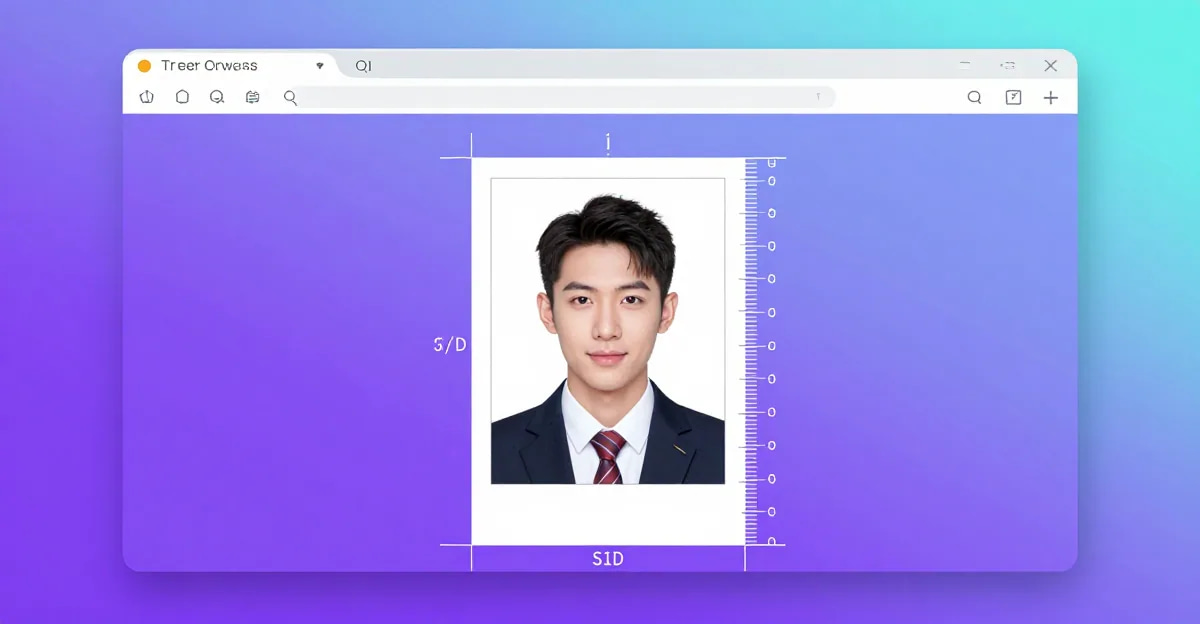
Upload one photo to Imagera, pick your country preset, and the AI crops your head to the required 50-69% frame height, then exports a print-ready file. The 2×2 in US format renders at 600×600 px (300 DPI); the 35×45 mm format outputs 413×531 px. Both finish in under 60 seconds, and your first resize costs 0 credits.
Which resolution and file specs do passport photos actually need?
Most agencies require 300 DPI minimum, a JPEG under 240 KB, and a plain white or light-grey background. Imagera upscales low-res selfies toward 4K before cropping, so a 720p phone shot still hits the 600×600 px target cleanly. Getting the dimensions and background right the first time is the simplest way to avoid a rejected application and a repeat trip.
The Short Answer: Get the Right Passport Photo Size Online in One Step
Need the right passport photo size online without uploading your photo to a server? The US passport requires a 2 × 2 inch photo — that is 600 × 600 pixels at 300 DPI, or 240 × 240 pixels at 120 DPI for a screen-only submission. Most European countries (UK, Schengen, India, UAE) use 35 × 45 mm, which is 413 × 531 pixels at 300 DPI. Online visa and government forms then add a file-size cap — commonly 50 KB, 100 KB, or 240 KB.
You can hit all of those numbers right now using Imagera's free Image Compressor. No account, no upload to any server — the tool processes everything in your browser. Scroll to the step-by-step guide below, or keep reading for the full dimension reference and tips.
Why Getting the Dimensions Wrong Causes Real Problems
Submitting a photo at the wrong size is one of the most common reasons passport and visa applications get rejected at the intake stage. The form software often does a hard pixel-count or DPI check before a human even looks at it. The photo you took on your phone is almost certainly 12–50 megapixels and several megabytes — far too large for most government upload portals.
There are two separate things you need to control:
- Pixel dimensions — width × height in pixels, which determines the printed size at a given DPI.
- File size in KB — most online forms cap uploads between 50 KB and 500 KB.
A tool that only compresses the file size might still leave you with the wrong aspect ratio. A tool that only crops might still give you a 4 MB JPEG. You need both in one step, which is exactly what a good browser-based resizer handles. If you only need compression, the TinyPNG alternative guide compares the options.
Standard Passport Photo Size Online Reference Table
Use this table to find the right pixel dimensions for your specific document. Print DPI assumptions: 300 DPI for professional print, 150 DPI for home print, 96 DPI for screen-only.
| Country / Document | Size (mm) | Size (inches) | Pixels at 300 DPI | Common KB Cap |
|---|---|---|---|---|
| US Passport / Visa | 51 × 51 mm | 2 × 2 in | 600 × 600 | 240 KB |
| UK Passport | 35 × 45 mm | 1.38 × 1.77 in | 413 × 531 | 10 MB (print file) |
| Schengen Visa | 35 × 45 mm | 1.38 × 1.77 in | 413 × 531 | 500 KB |
| India Passport | 35 × 45 mm | 1.38 × 1.77 in | 413 × 531 | 500 KB |
| Canada Passport | 50 × 70 mm | 1.97 × 2.76 in | 591 × 827 | varies |
| Australia Passport | 35 × 45 mm | 1.38 × 1.77 in | 413 × 531 | 500 KB |
| UAE Visa | 43 × 55 mm | 1.69 × 2.17 in | 508 × 650 | 100 KB |
| US Green Card (I-485) | 2 × 2 in | 2 × 2 in | 600 × 600 | 240 KB |
| Generic ID / Driver's License | varies | varies | 300 × 400 typical | 100 KB |
| LinkedIn / Social Profile | — | — | 400 × 400 | varies |
Note: These dimensions are the required photo print/crop size. Always verify the exact current requirement on the official government website before submitting an application. Requirements can change.
The Difference Between Resizing and Biometric Compliance
This is worth stating plainly: resizing a photo to the correct pixel dimensions is not the same as biometric compliance. Passport authorities also check:
- Your face occupies 70–80% of the frame height.
- The background is plain white or off-white.
- There are no shadows on your face or background.
- Your eyes are open, looking directly at the camera.
- No glasses (US rule since 2016).
A photo resizer — including Imagera's — handles dimensions and file size only. It does not check biometric face measurements or background color. You are responsible for taking or selecting a photo that meets the content rules. The tool gets the pixels and KB right; you make sure the photo itself qualifies.
What the File-Size Limit Actually Means
Government portals express file size limits in kilobytes (KB) or megabytes (MB). A typical phone photo is 3–8 MB. Here is the rough math on compression:
- A 600 × 600 pixel JPEG saved at high quality (90%) is roughly 80–140 KB.
- The same file at medium quality (70%) is roughly 30–60 KB.
- A 413 × 531 pixel JPEG at medium quality is roughly 25–55 KB.
So for a 50 KB cap, you need both the right dimensions and moderate compression. For a 240 KB cap (like the US State Department portal), high quality at the correct 600 × 600 dimension usually passes without extra compression.
How to Get the Right Passport Photo Size Online Using Imagera (Step by Step)
Imagera's free Image Compressor lets you resize to the required dimensions and set a target file size — without uploading your photo to any server. Here is exactly how to use it.
-
Open the tool. Go to Image Compressor in your browser. No sign-in required.
-
Select your photo. Click the upload area or drag your photo onto it. The file loads entirely in your browser — it never travels to a server.
-
Resize to the required dimensions. Enter the pixel dimensions for your document:
- US Passport: 600 × 600
- 35 × 45 mm documents (UK, Schengen, India, Australia): 413 × 531
- Canada Passport: 591 × 827
- UAE Visa: 508 × 650
Note: if your photo has a different aspect ratio than the target, crop it to the right ratio first (see the section below) to avoid stretching your face.
-
Set a target file size. If your form has a KB limit, choose Compress and enter a target size — for example, 0.1 MB ≈ 100 KB for a 100 KB cap or 0.24 MB ≈ 240 KB for the US portal. The tool compresses to that target directly.
-
Preview. Check that the image still looks sharp enough for official use. Eyes and facial features should be clear.
-
Download. Click the download button. Your resized, compressed JPEG saves directly to your device.
-
Verify before submitting. Right-click the downloaded file, choose Properties (Windows) or Get Info (Mac), and confirm the file size and pixel dimensions match what you need.
Cropping Before Resizing: Getting the Aspect Ratio Right
If your source photo is landscape (wider than tall) and you need a square or portrait format, you need to crop first. Forcing a non-square photo into a square output will distort your face.
Most phones have a built-in crop tool. Use it to cut the photo to roughly the right aspect ratio before opening the resizer:
- For 2 × 2 in (square): crop to 1:1.
- For 35 × 45 mm: crop to 7:9 ratio (width:height).
- For 50 × 70 mm (Canada): crop to 5:7.
Center your face in the frame with a little headroom above the crown of your head. Then bring the cropped file into Imagera's free Image Compressor and set the final pixel dimensions.
Common Mistakes That Cause Rejection
Wrong aspect ratio. Submitting a 600 × 800 pixel photo when 600 × 600 is required will be rejected by the form validator.
File too large. A phone photo dropped straight into an upload field often exceeds the portal's MB cap. Always check.
File too small. Some portals set a minimum pixel count (for example, at least 300 × 300). Very aggressive compression can push the JPEG below acceptable detail.
JPEG vs PNG. Most government portals require JPEG (.jpg). If your photo is a PNG or HEIC from an iPhone, make sure your tool exports as JPEG.
HEIC format. iPhones shooting in HEIC format are not accepted by most government portals. Convert to JPEG first.
Wrong color mode. Photos should be in RGB color, not grayscale or CMYK. Browser-based tools almost always output RGB JPEG, so this is rarely an issue online.
Privacy: Your Face is Sensitive Data
A passport photo contains your face — one of the most sensitive categories of biometric data. Before using any online photo tool, it is reasonable to ask whether your image is stored on the provider's servers.
Many popular "passport photo" websites upload your file to their servers for processing and may retain it for analytics, model training, or advertising purposes. That is worth knowing before you hand over a government-quality portrait of yourself.
Imagera's free tool processes your image entirely in your browser. Your photo does not travel over the internet to any server. You can read more about why that matters in Is It Safe to Upload Photos to Online Editors? and see a broader comparison of browser-based tools in Best Private No-Upload Image Tools 2026.
Tips for Taking a Good Source Photo
The tool handles dimensions and file size. Here are tips to make sure your source photo meets content requirements before you resize:
- Use natural light. Stand near a window with daylight coming from in front of you, not behind.
- Plain background. Hang a white sheet or stand in front of a white wall. If you do not have one, a light-colored wall is easier to fix in editing than a busy background.
- Camera at eye level. Holding the phone below your face creates upward distortion. Set it on a stack of books if you are taking a selfie.
- No shadows. Move far enough from the wall that your shadow does not fall on it.
- Head straight. No tilt or rotation. Look directly into the lens.
- Neutral expression. Mouth closed, relaxed.
- Good resolution. Take the photo with your phone's rear camera, not the front-facing camera, for better sharpness.
When a Printed Photo Is Also Required
Some embassies and consulate applications require a physical printed photo even when you also submit a digital one. Standard photo print sizes:
- US Passport: 2 × 2 inch print.
- UK Passport: 35 × 45 mm print (roughly 1.38 × 1.77 inches).
- Schengen applications: 35 × 45 mm print.
To get a print, you have three options:
- Take the resized digital file to a pharmacy, grocery store, or print shop and request a 4 × 6 inch print. Ask them to print two 2 × 2 photos on one sheet (most photo software can lay them out).
- Use an online print service that accepts uploaded files and mails the prints to you.
- Visit a professional passport photo kiosk (many pharmacies have them).
For digital-only submissions, the downloaded file from Imagera's free Image Compressor is ready to upload directly.
Related tools on Imagera
Summary
Getting a photo to the right passport or ID dimensions comes down to two numbers: the pixel dimensions and the file size in KB. Use the reference table in this post to find the exact passport photo size online for your document, then use Imagera's free Image Compressor to resize and compress in one step — no account, no upload, no server. Your photo stays in your browser the entire time.
Remember to crop to the correct aspect ratio before resizing, export as JPEG, and verify the downloaded file's dimensions and size before submitting. The tool handles the technical side; the content of your photo — lighting, background, expression, face position — is up to you and the requirements of the issuing authority.