 PNG to JPG Converter — Free, No Upload is a practical Imagera workflow: start from a real source file, describe what should change, generate with credits shown up front, and review before you publish. This guide covers the steps, quality checks, and when to use related tools.
Quick answer: Imagera's PNG to JPG converter runs entirely in your browser with no upload — your files never leave your device, and most images convert in under a minute for free.
How does a no-upload PNG to JPG converter keep my files private?
Because Imagera processes the conversion locally in your browser using the HTML5 Canvas API, nothing is sent to any server. Your PNG converts almost instantly, and you can batch several files in one session. Unlike upload-based tools that copy your image to a cloud queue, nothing ever touches Imagera's servers, so there is no wait, no size cap, and no privacy exposure.
Why is a JPG smaller than the original PNG file?
JPG uses lossy compression, which meaningfully shrinks a photographic PNG while keeping it perfectly usable for web and sharing. Imagera lets you set quality from 0 to 100 to balance file size against sharpness, so you stay in control of the trade-off. As a rule of thumb, PNG suits flat graphics and transparency while JPG wins for photos — so converting camera shots to JPG is usually the more efficient choice for the web.
Convert PNG to JPG Right Now — No Account, Nothing Uploaded
Drop your PNG into Imagera's free Image Compressor, choose JPG as the output format, set your output quality, and hit download. That is the whole process. The conversion runs inside your own browser, so the file never leaves your device.
If you want to understand why you should convert, when you should not, and how to get the best result — the rest of this guide covers all of it.
Why People Convert PNG to JPG
PNG and JPG are the two most common image formats on the web, and they solve different problems.
PNG is lossless. Every pixel is stored exactly as captured. That makes it perfect for screenshots, logos, text-heavy graphics, and anything with a transparent background (like a product photo cut out from its background). The downside is file size. A PNG screenshot of a webpage might easily hit 1–3 MB.
JPG is lossy. It throws away some fine detail to achieve dramatically smaller file sizes. A photo that is 3 MB as a PNG might compress to 200–400 KB as a JPG at a quality setting of 80 — with no visible difference to the human eye. That matters a lot for website performance, email attachments, social media uploads, and anywhere you have file-size limits.
So the main reasons people convert PNG to JPG:
- Uploading to a platform with a size limit — job boards, client portals, messaging apps, some CMSes.
- Speeding up a webpage — JPGs load faster and help your Core Web Vitals scores.
- Sending by email — smaller attachments go through without getting bounced.
- Printing — some print services only accept JPG.
- Storage — clearing space on a phone or drive when you have hundreds of screenshots.
When You Should NOT Convert PNG to JPG
Knowing when to keep PNG is just as useful as knowing how to convert.
Keep PNG when:
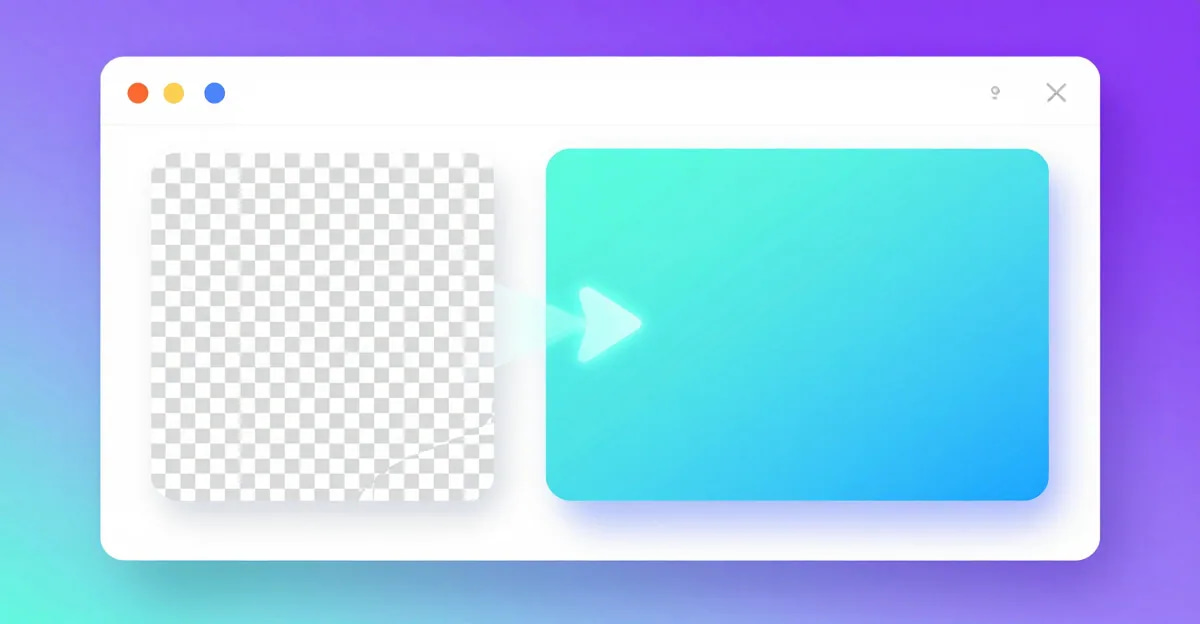
- The image has a transparent background that you need (a logo on a colored slide, for example). JPG does not support transparency, so converting will fill the transparent areas with a solid color — usually white.
- The image contains text, charts, or line art with sharp edges. JPG compression creates visible "ringing" artifacts around high-contrast edges. A screenshot of a spreadsheet or a QR code will look noticeably worse as a JPG.
- You plan to edit the image further. Saving and re-saving a JPG compresses it again each time, degrading quality. Keep a PNG master and export to JPG for the final version.
- The file is already small. If your PNG is 40 KB, converting to JPG saves almost nothing and you risk a quality loss.
PNG vs. JPG: Quick Format Comparison
| Feature | PNG | JPG |
|---|---|---|
| Compression | Lossless | Lossy |
| Transparency | Supported | Not supported |
| Best for | Logos, screenshots, text, graphics | Photos, social media, web backgrounds |
| Typical file size | Larger | 3–10× smaller at good quality |
| Quality on re-save | No change | Degrades each save |
| Browser support | Universal | Universal |
| Print acceptance | Wide | Very wide |
What Happens to Transparency When You Convert?
This is the question most guides skip. JPG has no alpha channel — there is no way to store a transparent pixel. When you convert a PNG that has transparent areas, a converter has to fill those pixels with something.
Most tools default to white. That is correct for the majority of use cases (white backgrounds on a white webpage, white paper when printing). Some tools let you pick a background color — black, a brand color, or any hex value.
Imagera's free tool fills transparent areas with white by default, which is the safe, predictable choice. If you need a specific background color, the easiest workflow is:
- Open your image in any basic editor and add a colored background layer before converting.
- Then convert to JPG.
For most product photos and social graphics, white is exactly what you want anyway.
How Quality Settings Affect File Size
JPG quality is usually expressed as a number from 1 to 100. Higher numbers mean more detail preserved and a larger file. Lower numbers mean smaller files but more compression artifacts.
In practice, the useful range is narrow:
- Quality 85–95: Visually near-identical to the original. File size is moderately reduced. Good for images that will be closely examined.
- Quality 70–80: The sweet spot for most web use. File size is significantly smaller and the difference is barely visible at normal viewing distances.
- Quality 50–65: Noticeably smaller but artifacts start to appear on smooth gradients, faces, and backgrounds. Acceptable for thumbnails and previews.
- Quality below 50: Visibly degraded. Only use this if size is the absolute priority and the image is decorative.
For a typical product photo, quality 75 will reduce a 2 MB PNG to roughly 150–250 KB — an 8 to 12× reduction — with no meaningful quality loss for web display.
How to Convert PNG to JPG Using Imagera's Free Tool
Imagera's free Image Compressor handles PNG-to-JPG conversion directly in your browser. Here is the step-by-step process.
- Open the tool. Go to Image Compressor. No account required.
- Drop your PNG file. Click the upload area or drag your PNG directly onto the page. You can add multiple files for batch conversion.
- Select JPG as the output format. Look for the format selector and switch it to JPG (or JPEG — they are the same thing).
- Set the quality level. The default is a sensible starting point. Adjust the output quality to balance file size against fidelity.
- Review and download your file. Once you are happy with the settings, click download to save the JPG to your device. For batch jobs, each converted file is available to download individually.
Everything in steps 2 through 5 happens inside your browser tab. The image data never travels to a server. If you are working with sensitive photos — medical images, documents with personal information, client assets under NDA — that privacy guarantee matters. You can read more about which tools share that property in our guide to the best private no-upload image tools for 2026.
Batch Converting PNG Files to JPG
If you have a folder of PNGs — say, a set of product photos, a sequence of screenshots, or a set of blog graphics — converting them one by one is tedious. Imagera's free tool accepts multiple files in a single session. Drop them all at once, set the output format and quality once, and download each converted JPG from the results.
For very large batches (hundreds of files), a desktop tool like ImageMagick or XnConvert may be faster since they do not depend on browser memory limits. But for batches under roughly 50 files at typical web resolutions, the browser-based approach is perfectly fast and requires no installation.
PNG to JPG on iPhone and Android
Converting images on a phone used to mean installing an app. Browser-based tools remove that friction. On an iPhone or Android device:
- Open Safari (iOS) or Chrome (Android) and navigate to Image Compressor.
- Tap the upload area and choose your PNG from the Photos app or Files app.
- Select JPG output and set quality.
- Tap download — the JPG saves directly to your Downloads folder or Camera Roll.
No app install. No account. Works on any modern mobile browser.
Common Mistakes to Avoid
Converting a screenshot of text. If you have a screenshot of an article, a menu, or a form, keeping it as PNG will produce sharper results. JPG compression blurs fine text.
Not checking the transparency fill. If your PNG has a transparent background and you download the JPG without reviewing the result, you may end up with an unintended white rectangle in your design.
Converting and then re-converting. Every time you re-save a JPG, you lose a bit more quality. If you need to make adjustments, go back to the original PNG, make the change, then convert to JPG fresh.
Setting quality too low for faces. Human faces are sensitive to JPG artifacts in a way that plain backgrounds are not. For headshots, portraits, and profile pictures, stay above quality 75.
Forgetting to check final file size. After conversion, confirm the file actually meets your target. If a form says "max 200 KB" and your JPG is still 320 KB, drop the quality a bit or check whether the image dimensions are unnecessarily large.
JPG vs. WebP: Should You Convert to WebP Instead?
WebP is a newer format developed by Google. It offers better compression than JPG at equivalent visual quality, and it supports transparency (like PNG). If you are optimizing images for a website you control, WebP is worth considering.
However, JPG remains the right choice in many situations:
- When the destination platform requires JPG specifically (many print services, form uploads, email clients).
- When you want maximum compatibility with older software.
- When your audience includes users on older devices or browsers where WebP support may be inconsistent.
For anything web-related where you control the output format, WebP at quality 75–80 will typically produce smaller files than JPG at the same quality. But for general-purpose file conversion and platform compatibility, JPG is still the practical default.
If you are also working on reducing file size beyond just the format change, our guide on how to compress an image to 100 KB online without uploading covers the additional levers available to you.
Is It Safe to Convert Photos Online?
The honest answer depends on the tool. Most conversion tools work server-side — your file is uploaded, processed on their infrastructure, and then (in theory) deleted. Whether that deletion actually happens, and what happens to the file in transit, is hard to verify.
Browser-based tools like Imagera's free Image Compressor process everything locally using your device's own computing power. The file is never sent anywhere. That is a meaningful difference if you are handling photos of documents, medical images, family photos, or anything else you would prefer to keep private. If you use TinyPNG today, the TinyPNG alternative guide covers when a no-upload compressor is the better fit.
This is explored in more depth in our article on whether it is safe to upload photos to online editors — worth reading if you regularly use web-based image tools.