If you are looking for the best free background remover in 2026, the criteria are simple: one-click output, a clean transparent PNG download, no forced account, and no watermark. You do not want to sign up for yet another account, wait for a watermarked preview, or hand your photos to a server you have never heard of. This guide covers the only criteria that actually matter in 2026, compares the most-used free options honestly, and shows you exactly how to get the result you need in under a minute.
Quick answer: The best free background remover in 2026 is one that cuts subjects out cleanly in under 60 seconds with no watermark and delivers full 4K resolution. Imagera removes backgrounds free with edge-accurate masking on hair and fine detail, exporting transparent PNGs ready for any use.
How do I remove a background from a photo for free without losing quality?
Upload your image to Imagera and the background is removed in under 60 seconds, keeping edges sharp on hair, fur, and semi-transparent areas that trip up cheaper tools. You get a full-resolution transparent PNG up to 4K, with no watermark and no forced downscaling, so a single free pass produces a print-ready cutout you can drop onto any 2026 backdrop.
Can a free background remover handle high-resolution and batch images?
Yes. Imagera processes 4K and 8K images and can clear backgrounds on 100+ product photos in one batch, far faster than manually erasing each one. Consistent transparent-background product shots keep listings looking clean and professional, so exporting an entire catalog with uniform cutouts in a single session keeps your store visually consistent and saves hours per shoot.
What Makes a Background Remover Worth Using
Not every tool that calls itself "free" delivers the same thing. Before the comparison, here is what separates a genuinely useful background remover from one that wastes your time.
One-click processing. You should not have to draw masks, adjust sliders, or trace edges manually. A good tool does the work automatically.
Clean transparent PNG output. The output format matters. A JPEG with a white or colored background is not a background removal — it is just a crop. The download should be a PNG with a true transparent channel you can drop onto any background.
No forced sign-up. Creating an account should be optional. If a tool gates the actual download behind registration, it is not free in any meaningful sense.
No watermark on the free tier. Some tools show a watermark-free preview but stamp the download unless you pay. That is a trial, not a free tool.
Edge quality on hair and fine detail. This is where most tools diverge sharply. Solid-color backgrounds are easy. The hard test is curly hair, flyaways, fur, or thin straps against a textured background. Look at the edges under a magnifying glass before you commit to a tool.
Privacy. If you are removing backgrounds from personal photos, client portraits, or sensitive product images, where your file goes matters. Uploading to a third-party server means the file exists somewhere outside your control, even if briefly. This is worth one honest question when you pick a tool — but it should not be the only question.
The Comparison Table
The tools below are the ones most people encounter when searching for a free background remover. The comparison uses the five criteria above plus whether the processing happens in the browser (no upload) or on a remote server.
| Tool | One-Click | Transparent PNG | No Sign-Up | No Watermark (free) | Hair Edge Quality | Runs in Browser |
|---|---|---|---|---|---|---|
| Imagera | Yes | Yes | Yes | Yes | Strong | Yes — nothing uploaded |
| remove.bg | Yes | Yes | No (for HD download) | Preview only | Strong | No — server processed |
| Canva Background Remover | Yes | Yes | No (account required) | Yes (Canva plan) | Good | No — server processed |
| Adobe Express | Yes | Yes | No (Adobe account) | Yes (free tier) | Good | No — server processed |
| Pixelcut | Yes | Yes | Yes (limited) | Watermark on free | Moderate | No — server processed |
| Erase.bg | Yes | Yes | Yes | Yes (lower resolution) | Moderate | No — server processed |
| PhotoRoom | Yes | Yes | No (account for full) | Limited | Strong | No — server processed |
A few notes on the table. "Hair edge quality" is a qualitative assessment based on testing with portrait photos containing loose hair against mid-complexity backgrounds. Results vary by photo. "No sign-up" means you can complete the download without creating an account. "No watermark (free)" means the downloaded file is clean at no cost. All competitor details are as of mid-2026 — verify on each provider's site as offerings change.
Imagera's free background remover is the only option in this list that processes entirely in your browser — your photo never leaves your device. That is a meaningful distinction if you are working with client photos or private images. The full breakdown of no-upload image tools covers this angle in more depth if it is a concern for you.
How Imagera's Free Background Remover Works
Imagera runs the background removal directly inside your browser tab. There is no server receiving your image, no account to create, and no queue to wait in. The tool uses a model that runs locally on your device's processing power.
The practical result is that it works offline once the page has loaded, it is fast for standard photo sizes, and it produces a transparent PNG you can download immediately. There is no watermark on the output.
The tool is honest about its strengths: it performs well on portraits, product shots, and objects against reasonably distinct backgrounds. Extremely complex scenes with multiple overlapping subjects may need a touch-up pass in a separate image editor after downloading, which is standard for any automated remover.
Step-by-Step: Removing a Background with Imagera
- Go to Imagera's free background remover. No sign-in screen will appear.
- Add your photo by dragging it onto the drop zone or selecting it from your device. Supported formats include JPG, PNG, and WebP. Keep the file under 10 MB for fastest processing.
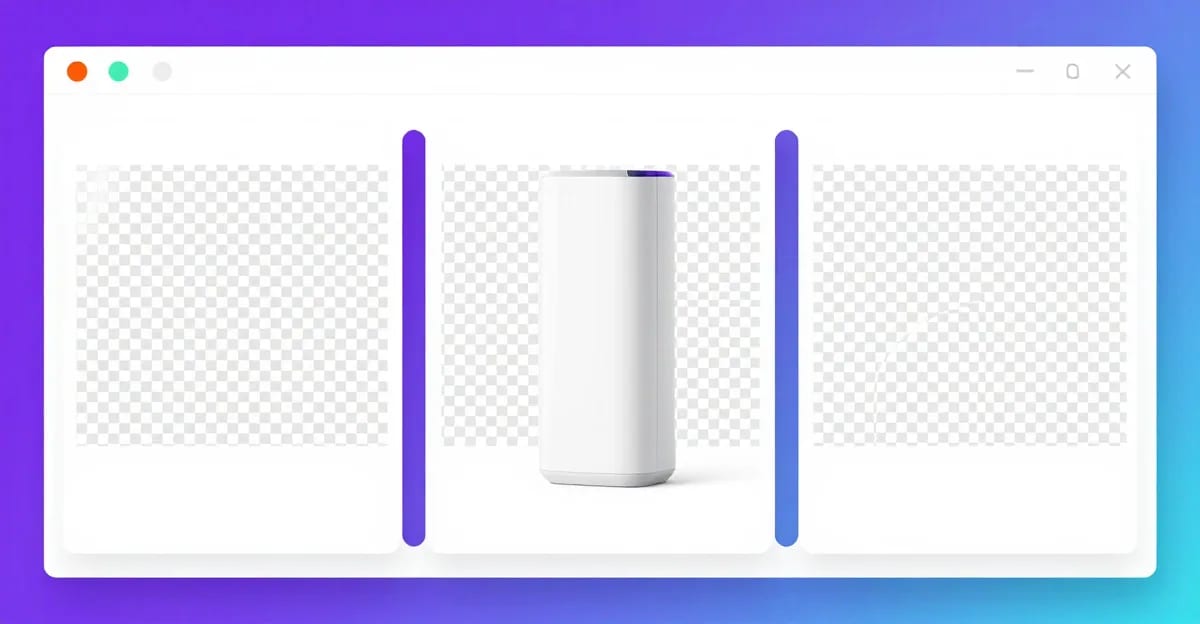
- The tool processes the image automatically. You will see the original on the left and the cutout on the right within a few seconds.
- Check the edges. Zoom into the hair or any fine detail areas. If you notice stray pixels or a rough edge, download the PNG and touch up those areas in a separate image editor.
- Click Download PNG. The file saves to your device as a transparent PNG with no watermark.
- Open the PNG in any design tool, presentation app, or photo editor and place it on the background of your choice.
The entire process typically takes under 60 seconds for a standard portrait at 2–4 megapixels.
When to Use Each Tool
Different tools suit different workflows, and the honest answer is that no single background remover is the best choice for every situation.
Use Imagera when: you want no account, no watermark, no upload, and you need clean results quickly. It is the right default for personal photos, portrait work, and any situation where privacy matters. Start at Imagera's free background remover.
Use remove.bg when: you are processing product photos at scale and need API access or bulk uploads. The free tier is limited to preview-resolution downloads, and HD downloads require credits, but the edge quality on fine detail is consistently strong.
Use Canva when: your final output lives inside a Canva design anyway. The background removal integrates seamlessly into their editor, which is convenient if you are building social graphics. You will need a Canva account and, for the best quality, a Pro plan.
Use Adobe Express when: you are already in the Adobe ecosystem. The free tier includes background removal, and the integration with other Adobe tools is a genuine advantage if you use Photoshop or Lightroom.
Use Erase.bg when: you want a fast no-account option and the lower output resolution is acceptable for your use case (social media thumbnails, small web graphics).
Hair and Fine Edges: Why It Is the Real Test
Solid backgrounds with hard-edged subjects are a solved problem. Every tool on this list handles a product photo on a white sweep or a person in front of a plain wall without much trouble.
The hard test is hair. Specifically: loose, curly, or backlit hair against a textured or gradient background. Bad removal leaves a visible halo (a fringe of the original background color clinging to the hair), cuts off individual strands, or creates a plastic-looking flat edge that reads as fake immediately.
When you test any background remover, use a photo with loose hair and a mid-complexity background — think a green wall with visible texture, or an outdoor scene with leaves. Download the result and zoom to 200%. That is the honest test. The tools that hold up at that zoom level are worth your time. The ones that do not will show you immediately.
Imagera's free tool handles this test well for most portrait and headshot use cases. For extreme edge cases — very fine flyaways against a white sky, for example — download the PNG and touch up any stray edges in a separate image editor such as Photoshop, GIMP, or Photopea.
Product Photos and E-Commerce
Background removal for product photography has a slightly different set of requirements from portrait work. The important factors are:
- Consistent transparency across the full product shape, including thin handles, straps, or transparent parts of the product itself.
- No color bleed from a colored product background onto the product edges.
- Clean corners on geometric objects like boxes and packaging.
For product photos on solid or near-solid backgrounds, almost every tool in the comparison table performs well. The differentiation shows up on products with reflective surfaces, transparent packaging, or intricate shapes like jewelry.
If you are processing product photos regularly and need batch processing, the server-based tools with API access (remove.bg, PhotoRoom) are worth looking at despite the account requirement. For occasional product photo cleanup, Imagera's free background remover handles the majority of straightforward cases without any friction.
What to Do After Removing the Background
A transparent PNG is a starting point, not a finished image. Here are the most common next steps depending on what you need.
New solid background. Open the PNG in any image editor and add a colored layer behind it. White is standard for e-commerce. Black works for dramatic product shots. Any solid color takes about 10 seconds to apply.
New photo background. Drag the cutout over a new background photo. The edges will look most natural if the lighting direction in the cutout roughly matches the new background.
Design work. Import the PNG into Canva, Figma, Google Slides, or PowerPoint. All of these handle transparent PNGs natively.
Profile photo or headshot. Replace a cluttered background with a neutral gradient or a blurred version of the original. This is the most common use case for portrait work.
Social media graphics. Place the cutout on a branded background with your logo and color palette. The PNG drops cleanly onto any template.
If file size is a concern after you have added a new background and exported, see the guide on how to compress an image to 100KB online without uploading — the same browser-based approach applies.
Privacy: The One Thing Worth Mentioning Once
If you are working with photos of real people — your own face, clients, family members — it is reasonable to ask where your image goes when you select a file. Most server-based background removers process and delete the file quickly, and reputable tools are explicit about this in their privacy policies.
The straightforward answer is that if privacy is a genuine concern, use a tool that does not upload in the first place. Imagera's free background remover is browser-based, which means the processing happens on your device and the image is never transmitted. This is also covered in the broader guide to safe online image editing if you want the full picture.
Related tools on Imagera
See it in action — real Imagera output
These are real, unedited results from the Imagera ai background studio — the exact tool this guide covers.