 The right dimensions matter more than most people realize. Upload a photo at the wrong size and Instagram's algorithm either crops it automatically — cutting off faces, text, or the part of the image you actually wanted to show — or compresses it so aggressively that it looks soft and blurry in the feed. Getting this right before you upload takes less than a minute.
Here is the short version: for a standard Instagram feed post use 1080 × 1080 px (square) or 1080 × 1350 px (portrait). For Stories and Reels use 1080 × 1920 px. Resize your image to one of those sizes in Imagera's free Image Compressor, and Instagram will publish it at full sharpness without any automatic re-cropping.
The rest of this guide covers every format in detail, explains why quality degrades when you skip this step, and walks you through the whole process.
Quick answer: Instagram feed posts display best at 1080 x 1350 pixels (a 4:5 portrait ratio), while Stories and Reels use 1080 x 1920 pixels (9:16). With Imagera you can resize any photo to these exact dimensions free in under 60 seconds.
1.What are the correct Instagram image sizes in 2026?
Instagram supports 3 main aspect ratios: 1:1 square (1080 x 1080), 4:5 portrait (1080 x 1350), and 9:16 vertical (1080 x 1920) for Stories and Reels. Portrait 4:5 posts take up more vertical screen space than square ones, so they tend to stand out more in the feed. Imagera exports all 3 formats at full 1080-pixel width with zero cropping loss.
2.Does resizing an image for Instagram reduce its quality?
Not with the right tool. Naive stretching can soften a photo, but Imagera resizes with edge-aware scaling and can upscale smaller shots to 4K before export, keeping detail sharp across all 3 ratios. You can process 100+ images and each resize costs just 5 credits. Instagram compresses uploads wider than 1080 pixels automatically, so exporting at exactly 1080 avoids a second quality hit.
3.Every Instagram Image Size You Need in 2026
Instagram supports several post formats, and each one has its own preferred dimension. Here is a complete reference table.
| Format | Recommended Size | Aspect Ratio | Max File Size |
|---|---|---|---|
| Square feed post | 1080 × 1080 px | 1:1 | 30 MB |
| Portrait feed post | 1080 × 1350 px | 4:5 | 30 MB |
| Landscape feed post | 1080 × 566 px | 1.91:1 | 30 MB |
| Stories | 1080 × 1920 px | 9:16 | 30 MB |
| Reels cover | 1080 × 1920 px | 9:16 | 30 MB |
| Profile picture | 320 × 320 px | 1:1 | 10 MB |
| Carousel slide | 1080 × 1080 px | 1:1 | 30 MB |
The width column does not change. Instagram always renders images at a 1080 px wide column in the feed, which is why 1080 px is the universal starting point. What changes is the height, and therefore the aspect ratio.
4.Why the 4:5 Portrait Format Gets More Real Estate
Of the three main feed formats, portrait (1080 × 1350 px) takes up the most screen space. Because the image is taller, a portrait post occupies noticeably more vertical real estate on the phone screen before the user scrolls, compared to a square post. More screen space generally means more time spent looking at your image, which tends to correlate with more engagement.
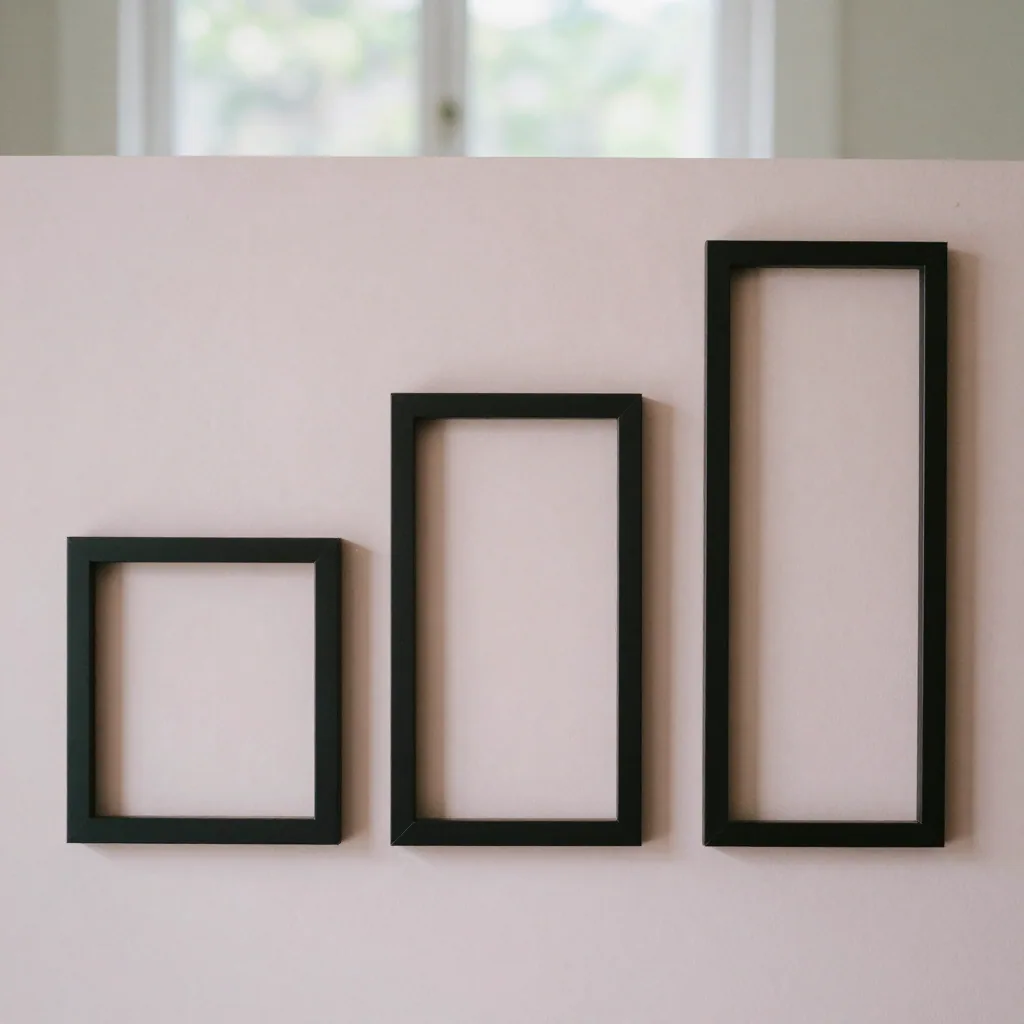
The trade-off is that not every photo suits a tall crop. A wide landscape shot, a group photo, or anything with important detail near the edges will be clipped if you force it into 4:5 without adjusting first. The cleanest approach is to crop or letterbox your image to the correct 4:5 aspect ratio in a separate image editor first, then use Imagera to resize it to the exact 1080 × 1350 px dimensions.
5.What Happens When You Upload the Wrong Size
Instagram does not reject images at the wrong size. Instead, it does two things automatically:
- Crops to the closest supported aspect ratio. If your image is 2:3 (taller than 4:5), Instagram will crop the top and bottom to fit the 4:5 boundary. You often do not find out until the post is live.
- Re-compresses the file. Instagram runs its own compression pass on every upload. If your image is already at the platform's native resolution, the compression pass has less work to do and introduces fewer artifacts. If you upload a 4000 px wide raw photo, Instagram has to downscale and compress in one step, which tends to produce visible softness or banding in high-contrast areas.
Resizing before you upload gives you full control over what the viewer sees.
6.The Difference Between Resizing and Cropping
These two words are often used interchangeably, but they are not the same thing.
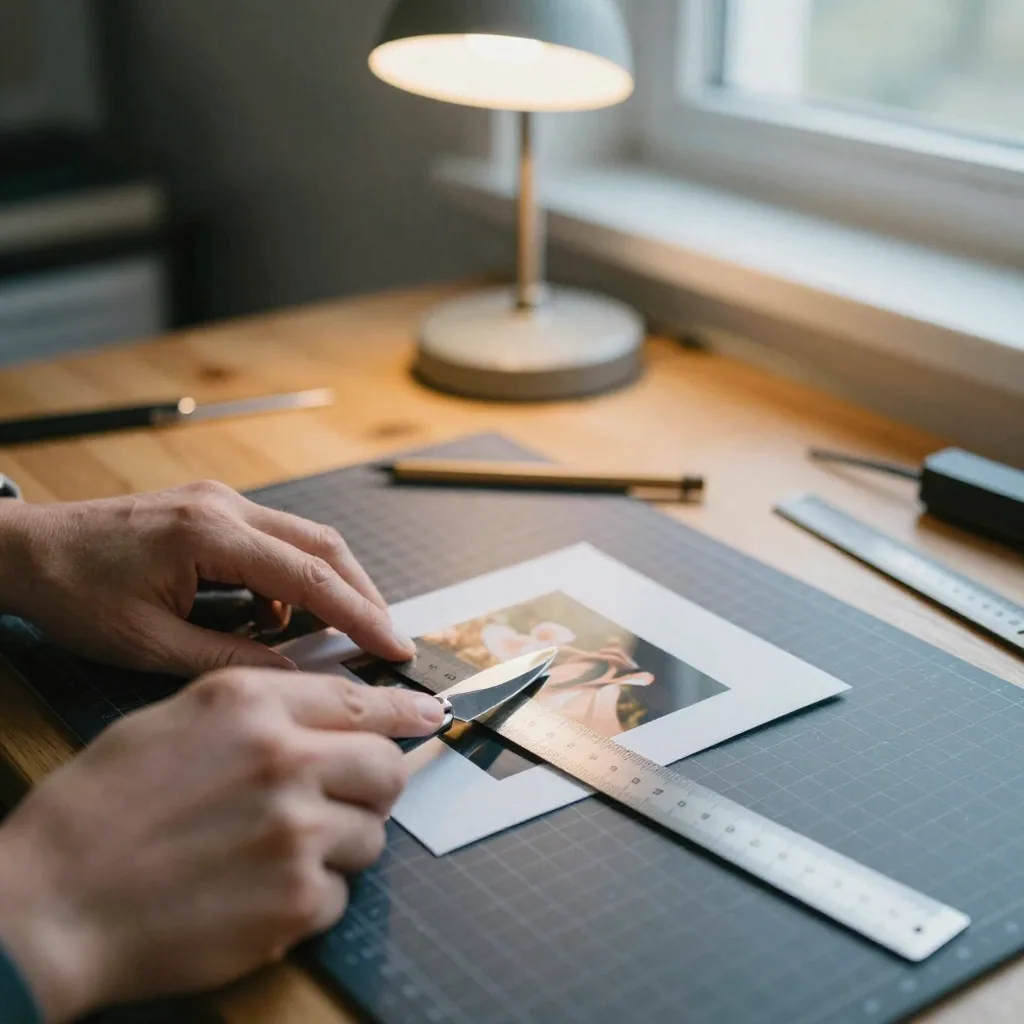
Cropping removes pixels from one or more edges to change the aspect ratio. The content that gets cut off is gone.
Resizing scales the entire image up or down to fit a new set of pixel dimensions. Nothing is cut off, but the proportions of the image must already match your target ratio — otherwise you will either end up with white or black bars on the sides (letterboxing), or you will still need to crop.
The cleanest workflow is to compose or crop your image to the right aspect ratio first, then resize it to the exact pixel dimensions Instagram expects. That combination gives you full control over composition and full control over sharpness.
7.The Three Formats You Will Actually Use
7.1Square: 1080 × 1080 px
Square is the safest default for most images. It works in both portrait and landscape orientations, it renders consistently across every device, and carousel posts are almost always square. If you are resizing a landscape photo and want to avoid letterboxing, square is your best bet.
7.2Portrait: 1080 × 1350 px
Portrait is the best choice for product shots, editorial photography, fashion content, and anything designed to stop the scroll. Because it takes up more of the screen, it tends to perform well for accounts where the visual content is the main draw. Keep the subject centered horizontally so Instagram's circular profile crop does not cut into it in the grid preview.
7.3Stories and Reels: 1080 × 1920 px
Stories are full-screen vertical. If you are designing a static Story image — a quote graphic, a product announcement, or a behind-the-scenes photo — 1080 × 1920 is the correct size. Note that Instagram places UI elements (the account name, the reply bar, and swipe-up links) over the top 250 px and bottom 250 px of a Story. Keep text and key visuals in the middle 1080 × 1420 px safe zone.
8.How to Resize an Image for Instagram Using Imagera (Step by Step)
Imagera's free Image Compressor runs entirely in your browser. Your file never leaves your device, which means no account is required and nothing is stored on a server. Here is exactly how to use it.
- Open the tool. Go to Imagera's free Image Compressor in any modern browser — Chrome, Firefox, Safari, or Edge. No sign-up needed.
- Drop your image onto the upload area. The tool accepts JPEG, PNG, and WebP. You can also click the upload area to browse for a file.
- Set the target width to 1080 px. In the resize settings panel, enter 1080 in the width field.
- Enter the correct height for your format. Use 1080 for square, 1350 for portrait, or 1920 for Stories. If your image does not already match that aspect ratio, crop or letterbox it in a separate image editor before this step so nothing gets stretched.
- Check the output quality setting. For Instagram, a quality setting between 85 and 90 percent is the right balance between file size and sharpness. You do not need to go above 90 — Instagram will re-compress the file on its end regardless.
- Click Download. The resized file saves directly to your device. The original is untouched.
- Upload to Instagram. Open Instagram, start a new post, select the resized file, and publish. No automatic cropping or unexpected re-framing.
The entire process takes under a minute for a single image. For batch resizing — when you need to prepare multiple posts at once — simply repeat steps 2 through 6 for each file.
9.Keeping Quality High: What Actually Causes Instagram Photos to Look Soft
If your Instagram photos consistently look blurry or overly smooth compared to how they look on your phone, the cause is almost always one of these three things.
You are uploading at too low a resolution. Instagram needs at least 1080 px of width to render a sharp image. Anything below that forces it to upscale, which introduces blurriness. Always start at 1080 px wide.
Instagram's compression is fighting your JPEG compression. Every time a JPEG file is compressed and then re-compressed, it loses detail. If you export your image at a quality setting below 70 percent before uploading, Instagram's re-compression makes the artifacts worse. Exporting at 85 to 90 percent leaves Instagram enough headroom.
You are screenshotting instead of exporting. Screenshots on a standard phone are typically around 390 px wide, far below Instagram's 1080 px requirement. Always export or save from your editing app rather than screenshotting.
Getting these three things right consistently — correct dimensions, appropriate export quality, and exporting rather than screenshotting — will noticeably improve how your photos look in the feed.
10.File Format: JPEG, PNG, or WebP?
Instagram accepts JPEG, PNG, GIF, and WebP. In practice, the choice comes down to content type.
JPEG is the right choice for photographs. It handles continuous tone images — skin, sky, landscapes — efficiently and produces small file sizes at high quality settings.
PNG is better for graphics, screenshots, and images with text or flat color areas. JPEG compression introduces banding and fringing in those areas; PNG preserves clean edges.
WebP works for both types but is less universally used in Instagram workflows. If your editing tool exports WebP natively, it is fine to use.
For most people resizing a photo for a feed post, JPEG at 85 to 90 percent quality is the correct choice. For a Story graphic with a logo or text overlay, PNG is usually cleaner.
11.Common Mistakes That Ruin Instagram Image Quality
Uploading a file larger than 30 MB. Instagram will reject files above its size limit. If your RAW or TIFF export is very large, resize and compress it first. Imagera's free Image Compressor handles this in the same step as resizing.
Adding a white border and uploading without accounting for the new aspect ratio. A popular style is to add white padding around a photo to create a bordered look. If you add equal padding to a 1:1 image, the result is still 1:1 and displays correctly. But if you add unequal padding and change the aspect ratio without resizing to Instagram's target dimensions, Instagram will crop it.
Using the wrong size for carousel posts. All slides in a carousel should be the same dimensions. Mixing 1080 × 1080 and 1080 × 1350 slides in the same carousel will cause Instagram to crop some of them to match the first slide's ratio.
Relying on in-app editing to fix a bad crop. Instagram's in-app crop tool is limited. It does not let you add padding or control exactly where the crop falls. Resizing before you upload gives you complete control.
12.Privacy Note: Does Your Image Get Uploaded When You Resize It?
For anyone who is cautious about where their photos go — especially professional photographers, creators who work with client images, or people handling personal photos — this is a fair question. The answer depends entirely on which tool you use.
With Imagera's free Image Compressor, the resizing happens in your browser. The file is processed locally on your device and never sent to a server. There is no account, no storage, and no way for anyone at Imagera to access the image.
For a broader look at which online tools handle files this way, see our guide to the best private, no-upload image tools in 2026. If you are also wondering about the general safety of using photo editors online, this guide on whether it is safe to upload photos to online editors covers the key questions.
13.Quick Reference: Instagram Aspect Ratios and When to Use Each
If you are deciding between formats for a specific type of content, here is a simple guide.
Use 1:1 (square) when:
- You are creating a carousel post
- The image is a landscape shot that you do not want to crop
- You are repurposing content across multiple platforms (square works everywhere)
Use 4:5 (portrait) when:
- You want maximum screen real estate in the feed
- The subject is vertical — a person, a product shot, a tall building
- You want more impact per post
Use 9:16 (story/reel) when:
- You are posting to Stories or Reels
- You are creating a vertical graphic or announcement
- You are sharing a video thumbnail designed for vertical viewing
14.Deeper guide (practical production)
15.Related tools on Imagera
16.Start here (product links)
Use these live product pages (from Imagera tool catalog / free-tools registry):
- /free/compress-image — free canvas ops include resize
- /image/photo-id-maker — paid ID/passport studio
- /pricing — pay-first
16.1Free vs paid (honest)
Imagera has true free on-device tools under /free/* (no upload, WASM/CPU — see free-tools registry).
Cloud AI studios (upscale 16K, talking avatar, LoRA train, etc.) are pay-first: buy credits from pricing (packs from $19.99). Do not expect free unlimited commercial cloud generation.