The Quick Answer: Yes, You Can Sharpen That Photo Right Now
If you have a soft or slightly blurry photo — a portrait that missed focus, a screenshot that looks fuzzy at full size, or an old picture that needs a quality boost before printing — you can fix it in your browser right now using Imagera's free Image Upscaler. No account, no app download, no waiting. Drop in the photo, pick a scale, and download a cleaner version in under a minute.
That said, not every blur is fixable, and knowing the difference saves frustration. This guide covers exactly what "unblurring" means in practice, what the tool actually does, and when to set realistic expectations.
What Does "Unblur an Image" Actually Mean?
The phrase "unblur" is used loosely online to describe at least three different problems, and the solution is different for each one.
Soft focus or slight defocus is the most common case. The photo looks a little hazy, edges are not crisp, and fine details like hair strands or fabric texture are lost. This is the kind of blur that a sharpening or upscaling tool can genuinely improve.
Compression blur happens when a photo is saved at low quality, shared over a messaging app, or screenshotted multiple times. The image looks blocky or smeared rather than soft. A quality upscaler can reconstruct detail and clean up those artifacts, often dramatically.
Severe motion blur — where a subject moved fast or the camera shook during a long exposure — creates streaking trails across the frame. This is fundamentally different: pixels are smeared across a physical distance in the image, and no consumer-grade tool can undo that reliably. You may see a slight improvement, but be honest with yourself about the result.
Resolution blur is simply what happens when a small image is displayed large. A 300×300 pixel photo pasted into a 1200-pixel-wide slide looks blurry because there is not enough image data to fill the space. Upscaling adds that data intelligently, so the result looks sharper at large sizes.
Knowing which type of blur you are dealing with is the single most useful thing you can do before trying any tool.
What Imagera's Free Image Upscaler Actually Does
Imagera's free Image Upscaler runs entirely inside your browser. When you drop a photo in, the processing happens on your own device — nothing is sent to a server, and no one else ever sees your file. (If you care about that aspect more broadly, the best private no-upload image tools guide covers it in depth.)
The tool does two things at once:
- Enlarges the image up to 4x its original dimensions. A 500×500 photo becomes 2000×2000. That alone makes it look sharper on screen because there are more pixels to work with.
- Sharpens as it scales. Rather than just stretching existing pixels (which would look worse), the tool reconstructs edges and fine details during the upscale step, so the output image has crisper lines and more visible texture than the input.
The result is a larger, sharper version of your photo — downloaded directly to your device, with no account or payment required.
When It Works Well (and When It Does Not)
It works well for:
- Portrait photos where the face is slightly soft or out of focus
- Old scanned photos that look fuzzy at modern display sizes
- Screenshots and social media images that were compressed during sharing
- Product photos that need to print larger than their original resolution allows
- Any image you want to look sharper when displayed at a bigger size
It will not fully recover:
- Severe motion blur with visible streaking
- Photos taken in near-total darkness where the sensor added heavy noise
- Images that are extremely small (under 100×100 pixels) — the tool works better with more starting data
- Text documents or screenshots with very small text — letters may improve but may not become fully legible
This is not a limitation of any particular tool; it is a physical reality of how image data works. Any website that claims to completely eliminate motion blur or "restore" a 50×50 thumbnail to print quality is overpromising. Imagera does not make that claim, and neither does this post.
How Sharpening and Upscaling Compare to Other Approaches
There are a few different ways to sharpen a photo, and they are not all the same.
| Method | What it does | Best for | Limitation |
|---|---|---|---|
| Browser upscaler (e.g., Imagera) | Enlarges + sharpens in one step, runs locally | Soft focus, compression artifacts, small originals | Cannot fix heavy motion blur |
| Desktop software (Photoshop, GIMP) | Manual sharpening filters, full control | Advanced users with time to spare | Requires installation, learning curve |
| Mobile camera app sharpening | Basic slider adjustment | Quick fix on the device you shot with | Limited range, no enlargement |
| AI-enhanced cloud editors | High-quality results | Professional use cases | Usually requires upload and account |
| Free cloud tools (various) | Vary widely | Casual use | Your photo leaves your device |
The browser-based approach sits in a practical sweet spot: it is faster than desktop software, more capable than a mobile slider, and unlike cloud editors, your photo is never uploaded anywhere — which matters for personal or sensitive images.
Step-by-Step: How to Sharpen a Blurry Photo with Imagera
Here is exactly how to use the tool.
-
Open the tool. Go to Imagera's free Image Upscaler in any modern browser on desktop or mobile. No login is needed.
-
Load your photo. Click the upload area or drag and drop your image file. JPG, PNG, and WebP files all work. There is no file size limit enforced by a server because the file never leaves your device.
-
Choose your scale. Select 2x if you want a moderate quality improvement without a huge file size increase. Choose 4x if the original is small and you want a significantly larger, sharper output — for example, before printing or posting to a platform that displays images at high resolution.
-
Start the process. Click the button to run the upscaler. Processing time depends on your device speed and the image size, but most photos complete in under 30 seconds.
-
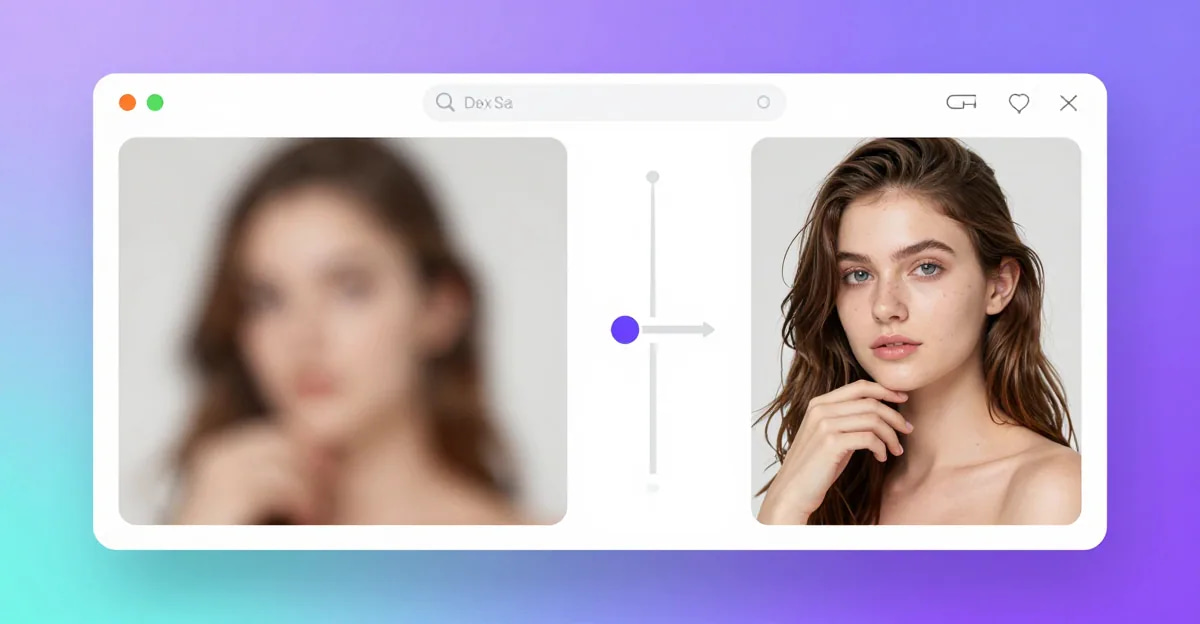
Review the result. Use the before/after comparison view to check whether the sharpening improved the areas that mattered — eyes, edges, text, or fine detail.
-
Download the output. Click download and the sharpened, enlarged image saves directly to your device. The original is unchanged.
-
Repeat if needed. If the result looks good but you want more sharpening, you can run the output through the tool a second time at 2x. Keep in mind that running a very small original through multiple passes will not create detail that was never there — there is a point of diminishing returns.
Tips for Getting the Best Results
Start with the best version you have. If you have the original file from your camera, use that rather than a version that was already shared via messaging apps. Every time a photo passes through a compression step, it loses quality that cannot be recovered.
Crop before you sharpen. If only part of the image matters — a face in the center of a wide shot, for example — crop to that region first, then upscale. The tool focuses all its processing on a smaller area, and you get more detail where it counts.
Check at 100% zoom. After downloading, zoom in to 100% in your image viewer before deciding whether the result is good enough. What looks sharp at 25% zoom may still be soft at full size.
Do not over-expect on screenshots. Screenshots of text-heavy documents often improve noticeably for images within the screenshot, but small text may still be hard to read. The tool is best suited to photographic content.
Compare file sizes. A 4x upscale of a high-resolution photo creates a very large file. If you need to share it afterwards, you may want to compress it back down without losing the sharpness gains you just made.
Common Photo Situations and What to Expect
Old family photos scanned at low resolution. These typically see a strong improvement. The original soft appearance comes from low scanning resolution, not true motion blur, so upscaling with sharpening adds back a lot of apparent detail.
Smartphone selfies that look soft. Front cameras on phones use heavy computational processing that sometimes produces a slightly soft result. An upscaler pass usually sharpens edges and makes skin texture visible without making the image look over-processed.
Screenshots from video calls or recorded footage. Video is typically compressed much more aggressively than photos, so frames captured from video often look blocky. An upscaler helps noticeably with the compression artifacts and adds sharpness, though the fundamental resolution limit of video means results vary.
Product photos for e-commerce. If you shot a product photo that came out slightly soft, upscaling before cropping and resizing for your platform is a sensible step in the workflow. The result looks cleaner at standard thumbnail sizes.
Photos printed smaller than intended. If you have a photo that was taken at low resolution but needs to print at 5x7 inches or larger, upscaling to at least 300 pixels per inch at the print size is the standard approach. The tool can handle this calculation for you if you know your target print dimensions.
Privacy Note: Your Photos Stay on Your Device
Unlike most online image editors, Imagera's free tools run directly in your browser tab. The image data never leaves your computer or phone. There is no account to create, no terms of service granting a company rights to your photos, and no server logs of what images you processed.
This matters most for personal photos — family pictures, photos with children, anything sensitive. For a broader look at which tools take this approach, see the best private no-upload image tools guide.
Alternatives to Consider
If the free browser tool does not meet your needs, here are honest alternatives:
GIMP (free, desktop): Full professional-grade sharpening filters, but requires installation and a learning curve. Best for users who want precise manual control over every parameter.
Photoshop (paid, desktop): The industry standard. Smart Sharpen and Camera Raw sharpening are excellent. Worth it if you are already a subscriber.
Lightroom (paid, subscription): Detail panel sharpening with masking is specifically designed for photographers. Very good for portrait and landscape work.
Other browser-based upscalers: Several exist. The main variable is whether your photo is processed on the provider's server or on your device. If privacy matters, confirm before using.
Imagera's free tool is the right choice when you want speed, privacy, and zero cost for a solid result. For advanced manual control, desktop software is the better pick.
Related tools on Imagera
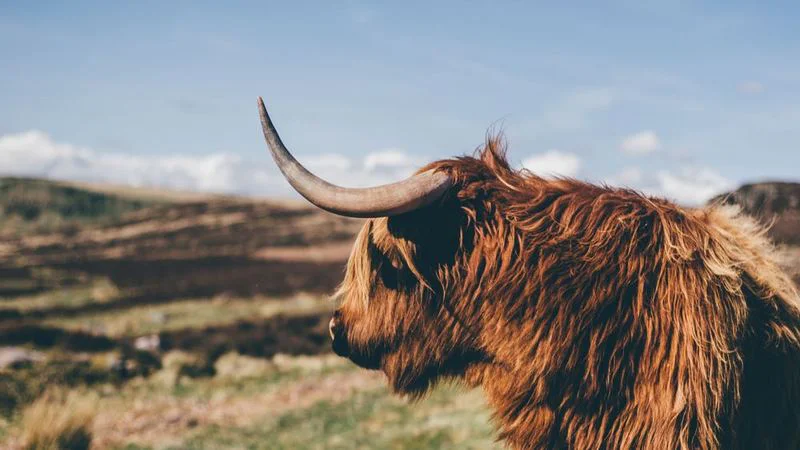
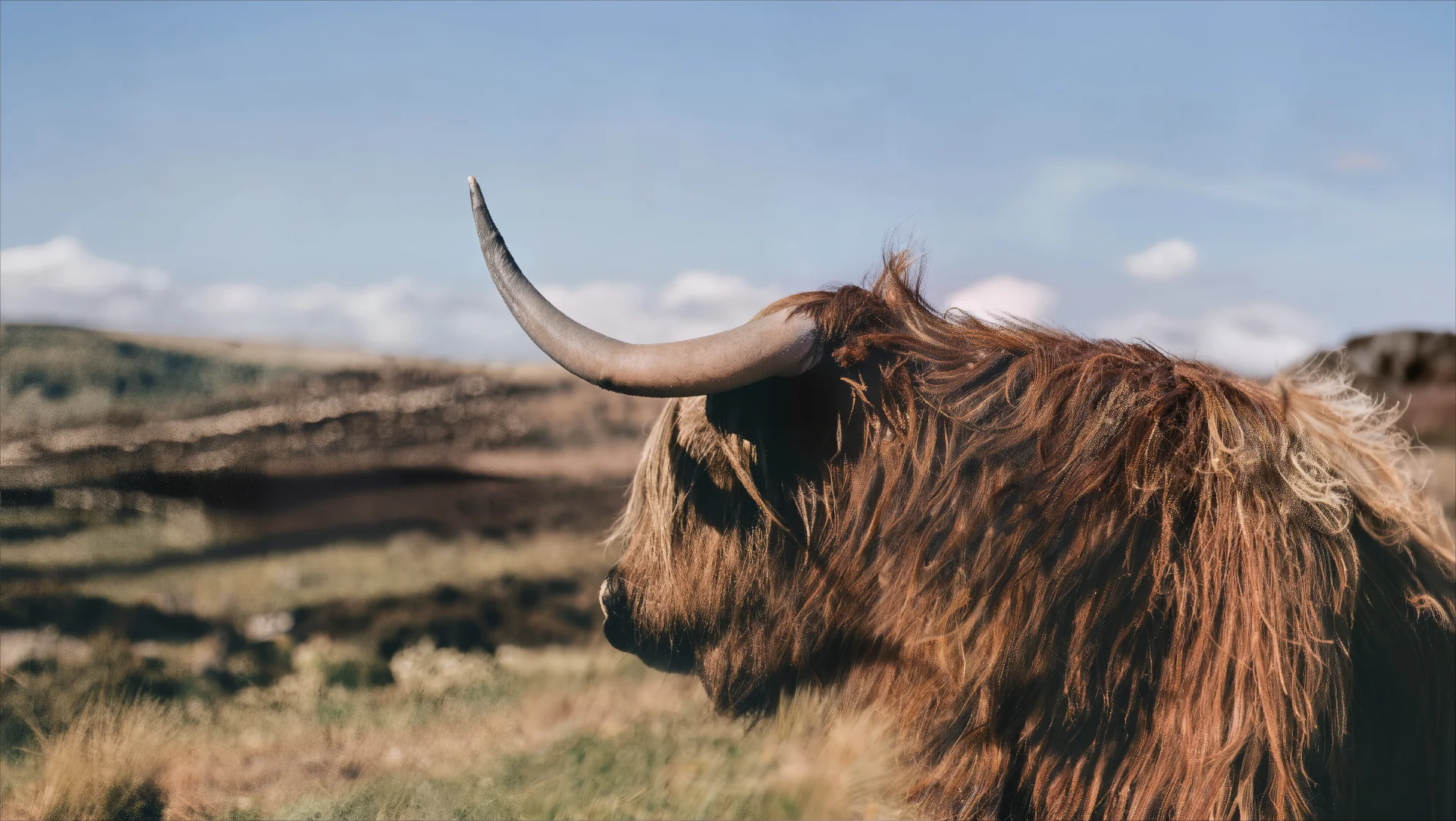
See it in action — real Imagera output
These are real, unedited results from the Imagera image upscaler — the exact tool this guide covers.
The Bottom Line
Most blurry photos that land in that "almost good enough" category — soft focus, compressed by messaging apps, or simply too small for the size you need — can be meaningfully improved with a free sharpening upscaler. The key is knowing that the tool works best on soft-focus and compression blur, not motion blur or extreme low-resolution images.
Imagera's free Image Upscaler is one of the fastest ways to run that fix without signing up for anything, paying anything, or sending your photo to a server. Open it in a browser tab, drop in your photo, and see for yourself whether the improvement is what you need.