The short answer: the best free image upscaler in 2026 is one that sharpens your photo at 2× or 4× without slapping a watermark on the result, without forcing you to create an account, and without sending your file to a remote server. Imagera's free image upscaler hits all three. Drop in a photo, pick a scale factor, and download. Done.
The longer answer follows — including a comparison table of the most-used options, an honest look at the trade-offs, and a step-by-step guide so you know exactly what to expect before you start.
1.What "Upscaling" Actually Means
Standard resizing just stretches pixels, leaving you with a blurry result at larger dimensions. Upscaling uses sharpening algorithms to fill in the extra pixels with detail that makes sense given the surrounding image. The output still has more pixels than the input, but edges look crisp instead of muddy.
A good free upscaler should:
- Increase resolution without introducing a smeary halo around edges
- Keep fine details like hair, fabric texture, and text legible
- Output a file you can actually use — no forced watermark, no low-quality preview
2.The Five Criteria That Matter
Before comparing tools, it helps to agree on what to measure.
1. Maximum enlarge factor. Most tools offer 2× (doubles each dimension, quadruples pixel count) and 4×. Some offer 8× or higher. Larger factors are useful for printing, but quality drops off faster at extreme multiples.
2. Sharpening quality. Does the result look natural, or does it produce telltale halos and over-sharpened edges? This is hard to quantify without your own test image, so run the comparison yourself — all the tools listed below have a free tier you can try today.
3. Watermark policy. Some tools add a visible watermark to free-tier outputs. This makes the image useless for any real project. The table below flags which tools watermark.
4. Sign-up requirement. Creating an account just to upscale a single photo is friction most people don't need. Tools that let you start immediately win on convenience.
5. Browser-based vs. server upload. If you are upscaling a photo of a child, a client's product, or anything confidential, you may prefer a tool that does not send the file to a third-party server. Browser-based tools process everything locally, which also makes them faster on a good laptop.
3.Comparison Table: Best Free Image Upscalers (2026)
The details below reflect each tool's publicly stated free tier as of mid-2026. Feature sets and pricing can change — verify on each provider's site before deciding.
| Tool | Max Free Scale | Watermark on Free Tier | Sign-up Required | Processing |
|---|---|---|---|---|
| Imagera | 4× | No | No | In-browser |
| Upscayl (desktop app) | 4× | No | No | Local desktop |
| Adobe Express | 4× | No | Yes (Adobe account) | Server |
| Canva | 4× | No | Yes (Canva account) | Server |
| Fotor | 2× free | Yes (on free tier) | Yes | Server |
| Let's Enhance | 2× free | No | Yes (email) | Server |
| PicWish | 2× | Yes | Yes | Server |
| Waifu2x (web version) | 2× | No | No | Server |
A few notes on the table:
- Upscayl is excellent if you are comfortable installing a desktop application. The output quality is strong and nothing leaves your machine. The trade-off is that it requires a download and installation step, which is a barrier for a quick one-off task.
- Adobe Express and Canva require an account and upload your files to their servers. Both produce good results and the accounts are free, but the sign-up friction and server transfer may not suit every use case.
- Let's Enhance gives clean outputs but emails you a link to the result — your file lives on their servers until the link expires.
- Waifu2x (web) is a long-standing option for anime and illustrated art. It works less well on photos of real people or objects.
- Imagera runs the sharpening pass in your browser. No account needed, no file leaves your device, and the output has no watermark. That combination is the main reason it sits at the top of the table for convenience.
4.Why "No Upload" Is Worth Thinking About
If you are upscaling a personal photo, a scanned document, or a product image for a client, it is worth pausing to consider where your file goes. Server-based tools transfer your image over the internet, process it on their infrastructure, and store it at least temporarily before returning the result.
That is not inherently dangerous — major services have reasonable data policies. But if privacy matters to you at all, a browser-based tool removes the question entirely. The file stays on your machine.
This post is not trying to scare you away from server-based tools. They are legitimate and useful. But it is a real difference worth knowing. For a broader look at the trade-offs of uploading photos online, see Is It Safe to Upload Photos to Online Editors?.
5.How to Use Imagera's Free Image Upscaler (Step by Step)
Here is exactly what happens when you use Imagera's free image upscaler. No surprises.
-
Open the tool. Go to Image Enlarger in any modern browser on desktop or mobile. No account prompt, no cookie wall beyond the standard banner.
-
Load your image. Click the upload area or drag a file onto it. Supported formats include JPEG, PNG, and WebP. The file loads directly into your browser tab — it does not go to a server.
-
Choose your scale factor. Select 2× to double each dimension (good for most web and social use cases) or 4× to quadruple each dimension (better for print or when starting from a very small source image).
-
Apply sharpening. The tool applies a sharpening pass that attempts to reconstruct edge detail rather than just stretching pixels. This takes a few seconds depending on your device and image size.
-
Preview the result. The output appears in the same tab. Pan around and zoom in to check edges, text, and fine texture before downloading.
-
Download your file. Click Download. You get a full-resolution PNG or JPEG — no watermark, no prompt to upgrade, no email required.
-
Done. The processed image lives only in your downloaded file and your browser's temporary memory. Close the tab and nothing persists anywhere.
6.What Size Inputs Work Best
The upscaler works on any image you can open in a browser, but you will get the cleanest results if:
- The source image is at least 200×200 pixels. Very small thumbnails (below 100×100) will upscale but may look soft regardless of the algorithm.
- The source is not heavily compressed. A heavily compressed JPEG has blocking artifacts baked in. Upscaling will make the image larger, but it cannot remove compression artifacts — those will still be visible, sometimes more so.
- You are not starting from a screenshot of a screenshot. Every generation of re-saving a JPEG degrades quality. Work from the original file where possible.
For most common tasks — a product photo shot on a phone, a portrait from a social platform, a scanned old photograph — 2× or 4× will produce a noticeably sharper, more usable image.
7.Upscaling vs. Sharpening: What Is the Difference?
These terms are sometimes used interchangeably but they are different operations.
Upscaling increases the pixel dimensions of the image. A 600×400 photo becomes a 1200×800 photo at 2×.
Sharpening increases the perceived crispness of edges without changing the pixel dimensions. It works by boosting contrast at edge boundaries.
A good upscaler does both at the same time — it adds pixels and it decides what those new pixels should look like based on the surrounding detail, which produces a result that looks sharper than naive stretching.
If your image is already the right size but just looks a little soft, you do not necessarily need to upscale. You might just need a sharpening pass applied in a dedicated image editor — upscaling changes your pixel dimensions, not just the perceived crispness.
8.Which Tool Is the Best Free Image Upscaler for Your Use Case?
The answer depends on your workflow. If you want the fastest path — open a tab, drop in a photo, download a clean result with no account and no server upload — Imagera's free upscaler is designed for that. If you regularly batch-process dozens of files offline, the Upscayl desktop app is worth installing. If you already work inside Adobe Express or Canva, the upscaling built into those platforms is convenient enough and produces solid results.
The practical takeaway: for a quick, private, no-strings upscale of a single image, a browser-based tool wins on every friction metric. For heavy recurring workflows, a desktop app or a platform you already subscribe to may be a better fit.
9.Common Use Cases for Free Upscaling
Printing a phone photo. Smartphone cameras capture great detail, but the native resolution is often just enough for 6×4 prints. If you want to print at 8×10 or larger, a 2× upscale gives the printer more pixels to work with and usually produces a visibly sharper print.
Restoring old scanned photos. Scans of old prints or negatives often come out at lower resolutions than you would like. Upscaling with sharpening can recover some of the lost crispness, though it cannot add detail that was never there.
Preparing images for a website or app mockup. If a client sends a low-resolution logo or product photo and you need a higher-resolution version for a presentation, an upscaler buys you time while you wait for the proper asset.
Social media and thumbnails. Platforms compress images on upload. Starting with a larger, sharper source file means the final compressed version looks better than if you had uploaded a borderline-resolution original.
10.What the Upscaler Cannot Do
Being clear about limits saves frustration.
- It cannot recover detail that was never in the original. If a face is a smear of five pixels, the output will be a larger smear of pixels. The algorithm can only work with what is there.
- It cannot remove motion blur, focus blur, or lens distortion. Those are separate problems that require different tools.
- It cannot repair heavily compressed JPEG artifacts. It will make the image larger, but the blocking pattern from severe compression will remain visible.
- It does not resize to specific pixel dimensions on demand (e.g., "exactly 1080×1080"). It works in fixed scale multipliers. If you need an exact output size, resize after upscaling.
For resizing to exact dimensions, you may find the image compress and resize tools more suited to the task.
11.Picking the Right Tool for Your Situation
| Situation | Recommended option |
|---|---|
| Quick upscale, no account, privacy matters | Imagera free upscaler |
| Batch upscaling dozens of files regularly | Upscayl desktop app |
| Already have an Adobe account and use Express | Adobe Express |
| Anime or illustrated art specifically | Waifu2x |
| Need to share a result directly from a link | Let's Enhance |
No single tool wins in every scenario. The table above steers you toward the right fit based on context.
12.Related tools on Imagera
13.See it in action — the Enlarger's own model
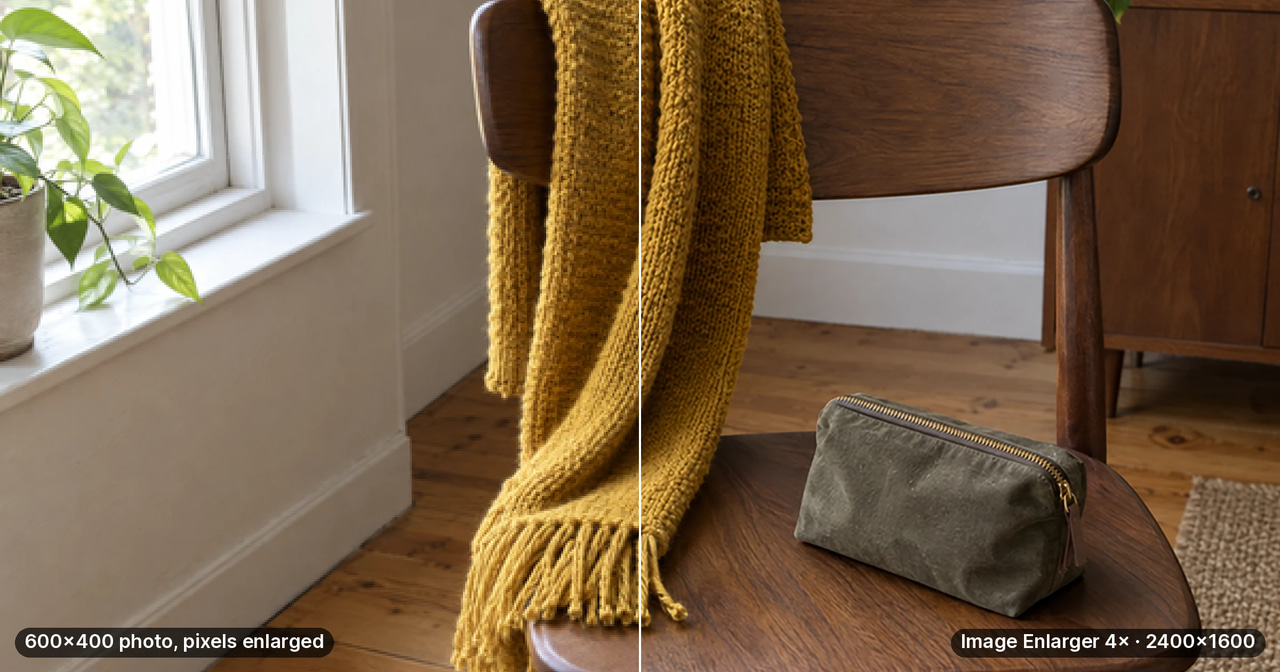
These come from the Image Enlarger's own on-device model, the exact tool this guide covers, run on a photo generated for this article and downsized to 600 by 400. The model file, padding and 2× pass match the tool; the run happened outside the browser. In your browser the tool uses this model when the device can run it and falls back to a classical resize otherwise.
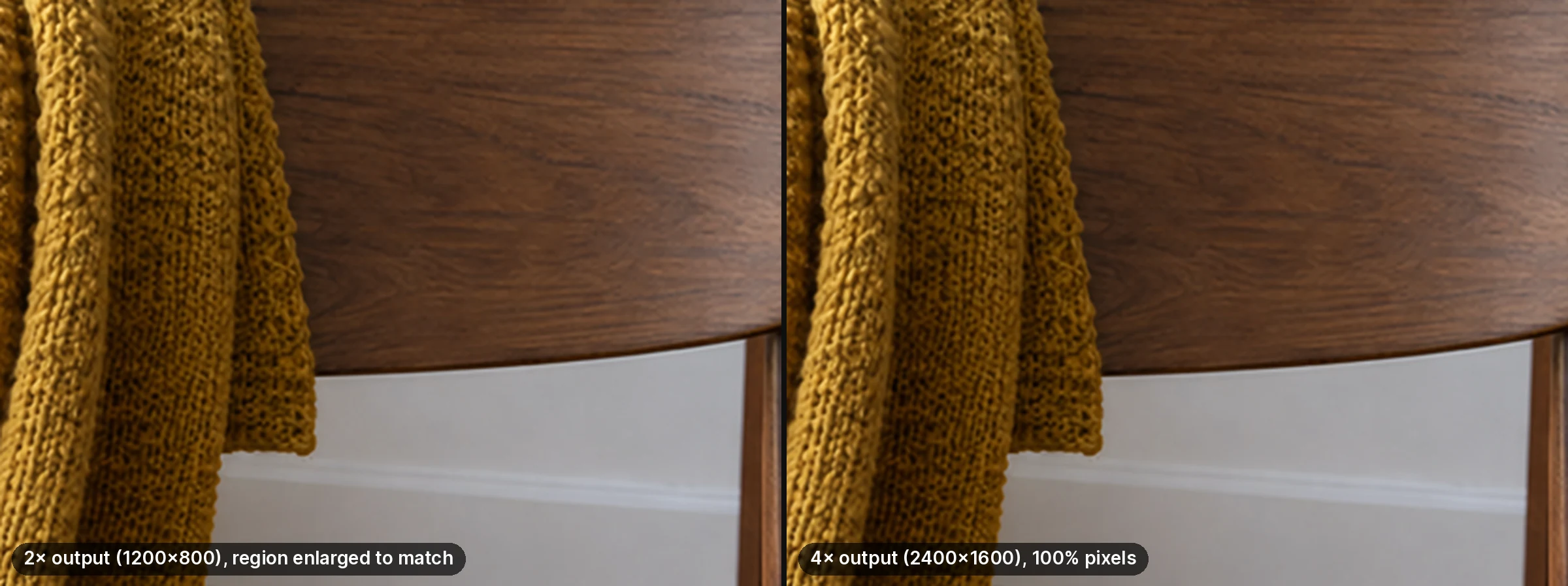
The 4× option is the 2× model result enlarged again with a Lanczos resize, as the tool does, so it adds pixels, not detail.
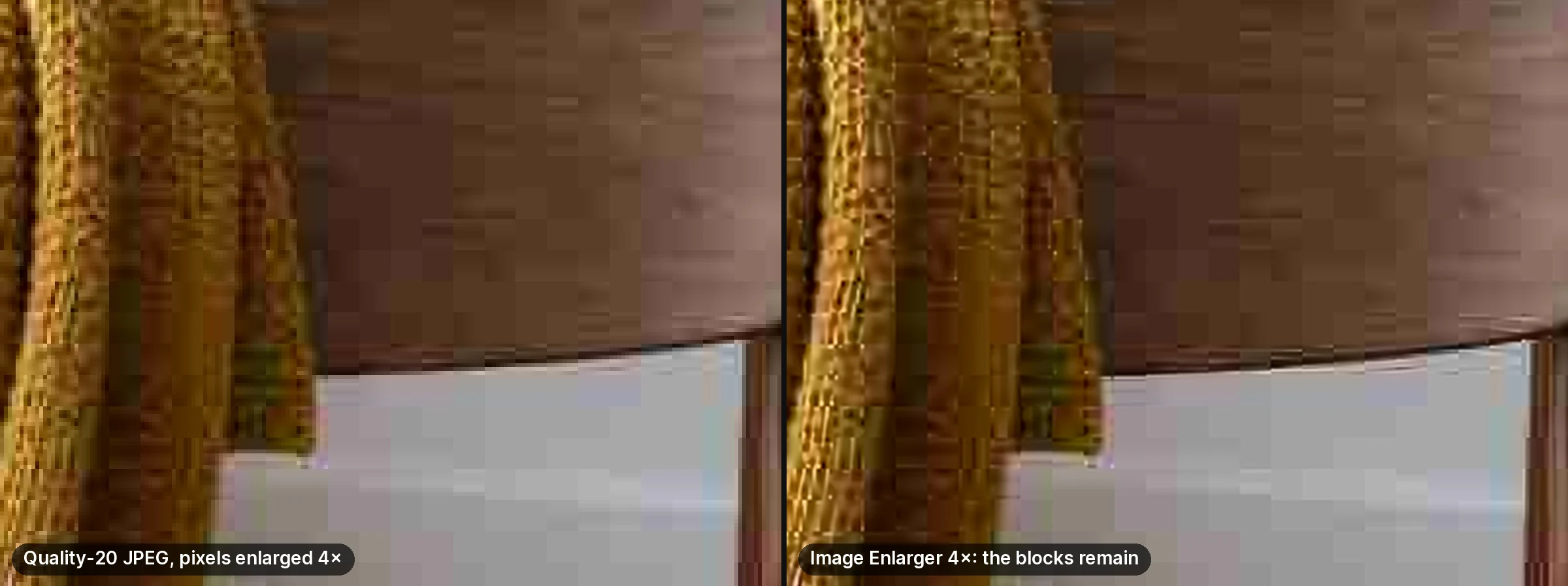
What it cannot do: a heavily compressed source keeps its compression blocks after enlargement.