Imagera AI - AI content creation platform for generating images, cloning voices, creating avatars, and enhancing videos. Privacy Policy | Terms

    IMAGERAAI
    Blog Post
    AI Tools

    How to Convert 30fps to 60fps with AI (2026)

    Learn how to convert 30fps to 60fps using AI frame interpolation. Step-by-step guide with Imagera's free online tool — smoother video in minutes.

    By Imagera AI Team9 min readJuly 12, 2026
    Share:
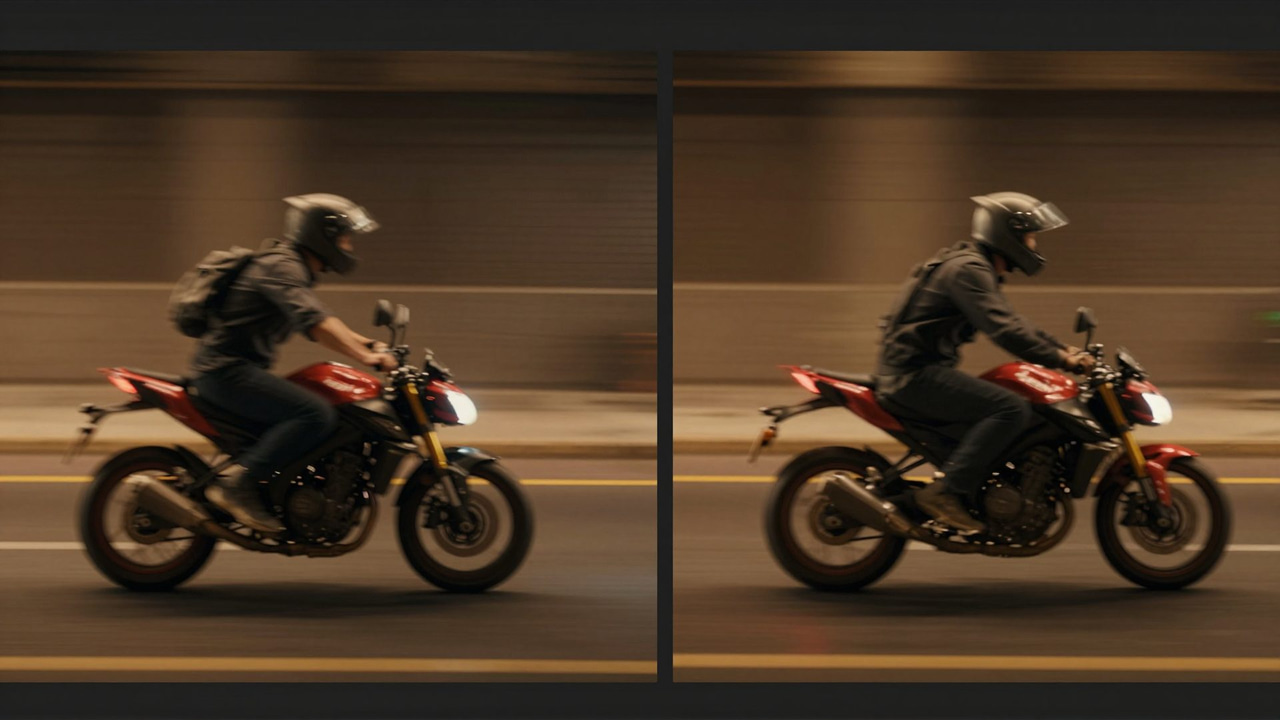
    Side-by-side comparison of a video clip at 30fps versus the same clip converted to 60fps with AI frame interpolation, showing smoother motion

    TL;DR

    AI frame interpolation analyzes the motion between existing frames and synthesizes new in-between frames, effectively doubling your video from 30fps to 60fps. Upload your clip to Imagera's frame interpolator, select your target frame rate, and download a noticeably smoother result — no editing software required.

    AI frame interpolation can synthesize entirely new frames rather than simply duplicating existing ones
    Imagera supports frame rate conversion up to 60fps and beyond on eligible clips
    Frame interpolation works on MP4, MOV, and other common video formats
    The credit cost is shown on the button before you run the job — no surprise charges

    Try it yourself — no setup

    Convert 30fps footage to buttery 60fps+ with AI frame interpolation.

    If your video looks choppy at 30fps and you want fluid, natural motion — AI frame interpolation is the fastest solution available right now. Upload your clip, choose 60fps, and the AI synthesizes entirely new frames between your existing ones. The result is a visibly smoother video without re-shooting anything.

    This guide walks through exactly how it works, when to use it, and how to do it step by step using Imagera's AI frame interpolator.


    1.What Is AI Frame Interpolation?

    Frame interpolation is the process of inserting new frames between existing ones to raise a video's frame rate. Traditional software did this by blending or duplicating adjacent frames — which often produced ghosting artifacts and unnatural motion blur.

    AI frame interpolation is fundamentally different. The model analyzes the motion vectors in your footage — where objects are, how fast they are moving, in what direction — and then synthesizes entirely new frames that did not exist in the original clip. The result is a plausible, natural-looking intermediate frame rather than a blurry blend of two real ones.

    The practical effect: a 30fps clip becomes a 60fps clip with motion that feels genuinely smoother, not artificially stretched.

    1.1Frame Rate Basics: Why 30fps Feels Choppy

    • 24fps — Cinematic standard. Looks natural for film because we associate it with movies, but fast motion can stutter.
    • 30fps — Common for webcams, screen recordings, older broadcast footage, and casual smartphone video.
    • 60fps — The threshold where motion starts to feel highly fluid. Standard for gaming content, sports, and modern streaming.
    • 120fps and above — Used for slow-motion playback, high-end gaming monitors, and VR.

    When you watch 30fps footage on a 60Hz or 120Hz display, the display is showing each frame twice (or more). AI interpolation fills those repeated slots with synthesized frames instead, dramatically reducing perceived stutter.


    2.When Should You Use AI Frame Interpolation?

    Frame interpolation is not the right choice for every video. Here is where it provides clear value versus where you should leave the frame rate alone.

    Use it when:

    • Your footage is a screen recording, gaming clip, or tutorial video where smooth motion is expected
    • You are preparing gameplay highlights for YouTube or a platform where 60fps is the viewer norm
    • You shot on an older camera limited to 30fps and want smoother results for a modern audience
    • You want to create slow-motion effect by interpolating up to a higher rate and then playing back at 50% speed

    Leave the frame rate alone when:

    • Your footage is intentionally cinematic at 24fps — changing it produces the "soap opera effect" that can feel unnatural
    • Your clip has heavy camera shake, rapid cuts, or lens flares that confuse motion estimation
    • The subject has complex, partially transparent motion (smoke, fire, fine hair in fast movement)

    Understanding this distinction saves you credits and time. For most tutorial, gaming, drone, and action sports footage, the improvement is immediate and obvious.


    3.How to Convert 30fps to 60fps with Imagera

    Imagera's frame interpolator runs the interpolation entirely in the cloud — no software to install, no GPU required on your end.

    3.1Step 1: Open the Frame Interpolator

    Go to the frame interpolator tool. You will see the upload panel immediately. If you do not have an account, you can sign up in under a minute — no credit card required to get started.

    3.2Step 2: Upload Your Video

    Click the upload area or drag your clip directly in. Imagera accepts MP4, MOV, and other common video container formats. For best results:

    • Keep clips under 2 minutes if you are testing a new video — shorter clips process faster and let you verify the result before committing to a longer export
    • Make sure the source video is not already compressed to a very low bitrate (heavily compressed footage reduces the AI's ability to accurately estimate motion)
    • If your original clip is also low resolution, consider running it through Imagera's video enhancer first — sharper source footage produces better interpolation results

    3.3Step 3: Select Your Target Frame Rate

    Choose your output frame rate from the available options. For most use cases, 60fps is the target. If you want to create slow-motion playback, you can interpolate to a higher rate and play the exported file back at a reduced speed in your editor.

    The credit cost is displayed on the confirmation button before the job runs — you can see exactly what will be deducted before you commit.

    3.4Step 4: Run the Interpolation

    Click the run button. The AI processes your clip in the cloud. Processing time depends on clip length and resolution — shorter, lower-resolution clips typically finish in under two minutes. You will see a progress indicator while the job runs.

    3.5Step 5: Preview and Download

    When the job completes, Imagera shows you a preview of the result. Scrub through the clip and check motion quality, especially in sections with fast movement. If the result looks good, download the interpolated video. The output is delivered as an MP4 with the target frame rate embedded in the container metadata, so any modern player or editor will recognize it correctly.


    4.Tips for Better Interpolation Results

    These practical adjustments make a consistent difference in output quality.

    Trim before you upload. Send only the sections you need. A clean 45-second clip will interpolate faster and with higher quality than a 10-minute raw file where you only need 90 seconds.

    Match resolution to your intended output. If your clip will end up on YouTube at 1080p, make sure your source is at least 1080p. If it is not, run video enhancement first to bring it up before interpolating.

    Avoid heavy re-encoding chains. Each encode pass degrades quality slightly. Export from your editing software at a high bitrate (or lossless if possible) before uploading for interpolation, rather than exporting a compressed social-media file and then re-processing it.

    Check motion complexity. If your clip has sections with very fast lateral motion — a car passing at close range, a tennis ball in flight — the AI may produce minor artifacts in those specific frames. This is normal and can be masked by trimming to remove the most challenging frames before upload.


    5.AI Frame Interpolation vs. Frame Blending: What Is the Difference?

    Many video editors have a "frame blending" or "optical flow" option built in. Here is how it compares to dedicated AI interpolation.

    MethodHow It WorksQualitySpeed
    Frame duplicationRepeats each frameLowest — identical to the originalInstant
    Frame blendingAverages adjacent framesProduces ghosting on moving subjectsFast
    Optical flow (editor)Estimates motion, interpolatesGood for slow motion, artifacts on fast motionModerate
    AI frame interpolationSynthesizes frames using learned motion priorsHighest quality, natural motionModerate to fast

    For casual home videos or clips where quality is not critical, built-in editor tools are adequate. For gaming footage, product videos, travel clips, or any content where smooth motion is a selling point, AI interpolation produces a noticeably superior result.


    6.Can You Go Beyond 60fps — Up to 120fps?

    Yes, and this opens up a different use case: AI-generated slow motion.

    If you shoot at 30fps and interpolate to 120fps, you can then play that footage back at 25% speed and get apparent slow motion — something that would normally require a dedicated high-speed camera shooting at 120fps natively.

    The quality is not identical to native high-speed footage because the AI is synthesizing frames rather than capturing real light. But for content where you do not have access to a high-speed camera, it is a practical alternative that produces smooth, watchable slow-motion playback.

    This is particularly useful for:

    • Product showcase videos where you want a slow-motion reveal effect
    • Travel footage where you captured a moment on a standard phone camera
    • Educational content where you want to show a process in detail

    7.Pairing Frame Interpolation with Other Video Enhancements

    Frame interpolation works best as part of a broader quality workflow. Here is how the tools in Imagera connect.

    Step up resolution first. If your source is 720p, use Imagera's video enhancer to bring it to 1080p or higher before interpolating. Sharp frames give the AI more detail to work with when synthesizing new ones.

    Generate new video content. If you need high-quality video to start with, Imagera's video generator creates AI video from text or image prompts — you can then run frame interpolation on the output to smooth the motion further.

    Use image enhancement on frames. For specialized cases where you are working with individual frames extracted from video, Imagera's smart detail enhancer can sharpen individual key frames before you re-assemble them.


    8.Free Online Frame Interpolation: What to Know

    Several tools offer frame interpolation online. When evaluating them, the key factors are:

    • Quality of the interpolation model — older optical flow tools produce ghosting artifacts; newer AI models synthesize realistic motion
    • Output resolution — some free tools cap output at 720p or apply heavy compression
    • Processing speed — cloud-based tools vary significantly; queuing can add wait time during peak hours
    • Credit or usage limits — many tools limit free usage by clip length, resolution, or number of jobs per day

    Imagera's frame interpolator runs a modern AI model, delivers the output at your source resolution, and shows you the credit cost before you run — so there are no surprises. The credit system means you pay for what you use rather than a flat monthly fee, which is practical if you have occasional rather than constant video work.


    9.Ready to Smooth Out Your Video?

    If your footage looks choppy at 30fps, there is a direct fix available right now. Open Imagera's AI frame interpolator, upload your clip, and see the difference at 60fps. The credit cost is visible before you run, the processing is cloud-based, and the output downloads as a standard MP4 ready for any platform or editor.

    For the full video enhancement workflow — higher resolution, sharper detail, smoother motion — pair the frame interpolator with Imagera's video enhancer and explore the complete suite on the pricing page.

    Frequently Asked Questions

    Does converting 30fps to 60fps reduce video quality?
    No — AI frame interpolation adds new frames rather than removing or degrading existing ones. Your original frames are preserved. The synthesized frames are new, AI-generated content. In most cases the visual quality improves because motion appears smoother and the video feels more natural on modern high-refresh-rate displays.
    Is AI frame interpolation free to use on Imagera?
    Imagera uses a credit system. The exact credit cost for your clip is shown on the button before you confirm the job, so you can see the cost before anything is charged. New accounts receive starter credits at sign-up.
    What video formats does the frame interpolator support?
    Imagera accepts MP4 and MOV files, which covers the output of virtually all smartphones, cameras, and screen recorders. If you have footage in another container, a quick free conversion with HandBrake or VLC before uploading resolves the format question.
    Can I convert 30fps to 120fps in one step?
    This depends on the available output options in the tool at the time you use it. The most common and well-supported target is 60fps. For higher rates, check the output options when you upload — the available frame rates are displayed as part of the job configuration.
    Why does my interpolated video have artifacts on fast-moving objects?
    Fast lateral motion — a hand moving quickly across frame, a ball in flight — is the most difficult case for any frame interpolation system because the AI must predict where objects will be in the synthesized frame. Reducing the speed of the original playback, or trimming the clip to remove the most artifact-prone frames before export, usually resolves this for finished content.
    How is AI frame interpolation different from slow-motion shooting?
    Native slow motion captures real light at a high frame rate — a camera shooting 240fps captures actual information at each moment. AI interpolation synthesizes frames that did not exist in the original capture. Native high-speed footage is higher quality, but AI interpolation is a practical alternative when you did not have access to a high-speed camera at the time of shooting.

    Imagera AI Team

    AI Content & SEO Specialist

    The Imagera AI team consists of AI researchers, content strategists, and SEO experts dedicated to helping creators produce high-quality AI content.

    Areas of Expertise:

    AI Image GenerationAI Voice RecreationAI Avatar CreationContent Marketing

    Put this guide to work

    Convert 30fps footage to buttery 60fps+ with AI frame interpolation.