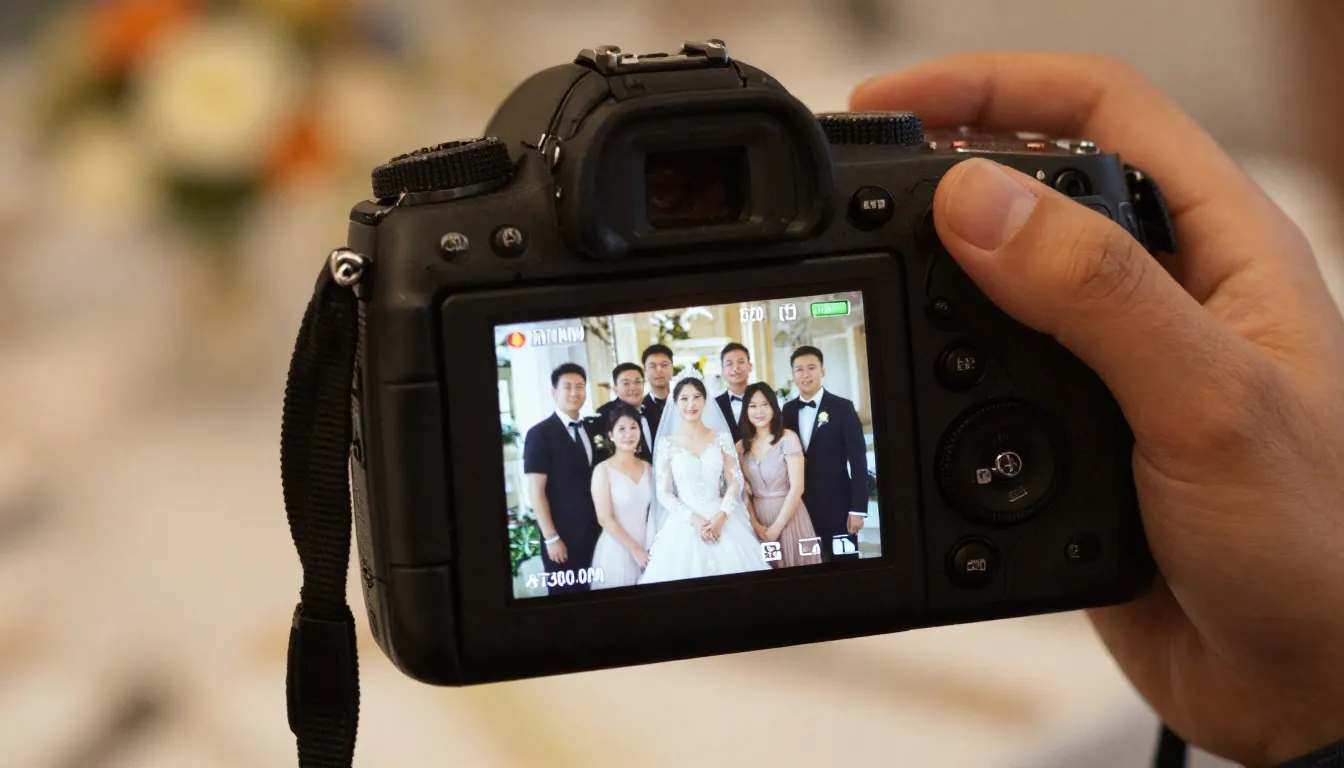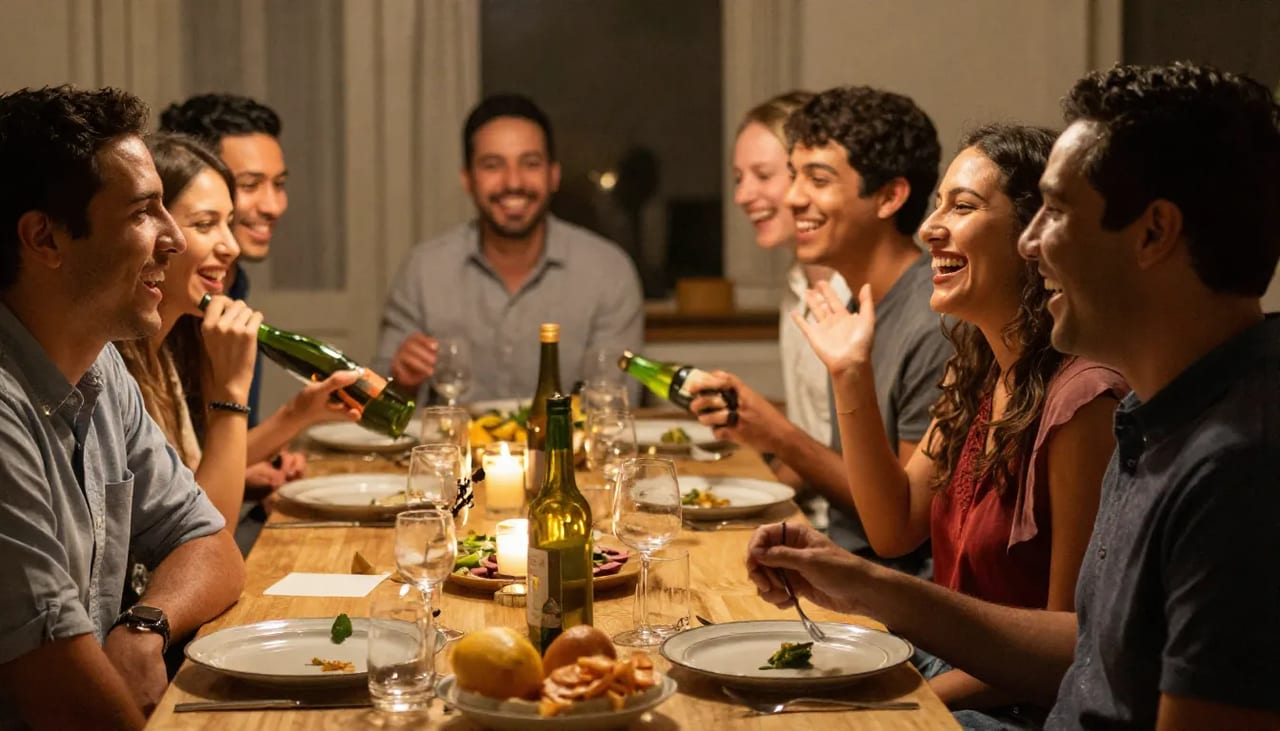
You took a hundred photos at the wedding. One frame has the perfect light, perfect composition, the right smiles — but one person blinked. It happens in almost every group shot, and the instinct is to either delete the photo or search for a complicated Photoshop swap. There are better options now, and they don't require advanced editing skills.
This guide covers three reliable methods to fix closed eyes in a photo: using built-in features on iPhone and Android, manually swapping eyes from a burst sequence, and using AI to open the eyes directly in the problem photo. The right method depends on whether you have a good reference frame to pull from. For the single-subject case (one blinker, solo or portrait), this is your guide. For group shots where multiple people blinked, see how to fix a photo where someone blinked in a group shot.
Quick answer: Upload the photo to Imagera, mask the closed eyes, and its AI face editor opens them naturally in under a minute while preserving the original skin tone, lighting, and gaze direction.
How does Imagera fix closed eyes without making the face look fake?
Imagera reads the facial landmarks around the eye sockets, then reconstructs open eyes that match the subject's original catchlights, iris color, and lid shape. Most edits finish in under a minute, and you can export the result in 4K so the corrected eyes stay crisp when you print large or crop in for social posts.
Can one closed-eyes fix work across a whole group photo in 2026?
Yes. Imagera can open eyes on multiple faces in a single pass, handling group shots without editing each face manually. Corrections usually render in under a minute and export at up to 8K. Since blinking tends to catch at least one person in any group shot, batch eye-fixing can rescue an entire session from the reject pile.
Why Fixing Closed Eyes Is Harder Than It Looks
A closed eye isn't just a different texture — the brow position, skin folds, and lash direction all change when someone closes their eyes. A simple copy-paste from another frame looks wrong almost immediately because the lighting angle, skin tone match, and perspective almost never line up exactly.
That's why manual retouching in Photoshop is time-consuming even for professionals: you're blending layers, warping edges, and painting transitions by hand. The AI approach works differently — the model has been trained on millions of faces and understands how that person's open eyes should look given their facial geometry and the photo's lighting.
There's a second layer of difficulty most people never think about. When someone blinks, their whole expression shifts for that fraction of a second. The mouth often relaxes, the cheeks drop slightly, and the head can tilt down. So even when you find a frame with open eyes, the rest of the face may not match the expression you liked in the "hero" shot. Fixing closed eyes well means either isolating just the eye region cleanly or synthesizing eyes that fit the exact pose and mood already in the frame. That is precisely the problem AI eye-opening is built to solve.
Understanding this up front helps you pick the right method. If you have a burst or Live Photo, a frame swap is fast and free. If you only have a single frame — a scan, a screenshot, a one-tap JPEG — a frame swap is impossible and AI becomes the practical choice. The sections below walk through each path in order of effort.
Method 1: Fix Closed Eyes on iPhone
iPhone Memories / burst mode recovery
If you shot in burst mode (hold the shutter button) or used Live Photo, you may already have the frame you need:
- Open the photo in the Photos app.
- Tap the Live button (top-left) if it's a Live Photo — swipe through the frames. Look for a frame where the eyes are open.
- If you find a good frame, tap Make Key Photo to set it as the default.
- For burst photos, tap Select at the bottom, browse the sequence, and choose the frame where everyone's eyes are open.
Limitations on iPhone:
- This only works if you shot a burst or Live Photo. A single tap produces one frame only.
- If the burst sequence happened to capture only blinks, you're back to needing an edit.
- The alternate Live Photo frames are lower resolution than the full-quality key frame in some capture modes, so a swapped key photo can look slightly softer.
Smart Suggestions (iOS 18+)
In iOS 18, the Photos app can automatically suggest "better" frames in burst sequences for blinking. Look for the suggestion card under the photo — it won't open eyes from a single image, but it finds the clearest frame automatically if one exists.
The takeaway: iPhone's built-in tools are excellent when a reference frame exists inside the same capture. They are a frame picker, not an eye generator — they can surface a better moment but can't invent open eyes that were never captured.
Method 2: Fix Closed Eyes on Android
Best Shot / Shot Suggestions mode
Most Android phones (Samsung, Pixel, OnePlus) have an automatic multi-frame capture mode:
- Samsung: Best Shot captures 5 frames and picks the sharpest one with eyes open. Enable in camera settings under "Pictures as burst".
- Google Pixel: Best Take (Pixel 8+) stitches open-eye frames from multiple shots into a single composite. This works retroactively in Google Photos after the fact.
- OnePlus / Xiaomi: Look for "Smart Capture" or "Scene Detection" in the camera app settings.
Google Photos Best Take is the most powerful free option currently available — select a group photo, tap Edit, then look for the Best Take suggestion. It automatically scans nearby frames and lets you swap in open eyes per person.
The catch: Best Take requires a Pixel 8 or newer and works only on photos taken with that device. If you download a photo from a chat app, receive it over email, or shot it on a different phone, Best Take won't have the surrounding frames it needs and the option simply won't appear. That's the boundary where AI editing becomes the only viable route.
Method 3: AI Photo Fixer (When You Have No Burst Frames)
This is the method that works regardless of what device you used, what shooting mode was active, or how old the photo is. An AI photo fixer analyzes the person's facial geometry, skin tone, and the photo's lighting direction, then generates convincing open eyes that match.
How to fix closed eyes with Imagera's AI Photo Fixer:
- Upload your photo to the AI Photo Fixer — no software installation required, works from any browser.
- The model identifies every face in the image automatically.
- Select the person whose eyes need fixing, or let the tool apply corrections to all faces with closed or partially closed eyes.
- Download the corrected image.
The result is photorealistic because the AI synthesizes open eyes that match the subject's actual eye shape, color, and the ambient lighting in the scene — it doesn't paste someone else's eyes onto the face.
When AI gives the best results:
- Scanned old film photos where no other frame exists
- Single-frame JPEG shots (non-burst)
- Photos from third-party cameras without a companion app
- Cases where the burst sequence had everyone blinking at once
What "open the eyes" actually changes
A well-built AI eye fix touches only what needs to change. The goal is a natural, fully open eye that fits the head angle, the direction the person was looking, and the light in the room — not a generic pair of eyes stamped over the face. Because the correction is generated from the same photo, skin tone, catchlights (the small reflections in the eye), and lash shadows tend to blend without a visible seam. If the input is sharp and well-lit, the fix reads as if the person simply hadn't blinked.
Step-by-Step: Fixing a Single Blink With AI
Here's the full workflow for the most common case — one person blinked in an otherwise perfect single-frame photo:
- Start from the sharpest copy you have. Use the original file rather than a screenshot or a re-shared, re-compressed version. More detail in the input means a cleaner, better-matched result.
- Open the AI Photo Fixer in your browser. No install, no plugin, no desktop editor.
- Upload the photo. The tool detects faces automatically.
- Choose the face to fix. For a single blinker, select just that person so the rest of the frame stays untouched.
- Run the fix and preview. Check the eyes at full size before you commit — look at the catchlights, the eyelid crease, and whether both eyes match in openness.
- Download the corrected image and keep the original as a backup so you can compare or re-run if needed.
The whole pass typically takes a couple of minutes. Because it runs in the browser, you can do it from a phone at the reception, a laptop on the couch, or a work machine — no software to license or learn.
Fixing Pose and Expression, Not Just the Eyes
Sometimes the blink isn't the only problem. The subject's head is turned a little too far, their shoulders are stiff, or the angle just isn't flattering — and once you notice the closed eyes, you start noticing everything else. When the fix you actually want is a different pose or camera angle rather than a one-region eye repair, that's a different tool.
Sama by Imagera is Imagera's in-house editor for people photos that changes pose, position, or camera angle while keeping the same face — identity is preserved by design. Instead of picking a better frame, you upload a clear photo of the person and describe the change in plain English, for example: "turn slightly toward camera, shoulders relaxed, same face, soft studio light." It's built for the cases where reshooting isn't practical but the pose in the frame needs to change.
How it works, at a high level:
- Open Sama by Imagera and upload a clear, well-lit photo — front-facing or three-quarter works best for likeness.
- Describe the new pose or angle in everyday language.
- Pick a processing route — Normal uses Imagera's standard route; Ultra Fast prioritizes speed. Both draw from the same Imagera credits wallet.
- Generate, preview, and download. Because likeness stays locked while pose and framing change, the person still reads as the same person.
A realistic honesty note: identity preservation is the design goal, but extreme edits or low-quality inputs can still drift. Always preview at full size before you publish a client or social asset. Use the AI Photo Fixer when the fix is genuinely "just open the eyes"; reach for Sama by Imagera when the underlying issue is the pose or angle itself.
Common Use Cases
Fixing closed eyes shows up across very different situations, and the best method shifts with each:
- Weddings and events. One perfect group frame, one blinker. If you shot a burst, swap the frame; if it's a single hero shot, open the eyes with AI so you don't lose the moment.
- Family portraits. Kids blink constantly and rarely on cue. AI eye-opening rescues the shot where the light and everyone's smiles finally aligned — except one closed eye.
- Old scanned photos. Film negatives and prints have exactly one frame. There is no burst to pull from, so AI is the only realistic path to open eyes in a heritage photo you're restoring.
- Headshots and profile photos. A half-blink or heavy-lidded expression can make a professional headshot look tired. Opening the eyes cleanly keeps the shot usable without booking studio time again.
- Product and lifestyle shots with talent. When the model blinked but the framing was ideal, fixing the eyes saves a reshoot. If the pose or angle is the real problem, Sama by Imagera changes it while keeping the same face.
Who It's For
- Everyday phone photographers who just want the family or friend group shot to look right and don't want to learn layer-based editing.
- Photographers and second shooters triaging hundreds of event frames, who need a fast rescue for the one keeper with a blink.
- Creators, influencers, and small teams producing profile and content photos who can't always reshoot on demand.
- Anyone restoring old photos where a single scanned frame is all that survives.
Comparing the Three Methods
| Situation | Best Method | Effort |
|---|---|---|
| Live Photo or burst exists | iPhone Key Photo / Burst select | 1 minute |
| Pixel 8+ with multiple shots | Google Photos Best Take | 2 minutes |
| Single-frame shot, any camera | AI Photo Fixer | 2–3 minutes |
| Old scanned photo, no burst | AI Photo Fixer | 2–3 minutes |
| Group shot, multiple blinkers | AI Photo Fixer | 3–4 minutes |
| Wrong pose/angle, not just eyes | Sama by Imagera | 3–4 minutes |
Tips for Best Results
Whatever method you use, a few habits make the fix look natural rather than obvious:
- Use the sharpest input available. Detail in the eye region gives AI more to work with and prevents a soft, "painted-on" look. Avoid heavily compressed re-shares.
- Fix one face at a time when only one blinked. Correcting just the affected person keeps everyone else's real expression intact.
- Check both eyes match. After a fix, confirm the two eyes are equally open and pointed the same direction — mismatched openness is the most common giveaway.
- Look at the catchlights. Natural eyes have small light reflections. If they're missing or in the wrong spot, the eye can look flat or artificial.
- Match the gaze to the moment. If the person was looking slightly off-camera, a fix that stares straight ahead will feel off. The best results respect where the subject was actually looking.
- Keep the original. Always save the untouched file so you can re-run the fix or compare side by side.
Common Mistakes to Avoid
- Pasting eyes from a totally different lighting setup. A frame shot with the light from the other side won't match. This is exactly why simple copy-paste fails and generated, scene-matched eyes look better.
- Over-editing the whole face. If you brighten, smooth, and reshape everything while fixing the eyes, the person stops looking like themselves. Change only what's broken.
- Starting from a low-res screenshot. Screenshots and re-compressed chat images strip detail. Track down the original whenever possible.
- Skipping the full-size preview. A fix can look fine as a thumbnail and reveal a seam or mismatched gaze at 100%. Always zoom in before you publish.
- Ignoring expression continuity. Open eyes on a face whose mouth and cheeks belonged to a blink can look uncanny. The goal is a consistent expression, not just open eyelids.
Examples
Scenario 1 — The one blinker in a group. A family of five, everyone smiling, grandpa mid-blink. There's no burst. Uploading to the AI Photo Fixer, selecting just grandpa, and running the fix opens his eyes to match the scene's soft window light — the other four faces are untouched.
Scenario 2 — The heritage scan. A single scanned print from decades ago shows a subject with eyes closed. No other frame exists anywhere. AI is the only option, and because it generates eyes from the same photo's lighting and the subject's facial geometry, the restored eyes fit the era's film look.
Scenario 3 — Great smile, wrong angle. The subject's eyes are open and the smile is perfect, but the head is turned too far and the pose is stiff. This isn't an eye problem at all — Sama by Imagera repositions the pose toward the camera while keeping the same face, so the shot becomes usable without a reshoot.
Tips for Avoiding Closed Eyes in Future Shots
Fixing blinks afterward is useful, but prevention is easier:
- Shoot in burst mode whenever you're doing group portraits. Even 5 frames gives you a much better chance of finding one where everyone's eyes are open.
- Use the "countdown" method: tell your subjects to close their eyes on your count, then open them on "one." The moment eyes snap open is usually relaxed and natural.
- Multiple shots: with 4+ people in frame, the odds of a synchronized blink drop if you take 8–10 frames. With fewer shots, one person will blink in almost every take.
- Avoid repeated flash: flash causes reflexive blinks. Use continuous LED light or natural light when possible.
Deeper guide (practical production)
Related tools on Imagera
See it in action — real Imagera output
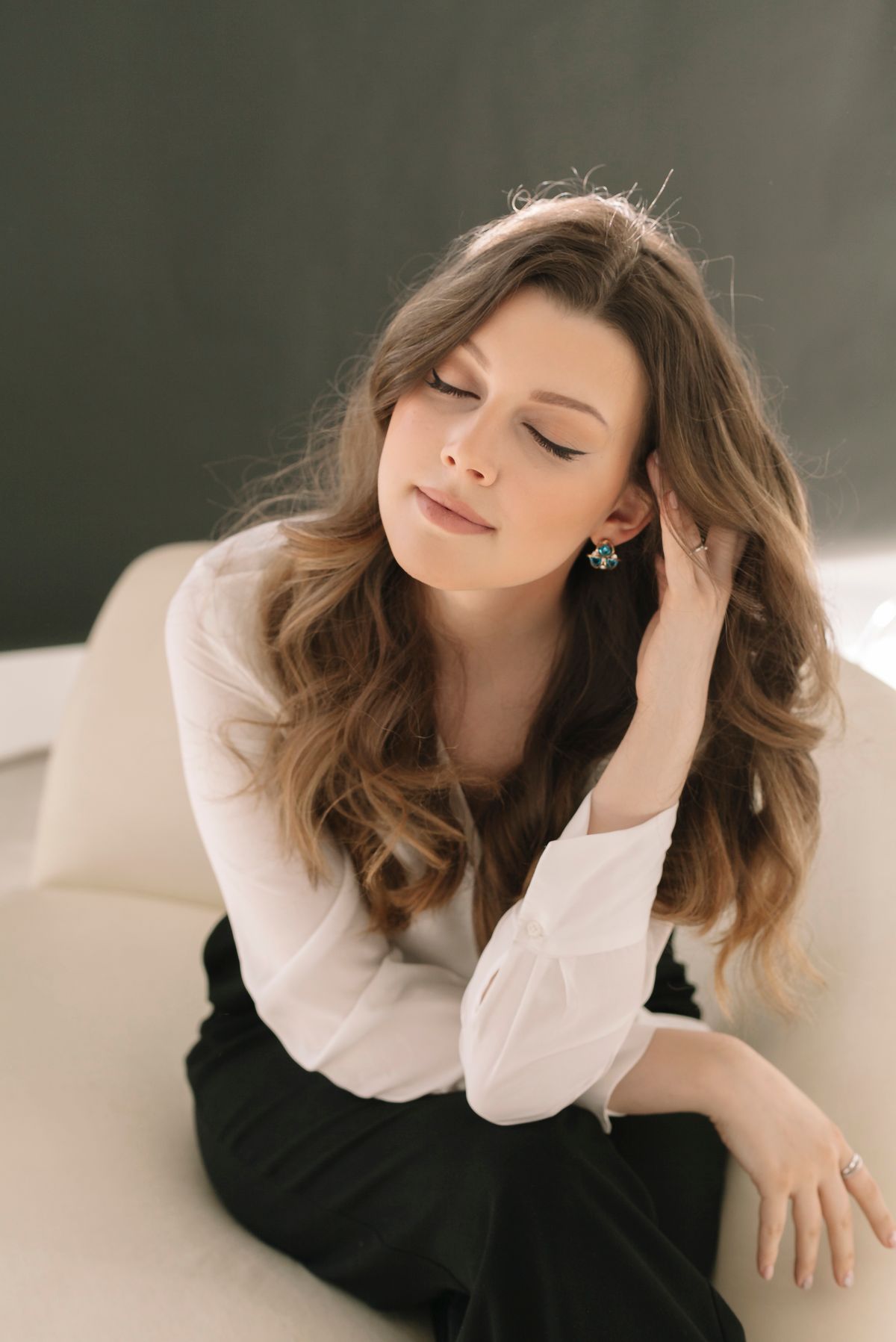
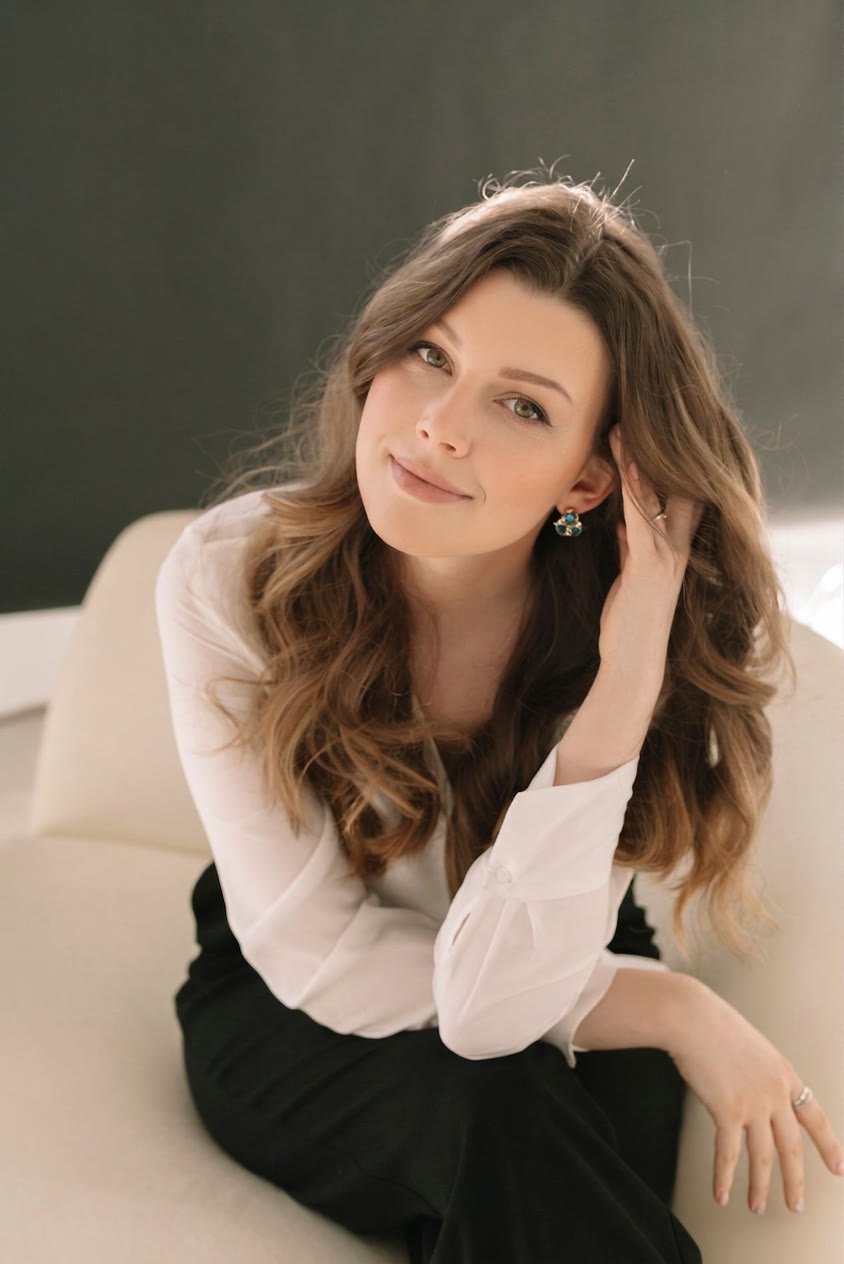
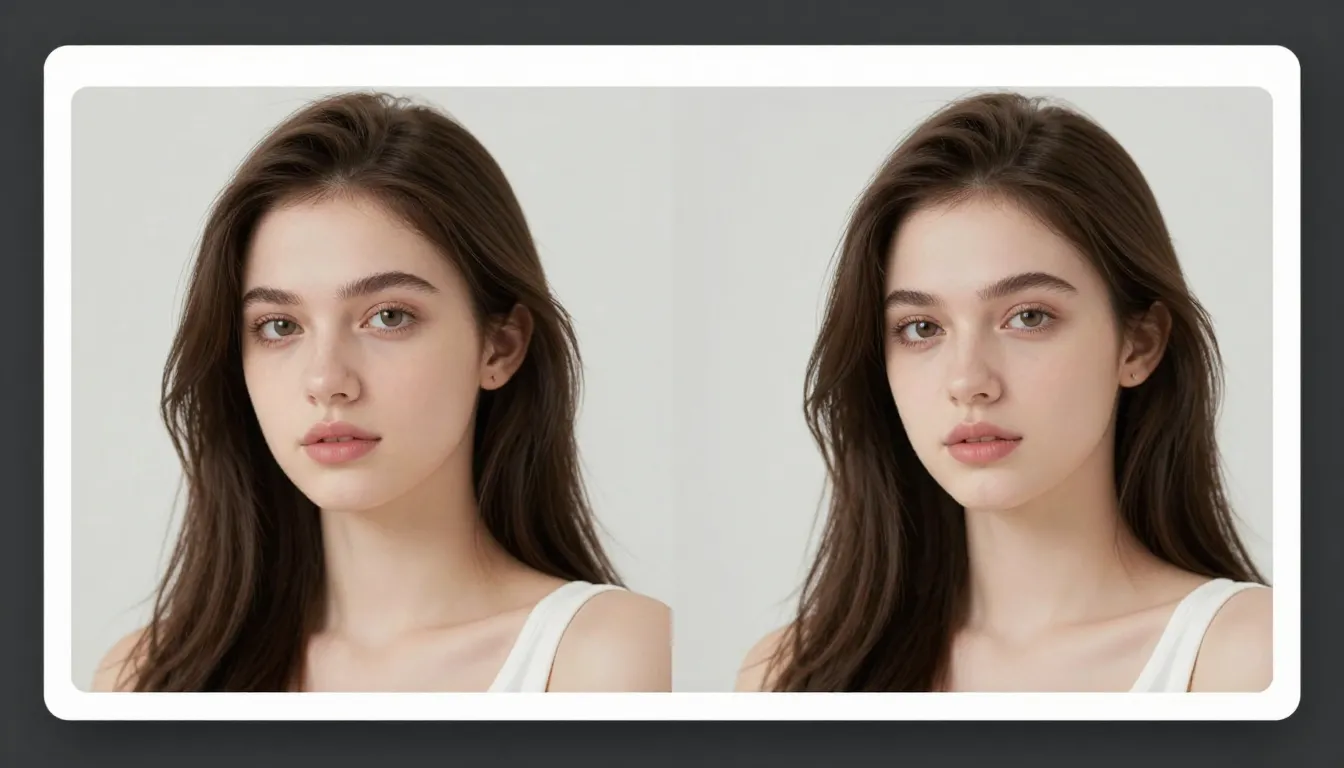
These are real, unedited results from the Imagera ai photo fixer — the exact tool this guide covers.