Create · Product Ads
Make Product Ads
The product is the hero. The offer is the plot.
- Steps
- 3
- Asks for
- 4 inputs
- Examples
- 2 clips
House takes
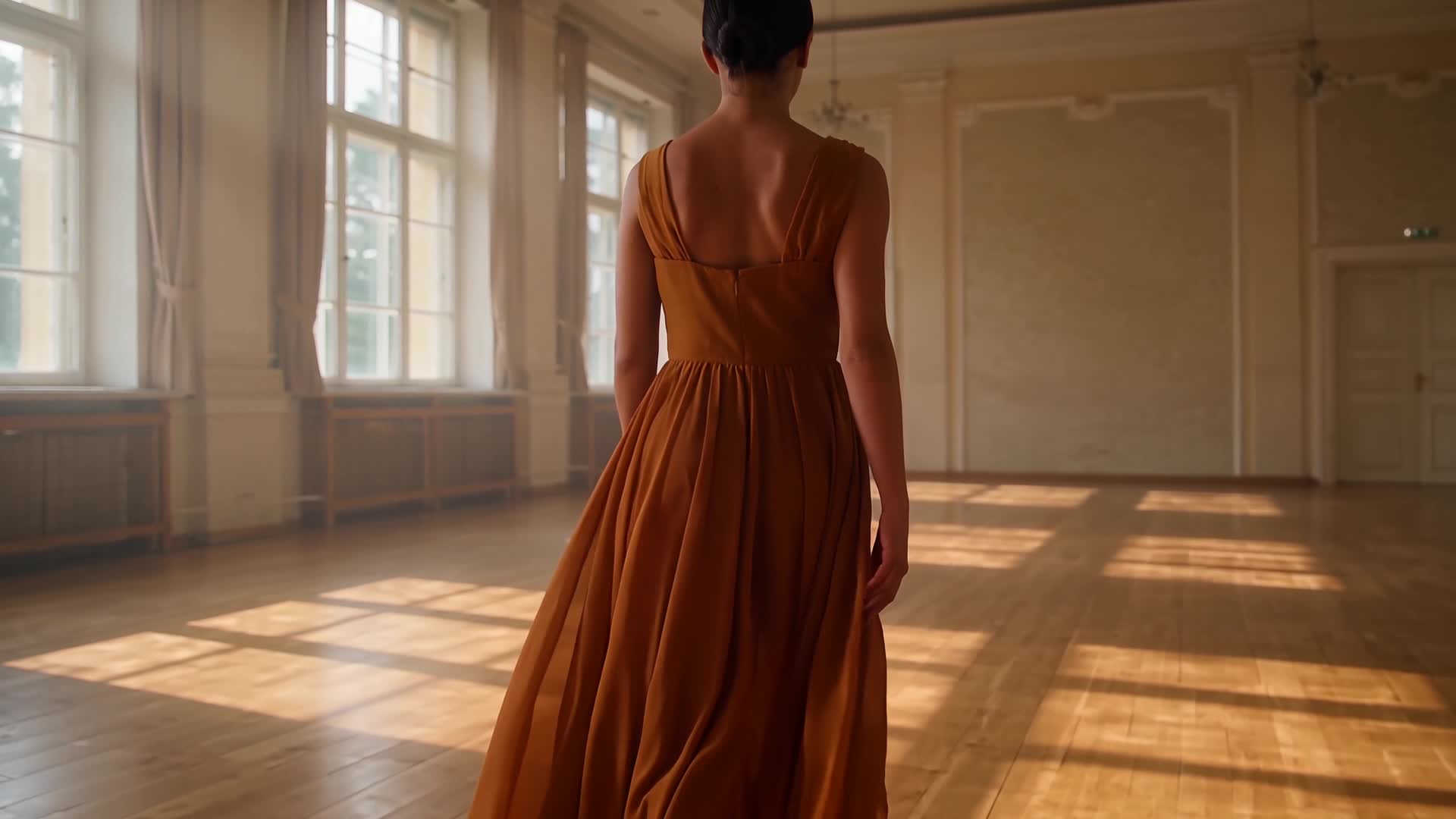
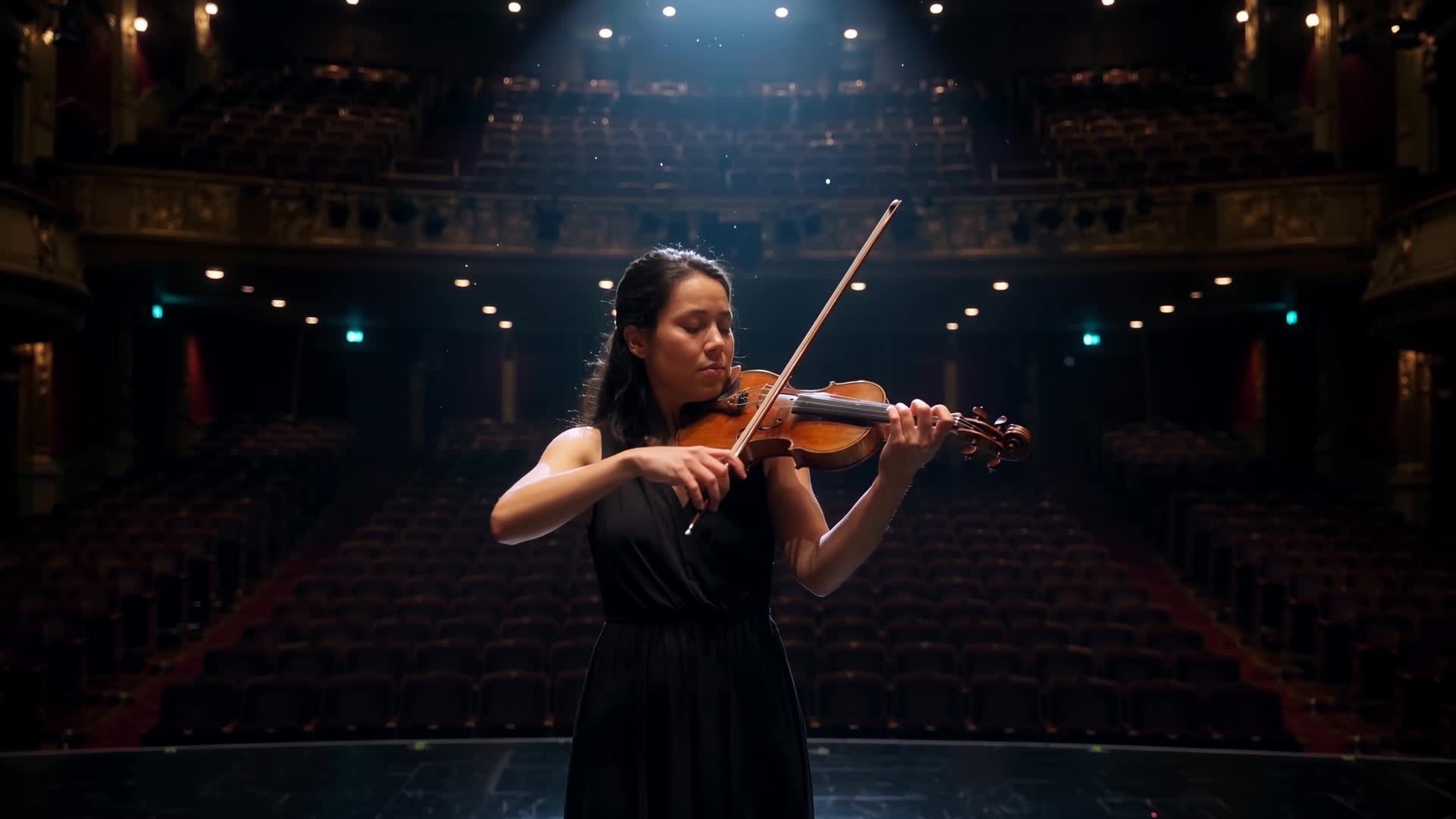
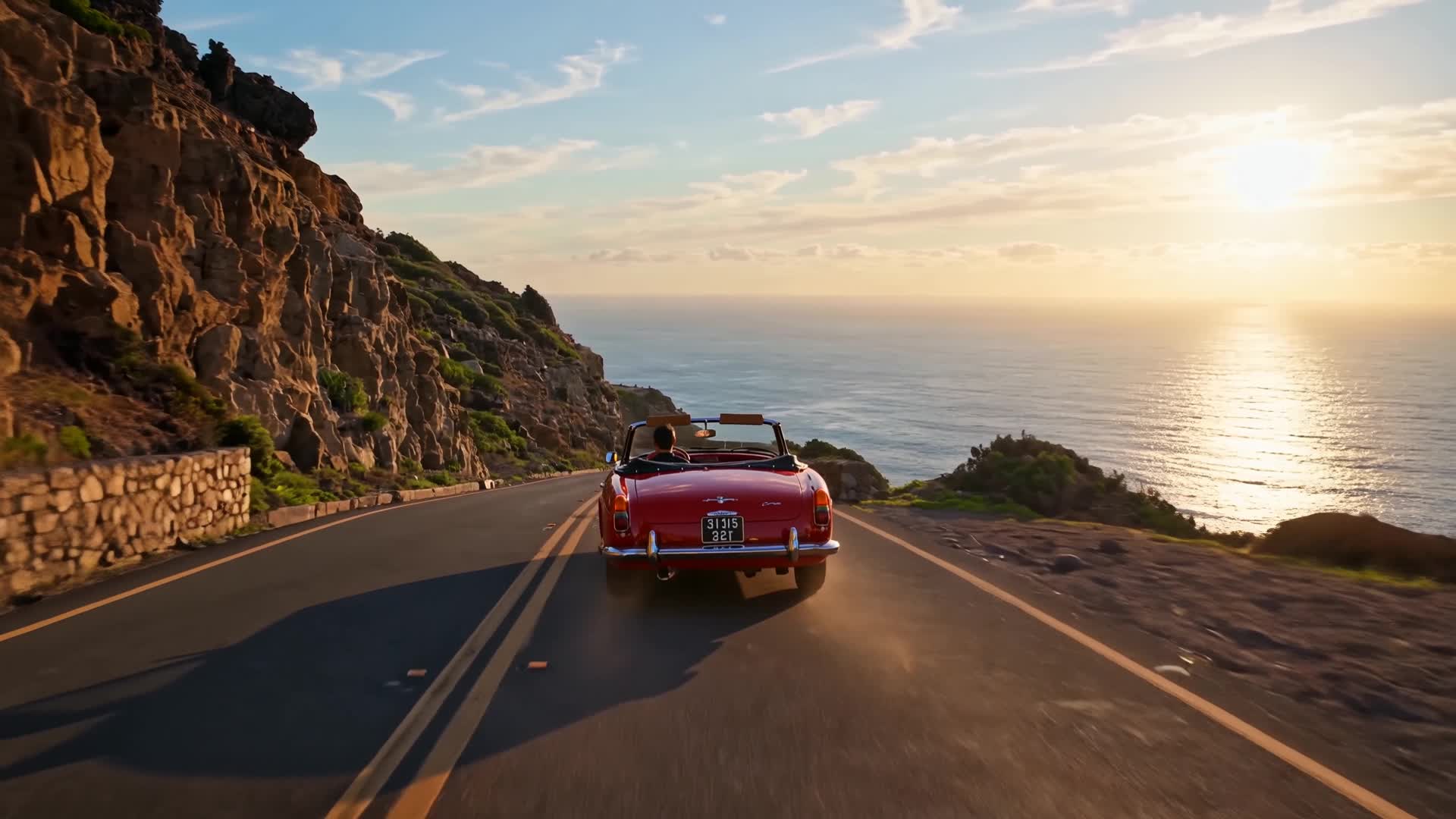
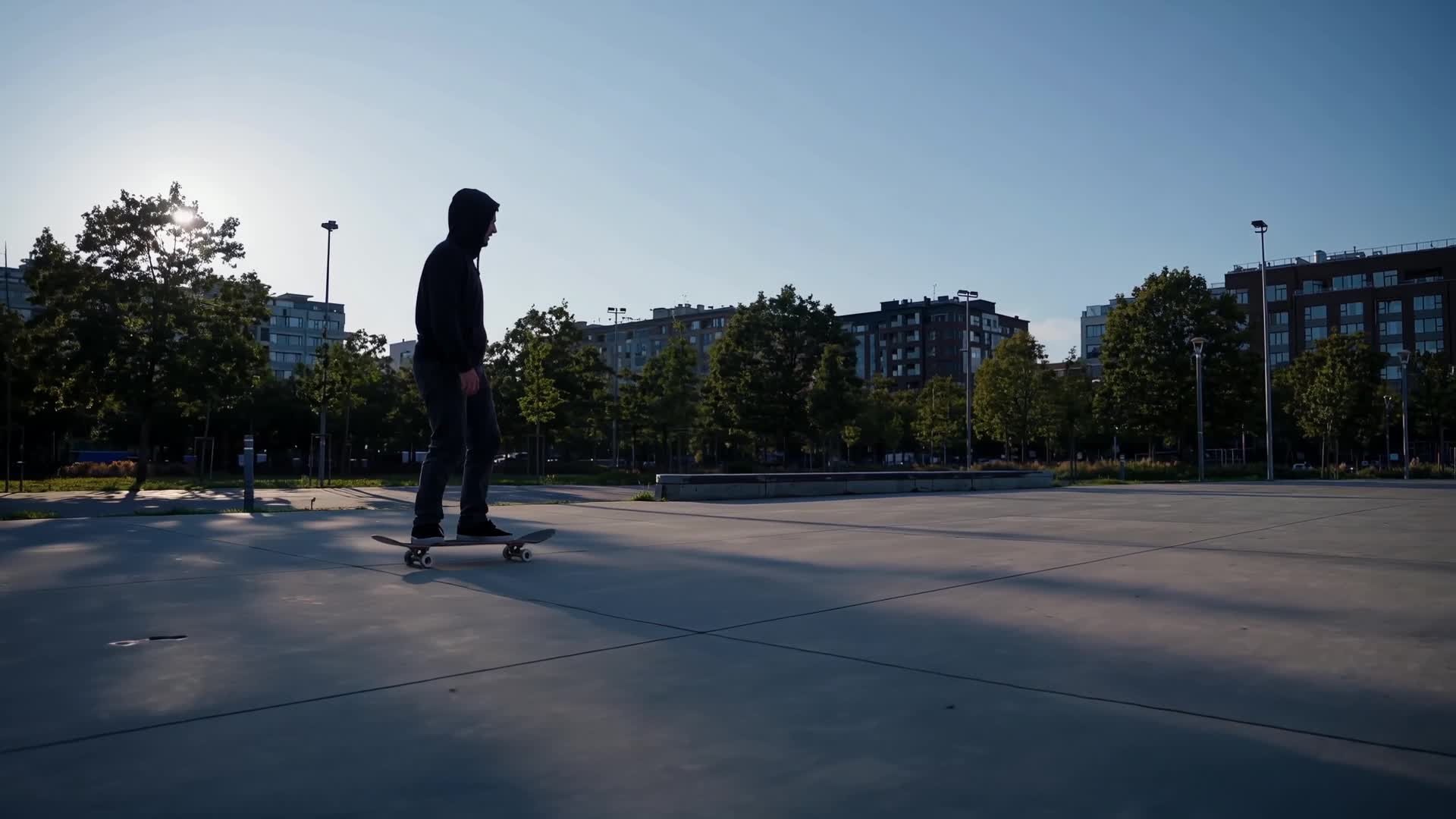
Example clips
Product Ads
A slow spiral-in on a glass perfume bottle on a black plinth
How it is built
The pipeline
- Look at the product.Read the listing: name, materials, who it is for. Keep the real product, invent nothing that contradicts the page.
- Hero still.A polished advertising still. The product stays hero-sharp.
- Ad clip.A short ad with one camera move. End on the product and a line of copy. No competitor brands.
What it is for
An AI product ad maker for when you have a product page and need a short spot where the product stays sharp and the offer lands in the last line. The template asks for a polished hero still, one camera move around the product and an ending on it with your line of copy, with no competitor brands.
Inputs
What it asks for
- Optionala product page link
- Optionalwhat you are selling, if there is no link
- Optionalthe offer or the line it should end on
- Optionala product photo(optional; Direct preloads it, and Canvas takes it when added there)
How to make it
- Step 1
Add the product and the offer
Paste the product page link, or type what you are selling. Then write the offer: what happens in the ad and the exact line it should end on. Keep that line short enough to read in two seconds, like “First touch. Last word.” in the example below.
- Step 2
Add a product photo
Product photos attached on the form are preloaded in Sandbox by Direct, not carried to Canvas: in Sandbox they sit beside the product's name and your offer as references. To show the real design in Canvas, add the photo again there: the Hero still node takes it.
- Step 3
Direct it in Sandbox
Press “Direct my product ad”: Sandbox opens Imagera Warlord Pro in Reference to video and uploads your photos into its reference slots. It needs at least one photo; with none attached, you get Imagera Warlord Pro in Text to video instead. One clip per run; prompt polish may rewrite the brief unless you switch it off.
- Step 4
Or run it step by step in Canvas
Open in Canvas adds two nodes, Hero still and Ad clip, each priced before it runs, so one can be re-run alone. The Hero still node takes your product photo when you add it in Canvas. Ad clip animates the Hero still. The video node is set to 8 seconds and picks its engine until you choose one. Judge the label, colour and shape on the Hero still before you run Ad clip.
Example brief
On the Create page this brief loads from the “Create a world cup ad” chip under the preview.
Create a world cup ad
Product: AeroStrike football boots
A striker in a packed night stadium hears the crowd fall silent. One first touch, one strike, the net balloons. Cut to the boots on the grass. End line: First touch. Last word.
Questions
What happens with the product link?
The template tries to read the page's title and description before it writes the brief. If the page does not answer quickly, the brief falls back to the words in the link, so type the product and the offer too.
Will it invent features?
The brief tells it to keep the real product and invent nothing that contradicts the page. That is an instruction, not a guarantee: check labels, colours and any text on the product before you use the clip.
How long is the ad?
This template has no length setting: each run renders one clip, 8 seconds at the Canvas node's setting or the length you pick on the Sandbox composer. For a longer spot, run the reveal and a close-up of the label as separate clips.
What does it cost?
Credits per run, priced on the Sandbox button and on each Canvas node before you run. No paid generation costs less than 15 credits, so both nodes together cost at least 30 credits.
More templates
Other canvases