Imagera AI - AI content creation platform for generating images, cloning voices, creating avatars, and enhancing videos. Privacy Policy | Terms

Imagera MCP

Generate Images & Video Inside Your AI Agent

https://mcp.imagera.ai/mcp

OAuth sign-in · no API keys · same credits as the studios
Ready

Copy the Imagera Connector URL

You'll paste this URL into Claude in the next step.

https://mcp.imagera.ai/mcp

Open Connector Settings

In the Claude app or on claude.ai, go to Settings → Connectors and choose Add custom connector.

Connect and Allow Access

Click Add → Connect and sign in to Imagera. Set permissions to Always Allow. Then ask Claude to generate images or videos using Imagera.

On Team and Enterprise plans an Owner adds it once under Organization settings → Connectors → Add → Custom → Web; everyone else then just clicks Connect.

Using Imagera inside an AI assistant is part of the Pro plan.

Four steps, then you just ask

The same connection works in Claude, ChatGPT, Cursor, Claude Code, and any client that speaks Streamable HTTP.

  1. Copy the URL

    One address. Streamable HTTP. Nothing secret in the string.

  2. Add it to your agent

    Claude Connectors, ChatGPT Developer mode, or mcp.json in Cursor.

  3. Sign in once

    OAuth opens Imagera in the browser. No API key to paste or rotate.

  4. Ask in plain language

    Generate, edit, animate, or check credits. Results save to your library.

What Imagera MCP brings to your AI agent

Connect Imagera with Claude, ChatGPT, Cursor, and more to unify image generation, video creation, voice, music, and your library in one workflow.

Create both images and videos

Turn text into images and videos through a single Imagera connection. One URL, one account, one credit balance.

Try it now

Create a polished beauty commercial still of this bottle on wet black stone, studio light, 1:1.

Text to image1:1

Guide videos from a still

Hand your agent a photo and a motion prompt. Imagera animates it and returns the clip in the conversation.

Try it now

Animate this product shot into a 5-second cinematic ad, slow orbit, 16:9.

Image to video16:95s

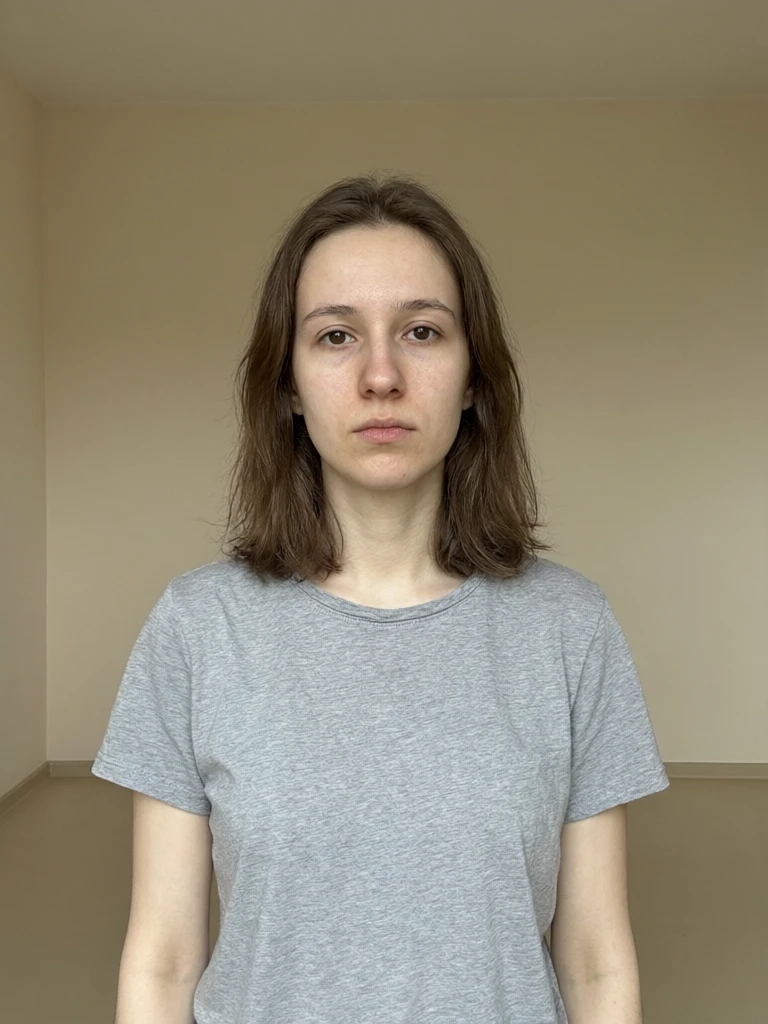
Edit with plain language

Change lighting, wardrobe, background, or product details without leaving the chat. The original stays in your library.

Try it now

Keep the subject. Swap the background for a sunlit marble kitchen and warm the light.
Natural-language edit1:1

Same account, same credits

MCP generations spend the same credits as the studios. Check the balance, then keep creating — no second wallet.

Try it now

Can I use MCP with my existing Imagera account and credits?

Credit balance

Same plan · same credits · same library

Every tool on the same connection

Image, video, voice, music, and model compare. The tool list your agent sees updates as Imagera ships new ones — you do not re-paste the URL.

Text to image

Still generation from a prompt, with Fast, Pro, Anime, and GPT Image 2.

Image edit

Natural-language edits that keep identity and product detail.

Upscale

Print-grade enlargement from a soft still.

AI detect

Check whether an image was generated before you publish it.

Text to video

Short clips from a scene description, 3–10 seconds.

Image to video

Animate a still with camera move, lighting, and mood.

Video enhance

Sharpen an existing clip without leaving the chat.

Voice

Read a script in 30+ languages, or clone a voice from a sample.

Music

Beds, vocals, and reference-matched tracks on the same connection.

Compare models

Ask Claude, GPT, and Gemini the same question in one turn.

Just ask. Here's what Imagera MCP creates through chat

See what becomes possible when Imagera is connected to your AI agent. Copy a prompt and send it.

The latest AI models, all in one place

Frequently asked questions

What is the Imagera MCP?
MCP (Model Context Protocol) is an open standard that lets AI agents use external tools. Once connected, your agent can call Imagera to generate images, video, voice and music — and return the results directly in your conversation.
How do I add Imagera as a Claude connector?
In Claude (web, desktop, or mobile), go to Settings → Connectors, click Add custom connector, name it Imagera, and paste the server URL. Click Connect, sign in with your Imagera account, and ask Claude to generate an image.
Can I use Imagera MCP in Cursor?
Yes. In Cursor, open Settings → MCP & Integrations → New MCP server, add Imagera to mcp.json with the server URL, then click the login prompt and approve in your browser. Imagera tools then show up in Agent chats.
How do I connect Imagera to ChatGPT?
Go to Settings → Connectors → Advanced, enable Developer Mode, then create a connector named Imagera with the server URL and authorize via OAuth. In the chat, type @ and select Imagera — skipping this causes ChatGPT to generate images on its own instead of using the connector.
Is this included in my plan?
Connecting costs nothing, and generations spend your normal Imagera credits — there is no separate subscription for this. Using Imagera inside an assistant is part of the Pro plan.See pricing
Do I need an API key?
No. Add the server URL in your agent's settings and sign in with your Imagera account through OAuth. There are no keys to create, rotate, or leak.
Do I need a new account?
No — use the same Imagera account and credits you already have.
Where do my generations go?
Everything your agent creates is returned in the conversation and saved to your Imagera library, so you can keep iterating on imagera.ai whenever you want a full canvas.
What can my agent actually do?
Generate images and video, edit stills, upscale, detect AI-generated images, animate photos, enhance video, synthesize or clone a voice, generate music, compare answers from Claude, GPT, and Gemini, and check your credits — all from the conversation.
Which image and video models can I use?
Image models include Imagera Fast, Imagera Pro, Imagera Anime, and GPT Image 2. Video models include Imagera Fast Video, Imagera Motion, and Imagera Cinema. Your agent can pick a model automatically or use one you name.
Is my account safe?
The URL is not a password. You sign in through your browser, and your assistant only ever holds a token you can revoke — it never sees your Imagera password.
What if I have multiple MCP servers connected?
Mention Imagera in your prompt so your agent knows where to route the request. For example: "Use Imagera to generate a 5-second product video." Once Imagera is your go-to for image and video, you can drop the name.
Does Imagera MCP work on Team and Enterprise plans?
Yes. On managed workspaces an Owner or admin adds the Imagera connector once. Each member then signs in with their own Imagera account. Generations spend that account’s credits and save to that account’s library.
Can I upload a reference image?
Yes. Paste an image URL in the prompt, or use the upload widget in clients that provide one. The image becomes a reference for generation, edit, or image-to-video.

Create without limits

Join creators using Imagera to generate images, videos, voice, and music from any chat — one account, one credit balance.

Connect your agent

Trouble connecting? We'll help.

Email support
What is the Imagera MCP connector, and what can an assistant do with it?
Quick Answer:

Imagera MCP is a connector that lets an AI assistant call Imagera directly. Paste one URL into Claude, ChatGPT or Cursor, sign in once, and the assistant can generate images, video, voice and music inside the conversation — the results land in your Imagera library like any other run.

Source: Imagera MCP

What is MCP connector?

MCP connector MCP (Model Context Protocol) is an open standard for giving an AI assistant tools it can call. An MCP connector is the endpoint that exposes those tools; Imagera's exposes its generation models.

Connecting is a URL and an OAuth sign-in — no key to paste, no code to write. Runs are billed to the same credits the studios use, and the assistant is told the price before it spends any.

The problem: the assistant can describe the shot, and then stops

An assistant can write the brief, argue the framing and name the aspect ratio, then hand you a paragraph to carry to another tab. Every handoff loses the context that made the brief good, and the thing you asked for is still not made.

How to connect Imagera to your assistant

  1. 1

    Copy the connector URL

    Take the Imagera MCP URL from this page — one address, the same for every client.

  2. 2

    Add it in your assistant

    In Claude, ChatGPT or Cursor, add a custom connector and paste the URL. There is no API key to handle.

  3. 3

    Sign in once

    Approve the OAuth prompt with your Imagera account. The connector runs as you, on your credits.

  4. 4

    Ask for the thing

    Ask in plain language. The assistant calls the model, and the result appears in the conversation and in your library.

Who it is for

Make it while you are still talking about it

The brief you just agreed on becomes the image without leaving the thread.

Inside the editor

From Cursor, generate the asset a page needs without switching context to a browser tab.

Repeatable asks

An assistant that can call the tool can also be told to run the same shape again tomorrow.

Frequently Asked Questions

What is the Imagera MCP?
MCP (Model Context Protocol) is an open standard that lets AI agents use external tools. Once connected, your agent can call Imagera to generate images, video, voice and music — and return the results directly in your conversation.
How do I add Imagera as a Claude connector?
In Claude (web, desktop, or mobile), go to Settings → Connectors, click Add custom connector, name it Imagera, and paste the server URL. Click Connect, sign in with your Imagera account, and ask Claude to generate an image.
Can I use Imagera MCP in Cursor?
Yes. In Cursor, open Settings → MCP & Integrations → New MCP server, add Imagera to mcp.json with the server URL, then click the login prompt and approve in your browser. Imagera tools then show up in Agent chats.
How do I connect Imagera to ChatGPT?
Go to Settings → Connectors → Advanced, enable Developer Mode, then create a connector named Imagera with the server URL and authorize via OAuth. In the chat, type @ and select Imagera — skipping this causes ChatGPT to generate images on its own instead of using the connector.
Is this included in my plan?
Connecting costs nothing, and generations spend your normal Imagera credits — there is no separate subscription for this. Using Imagera inside an assistant is part of the Pro plan.
Do I need an API key?
No. Add the server URL in your agent's settings and sign in with your Imagera account through OAuth. There are no keys to create, rotate, or leak.
Do I need a new account?
No — use the same Imagera account and credits you already have.
Where do my generations go?
Everything your agent creates is returned in the conversation and saved to your Imagera library, so you can keep iterating on imagera.ai whenever you want a full canvas.
What can my agent actually do?
Generate images and video, edit stills, upscale, detect AI-generated images, animate photos, enhance video, synthesize or clone a voice, generate music, compare answers from Claude, GPT, and Gemini, and check your credits — all from the conversation.
Which image and video models can I use?
Image models include Imagera Fast, Imagera Pro, Imagera Anime, and GPT Image 2. Video models include Imagera Fast Video, Imagera Motion, and Imagera Cinema. Your agent can pick a model automatically or use one you name.
Is my account safe?
The URL is not a password. You sign in through your browser, and your assistant only ever holds a token you can revoke — it never sees your Imagera password.
What if I have multiple MCP servers connected?
Mention Imagera in your prompt so your agent knows where to route the request. For example: "Use Imagera to generate a 5-second product video." Once Imagera is your go-to for image and video, you can drop the name.
Does Imagera MCP work on Team and Enterprise plans?
Yes. On managed workspaces an Owner or admin adds the Imagera connector once. Each member then signs in with their own Imagera account. Generations spend that account’s credits and save to that account’s library.
Can I upload a reference image?
Yes. Paste an image URL in the prompt, or use the upload widget in clients that provide one. The image becomes a reference for generation, edit, or image-to-video.
  • What do I have to install?

    Nothing. It is one URL pasted into the assistant, then an OAuth sign-in.

  • Whose credits does it spend?

    Yours — the connector runs as your account, and the price of a run is stated before it happens.

  • Where do the results go?

    Into the conversation, and into your Imagera library alongside everything made in the studios.

Complete your workflow

Related AI Tools

Every tile says what the tool actually does — without leaving this page.

Developer API

Image

The same models over plain HTTP when you would rather call them yourself

Image Generator

Image

What a connected assistant reaches for first

For advanced users — bring your own LoRA or choose from 1,000+ community styles and characters.

Video Generator

Video

Ask for a clip in chat and collect it from your library

For advanced users — bring your own LoRA. Words become cinema. Images come alive.