Fix Closed Eyes & Add a Smile with AI
Fix closed eyes, add a natural smile — rescue any photo
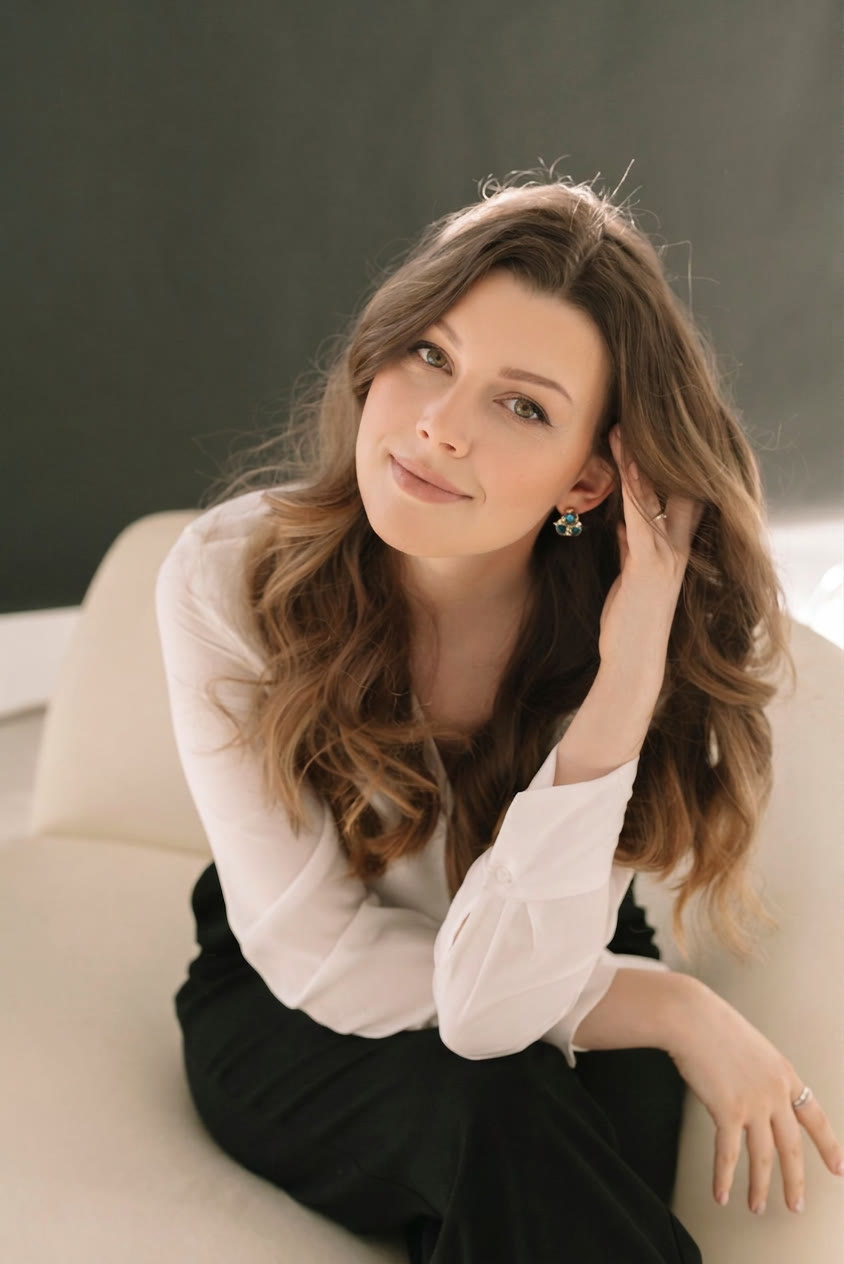
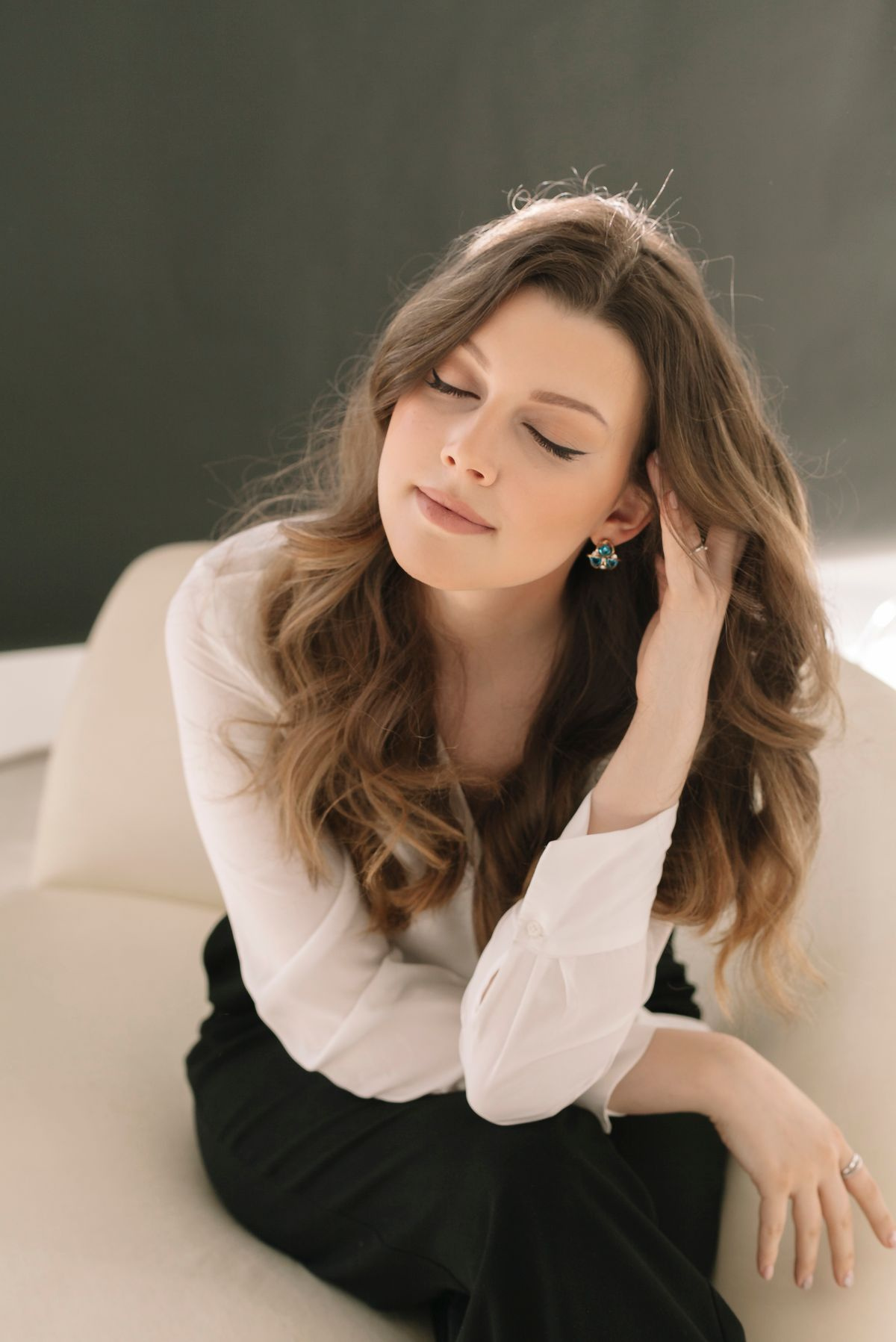 BeforeAfter
How do I fix closed eyes in a photo?
Upload the photo and either tap Auto Beautify or describe the problem in plain English — "open the closed eyes on the man on the right". The fixer rebuilds the closed eye to match that person’s face, gaze direction and the light already in the shot, then returns the corrected image in about a minute. Identity, pose and the rest of the scene stay exactly as they were captured.
- Credits
- From 10 per image
- Formats
- JPG, PNG or WebP
- Per fix
- One photo, up to 50 MB
Updated July 10, 2026
Cite this page: https://imagera.ai/image/ai-photo-fixer
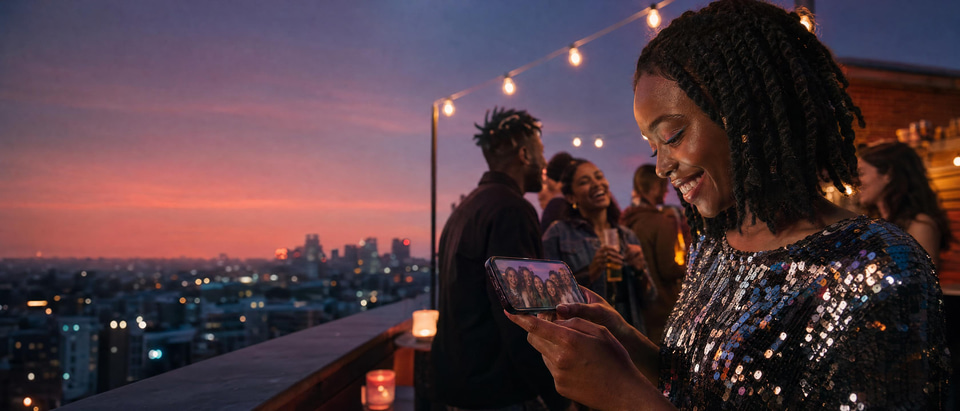 Illustration
What the fixer actually corrects
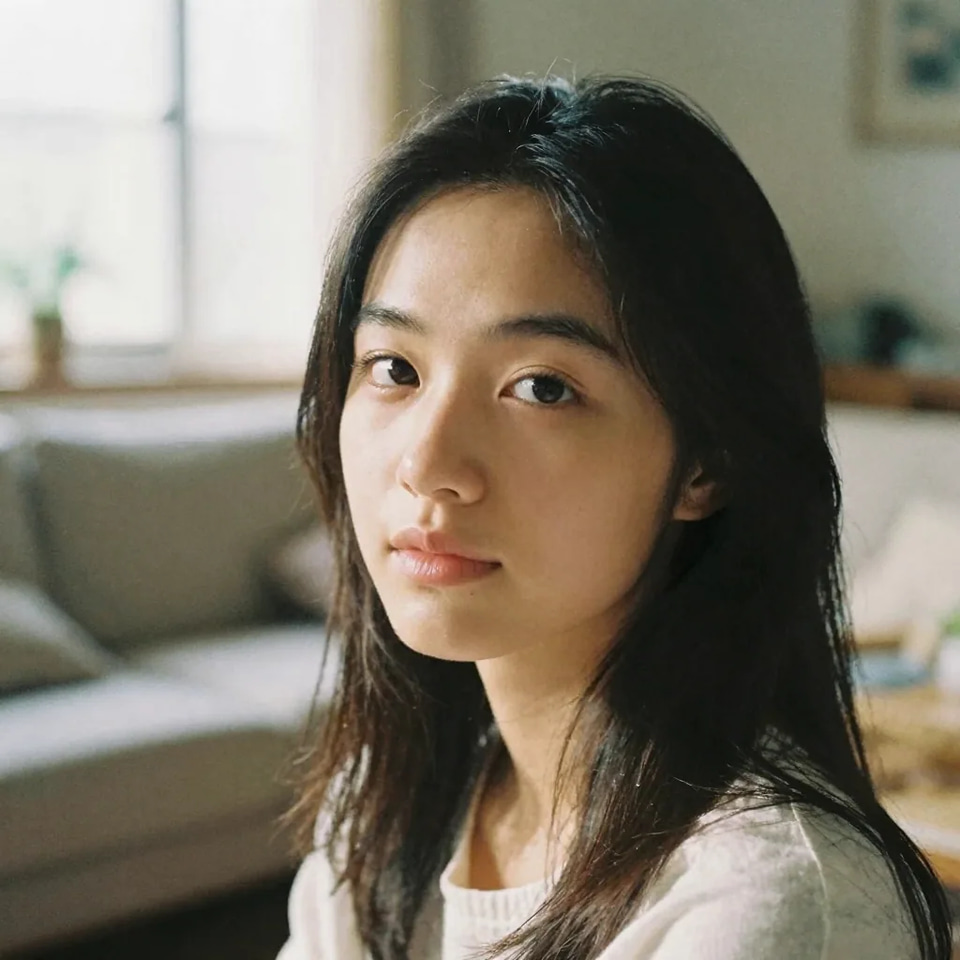
Open closed eyes
Someone blinked in the only good group shot? The AI opens their eyes naturally, matched to their face and the lighting.
Know more →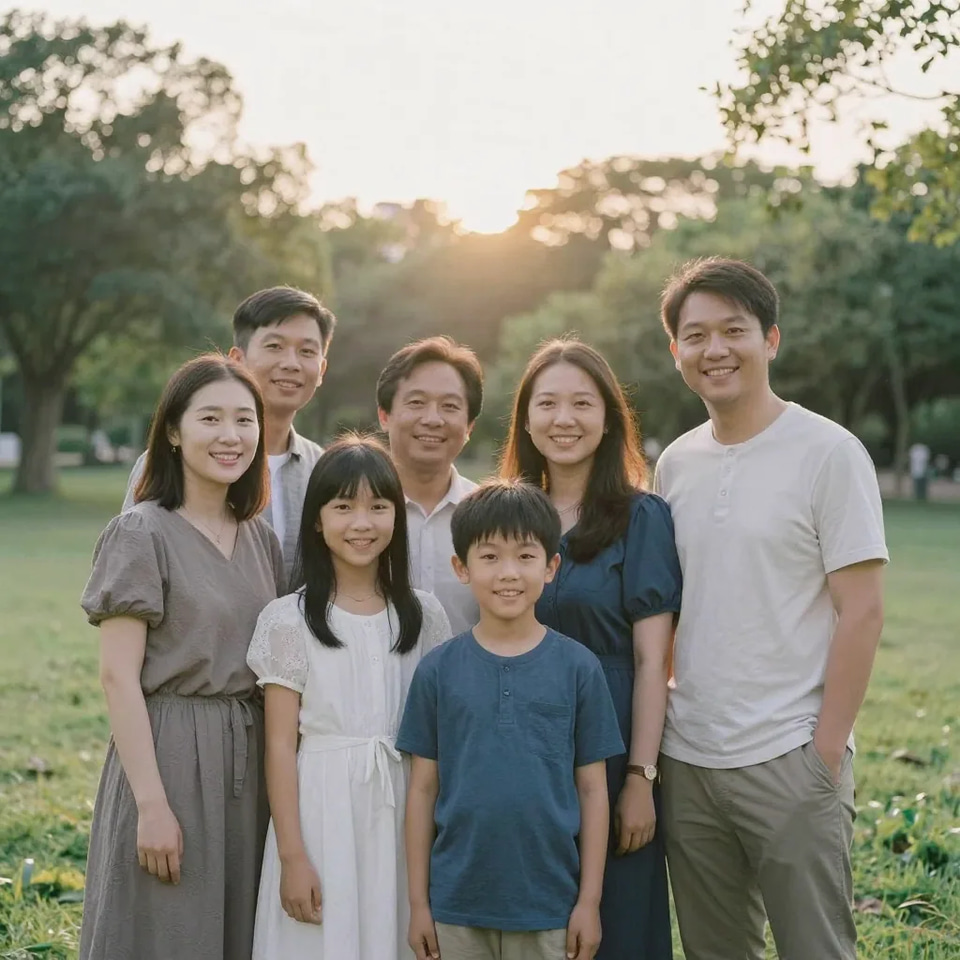
Add a natural smile
Turn a flat expression into a warm, believable smile — no uncanny stretch, no different person.
Know more →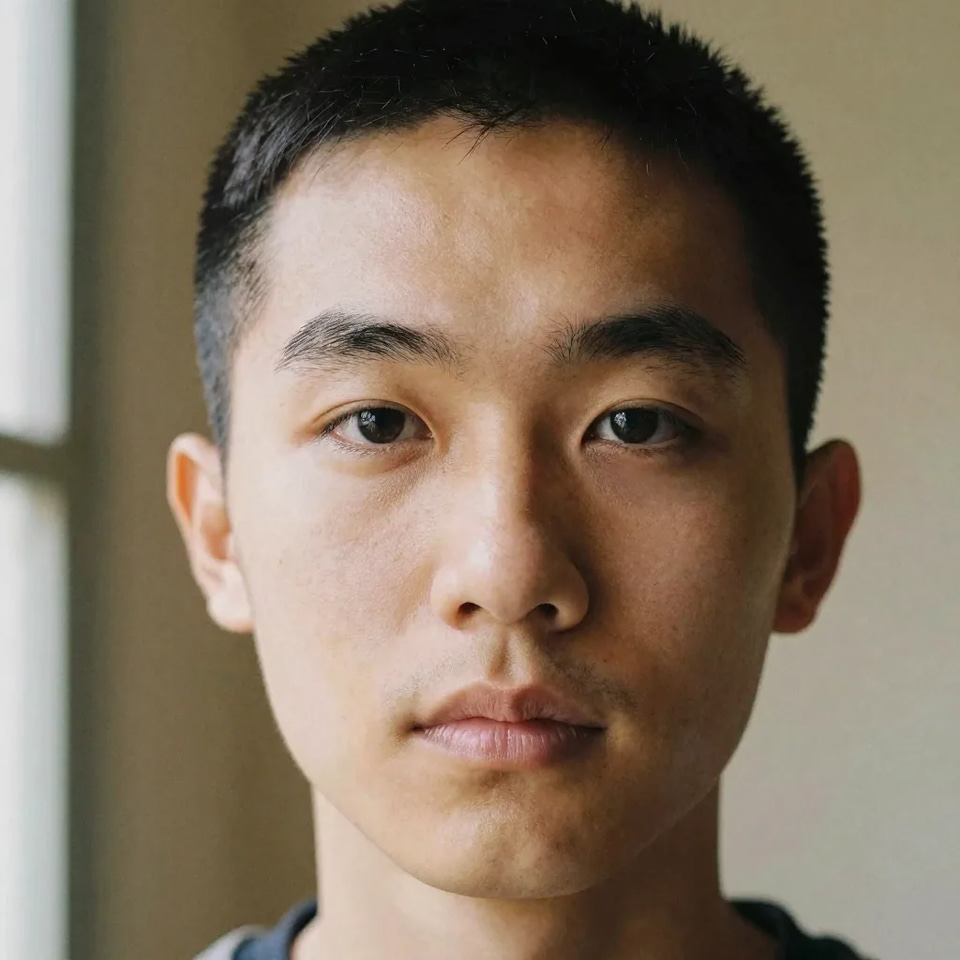
Remove glasses glare
Kill the flash reflection on lenses while keeping the frames and the eyes behind them.
Know more →Why the fix still looks like the real moment
You point at what is wrong and describe the fix; the person, the pose and the framing come back as you shot them. It is a full re-render rather than a masked patch, so fine grain and small background detail can shift a little.
Identity preserved
The face stays the same person — the fixer never swaps in a different look. Freckles, eye color, and bone structure carry through the edit. Identity, pose, framing, and the rest of the scene stay exactly as they were captured, because the fixer reconstructs only the area you asked about. You are rescuing the shot you took, not generating a new one.
Try it now →Lighting matched
A reopened eye or new smile picks up the same light direction and shadow as the rest of the face, so it does not read as a paste-in. The corrected area is matched to the person’s real facial structure, the surrounding skin texture, and the light already in the original shot, so the change blends into the photo instead of sitting on top of it.
Try it now →Review before download
Every result lands in your private history. Preview it, and if a fix feels too strong, re-run with a lighter, more specific instruction. Subtle instructions help: "add a gentle, natural closed-mouth smile" looks more believable than an exaggerated grin, and "open only the left eye, keep the natural gaze" is usually the difference between an edit that reads as the real moment and one that looks retouched.
Try it now →How to fix closed eyes in a photo
Three steps, about a minute, no reshoot and nothing to install.
Upload the photo
Add the photo with the problem — closed eyes, a missing smile, glare or any small flaw. A well-lit, in-focus original gives the cleanest fix, because the AI can match detail it can clearly see.
Choose Auto Beautify or Custom Fix
One-tap auto cleanup, or type exactly what to fix in plain English. Auto Beautify tidies eyes, expression, lighting and small distractions in a single pass; Custom Fix targets one named problem, which is what you want when only one person in a group blinked.
Download the fixed photo
The corrected image is ready in about a minute — same person, same moment, problem gone. Every result lands in your private history, so you can review it before you download and re-run with a lighter instruction if a fix reads too strong. From 10 credits per image.
The photos people bring here
Family & group shots
The holiday photo where one person blinked, the reunion where the toddler looked away — group photos are where one flaw hurts most. The more people in the frame, the higher the odds one of them blinks. Fixing the single closed pair of eyes rescues the one photo where everyone else was perfect.
Try it now →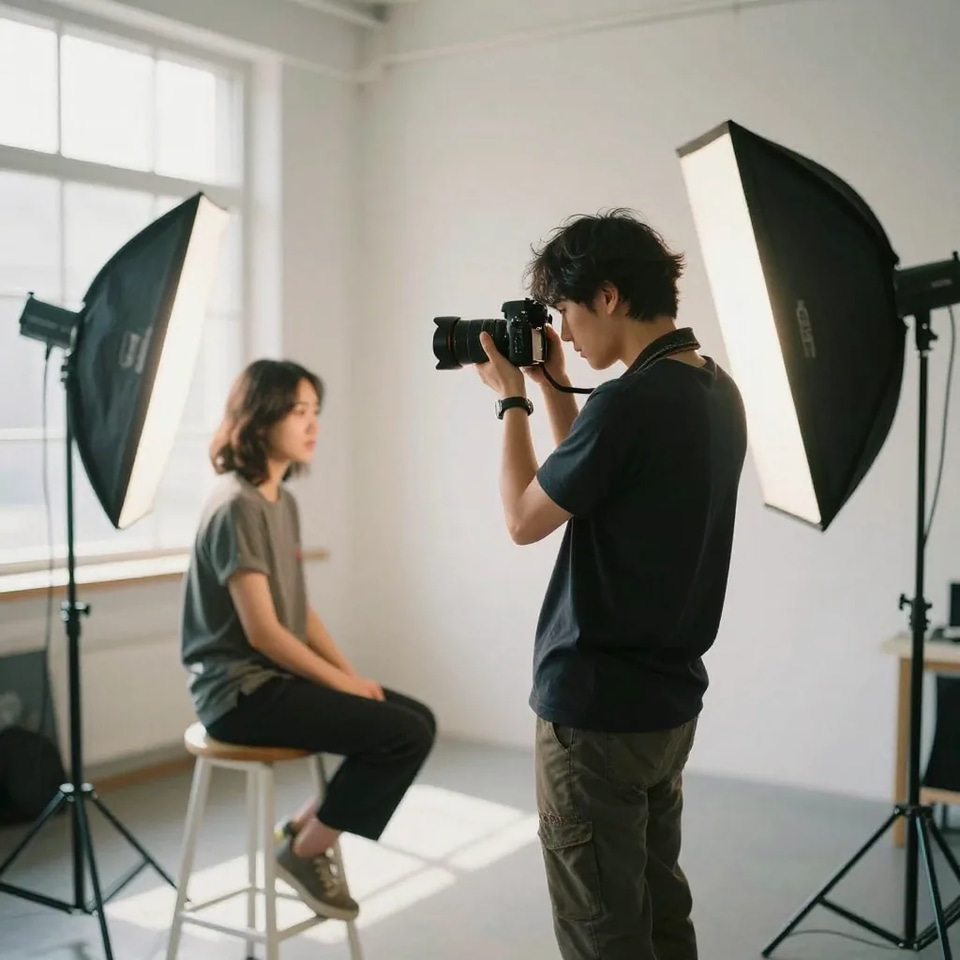
Event photographers
Rescue the near-perfect frame from a wedding or event set instead of leaving it on the cutting-room floor. Unposed shots capture real expressions, but they also catch mid-blinks and glances away. A quick fix keeps the candid feel while opening the eyes back up.
Try it now →Milestones & keepsakes
Graduations, birthdays, once-in-a-lifetime moments — you can't reshoot them, but you can fix the photo. Graduations, weddings, and milestones cannot be re-staged. When the moment is gone, fixing the photo is the only way to get the shot you meant to take.
Try it now →Discover more AI features
Frequently asked questions
Can AI open closed eyes in a photo?
Yes. Imagera's AI Photo Fixer reconstructs naturally open eyes that match the person's face, gaze direction and the photo's lighting. Upload the photo, type "open the closed eyes" (or just tap Auto Beautify), and the fixed image is ready in about a minute. It works on single portraits and group photos where one person blinked.
Can I add a smile to a photo without it looking fake?
Yes — the fixer edits the expression while preserving the person's real facial structure, so the smile looks like an expression they would actually make. Subtle instructions work best: "add a gentle, natural closed-mouth smile" reads more believable than an exaggerated grin.
What kinds of photo problems can it fix?
Closed or half-closed eyes, missing smiles and flat expressions, red eyes from flash, glare on glasses, small blemishes and distracting details. Auto Beautify handles general cleanup in one tap; Custom Fix takes any plain-English instruction for a specific problem.
Will the person still look like themselves?
That is the whole point of the tool. The fixer changes only what you ask for — the face, identity, pose and the rest of the scene stay exactly as they were shot. You are rescuing the real photo, not generating a new one.
How much does a photo fix cost?
Fixes start at 10 credits per image, depending on the quality engine you pick. You only pay per fix — there is no subscription required beyond your credit balance, and every result lands in your private history for download.
Which quality engine should I choose for a photo fix?
The studio offers three branded engines, priced in credits from cheapest to best output. Flexible follows detailed instructions closely and is the most affordable for straightforward fixes like opening eyes. Natural is the recommended everyday default — fast, natural-looking results for most photos. Studio gives maximum polish for tricky corrections and fine detail, such as rebuilding an eye that is fully closed at an awkward angle or fixing glare on textured lenses. All three start from 10 credits per image, and you can re-run the same photo through a different engine if the first pass is not quite right. A good habit is to start with Natural, then escalate to Studio only for the shots that need it.
Can it fix closed eyes in a group photo where only one person blinked?
Yes — this is one of the most common reasons people reach for the tool. In a group shot, describe exactly whose eyes to open ("open the closed eyes on the child on the left") and the fix targets only that person. Everyone else in the frame, the background, and the overall moment stay exactly as they were shot. Because the edit is localized, you can rescue a reunion, wedding, or holiday photo where a single blink would otherwise have ruined the only frame where everyone was looking at the camera. For the most natural result, keep the instruction specific and let the AI match the reopened eyes to that person's face, gaze direction, and the photo's lighting.
Will an AI photo fix look obvious or edited?
The goal is an edit no one notices. The fixer reconstructs the corrected area — an opened eye, a softened expression, a cleared lens — to match the person's real facial structure, the surrounding skin texture, and the light in the original shot, so the change blends into the photo rather than sitting on top of it. Because it changes only what you ask for and leaves identity, pose, and scene untouched, the result reads as the moment you meant to capture. Subtle instructions help: "add a gentle, natural closed-mouth smile" looks more believable than an exaggerated grin, and reviewing the result before you download lets you re-run with a lighter touch if anything looks off.
What is the difference between the Photo Fixer and AI Image Repair?
The AI Photo Fixer is built for real photographs of real people — opening closed eyes, adding a natural smile, clearing glasses glare, and fixing red eyes while keeping the person and moment intact. AI Image Repair is aimed at fixing artifacts in AI-generated images, such as distorted hands, warped faces, and rendering glitches. If your problem is a blink or a flat expression in a photo you took, use the Photo Fixer. If you generated an image and it came back with mangled fingers or a melted face, use AI Image Repair instead. Both live in the same Imagera credit wallet, so you can move between them without a separate account.
How long does an AI photo fix take, and can I do several at once?
Most fixes complete in about a minute, so rescuing a single blink or adding a smile is quick enough to do while you wait. If you are working through a batch — say the whole set from an event where a few frames each have one small problem — run them one at a time so you can review each result before downloading, since the right instruction can differ from photo to photo. The tool is designed for targeted corrections rather than bulk automated processing, which is exactly why the results look natural: each fix is matched to that specific face, gaze, and lighting instead of a one-size-fits-all filter applied across a folder.
Does the AI Photo Fixer work on old or scanned printed photos?
It can open eyes, add a smile, and clean small distractions on a scanned print just as it does on a digital photo, as long as the scan is reasonably sharp. However, if the underlying problem is damage — fading, scratches, tears, or heavy grain from an old print — that is a restoration task rather than a portrait fix. For those, an old-photo restoration tool is the better starting point, and you can then use the Photo Fixer for any remaining expression or eye correction. Keeping the two jobs separate gives the cleanest result: restore the print first, then fix the moment.
Key takeaways
Can AI open closed eyes in a photo?
Yes. Imagera's AI Photo Fixer reconstructs naturally open eyes that match the person's face, gaze direction and the photo's lighting. Upload the photo, type "open the closed eyes" (or just tap Auto Beautify), and the fixed image is ready in about a minute. It works on single portraits and group photos where one person blinked.
Can I add a smile to a photo without it looking fake?
Yes — the fixer edits the expression while preserving the person's real facial structure, so the smile looks like an expression they would actually make. Subtle instructions work best: "add a gentle, natural closed-mouth smile" reads more believable than an exaggerated grin.
What kinds of photo problems can it fix?
Closed or half-closed eyes, missing smiles and flat expressions, red eyes from flash, glare on glasses, small blemishes and distracting details. Auto Beautify handles general cleanup in one tap; Custom Fix takes any plain-English instruction for a specific problem.
When should I use Auto Beautify vs Custom Fix?
| Situation | Best mode | Why |
|---|---|---|
| A generally good photo you want to polish | Auto Beautify | One tap, no prompt — cleans eyes, expression, and lighting together |
| One person blinked in a group shot | Custom Fix | Name whose eyes to open so only that person changes |
| A flat expression that needs a real smile | Custom Fix | A subtle, specific instruction reads more believable than auto |
| Glasses glare or red / flash eyes | Either | Auto handles common cases; Custom targets a stubborn reflection |
Rescue the shot you almost deleted
Open the studio with the fixer already selected. Credits show on the button before you run.
Fix my photo →