Image Upscaler
ImageUpscale images to 16K with the same AI enhancement technology
Too small to print? Enlarge a photo to 4K, 8K or 16K (15,360 px on the long edge).
Imagera AI - AI content creation platform for generating images, cloning voices, and enhancing videos. Privacy Policy | Terms
Cut a big video into evenly sized parts
Choose a file to start.
Imagera's free video splitter is a video separator for moving large recordings between devices. Choose a MP4, MOV, MKV or WebM file and divide it by file size or number of parts in a supported browser on a phone, tablet or computer. Processing stays on your device. The numbered pieces must be rejoined before watching; they are file parts, not playable clips. 2 free downloads, 8 more after sign-in.
Published · Updated · by the Imagera teamImagera is a browser-based AI studio for images, video, music and voice, so you do not need a separate app and account for every model. Pricing is credit-based: one balance covers every tool, and each job shows its credit price or estimate before you run it.













There are 2 ways to plan the pieces: a target size or a target count. Neither chooses a scene boundary; the linked Viral Reel Cutter handles the separate job of making vertical clips.
Try Viral Reel CutterA split can produce at most 500 parts. Increase the size of each piece if the plan would exceed that number.
The size field uses 1,048,576 bytes per MB. A destination that counts a megabyte as 1,000,000 bytes may reject a part set to its exact advertised limit.
Splitting adds 0 bytes to the combined payload of the separate parts. Packing them into an archive adds headers and a rejoining note instead of making the footage smaller.
Use this splitter when a recording is awkward to transfer as one file. It divides the existing bytes into numbered pieces that you can move separately. The original filename remains at the start of each part name, followed by a suffix such as .001 or .002.
These pieces do not contain everything a player needs for independent playback. Send the full set and explain that the recipient must rejoin it. If your destination requires a playable video for every upload, file splitting is the wrong export for that destination.
Choose a size when every piece needs to fit below a transfer limit. Choose a count when you want the recording divided into a set of similarly sized files. Open Advanced to enter a custom value, then check the planned sizes before running the split.
The last piece holds the remaining bytes and may be smaller. If the chosen part size exceeds the entire source, the result is just one part. Size here uses binary megabytes, so leave room below a destination’s stated limit and check the actual byte sizes.
Splitting follows byte offsets, not frames, keyframes or scene changes. A time shown beside a piece is an estimate based on its share of the file size. Equal file sizes do not guarantee equal running times, and this tool has no setting for a cut every few seconds.
For a single playable excerpt, use the separate Video Trimmer. For vertical clips from a longer recording, follow the linked Viral Reel Cutter. Neither task is achieved by renaming the numbered pieces as videos.
The split does not decode, compress or re-encode the recording. Picture data, sound and embedded metadata remain in the original byte sequence across the full set of parts. Rejoining every unchanged piece in order reconstructs that sequence.
Keep all the pieces together and preserve their names. Use the separate Video Merger to rebuild the recording before watching or editing it. Missing, altered or incorrectly ordered pieces prevent an exact reconstruction; splitting does not repair damage already present in the source.
The result offers individual part downloads and one archive containing the set plus a rejoining note. The archive stores the pieces without compression, so it is larger than their combined payload. Sending that single archive brings back the large-file problem you were trying to avoid.
Use separate parts for a per-file transfer limit and the archive when keeping the set together matters more. Building the archive reads the contents to calculate integrity checks, so that step can take longer than preparing the split. If the browser blocks several downloads, use the individual save buttons.
The browser reads the selected file locally and slices it on your device. It does not send the video to a processing server or require a video codec to divide its bytes. A browser that cannot read the recording’s duration can still prepare the parts, with no time estimate.
A compatible phone, tablet or computer needs the browser’s file-handling features and enough storage to save the results. Very large downloads depend on the device and browser; there is no verified size that succeeds everywhere. Slicing the recording into byte parts stays local, while the splitter page still makes website service requests.
Select a MP4, MOV, MKV or WebM file from your device. Keep the source until you have checked the complete set of parts.
Set a part size or count; use Advanced for a custom value. Review the plan, including the smaller final piece when there is a remainder.
Run the split and check the numbered results. Choose separate pieces for a transfer limit or an archive to keep the whole set together.
2 free downloads, 8 more after sign-in.
| This free tool | Paid AI tools |
|---|---|
| Numbered byte parts for transferring one recording | Viral Reel Cutter produces vertical reels from a long video |
| Cuts follow a requested file size or part count | Viral Reel Cutter serves the long-video-to-short-clips workflow |
| 2 free downloads, 8 more after sign-in. | Paid tools use their own displayed prices and access conditions. |
Open a local recording, choose how large each piece should be or how many pieces you need, and run the split. This produces a set of file fragments for transfer, which the recipient must reassemble.
A numbered part is a slice of the original file, not a complete video container. Changing its extension does not supply the missing structure. Rejoin the complete set before opening the recording in a player.
No. Both planning modes divide bytes rather than time. The displayed durations, when available, are proportional estimates; they do not mark exact cuts in the recording.
The file data is unchanged by this split. With every original part intact and in sequence, rejoining restores the same picture and audio data. There is no encoding pass that changes quality or sound timing.
Enter a part size below the attachment limit and check the resulting byte sizes. Confirm that the service accepts numbered file parts; the recipient needs every part and a way to rejoin them. An archive containing the entire set will still be large.
It can help with a per-file storage limit: save smaller separate pieces that fit the destination’s rules. You still need enough total space for all the data. Rebuild the recording on a device that can hold the full file; the parts are not videos a television can play directly.
The planner takes full-sized pieces until only the remainder is left. That remainder becomes the final piece, so a smaller last part does not by itself mean data was lost.
The planner has no fixed maximum source size, but it does limit how many pieces it creates. Saving a large result still depends on your browser and available storage. Try individual part downloads if packaging the full set is impractical.
A size-based split needs a part size of at least 64 KiB, and a plan cannot exceed 500 pieces. Increase the requested size or reduce the count if the error indicates too many parts. An empty source cannot be split.
No. The pieces retain the entire source payload. The optional archive also includes packaging data and a short instruction file. Use the separate Video Compressor if you need a smaller playable recording.
Preparing parts uses slices of the source file. The archive builder must read their contents to calculate integrity checks before saving, so its progress depends on the amount of data and the device.
The video stays local during the split and duration check. The page still loads resources and makes service requests, but the splitting operation does not upload the selected footage for processing.
Use a browser with the required file APIs and access to the recording on your device. The split does not need a dedicated graphics card. Check that the phone has room to save the resulting pieces.
The byte splitter accepts MP4, MOV, MKV or WebM recordings. The split itself copies byte ranges and does not decode the container or convert its codec. If your browser lets you select another video type, the same byte operation applies, though its duration may not be readable.
The browser may not be able to read the source’s media metadata, or the duration check may time out. File splitting can still proceed because its plan uses byte size rather than playback length.
Send every numbered part with its filename unchanged. The Video Merger accepts the set or the archive made here; check the order before joining. Keep the original until the recipient has rebuilt and checked the recording.
Your first 2 downloads are free with no account. Sign in free for 8 more. Any paid Imagera plan makes downloads unlimited, and adds AI credits for the paid tools. Processing and the preview are always free.
Your first 2 downloads and every download on a paid plan have none. Free downloads 3 to 10, after sign-in, carry a small “Made with imagera.ai” badge in the corner. The result on screen is always clean.
Complete your workflow
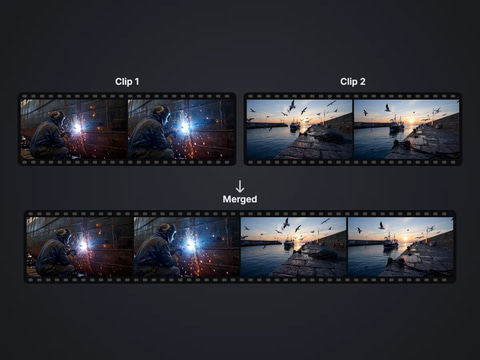
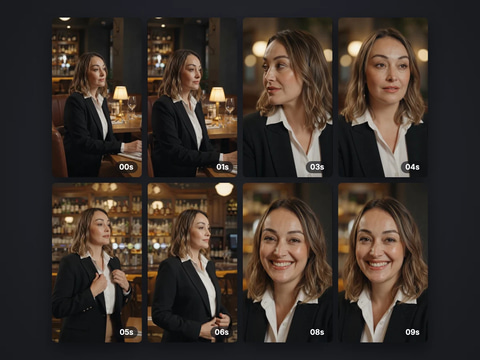
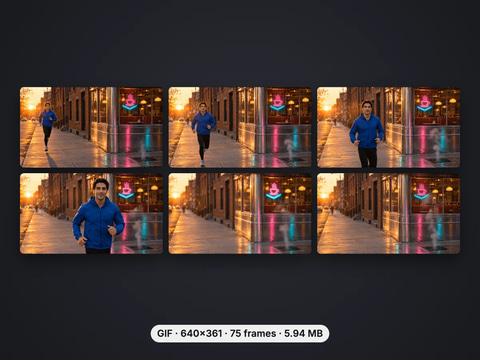
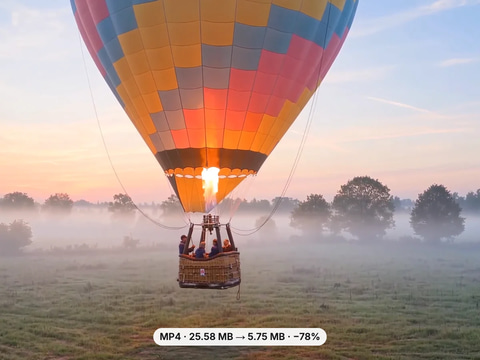
These pair with 4K Video Enhancer. Every tile says what the tool actually does — without leaving this page.
Upscale images to 16K with the same AI enhancement technology
Create AI talking videos then enhance to 4K
Generate AI podcasts and pair with enhanced video content
Translate a clip into another language. Same faces, same footage, new voice — billed per minute.
Choppy AI video to butter-smooth 60fps. The secret pros use.
One photo = Hollywood drone shot. Zero equipment. Pure magic.
Steal any dance. Apply to any character. Viral content factory.
Imagera AI Team
Unified AI creation platform
Ready to try your own file?
Back to video splitter