Video Editing Tools
EditingTrim, caption, and polish generated clips
Ten small tools, one job each — subtitles, join clips, add music, GIFs, convert, denoise. Drop a file, pick a job, done.
Imagera AI - AI content creation platform for generating images, cloning voices, creating avatars, and enhancing videos. Privacy Policy | Terms
Turn text or stills into short clips for ads, social, and drafts. Try multiple engines under one credit balance — pick the look that fits, pay only when you generate.
Imagera’s multi-engine video studio turns text or stills into short AI clips in the browser — compare engines under one credit balance, pay when you generate.
Multi-engine AI video studio A single Imagera studio with multiple video engines so you can sample looks and pick the best clip for your project.
Imagera’s multi-engine video studio turns text or stills into short AI clips in the browser — compare engines under one credit balance, pay when you generate.
Single-engine apps force one look and a monthly fee. Here you compare engines quickly, keep one wallet, and only spend credits when a clip is worth keeping.
Enter from the primary CTA on this page.
Describe the scene or upload a still, choose duration, then generate.
Export the clip for ads, social, or client drafts.
Sample the multi-engine video studio, then open it with your own prompt or still.
Short cinematic clips without a full production day.
Iterate motion from a still or prompt before final edit.
Show direction with AI clips before booking a crew.
Imagera AI Team
Unified AI creation platform
What is it?
A multi-engine AI video studio for short text-to-video and image-to-video clips.
Pricing?
One Imagera credit balance — pay when you generate, not a stack of monthly apps.
Commercial use?
Yes on paid plans, per commercial terms.
Complete your workflow
Every tile says what the tool actually does — without leaving this page.
Trim, caption, and polish generated clips
Add cinematic motion to stills
Add voiceover to your AI video
High-end text-to-video with native sound for ads and brand films.
Try Cinematic VideoStrong motion and character continuity for social and product clips.
Try Motion ProHigh-energy motion for performance and action-style videos.
Try Dance & ActionDance, faces, and anime-friendly motion from text or a still.
Try Expressive MotionOne studio, one credit balance, and enough range to cover a launch ad, a stack of social cuts, and a client pitch — without a separate subscription for each.
Sample a cinematic ad, a product loop and a punchy social cut from the same brief, then keep whichever look tests best — without booking a shoot.
Spin up vertical 9:16 clips for Reels, Shorts and TikTok. Iterate motion and pacing quickly, and only spend credits on the takes worth posting.
Show a client three directions in an afternoon. Animate a still or generate from a prompt to pitch a concept before committing production budget.
Turn a product photo or a plain description into a short explainer or launch teaser, all in the browser and all under one credit balance.
A few habits that get you a usable clip faster and spend fewer credits on throwaway takes.
Name the setting, mood, lighting and camera movement — "slow push-in, warm evening light" — so the engine has direction. The built-in prompt helper can flesh out a short idea for you.
Reach for a cinematic engine for ad-style clips with sound, a motion engine for people and continuity, or a budget engine for fast drafts before you commit credits to a final take.
Choose 9:16 for Reels, Shorts and TikTok, 1:1 for feed posts, or 16:9 for YouTube and ads before generating — it saves a re-render and keeps framing clean.
When you already have the look — a product shot, portrait or piece of artwork — upload it and use image-to-video so the frame stays on-brand while the engine adds motion.
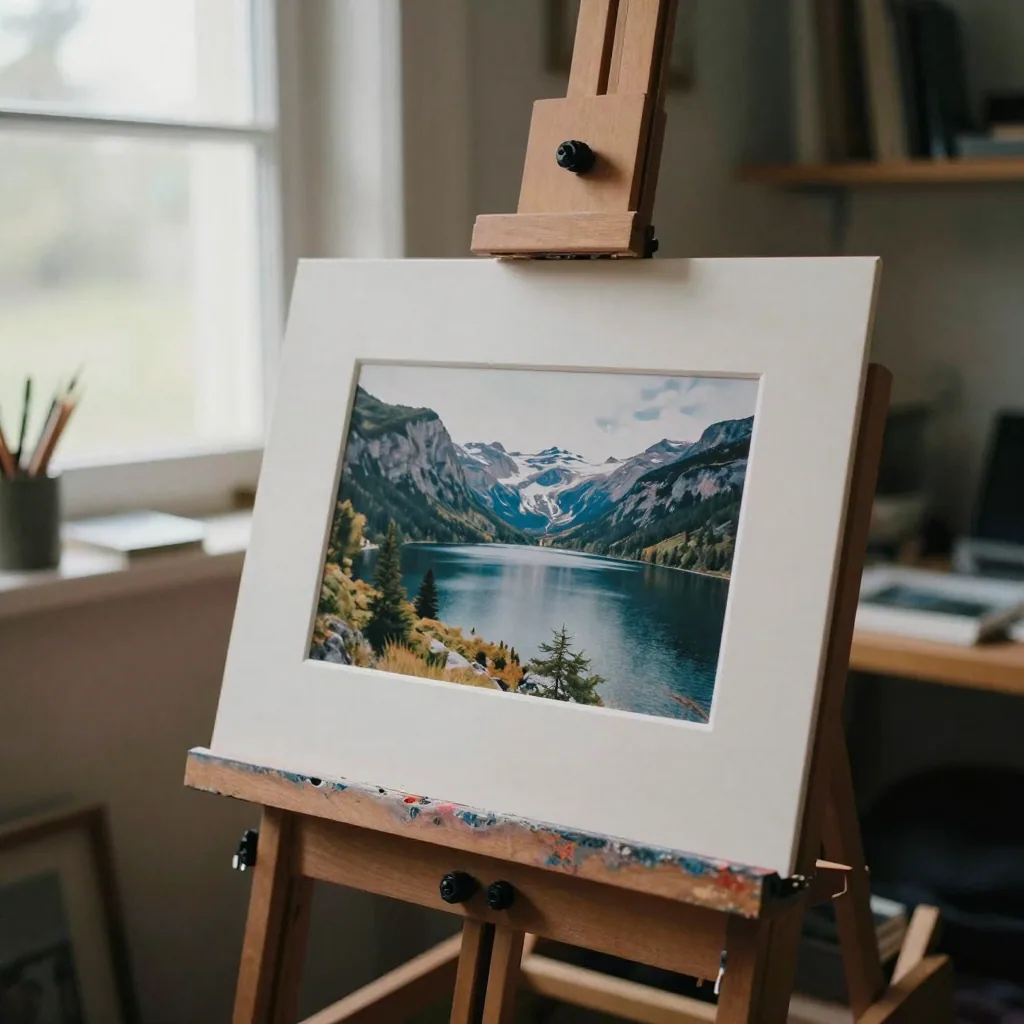
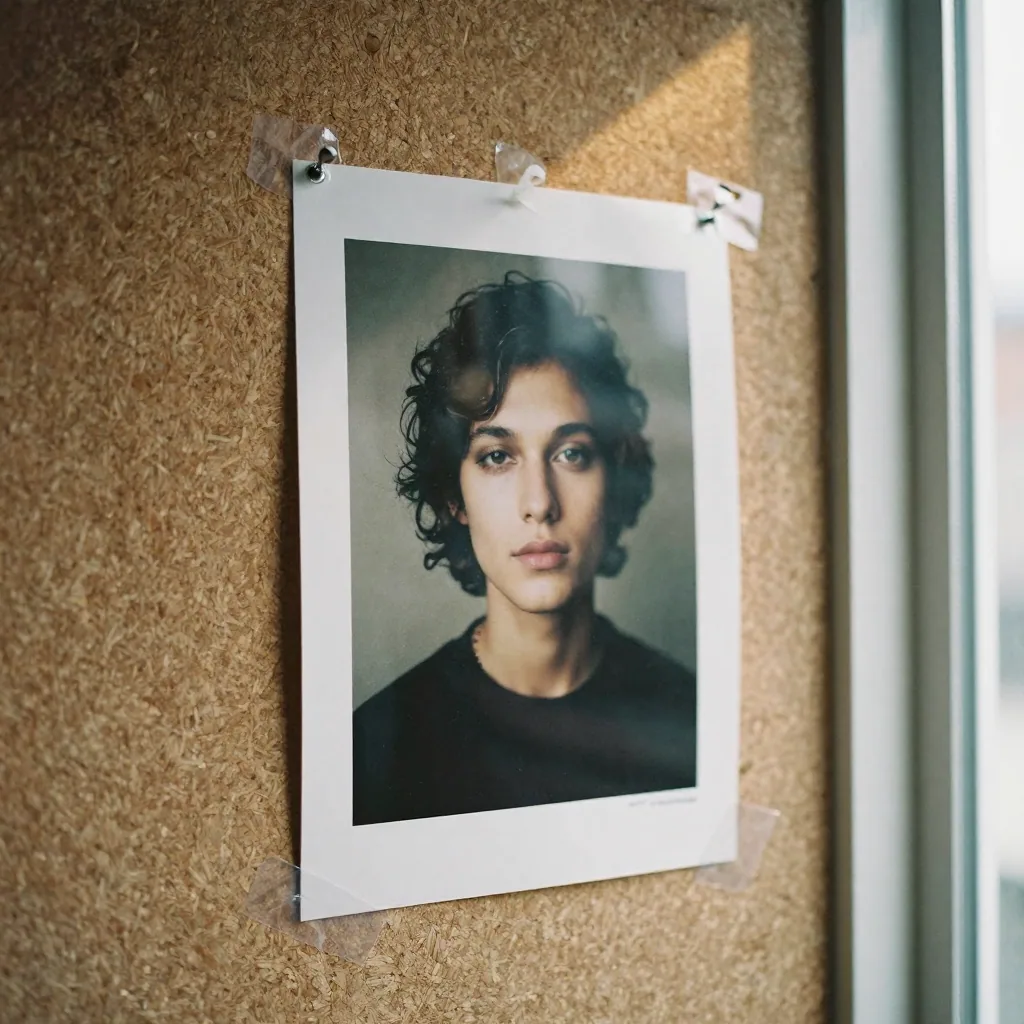
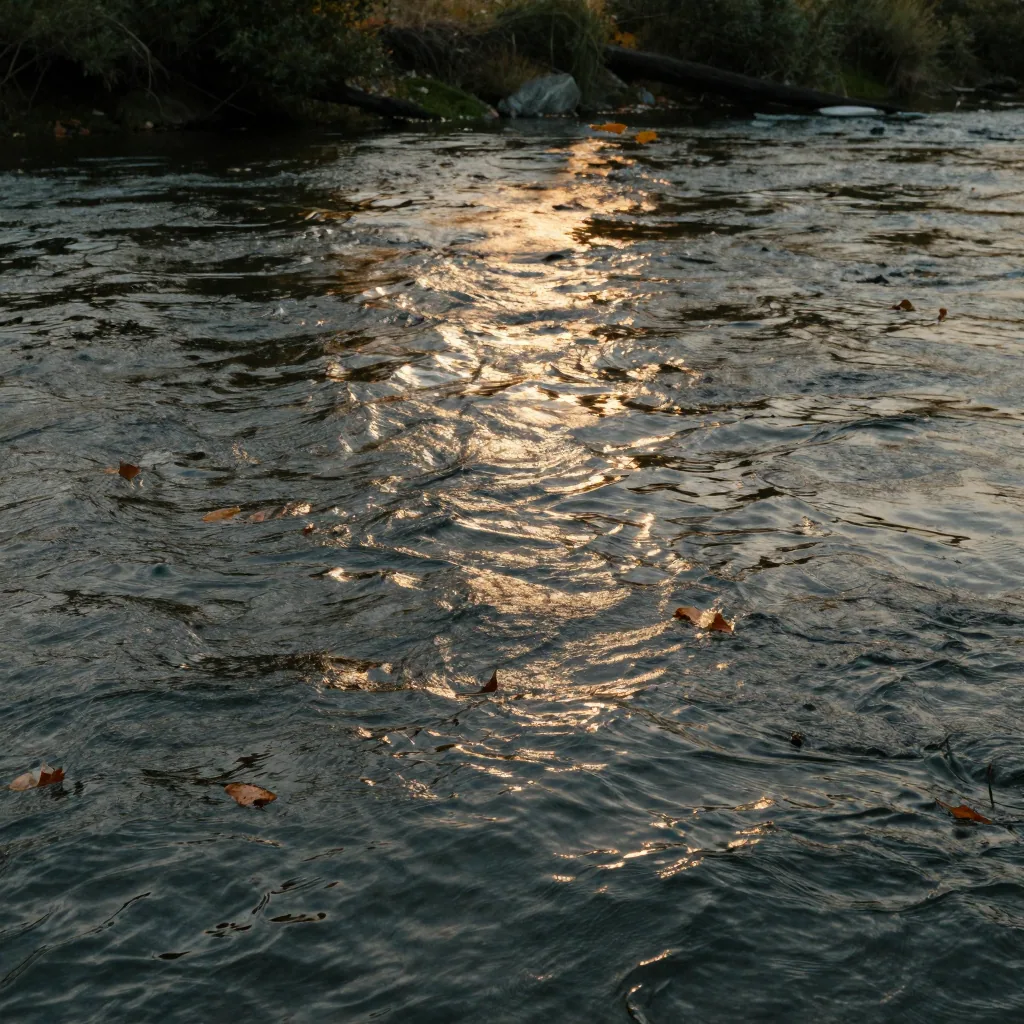
A few frames pulled from real Imagera video outputs. Each one shows a different mode — a text-to-video scene, an added camera move, smoother motion, and a cleaned-up final render — so you can see the range before you open the studio.


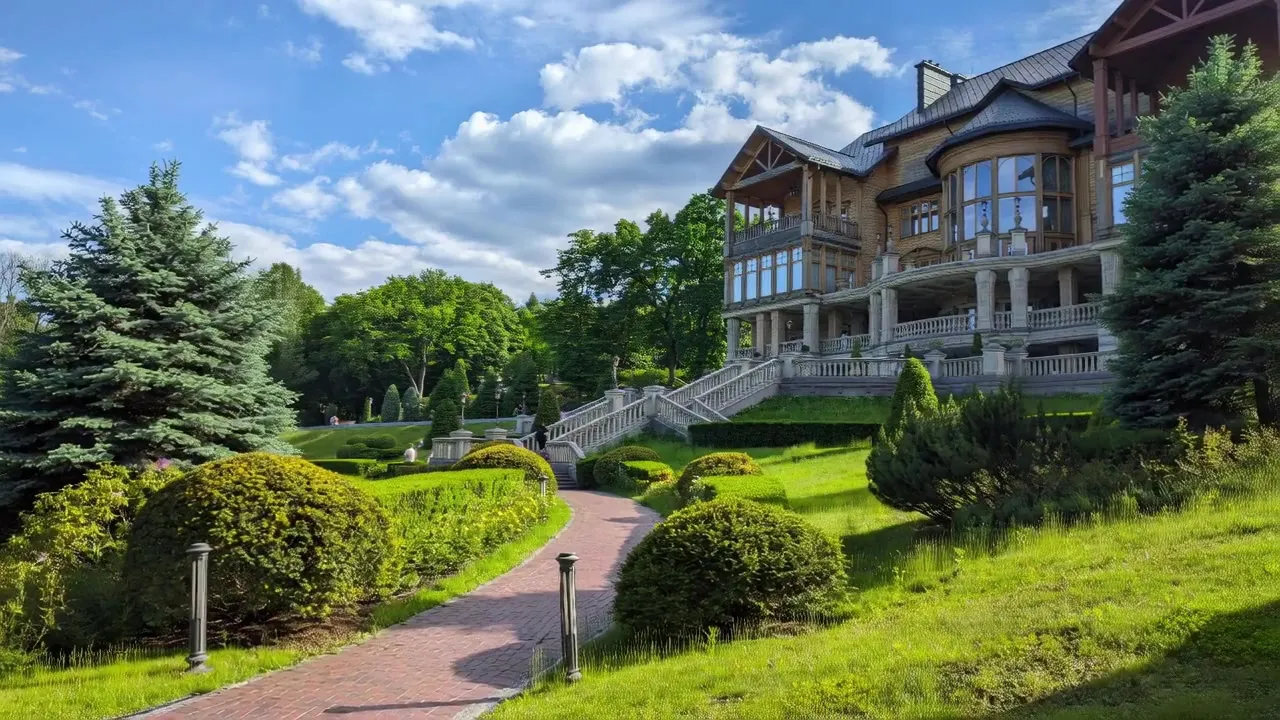
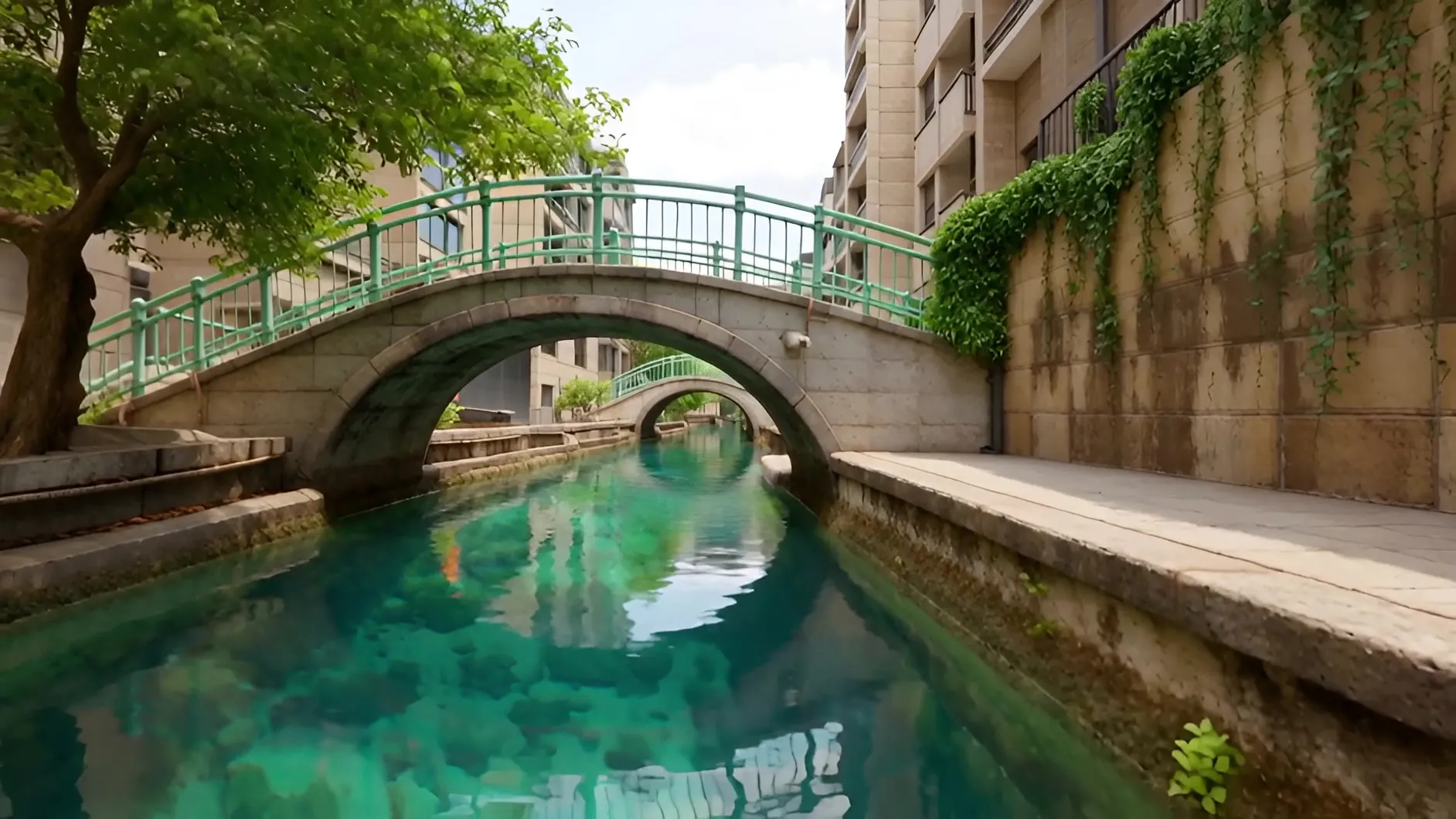
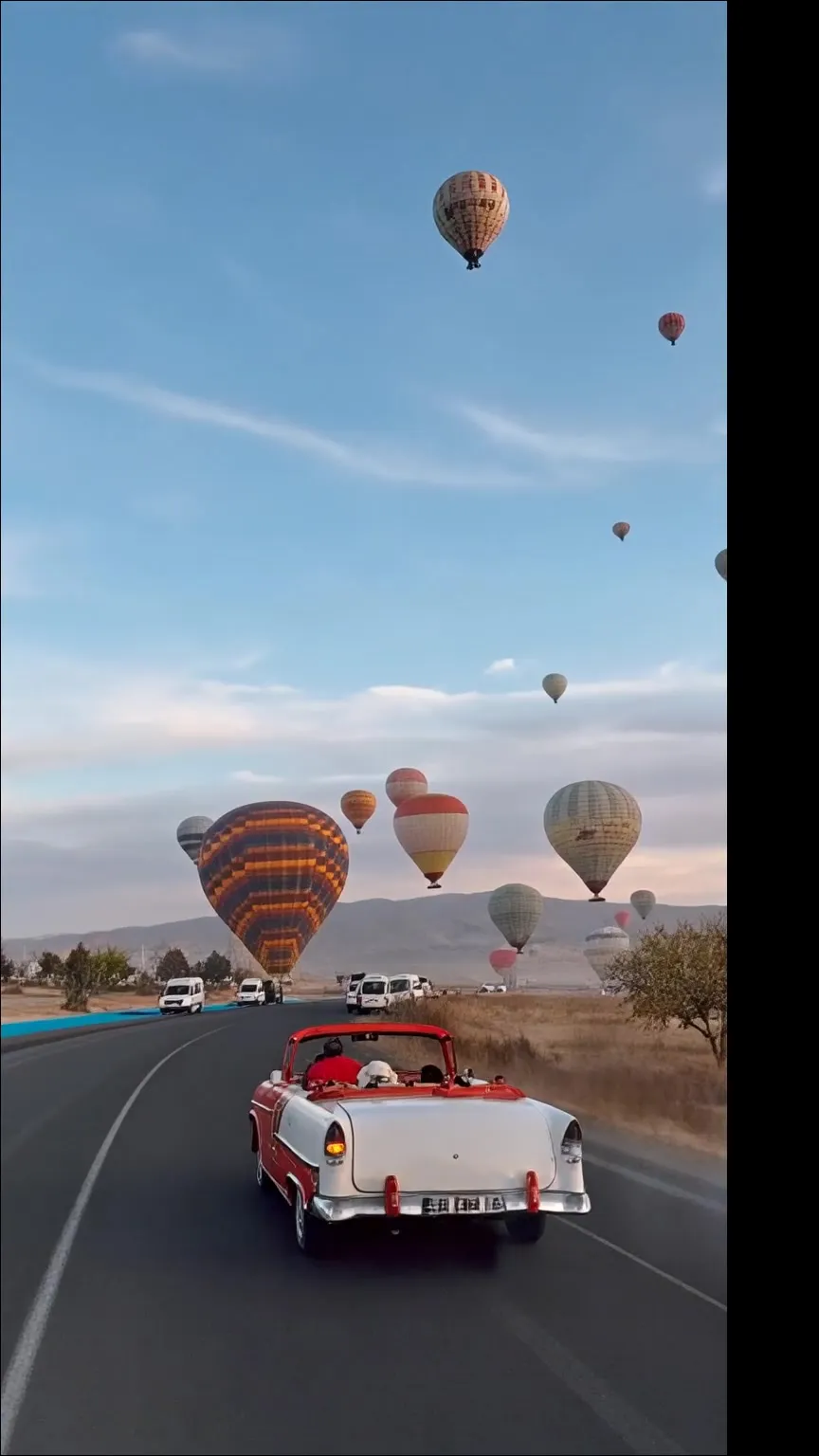
Open the studio, type a plain-language description of the scene — subject, setting, mood and any camera movement — pick a cinematic engine, choose a duration and aspect ratio, then generate. The engine turns your words into a short clip, and several engines can lay down native audio at the same time so the result already has sound. You do not need a perfect prompt: a built-in helper can expand a one-line idea into a fuller shot description before you spend credits.
A useful brief names four things — the subject, the setting, the lighting or mood, and the camera move. “A ceramic coffee cup on a marble counter, warm morning light, slow push-in” gives an engine far more to work with than “a coffee cup.” Because you are working under one credit balance, you can run the same brief through two or three engines and keep whichever look reads best, rather than committing to a single tool’s house style. If a first take is close but not right, tweak one variable — the camera move, the lighting, the pacing — instead of rewriting the whole prompt.
When you want a moving, directed shot rather than a generic scene, the studio’s camera and motion controls let you specify a push-in, pan or tilt. That is the fastest way to turn a static concept into something that feels shot on purpose — and it pairs well with the dedicated camera-movement tool when you need finer control over a single clip.
Yes — image-to-video is a first-class mode, not an afterthought. Upload a still (a product shot, a portrait, a piece of artwork or a rendered frame), describe the motion you want, and an engine that supports image input animates the frame while keeping it on-brand. This is the route to take when you already have the exact look and only need movement, because it holds your composition instead of inventing a new one from a text prompt.
For tighter control, first-and-last-frame mode lets you fix the opening and closing frame and generate the motion in between — useful when a clip needs to land on a specific product angle or logo lockup. Reference and element modes go a step further, keeping a character or a product consistent across several shots so a short series feels like one continuous piece rather than five unrelated clips.
Once you have a clip, you can carry it into the rest of the Imagera video stack: send a generated frame through the video enhancer to sharpen and upscale it, or cut several clips together in the video editor before you publish.
The studio is more than a text box. Each mode takes a different kind of input and suits a different job — here is how they line up so you can pick before you generate.
| Mode | What you give it | Sound & motion | Best for |
|---|---|---|---|
| Cinematic text-to-video | Text prompt | Native audio on supported engines | Ad-style and brand clips built from a written brief |
| Image-to-video | A still + prompt | Motion-only or audio, engine-dependent | Animating a product shot, portrait or artwork you already have |
| First-and-last frame | Two stills + prompt | Motion between your two frames | Controlling exactly where a shot starts and ends |
| Reference / element control | Reference stills or clips | Keeps a character or product consistent | Series where the same subject appears across shots |
| Motion / camera control | Prompt + camera direction | Adds push-in, pan and tilt moves | Turning a static idea into a moving, directed shot |
Video runs on one shared Imagera credit balance, and you only spend credits when you generate a clip. There is no per-app subscription stacking up whether you create or not — an idle month costs you nothing. Before you commit a take, the generate button shows the exact credit cost for your current settings, so duration, resolution and engine choice are all visible in credits up front rather than as a surprise on the invoice. The featured engines start from about 25 credits per clip, and each engine card above shows its own starting price.
Cost scales with what the clip actually asks for: a longer duration, a higher resolution or a premium cinematic engine uses more credits than a short budget draft. That is deliberate — it lets you rough out ideas cheaply on a fast engine, then spend on the one take worth finishing at full quality. Choosing Ultra Fast where it is available can also change the credit cost on some engines, and the studio surfaces that difference before you generate.
Because every mode draws from the same wallet, you are never re-buying access to a new format. The same balance covers text-to-video, image-to-video, motion control and the rest of the studio — and the wider Imagera catalogue, from the video-to-reels tool to the standalone image-to-video tool — so you can move a project from raw clip to finished cut without switching accounts.
On paid Imagera plans you can use outputs in client work, ads and social content, subject to Imagera’s commercial terms. Free-tier limits may apply, so it is worth checking the plan page before you ship a paid campaign. For most teams the studio slots in at the concept and draft stage: generate a few directions, put them in front of a client or a feed, and only finish the take that earns it.
A typical workflow looks like this — brief an engine from a prompt or a still, generate a short clip, tighten framing and pacing over one or two iterations, then hand the winner off. From there you might animate a portrait into a talking video, smooth out motion with the frame interpolator, or read a longer walkthrough in our guide to running a multi-model video studio.
The point of a multi-engine studio is optionality: instead of forcing every project through one tool’s strengths and weaknesses, you keep the whole range under one wallet and reach for the mode that fits the job — a cinematic ad this morning, a stack of vertical social cuts this afternoon, a client mockup before the end of the day.
An Imagera studio that puts multiple AI video engines in one place so you can turn text or images into short clips without juggling separate accounts.
Yes. Open the studio, pick an engine that supports image input, upload a still, and generate motion.
Several engines can produce synchronized audio with the clip. The studio shows audio support per engine before you generate.
Typically 5–10 seconds depending on the engine and settings. Longer clips use more credits.
Yes. On paid Imagera plans you can use outputs in client work, ads, and social — subject to Imagera commercial terms. Free-tier limits may apply; check the plan page before shipping a campaign.
You compare engines under one credit wallet instead of paying for multiple single-purpose subscriptions.
Engines cover the common social and cinematic ratios — vertical 9:16 for Reels, Shorts and TikTok, square 1:1 for feeds, and wide 16:9 for YouTube and ads. Output resolution goes up to 1080p depending on the engine and duration you choose.
No. Describe the scene in plain language — subject, setting, mood and camera movement — and the studio does the rest. A built-in prompt helper can expand a short idea into a fuller shot description before you generate, so you are not starting from a blank box.
Render time depends on the engine, clip length and resolution. The studio has a processing-speed control so you can trade a little quality headroom for a faster turnaround when you are iterating, then switch back for the final render.
Credits are pay-as-you-go from one shared Imagera balance. You spend them only when you generate a clip, so an idle month does not cost you a stack of separate app subscriptions. The generate button shows the credit cost before you commit.
Yes. Pick an engine that supports image input, upload your still — a product shot, portrait or piece of artwork — describe the motion you want, and it animates the frame into a short clip you can drop straight into an edit.
Match the engine to the job rather than picking a single default. Reach for a cinematic engine when you want an ad-style clip with sound, a motion engine when people or character continuity matter, and a budget engine for quick drafts you plan to iterate on. Each engine card shows its credit cost before you commit, so you can weigh look against spend.
The studio has a processing-speed control on models that support both routes. Ultra Fast trades a little quality headroom and, on some engines, a narrower set of resolutions or durations for a quicker turnaround — useful while you are iterating. Switch back to Normal for the final render. When a speed drops an option, the studio shows a short note on the affected control so nothing changes silently.
Yes. Some engines accept reference stills or an element (for example a portrait plus a product photo) so the same subject stays recognisable from shot to shot. First-and-last-frame mode goes further by letting you fix the opening and closing frame and generate the motion between them, which is handy for a series of clips that need to feel like one piece.
You choose them before generating. Set 9:16 for Reels, Shorts and TikTok, 1:1 for feed posts, or 16:9 for YouTube and ads, and pick a resolution the engine supports — several go up to 1080p, and some engines add a 4K upscale step. Setting the ratio up front saves a re-render and keeps framing clean for the destination.
On engines that support it, yes. Motion-control modes let you supply camera direction or a reference clip so the generated video follows a specific movement, and reference-to-video modes accept short clips or audio to guide the result. This is how you go from a static concept to a directed, moving shot without describing every frame in words.
A range of scenes to spark ideas before you open the studio.