Make Your Voice Anonymous & Change Language with Lip Sync
Anonymize your voice in any video, change language with perfect lip sync, or swap voices in audio — all powered by AI.
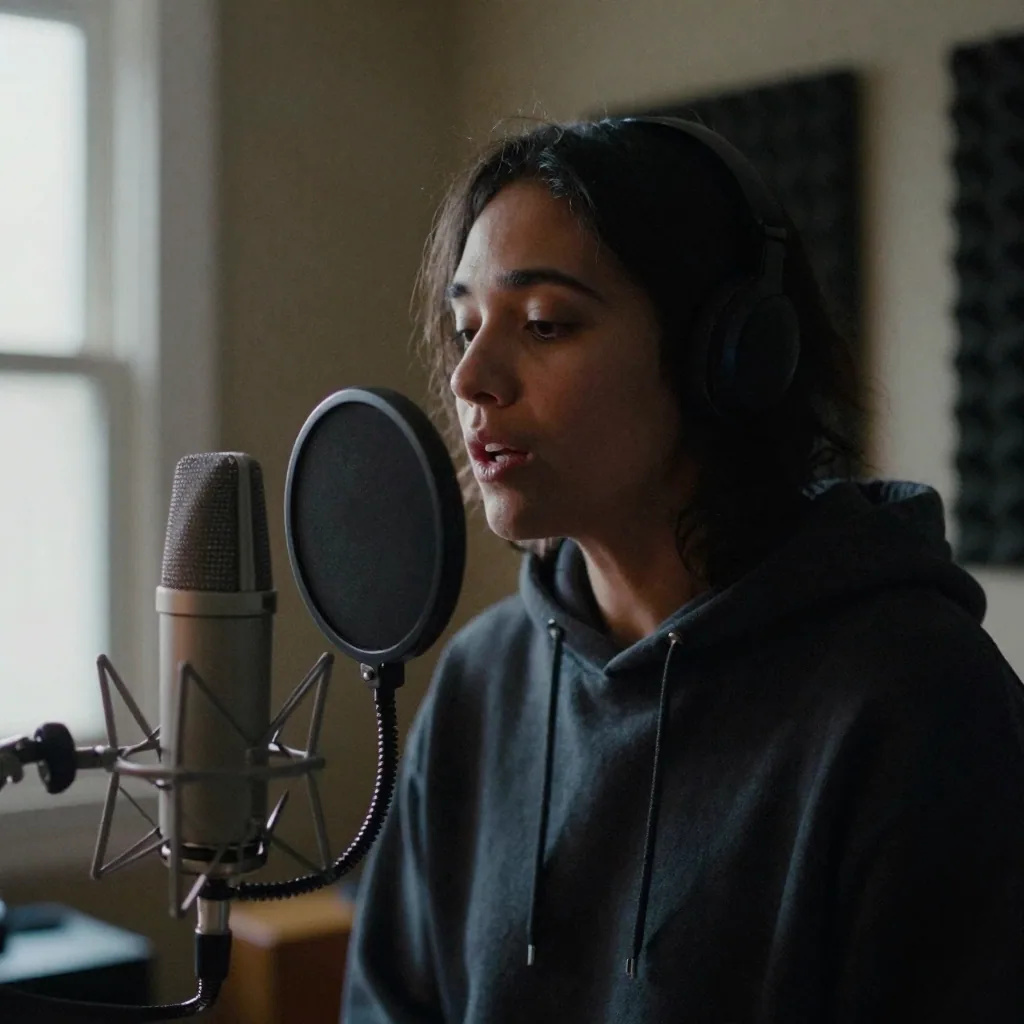
What is an AI voice changer?
An AI-powered tool that transforms the voice in audio or video recordings to a different voice while preserving the original speaker's emotions, laughs, pace, and delivery. Imagera's Voice Changer supports voice anonymization, language dubbing, and AI lip sync for video.
- Audio Voice Changer
- 30 credits
- Audio Language Dubber
- 90 credits
- Video Voice Changer
- 30–130 credits
- Video Language Dubber
- 90–190 credits
- Files
- Audio MP3, WAV, M4A, OGG, AAC up to 25 MB · Video MP4, MOV, WebM up to 100 MB
- Lip sync
- Up to 60 seconds per clip
Updated August 14, 2026
Cite this page: https://imagera.ai/audio/voice-studio
 Illustration
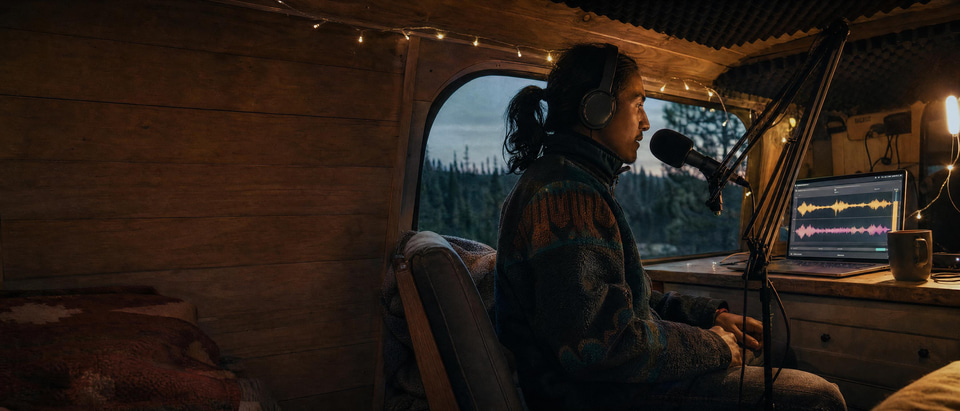
Four modes in one studio
Audio Voice Changer
Anonymize your voice in any audio. Same emotions, laughs, pace — just a different voice. 30 credits.
Know more →Audio Language Dubber
Translate and re-voice audio into another language with AI voices. 90 credits.
Know more →Video Voice Changer
Change your voice in any video. Same emotions, laughs, pace — just a different voice with optional lip sync. 30–130 credits.
Know more →Video Language Dubber
Change language of any video with perfect lip sync in the new language. 90–190 credits.
Know more →Voice change, dubbing and lip sync, explained
Both live in the same studio, but they solve different problems. Voice Changer keeps the original words and only swaps the voice identity; Language Dubber transcribes, translates, and re-voices so the content ends up in a new language. Pick by asking: do I want a different voice, or the same content in a different language?
How does the AI keep my emotion when it changes my voice?
In the Voice Changer modes the studio performs speech-to-speech conversion rather than re-reading a transcript. It maps the timing, pauses, laughs, breaths, and emphasis of your original take onto a new voice identity, so a joke still lands, a sigh still reads as a sigh, and your pacing stays intact — only the timbre changes. That is different from text-to-speech, where the AI reads words fresh and any performance in the original delivery is lost. It is why Voice Changer clips work best under about 45 seconds and why cleaner source audio produces a cleaner result. The Dubber modes take the opposite approach on purpose: they transcribe your speech, translate it into the target language, then generate a fresh performance in a voice you choose. You can steer the translation tone — casual, formal, influencer-reel, or story narration — and in Manual mode you can fix names, slang, and technical terms before the AI ever speaks them.
Try it now →
Why does my dub or voice change sound glitchy, and how do I fix it?
Almost every quality problem traces back to the source file. The AI has to transcribe or convert what it hears, so heavy background noise, multiple overlapping speakers, or a very long clip make the job harder. Feed it cleaner input and the output cleans up with it. Words come out wrong in the dub: Switch to Manual mode and edit the transcript and translation before generating. That is where you correct names, slang, and technical terms so the AI never mispronounces them. Voice change sounds robotic: The source is noisy or the clip is too long. Trim to under about 45 seconds, remove background music, and use a segment with a single clear speaker. Lip sync looks soft or off: Lip sync needs a steady, well-lit, front-facing shot and clips under 60 seconds. Cut a long video into scenes and dub the on-camera segments individually. Translation reads too literal: Pick a translation style — casual, formal, influencer-reel, or story narration — so the re-voiced script matches your content instead of sounding machine-translated. The single biggest lever is clean input: one speaker, minimal background noise, and a short clip. Get that right and Auto mode handles the rest in a couple of clicks.
Try it now →What is an AI voice changer, and when do people use one?
An AI voice changer transforms the voice in a recording into a different voice while keeping the original performance — the words, pace, laughs, and emotion stay, only the timbre changes. It is not a pitch-shift gimmick or a robotic filter; it re-renders the speech in a new voice identity you choose. That makes it useful for anonymizing a clip before you post it, giving a series a consistent narrator without re-recording, or swapping a voiceover on an ad you already shot. Imagera's studio pairs that with a language dubber, so the same upload can also be translated and re-voiced into another language with lip sync. Below is how to tell which of the four modes you actually need, and how to get a clean result the first time.
Auto or manual dubbing — your choice
Language Dubber and Video Dubber can run hands-free, or step by step when you want to review the text first. Voice Changer modes are always direct — they swap the voice without transcribing. Auto mode (Recommended): One click, fully automatic. Upload, pick a target language and voice, and press start — the AI transcribes, translates, and re-voices for you while showing live progress for each step. Best for clean audio with a single speaker. Manual mode (Full control): Work step by step. Review and fix the transcript, adjust the translation wording and tone, then pick a voice before generating — so names, slang, and technical terms come out right. Best for tricky content where accuracy matters.
When should I turn on AI lip sync for video?
Lip sync re-animates the speaker's mouth to match the new audio. It costs extra credits and is capped at 60 seconds per clip, so it is worth using selectively — it makes a dub look natural on a talking-head shot, but adds little when the speaker is off-screen or turned away. Use lip sync when: The speaker's face and mouth are clearly visible for most of the clip and you are changing the language — mismatched lips are the giveaway that a video was dubbed. Skip lip sync when: The speaker is off-camera, wearing a mask, or the shot is a voiceover over B-roll. You save the extra credits and the audio still lines up. Keep clips short: Lip sync maxes out at 60 seconds. Cut a long video into scenes and dub the on-camera segments individually for the cleanest mouth tracking. Start with clean video: A steady, well-lit face gives the AI more to work with than a shaky or low-light shot, which can produce softer mouth motion.
What files, languages, and durations does it support?
Audio uploads accept MP3, WAV, M4A, OGG, and AAC up to 25 MB. Video accepts MP4, MOV, and WebM up to 100 MB. AI lip sync runs on clips up to 60 seconds, and Voice Changer preserves timing most reliably on clips under about 45 seconds — for longer material, cut it into scenes and process the on-camera segments individually. Voice Changer works with source audio in any language, since it converts speech to speech rather than reading a script. The Language Dubber translates across 12 languages — English, Spanish, French, German, Italian, Portuguese, Japanese, Korean, Chinese, Russian, Arabic, and Hindi. In Manual mode you can edit the transcript and translation before generating, which is how you keep names, slang, and technical terms from coming out wrong in the new language. Every job draws from one shared Imagera credit balance, and you are only charged for the steps a mode actually runs — an Audio Voice Changer job never pays for translation, for example.
Tips for the best results
Start with clean audio: Less background noise and one speaker at a time gives the clearest result. Very noisy recordings can sound glitchy. Keep voice-change clips short: Voice Changer keeps your pace, timing, laughs, and pauses — only the voice identity changes. It works best on clips under about 45 seconds. Use Manual mode to fix wording: If a name, slang term, or technical phrase comes through wrong, Manual mode lets you edit the transcript and translation before you generate. Pick a translation style: Dubber modes let you set the tone of the translation — casual, formal, influencer-reel, or story narration — so the re-voiced script matches your content. Turn on lip sync for video: For video dubs, enabling lip sync re-animates the speaker’s mouth to match the new audio. It costs extra credits but looks far more natural. Reuse your cloned voice: A voice you cloned in Voice Design is available here — so you can dub any content in your own voice across languages.
Credit pricing, step by step
Transcription (AI speech-to-text): 30 credits. Translation (Dubber modes only): 30 credits. Voice generation: 30 credits. Lip sync (video modes, optional): 50+ credits, 10 more per extra 10 seconds, up to 60 seconds. You are only charged for the steps a mode actually runs.
How it works
Upload, choose a voice, download — the studio handles transcription, translation and lip sync in between.
What can I actually do with Voice Changer?
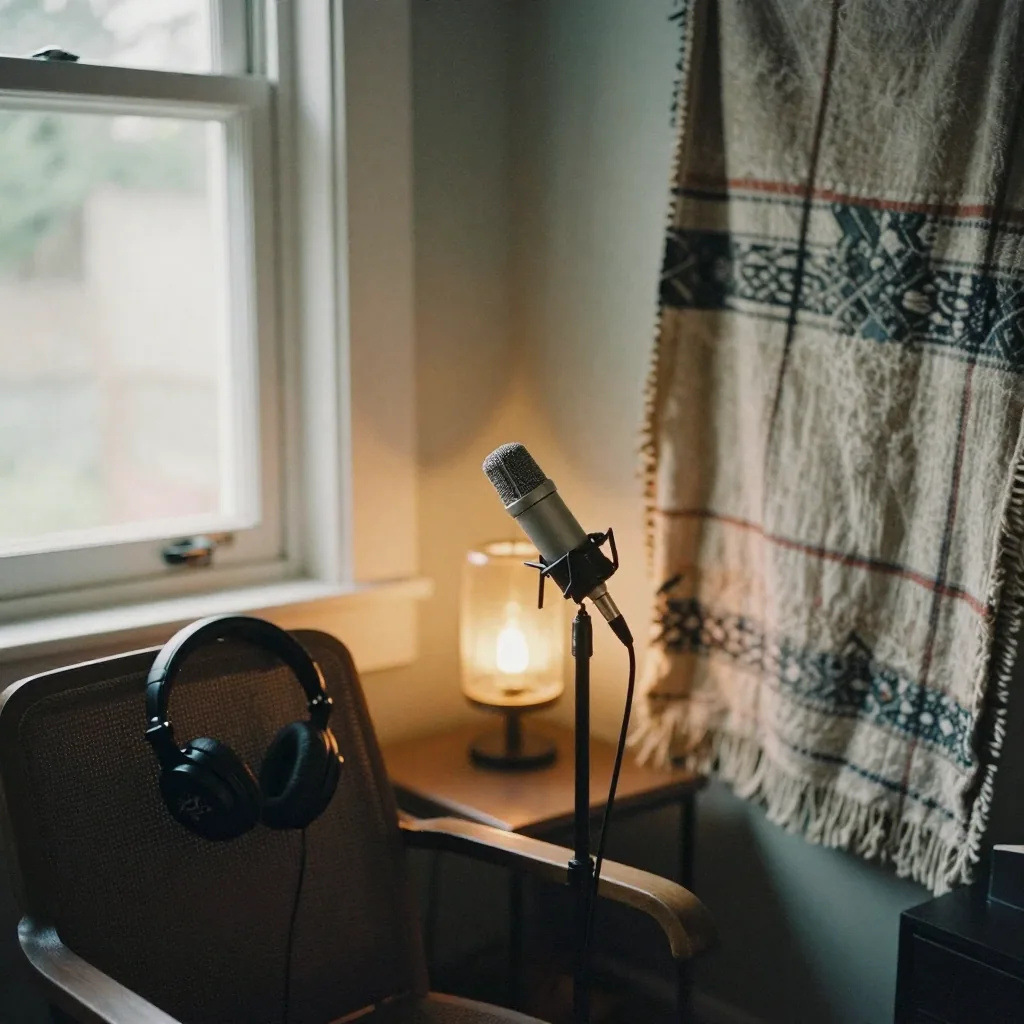
Re-voice a podcast episode
Upload the audio, pick a new voice from your library or presets, and Audio Voice Changer swaps the voice while keeping your laughs, pauses, and pacing — no re-recording a single line.
Try it now →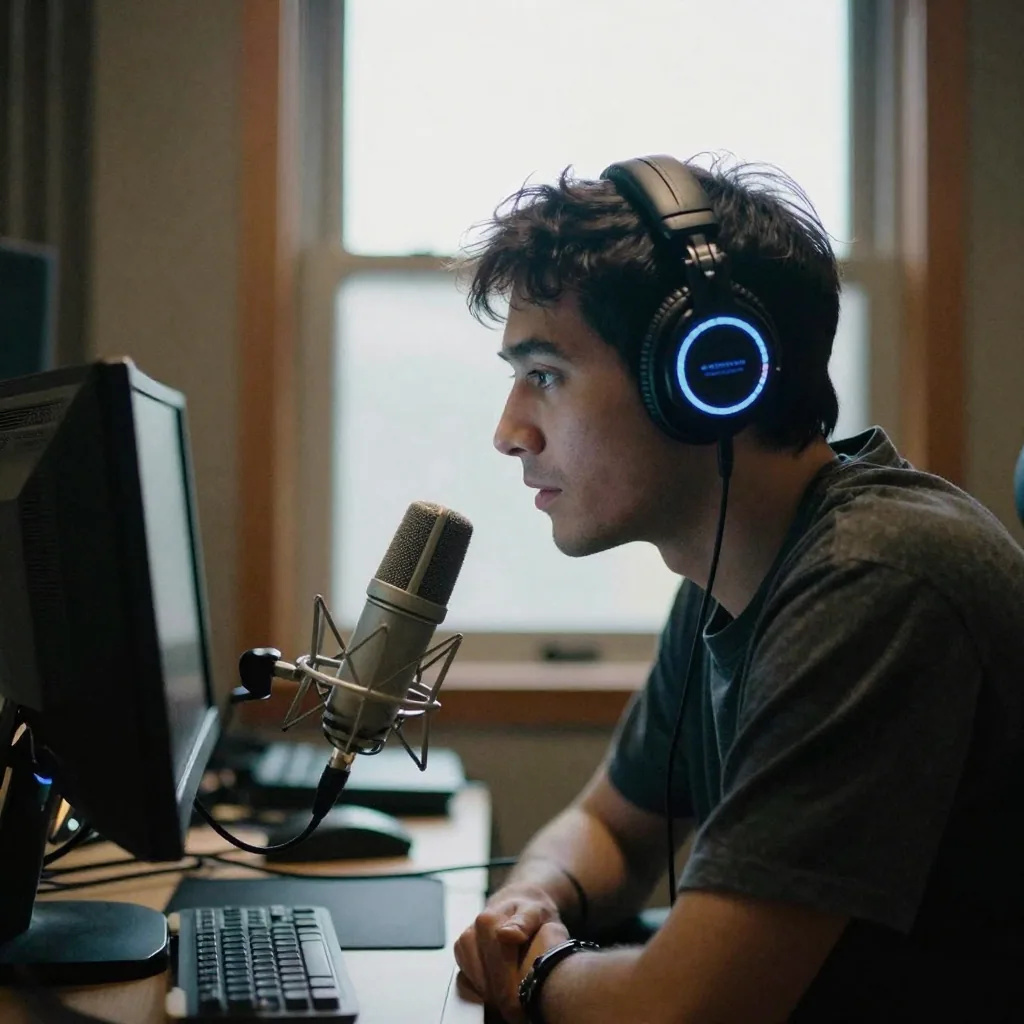
Localize a tutorial for another market
Audio Language Dubber transcribes, translates into one of 12 languages, and re-voices the lesson so the same explainer reaches a new audience.
Try it now →Anonymize a talking-head clip
Video Voice Changer changes how your voice sounds on camera while preserving your delivery; add lip sync so the mouth still matches the audio.
Dub a product video with matching lips
Video Language Dubber translates and re-voices the video, then re-animates the speaker's mouth to the new language so it does not read as an obvious overdub.
Who Voice Changer is for
One studio covers voice changing and language dubbing for both audio and video — so a range of creators can re-voice content without re-recording it. Creators & podcasters: Anonymize your voice for a clip, or re-voice an episode in a different voice without re-recording a word. Localizers & educators: Dub a lecture, tutorial, or explainer into another language so the same content reaches a wider audience. Marketers & agencies: Swap the voiceover on an existing ad or product video, or ship the same clip in several languages. Anyone sharing on camera: Change how your voice sounds in a video while keeping your delivery — same pace, laughs, and emotion.
Discover more AI features
Instant Voice Cloner
10-second sample = perfect clone. Any voice. Any emotion. Professional studio quality.
Custom Voice Designer
Clone voices from audio, design from text, or use 9 built-in presets. 11 languages supported.
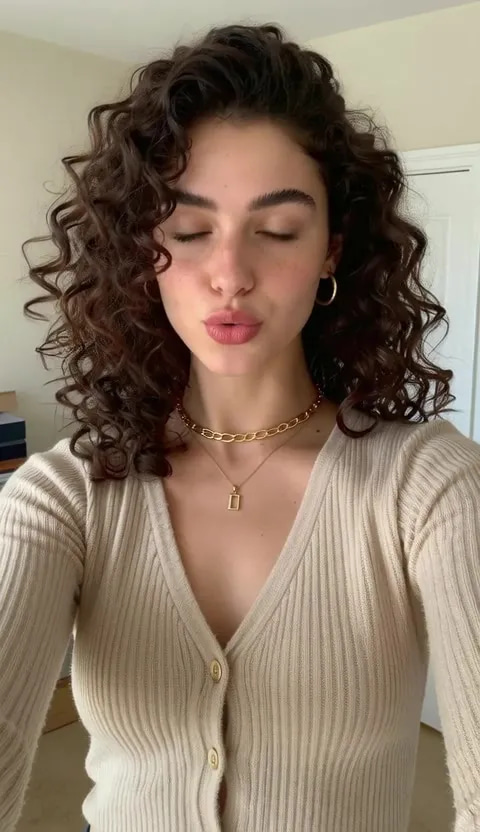
Lipsync Studio
No camera, no shoot, no retakes — a photo and a voice note become a video of that person saying it, or a clip you already shot says something new.
Frequently asked questions
How does Voice Changer work?
Upload your audio or video, our AI transcribes it, you choose a new voice from your library or presets, and we generate the new audio. For videos, optional AI lip sync matches mouth movements to the new voice.
What languages are supported?
Voice Changer works with audio in any language — English, Hindi, Spanish, French, Arabic, and more. The Language Dubber supports translation across 12 languages: English, Spanish, French, German, Italian, Portuguese, Japanese, Korean, Chinese, Russian, Arabic, and Hindi.
Can I use my own cloned voices?
Yes. Any voice you create in Voice Design Studio (cloned, designed, or preset) is available in Voice Changer for voice conversion and dubbing.
How does lip sync work?
For video modes, our AI analyzes the original video and re-renders mouth movements to match the new audio track, creating natural-looking dubbed or voice-changed video.
What file formats and durations are supported?
Audio: MP3, WAV, M4A, OGG, AAC (up to 25 MB). Video: MP4, MOV, WebM (up to 100 MB). Maximum duration for lip sync is 60 seconds. Voice Changer works best with audio up to 45 seconds.
How are credits charged?
Credits are charged per step: 30 for transcription, 30 for translation (dubber modes), 30 for voice generation, and 50+ for optional lip sync. You only pay for steps you use.
What is the difference between Voice Changer and Language Dubber?
Voice Changer swaps the voice directly — it keeps the original words, pace, laughs, and emotion, and only changes the voice identity. Language Dubber transcribes the speech, translates it into another language, and re-voices it, so the content ends up in a new language.
Do I have to use auto mode for dubbing?
No. Dubber modes offer both Auto and Manual workflows. Auto runs transcribe, translate, and re-voice in one click. Manual lets you review and fix the transcript, adjust the translation tone and wording, and choose a voice at each step before generating.
Which voices can I choose from?
You can pick from built-in AI preset voices for both voice changing and dubbing, or use any voice you have cloned in Voice Design. Cloned voices carry across languages, so you can dub content in your own voice.
Can I control the tone of the translation?
Yes. Dubber modes include translation styles — such as casual and conversational, formal and professional, influencer-reel, and story narration — so the re-voiced script matches the style of your content instead of sounding like a literal translation.
Does Voice Changer keep my emotion, laughs, and pacing?
Yes. Voice Changer modes use speech-to-speech conversion, which maps the timing, pauses, laughs, breaths, and emphasis of your original take onto a new voice identity. Only the voice timbre changes — a joke still lands, a sigh still reads as a sigh, and your pace stays intact. This is different from text-to-speech, where the AI reads words fresh and the original performance is lost.
How long can a clip be for voice changing and lip sync?
Voice Changer works best on clips under about 45 seconds, where it can preserve pacing most reliably. AI lip sync for video is capped at 60 seconds per clip. For longer videos, cut the footage into scenes and process the on-camera segments individually — this also produces cleaner mouth tracking on the dubbed sections.
Can I dub a video into another language and keep it in sync?
Yes. Video Language Dubber transcribes the speech, translates it into one of 12 languages, and re-voices it in a voice you choose. Turning on lip sync then re-animates the speaker's mouth to match the new audio, so the dubbed video looks natural rather than obviously overdubbed. Base credits run 90–190 depending on options.
Do I pay for every step even if I do not use it?
No. Credits are charged per step you actually run: 30 for transcription, 30 for translation (dubber modes only), 30 for voice generation, and 50+ for optional lip sync on video modes. An Audio Voice Changer job skips transcription and translation, so it only pays for voice generation. You never pay for steps a mode does not use.
Key takeaways
How does it preserve my voice character?
Anonymizes your voice in audio and video while keeping the same emotions, laughs, and pace — different voice, same delivery.
What modes are available?
4 modes: Audio Voice Changer, Audio Language Dubber, Video Voice Changer, and Video Language Dubber.
How many languages are supported?
12 languages supported for dubbing with AI translation.
Does video output stay in sync?
AI lip sync for video modes re-renders mouth movements to match the new audio.
How is pricing structured?
Pay-per-step pricing: 30 credits for transcription, 30 for translation, 30 for voice generation.
Can I use custom voices?
Yes — custom cloned voices from Voice Design Studio plus 9 built-in AI presets.
Voice Changer vs Language Dubber — which mode do I need?
| Mode | Keeps the words? | Changes language? | Base credits |
|---|---|---|---|
| Audio Voice Changer | Yes — same pace, laughs, emotion | No | 30 |
| Audio Language Dubber | No — re-voiced from translation | Yes — 12 languages | 90 |
| Video Voice Changer | Yes, with optional lip sync | No | 30–130 |
| Video Language Dubber | No, re-voiced with lip sync | Yes — 12 languages | 90–190 |
Ready to Anonymize Your Voice?
Start with any audio or video file. No software to install.
Open Voice Changer →