AI Voice Changer & Video Dubbing Online 2026 — One Voice Studio is a practical Imagera workflow: start from a real source file, describe what should change, generate with credits shown up front, and review before you publish. This guide covers the steps, quality checks, mode-by-mode differences, and when to reach for related tools. Whether you need to swap a narrator's voice on a finished video or take a tutorial from English into Spanish, Hindi, or Japanese, the same studio handles both jobs in one place.
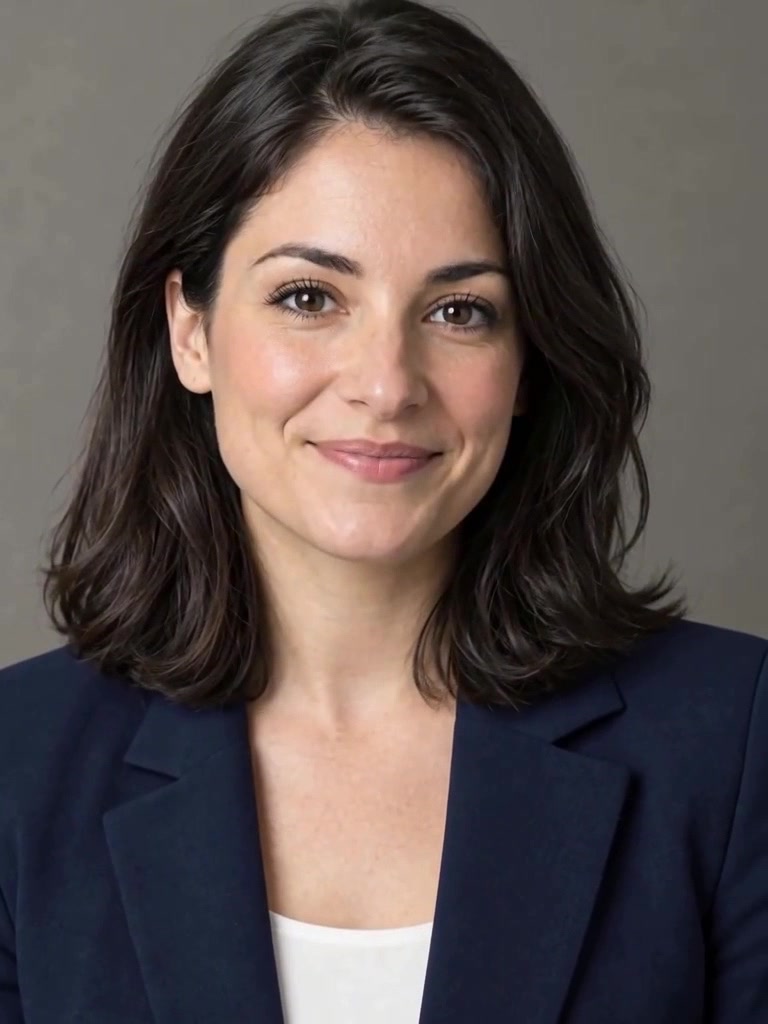
Illustration: generated still of an invented presenter recording a talking-head video at home.
Quick answer: Imagera Voice Studio changes voices and dubs videos into new languages in one place, covering 3 modes — audio voice changer, video voice changer, and language dubbing — on pay-first credits.
How does Imagera dub a video into another language?
Upload your clip, pick a target language, and Voice Studio in 2026 rebuilds the speech track in a new voice. Most short clips under 60 seconds process in a single pass across 1 workflow, and you can pair 1 lip-sync step so mouth motion matches the fresh audio. Credits are charged only for the modes you run, with 3 modes sharing 1 studio.
Can I change just the voice without touching the video?
Yes — Imagera's audio voice changer mode swaps a voice on standalone audio without re-rendering footage, then the same studio handles full-video dubbing when you need both. That is 2 distinct modes in 1 place, and pairing lip sync adds a 3rd step for on-screen speakers. Dubbing a clip into a viewer's own language is a proven way to make it feel native rather than translated, which is why creators route dubbing and voice change through one credit-based studio instead of stitching separate tools together.
Quick verdict
| Job | Mode / page |
|---|---|
| Change voice on video | Voice Studio video-vc |
| Dub video language | video-dub |
| Audio-only change | audio-vc |
| Audio dub | audio-dub |
| TTS / clone | Voice Generator · Popular AI Voice |
| Lip match after dub | Talking avatar · AI Video Dubbing |
Credit packs from 350 credits.
What Voice Studio does
Imagera Voice Studio is one place to do two related jobs: swap a voice and dub a language. It works on both audio and video files, so you pick a mode based on the source and the goal. The two voice changer modes (audio-vc, video-vc) keep your original words but replace the speaker — useful when the script is right but the voice isn't. The two language dubber modes (audio-dub, video-dub) transcribe the source, translate it, and re-voice it in a new language.
For voice changing you can pick a preset voice (options like Aurora, Blade, Richard, Britney, Carl, Cliff, Rico, Siobhan, and Vicky), clone a short sample from your voice library, or keep the original speaker. Voice-changer modes are speech-to-speech: they preserve the original expression, emotion, laughs, and pace while changing who the voice sounds like. You also get a pitch-and-effects panel — pitch (roughly −12 to +12 semitones), speed (0.5× to 2×), and reverb — so you can fine-tune the result without re-recording.
For dubbing you choose a target language and a translation style. The re-voicing uses a separate set of preset voices tuned for text-to-speech (Vivian, Dylan, Eric, Emma, Felix, Grace, Henry, Ivy, and Jack), so the dubbed script sounds like a purpose-built narrator rather than a warped version of the original. Video modes add optional AI lip sync so mouths track the new audio, which matters most when a face is on camera.
The key idea is that a "voice change" and a "dub" are different operations under the hood. A voice change keeps the same language and the same words, and only swaps the speaker's identity. A dub transcribes speech, translates it into a new language, and generates fresh audio in that language. Choosing the right mode up front saves credits and gives you a cleaner result.
Voice changer vs. language dubber — which mode do I need?
Use a voice changer mode when the language is fine and only the speaker needs to change:
- You recorded a good take but the narrator's voice is wrong for the brand or platform.
- A word or phrase is mispronounced and you want a clean re-voice instead of another recording session.
- You want a faceless-content voice that stays consistent across many clips.
- You want to keep the original words and language exactly, but present them through a different, professional-sounding speaker.
Use a language dubber mode when the audience speaks a different language:
- You have an English tutorial and need a Spanish, French, German, Hindi, Chinese, Japanese, or other-language version.
- You're localizing an ad, explainer, or course for a new market.
- You want the same content to reach global viewers without re-scripting or re-filming.
Then pick audio or video based on your source file. Audio modes (audio-vc, audio-dub) output audio; video modes (video-vc, video-dub) keep the picture and swap the audio, with optional lip sync.
How it works
- Pick a mode. Video Voice Changer, Video Language Dubber, Audio Voice Changer, or Audio Language Dubber — chosen by whether you're changing the voice or the language.
- Upload your file. Audio modes accept common formats (MP3, WAV, M4A, OGG, AAC) up to 25MB; video modes accept MP4/MOV/WebM up to 100MB. Voice-changer modes work best on clips under about 45 seconds.
- Review the transcript (dub modes). Voice Studio transcribes speech, auto-detects the language, and lets you edit the text before translation, so you fix names, brand terms, and technical words once.
- Choose a voice. Use a preset, clone from a short reference sample, or keep the original speaker; for dubbing, set the target language and translation style.
- Add lip sync (video modes). Optionally re-sync the speaker's mouth to the new audio for a natural on-camera result.
- Generate and review. Credits are shown before you spend them. Listen or watch, then export.
Behind the scenes, each stage is its own step with its own credit cost — transcription, translation, voice generation or conversion, and lip sync. That's why a full video dub costs more than a plain voice swap: it does more work. It's also why you can preview and edit the transcript before paying for translation and re-voicing, which is the single biggest lever for a clean final result.
Step-by-step: dub a video into another language
- Open video-dub. This mode runs the full pipeline: transcribe, translate, re-voice, and optionally lip sync.
- Upload your MP4/MOV/WebM (up to 100MB). If it's a long recording, consider cutting it into scenes so each dub stays tight and easy to review.
- Wait for the transcript. Voice Studio auto-detects the source language and returns editable text. Read it carefully and fix any misheard names or jargon now — errors here carry through to the translation.
- Set the target language. Pick from a broad list that includes major languages such as Spanish, French, German, Italian, Portuguese, Russian, Chinese, Japanese, Korean, Arabic, Hindi, and many more.
- Choose a translation style. Match the register to your content — Casual & Conversational, Formal & Professional, Documentary, Podcast / Talk Show, News Anchor, Story Narration, Motivational, Educational / Tutorial, Cinematic / Movie Dialogue, Influencer Reel, Kids Friendly, or Comedic. The style changes how the script is worded, not just how it's read.
- Select a dubbing voice. Pick a text-to-speech preset (Vivian, Dylan, Eric, and others) or a cloned voice from your library.
- Enable lip sync if faces talk. For on-camera speakers, turn on lip sync so the mouth tracks the new audio.
- Generate, review, and export. Credits are shown before each step. Play it back, confirm the timing and pronunciation, then download.
Step-by-step: change the voice on a clip
- Open video-vc or audio-vc. These keep your original words and language.
- Upload a short clip. Voice-changer modes are most consistent under about 45 seconds; split longer content into sections.
- Pick a voice. Choose a preset (Aurora, Blade, Richard, and more), clone a reference sample, or keep the original speaker.
- Adjust pitch, speed, and reverb in the effects panel if you want to nudge the character of the voice.
- For video, enable lip sync so the mouth matches the converted audio.
- Convert and review. Because this is speech-to-speech, the delivery, emotion, and pacing of the original are preserved while the speaker identity changes.
Common use cases
- Localizing videos: dub a tutorial, ad, or explainer into another language with translation-style control and optional lip sync.
- Fixing a voiceover without re-recording: swap a mispronounced or off-tone narration for a clean preset or cloned voice.
- Faceless and multilingual creators: re-voice short clips across many languages for global reach with a consistent narrator.
- Podcast and audio edits: change the speaker on an audio-only clip, or translate an episode segment into a second language.
- Product and social content: match a punchy Influencer Reel or News Anchor style to the platform you're posting to.
- Courses and training: turn a single recorded lesson into multiple language versions for an international cohort.
- Agencies and freelancers: deliver a client's spot in three languages from one master file, on a pay-per-use basis.
Who it's for
- Solo creators who want professional-sounding narration or a second-language version without hiring a voice actor or a studio.
- Marketers and small teams localizing ads, landing-page videos, and explainers for new regions.
- Educators and course sellers who need the same lesson in several languages.
- Podcasters cleaning up a take or producing a translated episode segment.
- Video editors who already have a finished cut and just need to swap or translate the audio track — not rebuild the project.
Comparison
Subscription voice tools typically bill monthly whether or not you generate anything that month. Imagera Voice Studio is pay-first with credits, and the amount is shown before you spend. Competitor prices below are their published subscription ranges; the Imagera column is in credits so it stays honest as usage varies.
| What you're comparing | Typical subscription tools | Imagera Voice Studio |
|---|---|---|
| Billing model | Monthly subscription | Pay-first credits, shown up front |
| Voice change (same words) | Often a separate app | Built in (audio-vc, video-vc) |
| Language dubbing | Often a separate app | Built in (audio-dub, video-dub) |
| Transcript editing before dub | Varies | Editable transcript step |
| Translation register control | Limited | 12 translation styles |
| Lip sync for on-camera dubs | Add-on or separate tool | Optional in video modes |
| Cost basis | Fixed $ per month | Credits per step (packs from 350 credits) |
If your only need is text-to-speech or voice cloning from scratch — no source file to change — the Voice Generator and Popular AI Voice pages are the right tools instead. Voice Studio is specifically for transforming recordings you already have.
Tips for best results
- Feed clean dialogue with minimal background music; separate stems if you have them, since clearer input transcribes and re-voices better.
- Keep voice-changer clips short (under about 45s) for the most consistent results, and split long content into sections.
- Edit the transcript before translating in dub modes — correcting names and technical terms once prevents those errors from carrying into every downstream step.
- Match the translation style to the platform: News Anchor or Documentary for informative content, Influencer Reel for short social, Educational / Tutorial for how-tos.
- Test a 10–20 second segment before committing a full episode so you can confirm the voice, style, and (for video) lip sync.
- If faces are on camera, enable lip sync in the video modes or re-sync afterward with the talking avatar or AI Video Dubbing product.
- Loudness-normalize the export before publishing so it sits right next to your other media.
Common mistakes to avoid
- Using a dub mode when you only need a voice change. Dubbing runs extra steps (transcribe, translate) and costs more; if the language is staying the same, use a voice-changer mode.
- Skipping the transcript review. A single misheard name or product term will follow the translation into the final dub. Fix it at the transcript step.
- Feeding a full-length file first. Test a short segment to lock in the voice and style before spending credits on the whole thing.
- Ignoring lip sync on talking-head video. If a face is clearly speaking on camera, dubbed audio without lip sync reads as off. Enable it, or re-sync afterward.
- Uploading noisy audio. Music beds and crosstalk hurt transcription accuracy. Use the cleanest dialogue you have.
- Forgetting to normalize loudness. A dub that's noticeably louder or quieter than your other clips feels unfinished.
Examples
- A faceless YouTube channel records one English narration, runs audio-vc to standardize on a single preset voice across every video, and keeps a consistent brand sound without a mic booth.
- A course creator takes a 20-minute English lesson, splits it into short scenes, and uses video-dub with the Educational / Tutorial style to ship Spanish and Hindi versions, enabling lip sync where the instructor is on camera.
- A product team has a polished demo video but the wrong narrator; they use video-vc to swap in a cleaner voice, keeping every word and cut intact.
- A podcaster re-voices a segment where a name was mispronounced using audio-vc, preserving the original pacing and delivery.
Production workflow for creators
- Export clean dialogue stems when possible.
- Run voice change/dub in Voice Studio.
- If faces talk, re-sync with talking avatar or video dubbing product.
- Loudness-normalize before publish.
- Disclose synthetic/dubbed media when required.
Compliance
Do not impersonate private individuals without rights. Follow platform synthetic media rules. Commercial use follows paid plan terms. Voice cloning should only be used on voices you own or are authorized to use, and dubbed or synthetic media should be labeled wherever your platform requires it. If you receive a voice note you suspect was cloned, the AI voice detector checks the recording for synthetic speech.
Pricing
Credit packs from 350 credits. Voice Studio runs in the cloud, and each step of a job — transcription, translation, voice generation, and optional lip sync — uses credits, with the amount shown before you generate. A plain voice change costs less than a full language dub because the dub does more work. Test 10–20s before full episodes. See ElevenLabs alternative.
Start here (product links)
- Voice Studio
- Video Voice Changer mode
- Video Language Dubber
- Audio Voice Changer
- Audio Language Dubber
- Voice Generator
- Popular AI Voice
- AI Video Dubbing
- Pricing
Bottom line
Imagera Voice Studio covers audio/video voice change and language dubbing modes in one place. Credit packs from 350 credits. Pair with lip sync when mouth motion must match new audio.
Related tools: Voice Studio · Video Voice Changer mode · Video Language Dubber · Pricing